

Creating a Trading Administrator Panel in MQL5 (Part VIII): Analytics Panel
 3 870
3 870
 2
2

Introduction
This article marks the development of the third sub-panel within the Admin Panel EA, focusing on breaking current limitations and enhancing its functionality. While the existing design already supports communication and trade management, today's expansion introduces statistical tools to streamline the analysis of vital market metrics. By automating research and calculations, these tools eliminate the reliance on manual methods, simplifying the process for trading administrators. Inspired by the simplicity and clarity of data visualized through PieCharts, we will concentrate on two key aspects of trade performance distribution: the win-to-loss ratio and trade-type categorization. These metrics provide immediate insights into trading success and the allocation of trades across different asset classes such as Forex, Stocks, or Options.
The Analytics Panel leverages real-time data visualization to address the inefficiencies of manual analysis. By incorporating pie charts, the panel enables users to quickly assess their win-to-loss ratios and trade-type distributions without delays in decision-making. This feature represents a significant leap in efficiency, empowering administrators to make informed decisions with accuracy and speed.
Through this development, we will utilize MQL5's PieChart and ChartCanvas classes to automate these processes, showcasing the potential of advanced statistical tools. With this enhancement, the Admin Panel EA evolves into an even more robust system, offering valuable insights at a glance while underscoring the educational and practical benefits of this development series.
For the success of the project, I have these sub-topics as our core content:
- Overview of the Analytics Panel
- Preparing the Analytics Panel using CDialog Class
- Getting Trade History data for displaying
- Implementing the PieChart and ChartCanvas Classes to present data
- Testing the new features
- Conclusion
Overview of the Analytics Panel
The Analytics Panel will be a dynamic and interactive interface designed to provide visual insights into trading performance and activity distribution. For today's discussion, this panel features two primary pie charts: the Win vs. Loss Pie Chart, which illustrates the proportion of winning and losing trades, and the Trade Type Distribution Chart, which categorizes trades into Forex, Stocks, and Futures. These charts are seamlessly integrated into the panel, offering a clean and intuitive layout for easy interpretation. By leveraging real-time data from the trading history, the Analytics Panel delivers a comprehensive snapshot of trading outcomes, enabling users to gauge trade performance.
The Analytics Panel can be further enhanced with additional visualizations and metrics to provide a more comprehensive analysis of trading performance and activity. Here are some features that could be incorporated:
- Performance Line Chart
- Trade Volume Bar Chart
- Profitability Metrics Table
- Top-Performing Assets Section
- Heatmap of Trading Hours
- Win/Loss Streak Tracker
- Risk Exposure Chart
- Customizable Alerts and Thresholds
- Sentiment Analysis Integration
- Interactive Filters etc.
In other words, the Analytics Panel provides a comprehensive overview of trading performance, enabling users to identify patterns, assess profitability, and monitor progress over time. This helps traders stay informed about their strengths and weaknesses, ensuring they make data-driven adjustments to their strategies. Now, we move on to the stage of preparing our old version of the Admin Panel for an upgrade. I have also taken the time to refine every line of the previous code to ensure it is easy to follow.
Preparing the Analytics Panel using CDialog Class
Upgrading a large program can often feel overwhelming, especially when it involves repeating tasks previously done. This is why having a well-defined template to govern the layout and structure of the program is essential. With a solid template in place and through repeated use, it becomes ingrained in your workflow, enabling you to perform full development tasks without constantly referring back to it. Our program has indeed grown significantly, and to manage this complexity, I focus on what I aim to achieve and how it flows, aligning these goals with the program's modular sections.
For instance, consider our Admin Home Panel, which serves as the central interface after the program launches. From there, we can access other panels. To include an Analytics Panel, I envision a button within the Admin Home Panel that creates and opens the Analytics Panel upon being clicked. Inside the Analytics Panel, I imagine control buttons and features specific to its purpose. With this vision in mind, the development process gains clarity and direction, providing a justified starting point. Let me take you through the approach we applied.
To cut it short the story begins here;
First we consider inclusion of the necessary classes that we are going to use:
#include <Controls\Dialog.mqh>
#include <Controls\Button.mqh>
Declaration of Dialog and the button for the Analytics Panel:
// Global variables for the Analytics Panel
CDialog analyticsPanel;                      // The main panel for analytics
CButton adminHomeAnalyticsButton;            // Button for accessing analytics from the Home panel
CButton minimizeAnalyticsButton;             // Minimize button for the Analytics panel
CButton closeAnalyticsButton;                // Close button for the Analytics panel
CButton analyticsPanelAccessButton;          // The first Button that will take us a next step
Analytics Panel Creation and Button handlers:
To create the Analytics Panel upon clicking the analyticsPanelAccessButton, we implemented this functionality using a button handler function. A similar approach has been applied to other panels as well. Previously, these panels were created and hidden during the initialization phase, which added unnecessary load to the initialization function. Now, panels are dynamically created on-demand through their respective button clicks, optimizing performance and resource usage. Below is the code snippet demonstrating this improvement:
//+------------------------------------------------------------------+
//| Analytics Panel Event Handling                                   |
//+------------------------------------------------------------------+
void OnChartEvent(const int id, const long &lparam, const double &dparam, const string &sparam)
{
    if (id == CHARTEVENT_OBJECT_CLICK)
    {
        if (sparam == "AnalyticsPanelAccessButton")
        {
            analyticsPanel.Show();
            adminHomePanel.Hide();
            if (!analyticsPanel.Create(ChartID(), "Analytics Panel", 0, 500, 450, 1280, 650) || !CreateAnalyticsPanelControls()) {}
            CreateAnalyticsPanel();
        }
        else if (sparam == "MinimizeAnalyticsButton")
        {
            analyticsPanel.Hide();
            adminHomePanel.Show();
        }
        else if (sparam == "CloseAnalyticsButton")
        {
            analyticsPanel.Destroy();
            adminHomePanel.Show();
        }
    }
}
This code snippet handles events related to the Analytics Panel within the OnChartEventfunction, specifically when user clicks are detected on chart objects (CHARTEVENT_OBJECT_CLICK). If the Analytics Panel Access Button is clicked, the panel is shown, the Admin Home Panel is hidden, and the Analytics Panel is created dynamically along with its controls using the CreateAnalyticsPanel function. If the Minimize Analytics Button is clicked, the Analytics Panel is hidden, and the Admin Home Panel is shown again. Lastly, if the Close Analytics Button is clicked, the Analytics Panel is destroyed entirely, and the Admin Home Panel is restored to the display. This dynamic handling ensures that the appropriate panels are displayed or hidden based on user actions, improving both functionality and user experience.
Creating Analytics Panel Controls:
This code snippet defines a function, CreateAnalyticsPanelControls, that initializes and adds controls to an analytics panel in an MQL5 application. It begins by obtaining the current chart's ID with ChartID() and attempts to create a minimize button (minimizeAnalyticsButton) at specific coordinates. If the creation fails, it logs an error message and returns false. If successful, the button is labeled with an underscore ("_") and added to the analyticsPanel container. Similarly, it creates a close button (closeAnalyticsButton) labeled with an "X" at another set of coordinates, following the same error-checking process. The function ends with a placeholder comment suggesting where additional analytics-related controls, such as charts or input elements, could be added. If all controls are created successfully, the function returns true.
bool CreateAnalyticsPanelControls()
{
    long chart_id = ChartID();

    // Create Minimize Button
    if (!minimizeAnalyticsButton.Create(chart_id, "MinimizeAnalyticsButton", 0, 210, -22, 240, 0))
    {
        Print("Failed to create minimize button for Analytics Panel");
        return false;
    }
    minimizeAnalyticsButton.Text("_");
    analyticsPanel.Add(minimizeAnalyticsButton);

    // Create Close Button
    if (!closeAnalyticsButton.Create(chart_id, "CloseAnalyticsButton", 0, 240, -22, 270, 0))
    {
        Print("Failed to create close button for Analytics Panel");
        return false;
    }
    closeAnalyticsButton.Text("X");
    analyticsPanel.Add(closeAnalyticsButton);

    // Add additional controls specific to analytics as needed
    // For example, charts, labels, or input elements for data representation

    return true;
}
We also moved the creation of many panels from the initialization functions to be triggered through button handlers. Since making this change, I have noticed a significant improvement in the performance of the Expert Advisor (EA), particularly in terms of speed when navigating between various panels.
Here is the main OnChartEvent handler function combined:
void OnChartEvent(const int id, const long &lparam, const double &dparam, const string &sparam)
{
    if (id == CHARTEVENT_OBJECT_CLICK)
    {
        if (sparam == "HomeButtonComm") { adminHomePanel.Show(); communicationsPanel.Hide(); }
        else if (sparam == "HomeButtonTrade") { adminHomePanel.Show(); tradeManagementPanel.Hide(); }
        else if (sparam == "AdminHomeAnalyticsButton") { adminHomePanel.Show(); analyticsPanel.Hide(); }
        else if (sparam == "MinimizeAnalyticsButton") { analyticsPanel.Hide(); adminHomePanel.Show(); }
        else if (sparam == "CloseAnalyticsButton") { analyticsPanel.Destroy(); adminHomePanel.Show(); }
        else if (sparam == "TradeMgmtAccessButton") {
            tradeManagementPanel.Show(); adminHomePanel.Hide();
            if (!tradeManagementPanel.Create(ChartID(), "Trade Management Panel", 0, 500, 30, 1280, 170) || !CreateTradeManagementControls()) {}
        }
        else if (sparam == "CommunicationsPanelAccessButton") {
            communicationsPanel.Show(); adminHomePanel.Hide();
            if (!communicationsPanel.Create(ChartID(), "Communications Panel", 0, 20, 150, 490, 650) || !CreateCommunicationsPanelControls()) {}
        }
        else if (sparam == "CloseHomeButton") { adminHomePanel.Destroy(); }
        else if (sparam == "MinimizeHomeButton") { adminHomePanel.Hide(); maximizeHomeButton.Show(); }
        else if (sparam == "MaximizeHomeButton") { adminHomePanel.Show(); maximizeHomeButton.Show(); }
        else if (sparam == "AnalyticsPanelAccessButton") {
            analyticsPanel.Show(); adminHomePanel.Hide();
            if (!analyticsPanel.Create(ChartID(), "Analytics Panel", 0, 500, 450, 1280, 650) || !CreateAnalyticsPanelControls()) {};
          CreateAnalyticsPanel();
        }

        else if (sparam == "ShowAllButton") {
            analyticsPanel.Show(); communicationsPanel.Show(); tradeManagementPanel.Show(); adminHomePanel.Hide();
        }
        else if (sparam == "MinimizeComsButton") { OnMinimizeComsButtonClick(); }
        else if (sparam == "CloseComsButton") { communicationsPanel.Destroy(); }
        else if (sparam == "LoginButton") { OnLoginButtonClick(); }
        else if (sparam == "CloseAuthButton") { OnCloseAuthButtonClick(); }
        else if (sparam == "TwoFALoginButton") { OnTwoFALoginButtonClick(); }
        else if (sparam == "Close2FAButton") { OnClose2FAButtonClick(); }
    }

    switch (id)
    {
        case CHARTEVENT_OBJECT_CLICK:
            if (sparam == "SendButton") OnSendButtonClick();
            else if (sparam == "ClearButton") OnClearButtonClick();
            else if (sparam == "ChangeFontButton") OnChangeFontButtonClick();
            else if (sparam == "ToggleThemeButton") OnToggleThemeButtonClick();
            else if (sparam == "MinimizeComsButton") OnMinimizeComsButtonClick();
            else if (sparam == "CloseComsButton") OnCloseComsButtonClick();
            else if (StringFind(sparam, "QuickMessageButton") != -1) {
                long index = StringToInteger(StringSubstr(sparam, 18));
                OnQuickMessageButtonClick(index - 1);
            }
            break;

        case CHARTEVENT_OBJECT_ENDEDIT:
            if (sparam == "InputBox") OnInputChange();
            break;
    }
}
Finally, I also considered adjusting the Admin Home Panel, as shown by its coordinates and width in this code snippet below:
//+------------------------------------------------------------------+
//| Expert initialization function                                   |
//+------------------------------------------------------------------+
int OnInit()
{

    if (!ShowAuthenticationPrompt())
    {
        Print("Authorization failed. Exiting...");
        return INIT_FAILED;
    }

    if (!adminHomePanel.Create(ChartID(), "Admin Home Panel", 0, 30, 80,330, 550))
    {
        Print("Failed to create Admin Home Panel");
        return INIT_FAILED;
    }

    if (!CreateAdminHomeControls())
    {
        Print("Home panel control creation failed");
        return INIT_FAILED;
    }

    adminHomePanel.Hide(); // Hide home panel by default on initialization

    return INIT_SUCCEEDED;
}
Getting Trade History data for displaying
Now we need to obtain data from the terminal history that we can present through Piechart in our new Panel. The GetTradeData function is designed to analyze historical trade data and classify it into specific categories, providing a foundation for detailed trade performance analysis. It first initializes counters for wins, losses, and three trade types: Forex, Stocks, and Futures. The function relies on the HistorySelect function to retrieve trade data from the beginning of the trading account's history to the current time. If this selection process fails, the function logs an error and exits, ensuring robustness against unavailable historical data. It then iterates through all available deals, using HistoryDealGetTicket to retrieve each deal's unique identifier. For every valid deal, the function assesses its profitability by analyzing the profit value, incrementing either the wins or losses counter based on whether the profit was positive or negative.
The categorization of trades is determined by their symbols. Forex trades are identified by the absence of a dot in their symbol names, while Stocks and Futures trades are classified by checking the SYMBOL_PATH property of the symbol. The group name of the symbol determines whether it falls under the "Stocks" or "Futures" categories. This step ensures that trades are accurately grouped according to their financial instruments. By aggregating this information, the function provides a comprehensive breakdown of trading performance, which can be used for further analysis or visualization.
In today's scenario, this function can be integrated into an Analytics Panel to generate a pie chart showing the distribution of trade categories and the ratio of wins to losses. For instance, a trader might use the function to visualize that 60% of their trades are in Forex, 30% in stocks, and 10% in Futures, while their overall success rate stands at 70%. Such insights are invaluable for evaluating trading performance and identifying areas for improvement. Additionally, the function's real-time data analysis capabilities make it suitable for creating responsive dashboards that help traders adapt strategies based on historical trends.
Beyond its current implementation, the GetTradeData function has potential for broader applications. It could be extended to analyze specific time ranges or incorporate additional metrics, such as average profit or drawdown. This data could then be integrated into external tools, such as machine learning models for predictive analytics or interactive reports for investor presentations. With such extensions, the function becomes a versatile tool for both individual traders and larger trading systems aiming to maximize efficiency and profitability
Here is the code as implemented:
//+------------------------------------------------------------------+
//| Data for Pie Chart                                               |
//+------------------------------------------------------------------+

void GetTradeData(int &wins, int &losses, int &forexTrades, int &stockTrades, int &futuresTrades) {
    wins = 0;
    losses = 0;
    forexTrades = 0;
    stockTrades = 0;
    futuresTrades = 0;

    if (!HistorySelect(0, TimeCurrent())) {
        Print("Failed to select trade history.");
        return;
    }

    int totalDeals = HistoryDealsTotal();

    for (int i = 0; i < totalDeals; i++) {
        ulong dealTicket = HistoryDealGetTicket(i);
        if (dealTicket > 0) {
            double profit = HistoryDealGetDouble(dealTicket, DEAL_PROFIT);

            if (profit > 0) wins++;
            else if (profit < 0) losses++;

            string symbol = HistoryDealGetString(dealTicket, DEAL_SYMBOL);
            if (SymbolInfoInteger(symbol, SYMBOL_SELECT)) {
                if (StringFind(symbol, ".") == -1) forexTrades++;
                else {
                    string groupName;
                    if (SymbolInfoString(symbol, SYMBOL_PATH, groupName)) {
                        if (StringFind(groupName, "Stocks") != -1) stockTrades++;
                        else if (StringFind(groupName, "Futures") != -1) futuresTrades++;
                    }
                }
            }
        }
    }
}
Implementing the PieChart and ChartCanvas Classes to present data
We start by including the classes:
#include <Canvas\Charts\PieChart.mqh>
#include <Canvas\Charts\ChartCanvas.mqh>
Custom Pie Chart Class:
We began by deriving the CCustomPieChart class from the CPieChart base class. The goal was to expose the protected DrawPie method, which is normally inaccessible outside the parent class. By creating a public method DrawPieSegment that wraps around DrawPie, we gained the flexibility to draw individual pie chart segments dynamically. This was particularly useful when implementing custom rendering logic in the DrawPieChart method of the CAnalyticsChart class. This step ensured that we had fine-grained control over the visual representation of each pie slice, allowing us to build more dynamic and visually tailored pie charts for our analytics panel.
//+------------------------------------------------------------------+
//| Custom Pie Chart Class                                           |
//+------------------------------------------------------------------+
class CCustomPieChart : public CPieChart {
public:
    void DrawPieSegment(double fi3, double fi4, int idx, CPoint &p[], const uint clr) {
        DrawPie(fi3, fi4, idx, p, clr); // Expose protected method
    }
};
Analytics Chart Class:
Next, we extended the CWnd class to create CAnalyticsChart, a specialized chart container. This class is where we integrated the CCustomPieChart as a member, enabling it to serve as the foundation for drawing pie charts. We implemented methods such as CreatePieChart to initialize the pie chart widget within a defined area and SetPieChartData to link data values, labels, and colors to the chart. Additionally, the DrawPieChart method was carefully coded to calculate each segment's angular span based on the dataset and to call DrawPieSegment for rendering. By working through this logic, we ensured the pie chart could be drawn dynamically, reflecting the underlying data in a visually engaging way.
//+------------------------------------------------------------------+
//| Analytics Chart Class                                            |
//+------------------------------------------------------------------+
class CAnalyticsChart : public CWnd {
private:
    CCustomPieChart pieChart;  // Declare pieChart as a member of this class

public:
    bool CreatePieChart(string label, int x, int y, int width, int height) {
        if (!pieChart.CreateBitmapLabel(label, x, y, width, height)) {
            Print("Error creating Pie Chart: ", label);
            return false;
        }
        return true;
    }

    void SetPieChartData(const double &values[], const string &labels[], const uint &colors[]) {
        pieChart.SeriesSet(values, labels, colors);
        pieChart.ShowPercent();
    }

    void DrawPieChart(const double &values[], const uint &colors[], int x0, int y0, int radius) {
        double total = 0;
        int seriesCount = ArraySize(values);

        if (seriesCount == 0) {
            Print("No data for pie chart.");
            return;
        }

        for (int i = 0; i < seriesCount; i++)
            total += values[i];

        double currentAngle = 0.0;

        // Resize the points array
        CPoint points[];
        ArrayResize(points, seriesCount + 1);

        for (int i = 0; i < seriesCount; i++) {
            double segmentValue = values[i] / total * 360.0;
            double nextAngle = currentAngle + segmentValue;

            // Define points for the pie slice
            points[i].x = x0 + (int)(radius * cos(currentAngle * M_PI / 180.0));
            points[i].y = y0 - (int)(radius * sin(currentAngle * M_PI / 180.0));

            pieChart.DrawPieSegment(currentAngle, nextAngle, i, points, colors[i]);

            currentAngle = nextAngle;
        }

        // Define the last point to close the pie
        points[seriesCount].x = x0 + (int)(radius * cos(0));  // Back to starting point
        points[seriesCount].y = y0 - (int)(radius * sin(0));
    }
};
Create Analytics Panel Function:
To tie everything together, we wrote the CreateAnalyticsPanel function to handle the actual implementation of the analytics panel. First, we fetched the trade data—like wins, losses, and trade type counts—using our GetTradeData function. We then instantiated two CAnalyticsChart objects for different visualizations. For the first chart, we used the retrieved win/loss data to set up a pie chart labeled "Win vs. Loss Pie Chart." Similarly, for the second chart, we used trade type data to create a "Trade Type Distribution" pie chart. By calling SetPieChartData and DrawPieChart for each chart, we rendered them dynamically and added them to the analyticsPanel. This approach allowed us to break the code into modular and reusable components, ensuring clarity and maintainability.
//+------------------------------------------------------------------+
//| Create Analytics Panel                                           |
//+------------------------------------------------------------------+
void CreateAnalyticsPanel() {
    int wins, losses, forexTrades, stockTrades, futuresTrades;
    GetTradeData(wins, losses, forexTrades, stockTrades, futuresTrades);

    // Declare pieChart1 and pieChart2 as local variables
    CAnalyticsChart pieChart1;
    CAnalyticsChart pieChart2;

    // Win vs Loss Pie Chart
    if (!pieChart1.CreatePieChart("Win vs. Loss Pie Chart", 20, 20, 300, 300)) {
        Print("Error creating Win/Loss Pie Chart");
        return;
    }

    double winLossValues[] = {wins, losses};
    string winLossLabels[] = {"Wins", "Losses"};
    uint winLossColors[] = {clrGreen, clrRed};

    pieChart1.SetPieChartData(winLossValues, winLossLabels, winLossColors);
    pieChart1.DrawPieChart(winLossValues, winLossColors, 150, 150, 140);

    // Add pieChart1 to the analyticsPanel
    analyticsPanel.Add(pieChart1);

    // Trade Type Pie Chart
    if (!pieChart2.CreatePieChart("Trade Type Distribution", 350, 20, 300, 300)) {
        Print("Error creating Trade Type Pie Chart");
        return;
    }

    double tradeTypeValues[] = {forexTrades, stockTrades, futuresTrades};
    string tradeTypeLabels[] = {"Forex", "Stocks", "Futures"};
    uint tradeTypeColors[] = {clrBlue, clrOrange, clrYellow};

    pieChart2.SetPieChartData(tradeTypeValues, tradeTypeLabels, tradeTypeColors);
    pieChart2.DrawPieChart(tradeTypeValues, tradeTypeColors, 500, 150, 140);

    // Add pieChart2 to the analyticsPanel
    analyticsPanel.Add(pieChart2);

    // Show the analyticsPanel
    analyticsPanel.Show();
}
Why We Did It This Way:
By coding the system this way, we ensured that the creation of charts was both dynamic and flexible. Deriving CCustomPieChart gave us control over pie chart rendering, while CAnalyticsChart allowed us to encapsulate pie chart functionality into a self-contained class. This made it easy to add new charts or adjust their behavior without affecting other parts of the program. For instance, in today’s project, if we wanted to add another chart for equity curve analysis, we could reuse the same CAnalyticsChart structure with minimal effort. This modular approach not only streamlines development but also makes the analytics panel highly extensible for future enhancements.
Preventing Array out of range error:
To prevent an "array out of range" error in the CPieChart::DrawPie method from PieChart.mqh, we added a range check to ensure that the index (idx + 1) is within the bounds of the CPoint array (p[]) before accessing it. This safeguard ensures the array is properly sized before use and prevents invalid operations. If the index is out of bounds, the function exits early and prints an error message for debugging. Additionally, during pie chart rendering, the CPoint array is resized appropriately to accommodate all pie segments, ensuring the data structure is always large enough for computations The added condition if (idx + 1 >= ArraySize(p)) checks whether the next index is valid, and if not, it prints an error message and returns early to prevent further processing. This check prevents the function from trying to access an out-of-bounds array element, thus avoiding the error.
if (idx + 1 >= ArraySize(p)) {
    Print("Array out of range error: idx = ", idx, ", ArraySize = ", ArraySize(p));
    return;
}
Please note that we had to modify the built-in Pie Chart class to prevent the error mentioned earlier during the testing of the Expert Advisor (EA).
//+------------------------------------------------------------------+
//| Draw pie                                                         |
//+------------------------------------------------------------------+
void CPieChart::DrawPie(double fi3, double fi4, int idx, CPoint &p[], const uint clr) {
    // Ensure array index is within bounds
    if (idx + 1 >= ArraySize(p)) {
        Print("Array out of range error: idx = ", idx, ", ArraySize = ", ArraySize(p));
        return;
    }

    //--- draw arc
    Arc(m_x0, m_y0, m_r, m_r, fi3, fi4, p[idx].x, p[idx].y, p[idx + 1].x, p[idx + 1].y, clr);

    //--- variables
    int x3 = p[idx].x;
    int y3 = p[idx].y;
    int x4 = p[idx + 1].x;
    int y4 = p[idx + 1].y;

    //--- draw radii
    if (idx == 0)
        Line(m_x0, m_y0, x3, y3, clr);
    if (idx != m_data_total - 1)
        Line(m_x0, m_y0, x4, y4, clr);

    //--- fill
    double fi = (fi3 + fi4) / 2;
    int xf = m_x0 + (int)(0.99 * m_r * cos(fi));
    int yf = m_y0 - (int)(0.99 * m_r * sin(fi));
    Fill(xf, yf, clr);

    //--- for small pie
    if (fi4 - fi3 <= M_PI_4)
        Line(m_x0, m_y0, xf, yf, clr);
}
Testing the new features
In this section, we present the outcome of our enhancements, showcasing the updated version of our program and its features. Below are a series of images illustrating the improvements. First, we highlight the redesigned Admin Home Panel along with the newly added button. Next, we display the Analytics Panel, featuring trading data distribution visualizations. This is followed by a full view of the Admin Panel with all its sub-panels visible. Finally, we include an animated screen capture demonstrating the deployment of the application on the terminal chart for seamless integration.
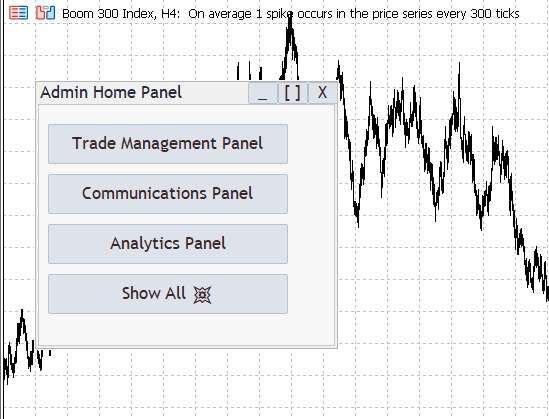
New Admin Home Panel

Analytics Panel
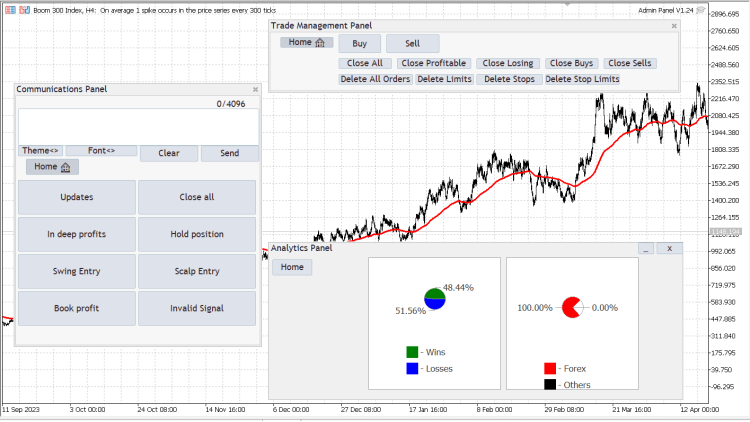
Admin Panel V1.23 Full View
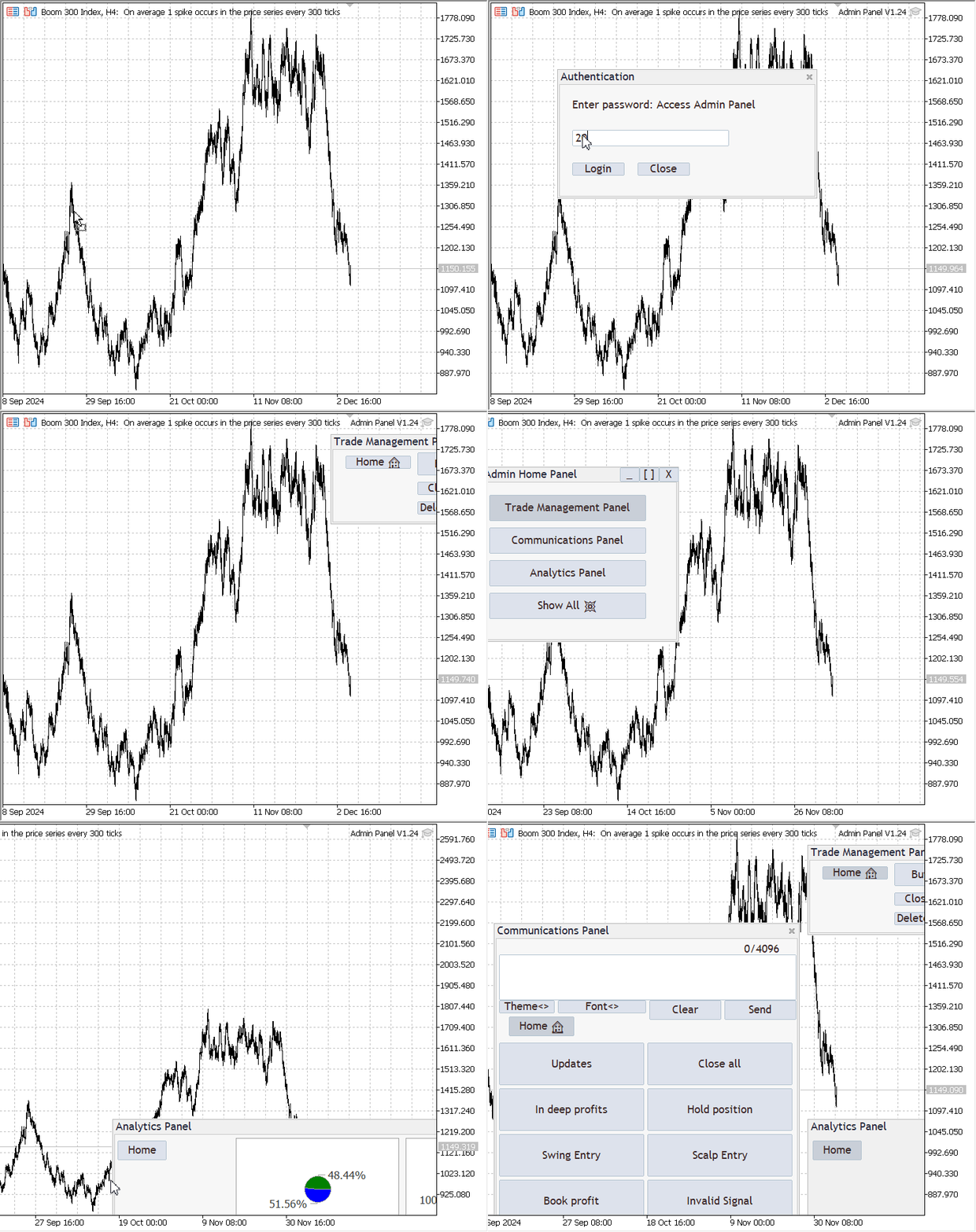
Boom 300 Index, H4 : Admin Panel V1.24 EA launch
Conclusion
In today's discussion, we explored the development of advanced features in MQL5, focusing on integrating new classes and techniques to enhance the Admin Panel and its functionality. By utilizing MQL5's capabilities, we successfully implemented dynamic panels and data-driven visuals like pie charts to represent trading performance effectively. This project demonstrates the immense potential of MQL5 for creating sophisticated, user-friendly tools tailored for traders and developers alike.
The newly implemented Analytics Panel provides traders with actionable insights into their trading performance, while offering developers a solid framework to build upon. By addressing challenges like panel clutter, object layering, and dynamic control creation, we have laid the groundwork for a more efficient and intuitive interface. These improvements are foundational and a stepping stone for future innovations. Developers can extend this framework to incorporate additional analytics, interactive features, or even entirely new functionalities. The attached source files and images showcase the outcome of our efforts, offering inspiration for others to explore the limitless possibilities of MQL5. Happy trading, and may this guide spark your creativity in furthering your projects!

Warning: All rights to these materials are reserved by MetaQuotes Ltd. Copying or reprinting of these materials in whole or in part is prohibited.
This article was written by a user of the site and reflects their personal views. MetaQuotes Ltd is not responsible for the accuracy of the information presented, nor for any consequences resulting from the use of the solutions, strategies or recommendations described.

 Neural Networks Made Easy (Part 95): Reducing Memory Consumption in Transformer Models
 MQL5 Trading Toolkit (Part 4): Developing a History Management EX5 Library
 Developing a trading robot in Python (Part 3): Implementing a model-based trading algorithm
 Utilizing CatBoost Machine Learning model as a Filter for Trend-Following Strategies

- Free trading apps
- Over 8,000 signals for copying
- Economic news for exploring financial markets
You agree to website policy and terms of use
Hi, like to see this work but got some errors at compilation. What did I miss?
Hi, like to see this work but got some errors at compilation. What did I miss?
Hey, my good friend!
In Part III of the series, we extended the Dialog Class to include theme management features. To resolve the errors you're encountering, simply download the extended files and copy them to the appropriate location:
Once you've done this, try to compile again. The errors should be resolved. If you encounter any further errors, please don't hesitate to reach out.