

Tables in the MVC Paradigm in MQL5: Integrating the Model Component into the View Component
 3 122
3 122
 2
2

Contents
- Introduction
- Refining library classes
- Table cell class (View)
- Table row class (View)
- Column header class of the table (View)
- Table header class (View)
- Table class (View)
- Testing the Result
- Conclusion
Introduction
In article “Table and Header Classes based on a table model in MQL5: Applying the MVC concept" we completed creating the table model class (in the MVC concept it means the Model component). Next, we were developing a library of simple controls that allow for creating controls based on them that are completely different in purpose and complexity. In particular, the View component for creating the TableView control.
This article will cover implementation of the interaction between the Model component and the View component. In other words, today we will combine tabular data with their graphical representation in a single control.
The control will be created based on the Panel object class, and will consist of several elements:
- Panel is the base, the substrate to which the table header and the data area of the table are attached;
- Panel is a table header consisting of a number of elements: column headers created based on the Button object class;
- Container is the tabular data container with scrollable content;
- Panel is a panel for arranging table rows on it (attached to the container (item 3) and, when going beyond the container, scrolls using container scrollbars);
- Panel — table row is a panel for drawing table cells on it, attached to the panel (item 4). A number of such objects corresponds to the number of rows in the table;
- The table cell class is a new class that allows drawing at specified coordinates on the indicated canvas (CCanvas). An object of this class is attached to a table row object (item 5), the canvases of the table row object are specified as drawing elements; and the table cell is drawn on this panel at the specified coordinates. The area of each table cell is set in the table row object (item 5) by an instance of the CBound class object, and an object of the table cell class is attached to this object.
This algorithm for constructing rows and cells in a table, where each row is divided into horizontal areas to which cell class objects are attached, makes it easy to sort and reposition cells by simply reassigning cells to the desired areas of the row.
Based on the above written, we understand that we need a new object class to which a pointer to the control will be passed, and drawing will take place on its canvas. Currently, all library objects, when created by the new operator, create their own canvas objects (background and foreground). But we want an object that will enable setting and getting its size, as well setting a pointer to the control in it, on which the drawing will be performed.
The CBound class enables to set and retrieve the dimensions of the created object, and it is located as part of the base object of all controls. Background and foreground canvases are created in that very object. This means that another intermediate object should be created that will inherit from the base one and will include the CBound class for setting and getting dimensions. The class in which CCanvas objects are created will inherit from this object. Thus, from this intermediate class we can inherit the class to which a pointer to the control on which we will draw, will be passed.
Let's finalize the files of the already created classes, and only then write new ones.
Refining Library Classes
All files of the library being developed are located at \MQL5\Indicators\Tables\Controls\. If they are not available yet, a previous version of all files is available in the previous article. The project will also require a table class file (the Model component), which can be obtained from the article where we completed their development. Tables.mqh must be saved to \MQL5\Indicators\Tables\. Files Base.mqh and Control.mqh will be refined.
At the very beginning of Tables.mqh file, in the macros section, write the file ID:
//+------------------------------------------------------------------+
//| Macros                                                           |
//+------------------------------------------------------------------+
#define  __TABLES__                 // File ID
#define  MARKER_START_DATA    -1    // Data start marker in a file
#define  MAX_STRING_LENGTH    128   // Maximum length of a string in a cell
#define  CELL_WIDTH_IN_CHARS  19    // Table cell width in characters
This is necessary so that the MARKER_START_DATA macro substitution can be declared in two different include files for their separate compilation.
Open Base.mqh file. Connect the class file of the table model to it and specify the forward declaration of new classes:
//+------------------------------------------------------------------+
//|                                                         Base.mqh |
//|                                  Copyright 2025, MetaQuotes Ltd. |
//|                                             https://www.mql5.com |
//+------------------------------------------------------------------+
#property copyright "Copyright 2025, MetaQuotes Ltd."
#property link      "https://www.mql5.com"

//+------------------------------------------------------------------+
//| Include libraries                                                |
//+------------------------------------------------------------------+
#include <Canvas\Canvas.mqh>              // CCanvas class
#include <Arrays\List.mqh>                // CList class
#include "..\Tables.mqh"

//--- Forward declaration of control element classes
class    CBoundedObj;                     // Base class storing object dimensions
class    CCanvasBase;                     // Base class of graphical elements canvas
class    CCounter;                        // Delay counter class
class    CAutoRepeat;                     // Event auto-repeat class
class    CImagePainter;                   // Image drawing class
class    CVisualHint;                     // Hint class
class    CLabel;                          // Text label class
class    CButton;                         // Simple button class
class    CButtonTriggered;                // Two-position button class
class    CButtonArrowUp;                  // Up arrow button class
class    CButtonArrowDown;                // Down arrow button class
class    CButtonArrowLeft;                // Left arrow button class
class    CButtonArrowRight;               // Right arrow button class
class    CCheckBox;                       // CheckBox control class
class    CRadioButton;                    // RadioButton control class
class    CScrollBarThumbH;                // Horizontal scrollbar slider class
class    CScrollBarThumbV;                // Vertical scrollbar slider class
class    CScrollBarH;                     // Horizontal scrollbar class
class    CScrollBarV;                     // Vertical scrollbar class
class    CTableRowView;                   // Class for visual representation of a table row
class    CPanel;                          // Panel control class
class    CGroupBox;                       // GroupBox control class
class    CContainer;                      // Container control class

//+------------------------------------------------------------------+
//| Macro substitutions                                              |
//+------------------------------------------------------------------+
In the macro substitutions section, frame the declaration of MARKER_START_DATA macro by verifying its existence:
//+------------------------------------------------------------------+
//| Macro substitutions                                              |
//+------------------------------------------------------------------+
#define  clrNULL              0x00FFFFFF  // Transparent color for CCanvas
#ifndef  __TABLES__
#define  MARKER_START_DATA    -1          // Data start marker in a file
#endif
#define  DEF_FONTNAME         "Calibri"   // Default font
#define  DEF_FONTSIZE         10          // Default font size
#define  DEF_EDGE_THICKNESS   3           // Zone width to capture the border/corner
Now declaring the same macro substitution in two different files will not result in compilation errors, either individually or jointly between the two files.
Add new types to the enumeration of types of UI elements, and set a new maximum type of the active element:
//+------------------------------------------------------------------+
//| Enumerations                                                     |
//+------------------------------------------------------------------+
enum ENUM_ELEMENT_TYPE                    // Enumeration of graphical element types
  {
   ELEMENT_TYPE_BASE = 0x10000,           // Basic object of graphical elements
   ELEMENT_TYPE_COLOR,                    // Color object
   ELEMENT_TYPE_COLORS_ELEMENT,           // Color object of the graphical object element
   ELEMENT_TYPE_RECTANGLE_AREA,           // Rectangular area of the element
   ELEMENT_TYPE_IMAGE_PAINTER,            // Object for drawing images
   ELEMENT_TYPE_COUNTER,                  // Counter object
   ELEMENT_TYPE_AUTOREPEAT_CONTROL,       // Event auto-repeat object
   ELEMENT_TYPE_BOUNDED_BASE,             // Basic object of graphical element sizes
   ELEMENT_TYPE_CANVAS_BASE,              // Basic canvas object for graphical elements
   ELEMENT_TYPE_ELEMENT_BASE,             // Basic object of graphical elements
   ELEMENT_TYPE_HINT,                     // Hint
   ELEMENT_TYPE_LABEL,                    // Text label
   ELEMENT_TYPE_BUTTON,                   // Simple button
   ELEMENT_TYPE_BUTTON_TRIGGERED,         // Two-position button
   ELEMENT_TYPE_BUTTON_ARROW_UP,          // Up arrow button
   ELEMENT_TYPE_BUTTON_ARROW_DOWN,        // Down arrow button
   ELEMENT_TYPE_BUTTON_ARROW_LEFT,        // Left arrow button
   ELEMENT_TYPE_BUTTON_ARROW_RIGHT,       // Right arrow button
   ELEMENT_TYPE_CHECKBOX,                 // CheckBox control
   ELEMENT_TYPE_RADIOBUTTON,              // RadioButton control
   ELEMENT_TYPE_SCROLLBAR_THUMB_H,        // Horizontal scroll bar slider
   ELEMENT_TYPE_SCROLLBAR_THUMB_V,        // Vertical scroll bar slider
   ELEMENT_TYPE_SCROLLBAR_H,              // ScrollBarHorisontal control
   ELEMENT_TYPE_SCROLLBAR_V,              // ScrollBarVertical control
   ELEMENT_TYPE_TABLE_CELL,               // Table cell (View)
   ELEMENT_TYPE_TABLE_ROW,                // Table row (View)
   ELEMENT_TYPE_TABLE_COLUMN_CAPTION,     // Table column header (View)
   ELEMENT_TYPE_TABLE_HEADER,             // Table header (View)
   ELEMENT_TYPE_TABLE,                    // Table (View)
   ELEMENT_TYPE_PANEL,                    // Panel control
   ELEMENT_TYPE_GROUPBOX,                 // GroupBox control
   ELEMENT_TYPE_CONTAINER,                // Container control
  };
#define  ACTIVE_ELEMENT_MIN   ELEMENT_TYPE_LABEL         // Minimum value of the list of active elements
#define  ACTIVE_ELEMENT_MAX   ELEMENT_TYPE_TABLE_HEADER  // Maximum value of the list of active elements
Add new return values to the function that returns the element’s short name by type:
//+------------------------------------------------------------------+
//|  Return the short name of the element by type                    |
//+------------------------------------------------------------------+
string ElementShortName(const ENUM_ELEMENT_TYPE type)
  {
   switch(type)
     {
      case ELEMENT_TYPE_ELEMENT_BASE         :  return "BASE";    // Basic object of graphical elements
      case ELEMENT_TYPE_HINT                 :  return "HNT";     // Hint
      case ELEMENT_TYPE_LABEL                :  return "LBL";     // Text label
      case ELEMENT_TYPE_BUTTON               :  return "SBTN";    // Simple button
      case ELEMENT_TYPE_BUTTON_TRIGGERED     :  return "TBTN";    // Toggle button
      case ELEMENT_TYPE_BUTTON_ARROW_UP      :  return "BTARU";   // Up arrow button
      case ELEMENT_TYPE_BUTTON_ARROW_DOWN    :  return "BTARD";   // Down arrow button
      case ELEMENT_TYPE_BUTTON_ARROW_LEFT    :  return "BTARL";   // Left arrow button
      case ELEMENT_TYPE_BUTTON_ARROW_RIGHT   :  return "BTARR";   // Right arrow button
      case ELEMENT_TYPE_CHECKBOX             :  return "CHKB";    // CheckBox control
      case ELEMENT_TYPE_RADIOBUTTON          :  return "RBTN";    // RadioButton control
      case ELEMENT_TYPE_SCROLLBAR_THUMB_H    :  return "THMBH";   // Horizontal scroll bar slider
      case ELEMENT_TYPE_SCROLLBAR_THUMB_V    :  return "THMBV";   // Vertical scroll bar slider
      case ELEMENT_TYPE_SCROLLBAR_H          :  return "SCBH";    // ScrollBarHorisontal control
      case ELEMENT_TYPE_SCROLLBAR_V          :  return "SCBV";    // ScrollBarVertical control
      case ELEMENT_TYPE_TABLE_CELL           :  return "TCELL";   // Table cell (View)
      case ELEMENT_TYPE_TABLE_ROW            :  return "TROW";    // Table row (View)
      case ELEMENT_TYPE_TABLE_COLUMN_CAPTION :  return "TCAPT";   // Table column header (View)
      case ELEMENT_TYPE_TABLE_HEADER         :  return "THDR";    // Table header (View)
      case ELEMENT_TYPE_TABLE                :  return "TABLE";   // Table (View)
      case ELEMENT_TYPE_PANEL                :  return "PNL";     // Panel control
      case ELEMENT_TYPE_GROUPBOX             :  return "GRBX";    // GroupBox control
      case ELEMENT_TYPE_CONTAINER            :  return "CNTR";    // Container control
      default                                :  return "Unknown"; // Unknown
     }
  }
In the base class of UI elements, make the identifier setting method virtual, so far as it should be redefined in the new classes:
//+------------------------------------------------------------------+
//| Base class of graphical elements                                 |
//+------------------------------------------------------------------+
class CBaseObj : public CObject
  {
protected:
   int               m_id;                                     // ID
   ushort            m_name[];                                 // Name

public:
//--- Set (1) name and (2) ID
   void              SetName(const string name)                { ::StringToShortArray(name,this.m_name);    }
   virtual void      SetID(const int id)                       { this.m_id=id;                              }
//--- Return (1) name and (2) ID
   string            Name(void)                          const { return ::ShortArrayToString(this.m_name);  }
   int               ID(void)                            const { return this.m_id;                          }

//--- Virtual methods of (1) comparing, (2) saving to file, (3) loading from file, (4) object type
   virtual int       Compare(const CObject *node,const int mode=0) const;
   virtual bool      Save(const int file_handle);
   virtual bool      Load(const int file_handle);
   virtual int       Type(void)                          const { return(ELEMENT_TYPE_BASE); }

//--- (1) Return and (2) display the object description in the journal
   virtual string    Description(void);
   virtual void      Print(void);

//--- Constructor/destructor
                     CBaseObj (void) : m_id(-1) { this.SetName(""); }
                    ~CBaseObj (void) {}
  };
Each object within its composition has a rectangular area class CBound, which returns the size of the control. Also, each control has a list of CBound objects. This list allows you to store many CBound objects, which in turn allow you to specify many different areas on the UI element surface.
Each such area can be used for any scenarios. For example, you can define a certain zone inside an UI element, track the cursor location inside this area and react to the interaction of this area with the mouse cursor. A certain control can be placed within a certain area to display it inside that area. To do this, it is necessary to make it possible to write a pointer to the control to the CBound object.
Implement such a feature in the CBound class:
//+------------------------------------------------------------------+
//| Rectangular region class                                         |
//+------------------------------------------------------------------+
class CBound : public CBaseObj
  {
protected:
   CBaseObj         *m_assigned_obj;                           // Object assigned to the region
   CRect             m_bound;                                  // Rectangular area structure

public:
//--- Change the bounding rectangular (1) width, (2) height and (3) size
   void              ResizeW(const int size)                   { this.m_bound.Width(size);                                    }
   void              ResizeH(const int size)                   { this.m_bound.Height(size);                                   }
   void              Resize(const int w,const int h)           { this.m_bound.Width(w); this.m_bound.Height(h);               }

//--- Set (1) X, (2) Y and (3) both coordinates of the bounding rectangle
   void              SetX(const int x)                         { this.m_bound.left=x;                                         }
   void              SetY(const int y)                         { this.m_bound.top=y;                                          }
   void              SetXY(const int x,const int y)            { this.m_bound.LeftTop(x,y);                                   }

//--- (1) Set and (2) shift the bounding rectangle by the specified coordinates/offset size
   void              Move(const int x,const int y)             { this.m_bound.Move(x,y);                                      }
   void              Shift(const int dx,const int dy)          { this.m_bound.Shift(dx,dy);                                   }

//--- Returns the object coordinates, dimensions, and boundaries
   int               X(void)                             const { return this.m_bound.left;                                    }
   int               Y(void)                             const { return this.m_bound.top;                                     }
   int               Width(void)                         const { return this.m_bound.Width();                                 }
   int               Height(void)                        const { return this.m_bound.Height();                                }
   int               Right(void)                         const { return this.m_bound.right-(this.m_bound.Width()  >0 ? 1 : 0);}
   int               Bottom(void)                        const { return this.m_bound.bottom-(this.m_bound.Height()>0 ? 1 : 0);}

//--- Returns the flag indicating whether the cursor is inside the area
   bool              Contains(const int x,const int y)   const { return this.m_bound.Contains(x,y);                           }

//--- (1) Assign and (2) return the pointer to the assigned element
   void              AssignObject(CBaseObj *obj)               { this.m_assigned_obj=obj;                                     }
   CBaseObj         *GetAssignedObj(void)                      { return this.m_assigned_obj;                                  }

//--- Return the object description
   virtual string    Description(void);

//--- Virtual methods of (1) comparing, (2) saving to file, (3) loading from file, (4) object type
   virtual int       Compare(const CObject *node,const int mode=0) const;
   virtual bool      Save(const int file_handle);
   virtual bool      Load(const int file_handle);
   virtual int       Type(void)                          const { return(ELEMENT_TYPE_RECTANGLE_AREA);                         }

//--- Constructors/destructor
                     CBound(void) { ::ZeroMemory(this.m_bound); }
                     CBound(const int x,const int y,const int w,const int h) { this.SetXY(x,y); this.Resize(w,h);             }
                    ~CBound(void) { ::ZeroMemory(this.m_bound); }
  };
At the moment, the CBound rectangular area object is declared in the CCanvasBase class, in which two CCanvas objects for drawing the background and foreground of an UI element are created. That is, all the UI elements have two canvases within them. But we want to create a class that will allow us to specify in it the control on which canvases we want to draw. At the same time, not to create own canvases, and at the same time not to stray from the general concept of creating graphical elements.
This means that we want to transfer the CBound class object from the CCanvasBase class to another parent class, which will not create canvas objects, and from which the CCanvasBase class will inherit. And in the CCanvasBase class, not to declare instances of two CCanvas, but to declare pointers to the canvases being created and implement a method that will create two canvas objects. Also, we want to declare a flag indicating that a graphical element controls or does not control canvas objects of the background and foreground. This is required to manage the deletion of created canvas objects.
In the Base.mqh file, immediately after the CAutoRepeat class, before the CCanvasBase class, implement a new CBoundedObj class, inherited from CBaseObj, into which simply transfer all methods of working with the CBound object from the CCanvasBase class:
//+------------------------------------------------------------------+
//| Base class storing object dimensions                             |
//+------------------------------------------------------------------+
class CBoundedObj : public CBaseObj
  {
protected:
   CBound            m_bound;                                  // Object boundaries
   bool              m_canvas_owner;                           // Canvas ownership flag
public:
//--- Returns the object coordinates, dimensions, and boundaries
   int               X(void)                             const { return this.m_bound.X();                                                          }
   int               Y(void)                             const { return this.m_bound.Y();                                                          }
   int               Width(void)                         const { return this.m_bound.Width();                                                      }
   int               Height(void)                        const { return this.m_bound.Height();                                                     }
   int               Right(void)                         const { return this.m_bound.Right();                                                      }
   int               Bottom(void)                        const { return this.m_bound.Bottom();                                                     }

//--- Change the bounding rectangular (1) width, (2) height and (3) size
   void              BoundResizeW(const int size)              { this.m_bound.ResizeW(size);                                                       }
   void              BoundResizeH(const int size)              { this.m_bound.ResizeH(size);                                                       }
   void              BoundResize(const int w,const int h)      { this.m_bound.Resize(w,h);                                                         }

//--- Set (1) X, (2) Y and (3) both coordinates of the bounding rectangle
   void              BoundSetX(const int x)                    { this.m_bound.SetX(x);                                                             }
   void              BoundSetY(const int y)                    { this.m_bound.SetY(y);                                                             }
   void              BoundSetXY(const int x,const int y)       { this.m_bound.SetXY(x,y);                                                          }

//--- (1) Set and (2) shift the bounding rectangle by the specified coordinates/offset size
   void              BoundMove(const int x,const int y)        { this.m_bound.Move(x,y);                                                           }
   void              BoundShift(const int dx,const int dy)     { this.m_bound.Shift(dx,dy);                                                        }

//--- Virtual methods of (1) comparing, (2) saving to file, (3) loading from file, (4) object type
   //virtual int       Compare(const CObject *node,const int mode=0) const;
   virtual bool      Save(const int file_handle);
   virtual bool      Load(const int file_handle);
   virtual int       Type(void)                          const { return(ELEMENT_TYPE_BOUNDED_BASE); }

                     CBoundedObj (void) : m_canvas_owner(true) {}
                     CBoundedObj (const string user_name,const int id,const int x,const int y,const int w,const int h);
                    ~CBoundedObj (void){}
  };
//+------------------------------------------------------------------+
//| CBoundedObj::Constructor                                         |
//+------------------------------------------------------------------+
CBoundedObj::CBoundedObj(const string user_name,const int id,const int x,const int y,const int w,const int h) : m_canvas_owner(true)
  {
//--- Get the adjusted chart ID and the distance in pixels along the vertical Y axis
   this.m_bound.SetName(user_name);
   this.m_bound.SetID(id);
   this.m_bound.SetXY(x,y);
   this.m_bound.Resize(w,h);
  }
//+------------------------------------------------------------------+
//| CBoundedObj::Save to file                                        |
//+------------------------------------------------------------------+
bool CBoundedObj::Save(const int file_handle)
  {
//--- Save the parent object data
   if(!CBaseObj::Save(file_handle))
      return false;

//--- Save the canvas ownership flag
   if(::FileWriteInteger(file_handle,this.m_canvas_owner,INT_VALUE)!=INT_VALUE)
      return false;
//--- Save the dimensions
   return this.m_bound.Save(file_handle);
  }
//+------------------------------------------------------------------+
//| CBoundedObj::Load from file                                      |
//+------------------------------------------------------------------+
bool CBoundedObj::Load(const int file_handle)
  {
//--- Load parent object data
   if(!CBaseObj::Load(file_handle))
      return false;

//--- Load the canvas ownership flag
   this.m_canvas_owner=::FileReadInteger(file_handle,INT_VALUE);
//--- Load dimensions
   return this.m_bound.Load(file_handle);
  }
The presented class simply inherits properties of the CBaseObj base class, allows to specify object boundaries (the CBound class), and has a canvas management flag.
The base class of the graphical elements canvas should now be inherited from the new CBoundedObj, rather than from the CBaseObj class, as it was before. And everything related to working with the CBound class object to set and return sizes of an element has already been moved to a new CBoundedObj class and removed from the CCanvasBase class. Now canvas objects are not declared as instances of a class, but as pointers to CCanvas objects being created:
//+------------------------------------------------------------------+
//| Base class of graphical elements canvas                          |
//+------------------------------------------------------------------+
class CCanvasBase : public CBoundedObj
  {
private:
   bool              m_chart_mouse_wheel_flag;                 // Flag for sending mouse wheel scroll messages
   bool              m_chart_mouse_move_flag;                  // Flag for sending mouse cursor movement messages
   bool              m_chart_object_create_flag;               // Flag for sending messages about the graphical object creation event
   bool              m_chart_mouse_scroll_flag;                // Flag for scrolling the chart with the left button and mouse wheel
   bool              m_chart_context_menu_flag;                // Flag of access to the context menu using the right click
   bool              m_chart_crosshair_tool_flag;              // Flag of access to the Crosshair tool using the middle click
   bool              m_flags_state;                            // State of the flags for scrolling the chart with the wheel, the context menu, and the crosshair

//--- Set chart restrictions (wheel scrolling, context menu, and crosshair)
   void              SetFlags(const bool flag);

protected:
   CCanvas          *m_background;                             // Background canvas
   CCanvas          *m_foreground;                             // Foreground canvas

   CCanvasBase      *m_container;                              // Parent container object
   CColorElement     m_color_background;                       // Background color control object
   CColorElement     m_color_foreground;                       // Foreground color control object
   CColorElement     m_color_border;                           // Border color control object
Methods for obtaining coordinates and sizes of canvas graphical objects are performed public, and methods for resizing canvases are implemented virtual:
//--- Return the graphical object coordinates, boundaries and dimensions
public:
   int               ObjectX(void)                       const { return this.m_obj_x;                                                              }
   int               ObjectY(void)                       const { return this.m_obj_y;                                                              }
   int               ObjectWidth(void)                   const { return this.m_background.Width();                                                 }
   int               ObjectHeight(void)                  const { return this.m_background.Height();                                                }
   int               ObjectRight(void)                   const { return this.ObjectX()+this.ObjectWidth()-1;                                       }
   int               ObjectBottom(void)                  const { return this.ObjectY()+this.ObjectHeight()-1;                                      }

//--- Change the graphical object (1) width, (2) height and (3) size
protected:
   virtual bool      ObjectResizeW(const int size);
   virtual bool      ObjectResizeH(const int size);
   bool              ObjectResize(const int w,const int h);

//--- Set the graphical object (1) X, (2) Y and (3) both coordinates
   virtual bool      ObjectSetX(const int x);
   virtual bool      ObjectSetY(const int y);
   bool              ObjectSetXY(const int x,const int y)      { return(this.ObjectSetX(x) && this.ObjectSetY(y));                                 }
A method for creating canvases is declared in the protected section of the class.:
//--- Set the pointer to the parent container object
   void              SetContainerObj(CCanvasBase *obj);

protected:
//--- Create background and foreground canvases
   bool              CreateCanvasObjects(void);
//--- Create OBJ_BITMAP_LABEL
   bool              Create(const long chart_id,const int wnd,const string object_name,const int x,const int y,const int w,const int h);
public:
//--- (1) Set and (2) return the state
   void              SetState(ENUM_ELEMENT_STATE state)        { this.m_state=state; this.ColorsToDefault();                                       }
   ENUM_ELEMENT_STATE State(void)                        const { return this.m_state;                                                              }
The method that sets a flag for allowing cropping of an element along container boundaries is implemented virtual:
//--- Set (1) movability, (2) main object flag for the object and (3) resizability
//--- cropping along the container borders
   void              SetMovable(const bool flag)               { this.m_movable=flag;                                                              }
   void              SetAsMain(void)                           { this.m_main=true;                                                                 }
   virtual void      SetResizable(const bool flag)             { this.m_resizable=flag;                                                            }
   void              SetAutorepeat(const bool flag)            { this.m_autorepeat_flag=flag;                                                      }
   void              SetScrollable(const bool flag)            { this.m_scroll_flag=flag;                                                          }
   virtual void      SetTrimmered(const bool flag)             { this.m_trim_flag=flag;                                                            }
In the class constructor a method for creating canvas objects for background and foreground is now called:
//+------------------------------------------------------------------+
//| CCanvasBase::Constructor                                         |
//+------------------------------------------------------------------+
CCanvasBase::CCanvasBase(const string object_name,const long chart_id,const int wnd,const int x,const int y,const int w,const int h) :
   m_program_name(::MQLInfoString(MQL_PROGRAM_NAME)), m_wnd(wnd<0 ? 0 : wnd), m_alpha_bg(0), m_alpha_fg(255),
   m_hidden(false), m_blocked(false), m_focused(false), m_movable(false), m_resizable(false), m_main(false), m_autorepeat_flag(false), m_trim_flag(true), m_scroll_flag(false),
   m_border_width_lt(0), m_border_width_rt(0), m_border_width_up(0), m_border_width_dn(0), m_z_order(0),
   m_state(0), m_cursor_delta_x(0), m_cursor_delta_y(0)
  {
//--- Get the adjusted chart ID and the distance in pixels along the vertical Y axis
//--- between the upper frame of the indicator subwindow and the upper frame of the chart main window
   this.m_chart_id=this.CorrectChartID(chart_id);

//--- If failed to create canvases, leave
   if(!this.CreateCanvasObjects())
      return;

//--- If the graphical resource and graphical object are created
   if(this.Create(this.m_chart_id,this.m_wnd,object_name,x,y,w,h))
     {
      //--- Clear the background and foreground canvases and set the initial coordinate values,
      //--- names of graphic objects and properties of text drawn in the foreground
      this.Clear(false);
      this.m_obj_x=x;
      this.m_obj_y=y;
      this.m_color_background.SetName("Background");
      this.m_color_foreground.SetName("Foreground");
      this.m_color_border.SetName("Border");
      this.m_foreground.FontSet(DEF_FONTNAME,-DEF_FONTSIZE*10,FW_MEDIUM);
      this.m_bound.SetName("Perimeter");

      //--- Remember permissions for the mouse and chart tools
      this.Init();
     }
  }
A method that creates canvases for the background and foreground:
//+------------------------------------------------------------------+
//| CCanvasBase::Create background and foreground canvases           |
//+------------------------------------------------------------------+
bool CCanvasBase::CreateCanvasObjects(void)
  {
//--- If both canvases have already been created, or the class does not manage canvases, return 'true'
   if((this.m_background!=NULL && this.m_foreground!=NULL) || !this.m_canvas_owner)
      return true;
//--- Create the background canvas
   this.m_background=new CCanvas();
   if(this.m_background==NULL)
     {
      ::PrintFormat("%s: Error! Failed to create background canvas",__FUNCTION__);
      return false;
     }
//--- Create the foreground canvas
   this.m_foreground=new CCanvas();
   if(this.m_foreground==NULL)
     {
      ::PrintFormat("%s: Error! Failed to create foreground canvas",__FUNCTION__);
      return false;
     }
//--- All is successful
   return true;
  }
In the method that destroys the object, now check the canvas management flag:
//+------------------------------------------------------------------+
//| CCanvasBase::Destroy the object                                  |
//+------------------------------------------------------------------+
void CCanvasBase::Destroy(void)
  {
   if(this.m_canvas_owner)
     {
      this.m_background.Destroy();
      this.m_foreground.Destroy();
      delete this.m_background;
      delete this.m_foreground;
      this.m_background=NULL;
      this.m_foreground=NULL;
     }
  }
Canvases are deleted only if an object manages canvases. If canvases of another control are passed to an object for drawing, it will not delete them — they should be deleted only by the object to which they belong.
In the default initialization method of the class, a canvas management flag is set for the object:
//+------------------------------------------------------------------+
//| CCanvasBase::Class initialization                                |
//+------------------------------------------------------------------+
void CCanvasBase::Init(void)
  {
//--- Remember permissions for the mouse and chart tools
   this.m_chart_mouse_wheel_flag   = ::ChartGetInteger(this.m_chart_id, CHART_EVENT_MOUSE_WHEEL);
   this.m_chart_mouse_move_flag    = ::ChartGetInteger(this.m_chart_id, CHART_EVENT_MOUSE_MOVE);
   this.m_chart_object_create_flag = ::ChartGetInteger(this.m_chart_id, CHART_EVENT_OBJECT_CREATE);
   this.m_chart_mouse_scroll_flag  = ::ChartGetInteger(this.m_chart_id, CHART_MOUSE_SCROLL);
   this.m_chart_context_menu_flag  = ::ChartGetInteger(this.m_chart_id, CHART_CONTEXT_MENU);
   this.m_chart_crosshair_tool_flag= ::ChartGetInteger(this.m_chart_id, CHART_CROSSHAIR_TOOL);
//--- Set permissions for the mouse and chart
   ::ChartSetInteger(this.m_chart_id, CHART_EVENT_MOUSE_WHEEL, true);
   ::ChartSetInteger(this.m_chart_id, CHART_EVENT_MOUSE_MOVE, true);
   ::ChartSetInteger(this.m_chart_id, CHART_EVENT_OBJECT_CREATE, true);

//--- Initialize the object default colors
   this.InitColors();
//--- Initialize the millisecond timer
   ::EventSetMillisecondTimer(16);

//--- Canvas ownership flag
   this.m_canvas_owner=true;
  }
Only for those objects that do not have their own canvases, and which will inherit from the CBoundedObj class, they will have to reset this flag to false.
Now open the Controls.mqh file and make improvements.
In the macro substitutions section, implement two new ones that define the default height of the table row and header:
//+------------------------------------------------------------------+
//| Macro substitutions                                              |
//+------------------------------------------------------------------+
#define  DEF_LABEL_W                50          // Text label default width
#define  DEF_LABEL_H                16          // Text label default height
#define  DEF_BUTTON_W               60          // Default button width
#define  DEF_BUTTON_H               16          // Default button height
#define  DEF_TABLE_ROW_H            16          // Default table row height
#define  DEF_TABLE_HEADER_H         20          // Default table header height
#define  DEF_PANEL_W                80          // Default panel width
#define  DEF_PANEL_H                80          // Default panel height
#define  DEF_PANEL_MIN_W            60          // Minimum panel width
#define  DEF_PANEL_MIN_H            60          // Minimum panel height
#define  DEF_SCROLLBAR_TH           13          // Default scrollbar width
#define  DEF_THUMB_MIN_SIZE         8           // Minimum width of the scrollbar slider
#define  DEF_AUTOREPEAT_DELAY       500         // Delay before launching auto-repeat
#define  DEF_AUTOREPEAT_INTERVAL    100         // Auto-repeat frequency
The file contains a class of linked list of CListObj objects for storing a list of graphical elements. We copied it to this file from the table model class file. If you leave the name of the class the same, you will have a name conflict, and the objects stored in these two lists in different files are completely different. So here leave the class unchanged, but rename it. This will be a class of the linked list of UI elements:
//+------------------------------------------------------------------+
//| Class of the linked list of graphical elements                   |
//+------------------------------------------------------------------+
class CListElm : public CList
  {
protected:
   ENUM_ELEMENT_TYPE m_element_type;   // Created object type in CreateElement()
public:
//--- Set the element type
   void              SetElementType(const ENUM_ELEMENT_TYPE type) { this.m_element_type=type;   }

//--- Virtual method (1) for loading a list from a file, (2) for creating a list element
   virtual bool      Load(const int file_handle);
   virtual CObject  *CreateElement(void);
  };
Replace the string "CListObj" with the string "CListElm" throughout the file.
In the method of creating a list item, add new types of UI elements:
//+------------------------------------------------------------------+
//| List element creation method                                     |
//+------------------------------------------------------------------+
CObject *CListElm::CreateElement(void)
  {
//--- Create a new object depending on the object type in m_element_type
   switch(this.m_element_type)
     {
      case ELEMENT_TYPE_BASE                 :  return new CBaseObj();           // Basic object of graphical elements
      case ELEMENT_TYPE_COLOR                :  return new CColor();             // Color object
      case ELEMENT_TYPE_COLORS_ELEMENT       :  return new CColorElement();      // Color object of the graphical object element
      case ELEMENT_TYPE_RECTANGLE_AREA       :  return new CBound();             // Rectangular area of the element
      case ELEMENT_TYPE_IMAGE_PAINTER        :  return new CImagePainter();      // Object for drawing images
      case ELEMENT_TYPE_CANVAS_BASE          :  return new CCanvasBase();        // Basic object of graphical elements
      case ELEMENT_TYPE_ELEMENT_BASE         :  return new CElementBase();       // Basic object of graphical elements
      case ELEMENT_TYPE_HINT                 :  return new CVisualHint();        // Hint
      case ELEMENT_TYPE_LABEL                :  return new CLabel();             // Text label
      case ELEMENT_TYPE_BUTTON               :  return new CButton();            // Simple button
      case ELEMENT_TYPE_BUTTON_TRIGGERED     :  return new CButtonTriggered();   // Toggle button
      case ELEMENT_TYPE_BUTTON_ARROW_UP      :  return new CButtonArrowUp();     // Up arrow button
      case ELEMENT_TYPE_BUTTON_ARROW_DOWN    :  return new CButtonArrowDown();   // Down arrow button
      case ELEMENT_TYPE_BUTTON_ARROW_LEFT    :  return new CButtonArrowLeft();   // Left arrow button
      case ELEMENT_TYPE_BUTTON_ARROW_RIGHT   :  return new CButtonArrowRight();  // Right arrow button
      case ELEMENT_TYPE_CHECKBOX             :  return new CCheckBox();          // CheckBox control
      case ELEMENT_TYPE_RADIOBUTTON          :  return new CRadioButton();       // RadioButton control
      case ELEMENT_TYPE_TABLE_CELL           :  return new CTableCellView();     // Table cell (View)
      case ELEMENT_TYPE_TABLE_ROW            :  return new CTableRowView();      // Table row (View)
      case ELEMENT_TYPE_TABLE_COLUMN_CAPTION :  return new CColumnCaptionView(); // Table column header (View)
      case ELEMENT_TYPE_TABLE_HEADER         :  return new CTableHeaderView();   // Table header (View)
      case ELEMENT_TYPE_TABLE                :  return new CTableView();         // Table (View)
      case ELEMENT_TYPE_PANEL                :  return new CPanel();             // Panel control
      case ELEMENT_TYPE_GROUPBOX             :  return new CGroupBox();          // GroupBox control
      case ELEMENT_TYPE_CONTAINER            :  return new CContainer();         // GroupBox control
      default                                :  return NULL;
     }
  }
In the UI element base class, add a method that returns a pointer to the object:
public:
//--- Return itself
   CElementBase     *GetObject(void)                           { return &this;                     }
//--- Return the pointer to (1) the drawing class and (2) the list of hints
   CImagePainter    *Painter(void)                             { return &this.m_painter;           }
   CListElm         *GetListHints(void)                        { return &this.m_list_hints;        }
In the text label class, make the method that displays the text on canvas, virtual:
//--- Set the text (1) X and (2) Y coordinate
   void              SetTextShiftH(const int x)                { this.ClearText(); this.m_text_x=x;            }
   void              SetTextShiftV(const int y)                { this.ClearText(); this.m_text_y=y;            }

//--- Display the text
   virtual void      DrawText(const int dx, const int dy, const string text, const bool chart_redraw);

//--- Draw the appearance
   virtual void      Draw(const bool chart_redraw);
In the CPanel panel class, refine the resizing methods:
//+------------------------------------------------------------------+
//| CPanel::Change the object width                                  |
//+------------------------------------------------------------------+
bool CPanel::ResizeW(const int w)
  {
   if(!this.ObjectResizeW(w))
      return false;
   this.BoundResizeW(w);
   this.SetImageSize(w,this.Height());
   if(!this.ObjectTrim())
     {
      this.Update(false);
      this.Draw(false);
     }
//--- Get the pointer to the base element and, if it exists, its type is container,
//--- check the ratio of the current element dimensions to the container dimensions
//--- to display scrollbars in the container if necessary
   CContainer *base=this.GetContainer();
   if(base!=NULL && base.Type()==ELEMENT_TYPE_CONTAINER)
      base.CheckElementSizes(&this);

//--- In the loop through the attached elements, trim each element along the container boundaries
   int total=this.m_list_elm.Total();
   for(int i=0;i<total;i++)
     {
      CElementBase *elm=this.GetAttachedElementAt(i);
      if(elm!=NULL)
         elm.ObjectTrim();
     }
//--- All is successful
   return true;
  }
//+------------------------------------------------------------------+
//| CPanel::Change the object height                                 |
//+------------------------------------------------------------------+
bool CPanel::ResizeH(const int h)
  {
   if(!this.ObjectResizeH(h))
      return false;
   this.BoundResizeH(h);
   this.SetImageSize(this.Width(),h);
   if(!this.ObjectTrim())
     {
      this.Update(false);
      this.Draw(false);
     }
//--- Get the pointer to the base element and, if it exists, its type is container,
//--- check the ratio of the current element dimensions to the container dimensions
//--- to display scrollbars in the container if necessary
   CContainer *base=this.GetContainer();
   if(base!=NULL && base.Type()==ELEMENT_TYPE_CONTAINER)
      base.CheckElementSizes(&this);

//--- In the loop through the attached elements, trim each element along the container boundaries
   int total=this.m_list_elm.Total();
   for(int i=0;i<total;i++)
     {
      CElementBase *elm=this.GetAttachedElementAt(i);
      if(elm!=NULL)
         elm.ObjectTrim();
     }
//--- All is successful
   return true;
  }
//+------------------------------------------------------------------+
//| CPanel::Change the object size                                   |
//+------------------------------------------------------------------+
bool CPanel::Resize(const int w,const int h)
  {
   if(!this.ObjectResize(w,h))
      return false;
   this.BoundResize(w,h);
   this.SetImageSize(w,h);
   if(!this.ObjectTrim())
     {
      this.Update(false);
      this.Draw(false);
     }
//--- Get the pointer to the base element and, if it exists, its type is container,
//--- check the ratio of the current element dimensions to the container dimensions
//--- to display scrollbars in the container if necessary
   CContainer *base=this.GetContainer();
   if(base!=NULL && base.Type()==ELEMENT_TYPE_CONTAINER)
      base.CheckElementSizes(&this);

//--- In the loop through the attached elements, trim each element along the container boundaries
   int total=this.m_list_elm.Total();
   for(int i=0;i<total;i++)
     {
      CElementBase *elm=this.GetAttachedElementAt(i);
      if(elm!=NULL)
         elm.ObjectTrim();
     }
//--- All is successful
   return true;
  }
The essence of methods refinement is that if an element is within a container, or if an element has been resized, then it is necessary to check the new element dimensions with respect to the container. If an element has become larger than container bounds, then the element is cropped according to the container size (this has already been implemented), but scrollbars should still appear on the container. We added this check using the CheckElementSizes() container object method to methods for UI element resizing.
In the method for drawing the appearance of a panel object in the CPanel class, draw a border only if at least one of the four sides has a non-zero value for the BorderWidth parameter:
//+------------------------------------------------------------------+
//| CPanel::Draw the appearance                                      |
//+------------------------------------------------------------------+
void CPanel::Draw(const bool chart_redraw)
  {
//--- Fill the object with background color
   this.Fill(this.BackColor(),false);

//--- Clear the drawing area
   this.m_painter.Clear(this.AdjX(this.m_painter.X()),this.AdjY(this.m_painter.Y()),this.m_painter.Width(),this.m_painter.Height(),false);
//--- Set the color for the dark and light lines and draw the panel frame
   color clr_dark =(this.BackColor()==clrNULL ? this.BackColor() : this.GetBackColorControl().NewColor(this.BackColor(),-20,-20,-20));
   color clr_light=(this.BackColor()==clrNULL ? this.BackColor() : this.GetBackColorControl().NewColor(this.BackColor(),  6,  6,  6));
   if(this.BorderWidthBottom()+this.BorderWidthLeft()+this.BorderWidthRight()+this.BorderWidthTop()!=0)
      this.m_painter.FrameGroupElements(this.AdjX(this.m_painter.X()),this.AdjY(this.m_painter.Y()),
                                        this.m_painter.Width(),this.m_painter.Height(),this.Text(),
                                        this.ForeColor(),clr_dark,clr_light,this.AlphaFG(),true);

//--- Update the background canvas without redrawing the chart
   this.m_background.Update(false);

//--- Draw the list elements
   for(int i=0;i<this.m_list_elm.Total();i++)
     {
      CElementBase *elm=this.GetAttachedElementAt(i);
      if(elm!=NULL && elm.Type()!=ELEMENT_TYPE_SCROLLBAR_H && elm.Type()!=ELEMENT_TYPE_SCROLLBAR_V)
         elm.Draw(false);
     }
//--- If specified, update the chart
   if(chart_redraw)
      ::ChartRedraw(this.m_chart_id);
  }
In the method of creating and adding a new element to the list, in the panel object class, add creation of new controls:
//+------------------------------------------------------------------+
//| CPanel::Create and add a new element to the list                 |
//+------------------------------------------------------------------+
CElementBase *CPanel::InsertNewElement(const ENUM_ELEMENT_TYPE type,const string text,const string user_name,const int dx,const int dy,const int w,const int h)
  {
//--- Create a graphical object name
   int elm_total=this.m_list_elm.Total();
   string obj_name=this.NameFG()+"_"+ElementShortName(type)+(string)elm_total;
//--- Calculate the coordinates
   int x=this.X()+dx;
   int y=this.Y()+dy;
//--- Create a new object depending on the object type
   CElementBase *element=NULL;
   switch(type)
     {
      case ELEMENT_TYPE_LABEL                :  element = new CLabel(obj_name,text,this.m_chart_id,this.m_wnd,x,y,w,h);             break;   // Text label
      case ELEMENT_TYPE_BUTTON               :  element = new CButton(obj_name,text,this.m_chart_id,this.m_wnd,x,y,w,h);            break;   // Simple button
      case ELEMENT_TYPE_BUTTON_TRIGGERED     :  element = new CButtonTriggered(obj_name,text,this.m_chart_id,this.m_wnd,x,y,w,h);   break;   // Toggle button
      case ELEMENT_TYPE_BUTTON_ARROW_UP      :  element = new CButtonArrowUp(obj_name,text,this.m_chart_id,this.m_wnd,x,y,w,h);     break;   // Up arrow button
      case ELEMENT_TYPE_BUTTON_ARROW_DOWN    :  element = new CButtonArrowDown(obj_name,text,this.m_chart_id,this.m_wnd,x,y,w,h);   break;   // Down arrow button
      case ELEMENT_TYPE_BUTTON_ARROW_LEFT    :  element = new CButtonArrowLeft(obj_name,text,this.m_chart_id,this.m_wnd,x,y,w,h);   break;   // Left arrow button
      case ELEMENT_TYPE_BUTTON_ARROW_RIGHT   :  element = new CButtonArrowRight(obj_name,text,this.m_chart_id,this.m_wnd,x,y,w,h);  break;   // Right arrow button
      case ELEMENT_TYPE_CHECKBOX             :  element = new CCheckBox(obj_name,text,this.m_chart_id,this.m_wnd,x,y,w,h);          break;   // CheckBox control
      case ELEMENT_TYPE_RADIOBUTTON          :  element = new CRadioButton(obj_name,text,this.m_chart_id,this.m_wnd,x,y,w,h);       break;   // RadioButton control
      case ELEMENT_TYPE_SCROLLBAR_THUMB_H    :  element = new CScrollBarThumbH(obj_name,text,this.m_chart_id,this.m_wnd,x,y,w,h);   break;   // Horizontal ScrollBar
      case ELEMENT_TYPE_SCROLLBAR_THUMB_V    :  element = new CScrollBarThumbV(obj_name,text,this.m_chart_id,this.m_wnd,x,y,w,h);   break;   // Vertical ScrollBar
      case ELEMENT_TYPE_SCROLLBAR_H          :  element = new CScrollBarH(obj_name,text,this.m_chart_id,this.m_wnd,x,y,w,h);        break;   // Horizontal ScrollBar control
      case ELEMENT_TYPE_SCROLLBAR_V          :  element = new CScrollBarV(obj_name,text,this.m_chart_id,this.m_wnd,x,y,w,h);        break;   // Vertical ScrollBar control
      case ELEMENT_TYPE_TABLE_ROW            :  element = new CTableRowView(obj_name,text,this.m_chart_id,this.m_wnd,x,y,w,h);      break;   // Table row visual representation object
      case ELEMENT_TYPE_TABLE_COLUMN_CAPTION :  element = new CColumnCaptionView(obj_name,text,this.m_chart_id,this.m_wnd,x,y,w,h); break;   // Table column header visual representation object
      case ELEMENT_TYPE_TABLE_HEADER         :  element = new CTableHeaderView(obj_name,text,this.m_chart_id,this.m_wnd,x,y,w,h);   break;   // Table header visual representation object
      case ELEMENT_TYPE_TABLE                :  element = new CTableView(obj_name,text,this.m_chart_id,this.m_wnd,x,y,w,h);         break;   // Table visual representation object
      case ELEMENT_TYPE_PANEL                :  element = new CPanel(obj_name,"",this.m_chart_id,this.m_wnd,x,y,w,h);               break;   // Panel control
      case ELEMENT_TYPE_GROUPBOX             :  element = new CGroupBox(obj_name,text,this.m_chart_id,this.m_wnd,x,y,w,h);          break;   // GroupBox control
      case ELEMENT_TYPE_CONTAINER            :  element = new CContainer(obj_name,text,this.m_chart_id,this.m_wnd,x,y,w,h);         break;   // Container control
      default                                :  element = NULL;
     }

//--- If the new element is not created, report this and return NULL
   if(element==NULL)
     {
      ::PrintFormat("%s: Error. Failed to create graphic element %s",__FUNCTION__,ElementDescription(type));
      return NULL;
     }
//--- Set the element ID, name, container, and z-order
   element.SetID(elm_total);
   element.SetName(user_name);
   element.SetContainerObj(&this);
   element.ObjectSetZOrder(this.ObjectZOrder()+1);

//--- If the created element is not added to the list, report this, remove the created element and return NULL
   if(!this.AddNewElement(element))
     {
      ::PrintFormat("%s: Error. Failed to add %s element with ID %d to list",__FUNCTION__,ElementDescription(type),element.ID());
      delete element;
      return NULL;
     }
//--- Get the parent element the children ones are attached to
   CElementBase *elm=this.GetContainer();
//--- If the parent element is of Container type, then it has scrollbars
   if(elm!=NULL && elm.Type()==ELEMENT_TYPE_CONTAINER)
     {
      //--- Convert CElementBase to CContainer
      CContainer *container_obj=elm;
      //--- If the horizontal scrollbar is visible,
      if(container_obj.ScrollBarHorzIsVisible())
        {
         //--- get the pointer to the horizontal scrollbar and move it to the front
         CScrollBarH *sbh=container_obj.GetScrollBarH();
         if(sbh!=NULL)
            sbh.BringToTop(false);
        }
      //--- If the vertical scrollbar is visible,
      if(container_obj.ScrollBarVertIsVisible())
        {
         //--- get the pointer to the vertical scrollbar and move it to the front
         CScrollBarV *sbv=container_obj.GetScrollBarV();
         if(sbv!=NULL)
            sbv.BringToTop(false);
        }
     }
//--- Return the pointer to the created and attached element
   return element;
  }
In the method that places an object in the foreground, add cropping of attached objects according to the container size:
//+------------------------------------------------------------------+
//| CPanel::Bring an object to the foreground                        |
//+------------------------------------------------------------------+
void CPanel::BringToTop(const bool chart_redraw)
  {
//--- Bring the panel to the foreground
   CCanvasBase::BringToTop(false);
//--- Bring attached objects to the foreground
   for(int i=0;i<this.m_list_elm.Total();i++)
     {
      CElementBase *elm=this.GetAttachedElementAt(i);
      if(elm!=NULL)
        {
         if(elm.Type()==ELEMENT_TYPE_SCROLLBAR_H || elm.Type()==ELEMENT_TYPE_SCROLLBAR_V)
            continue;
         elm.BringToTop(false);
         elm.ObjectTrim();
        }
     }
//--- If specified, redraw the chart
   if(chart_redraw)
      ::ChartRedraw(this.m_chart_id);
  }
There is a flag in the horizontal scrollbar class indicating that the element can be cropped along the container bounds. The scrollbar object consists of several objects, and for each of them the same flag value should be set. Let's do everything in one method. In the class redefine the method that sets the trim flag along the container boundaries:
//+------------------------------------------------------------------+
//| Horizontal scrollbar class                                       |
//+------------------------------------------------------------------+
class CScrollBarH : public CPanel
  {
protected:
   CButtonArrowLeft *m_butt_left;                              // Left arrow button
   CButtonArrowRight*m_butt_right;                             // Right arrow button
   CScrollBarThumbH *m_thumb;                                  // Scrollbar slider

public:
//--- Return the pointer to the (1) left, (2) right button and (3) slider
   CButtonArrowLeft *GetButtonLeft(void)                       { return this.m_butt_left;                                              }
   CButtonArrowRight*GetButtonRight(void)                      { return this.m_butt_right;                                             }
   CScrollBarThumbH *GetThumb(void)                            { return this.m_thumb;                                                  }

//--- (1) Sets and (2) return the chart update flag
   void              SetChartRedrawFlag(const bool flag)       { if(this.m_thumb!=NULL) this.m_thumb.SetChartRedrawFlag(flag);         }
   bool              ChartRedrawFlag(void)               const { return(this.m_thumb!=NULL ? this.m_thumb.ChartRedrawFlag() : false);  }

//--- Return (1) the track length (2) start and (3) the slider position
   int               TrackLength(void)    const;
   int               TrackBegin(void)     const;
   int               ThumbPosition(void)  const;

//--- Set the slider position
   bool              SetThumbPosition(const int pos)     const { return(this.m_thumb!=NULL ? this.m_thumb.MoveX(pos) : false);         }
//--- Change the slider size
   bool              SetThumbSize(const uint size)       const { return(this.m_thumb!=NULL ? this.m_thumb.ResizeW(size) : false);      }

//--- Change the object width
   virtual bool      ResizeW(const int size);

//--- Set the flag of visibility in the container
   virtual void      SetVisibleInContainer(const bool flag);

//--- Set the clipping flag to the container borders
   virtual void      SetTrimmered(const bool flag);

//--- Draw the appearance
   virtual void      Draw(const bool chart_redraw);

//--- Object type
   virtual int       Type(void)                          const { return(ELEMENT_TYPE_SCROLLBAR_H);                                     }

//--- Initialize (1) the class object and (2) default object colors
   void              Init(void);
   virtual void      InitColors(void);

//--- Wheel scroll handler (Wheel)
   virtual void      OnWheelEvent(const int id, const long lparam, const double dparam, const string sparam);

//--- Constructors/destructor
                     CScrollBarH(void);
                     CScrollBarH(const string object_name, const string text, const long chart_id, const int wnd, const int x, const int y, const int w, const int h);
                    ~CScrollBarH(void) {}
  };
Implementing the method:
//+------------------------------------------------------------------+
//| CScrollBarH::Set the clipping flag to the container borders      |
//+------------------------------------------------------------------+
void CScrollBarH::SetTrimmered(const bool flag)
  {
   this.m_trim_flag=flag;
   if(this.m_butt_left!=NULL)
      this.m_butt_left.SetTrimmered(flag);
   if(this.m_butt_right!=NULL)
      this.m_butt_right.SetTrimmered(flag);
   if(this.m_thumb!=NULL)
      this.m_thumb.SetTrimmered(flag);
  }
A flag passed to the method is set for each of the objects that make up the scrollbar.
In the object initialization method, you no longer need to set the trim flag for each of the elements along container boundaries. It is sufficient to call the SetTrimmered() method at the end of the method:
//+------------------------------------------------------------------+
//| CScrollBarH::Initialization                                      |
//+------------------------------------------------------------------+
void CScrollBarH::Init(void)
  {
//--- Initialize a parent class
   CPanel::Init();
//--- background - opaque
   this.SetAlphaBG(255);
//--- Frame width and text
   this.SetBorderWidth(0);
   this.SetText("");

//--- Create scroll buttons
   int w=this.Height();
   int h=this.Height();
   this.m_butt_left = this.InsertNewElement(ELEMENT_TYPE_BUTTON_ARROW_LEFT, "","ButtL",0,0,w,h);
   this.m_butt_right= this.InsertNewElement(ELEMENT_TYPE_BUTTON_ARROW_RIGHT,"","ButtR",this.Width()-w,0,w,h);
   if(this.m_butt_left==NULL || this.m_butt_right==NULL)
     {
      ::PrintFormat("%s: Init failed",__FUNCTION__);
      return;
     }
//--- Customize the colors and appearance of the left arrow button
   this.m_butt_left.SetImageBound(1,1,w-2,h-4);
   this.m_butt_left.InitBackColors(this.m_butt_left.BackColorFocused());
   this.m_butt_left.ColorsToDefault();
   this.m_butt_left.InitBorderColors(this.BorderColor(),this.m_butt_left.BackColorFocused(),this.m_butt_left.BackColorPressed(),this.m_butt_left.BackColorBlocked());
   this.m_butt_left.ColorsToDefault();

//--- Customize the colors and appearance of the right arrow button
   this.m_butt_right.SetImageBound(1,1,w-2,h-4);
   this.m_butt_right.InitBackColors(this.m_butt_right.BackColorFocused());
   this.m_butt_right.ColorsToDefault();
   this.m_butt_right.InitBorderColors(this.BorderColor(),this.m_butt_right.BackColorFocused(),this.m_butt_right.BackColorPressed(),this.m_butt_right.BackColorBlocked());
   this.m_butt_right.ColorsToDefault();

//--- Create a slider
   int tsz=this.Width()-w*2;
   this.m_thumb=this.InsertNewElement(ELEMENT_TYPE_SCROLLBAR_THUMB_H,"","ThumbH",w,1,tsz-w*4,h-2);
   if(this.m_thumb==NULL)
     {
      ::PrintFormat("%s: Init failed",__FUNCTION__);
      return;
     }
//--- Set the slider colors and set its movability flag
   this.m_thumb.InitBackColors(this.m_thumb.BackColorFocused());
   this.m_thumb.ColorsToDefault();
   this.m_thumb.InitBorderColors(this.m_thumb.BackColor(),this.m_thumb.BackColorFocused(),this.m_thumb.BackColorPressed(),this.m_thumb.BackColorBlocked());
   this.m_thumb.ColorsToDefault();
   this.m_thumb.SetMovable(true);

//--- Prohibit independent chart redrawing
   this.m_thumb.SetChartRedrawFlag(false);

//--- Initially not displayed in the container and not clipped to its borders
   this.SetVisibleInContainer(false);
   this.SetTrimmered(false);
  }
Exactly the same improvements have been made for the vertical scrollbar class. They are completely identical to those discussed, and we will not repeat them.
Make the CheckElementSizes method public in the container object class:
//+------------------------------------------------------------------+
//| Container class                                                  |
//+------------------------------------------------------------------+
class CContainer : public CPanel
  {
private:
   bool              m_visible_scrollbar_h;                    // Visibility flag for the horizontal scrollbar
   bool              m_visible_scrollbar_v;                    // Vertical scrollbar visibility flag
   int               m_init_border_size_top;                   // Initial border size from the top
   int               m_init_border_size_bottom;                // Initial border size from the bottom
   int               m_init_border_size_left;                  // Initial border size from the left
   int               m_init_border_size_right;                 // Initial border size from the right

//--- Return the type of the element that sent the event
   ENUM_ELEMENT_TYPE GetEventElementType(const string name);

protected:
   CScrollBarH      *m_scrollbar_h;                            // Pointer to the horizontal scrollbar
   CScrollBarV      *m_scrollbar_v;                            // Pointer to the vertical scrollbar

//--- Handler for dragging element edges and corners
   virtual void      ResizeActionDragHandler(const int x, const int y);

public:
//--- Check the dimensions of the element to display scrollbars
   void              CheckElementSizes(CElementBase *element);
protected:
//--- Calculate and return the size (1) of the slider, (2) the full size, (3) the working size of the horizontal scrollbar track
   int               ThumbSizeHorz(void);
   int               TrackLengthHorz(void)               const { return(this.m_scrollbar_h!=NULL ? this.m_scrollbar_h.TrackLength() : 0);       }
   int               TrackEffectiveLengthHorz(void)            { return(this.TrackLengthHorz()-this.ThumbSizeHorz());                           }
This method is called from the elements bound to the container, and must be public to access it.
We have reviewed the main improvements to library classes. Some minor improvements and fixes have been left out of the scope. View full codes in the files attached to the article.
The table model consists of a table cell, a table row, and a list of rows that end up being a table. In addition to the above, the table also has a header consisting of table column headers.
- A table cell is a separate element that stores the row number, column number, and contents;
- A table row is a list of table cells that has its own number;
- A table is a list of rows, and it can have a header that represents a list of column headers.
The View component will have approximately the same structure for displaying data from the table model. The table object will be based on, for example, an array of data and an array of headers of this data. Then we will pass a pointer to the table model (the Model component) to the created table visual display object (the View component) and all data will be written to table cells.
At this milestone, a simple static table will be created without the feature to control its display with the mouse cursor.
Table Cell Class (View)
The table consists of a list of rows. The rows, in turn, consist of objects provided with two canvases for drawing the background and foreground. Table cells are arranged horizontally on their rows. It makes no sense to give cells their own canvases. You can simply "slice" each row into areas, where each area will correspond to the location of its cell. And draw the cell data on the canvas of the table row object.
It is for these purposes that we created an intermediate class at the very beginning. It has only the object size with its coordinates and a pointer to the control on which canvas drawing will be performed. And such an object will be a table cell. We will pass a pointer to the table row object for drawing on its canvases.
Implement a new class in Controls.mqh:
//+------------------------------------------------------------------+
//| Table cell visual representation class                           |
//+------------------------------------------------------------------+
class CTableCellView : public CBoundedObj
  {
protected:
   CTableCell       *m_table_cell_model;                       // Pointer to the cell model
   CImagePainter    *m_painter;                                // Pointer to the drawing object
   CTableRowView    *m_element_base;                           // Pointer to the base element (table row)
   CCanvas          *m_background;                             // Pointer to the background canvas
   CCanvas          *m_foreground;                             // Pointer to the foreground canvas
   int               m_index;                                  // Index in the cell list
   ENUM_ANCHOR_POINT m_text_anchor;                            // Text anchor point (alignment in cell)
   int               m_text_x;                                 // Text X coordinate (offset relative to the left border of the object area)
   int               m_text_y;                                 // Y text coordinate (offset relative to the top border of the object area)
   ushort            m_text[];                                 // Text

//--- Return the offsets of the initial drawing coordinates on the canvas relative to the canvas and the coordinates of the base element
   int               CanvasOffsetX(void)     const { return(this.m_element_base.ObjectX()-this.m_element_base.X());  }
   int               CanvasOffsetY(void)     const { return(this.m_element_base.ObjectY()-this.m_element_base.Y());  }

//--- Return the adjusted coordinate of a point on the canvas, taking into account the offset of the canvas relative to the base element
   int               AdjX(const int x)                            const { return(x-this.CanvasOffsetX());            }
   int               AdjY(const int y)                            const { return(y-this.CanvasOffsetY());            }

//--- Return the X and Y coordinates of the text based on the anchor point
   bool              GetTextCoordsByAnchor(int &x, int&y);

public:
//--- (1) Set and (2) return the cell text
   void              SetText(const string text)                         { ::StringToShortArray(text,this.m_text);    }
   string            Text(void)                                   const { return ::ShortArrayToString(this.m_text);  }

//--- Set the ID
   virtual void      SetID(const int id)                                { this.m_index=this.m_id=id;                 }
//--- (1) Set and (2) return the cell index
   void              SetIndex(const int index)                          { this.SetID(index);                         }
   int               Index(void)                                  const { return this.m_index;                       }

//--- (1) Set and (2) return the text offset along the X axis
   void              SetTextShiftX(const int shift)                     { this.m_text_x=shift;                       }
   int               TextShiftX(void)                             const { return this.m_text_x;                      }

//--- (1) Set and (2) return the text offset along the Y axis
   void              SetTextShiftY(const int shift)                     { this.m_text_y=shift;                       }
   int               TextShiftY(void)                             const { return this.m_text_y;                      }

//--- (1) Set and (2) return the text anchor point
   void              SetTextAnchor(const ENUM_ANCHOR_POINT anchor,const bool cell_redraw,const bool chart_redraw);
   int               TextAnchor(void)                             const { return this.m_text_anchor;                 }

//--- Sets the anchor point and text offsets
   void              SetTextPosition(const ENUM_ANCHOR_POINT anchor,const int shift_x,const int shift_y,const bool cell_redraw,const bool chart_redraw);

//--- Assign the base element (table row)
   void              RowAssign(CTableRowView *base_element);

//--- (1) Assign and (2) return the cell model
   bool              TableCellModelAssign(CTableCell *cell_model,int dx,int dy,int w,int h);
   CTableCell       *GetTableCellModel(void)                            { return this.m_table_cell_model;            }

//--- Print the assigned cell model in the journal
   void              TableCellModelPrint(void);

//--- (1) Fill the object with the background color, (2) update the object to reflect the changes and (3) draw the appearance
   virtual void      Clear(const bool chart_redraw);
   virtual void      Update(const bool chart_redraw);
   virtual void      Draw(const bool chart_redraw);

//--- Display the text
   virtual void      DrawText(const int dx, const int dy, const string text, const bool chart_redraw);

//--- Virtual methods of (1) comparing, (2) saving to file, (3) loading from file, (4) object type
   virtual int       Compare(const CObject *node,const int mode=0)const { return CBaseObj::Compare(node,mode);       }
   virtual bool      Save(const int file_handle);
   virtual bool      Load(const int file_handle);
   virtual int       Type(void)                                   const { return(ELEMENT_TYPE_TABLE_CELL);           }

//--- Initialize a class object
   void              Init(const string text);

//--- Return the object description
   virtual string    Description(void);

//--- Constructors/destructor
                     CTableCellView(void);
                     CTableCellView(const int id, const string user_name, const string text, const int x, const int y, const int w, const int h);
                    ~CTableCellView (void){}
  };
All variables and methods here are commented out in the code. The cell's index and its identifier are the same thing here. Therefore, the SetID() virtual method has been redefined, where the index and identifier are set to the same values. Let's look at the implementation of declared methods.
In the class constructors the object initialization method is called, the cell identifier and its name are set:
//+------------------------------------------------------------------------+
//| CTableCellView::Default constructor. Builds an object in the main      |
//| window of the current chart at coordinates 0,0 with default dimensions |
//+------------------------------------------------------------------------+
CTableCellView::CTableCellView(void) : CBoundedObj("TableCell",-1,0,0,DEF_PANEL_W,DEF_TABLE_ROW_H), m_index(-1),m_text_anchor(ANCHOR_LEFT)
  {
//--- Initialization
   this.Init("");
   this.SetID(-1);
   this.SetName("TableCell");
  }
//+-------------------------------------------------------------------------------+
//| CTableCellView::Parametric constructor. Builds an object                      |
//| in the specified window of the specified chart with the specified text,       |
//| coordinates and dimensions                                                    |
//+-------------------------------------------------------------------------------+
CTableCellView::CTableCellView(const int id, const string user_name, const string text, const int x, const int y, const int w, const int h) :
   CBoundedObj(user_name,id,x,y,w,h), m_index(-1),m_text_anchor(ANCHOR_LEFT)
  {
//--- Initialization
   this.Init(text);
   this.SetID(id);
   this.SetName(user_name);
  }
Class Object Initialization Method:
//+------------------------------------------------------------------+
//| CTableCellView::Initialization                                   |
//+------------------------------------------------------------------+
void CTableCellView::Init(const string text)
  {
//--- The class does not manage canvases
   this.m_canvas_owner=false;
//--- Cell text
   this.SetText(text);
//--- Default text offsets
   this.m_text_x=2;
   this.m_text_y=0;
  }
Be sure to set a flag for the object that it does not manage canvases, so that when the object is destroyed, it does not delete other objets' canvases.
A Method That Returns Description of the Object:
//+------------------------------------------------------------------+
//| CTableCellView::Return the object description                    |
//+------------------------------------------------------------------+
string CTableCellView::Description(void)
  {
   string nm=this.Name();
   string name=(nm!="" ? ::StringFormat(" \"%s\"",nm) : nm);
   return ::StringFormat("%s%s ID %d, X %d, Y %d, W %d, H %d",ElementDescription((ENUM_ELEMENT_TYPE)this.Type()),name,this.ID(),this.X(),this.Y(),this.Width(),this.Height());
  }
The method prints out to the log a line with the name of the object type, identifier, coordinates and cell sizes.
A Method That Assigns a Table Row and Background and Foreground Canvases To a Cell:
//+---------------------------------------------------------------------+
//| CTableCellView::Assigns the row, background and foreground canvases |
//+---------------------------------------------------------------------+
void CTableCellView::RowAssign(CTableRowView *base_element)
  {
   if(base_element==NULL)
     {
      ::PrintFormat("%s: Error. Empty element passed",__FUNCTION__);
      return;
     }
   this.m_element_base=base_element;
   this.m_background=this.m_element_base.GetBackground();
   this.m_foreground=this.m_element_base.GetForeground();
   this.m_painter=this.m_element_base.Painter();
  }
A pointer to a table row object is passed to the method (the class description will be below) and if the pointer is not valid, report it and return NULL. Next, a pointer to a table row is written to class variables, and from the table row object pointers are written to canvases of the background and foreground, and to the drawing object.
The table model object also has its own rows and cells. A table cell model is assigned to this class, and it draws data from the cell model on the row object canvas.
A Method That Assigns the Cell Model:
//+------------------------------------------------------------------+
//| CTableCellView::Assigns a cell model                             |
//+------------------------------------------------------------------+
bool CTableCellView::TableCellModelAssign(CTableCell *cell_model,int dx,int dy,int w,int h)
  {
//--- If an invalid cell model object is passed, report this and return 'false'
   if(cell_model==NULL)
     {
      ::PrintFormat("%s: Error. Empty object passed",__FUNCTION__);
      return false;
     }
//--- If the base element (table row) is not assigned, report this and return 'false'
   if(this.m_element_base==NULL)
     {
      ::PrintFormat("%s: Error. Base element not assigned. Please use RowAssign() method first",__FUNCTION__);
      return false;
     }
//--- Save the cell model
   this.m_table_cell_model=cell_model;
//--- Set the coordinates and dimensions of the cell visual representation
   this.BoundSetXY(dx,dy);
   this.BoundResize(w,h);
//--- Set the dimensions of the drawing area of the cell visual representation
   this.m_painter.SetBound(dx,dy,w,h);
//--- All is successful
   return true;
  }
First, the validity of the passed pointer to the cell model is checked, then it is checked that the table row has already been assigned to this cell object. If any of this is incorrect, it is reported in the log and false is returned. Next, the pointer to the cell model is stored in a variable and the coordinates and dimensions of the cell area on the corresponding row are set.
When sorting out rows and columns of the table, the pointer to the cell object will simply be reassigned, and this object, which has its exact coordinates in the table, will draw the data of the new cell assigned to it.
A Method That Returns the X and Y Coordinates Of the Text Depending On the Anchor Point:
//+------------------------------------------------------------------+
//| CTableCellView::Return the X and Y coordinates of the text       |
//| depending on the anchor point                                    |
//+------------------------------------------------------------------+
bool CTableCellView::GetTextCoordsByAnchor(int &x,int &y)
  {
//--- Get the text size in the cell
   int text_w=0, text_h=0;
   this.m_foreground.TextSize(this.Text(),text_w,text_h);
   if(text_w==0 || text_h==0)
      return false;
//--- Depending on the text anchor point in the cell,
//--- calculate its initial coordinates (upper left corner)
   switch(this.m_text_anchor)
     {
      //--- Anchor point left centered
      case ANCHOR_LEFT :
        x=0;
        y=(this.Height()-text_h)/2;
        break;
      //--- Anchor point in the lower left corner
      case ANCHOR_LEFT_LOWER :
        x=0;
        y=this.Height()-text_h;
        break;
      //--- Anchor point at the bottom center
      case ANCHOR_LOWER :
        x=(this.Width()-text_w)/2;
        y=this.Height()-text_h;
        break;
      //--- Anchor point in the lower right corner
      case ANCHOR_RIGHT_LOWER :
        x=this.Width()-text_w;
        y=this.Height()-text_h;
        break;
      //--- Anchor point is right centered
      case ANCHOR_RIGHT :
        x=this.Width()-text_w;
        y=(this.Height()-text_h)/2;
        break;
      //--- Anchor point in the upper right corner
      case ANCHOR_RIGHT_UPPER :
        x=this.Width()-text_w;
        y=0;
        break;
      //--- Anchor point at top center
      case ANCHOR_UPPER :
        x=(this.Width()-text_w)/2;
        y=0;
        break;
      //--- Anchor point is strictly in the center of the object
      case ANCHOR_CENTER :
        x=(this.Width()-text_w)/2;
        y=(this.Height()-text_h)/2;
        break;
      //--- Anchor point in the upper left corner
      //---ANCHOR_LEFT_UPPER
      default:
        x=0;
        y=0;
        break;
     }
   return true;
  }
Variables are passed to the method by reference, into which the calculated coordinates of location of the upper-left corner of the output text will be written. If the cell text size fails, the method returns false.
After calculating the coordinates of the upper-left corner, the calculated coordinates of the text are written to the variables and return true.
A Method That Sets the Anchor Point of the Text:
//+------------------------------------------------------------------+
//| CTableCellView::Set the text anchor point                        |
//+------------------------------------------------------------------+
void CTableCellView::SetTextAnchor(const ENUM_ANCHOR_POINT anchor,const bool cell_redraw,const bool chart_redraw)
  {
   if(this.m_text_anchor==anchor)
      return;
   this.m_text_anchor=anchor;
   if(cell_redraw)
      this.Draw(chart_redraw);
  }
First, a new anchor point is written to the variable, then, if the redraw flag for this cell is set, the method for drawing it is called with the specified chart redraw flag.
A Method That Sets the Anchor Point and Text Shift:
//+------------------------------------------------------------------+
//| CTableCellView::Set the anchor point and text offsets            |
//+------------------------------------------------------------------+
void CTableCellView::SetTextPosition(const ENUM_ANCHOR_POINT anchor,const int shift_x,const int shift_y,const bool cell_redraw,const bool chart_redraw)
  {
   this.SetTextShiftX(shift_x);
   this.SetTextShiftY(shift_y);
   this.SetTextAnchor(anchor,cell_redraw,chart_redraw);
  }
In this method, in addition to setting the anchor point, initial text shifts along the X and Y axes are set.
A Method That Fills In an Object With a Color:
//+------------------------------------------------------------------+
//| CTableCellView::Fill an object with color                        |
//+------------------------------------------------------------------+
void CTableCellView::Clear(const bool chart_redraw)
  {
//--- Set the correct coordinates of the cell corners
   int x1=this.AdjX(this.m_bound.X());
   int y1=this.AdjY(this.m_bound.Y());
   int x2=this.AdjX(this.m_bound.Right());
   int y2=this.AdjY(this.m_bound.Bottom());
//--- Erase the background and foreground inside the rectangular area of the cell location
   if(this.m_background!=NULL)
      this.m_background.FillRectangle(x1,y1,x2,y2-1,::ColorToARGB(this.m_element_base.BackColor(),this.m_element_base.AlphaBG()));
   if(this.m_foreground!=NULL)
      this.m_foreground.FillRectangle(x1,y1,x2,y2-1,clrNULL);
  }
Get correct coordinates of the four corners of the rectangular area. Then fill the background with the background color of the table row, and the foreground with a transparent color.
A Method That Updates an Object To Display Changes:
//+------------------------------------------------------------------+
//| CTableCellView::Update the object to reflect changes             |
//+------------------------------------------------------------------+
void CTableCellView::Update(const bool chart_redraw)
  {
   if(this.m_background!=NULL)
      this.m_background.Update(false);
   if(this.m_foreground!=NULL)
      this.m_foreground.Update(chart_redraw);
  }
If the background and foreground canvases are valid, their update methods are called with the specified chart redrawing flag.
A Method That Draws the Cell View:
//+------------------------------------------------------------------+
//| CTableCellView::Draw the appearance                              |
//+------------------------------------------------------------------+
void CTableCellView::Draw(const bool chart_redraw)
  {
//--- Get the text coordinates depending on the anchor point
   int text_x=0, text_y=0;
   if(!this.GetTextCoordsByAnchor(text_x,text_y))
      return;
//--- Correct the text coordinates
   int x=this.AdjX(this.X()+text_x);
   int y=this.AdjY(this.Y()+text_y);

//--- Set the coordinates of the dividing line
   int x1=this.AdjX(this.X());
   int x2=this.AdjX(this.X());
   int y1=this.AdjY(this.Y());
   int y2=this.AdjY(this.Bottom());

//--- Display text on the foreground canvas without updating the chart
   this.DrawText(x+this.m_text_x,y+this.m_text_y,this.Text(),false);

//--- If this is not the rightmost cell, draw a vertical dividing line near the cell on the right
   if(this.m_element_base!=NULL && this.Index()<this.m_element_base.CellsTotal()-1)
     {
      int line_x=this.AdjX(this.Right());
      this.m_background.Line(line_x,y1,line_x,y2,::ColorToARGB(this.m_element_base.BorderColor(),this.m_element_base.AlphaBG()));
     }
//--- Update the background canvas with the specified chart redraw flag
   this.m_background.Update(chart_redraw);
  }
The method's logic is explained in the comments. Correction of coordinates is necessary if the object is cropped along the container boundaries. In this case, the initial coordinates are calculated not from the actual coordinates of the canvas graphical object, but from the graphical element coordinates, which are virtually located outside the container boundaries.
Dividing lines are drawn only on the right side of the cell. And if it is not the cell on the far right, it is limited by its container, and it is not expedient to draw an additional line there.
A Method For Displaying the Cell Text:
//+------------------------------------------------------------------+
//| CTableCellView::Display the text                                 |
//+------------------------------------------------------------------+
void CTableCellView::DrawText(const int dx,const int dy,const string text,const bool chart_redraw)
  {
//--- Check the base element
   if(this.m_element_base==NULL)
      return;

//--- Clear the cell and set the text
   this.Clear(false);
   this.SetText(text);

//--- Display the specified text on the foreground canvas
   this.m_foreground.TextOut(dx,dy,this.Text(),::ColorToARGB(this.m_element_base.ForeColor(),this.m_element_base.AlphaFG()));

//--- If the text extends beyond the right border of the cell area
   if(this.Right()-dx<this.m_foreground.TextWidth(text))
     {
      //--- Get the dimensions of the "..." text
      int w=0,h=0;
      this.m_foreground.TextSize("... ",w,h);
      if(w>0 && h>0)
        {
         //--- Erase the text at the right edge of the object to the size of the "..." text and replace the end of the label text with "..."
         this.m_foreground.FillRectangle(this.AdjX(this.Right())-w,this.AdjY(this.Y()),this.AdjX(this.Right()),this.AdjY(this.Y())+h,clrNULL);
         this.m_foreground.TextOut(this.AdjX(this.Right())-w,this.AdjY(dy),"...",::ColorToARGB(this.m_element_base.ForeColor(),this.m_element_base.AlphaFG()));
        }
     }
//--- Update the foreground canvas with the specified chart redraw flag
   this.m_foreground.Update(chart_redraw);
  }
The method's logic is fully explained in comments to the code. If the printed text extends beyond the cell area, it is cropped along the area boundaries, and its end is replaced with a colon ("..."), indicating that not all the text fits into the cell size in its width.
A Method That Prints Out the Assigned String Model to the Log:
//+------------------------------------------------------------------+
//| CTableCellView::Print the assigned row model in the journal      |
//+------------------------------------------------------------------+
void CTableCellView::TableCellModelPrint(void)
  {
   if(this.m_table_cell_model!=NULL)
      this.m_table_cell_model.Print();
  }
This method allows you to control which cell of the Model component is assigned to the cell of the View component.
A Method for Operating Files:
//+------------------------------------------------------------------+
//| CTableCellView::Save to file                                     |
//+------------------------------------------------------------------+
bool CTableCellView::Save(const int file_handle)
  {
//--- Save the parent object data
   if(!CBaseObj::Save(file_handle))
      return false;

//--- Save the cell number
   if(::FileWriteInteger(file_handle,this.m_index,INT_VALUE)!=INT_VALUE)
      return false;
//--- Save the text anchor point
   if(::FileWriteInteger(file_handle,this.m_text_anchor,INT_VALUE)!=INT_VALUE)
      return false;
//--- Save the text X coordinate
   if(::FileWriteInteger(file_handle,this.m_text_x,INT_VALUE)!=INT_VALUE)
      return false;
//--- Save the text Y coordinate
   if(::FileWriteInteger(file_handle,this.m_text_y,INT_VALUE)!=INT_VALUE)
      return false;
//--- Save the text
   if(::FileWriteArray(file_handle,this.m_text)!=sizeof(this.m_text))
      return false;

//--- All is successful
   return true;
  }
//+------------------------------------------------------------------+
//| CTableCellView::Load from file                                   |
//+------------------------------------------------------------------+
bool CTableCellView::Load(const int file_handle)
  {
//--- Load parent object data
   if(!CBaseObj::Load(file_handle))
      return false;

//--- Load the cell index
   this.m_id=this.m_index=::FileReadInteger(file_handle,INT_VALUE);
//--- Load the text anchor point
   this.m_text_anchor=(ENUM_ANCHOR_POINT)::FileReadInteger(file_handle,INT_VALUE);
//--- Load the text X coordinate
   this.m_text_x=::FileReadInteger(file_handle,INT_VALUE);
//--- Load the text Y coordinate
   this.m_text_y=::FileReadInteger(file_handle,INT_VALUE);
//--- Load the text
   if(::FileReadArray(file_handle,this.m_text)!=sizeof(this.m_text))
      return false;

//--- All is successful
   return true;
  }
The methods allow you to save the table cell data to a file and load it from the file.
Now let's study the visual representation class of a table row.
Table Row Class (View)
A table row is an object inherited from the panel class. It has a list of cell objects of the CTableCellView class.
Continue writing the code in Controls.mqh file:
//+------------------------------------------------------------------+
//| Table row visual representation class                            |
//+------------------------------------------------------------------+
class CTableRowView : public CPanel
  {
protected:
   CTableCellView    m_temp_cell;                                    // Temporary cell object for searching
   CTableRow        *m_table_row_model;                              // Pointer to the row model
   CListElm          m_list_cells;                                   // Cell list
   int               m_index;                                        // Index in the list of rows
//--- Create and add a new cell representation object to the list
   CTableCellView   *InsertNewCellView(const int index,const string text,const int dx,const int dy,const int w,const int h);

public:
//--- Reutrn the (1) list and (2) the number of cells
   CListElm         *GetListCells(void)                                 { return &this.m_list_cells;        }
   int               CellsTotal(void)                             const { return this.m_list_cells.Total(); }

//--- Set the ID
   virtual void      SetID(const int id)                                { this.m_index=this.m_id=id;        }
//--- (1) Set and (2) return the row index
   void              SetIndex(const int index)                          { this.SetID(index);                }
   int               Index(void)                                  const { return this.m_index;              }

//--- (1) Set and (2) return the row model
   bool              TableRowModelAssign(CTableRow *row_model);
   CTableRow        *GetTableRowModel(void)                             { return this.m_table_row_model;    }

//--- Print the assigned row model in the journal
   void              TableRowModelPrint(const bool detail, const bool as_table=false, const int cell_width=CELL_WIDTH_IN_CHARS);

//--- Draw the appearance
   virtual void      Draw(const bool chart_redraw);

//--- Virtual methods of (1) comparing, (2) saving to file, (3) loading from file, (4) object type
   virtual int       Compare(const CObject *node,const int mode=0)const { return CLabel::Compare(node,mode);}
   virtual bool      Save(const int file_handle);
   virtual bool      Load(const int file_handle);
   virtual int       Type(void)                                   const { return(ELEMENT_TYPE_TABLE_ROW);   }

//--- Initialize (1) the class object and (2) default object colors
   void              Init(void);
   virtual void      InitColors(void);

//--- Constructors/destructor
                     CTableRowView(void);
                     CTableRowView(const string object_name, const string text, const long chart_id, const int wnd, const int x, const int y, const int w, const int h);
                    ~CTableRowView (void){}
  };
A table row has the same property as a cell, namely, the row index property is equal to its identifier. Here, the virtual method of setting the identifier is also redefined, and sets both properties simultaneously — the index and the identifier.
In the class constructors the object initialization method is called:
//+----------------------------------------------------------------------+
//| CTableRowView::Default constructor. Builds an object in the main     |
//| window of the current chart at coordinates 0,0 with default dimension|
//+----------------------------------------------------------------------+
CTableRowView::CTableRowView(void) : CPanel("TableRow","",::ChartID(),0,0,0,DEF_PANEL_W,DEF_TABLE_ROW_H), m_index(-1)
  {
//--- Initialization
   this.Init();
  }
//+----------------------------------------------------------------------------------+
//| CTableRowView::Parametric constructor. Builds an object in                       |
//| in the specified window of the specified chart with the specified text,          |
//| coordinates and dimensions                                                       |
//+----------------------------------------------------------------------------------+
CTableRowView::CTableRowView(const string object_name,const string text,const long chart_id,const int wnd,const int x,const int y,const int w,const int h) :
   CPanel(object_name,text,chart_id,wnd,x,y,w,h), m_index(-1)
  {
//--- Initialization
   this.Init();
  }
Object Initialization:
//+------------------------------------------------------------------+
//| CTableRowView::Initialization                                    |
//+------------------------------------------------------------------+
void CTableRowView::Init(void)
  {
//--- Initialize the parent object
   CPanel::Init();
//--- background - opaque
   this.SetAlphaBG(255);
//--- Border width
   this.SetBorderWidth(1);
  }
Default Object Color Initialization Method:
//+------------------------------------------------------------------+
//| CTableRowView::Initialize the object default colors              |
//+------------------------------------------------------------------+
void CTableRowView::InitColors(void)
  {
//--- Initialize the background colors for the normal and activated states and make it the current background color
   this.InitBackColors(clrWhiteSmoke,clrWhiteSmoke,clrWhiteSmoke,clrWhiteSmoke);
   this.InitBackColorsAct(clrWhiteSmoke,clrWhiteSmoke,clrWhiteSmoke,clrWhiteSmoke);
   this.BackColorToDefault();

//--- Initialize the foreground colors for the normal and activated states and make it the current text color
   this.InitForeColors(clrBlack,clrBlack,clrBlack,clrSilver);
   this.InitForeColorsAct(clrBlack,clrBlack,clrBlack,clrSilver);
   this.ForeColorToDefault();

//--- Initialize the border colors for the normal and activated states and make it the current border color
   this.InitBorderColors(C'200,200,200',C'200,200,200',C'200,200,200',clrSilver);
   this.InitBorderColorsAct(C'200,200,200',C'200,200,200',C'200,200,200',clrSilver);
   this.BorderColorToDefault();

//--- Initialize the border color and foreground color for the disabled element
   this.InitBorderColorBlocked(clrSilver);
   this.InitForeColorBlocked(clrSilver);
  }
A Method That Implements and Adds a New Cell Representation Object to the List:
//+------------------------------------------------------------------+
//| CTableRowView::Create and add a new                              |
//| cell representation object to the list                           |
//+------------------------------------------------------------------+
CTableCellView *CTableRowView::InsertNewCellView(const int index,const string text,const int dx,const int dy,const int w,const int h)
  {
//--- Check whether the list contains an object with the specified ID and, if it does, report this and return NULL
   this.m_temp_cell.SetIndex(index);
//--- Set the sorting flag for the list by ID
   this.m_list_cells.Sort(ELEMENT_SORT_BY_ID);
   if(this.m_list_cells.Search(&this.m_temp_cell)!=NULL)
     {
      ::PrintFormat("%s: Error. The TableCellView object with index %d is already in the list",__FUNCTION__,index);
      return NULL;
     }
//--- Create a name and ID for the cell object
   string name="TableCellView"+(string)this.Index()+"x"+(string)index;
   int id=this.m_list_cells.Total();
//--- Create a new TableCellView object; in case of a failure, report it and return NULL
   CTableCellView *cell_view=new CTableCellView(id,name,""+text,dx,dy,w,h);
   if(cell_view==NULL)
     {
      ::PrintFormat("%s: Error. Failed to create CTableCellView object",__FUNCTION__);
      return NULL;
     }
//--- If failed to add the new object to the list, report this, remove the object and return NULL
   if(this.m_list_cells.Add(cell_view)==-1)
     {
      ::PrintFormat("%s: Error. Failed to add CTableCellView object to list",__FUNCTION__);
      delete cell_view;
      return NULL;
     }
//--- Assign the base element and return the pointer to the object
   cell_view.RowAssign(this.GetObject());
   return cell_view;
  }
In addition to the fact that each cell is assigned to its own area of the table row object, objects created using the new operator must still be stored in the list, or they should be tracked by yourself and deleted, if necessary.
It is easier to store them in a list — then the terminal subsystem itself will keep track of when they need to be deleted. The method creates a new cell view object and places it in the list of row cells. After creating an object, it is assigned a row in which it is located, and on which canvases the created object will draw model data of the table cell.
The Method That Sets the Row Model:
//+------------------------------------------------------------------+
//| CTableRowView::Set the row model                                 |
//+------------------------------------------------------------------+
bool CTableRowView::TableRowModelAssign(CTableRow *row_model)
  {
//--- If an empty object is passed, report this and return 'false'
   if(row_model==NULL)
     {
      ::PrintFormat("%s: Error. Empty object passed",__FUNCTION__);
      return false;
     }
//--- If the passed row model does not contain a single cell, report this and return 'false'
   int total=(int)row_model.CellsTotal();
   if(total==0)
     {
      ::PrintFormat("%s: Error. Row model does not contain any cells",__FUNCTION__);
      return false;
     }
//--- Save the pointer to the passed row model and calculate the cell width
   this.m_table_row_model=row_model;
   int cell_w=(int)::round((double)this.Width()/(double)total);

//--- In the loop by the number of cells in the row model
   for(int i=0;i<total;i++)
     {
      //--- get the model of the next cell,
      CTableCell *cell_model=this.m_table_row_model.GetCell(i);
      if(cell_model==NULL)
         return false;
      //--- calculate the coordinate and create a name for the cell area
      int x=cell_w*i;
      string name="CellBound"+(string)this.m_table_row_model.Index()+"x"+(string)i;
      //--- Create a new cell area
      CBound *cell_bound=this.InsertNewBound(name,x,0,cell_w,this.Height());
      if(cell_bound==NULL)
         return false;
      //--- Create a new cell visual representation object
      CTableCellView *cell_view=this.InsertNewCellView(i,cell_model.Value(),x,0,cell_w,this.Height());
      if(cell_view==NULL)
         return false;
      //--- Assign the corresponding visual representation object of the cell to the current cell area
      cell_bound.AssignObject(cell_view);
     }
//--- All is successful
   return true;
  }
A pointer to the row model is passed to the method, and in a loop by the number of cells in the model, new areas of the cell representation objects and the cells themselves are created (CTableCellView class). And each new such cell is assigned to each new area. In the end, we get a list of cell areas to which pointers to the corresponding table cells are assigned.
A Method That Draws the Row View:
//+------------------------------------------------------------------+
//| CTableRowView::Draw the appearance                               |
//+------------------------------------------------------------------+
void CTableRowView::Draw(const bool chart_redraw)
  {
//--- Fill the object with the background color, draw the row line and update the background canvas
   this.Fill(this.BackColor(),false);
   this.m_background.Line(this.AdjX(0),this.AdjY(this.Height()-1),this.AdjX(this.Width()-1),this.AdjY(this.Height()-1),::ColorToARGB(this.BorderColor(),this.AlphaBG()));

//--- Draw the row cells
   int total=this.m_list_bounds.Total();
   for(int i=0;i<total;i++)
     {
      //--- Get the area of the next cell
      CBound *cell_bound=this.GetBoundAt(i);
      if(cell_bound==NULL)
         continue;

      //--- Get the attached cell object from the cell area
      CTableCellView *cell_view=cell_bound.GetAssignedObj();
      //--- Draw a visual representation of the cell
      if(cell_view!=NULL)
         cell_view.Draw(false);
     }
//--- Update the background and foreground canvases with the specified chart redraw flag
   this.Update(chart_redraw);
  }
First, the row is filled with the background color and a line is drawn from below. Then, in a loop through the cell areas of the row, we get the next cell area, from it we get a pointer to the cell object and call its drawing method.
A Method That Prints Out the Assigned String Model to the Log:
//+------------------------------------------------------------------+
//| CTableRowView::Print the assigned row model in the journal       |
//+------------------------------------------------------------------+
void CTableRowView::TableRowModelPrint(const bool detail, const bool as_table=false, const int cell_width=CELL_WIDTH_IN_CHARS)
  {
   if(this.m_table_row_model!=NULL)
      this.m_table_row_model.Print(detail,as_table,cell_width);
  }
The method allows you to control which row model from the table model is assigned to this row visual representation object.
A Method for Operating Files:
//+------------------------------------------------------------------+
//| CTableRowView::Save to file                                      |
//+------------------------------------------------------------------+
bool CTableRowView::Save(const int file_handle)
  {
//--- Save the parent object data
   if(!CPanel::Save(file_handle))
      return false;

//--- Save the list of cells
   if(!this.m_list_cells.Save(file_handle))
      return false;
//--- Save the row index
   if(::FileWriteInteger(file_handle,this.m_index,INT_VALUE)!=INT_VALUE)
      return false;

//--- All is successful
   return true;
  }
//+------------------------------------------------------------------+
//| CTableRowView::Load from file                                    |
//+------------------------------------------------------------------+
bool CTableRowView::Load(const int file_handle)
  {
//--- Load parent object data
   if(!CPanel::Load(file_handle))
      return false;

//--- Load the list of cells
   if(!this.m_list_cells.Load(file_handle))
      return false;
//--- Load the row index
   this.m_id=this.m_index=(uchar)::FileReadInteger(file_handle,INT_VALUE);

//--- All is successful
   return true;
  }
The methods allow you to save the table row data to a file and load it from the file.
Each table must have a header. It allows you to understand what data is displayed in table columns. A table header is a list of column headers. Each column of the table has its own header, which displays the type and name of the data located in the column.
Column header class of the table (View)
The column header of the table is an independent object inherited from the “Button” object (CButton), inheriting this object’s behavior and complementing it. In the current implementation, the button properties will not be supplemented — we simply change colors of various states. In the next article, to the header we will add an indication of the sorting direction — up/down arrows on the right side of the button space and an event model to start sorting by clicking on the button.
Continue writing the code in Controls.mqh file:
//+------------------------------------------------------------------+
//| Class for visual representation of table column header           |
//+------------------------------------------------------------------+
class CColumnCaptionView : public CButton
  {
protected:
   CColumnCaption   *m_column_caption_model;                         // Pointer to the column header model
   int               m_index;                                        // Index in the column list

public:
//--- Set the ID
   virtual void      SetID(const int id)                                { this.m_index=this.m_id=id;                 }
//--- (1) Set and (2) return the cell index
   void              SetIndex(const int index)                          { this.SetID(index);                         }
   int               Index(void)                                  const { return this.m_index;                       }

//--- (1) Assign and (2) return the column header model
   bool              ColumnCaptionModelAssign(CColumnCaption *caption_model);
   CColumnCaption   *ColumnCaptionModel(void)                           { return this.m_column_caption_model;        }

//--- Print the assigned column header model in the journal
   void              ColumnCaptionModelPrint(void);

//--- Draw the appearance
   virtual void      Draw(const bool chart_redraw);

//--- Virtual methods of (1) comparing, (2) saving to file, (3) loading from file, (4) object type
   virtual int       Compare(const CObject *node,const int mode=0)const { return CButton::Compare(node,mode);        }
   virtual bool      Save(const int file_handle);
   virtual bool      Load(const int file_handle);
   virtual int       Type(void)                                   const { return(ELEMENT_TYPE_TABLE_COLUMN_CAPTION); }

//--- Initialize (1) the class object and (2) default object colors
   void              Init(const string text);
   virtual void      InitColors(void);

//--- Return the object description
   virtual string    Description(void);

//--- Constructors/destructor
                     CColumnCaptionView(void);
                     CColumnCaptionView(const string object_name, const string text, const long chart_id, const int wnd, const int x, const int y, const int w, const int h);
                    ~CColumnCaptionView (void){}
  };
The method has an index equal to the identifier, as in the case of the two previous classes considered. And the method of setting the identifier is similar to the previous classes.
In the class constructors the object initialization method is called and the null identifier is set (it changes after the object is created):
//+------------------------------------------------------------------+
//| CColumnCaptionView::Default constructor. Builds an object        |
//| in the main window of the current chart at coordinates 0,0       |
//| with default dimensions                                          |
//+------------------------------------------------------------------+
CColumnCaptionView::CColumnCaptionView(void) : CButton("ColumnCaption","Caption",::ChartID(),0,0,0,DEF_PANEL_W,DEF_TABLE_ROW_H), m_index(0)
  {
//--- Initialization
   this.Init("Caption");
   this.SetID(0);
   this.SetName("ColumnCaption");
  }
//+------------------------------------------------------------------+
//| CColumnCaptionView::Parametric constructor.                      |
//| Plot an object in the specified window of the specified plot with|
//| the specified text, coordinates and dimensions                   |
//+------------------------------------------------------------------+
CColumnCaptionView::CColumnCaptionView(const string object_name, const string text, const long chart_id, const int wnd, const int x, const int y, const int w, const int h) :
   CButton(object_name,text,chart_id,wnd,x,y,w,h), m_index(0)
  {
//--- Initialization
   this.Init(text);
   this.SetID(0);
  }
Object Initialization Method:
//+------------------------------------------------------------------+
//| CColumnCaptionView::Initialization                               |
//+------------------------------------------------------------------+
void CColumnCaptionView::Init(const string text)
  {
//--- Default text offsets
   this.m_text_x=4;
   this.m_text_y=2;
//--- Set the colors of different states
   this.InitColors();
  }
Default Object Color Initialization Method:
//+------------------------------------------------------------------+
//| CColumnCaptionView::Initialize the object default colors         |
//+------------------------------------------------------------------+
void CColumnCaptionView::InitColors(void)
  {
//--- Initialize the background colors for the normal and activated states and make it the current background color
   this.InitBackColors(clrWhiteSmoke,this.GetBackColorControl().NewColor(clrWhiteSmoke,-6,-6,-6),clrWhiteSmoke,clrWhiteSmoke);
   this.InitBackColorsAct(clrWhiteSmoke,clrWhiteSmoke,clrWhiteSmoke,clrWhiteSmoke);
   this.BackColorToDefault();

//--- Initialize the foreground colors for the normal and activated states and make it the current text color
   this.InitForeColors(clrBlack,clrBlack,clrBlack,clrSilver);
   this.InitForeColorsAct(clrBlack,clrBlack,clrBlack,clrSilver);
   this.ForeColorToDefault();

//--- Initialize the border colors for the normal and activated states and make it the current border color
   this.InitBorderColors(clrLightGray,clrLightGray,clrLightGray,clrLightGray);
   this.InitBorderColorsAct(clrLightGray,clrLightGray,clrLightGray,clrLightGray);
   this.BorderColorToDefault();

//--- Initialize the border color and foreground color for the disabled element
   this.InitBorderColorBlocked(clrNULL);
   this.InitForeColorBlocked(clrSilver);
  }
A Method That Draws the Column Header View:
//+------------------------------------------------------------------+
//| CColumnCaptionView::Draw the appearance                          |
//+------------------------------------------------------------------+
void CColumnCaptionView::Draw(const bool chart_redraw)
  {
//--- Fill the button with the background color, draw the light vertical line on the left and the dark one on the right
   this.Fill(this.BackColor(),false);
   color clr_dark =this.BorderColor();                                                       // "Dark color"
   color clr_light=this.GetBackColorControl().NewColor(this.BorderColor(), 100, 100, 100);   // "Light color"
   this.m_background.Line(this.AdjX(0),this.AdjY(0),this.AdjX(0),this.AdjY(this.Height()-1),::ColorToARGB(clr_light,this.AlphaBG()));                          // Line on the left
   this.m_background.Line(this.AdjX(this.Width()-1),this.AdjY(0),this.AdjX(this.Width()-1),this.AdjY(this.Height()-1),::ColorToARGB(clr_dark,this.AlphaBG())); // Line on the right
//--- Update the background canvas
   this.m_background.Update(false);

//--- Display the header text
   CLabel::Draw(false);

//--- If specified, update the chart
   if(chart_redraw)
      ::ChartRedraw(this.m_chart_id);
  }
First, the background is filled in with the set color, then two vertical lines are drawn — a light one on the left and a dark one on the right. Next, a title text is displayed on the foreground canvas.
A Method That Returns Description of the Object:
//+------------------------------------------------------------------+
//| CColumnCaptionView::Return the object description                |
//+------------------------------------------------------------------+
string CColumnCaptionView::Description(void)
  {
   string nm=this.Name();
   string name=(nm!="" ? ::StringFormat(" \"%s\"",nm) : nm);
   return ::StringFormat("%s%s ID %d, X %d, Y %d, W %d, H %d",ElementDescription((ENUM_ELEMENT_TYPE)this.Type()),name,this.ID(),this.X(),this.Y(),this.Width(),this.Height());
  }
The method returns a description of the element type with the ID, coordinates, and dimensions of the object.
A Method That Assigns the Column Header Model:
//+------------------------------------------------------------------+
//| CColumnCaptionView::Assign the column caption model              |
//+------------------------------------------------------------------+
bool CColumnCaptionView::ColumnCaptionModelAssign(CColumnCaption *caption_model)
  {
//--- If an invalid column header model object is passed, report this and return 'false'
   if(caption_model==NULL)
     {
      ::PrintFormat("%s: Error. Empty object passed",__FUNCTION__);
      return false;
     }
//--- Save the column header model
   this.m_column_caption_model=caption_model;
//--- Set the dimensions of the drawing area of the column header visual representation
   this.m_painter.SetBound(0,0,this.Width(),this.Height());
//--- All is successful
   return true;
  }
A pointer to the column header model is passed to the method, which is saved to a variable. Next, coordinates and dimensions of the drawing area are set for the drawing object.
A Method That Prints Out Assigned Column Header Model to the Log:
//+------------------------------------------------------------------+
//| CColumnCaptionView::Print in the journal                         |
//| the assigned column header model                                 |
//+------------------------------------------------------------------+
void CColumnCaptionView::ColumnCaptionModelPrint(void)
  {
   if(this.m_column_caption_model!=NULL)
      this.m_column_caption_model.Print();
  }
Allows you to check, by printing in the log a description of the column header model assigned to the object of visual representation of the header.
A Method for Operating Files:
//+------------------------------------------------------------------+
//| CColumnCaptionView::Save to file                                 |
//+------------------------------------------------------------------+
bool CColumnCaptionView::Save(const int file_handle)
  {
//--- Save the parent object data
   if(!CButton::Save(file_handle))
      return false;

//--- Save the header index
   if(::FileWriteInteger(file_handle,this.m_index,INT_VALUE)!=INT_VALUE)
      return false;

//--- All is successful
   return true;
  }
//+------------------------------------------------------------------+
//| CColumnCaptionView::Load from file                               |
//+------------------------------------------------------------------+
bool CColumnCaptionView::Load(const int file_handle)
  {
//--- Load parent object data
   if(!CButton::Load(file_handle))
      return false;

//--- Load the header index
   this.m_id=this.m_index=::FileReadInteger(file_handle,INT_VALUE);

//--- All is successful
   return true;
  }
They provide a feature to save and load header parameters from a file.
Table Header Class (View)
The table header is a regular list of column header objects based on Panel control (CPanel). As a result, such an object provides tools for managing table columns.
In this implementation, it will be a regular static object. All the functionality of user interaction will be added later.
Continue writing the code in the same file:
//+------------------------------------------------------------------+
//| Class for visual representation of table header                  |
//+------------------------------------------------------------------+
class CTableHeaderView : public CPanel
  {
protected:
   CColumnCaptionView m_temp_caption;                                // Temporary column header object for searching
   CTableHeader     *m_table_header_model;                           // Pointer to the table header model

//--- Create and add a new column header representation object to the list
   CColumnCaptionView *InsertNewColumnCaptionView(const string text, const int x, const int y, const int w, const int h);

public:
//--- (1) Set and (2) return the table header model
   bool              TableHeaderModelAssign(CTableHeader *header_model);
   CTableHeader     *GetTableHeaderModel(void)                          { return this.m_table_header_model;    }

//--- Print the assigned table header model in the journal
   void              TableHeaderModelPrint(const bool detail, const bool as_table=false, const int cell_width=CELL_WIDTH_IN_CHARS);

//--- Draw the appearance
   virtual void      Draw(const bool chart_redraw);

//--- Virtual methods of (1) comparing, (2) saving to file, (3) loading from file, (4) object type
   virtual int       Compare(const CObject *node,const int mode=0)const { return CPanel::Compare(node,mode);   }
   virtual bool      Save(const int file_handle)                        { return CPanel::Save(file_handle);    }
   virtual bool      Load(const int file_handle)                        { return CPanel::Load(file_handle);    }
   virtual int       Type(void)                                   const { return(ELEMENT_TYPE_TABLE_HEADER);   }

//--- Initialize (1) the class object and (2) default object colors
   void              Init(void);
   virtual void      InitColors(void);

//--- Constructors/destructor
                     CTableHeaderView(void);
                     CTableHeaderView(const string object_name, const string text, const long chart_id, const int wnd, const int x, const int y, const int w, const int h);
                    ~CTableHeaderView (void){}
  };
A table header model is assigned to the object, and column header objects are created based on its contents and added to the list of attached elements.
In the class constructors the object initialization method is called:
//+------------------------------------------------------------------+
//| CTableHeaderView::Default constructor. Builds an object in       |
//| in the main window of the current chart at coordinates 0,0       |
//| with default dimensions                                          |
//+------------------------------------------------------------------+
CTableHeaderView::CTableHeaderView(void) : CPanel("TableHeader","",::ChartID(),0,0,0,DEF_PANEL_W,DEF_TABLE_ROW_H)
  {
//--- Initialization
   this.Init();
  }
//+----------------------------------------------------------------------------------+
//| CTableHeaderView::Parametric constructor. Builds an object in                    |
//| in the specified window of the specified chart with the specified text,          |
//| coordinates and dimensions                                                       |
//+----------------------------------------------------------------------------------+
CTableHeaderView::CTableHeaderView(const string object_name,const string text,const long chart_id,const int wnd,const int x,const int y,const int w,const int h) :
   CPanel(object_name,text,chart_id,wnd,x,y,w,h)
  {
//--- Initialization
   this.Init();
  }
Object Initialization Method:
//+------------------------------------------------------------------+
//| CTableHeaderView::Initialization                                 |
//+------------------------------------------------------------------+
void CTableHeaderView::Init(void)
  {
//--- Initialize the parent object
   CPanel::Init();
//--- Background color - opaque
   this.SetAlphaBG(255);
//--- Border width
   this.SetBorderWidth(1);
  }
Default Object Color Initialization Method:
//+------------------------------------------------------------------+
//| CTableHeaderView::Initialize the object default colors           |
//+------------------------------------------------------------------+
void CTableHeaderView::InitColors(void)
  {
//--- Initialize the background colors for the normal and activated states and make it the current background color
   this.InitBackColors(clrWhiteSmoke,clrWhiteSmoke,clrWhiteSmoke,clrWhiteSmoke);
   this.InitBackColorsAct(clrWhiteSmoke,clrWhiteSmoke,clrWhiteSmoke,clrWhiteSmoke);
   this.BackColorToDefault();

//--- Initialize the foreground colors for the normal and activated states and make it the current text color
   this.InitForeColors(clrBlack,clrBlack,clrBlack,clrSilver);
   this.InitForeColorsAct(clrBlack,clrBlack,clrBlack,clrSilver);
   this.ForeColorToDefault();

//--- Initialize the border colors for the normal and activated states and make it the current border color
   this.InitBorderColors(C'200,200,200',C'200,200,200',C'200,200,200',clrSilver);
   this.InitBorderColorsAct(C'200,200,200',C'200,200,200',C'200,200,200',clrSilver);
   this.BorderColorToDefault();

//--- Initialize the border color and foreground color for the disabled element
   this.InitBorderColorBlocked(clrSilver);
   this.InitForeColorBlocked(clrSilver);
  }
A Method That Implements and Adds a New Column Header Representation Object to the List:
//+------------------------------------------------------------------+
//| CTableHeaderView::Create and add to the list                     |
//| new column header representation object                          |
//+------------------------------------------------------------------+
CColumnCaptionView *CTableHeaderView::InsertNewColumnCaptionView(const string text,const int x,const int y,const int w,const int h)
  {
//--- Create an object name and return the result of creating a new column header
   string user_name="ColumnCaptionView"+(string)this.m_list_elm.Total();
   CColumnCaptionView *caption_view=this.InsertNewElement(ELEMENT_TYPE_TABLE_COLUMN_CAPTION,text,user_name,x,y,w,h);
   return(caption_view!=NULL ? caption_view : NULL);
  }
The column header object is created using the standard InsertNewElement() method for library objects, which places created objects in the list of object’s UI elements.
A Method That Sets the Header Model:
//+------------------------------------------------------------------+
//| CTableHeaderView::Set the header model                           |
//+------------------------------------------------------------------+
bool CTableHeaderView::TableHeaderModelAssign(CTableHeader *header_model)
  {
//--- If an empty object is passed, report this and return 'false'
   if(header_model==NULL)
     {
      ::PrintFormat("%s: Error. Empty object passed",__FUNCTION__);
      return false;
     }
//--- If the passed header model does not contain any column headers, report this and return 'false'
   int total=(int)header_model.ColumnsTotal();
   if(total==0)
     {
      ::PrintFormat("%s: Error. Header model does not contain any columns",__FUNCTION__);
      return false;
     }
//--- Store the pointer to the passed table header model and calculate the width of each column header
   this.m_table_header_model=header_model;
   int caption_w=(int)::round((double)this.Width()/(double)total);

//--- In the loop by the number of column headers in the table header model
   for(int i=0;i<total;i++)
     {
      //--- get the model of the next column header,
      CColumnCaption *caption_model=this.m_table_header_model.GetColumnCaption(i);
      if(caption_model==NULL)
         return false;
      //--- calculate the coordinate and create a name for the column header area
      int x=caption_w*i;
      string name="CaptionBound"+(string)i;
      //--- Create a new column header area
      CBound *caption_bound=this.InsertNewBound(name,x,0,caption_w,this.Height());
      if(caption_bound==NULL)
         return false;
      //--- Create a new column header visual representation object
      CColumnCaptionView *caption_view=this.InsertNewColumnCaptionView(caption_model.Value(),x,0,caption_w,this.Height());
      if(caption_view==NULL)
         return false;
      //--- Assign the corresponding visual representation object of the column header to the current column header area
      caption_bound.AssignObject(caption_view);
     }
//--- All is successful
   return true;
  }
The table header model is passed to the method. In the loop, according to the number of column headers in the model, create another area to place the column header. Create a column header object and assign it to the current area. At the cycle end, we will have a list of areas with column headers assigned to them.
A Method That Draws the Table Header View:
//+------------------------------------------------------------------+
//| CTableHeaderView::Draw the appearance                            |
//+------------------------------------------------------------------+
void CTableHeaderView::Draw(const bool chart_redraw)
  {
//--- Fill the object with the background color, draw the row line and update the background canvas
   this.Fill(this.BackColor(),false);
   this.m_background.Line(this.AdjX(0),this.AdjY(this.Height()-1),this.AdjX(this.Width()-1),this.AdjY(this.Height()-1),::ColorToARGB(this.BorderColor(),this.AlphaBG()));
   this.m_background.Update(false);

//--- Draw column headers
   int total=this.m_list_bounds.Total();
   for(int i=0;i<total;i++)
     {
      //--- Get the area of the next column header
      CBound *cell_bound=this.GetBoundAt(i);
      if(cell_bound==NULL)
         continue;

      //--- Get the attached column header object from the column header area
      CColumnCaptionView *caption_view=cell_bound.GetAssignedObj();
      //--- Draw a visual representation of the column header
      if(caption_view!=NULL)
         caption_view.Draw(false);
     }
//--- If specified, update the chart
   if(chart_redraw)
      ::ChartRedraw(this.m_chart_id);
  }
First, the entire table header area is filled in with the background color, then a dividing line is drawn from below. Next, in the loop, through the list of header areas, get another area. And from this area get the column header object assigned to this area. The drawing method of this object we call.
A Method That Prints Out Assigned Table Header Model to the Log:
//+------------------------------------------------------------------+
//| CTableHeaderView::Print in the journal                           |
//| the assigned table header model                                  |
//+------------------------------------------------------------------+
void CTableHeaderView::TableHeaderModelPrint(const bool detail,const bool as_table=false,const int cell_width=CELL_WIDTH_IN_CHARS)
  {
   if(this.m_table_header_model!=NULL)
      this.m_table_header_model.Print(detail,as_table,cell_width);
  }
Allows you to print the table header model assigned to this object in the log.
A table, its visual representation, is a composite object that receives data about the table and a header from its model, and draws this data on various controls. This is a panel that contains a header and a container with tabular data (table rows).
Table class (View)
Continue writing the code in Controls.mqh file:
//+------------------------------------------------------------------+
//| Table visual representation class                                |
//+------------------------------------------------------------------+
class CTableView : public CPanel
  {
protected:
//--- Obtained table data
   CTable           *m_table_obj;                  // Pointer to table object (includes table and header models)
   CTableModel      *m_table_model;                // Pointer to the table model (obtained from CTable)
   CTableHeader     *m_header_model;               // Pointer to the table header model (obtained from CTable)

//--- View component data
   CTableHeaderView *m_header_view;                // Pointer to the table header (View)
   CPanel           *m_table_area;                 // Panel for placing table rows
   CContainer       *m_table_area_container;       // Container for placing a panel with table rows

//--- (1) Set and (2) return the table model
   bool              TableModelAssign(CTableModel *table_model);
   CTableModel      *GetTableModel(void)                                { return this.m_table_model;           }

//--- (1) Set and (2) return the table header model
   bool              HeaderModelAssign(CTableHeader *header_model);
   CTableHeader     *GetHeaderModel(void)                               { return this.m_header_model;          }

//--- Create a (1) header and (2) table object from the model
   bool              CreateHeader(void);
   bool              CreateTable(void);

public:
//--- (1) Set and (2) return the table object
   bool              TableObjectAssign(CTable *table_obj);
   CTable           *GetTableObj(void)                                  { return this.m_table_obj;             }

//--- Print the assigned (1) table, (2) table header and (3) table object model in the journal
   void              TableModelPrint(const bool detail);
   void              HeaderModelPrint(const bool detail, const bool as_table=false, const int cell_width=CELL_WIDTH_IN_CHARS);
   void              TablePrint(const int column_width=CELL_WIDTH_IN_CHARS);

//--- Draw the appearance
   virtual void      Draw(const bool chart_redraw);

//--- Virtual methods of (1) comparing, (2) saving to file, (3) loading from file, (4) object type
   virtual int       Compare(const CObject *node,const int mode=0)const { return CPanel::Compare(node,mode);   }
   virtual bool      Save(const int file_handle);
   virtual bool      Load(const int file_handle);
   virtual int       Type(void)                                   const { return(ELEMENT_TYPE_TABLE);          }

//--- Initialize (1) the class object and (2) default object colors
   void              Init(void);

//--- Constructors/destructor
                     CTableView(void);
                     CTableView(const string object_name, const string text, const long chart_id, const int wnd, const int x, const int y, const int w, const int h);
                    ~CTableView (void){}
  };
The class is inherited from the panel object class. Three Model components and three View components are visible. The class has pointers to the table model, header model, and the table. From the table we get pointers to the tabular data and the header. And there are three pointers to the header, the table row panel and a container for locating this panel.
The point is that the rows of the table are attached to the panel object (many elements can be attached), and this panel is attached to the container (you can attach a single element), where there are scrollbars that can be used to move the panel with table rows. Thus, visually, the element looks like a table header, and below a scrollable table is located (rows and columns formed by cells).
In the class constructors call the object initialization method:
//+------------------------------------------------------------------+
//| CTableView::Default constructor.                                 |
//| Builds an element in the main window of the current chart        |
//| at 0,0 coordinates with default dimensions                       |
//+------------------------------------------------------------------+
CTableView::CTableView(void) : CPanel("TableView","",::ChartID(),0,0,0,DEF_PANEL_W,DEF_PANEL_H),
   m_table_model(NULL),m_header_model(NULL),m_table_obj(NULL),m_header_view(NULL),m_table_area(NULL),m_table_area_container(NULL)
  {
//--- Initialization
   this.Init();
  }
//+------------------------------------------------------------------+
//| CTableView::Parametric constructor.                              |
//| Builds an element in the specified window of the specified chart |
//| with the specified text, coordinates and dimensions              |
//+------------------------------------------------------------------+
CTableView::CTableView(const string object_name,const string text,const long chart_id,const int wnd,const int x,const int y,const int w,const int h) :
   CPanel(object_name,text,chart_id,wnd,x,y,w,h),m_table_model(NULL),m_header_model(NULL),m_table_obj(NULL),m_header_view(NULL),m_table_area(NULL),m_table_area_container(NULL)
  {
//--- Initialization
   this.Init();
  }
In the initialization method, create all the necessary controls on the object panel:
//+------------------------------------------------------------------+
//| CTableView::Initialization                                       |
//+------------------------------------------------------------------+
void CTableView::Init(void)
  {
//--- Initialize the parent object
   CPanel::Init();
//--- Border width
   this.SetBorderWidth(1);
//--- Create the table header
   this.m_header_view=this.InsertNewElement(ELEMENT_TYPE_TABLE_HEADER,"","TableHeader",0,0,this.Width(),DEF_TABLE_HEADER_H);
   if(this.m_header_view==NULL)
      return;
   this.m_header_view.SetBorderWidth(1);

//--- Create a container that will contain the table row panel
   this.m_table_area_container=this.InsertNewElement(ELEMENT_TYPE_CONTAINER,"","TableAreaContainer",0,DEF_TABLE_HEADER_H,this.Width(),this.Height()-DEF_TABLE_HEADER_H);
   if(this.m_table_area_container==NULL)
      return;
   this.m_table_area_container.SetBorderWidth(0);
   this.m_table_area_container.SetScrollable(true);

//--- Attach a panel to the container to store table rows
   int shift_y=0;
   this.m_table_area=this.m_table_area_container.InsertNewElement(ELEMENT_TYPE_PANEL,"","TableAreaPanel",0,shift_y,this.m_table_area_container.Width(),this.m_table_area_container.Height()-shift_y);
   if(m_table_area==NULL)
      return;
   this.m_table_area.SetBorderWidth(0);
  }
A Method That Sets the Table Model:
//+------------------------------------------------------------------+
//| CTableView::Set the table model                                  |
//+------------------------------------------------------------------+
bool CTableView::TableModelAssign(CTableModel *table_model)
  {
   if(table_model==NULL)
     {
      ::PrintFormat("%s: Error. Empty object passed",__FUNCTION__);
      return false;
     }
   this.m_table_model=table_model;
   return true;
  }
We simply pass a pointer to the table model object to the method and write it to a variable from which we will access it.
A Method That Sets the Table Header Model:
//+------------------------------------------------------------------+
//| CTableView::Set the table header model                           |
//+------------------------------------------------------------------+
bool CTableView::HeaderModelAssign(CTableHeader *header_model)
  {
   if(header_model==NULL)
     {
      ::PrintFormat("%s: Error. Empty object passed",__FUNCTION__);
      return false;
     }
   this.m_header_model=header_model;
   return true;
  }
Pass a pointer to the table header model object to the method and write it to a variable from which we will access it.
A Method That Sets a Table Object:
//+------------------------------------------------------------------+
//| CTableView::Set the table object                                 |
//+------------------------------------------------------------------+
bool CTableView::TableObjectAssign(CTable *table_obj)
  {
//--- If an empty table object is passed, report this and return 'false'
   if(table_obj==NULL)
     {
      ::PrintFormat("%s: Error. Empty object passed",__FUNCTION__);
      return false;
     }
//--- Save the pointer to a variable
   this.m_table_obj=table_obj;
//--- Set the result of assigning the table model and the header model
   bool res=this.TableModelAssign(this.m_table_obj.GetTableModel());
   res &=this.HeaderModelAssign(this.m_table_obj.GetTableHeader());

//--- If failed to assign any model, return 'false'
   if(!res)
      return false;

//--- Set the result of creating the table header from the model and the table from the model
   res=this.CreateHeader();
   res&=this.CreateTable();

//--- Return the result
   return res;
  }
A pointer to a table object is passed to the method. From this object, get and assign the header model and the table model. Next, using the data from the header and table models, create objects for the visual representation of the header and table.
A Method That Creates a Table Object From a Model:
//+------------------------------------------------------------------+
//| CTableView::Create a table object from the model                 |
//+------------------------------------------------------------------+
bool CTableView::CreateTable(void)
  {
   if(this.m_table_area==NULL)
      return false;

//--- In a loop, create and attach RowsTotal rows from the TableRowView elements to the Panel (m_table_area) element
   int total=(int)this.m_table_model.RowsTotal();
   int y=1;                   // Vertical offset
   int table_height=0;        // Calculated panel height
   CTableRowView *row=NULL;
   for(int i=0;i<total;i++)
     {
      //--- Create and attach a table row object to the panel
      row=this.m_table_area.InsertNewElement(ELEMENT_TYPE_TABLE_ROW,"","TableRow"+(string)i,0,y+(row!=NULL ? row.Height()*i : 0),this.m_table_area.Width()-1,DEF_TABLE_ROW_H);
      if(row==NULL)
         return false;

      //--- Set the row ID
      row.SetID(i);
      //--- Set the row background color depending on its index (even/odd)
      if(row.ID()%2==0)
         row.InitBackColorDefault(clrWhite);
      else
         row.InitBackColorDefault(clrWhiteSmoke);
      row.BackColorToDefault();
      row.InitBackColorFocused(row.GetBackColorControl().NewColor(row.BackColor(),-4,-4,-4));

      //--- Get the row model from the table object
      CTableRow *row_model=this.m_table_model.GetRow(i);
      if(row_model==NULL)
         return false;
      //--- Assign the obtained row model to the created table row object
      row.TableRowModelAssign(row_model);
      //--- Calculate the new panel height value
      table_height+=row.Height();
     }
//--- Return the result of changing the panel size to the value calculated in the loop
   return this.m_table_area.ResizeH(table_height+y);
  }
The method's logic is explained in the comments to the code. In a loop, by the number of rows in the table model, create a new table row object and attach it to the panel; while simultaneously calculating the future height of the panel. After completing the loop and creating all the necessary rows, the panel height is adjusted according to the size calculated in the loop.
A Method That Draws the Table View:
//+------------------------------------------------------------------+
//| CTableView::Draw the appearance                                  |
//+------------------------------------------------------------------+
void CTableView::Draw(const bool chart_redraw)
  {
//--- Draw the table header and rows
   this.m_header_view.Draw(false);
   this.m_table_area_container.Draw(false);
//--- If specified, update the chart
   if(chart_redraw)
      ::ChartRedraw(this.m_chart_id);
  }
First, draw the table header, and under it — table rows in the container.
A Method That Prints Out the Assigned Table Model to the Log:
//+------------------------------------------------------------------+
//| CTableView::Print the assigned table model in the journal        |
//+------------------------------------------------------------------+
void CTableView::TableModelPrint(const bool detail)
  {
   if(this.m_table_model!=NULL)
      this.m_table_model.Print(detail);
  }
It allows printing the assigned table model to the log.
A Method That Prints Out Assigned Table Header Model to the Log:
//+------------------------------------------------------------------+
//| CTableView::Print the assigned header model in the journal       |
//+------------------------------------------------------------------+
void CTableView::HeaderModelPrint(const bool detail,const bool as_table=false,const int column_width=CELL_WIDTH_IN_CHARS)
  {
   if(this.m_header_model!=NULL)
      this.m_header_model.Print(detail,as_table,column_width);
  }
It allows printing the assigned table header model to the log.
A Method That Prints Out the Assigned Table Object to the Log:
//+------------------------------------------------------------------+
//| CTableView::Print the assigned table object in the journal       |
//+------------------------------------------------------------------+
void CTableView::TablePrint(const int column_width=CELL_WIDTH_IN_CHARS)
  {
   if(this.m_table_obj!=NULL)
      this.m_table_obj.Print(column_width);
  }
It prints out the entire table assigned to the object in the log, including the header and data.
That's it, we have implemented all the classes to create a visual representation of the table model. Let's see how you can now create a simple table from an array of data.
Testing the Result
In the terminal directory \MQL5\Indicators\Tables\ create a new indicator which has no buffers and is being built in the chart subwindow:
//+------------------------------------------------------------------+
//|                                                   iTestTable.mq5 |
//|                                  Copyright 2025, MetaQuotes Ltd. |
//|                                             https://www.mql5.com |
//+------------------------------------------------------------------+
#property copyright "Copyright 2025, MetaQuotes Ltd."
#property link      "https://www.mql5.com"
#property version   "1.00"
#property indicator_separate_window
#property indicator_buffers 0
#property indicator_plots   0
Connect the library to the indicator file and declare pointers to objects globally:
//+------------------------------------------------------------------+
//|                                                   iTestTable.mq5 |
//|                                  Copyright 2025, MetaQuotes Ltd. |
//|                                             https://www.mql5.com |
//+------------------------------------------------------------------+
#property copyright "Copyright 2025, MetaQuotes Ltd."
#property link      "https://www.mql5.com"
#property version   "1.00"
#property indicator_separate_window
#property indicator_buffers 0
#property indicator_plots   0

//+------------------------------------------------------------------+
//| Include libraries                                                |
//+------------------------------------------------------------------+
#include "Controls\Controls.mqh"    // Controls library

CPanel     *panel=NULL; // Pointer to the Panel graphical element
CTable     *table;      // Pointer to table object (Model)
Further, write the following code in the OnInit() handler of the indicator:
//+------------------------------------------------------------------+
//| Custom indicator initialization function                         |
//+------------------------------------------------------------------+
int OnInit()
  {
//--- Search for the chart subwindow
   int wnd=ChartWindowFind();

//--- Create the Panel graphical element
   panel=new CPanel("Panel","",0,wnd,100,40,400,192);
   if(panel==NULL)
      return INIT_FAILED;
//--- Set the panel parameters
   panel.SetID(1);                     // ID
   panel.SetAsMain();                  // The chart should have one main element
   panel.SetBorderWidth(1);            // Border width (one pixel margin on each side of the container)
   panel.SetResizable(false);          // Ability to resize by dragging edges and corners
   panel.SetName("Main container");    // Name

//--- Create table data
//--- Declare and fill the array of column headers with the dimension of 4
   string captions[4]={"Column 0","Column 1","Column 2","Column 3"};

//--- Declare and fill the 10x4 data array
//--- Acceptable array types: double, long, datetime, color, string
   long array[10][4]={{ 1,  2,  3,  4},
                      { 5,  6,  7,  8},
                      { 9, 10, 11, 12},
                      {13, 14, 15, 16},
                      {17, 18, 19, 20},
                      {21, 22, 23, 24},
                      {25, 26, 27, 28},
                      {29, 30, 31, 32},
                      {33, 34, 35, 36},
                      {37, 38, 39, 40}};
//--- Create a table object from the above created 10x4 long array and a string array of column headers (Model component)
   table=new CTable(array,captions);
   if(table==NULL)
      return INIT_FAILED;
   PrintFormat("The [%s] has been successfully created:",table.Description());

//--- Create a new element on the panel - a table (View component)
   CTableView *table_view=panel.InsertNewElement(ELEMENT_TYPE_TABLE,"","TableView",4,4,panel.Width()-8,panel.Height()-8);
//--- Assign the table object (Model) to the Table graphical element (View)
   table_view.TableObjectAssign(table);
//--- Print the table model in the journal
   table_view.TablePrint();

//--- Draw a table with a panel
   panel.Draw(true);

//--- Successful
   return(INIT_SUCCEEDED);
  }
Here we have three blocks of the code:
- Creating a panel on which the table will be built;
- Creating tabular data in two arrays — a table and a header (Model components);
- Creating a table in the panel (View component).
In fact, two steps are required to create a table — to build data (item 2) and to build a table (item 3). The panel is only needed for decoration and as the basis for a graphical element.
Add the rest of the indicator code:
//+------------------------------------------------------------------+
//| Custom deindicator initialization function                       |
//+------------------------------------------------------------------+
void OnDeinit(const int reason)
  {
//--- Remove the Panel element and destroy the table and library's shared resource manager
   delete panel;
   delete table;
   CCommonManager::DestroyInstance();
  }
//+------------------------------------------------------------------+
//| Custom indicator iteration function                              |
//+------------------------------------------------------------------+
int OnCalculate(const int rates_total,
                const int prev_calculated,
                const datetime &time[],
                const double &open[],
                const double &high[],
                const double &low[],
                const double &close[],
                const long &tick_volume[],
                const long &volume[],
                const int &spread[])
  {
//---

//--- return value of prev_calculated for the next call
   return(rates_total);
  }
//+------------------------------------------------------------------+
//| ChartEvent function                                              |
//+------------------------------------------------------------------+
void OnChartEvent(const int id,
                  const long &lparam,
                  const double &dparam,
                  const string &sparam)
  {
//--- Call the OnChartEvent handler of the Panel element
   panel.OnChartEvent(id,lparam,dparam,sparam);
  }
//+------------------------------------------------------------------+
//| Timer                                                            |
//+------------------------------------------------------------------+
void OnTimer(void)
  {
//--- Call the OnTimer handler of the Panel element
   panel.OnTimer();
  }
Compile the indicator and run it on the chart:
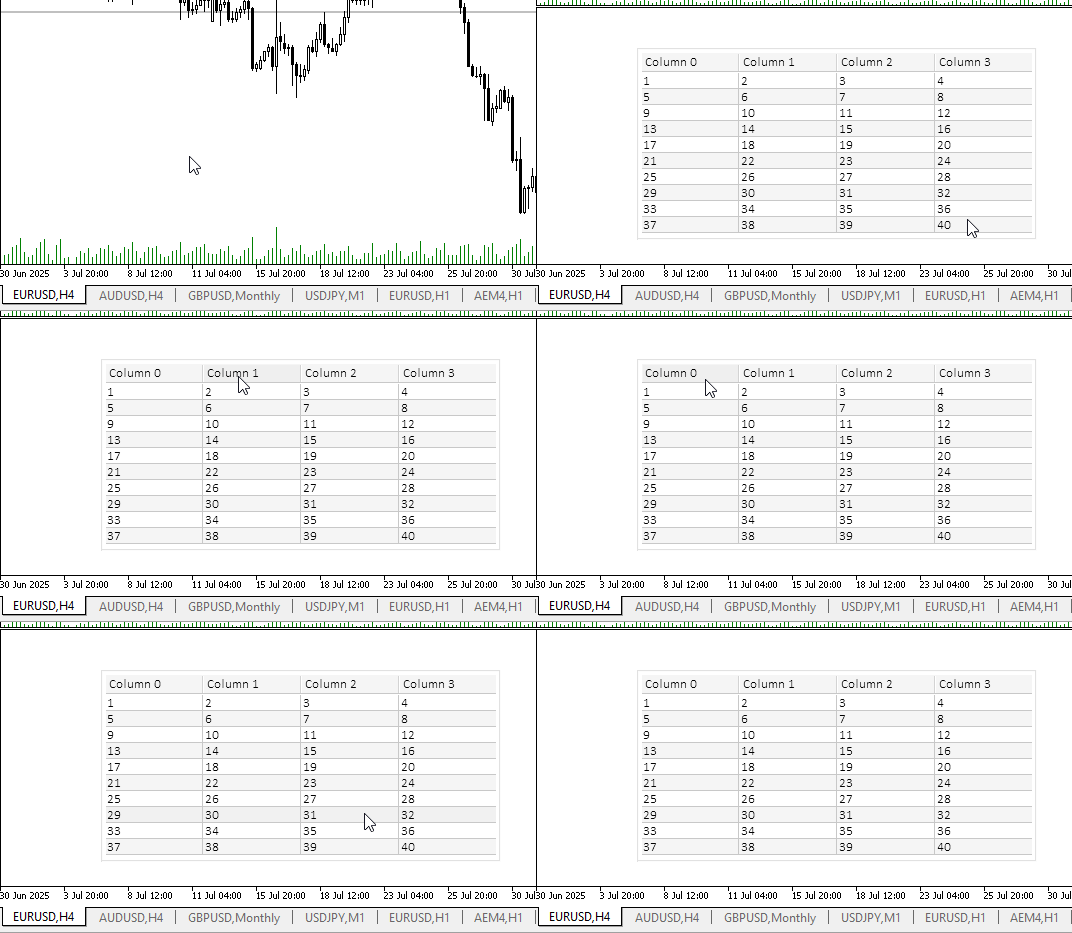
The terminal log will print out a message about a successfully created table, table description and the table with a header:
The [Table: Rows total: 10, Columns total: 4] has been successfully created:
Table: Rows total: 10, Columns total: 4:
|                n/n |           Column 0 |           Column 1 |           Column 2 |           Column 3 |
| 0                  |                  1 |                  2 |                  3 |                  4 |
| 1                  |                  5 |                  6 |                  7 |                  8 |
| 2                  |                  9 |                 10 |                 11 |                 12 |
| 3                  |                 13 |                 14 |                 15 |                 16 |
| 4                  |                 17 |                 18 |                 19 |                 20 |
| 5                  |                 21 |                 22 |                 23 |                 24 |
| 6                  |                 25 |                 26 |                 27 |                 28 |
| 7                  |                 29 |                 30 |                 31 |                 32 |
| 8                  |                 33 |                 34 |                 35 |                 36 |
| 9                  |                 37 |                 38 |                 39 |                 40 |
On the chart, we can see that column headers and table rows are active and respond to mouse hovering. Handling of table's interaction with the user will be discussed in the next article.
Conclusion
We have learned how to create simple tables and display them on a chart. But so far, this is just a static table displaying the data received once. The next article will focus on table animation — changing and displaying dynamic data and interacting with the user to customize the display of rows and columns in a table. As well, in the next article, we will implement even simpler creation of tables.
Programs used in the article:
| # | Name | Type | Description |
|---|---|---|---|
| 1 | Tables.mqh | Class Library | Classes for creating a table model |
| 2 | Base.mqh | Class Library | Classes for creating a base object of controls |
| 3 | Controls.mqh | Class Library | Control classes |
| 4 | iTestTable.mq5 | Test indicator | Indicator for testing manipulations with the TableView control |
| 5 | MQL5.zip | Archive | An archive of the files above for unpacking into the MQL5 directory of the client terminal |
All created files are attached to the article for self-study. The archive file can be unzipped to the terminal folder, and all files will be located in the desired folder: \MQL5\Indicators\Tables\.
Translated from Russian by MetaQuotes Ltd.
Original article: https://www.mql5.com/ru/articles/19288
Warning: All rights to these materials are reserved by MetaQuotes Ltd. Copying or reprinting of these materials in whole or in part is prohibited.
This article was written by a user of the site and reflects their personal views. MetaQuotes Ltd is not responsible for the accuracy of the information presented, nor for any consequences resulting from the use of the solutions, strategies or recommendations described.

 Creating Custom Indicators in MQL5 (Part 1): Building a Pivot-Based Trend Indicator with Canvas Gradient
 Introduction to MQL5 (Part 32): Mastering API and WebRequest Function in MQL5 (VI)
 Larry Williams Market Secrets (Part 1): Building a Swing Structure Indicator in MQL5
 From Novice to Expert: Automating Trade Discipline with an MQL5 Risk Enforcement EA

- Free trading apps
- Over 8,000 signals for copying
- Economic news for exploring financial markets
You agree to website policy and terms of use
Excellent breakdown of MVC, but how exactly does this complexity improve trading which is what we’re really here for?
Have all other trading challenges been solved, leaving only the user interface?
Sometimes we forget what a tool is really for—or get frustrated when it doesn’t work the way we want—and end up trying to make it do things it was never meant to do which it never will
Great description of MVC, but how exactly does this complexity improve the trading we're actually here for?
Are all the other trading problems solved, with only the UI left?
Sometimes we forget what a tool is really for, or get frustrated when it doesn't work the way we want it to, and end up trying to make it do things it was never intended to do and never will.