

Market Simulation (Part 18): First Steps with SQL (I)
 4 774
4 774
 0
0

Introduction
In the previous article, "Market Simulation (Part 17): Sockets (XI)", we completed the demonstration of an implementation that allows information exchange between MetaTrader 5 and Excel. We did not go into how to make Excel control MetaTrader 5, because that requires considerable caution. Since this depends entirely on what each person thinks or plans to do, we left several references at the end of the article so that you could form an idea of how to do it.
It doesn't matter which SQL program we use: MySQL, SQL Server, SQLite, OpenSQL, or another. They all have something in common, and the common element is the SQL language. Even if we do not intend to use Workbench, we can manipulate or work with the database directly in MetaEditor or through MQL5 to perform actions in MetaTrader 5, but to do so, you will need knowledge of SQL. There are many books dedicated to this topic, as well as various study guides available online. All that is needed is to understand some concepts and learn how to use your programming language to communicate with SQL.
However, there are also some limitations to be aware of before starting to use SQL. In order to learn SQL, you must at least be able to create a database. This is the basic starting point you need to understand.
Getting started with databases
There are several very simple ways to use SQL. The first is to enter commands directly into the command line. The second is to use Workbench or a similar program, such as MetaEditor. The third method involves embedding SQL commands into a program written in MQL5. When the program runs in MetaTrader 5, it can access the database. Finally, there is another basic method, which consists of using sockets to communicate with the SQL server. All of these basic methods are widely available across all database systems that use SQL. Thus, everything that will be shown and explained can be used in any compatible system. Do not think that something cannot be done. If you are using pure and native SQL, you will be able to do it.
However, there is one point to pay attention to. Any program that uses SQL—whether it be OpenSQL, MySQL, SQLite, SQL Server, or another—may have commands that are specifically designed for that program. If these commands are used, we will not be able to perform the same actions in another SQL program.
Another note: in the beginning, everything will be done using MySQL Workbench. The reason will be explained later.
With all these preliminaries in mind, let's look at the simplest command: creating an empty database. Let us note right away that it is absolutely useless to create any file and change its extension to .DB, as the system will not recognize it as a database. To do this, you need to use a command, which is actually very simple. But before examining any commands, let's look at something else.
Very often (and this is almost considered good practice in SQL programming), reserved words are written in uppercase. However, this does not matter for SQL. If at the time of writing the code you forget to type the commands in uppercase, do not worry: you will simply need to use the button shown in the image below. This will convert the entire code or the SQL reserved words to uppercase.

First commands in SQL
Now we can finally begin examining the commands. The first command we need to learn is CREATE DATABASE. In the image below, you can see what it actually looks like.

The text highlighted in blue and bold represents the SQL code, while the text highlighted in black is the name of the database. This is the first command you will need to use. After entering this command, we can click one of the lightning bolt icons displayed above the code. Each of these lightning bolts works in its own way. Since we are just starting out, let's click the one on the far left. It is also useful to try to understand what each of them is for and how they work, as this will be very helpful, especially when debugging a script. We will discuss this soon. Now, please pay attention. If you want to create a database directly in MetaEditor using SQL, you will need to do it differently. In this case, you must select the option shown in the image below.

In this case, MetaEditor will ask you to specify the location and name of the database file to be created. This is quite simple. We can also create a database file using code written in MQL5. But we will discuss this later, as it is better to have more material in order to actually create things directly using MQL5 or another language that we will use to work with SQL. However, if we use sockets in MQL5 code and connect to an SQL server, we can send the command displayed in Workbench and achieve the same result— that is, creating a database.
But that is a topic for another discussion. For now, let's proceed in the simplest and most straightforward way: using MetaEditor, Workbench, or even the command line. However, with the command line, you really need to understand how elements will be displayed. But that is just a matter of getting used to the command line.
Since the goal of this article is maximum clarity, we will only use MetaEditor and Workbench.
So, after performing all the steps in MetaEditor, we will end up with a result similar to the image below. As you can see, in this case we changed the database names to distinguish them from the Workbench databases.

At this stage, MetaEditor will be ready for further work. However, regarding Workbench, we cannot proceed to the next step just yet. First, we need to take a few additional steps. To understand what needs to be done, click on the highlighted item in the image below after executing the script command.

Using either of these two options will yield the same result. Now look at the image below: the file to be used as the database has already been created. But please note that it has not yet been selected as the database to work with for subsequent SQL commands.

Before performing any operations in the database, you must select it. One way to do this is to use an SQL command. This command is called "USE". You can see it below.

Now we must consider one important detail when using Workbench. If you use the command line to perform actions, at this point you would only need to enter the contents of line 02, and you could proceed to the next step. However, in Workbench, the process is a bit different. Please note that we have highlighted two lightning bolt icons. Now let's see how this works. When we create a script for SQL, we often write multiple commands. We use the script for documentation purposes. However, when using a script, there are a few additional points to consider. First: if the script is executed in one go, we will not have any problems. But if we intend to execute the same script gradually, we will run into issues if we try to run it from the beginning. This is why many people give up on learning SQL, as they cannot handle the problems that arise.
Alright. We want line 02 to be executed. For this, we have three alternatives. The first option is to select line 02 and click the highlighted button on the left. The second option is to place the text cursor on line 02 and click the highlighted button on the right. Notice that next to it there is a cursor icon. Only the line containing the cursor will be executed.
There is also a third option. This is mainly used when you need to force the execution of the code from the very beginning, even if it has already been partially executed. To do this, you need to create a test here in SQL. If the code tries to execute from the beginning, an error will occur at line 01. How is that possible? The reason is that SQL will attempt to recreate the database file, and this attempt will fail because the file already exists. As a result, the rest of the code will not be executed. You can try this by clicking the left icon without selecting any line.
Since we may often work with a script where the database already exists, but we want to modify something within it, making changes to the script itself means that deleting the database is an alternative that should be avoided. To solve this problem, we can comment out line 01 by adding a double dash, as shown in the image below, or do something slightly different.

As seen in the previous image, there are two ways to comment SQL code. The first option can be seen in the image: line 01 is now recognized as a comment. This method is useful when you need to comment out a single line. However, you can also comment out multiple lines at once. To do this, simply use the same method as in MQL5, that is, a slash and an asterisk.
Alright, although the previous solution is possible, it doesn't actually work when the SQL code is long and contains many parts that may fail because they already exist in the database. Therefore, we need a more elegant solution. This solution can be seen in the image below.

Notice that in line 01 we have a different command. However, this command ensures that the script will execute correctly and as expected. This is because if the database file does not exist, then it will be created. But if it already exists, SQL will not treat this as an error, since we are checking whether the file exists or not. This type of construct with the IF command is quite common in SQL, especially in scripts that will be used (even repeatedly) over the lifetime of the database. Upon completion of execution, we will obtain the result shown in the image. That is, our database file will be set as the current database.
As you can see, everything is very simple and practical. All we need is to understand what each instruction or command does. Do not waste time memorizing commands and their combinations. You just need to understand what each one does and use them as needed. So, from this point on, we are at the same level that was achieved within MetaEditor. Thus, the next command we will look at can be used in both MetaEditor and Workbench. This command is a bit more complex than those we have seen so far. But remember, knowledge accumulates; it does not scatter.
Creating a table
This command for creating a table is one of those we will use most often, especially during the learning phase. Its purpose is to create a table that will then receive data using another command. However, unlike the previous commands, from this point onward we will encounter some complexities that may cause difficulties at first. But there is no reason to worry: it is all a matter of habit and study, and in the end you will understand how to use this command.
The issue boils down to one thing. You will now need to think in advance about how the data to be placed into the table will be modeled before the table is created. This part, without a doubt, is the most difficult in the initial stage of learning SQL. The reason is precisely that you need to have an idea of what you are going to do before starting implementation. It is absolutely useless to plan a thousand things and fail to properly plan the type of data that will be placed into the table. Unlike choosing the correct data type, the order in which the data is arranged does not matter much. If you choose the wrong type, you will end up creating a table that later becomes unsuitable for new data.
However, if we try to create something too generic, we will end up consuming far more resources and space than necessary. Therefore, I suggest first studying the available data types. I recommend doing this before attempting to design databases for specific purposes. At the end of this article, I will leave some links so you know where to start.
Start with that, even if only as a starting point. You should look for additional information on this matter. Fortunately, there are many people willing to explain each type in detail. So do not wait for someone to give you the solution.
For simplicity and for demonstration purposes only, let us assume the following scenario: we want to create and maintain a history of quotes for some B3 (Brazilian Stock Exchange) symbols. The simplest way to do this is as shown below, namely using Workbench.
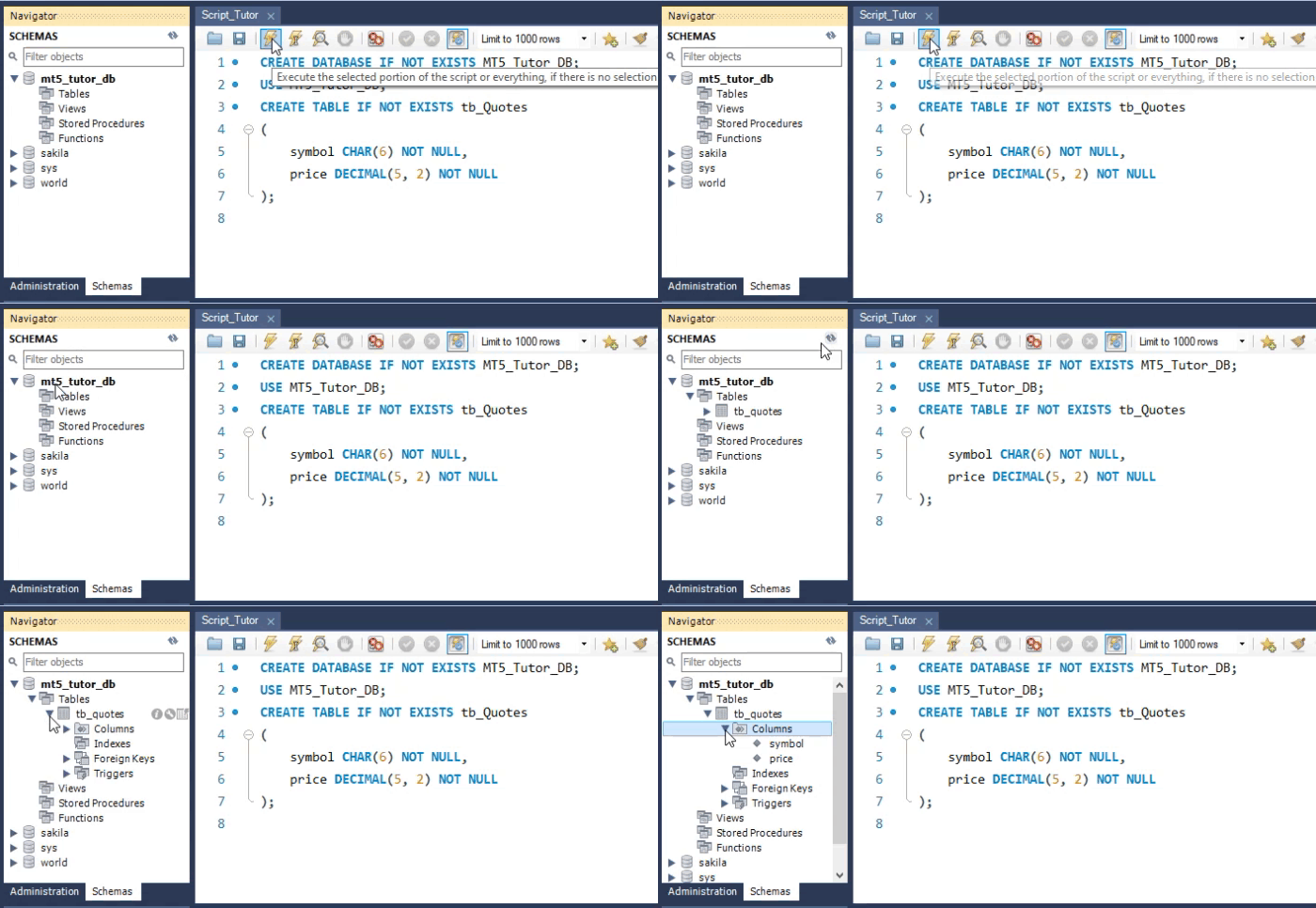
Although our SQL code takes up many lines to create the table, you need to understand that it will actually be just one line. The result is displayed in the schemas area of Workbench. However, even though this table has been created and can accept values, in some cases it is not suitable. The reason will be explained later. But before we find out the reason, let's take a look at how the same table is created in MetaEditor. This can be seen in the image below.

As you can see, the command is exactly the same, so the result will also be the same. Practically all commands that can be executed in Workbench can also be executed in MetaEditor, and they will work. But please note that I said «practically all commands», not «all commands will be executed». There is a command, which will be briefly discussed, that can be executed in SQL but not through MetaEditor. However, let's not rush.
First, let's understand why the table we created is not suitable for certain scenarios. The first reason lies in the model itself. How is that possible? Isn't it supposed to represent the quote value? Yes, but perhaps you misunderstood something. We want to obtain the quote value, but we also want to preserve the history of that quote, and this model does not solve that problem. After all, it only guarantees the quote itself. Even if we try to create a history, this model will not be sufficient.
We need more information. For example, the date or time, depending on the specific case. Suppose we only need the closing price of the day. Each day, we will add new data to the table. Therefore, the same code we saw earlier will need to be modified.
You might be wondering: «Why wasn't this done from the very beginning? Why do it now, after the table has already been created?» This was intentional, to show how to add new columns to a table. As we have already mentioned, the order of object creation does not matter. SQL will take care of storing them correctly in the database. But, returning to the command that needs to be executed, it is exactly the one shown in the animation below.

If we execute this same command from line 08 in MetaEditor, we will get the same result as shown in the image: the creation of a new column that will contain data related to the date the quote was obtained. This can be seen below:
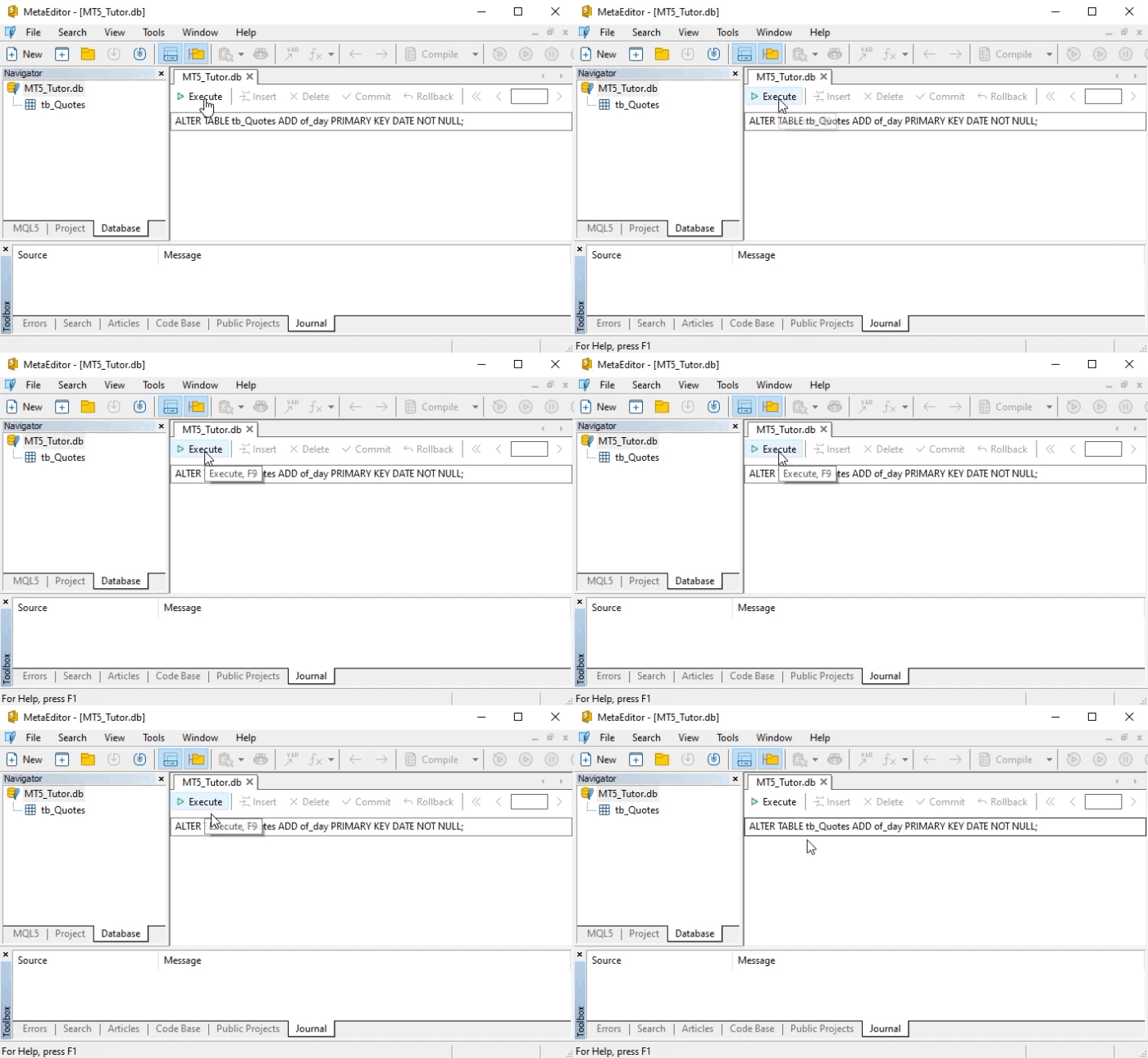
After performing the above steps, execute the command below to achieve the same result in Workbench.

As for the values that will be entered into these fields, and the methods for preparing them, that will be a topic for another discussion. The fact is that inserting new values or deleting values from the database are operations that must be performed with a certain amount of caution. Believe me: you will not want to make many changes to the database by deleting or adding things. If you do not act according to a plan, the database will ultimately become unsuitable for long-term use. The ideal approach is to add or remove elements according to a carefully considered plan and to use the database primarily for queries.
Think first, act later
The article has repeatedly mentioned that, although this simple database works, it is not ideal. This is because, depending on our plans for its use, it could be better optimized in terms of space usage. But you might think: «Why should I worry about space? If I start running out of space, I'll just buy a new disk». That is one option, but it does not solve the problem. The problem lies in how the database is used or how it was designed.
What I will say here is only a small glimpse into the true essence of the issue. If you have more extensive experience with databases, you will understand that this issue runs much deeper. In fact, there are courses specifically aimed at those who want to become professionals in this field. But we will not go into details, as this topic is far broader than I could cover in one or two articles.
I want to show you that it is useless to study only SQL programming or flip through some database textbook and then claim that you know how to work with them. Such statements can only be made after many years of working in this industry. And even then, you will rarely find anyone who makes such a claim with complete confidence.
The reason is simple: databases represent a sufficiently vast niche, many aspects of which have already been studied. And each case is unique. In fact, there is no single solution.
Let us now analyze one of the problems of this simple eight-line script that creates a database to store the quote history of symbols traded on B3 (the Brazilian Stock Exchange). The first problem is that in the field where we can store the price, only values ranging from 0.00 to 999.99 can be entered. This means that some symbols cannot be stored in this table. This is because the quote values of these symbols differ from what the table expects. One could solve this problem by adding another column to fill these gaps. However, this would result in one of the two columns—whether the code column or the newly created column—taking up unnecessary space in the database.
The second problem is that the record value storing the quote date uses the ISO 8601 format. So what significance does this have for the database? To answer this question, we must first answer another: from what point to what point will we be adding quotes to the table? Depending on the answer, a different format could be used. This way, we would take up less space and improve the overall performance of the database.
To understand this, imagine that there are 365 days in a year, but the exchange does not operate every day. But let us assume that trading takes place every day. Thus, if we use a value such as SmallInt, which in this case is a signed value, we can count from 0 to 32767. This would cover a total of just over 89 years. If we used the same data type but unsigned, i.e., from 0 to 65535, we could cover a total of just over 179 years. And yet, we would be using only two bytes instead of all the bytes that the ISO 8601 format uses. Just imagine the amount of data that the difference between 179 years of daily quotes would represent.
The third problem is similar to the previous one. It also has storage implications, but this time the record field is different. In this case, it concerns the symbol name. This problem is even more complex than the previous one. The reason is that from time to time, some symbols change their names. However, if we consider that changing a symbol's name does not mean that the company it represents will change its behavior, then changing the symbol's name does not alter its history.
Alright. Regardless of the market, the number of traded symbols will be limited. Among these symbols, only a few may attract our attention to the point that we want to obtain their quote history. So why use 6 bytes if we could use 1 byte to represent a symbol? This is because 1 byte would allow us to represent up to 255 symbols.
Now let us return to the previous problem. Just think about how many bytes would be saved in the long run. And that is without considering that if a symbol changes its name, introducing the new name would require changing only one entry in the database, rather than the entire quote history.
Final thoughts
In today's article, we tried to show how to create a simple and understandable database in the simplest and most accessible way. We showed that practically all the commands that can be used in Workbench can also be used in MetaEditor to achieve the same results. However, there is one instruction that cannot be used in MetaEditor. It was not demonstrated in this article, nor were the methods for entering data and performing queries in the database.
But since this topic is very extensive, I suggest you study it through online research, a course, or books on the subject. In any case, here we will show a few more commands so that we have a minimum set of materials for using SQL in MQL5. In the next article, we will explore SQL in a bit more detail.
References
| File | Description |
|---|---|
| Experts\Expert Advisor.mq5 | Demonstrates interaction between Chart Trade and the expert advisor (Mouse Study required for interaction). |
| Indicators\Chart Trade.mq5 | Creates a window for configuring the order to be sent (Mouse Study required for interaction). |
| Indicators\Market Replay.mq5 | Creates controls for interacting with the replay/simulation service (Mouse Study required for interaction). |
| Indicators\Mouse Study.mq5 | Provides interaction between graphical controls and the user (required for both the replay system and live market operations). |
| Services\Market Replay.mq5 | Creates and maintains the market replay/simulation service (main file of the entire system). |
| Code VS C++\Servidor.cpp | Creates and maintains a server socket, developed in C++ (Mini Chat version) |
| Python Server.py | Creates and maintains a Python socket for communication between MetaTrader 5 and Excel. |
| Indicators\Mini Chat.mq5 | Enables a mini-chat via an indicator (server usage required) |
| Experts\Mini Chat.mq5 | Enables a mini-chat using an expert advisor (server required). |
| Scripts\SQLite.mq5 | Demonstrates the use of an SQL script with MQL5 |
| Files\Script 01.sql | Demonstrates the creation of a simple table with a foreign key. |
| Files\Script 02.sql | Shows the addition of values to a table |
Translated from Portuguese by MetaQuotes Ltd.
Original article: https://www.mql5.com/pt/articles/12926
Warning: All rights to these materials are reserved by MetaQuotes Ltd. Copying or reprinting of these materials in whole or in part is prohibited.
This article was written by a user of the site and reflects their personal views. MetaQuotes Ltd is not responsible for the accuracy of the information presented, nor for any consequences resulting from the use of the solutions, strategies or recommendations described.

 From Basic to Intermediate: Inheritance
 Pair Trading: Algorithmic Trading with Auto Optimization Based on Z-Score Differences
 Market Simulation (Part 19): First Steps with SQL (II)
 Using the MQL5 Economic Calendar for News Filter (Part 3): Surviving Terminal Restarts During News Window

- Free trading apps
- Over 8,000 signals for copying
- Economic news for exploring financial markets
You agree to website policy and terms of use