

Manual Backtesting with On-Chart Buttons in the MetaTrader 5 Strategy Tester
 6 220
6 220
 2
2

But I am broke…
A while back, I looked for a way to backtest ideas manually to see whether they made sense and which filters could improve accuracy. This was before I knew MQL5, and I was participating in competitions that encouraged gambling rather than trading. You know them, the ones that are free to enter, change rules from time to time and the first person has tripled their account within a day…..those ones.
I was quite naive thinking that if I could at least get to win one, I could afford to enter prop firm challenges and crown myself an “elite trader”. But after a few losses and hair pulling moments I decided to actually start understanding the game of trading and investing from a mathematical and financial standpoint, and in that pursuit, I found out that my MetaTrader platform had a Strategy Tester.That sent me down the rabbit hole: you can program trading robots (Expert Advisors) and use the Strategy Tester to evaluate strategies and tune parameters.
Having a degree in Information Communication Technology, this was a breeze to understand since the language, MQL5, was more or less C++ with a twist in order to be utilized for trading, but the logic and core principles worked the same way. After a few YouTube videos, countless documentation hours, and a sprinkle of AI, I built a couple of Expert Advisors (EAs). The next hurdle was testing.
At first, I ran single tests because I didn't know about optimization (I thought it optimized code). I kept testing, changing parameters, and testing again. This was the process until I asked ChatGPT if there was a way to automate this process and it led me to the optimization part of the strategy tester. I felt as smart as the smartest rock on earth, but it only took one test to figure out that my fossil of a laptop (I got it from my dad back in 2016, and it wasn’t new back then) couldn’t handle these tests. Well, it could…..but it took days to complete them, and one power outage (which only seemed to occur whenever I did these tests) meant starting from scratch.
That brought me back to manual backtesting. If I can confirm a strategy is viable and identify failure conditions, I can automate it with narrower parameter ranges (eg, focus on 1H–1D instead of 1M–1D).
My first choice, Trading View’s Chart Replay feature. “Awesome…..wait, premium feature, $59.95 A MONTH! But I am broke….”, was the exact conversation I had with myself. I then went to ChatGPT and asked if I could somehow add the BUY and SELL buttons on the strategy tester. ChatGPT gracefully responded by indicating that Strategy Tester was designed to run automated strategies and watch them run to determine if they are doing what they are supposed to.
Well, the idea was once again scrapped, until in the pursuit of capital through freelancing, making other people’s ideas to Expert Advisors on MQL Freelance, I came across someone needing an EA with buttons on the chart.
Wait, I can make buttons!?
With a bit of research, I found the CButton class, located in the Controls folder. In MQL5, you can include it using this line:
#include <Controls/Button.mqh> I then proceeded to make a button. If I remember correctly, the client needed a button to close all trades and another to set the SLs and TPs to break even. I managed to make this for the client after discovering the class and understanding how it worked, and I’m sure as you can guess where my mind drifted after this task, “Wait, I can make buttons!? Can I make BUY and SELL buttons for backtesting?”
So I fired up MetaEditor and started typing. I’ll explain the code in steps in case there is someone new to MQL5 programming, as well as to everyone else reading this after lunch and just needs a chill read.
//+------------------------------------------------------------------+
//| Include And Creation of Class Instances                          |
//+------------------------------------------------------------------+
#include <Trade/Trade.mqh>
#include <Controls/Button.mqh>

CTrade trade;
CButton buyButton;
CButton sellButton
The first line includes the CTrade class. This is vital if you need to easily open positions in MQL5 as will be demonstrated later on. The second line I had explained earlier. The last three lines are for declaring instances of the CTrade and CButton class. All hail Object Oriented Programming.
Next came the design of the buttons in the OnInit() function, and I don’t really know why this reminded me of HTML/CSS programming so much. I think it's due to playing with the dimensions and colors. Nostalgic moment nevertheless.
//+------------------------------------------------------------------+
//| Button Creation and Design                                       |
//+------------------------------------------------------------------+
sellButton.Create(0,SELL_BUTTON_NAME,0,2,20,95,75);
sellButton.Text("SELL");
sellButton.Color(clrWhite);
sellButton.ColorBackground(clrRed);

buyButton.Create(0,BUY_BUTTON_NAME,0,97,20,190,75);
buyButton.Text("BUY");
buyButton.Color(clrWhite);
buyButton.ColorBackground(clrMediumBlue);
ChartRedraw();
This code is mostly self-explanatory.
The “Create” call creates the button. The first 0 targets the current chart, the next parameter is the button name, and the next 0 selects the subwindow (I used the main chart area). I opted for the chart area. The last four inputs are x1, y1, x2, y2 coordinates, responsible for where the top left and bottom right parts of the button land, hence the size and position of the button.
The “Text” line is responsible for what the user sees written on the button.
The “Color” line is the color of the text on the button from the ‘Text’ line. I think this is where the CSS nostalgia hit hard.
The “ColorBackground” is for the button color.
The “ChartRedraw()” refreshes the chart so that the lovely buttons we just created can be displayed on the chart.
As promised, here are the definitions:
#define BUY_BUTTON_NAME "buyBtn"
#define SELL_BUTTON_NAME "sellBtn"
With this code, the buttons successfully appeared on my strategy tester visual mode, and although they didn’t work at this stage, I was very excited to see the vision I had scrapped so many times at this point start to materialize.
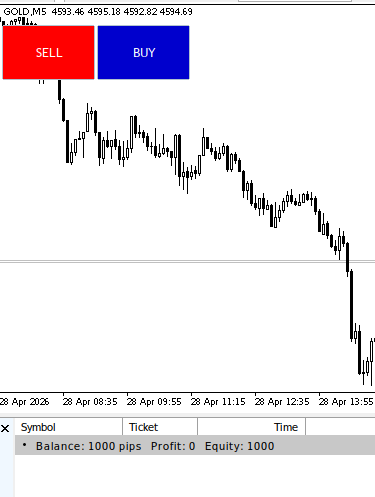
Buy low, Sell high
After staring at the buttons on strategy tester longer than I’d like to admit, I went back to MetaEditor to give them functionality. This was possible with a few lines of code in the OnTick() function.
//+------------------------------------------------------------------+
//| Buy and Sell Button Logic                                        |
//+------------------------------------------------------------------+
if(buyButton.Pressed())
  {
   trade.Buy(0.01);
   buyButton.Pressed(false);
  }
if(sellButton.Pressed())
  {
   trade.Sell(0.01);
   sellButton.Pressed(false);
  }
This was the final step to get my idea to work. And work it did. I’m sure my mouse was wondering what was up since I spammed these buttons a bit too much out of excitement.
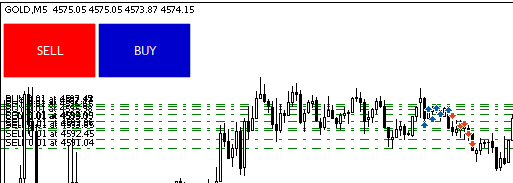
The code checks whether a button was pressed. If so, it opens a buy/sell order and then resets the button to the unpressed state. The “0.01” is the lot size. A lot of the trade opening is handled by the CTrade class which I mentioned earlier hence the simplicity of the code.
The final touches
Well, it took me a second to realize that I couldn’t close the trades I opened. So back to MetaEditor I went to find a solution. With this new knowledge of creating buttons, I went ahead and created a “CLOSE ALL” trade button, which would close all open trades. Go figure.
CButton closeAll;
#define CLOSE_ALL_NAME "closeAllBtn"
These lines (above) were added globally.
//+------------------------------------------------------------------+
//| Close All Button Creation and Design                             |
//+------------------------------------------------------------------+
closeAll.Create(0, CLOSE_ALL_NAME, 0,2,77,190,97);
closeAll.Text("CLOSE ALL");
closeAll.Color(clrRed);
closeAll.ColorBackground(clrWhite);
These (above) were added to the OnInit() function.
//+------------------------------------------------------------------+
//| Close All Button Logic                                           |
//+------------------------------------------------------------------+
if(closeAll.Pressed())
  {
   for(int i = PositionsTotal() -1; i >= 0; i--)
     {
      ulong ticket = PositionGetTicket(i);
      trade.PositionClose(ticket);
     }
   closeAll.Pressed(false);
  }
These lines (above) were added to the OnTick() function. All this section of code does is iterate through all open positions (This is done by the “for” loop), get the ticket of these positions and close them, and then switch the button back to its unpressed state.
With these changes, I could now close the trades that I was opening and this worked for a while. That was until once again I wanted more out of this expert advisor, a little task called risk management.
Risk? Never heard of her
But this was about to change. I needed simple inputs that kept processing overhead to a minimum so that replaying the market wouldn’t drastically slow down candle formation. I decided to solve this by adding “Take Profit” and “Stop Loss” input fields to the EA.
The downside was that they had to be configured before running the Strategy Tester instead of adjusted live, but for my use case, that was perfectly acceptable. So it was back to MetaEditor once again.
//+------------------------------------------------------------------+
//| Risk Management Inputs                                           |
//+------------------------------------------------------------------+
input double lotSize = 0.1;         //Lot Size
input double stopLoss = 10;         //Stop Loss
input double takeProfit = 20;       //Take Profit
These lines (above) were added on the global scope. The first was so that I can adjust lot size, the other two are for Stop Loss and Take Profit figures. I was testing it on GOLD so these were to be added directly to price to obtain the SL and TP as demonstrated below.
//+------------------------------------------------------------------+
//| Buy and Sell Button Logic Modification                           |
//+------------------------------------------------------------------+
double ask = SymbolInfoDouble(_Symbol, SYMBOL_ASK);
double bid = SymbolInfoDouble(_Symbol, SYMBOL_BID);

if(buyButton.Pressed())
  {
   double SL = ask - stopLoss;
   double TP = ask + takeProfit;
   trade.Buy(lotSize, _Symbol, ask, SL, TP);
   buyButton.Pressed(false);
  }

if(sellButton.Pressed())
  {
   double SL = bid + stopLoss;
   double TP = bid - takeProfit;
   trade.Sell(lotSize, _Symbol, ask, SL, TP);
   sellButton.Pressed(false);
  }
These lines were added, and some modified, in the OnTick() function. The first two are used to get the current ask price and bid price respectively. These are then used for calculating the various SL and TP if the buttons are pressed. The rest is pretty self explanatory for the most part.
This version was however short-lived as I found a concept that I wanted to try, and accidentally became the final version of the EA. Trailing Stop Loss.
What if the SL could move with price?
That is the question that is solved by the concept of a trailing stop loss. It was a simple concept and with a bit of thinking and finesse, I made these changes/added these lines:
CPositionInfo pos;
This class is added for position management. Another point for Object Oriented Programming.
//+------------------------------------------------------------------+
//| Additional Inputs for Trailing Stop Logic                        |
//+------------------------------------------------------------------+
input ulong magicID = 01001;        //Magic Number
input double lotSize = 0.1;         //Lot Size
input double initSL = 10;           //Initial SL (Decimals)
input double trailDecimals = 10;    //Trailing SL (Decimals)
Here (above), I tossed the TP and SL inputs and instead used an Initial SL and the Trailing SL decimals. The initial SL works just like the original StopLoss did, and the Trailing SL holds the distance between price and the SL (I will explain this a bit later). This lets the SL move with price: as profit increases, the SL locks in more gains (or reduces the loss until it moves past entry). The Magic Number is so that the EA only handles its trades, so that for whatever reason I’d want to use it on a live chart, it will only adjust its own trades.
double ask;
double bid;
These lines (above) were added on the global scope. It's faster to declare them here and simply access them on the OnTick function, instead of declaring them every single tick.
//+------------------------------------------------------------------+
//| OnTick Function Final Version                                    |
//+------------------------------------------------------------------+
void OnTick()
  {
   ask = SymbolInfoDouble(_Symbol, SYMBOL_ASK);
   bid = SymbolInfoDouble(_Symbol, SYMBOL_BID);

   if(buyButton.Pressed())
     {
      double SL = initSL > 0 ? bid - initSL : 0;
      trade.Buy(lotSize, _Symbol, 0, SL);
      buyButton.Pressed(false);
     }
   if(sellButton.Pressed())
     {
      double SL = initSL > 0 ? ask + initSL : 0;
      trade.Sell(lotSize, _Symbol, 0, SL);
      sellButton.Pressed(false);
     }
   if(closeAll.Pressed())
     {
      for(int i = PositionsTotal() -1; i >= 0; i--)
        {
         pos.SelectByIndex(i);
         if(pos.Magic() != magicID)
            continue;

         trade.PositionClose(pos.Ticket());
        }
      closeAll.Pressed(false);
     }

   if(PositionsTotal() > 0 && trailDecimals > 0)
     {
      trailingStop(trailDecimals, ask, bid);
     }
  }
Ladies and gentlemen, the new OnTick function. The only major difference is the use of the CPositionInfo class through the variable ‘pos’ in the ‘closeAll.Pressed()’ ‘if’ function. It is used to select the position on the ‘for’ loop, then check if it was opened by this EA by comparing the magic numbers.
There is also the new ‘trailingStop’ function that is called if there are any open positions. The code for that is:
//+------------------------------------------------------------------+
//| Trailing Stop Logic                                              |
//+------------------------------------------------------------------+
void trailingStop(double points, double Ask, double Bid)
  {
   for(int i = PositionsTotal()-1; i >= 0; i--)
     {
      if(pos.SelectByIndex(i))
        {
         if(pos.Magic() != magicID)
            continue;

         ENUM_POSITION_TYPE type = pos.PositionType();
         ulong ticket = pos.Ticket();
         double SL = pos.StopLoss();
         double newSL;

         if(pos.Profit() > 0)
           {
            double diffS = MathAbs(Ask - SL);
            double diffB = MathAbs(Bid - SL);
            if(diffB > points && type == POSITION_TYPE_BUY)
              {
               newSL = Bid - points;
               trade.PositionModify(ticket, newSL, 0);
              }
            if(diffS > points && type == POSITION_TYPE_SELL)
              {
               newSL = Ask + points;
               trade.PositionModify(ticket, newSL, 0);
              }
           }
        }
     }
  }
This takes in the trailing points (in this case raw price decimals not actual points...I just labelled it as points), ask price and bid price. It then proceeds to iterate through the positions using the ‘for’ loop and for each position, a check is done to ensure we are about to edit the expert’s positions and if the position’s magic number doesn’t match the expert’s magic number, we continue to the next position.
We then go ahead and get the position type, a necessity to calculate which direction to drive the StopLoss. The ticket and the current SL are also obtained and a new variable to host the newly calculated SL is declared.
The code then goes ahead and checks if we are in profit and if so, gets the difference between the SL and the current bid and ask price. The ‘MathAbs’ is used to convert the difference to a positive number (eg, if the difference is -15, it will output 15) so as to easily compare it to the ‘points’ on the next lines.
The code then proceeds to calculate the new SL if the difference obtained is greater than the ‘points’ and that’s how the SL follows price. If price however goes down in the case of a BUY, the difference will be inadequate so the SL will stay the same, and vice versa for a SELL.
The final code:
//+------------------------------------------------------------------+
//|                                                        BTTF2.mq5 |
//|                                 Copyright 2025, Pips And Margins |
//|                      https://www.mql5.com/en/users/flutrr/seller |
//+------------------------------------------------------------------+
#property copyright "Copyright 2025, Pips And Margins"
#property link      "https://www.mql5.com/en/users/flutrr/seller"
#property version   "2.00"

//+------------------------------------------------------------------+
//| Include Files                                                    |
//+------------------------------------------------------------------+
#include <Trade/Trade.mqh>
#include <Controls/Button.mqh>

//+------------------------------------------------------------------+
//| Class Initialization                                             |
//+------------------------------------------------------------------+
CTrade trade;
CPositionInfo pos;
CButton buyButton;
CButton sellButton;
CButton closeAll;

//+------------------------------------------------------------------+
//| Inputs                                                           |
//+------------------------------------------------------------------+
input ulong magicID = 01001;        //Magic Number
input double lotSize = 0.1;         //Lot Size
input double initSL = 10;           //Initial SL (Decimals)
input double trailDecimals = 10;    //Trailing SL (Decimals)

//+------------------------------------------------------------------+
//| Definitions                                                      |
//+------------------------------------------------------------------+
#define BUY_BUTTON_NAME "buyBtn"
#define SELL_BUTTON_NAME "sellBtn"
#define CLOSE_ALL_NAME "closeAllBtn"

//+------------------------------------------------------------------+
//| Global Variables                                                 |
//+------------------------------------------------------------------+
double ask;
double bid;

//+------------------------------------------------------------------+
//| OnInit Function                                                  |
//+------------------------------------------------------------------+
int OnInit()
  {
   trade.SetExpertMagicNumber(magicID);

   sellButton.Create(0,SELL_BUTTON_NAME,0,2,20,95,75);
   sellButton.Text("SELL");
   sellButton.Color(clrWhite);
   sellButton.ColorBackground(clrRed);

   buyButton.Create(0,BUY_BUTTON_NAME,0,97,20,190,75);
   buyButton.Text("BUY");
   buyButton.Color(clrWhite);
   buyButton.ColorBackground(clrMediumBlue);

   closeAll.Create(0, CLOSE_ALL_NAME, 0,2,77,190,97);
   closeAll.Text("CLOSE ALL");
   closeAll.Color(clrRed);
   closeAll.ColorBackground(clrWhite);
   ChartRedraw();
   return(INIT_SUCCEEDED);
  }

//+------------------------------------------------------------------+
//| OnTick Function                                                  |
//+------------------------------------------------------------------+
void OnTick()
  {
   ask = SymbolInfoDouble(_Symbol, SYMBOL_ASK);
   bid = SymbolInfoDouble(_Symbol, SYMBOL_BID);

   if(buyButton.Pressed())
     {
      double SL = initSL > 0 ? bid - initSL : 0;
      trade.Buy(lotSize, _Symbol, 0, SL);
      buyButton.Pressed(false);
     }
   if(sellButton.Pressed())
     {
      double SL = initSL > 0 ? ask + initSL : 0;
      trade.Sell(lotSize, _Symbol, 0, SL);
      sellButton.Pressed(false);
     }
   if(closeAll.Pressed())
     {
      for(int i = PositionsTotal() -1; i >= 0; i--)
        {
         pos.SelectByIndex(i);
         if(pos.Magic() != magicID)
            continue;

         trade.PositionClose(pos.Ticket());
        }
      closeAll.Pressed(false);
     }

   if(PositionsTotal() > 0 && trailDecimals > 0)
     {
      trailingStop(trailDecimals, ask, bid);
     }
  }

//+------------------------------------------------------------------+
//| OnDeinit Function                                                |
//+------------------------------------------------------------------+
void OnDeinit(const int reason)
  {
   buyButton.Destroy(reason);
   sellButton.Destroy(reason);
   closeAll.Destroy(reason);
  }

//+------------------------------------------------------------------+
//| Trailing Stop Function                                           |
//+------------------------------------------------------------------+
void trailingStop(double points, double Ask, double Bid)
  {
   for(int i = PositionsTotal()-1; i >= 0; i--)
     {
      if(pos.SelectByIndex(i))
        {
         if(pos.Magic() != magicID)
            continue;

         ENUM_POSITION_TYPE type = pos.PositionType();
         ulong ticket = pos.Ticket();
         double SL = pos.StopLoss();
         double newSL;

         if(pos.Profit() > 0)
           {
            double diffS = MathAbs(Ask - SL);
            double diffB = MathAbs(Bid - SL);
            if(diffB > points && type == POSITION_TYPE_BUY)
              {
               newSL = Bid - points;
               trade.PositionModify(ticket, newSL, 0);
              }
            if(diffS > points && type == POSITION_TYPE_SELL)
              {
               newSL = Ask + points;
               trade.PositionModify(ticket, newSL, 0);
              }
           }
        }
     }
  }

//+------------------------------------------------------------------+
Did it work?
I have used this EA to generate a bunch of trading concepts and to test my wild ideas before automating them. This has, as I expected, saved me a bit of time trying to figure them out while testing them in an automated form, and also revealed the ideas that really didn’t work in the first place. All for free (minus time for development and brain cells lost trying to figure everything out)
I remember an idea I had for trading bollinger bands as a mean reversion strategy and it entailed buying when price went under the lower bollinger band, then on the next candle, price went above the lower bollinger band. Also, when price went below the lower bollinger band, RSI had to go below 30 and on the next candle, go above 30. This was a good strategy in my head but before spending the next 2-4 hours coding it then finding out it really doesn’t work, I went ahead and opened a blank chart (no indicators), then added the bollinger bands indicator, and the RSI indicator.
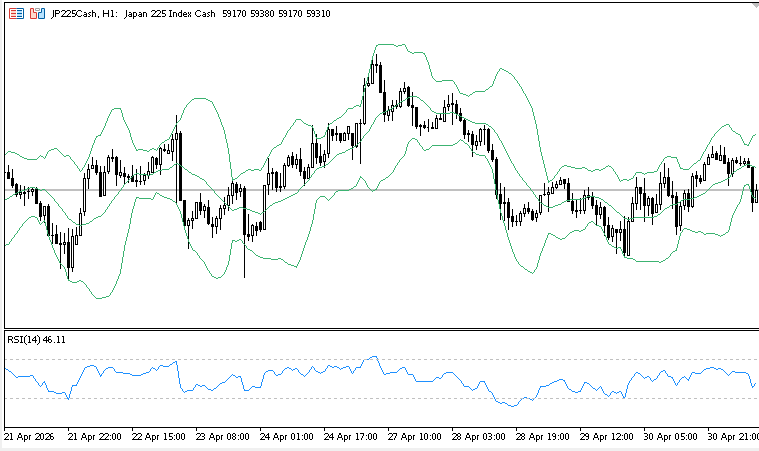
I then saved it as ‘tester.tpl’ (this is what opens up on your tester by default and this is how you add indicators to this EA when testing new strategies). I then set up the tester and went to town.
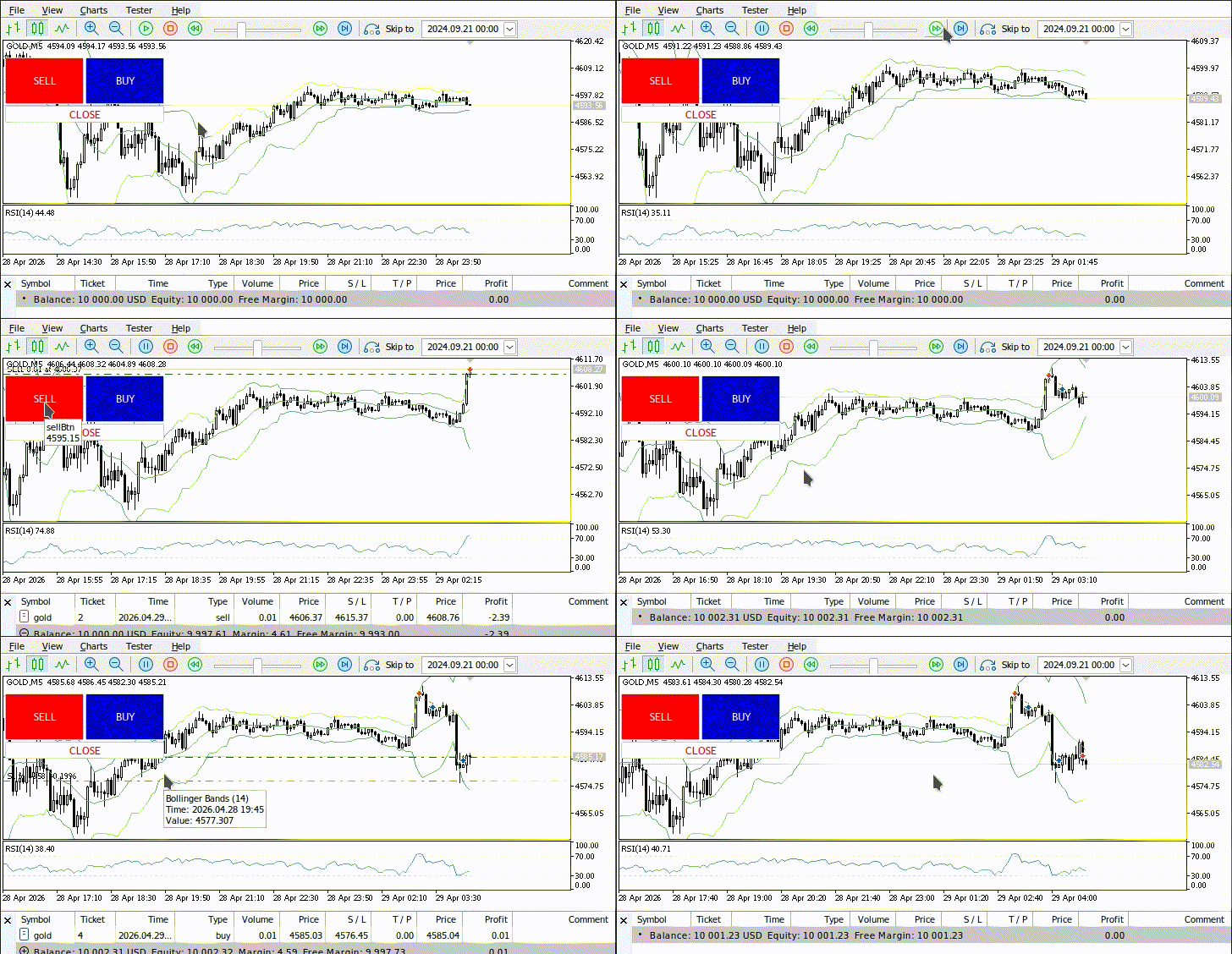
The strategy proved to be feasible and I went ahead and automated it, knowing that it would be profitable and the automation was to just a check of how profitable it could be.
Conclusion
The result is a compact “chart-replay” EA that solves the core problem: it provides a small, focused tool for manual idea validation inside MetaTrader 5's Strategy Tester. Using CButton for the interface, CTrade to place orders and modify positions, and CPositionInfo to manage trades by magic number, the EA enables:
- opening BUY/SELL with a click,
- closing all EA-owned positions with one button,
- configuring lot size and initial stop loss via inputs,
- and an automatic trailing stop that locks in profit as price moves.
This workflow saved development time by letting me discard non-viable ideas before coding full automation, and it revealed edge cases early in the design process. To run it in the visual tester: load your chart template (with indicators) as the tester template, attach the EA, set inputs (magic, lot, init SL, trail), and run in Visual Mode—use the buttons to simulate entries and exits. Future improvements I plan: on-the-fly lot changes and individual-position close buttons. The EA (Chart Replay Pro) is available for free on my profile if you want to try it.
Warning: All rights to these materials are reserved by MetaQuotes Ltd. Copying or reprinting of these materials in whole or in part is prohibited.
This article was written by a user of the site and reflects their personal views. MetaQuotes Ltd is not responsible for the accuracy of the information presented, nor for any consequences resulting from the use of the solutions, strategies or recommendations described.

 Building a Trade Analytics System (Part 3): Storing MetaTrader 5 Trades in SQLite
 Biogeography-Based Optimization (BBO)
 Adaptive Malaysian Engulfing Indicator (Part 2): Optimized Retest Bar Range
 Leak-Free Multi-Timeframe Engine with Closed-Bar Reads in MQL5

- Free trading apps
- Over 8,000 signals for copying
- Economic news for exploring financial markets
You agree to website policy and terms of use
Great article – thank you very much. I’ll read it again. I’m also quite keen on buttons… I’ll use your approach to buttons in the code to work out how to implement them properly in MQL5. I don’t think it’s too difficult – especially as I’m quite familiar with programming languages…