

Market Simulation (Part 17): Sockets (XI)
 2 214
2 214
 1
1

Introduction
In the two previous articles, we explained how to prepare Excel to interact with MetaTrader 5. In particular, in the previous article, Market Simulation (Part 16): Sockets (X), we explained how to write code in VBA. This is necessary for correct interaction between Excel and the server written in Python, even if it may seem to you that such interaction would not cause any problems.
In that short section where we explained what sockets are, we showed that problems can arise when Excel is used incorrectly. This occurs when using a server in Python. However, as already demonstrated in the two previous articles, properly written VBA code resolves interaction issues between Excel and Python and ensures smooth coordination between them. But one more necessary step remains to fully complete the implementation. This must be carried out in the section dedicated to MetaTrader 5, where we will need to make several decisions.
Planning before implementation
The main decision that needs to be made is which programming language we will use to implement the part that will run on MetaTrader 5. I mention this because we can do it either with Python or by using MQL5 itself. Both languages will allow us to do most, if not everything, that we want. However, if we choose Python, we will face a limitation: since it is a script, it must be attached to a chart. In contrast, if we use MQL5, we can apply a method or model that is better suited to performing the task.
But if we are going to use MQL5, we can orient the solution toward a service. In other words, unlike Python—which requires an open chart to operate—MQL5 allows us to use a service to communicate with Excel. This approach has several advantages that I can confirm.
The main advantage is that the service is independent and can interact with the chart, practically fully controlling MetaTrader 5 or even not interacting with it at all. By using a service, we can open and close charts, add elements to them, modify running processes, and so on. But most importantly, since the service operates outside the chart, it can be used even when MetaTrader 5 is being used for purposes not directly related to the market.
Yes, MetaTrader 5 can be used for more than just trading assets. We may explain this another time—but only if I consider it truly interesting to demonstrate. All right, agreed. We will use MQL5 and ensure that the part of the code running in MetaTrader 5 operates as a service. Now let’s move on to the implementation.
Implementation
The implementation of the part of the code that will run in MetaTrader 5 does not present any difficulty. However, there are several points that need to be taken into account. This is necessary so that you can make the system work. Remember one important thing: not just one program will be running. In reality, we will have to run three programs simultaneously. It is important to implement and structure each of them in such a way that they can interact and communicate with one another, and that each of them understands what the others are trying or intending to do. Therefore, it is very important to test the system gradually, step by step.
First, we will create the Python code that will act as the server. Next, we will create and test the VBA code that will run in Excel. Only when Excel can effectively interact with the Python server and send it commands should we move on to this stage in MetaTrader 5.
Therefore, my advice to users who want to create or implement a similar system and do not have much experience working with multiple programs at the same time is to proceed gradually. Do not try to implement everything at once. First, you need to make a plan, and then move forward step by step. So, let’s take a look at the source code, which can be viewed in full below:
01. //+------------------------------------------------------------------+
02. #property service
03. #property copyright "Daniel Jose"
04. #property version   "1.00"
05. //+------------------------------------------------------------------+
06. input string   user01 = "127.0.0.1";    //Address Server
07. input int      user02 = 9090;           //Port Server
08. //+------------------------------------------------------------------+
09. #define def_SizeBuff     2048
10. //+------------------------------------------------------------------+
11. void OnStart()
12. {
13.     bool tab;
14.     int sock;
15.     uint len, id, iMem;
16.     char buff[], ArrMem[];
17.     string szMsg, szCmd, szRet;
18.
19.     sock = INVALID_HANDLE;
20.     ArrayResize(ArrMem, def_SizeBuff);
21.     while (!IsStopped())
22.     {
23.         Print("Trying to connect...");
24.         while (!IsStopped())
25.         {
26.             if (sock != INVALID_HANDLE)
27.                 SocketClose(sock);
28.             if ((sock = SocketCreate()) != INVALID_HANDLE)
29.                 if (SocketConnect(sock, user01, user02, 1000))
30.                     break;
31.                 else
32.                     Sleep(500);
33.         }
34.         if (!IsStopped())
35.         {
36.             szMsg = "<MT5 with Excel>:MT5";
37.             len = StringToCharArray(szMsg, buff) - 1;
38.             SocketSend(sock, buff, len);
39.             Print("Excel is online...");
40.         }
41.         ArrayInitialize(ArrMem, 0);
42.         iMem = 0;
43.         while (!IsStopped() && SocketIsConnected(sock))
44.         {
45.             szCmd = szRet = "";
46.             id = 0;
47.             do
48.             {
49.                 len = SocketIsReadable(sock);
50.                 len = ((iMem + len) < def_SizeBuff ? len : def_SizeBuff - iMem);
51.                 if (SocketRead(sock, buff, len, 500) > 0)
52.                     ArrayInsert(ArrMem, buff, iMem);
53.                 for (int c0 = 0; (ArrMem[c0] != 0) && (c0 < def_SizeBuff); c0++) switch (ArrMem[c0])
54.                 {
55.                     case '[':
56.                         id = 1;
57.                     case ';':
58.                         if ((SymbolExist(szMsg, tab)) && (id < 2))
59.                             szRet += StringFormat("%f%s", iClose(szMsg, PERIOD_D1, 0), (ArrMem[c0] == ';' ? ";" : ""));
60.                         szMsg = "";
61.                         break;
62.                     case ']':
63.                         id = 2;
64.                         iMem = 0;
65.                         break;
66.                     default:
67.                         switch (id)
68.                         {
69.                             case 0:
70.                                 szMsg += StringFormat("%c", ArrMem[c0]);
71.                                 break;
72.                             case 1:
73.                                 szCmd += StringFormat("%c", ArrMem[c0]);
74.                                 break;
75.                             case 2:
76.                                 for (iMem = 0; (ArrMem[c0 + iMem] != 0) && ((c0 + iMem) < def_SizeBuff); iMem++);
77.                                 ArrayCopy(ArrMem, ArrMem, 0, c0, iMem);
78.                                 break;
79.                     }
80.                 }
81.             }while (SocketIsConnected(sock) && (!IsStopped()) && (id != 2));
82.             if (!IsStopped() && SocketIsConnected(sock))
83.             {
84.                 if (szCmd != "")
85.                 {
86.                     Print(szCmd, "<CMD<");
87.                     szRet = "N/D";
88.                 }
89.                 len = StringToCharArray(szRet, buff) - (szCmd != "" ? 1 : 0);
90.                 SocketSend(sock, buff, len);
91.             }
92.         }
93.     }
94.     if (sock != INVALID_HANDLE)
95.         SocketClose(sock);
96.     ArrayFree(ArrMem);
97.     Print("Shutting down...");
98. }
99. //+------------------------------------------------------------------+
Code in MQL5
Before we start explaining the code, I want to clarify that it is intended exclusively for educational purposes. Therefore, we will only touch on this topic lightly here. Do not think that this is all that we can do. However, if you understand what is happening, you, dear readers, will be able to create many interesting things. You can use the code discussed above as a first step and a possible reference.
Alright, let’s begin to examine what this code does. But to give you more enthusiasm and focus, let’s first see what happens when everything is working. This is exactly what you can see below. First, let’s observe what is happening in Excel. Keep in mind that at the time this animation was created, the service was already running in MetaTrader 5, which you can see in another animation.
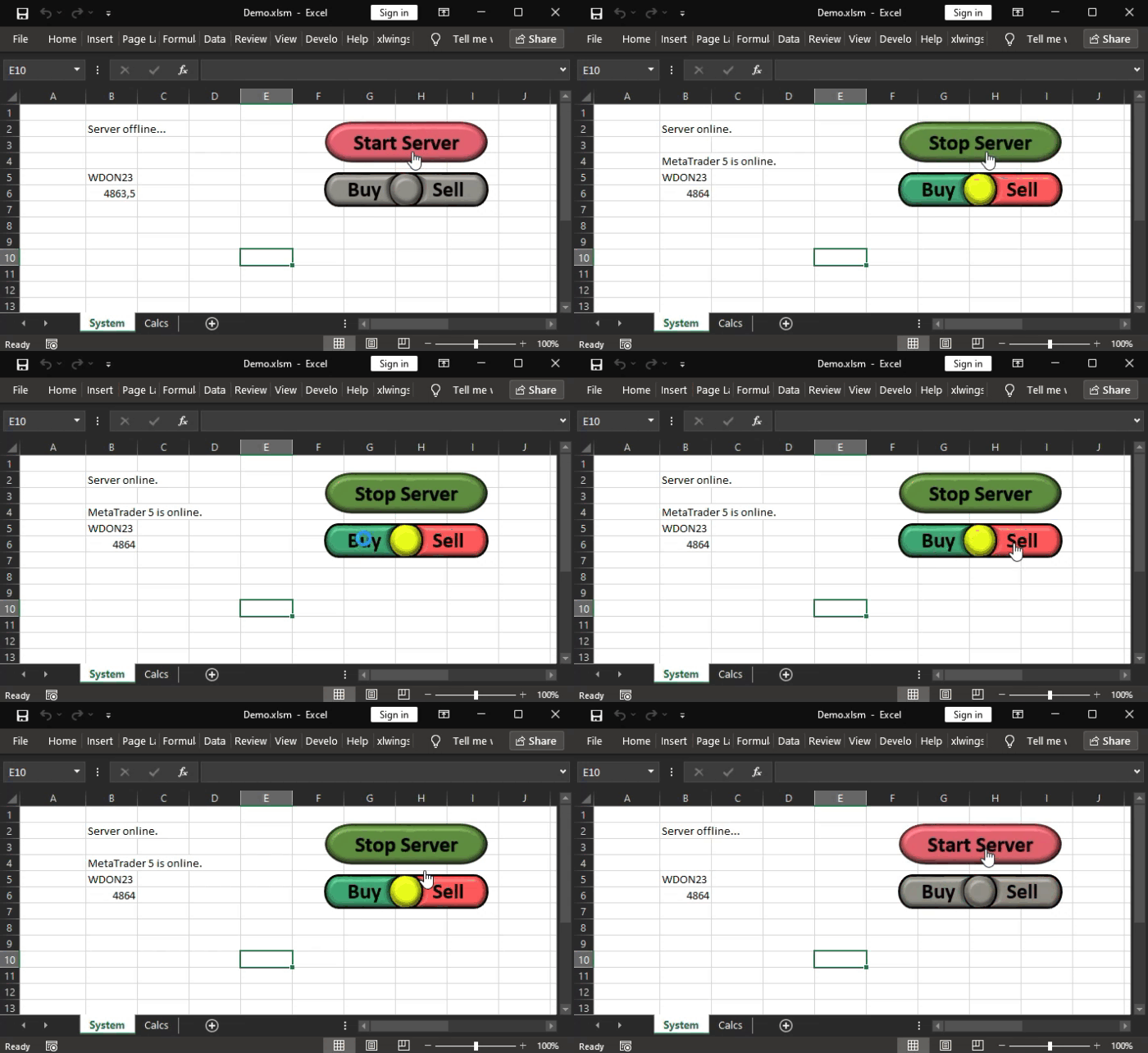
While observing the MetaTrader 5 messages in Excel during execution, the following actions could be noticed:
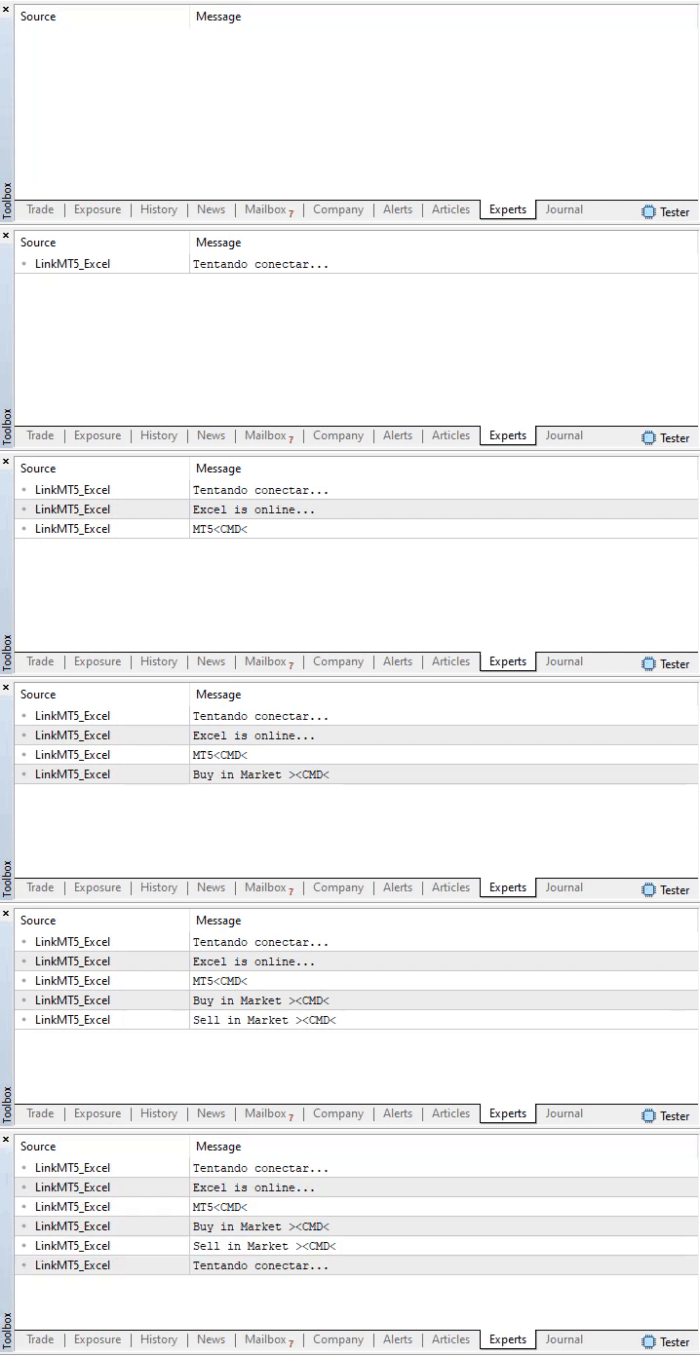
An interesting result, isn't it? It should be remembered that these two applications, Excel and MetaTrader 5, can be installed on different computers, and even in that case we will get the same result. Now that your curiosity has been sparked, let’s take a look at how this code works in MQL5, since the other parts have already been explained in previous articles.
MQL5 code analysis
In the second line, we indicate that the code is implemented as a service. If this line were absent, the same code would run as a script. In previous articles, we have already explained the difference between a service and a script. But if you have any doubts, remember: a service is not directly linked to a chart. In contrast, a script is linked to a chart. However, the service code and the script code will be practically identical. The only difference between them is precisely line 02.
The next thing to understand is lines 06 and 07. They are used so that when running the executable file in MetaTrader 5, the user can pass certain parameters to it. These are the parameters that need adjustment. That is, the address where the Python server is running, and its port.
Please note the following: you need to specify not the location where Excel is launched, but the location where the Python server is running. Such things can cause confusion. But remember: the Python server is in no way embedded in Excel and may be on another computer. But Excel must know how to find this server. For a better understanding, refer to the previous article, where we explained the part of the code that will exist in Excel and is written in VBA.
After completing the initial (and basic) part, we move on to line 11, where the main part of the code begins. Between lines 13 and 17, some variables are declared that will be used in this specific code. Now let's move on to the part that may seem a bit confusing at first, but later everything will become perfectly clear. Note that in line 19, we initialized one of the variables. The reason is that the entire code is enclosed entirely in one large loop. This loop starts at line 21 and continues until line 93, so the only way to finish it is to manually stop the service or close MetaTrader 5.
To find out the state of our connection to the server, we will output several messages in the MetaTrader 5 message window, as already shown in the animation above. The first message is output at line 23. In it, we simply indicate that the client (that is, MetaTrader 5) is trying to connect. This happens because in line 24 we enter an infinite loop. This loop is infinite because it only ends when the program ends.
"But wait a second. The idea of embedding an infinite loop inside another loop doesn't make sense. Why do that?" Rest assured, dear readers. The loop in line 24 is infinite, but it ends at a very specific moment. However, since the variable that holds the socket may already contain some value, we first need to release the old socket. The check and execution of this operation is done in line 26, and the release occurs in line 27. Therefore, it is important that line 19 exists. If we had not set a variable indicating the absence of a connection, we would be unsure when performing this release in line 27.
So we agreed that this is how it will be done. If a connection existed, it will be closed. If it did not exist, we do nothing. However, in line 28, we tried to create a socket. This will most likely succeed. But creating a socket does not necessarily mean the connection is established. Consequently, if we fail to connect to the server in line 29, then line 32 will execute. This will create a short pause so that we can try again.
However, and here is the essence of the problem with the infinite loop in line 24, if we fail to connect to the server, a socket will be assigned to us. In this case, we must return it to the operating system. So, let's return to the check in line 26. This time, however, the check will succeed, and line 27 will execute, which will release the assigned socket. And we repeat this process of assigning and releasing the socket until we manage to establish a connection or until the user terminates the program.
Now, if we look at the animation above, we will see that at some point we started sending and receiving data. "But if this loop in line 24 never ends, how could that happen?" The reason lies precisely in line 29. Please note, if we manage to connect to the server, line 30 will execute, and we will exit the loop that started at line 24.
Now let's look at something very interesting. In line 34, the program will only execute successfully if the program was not terminated by the user. In other words, in this case, we are connected to the server. Therefore, we need to inform the server who we are. Thus, the message to be sent to the server is created in line 36. Note this message. The server must recognize it. Otherwise, the server will disconnect the client, and we will return to the loop in line 24. Therefore, if we plan to make any changes to the system in the future, we need to be extremely careful. But if everything goes well and the server recognizes us as a valid client, then a series of actions and certain precautions must be taken. Therefore, in line 41, the memory buffer is cleared. Immediately after this, in line 42, we indicate the zero position of this buffer.
If you are just starting to explore the world of socket programming, you will probably not understand the reason for the operations described in lines 41 and 42. But if you already have some experience, you probably know that when writing to a socket, much more information can accumulate than we expect to see when reading. To be more precise, this often happens in TCP connections. Since we do not want to lose any requests or data received from Excel when transmitted through the server, we must take precautions to avoid data loss. Therefore, it is necessary to take a series of actions. But to better understand how to do this and why it is necessary, we need to look at the code in more detail.
Then we enter a new loop, which is the main one, i.e., the loop responsible for exchanging messages between Excel and MetaTrader 5. This loop starts at line 43. Now look at the loop declaration. Please note that we are checking the program termination and whether the socket is connected. We will assume that everything is fine, and we can enter this loop and remain in it for a long time.
Thus, the first thing to do is initialize some variables. This is done in lines 45 and 46, and immediately after that, we enter another loop, which runs from line 47 to line 81. Pay close attention to what happens inside this loop. This is important because it is here that we will need to make changes or improvements if we want or need to do something else, in addition to what we have shown and commented on. This will most likely occur when it becomes necessary to transfer more information to Excel. Or even to understand the commands that will be sent to Excel.
For example, in line 48, we see how much information is in the socket. Then, in line 51, we try to read this same information. However, there is one small detail that you might want to change. In line 49, we check whether the amount of information to be placed in the memory buffer exceeds the allocated buffer size. In this case, we simply change the amount of data read so that it does not exceed the already allocated size. But, if desired, we can change the size of the allocated area. In any case, the final result will be very similar.
After we have explained why line 50 appears, we can move on to line 51. Please note that if any data is read, then in line 52, this data will be inserted into the allocated memory. At this stage of the explanation, line 52 does not seem to make sense; it gives the impression that it does not exist at all. But let's continue looking at how the code works; then this line will become understandable. However, it is important to understand that the data read from the socket will be placed starting from a specific position. This position is indicated by the iMem variable. I recommend not forgetting this, because during the first read, the iMem variable contains a zero value. However, during subsequent reads, it may have a different value.
This is how we get to line 53. Here we start a loop that forms the core of this code, as it will perform most of the work. Note that in this process, we check certain conditions; if they are met, a series of small steps will also be executed. These steps describe the communication protocol between MetaTrader 5 and Excel. Accordingly, any changes made here must also be accounted for in the VBA code, since VBA will process the responses from MetaTrader 5. If the processing is done in the server code, corresponding changes will also need to be made in the Python code.
This loop, consisting of line 53, will process the incoming message character by character to understand what is happening and, above all, how to proceed. But we must clarify immediately that this code is intended for educational purposes. However, if you understand how everything works here, you will be able to adapt this same code to your specific needs.
You can probably come up with other ways to do what is done here. One option is to use the StringSplit function. You won't go wrong if you do that, but it might get a little more complicated. Of course, this will all depend on the messaging protocol used. In this case, the protocol is quite simple. Before the parentheses, there is a character that needs to be accounted for. And inside the parentheses, the command to be executed is indicated. It's simple. However, since this is not the part of the commands responsible for buying and selling on the market, this functionality is not available to you. But don't worry about that.
At the end of the article, we will provide the necessary links for this, since this functionality is already implemented in the replication/modeling system. But those who do not follow this sequence will not learn how to do it. However, it is not difficult. You will only need to create a protocol. To create this protocol, we need to know how to execute the specified commands. If you don't know how to do this, be sure to check out the articles we will leave as reference material.
So, returning to the code, we found something that might confuse many, especially beginners. Look at line 55. At this point, we have an opening bracket. This indicates the end of the symbol name and the start of the Excel command. To clarify, in line 56, we changed the value of the id variable, which was zero, to one. Do not forget this. When the loop started, the value of the id variable was zero due to line 46; this happened at the first run of the loop at line 43. Pay attention to these points.
Since the opening brace indicates that the symbol name has already been obtained, we need to get the data for this symbol. In this case, we will only consider the bar closing price. That's all, but we can capture any information we want or need. To do this, it will be enough to create rules that indicate which value should be obtained. But let's return to the main issue. Please note that the case statement in line 55 falls through to the case statement in line 57, with no break command between them. Is this possible? Yes, it can be done, but before explaining the case from line 57, note that this is a different character. Why?
Now we have reached the part that is truly crucial. The character that appears after case in line 57 indicates the possibility of splitting multiple symbols. In other words, if Excel wants to find information using multiple symbols, it can do so by separating them with this character. However, if we refer to the VBA code from the previous article, we will see that this functionality is not used. Just output the return value in a single cell. In fact, this is a task for you, dear readers: split this data and transfer it to the appropriate cell. Since I do not know how each programmer creates their spreadsheet, the method of performing this split will vary depending on the specific case. But it is not difficult to do; it will only depend on how you created your spreadsheet.
In any case, in line 58, we will check whether the symbol we are looking for exists. In this case, in line 59, we will create the return string. But pay attention to this. Although we are creating the return string, it is not actually the string we will return to the server and, possibly, to Excel. We will explain the reason later. Now, since we have just processed the symbol, in line 60 we clear the string to try to capture the next symbol, and in line 61 we use the break command to avoid falling through to the next case.
In the next case, in line 62, we see a closing bracket. This means that the command given by Excel has been captured, and we will proceed to determine the name of the next symbol. But even if additional information is read from the socket, it will not be used now. This is because when checking line 58, it will be noted that line 63 indicates that the data should not be used. Now let's split the command symbols. But we need to know what each of these things represents. If no case is executed, then the default option, indicated in line 66, will be executed.
Please note that the type of information and how it is processed will depend on the value of the id variable. Thus, while the value is zero, the symbol name will be captured. This is done in line 70. If id is one, the command provided by Excel will be captured. This is done in line 73. If the value is two, we will move the data from the current position to the beginning of the memory area.
Now note that this causes the loop that started at line 47 to end at line 81. One of the reasons will be precisely the fact that the end of the command block was captured. Thus, we move on to the final part of the work. But first, we need to perform another check at line 82. If we succeed, we get a new check. Our goal is to verify whether any command is being sent. If it is being sent, this command will have priority over everything else. It is at this point, in line 86, that the actions described in other articles of this series should be performed. This way, we can formulate a buy or sell request from Excel.
To correctly complete the task, I suggest first studying the supplementary materials that we will indicate in the references section. In response to a command execution request, the return value or response from MetaTrader 5 changes and is no longer the captured symbol data, but instead becomes a specific character string. Finally, in lines 89 and 90, the response from MetaTrader 5 is sent. Please note that this response will depend on whether we are executing a command or capturing data from a symbol.
Final ideas
Although today's code does not include the implementation of how to execute a command given by Excel, you can see that the interaction between Excel and MetaTrader 5 occurs quite smoothly and without major problems. However, you will likely need to make some minor improvements and corrections to this implementation. But if this happens, it will mean that we have truly achieved our goal at this stage, where we explained how to use sockets, since many people did not know that one could trade in the market without looking at the MetaTrader 5 chart and without using any fundamental analysis.
Although implementing the part responsible for sending orders requires us to implement other elements of this system, I do not see any problem in not showing how to do it here. I need you to clearly understand what you are going to do. Therefore, we will not show the final version. However, if you study the mentioned articles, you will almost certainly be able to implement this functionality. In the next article, we will look at another topic that, like the topic of sockets, requires study before we return to the replication/modeling system.
References:
Development of a Replication System (Part 74): New Chart Trade (I)
Development of a Replication System (Part 75): New Chart Trade (II)
Development of a Replication System (Part 76): New Chart Trade (III)
Development of a Replication System (Part 77): New Chart Trade (IV)
Development of a Replication System (Part 78): New Chart Trade (V)
| File | Description |
|---|---|
| Experts\Expert Advisor.mq5 | Demonstrates interaction between Chart Trade and the expert advisor (requires Mouse Study for interaction). |
| Indicators\Chart Trade.mq5 | Creates a window to configure the order to be sent (requires Mouse Study for interaction). |
| Indicators\Market Replay.mq5 | Creates controls for interacting with the replication/modeling service (requires Mouse Study for interaction). |
| Indicators\Mouse Study.mq5 | Provides interaction between graphical controls and the user (necessary both for the replication system and for the real market). |
| Services\Market Replay.mq5 | Creates and maintains the market replication/modeling service (main file of the entire system). |
| VS C++ Server.cpp | Creates and maintains a socket server, developed in C++ (mini-chat version). |
| Python Server.py | Creates and maintains a Python socket for communication between MetaTrader 5 and Excel. |
| ScriptsCheckSocket.mq5 | Allows you to test the connection to an external socket |
| Indicators\Mini Chat.mq5 | Allows implementing a mini-chat through an indicator (requires the use of a server) |
| Experts\Mini Chat.mq5 | Allows implementing a mini-chat through an expert advisor (requires the use of a server) |
Translated from Portuguese by MetaQuotes Ltd.
Original article: https://www.mql5.com/pt/articles/12829
Warning: All rights to these materials are reserved by MetaQuotes Ltd. Copying or reprinting of these materials in whole or in part is prohibited.
This article was written by a user of the site and reflects their personal views. MetaQuotes Ltd is not responsible for the accuracy of the information presented, nor for any consequences resulting from the use of the solutions, strategies or recommendations described.

 From Basic to Intermediate: Struct (VII)
 From Novice to Expert: Adaptive Risk Management for Liquidity Strategies
 Trend Criteria. Conclusion
 Price Action Analysis Toolkit Development (Part 65): Building an MQL5 System to Monitor and Analyze Manually Drawn Fibonacci Levels

- Free trading apps
- Over 8,000 signals for copying
- Economic news for exploring financial markets
You agree to website policy and terms of use
Is there any way we can pull data from the book and/or times and trades into Excel or even Python?
Thanks for your attention!