
[ Русский ]—[ 中文 ]—[ Español ]—[ Português ]—[ Deutsch ]—[ Français ]—[ Italiano ]
Demo version
Full version for MT4
Full version for MT5
Installation Instructions
How to test in the Strategy Tester
Instructions for installing the app on VPS MetaTrader
App settings
Toolbar
▶️ YouTube: https://youtu.be/-5kIFcuckDk
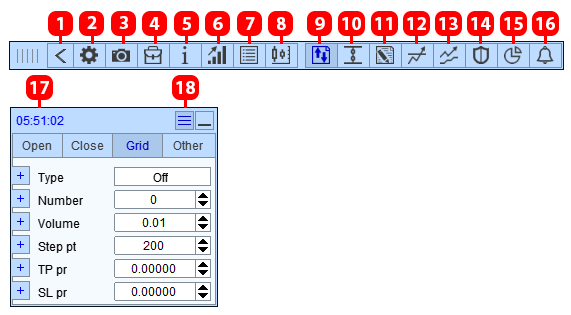
- Minimize.
- Settings.
- Chart screenshot.
- Order management.
- Order labels.
- Risk manager and Trade report.
- Info panel.
- Chart Management.
- Trading.
- OCO orders.
- Close orders by profit.
- Tasks.
- Trailing stop.
- Break-even.
- Partial close.
- Alerts.
- Server time or:
- Server time | Time until bar closes
- Profit in currency
- Profit in points
- Profit in currency | Profit in points
- Profit in currency | Open positions volume
- Hide toolbar.
Open tab
Overview of the Open tab. How to open an order or position.
▶️ YouTube: https://youtu.be/JG8tCjIyzSg
How to open positions on multiple symbols with a single click of the mouse.
▶️ YouTube: https://youtu.be/TGIP_SQguEQ
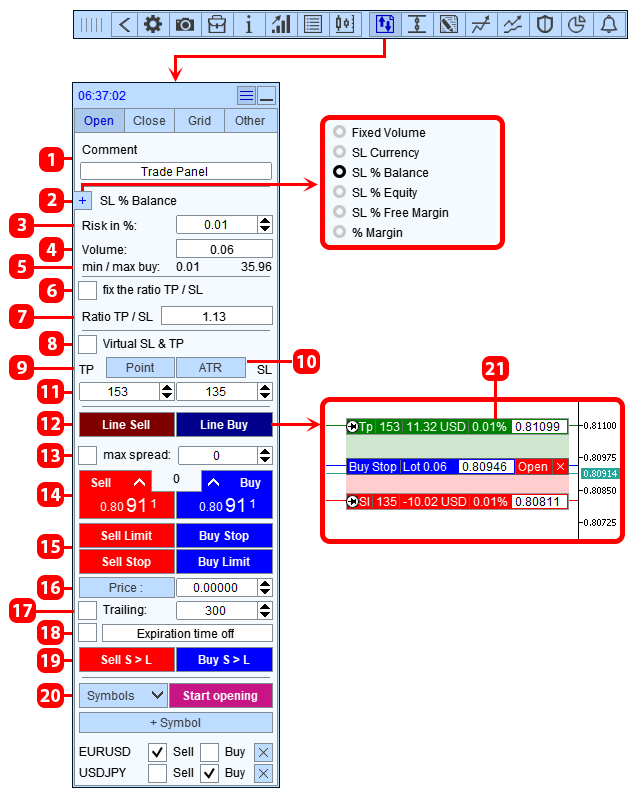
- Comment on the order.
- Method for calculating the order volume.
- Risk size.
- Calculated volume.
- Min. and Max. lot for opening an order. Click on Min. or Max. to enter this value in the field.
- Fix the TP and SL ratio. Once it's fixed:
- if you change the SL size, the TP size will be TP = SL * Ratio,
- if you change the TP size, the SL size will be SL = TP / Ratio.
- Size ratio TP and SL.
- Open an order with a Virtual SL and TP.
- Button to switch the measurement unit of TP and SL (Points/Price).
- Use ATR indicator readings for TP and SL. When you press the button, the panel will set the TP and SL size equal to the ATR indicator value.
- TP and SL size.
- Buttons to switch to opening orders using lines on the chart 21.
- Maximum spread filter. If, at the moment of pressing the open position button, the current spread exceeds the set value, the position opening will be canceled.
- Quick position opening.
- Quick opening of pending orders.
- Opening price of the pending order (for 15 buttons). You can set it in points (distance from the price to the pending order price), for this click the "Price:" button.
- Trailing of the pending order. The app will move the pending order along with the price movement at the set distance. The pending order only moves in the direction of the price.
- Expiration time of the pending order.
- Button to switch to BuyStopLimit SellStopLimit order opening mode (MT5 only).
- Button to open positions for specified symbols with one click. When you click the Start opening button, the app will sequentially open positions in the list.
- Labels for opening an order. Used to open an order using lines on the chart.
Volume calculation method
- Fixed lot - the volume is set by the user.
- SL in currency - in the account currency. In the input field, you specify the desired risk in the account currency. For example, if you enter $20, the volume is chosen so that if the trade hits the SL, the loss will be $20.
- SL in % of balance - as a percentage of the balance.
- SL in % of equity - as a percentage of equity.
- SL in % of free margin - as a percentage of free margin.
- % of free margin - the volume is set as a percentage of the maximum possible volume for this symbol that the free margin can cover. For example, if you set a 10% risk and the free margin can cover a 12.00 lot position, the calculated lot will be 1.2 (12.00*10%).
Virtual SL and TP
- Virtual SL and TP - these are price levels tied to an order (position). When the current price touches these levels, the position will be closed. Virtual stops serve the same functions as real stops; they allow you to lock in losses and profits.
- Why use virtual SL and TP? - the sole purpose of virtual SL and TP is to hide them from the broker. The broker doesn’t see virtual SL and TP, so they can’t be triggered by price manipulation.
- Why doesn’t the broker see virtual SL and TP? - real SL and TP are stored on the broker’s trading server and are executed by the trading server. Therefore, the broker knows the location of SL and TP. Virtual SL and TP are stored in the application and executed by the application. The app monitors the price, and if the price hits the virtual SL or TP, the app will close the position.
- Disadvantages of virtual SL and TP - since virtual SL and TP are executed in the terminal by the application, large price slippages can occur when closing a position.
Close tab
How to close orders and positions:
▶️ YouTube: https://youtu.be/_O6_ZHLbXVY
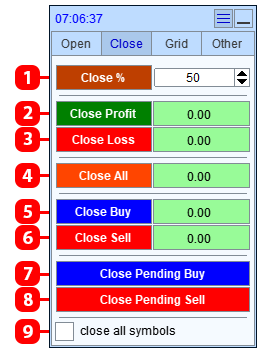
- Partially close all positions.
- Close profitable positions.
- Close losing positions.
- Close all orders and positions.
- Close Buy positions.
- Close Sell positions.
- Close pending Buy orders.
- Close pending Sell orders.
- Apply closure to all symbols.
Grid tab
How to open the order grid and how to duplicate orders and positions:
▶️ YouTube: https://youtu.be/CCMtolUafSQ
This tab (section) is an addition to the "Open" tab and is meant for setting up order grid parameters (order duplication). The order grid is created when an order is opened from the Open tab. Master order is an order opened from the Open tab; opening this order triggers the Grid function and a grid is built for this order.
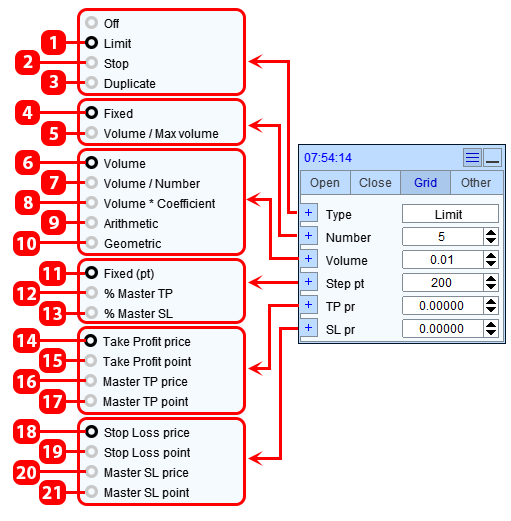
| # | Description | Example |
|---|---|---|
| 1 | Grid of Limit orders. | The app will open a Grid of orders with the specified step. |
| 2 | Grid of Stop orders. | |
| 3 | Duplicate the master order. | The app will open the specified number of orders at the master order price. The type of orders will be the same as the master order. |
| 4 | Fixed number of orders, set by the user. | Number 5: the order grid will contain 5 orders + the master order. |
| 5 | If the calculated volume exceeds the maximum allowable volume, the app will split the calculated volume across multiple orders. The number of orders is calculated automatically. This method of determining the number of orders is used when a trader trades volumes that exceed the maximum allowable volume set by the broker. | Maximum allowable volume 100, Calculated master order volume 258: Three orders will be opened, with volumes of 100, 100, and 58. |
| 6 | The volume of each order is fixed and set by the user. | We entered 3 in the volume input field: each grid order will have a volume of 3. |
| 7 | The calculated master order volume will be evenly distributed among the orders. | Number of grid orders: 4, calculated volume: 1.0: pressing the button will open 5 orders. Each order will have a volume of 0.2 lots (1.0/5). |
| 8 | The volume of each order will be equal to the volume of the master order multiplied by the coefficient. | The calculated master order volume is 1.5, coefficient 2: each order will have a volume of 3.0 (1.5 * 2). |
| 9 | The volume of each order will follow an arithmetic progression. | Calculated master order volume 1.0, number of orders 4, arithmetic progression difference 1.5: each order will have the following volumes: 1# 2.5, 2# 3.0, 3# 4.5, 4# 6.0. |
| 10 | The volume of each order will follow a geometric progression. | Calculated master order volume 1.0, number of orders 4, geometric progression ratio 2: each order will have the following volumes: 1# 2.0, 2# 4.0, 3# 8.0, 4# 6.0. |
| 11 | The step between grid orders is fixed, set by the user in points. | Step 100: the distance between grid orders will be 100 points. |
| 12 | The step between grid orders will equal a specified part of the master order TP. | Master order TP 200 points, % Master TP 10%: the grid order step will be 10% of 200 = 20 points. |
| 13 | The step between grid orders will equal a specified part of the master order SL. | Master order SL 250 points, % Master SL 10%: the grid order step will be 10% of 250 = 25 points. |
| 14 | The TP of each order is set to the price specified by the user. | Price 1.9453: The TP of each grid order will be set to the price 1.9453. |
| 15 | The TP of each order is set at the distance specified by the user. | TP points - 100 points: The first grid order buy 1.0000, theTP of this order will be at the price 1.0100, The second grid order buy 0.9000, theTP of this order will be at the price 0.9100, The third grid order buy 0.8000, the TP of this order will be at the price 0.8100. |
| 16 | The TP of each order is set to the TP price of the master order. | The master order has a TP at the price 1.9453: The TP of each grid order will be set to the price 1.9453. |
| 17 | The TP of each order is set at the distance that the master order's TP has. | The master order's TP in points is 100 points: The first grid order buy 1.0000 will have a TP at 1.0100, The second grid order buy 0.9000 will have a TP at 0.9100, The third grid order buy 0.8000 will have a TP at 0.8100. |
| 18 | The SL of each order is set to the user-specified price. | Price 1.9453: The SL of each grid order will be set to the price 1.9453. |
| 19 | The SL of each order is set to the user-specified distance. | SL points - 100 points, First grid order buy 1.0000, the SL of this order will be at 0.9900, Second grid order buy 0.9000, the SL of this order will be at 0.8900, Third grid order buy 0.8000, the SL of this order will be at 0.7900. |
| 20 | The SL of each order is set to the SL price of the master order. | The master order has a SL at 1.9453: The SL of each grid order will be set to 1.9453. |
| 21 | The SL of each order is set at the distance of the master order's SL. | The master order's SL in points is 100 points: The first grid buy order at 1.0000 will have a SL at 0.9900, The second grid buy order at 0.9000 will have a SL at 0.8900, The third grid buy order at 0.8000 will have a SL at 0.7900. |
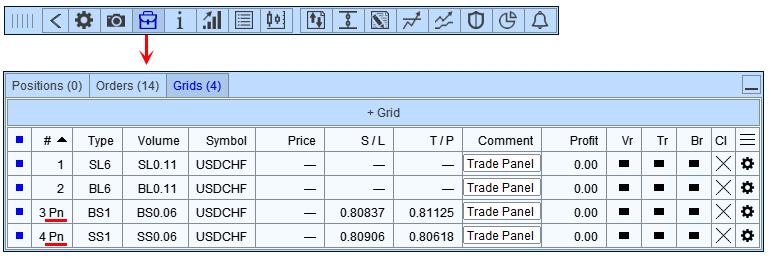
If the master order is a BuyStop or SellStop, and you need to create a grid of Limit orders, the app will only create the grid after the pending BuyStop or SellStop order has been executed. The same rules apply if the master order is a BuyLimit or SellLimit and you need to create a grid of Stop orders. Until the pending order is executed, the grid will be considered pending and will be marked with the suffix "Pn" in the order grid list:
Other tab
Locking and reversing positions, managing SL and TP positions:
▶️ YouTube: https://youtu.be/rmt6VuR6Baw
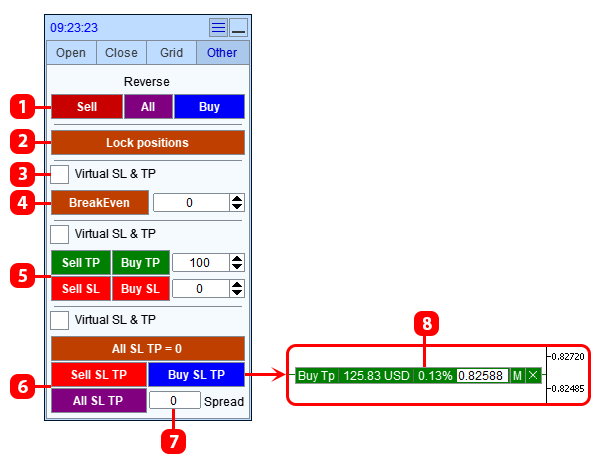
- Reversing positions:
- Sell - close all Sell positions and open one Buy position with a volume equal to the volume of the closed Sell positions.
- Buy - close all Buy positions and open one Sell position with a volume equal to the volume of the closed Buy positions.
- All - close all Buy and Sell positions, open one Sell position with a volume equal to the volume of the closed Buy positions, and open one Buy position with a volume equal to the volume of the closed Sell positions.
- Lock positions: open a locking position that will make the Buy and Sell volumes equal.
- Apply the function to Virtual SL.
- Set the SL of each position to the opening price of the position + a given offset.
- Set the TP and/or SL of each position at a specified distance in points.
- Set a TP and/or SL to the overall level:
- Buy SL TP - set a TP or SL for Buy positions to the overall level.
- Sell SL TP - set a TP or SL for Sell positions to the overall level.
- All SL TP - set a TP and SL for both Buy and Sell positions to the overall level.
- The distance between TP Buy and SL Sell or TP Sell and SL Buy (only for the All SL TP button).
- A label with a line indicating the level where the SL or TP will be set. Appears after pressing the 6 button.
Risk Manager and Trade Report
Trading report and Risk Manager. How to install the risk manager.
▶️ YouTube: https://youtu.be/Tkjuj91oxbs
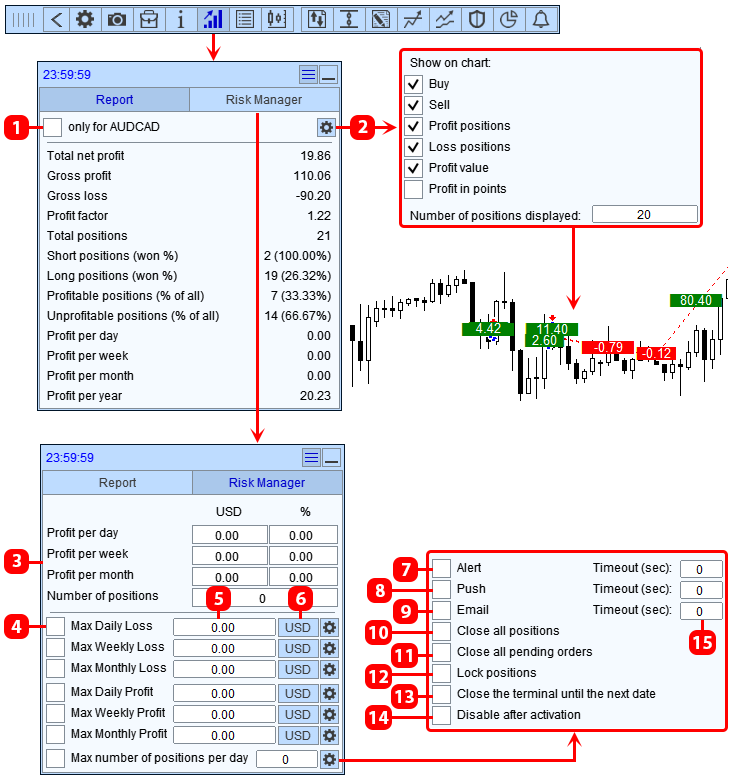
- Show the report only for the current symbol.
- Settings for displaying trading history on the chart.
- Current profit in deposit currency, as a % of the balance, and the number of positions opened per day.
- Enable risk manager condition.
- Field to enter Profit (Loss) amount, exceeding which will trigger the set risk manager action.
- Button to switch the profit unit (in deposit currency or %).
- When the condition is triggered, display a message on the chart.
- When the condition is triggered, send a notification to the mobile terminal (phone). *
- Send a message to EMAIL. *
- Close all positions on the trading account.
- Delete all pending orders on the trading account.
- Lock all positions on the trading account (open additional positions that balance the Sell and Buy volumes for the symbol).
- Close the terminal and prevent it from opening until the next date.
- Perform all actions and disable conditions (apply actions only once).
- Message sending frequency. If 0, the message will be sent once.
OCO Orders
How to create an OCO order.
▶️ YouTube: https://youtu.be/A6NwrjLw0YI
An OCO order is two pending orders linked together with a mutual canceling function: when one order is executed, the second order is removed by the application.
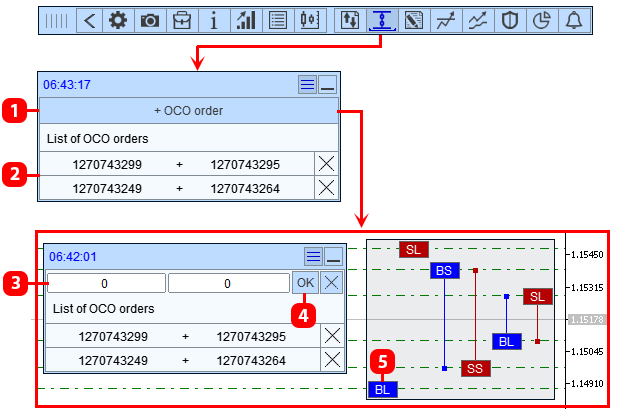
- OCO order setup button.
- List of set OCO orders.
- Fields to enter the tickets of orders that will be linked in an OCO order.
- Create OCO order button.
- Order labels.
Closing orders and positions when the set profit is reached
How to set up the function to close orders and positions when a specified profit or loss is reached.
▶️ YouTube: https://youtu.be/9n4TOasPBC4
Closing orders and positions when the total profit or loss of positions reaches a set value. The panel consists of two tabs:
- All symbols - closing orders and positions for all symbols.
- Only XXXXXX - closing orders and positions only for the current symbol.
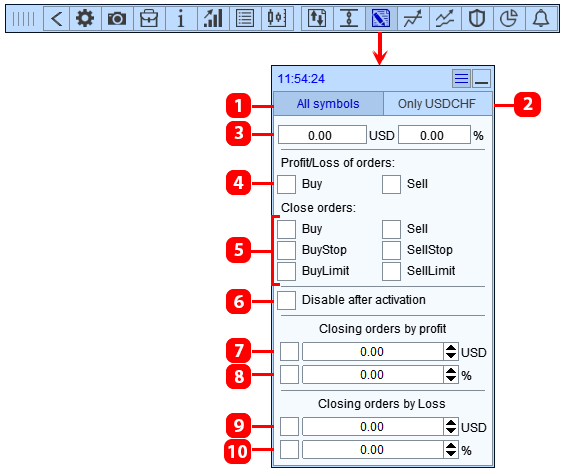
- Closing orders and positions for all symbols: considers profit from all positions in the account; when the specified profit is reached, all orders and positions in the trading account will be closed.
- Closing orders and positions for the current symbol: considers profit from all positions on the current symbol; when the specified profit is reached, all orders and positions for the current symbol will be closed.
- Current profit tracked by the application (in account currency and as a % of the balance).
- Type of positions whose profit will be considered by the function.
- Type of positions and orders that will be closed when the function is activated.
- Disable the feature after closing orders and positions.
- Close orders and positions when the set profit in currency is reached.
- Close orders and positions when the set profit as % of the balance is reached.
- Close orders and positions when the set loss in currency is reached.
- Close orders and positions when the set loss as % of the balance is reached.
Tasks
How to set a task.
▶️ YouTube: https://youtu.be/1TiRQBKUZHg
Setting tasks for opening and closing orders and positions. The task is triggered when a specified time is reached or when the price touches a line set on the chart.
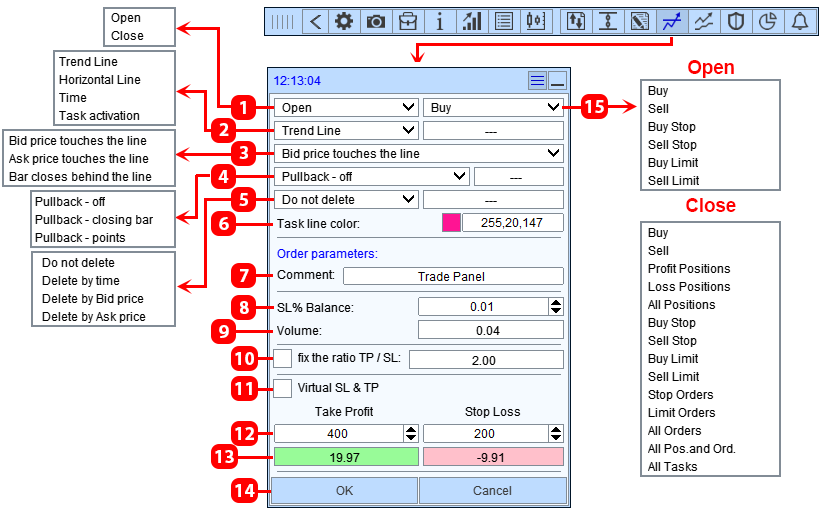
- Task type.
- Task activation condition:
- Trend line - the task is activated when the price touches the trend line.
- Horizontal line - the task is activated when the price touches the horizontal line.
- Time - the task is activated when the specified time is reached (the time is marked by a vertical line).
- Task activation - the task is activated when another task is triggered (chosen from already set tasks).
- Method of touching the task line's current price (only for trend and horizontal lines).
- Pullback to the line (only for trend and horizontal lines):
- "Pullback - bar close" - when this option is enabled, the task will activate when the following sequential events occur:
- the price crosses the line and the bar closes on the opposite side of the line.
- then, after breaking the line, the price will pull back to the line and touch it (touch using the selected method).
- "Pullback - points" - when this option is enabled, the task will activate when the following sequential events occur:
- the price crosses the line and moves away to the opposite side of the line by the number of points specified in the field.
- then, after breaking the line, the price will pull back to the line and touch it (touch using the selected method).
- "Pullback - bar close" - when this option is enabled, the task will activate when the following sequential events occur:
- Delete task:
- Delete the task when the specified time is reached.
- Delete the task when the specified Bid price is reached.
- Delete the task when the specified Ask price is reached.
- Task line color.
- Comment for the order.
- Method for calculating the order volume and field for entering risk.
- Calculated order volume.
- Fix the ratio between SL and TP.
- Virtual SL and TP.
- Fields for entering TP and SL.
- Profit/Loss when TP and SL are triggered.
- Button to set the task.
- Type of order or position being opened or closed.
Trailing Stop
How to set a trailing stop. Trailing stop types and parameters.
▶️ YouTube: https://youtu.be/W_DEmHcvyVQ
A trailing stop is a feature that automatically moves the stop loss (SL) following the market price according to a set algorithm. The SL moves toward profit and stops if the price reverses.
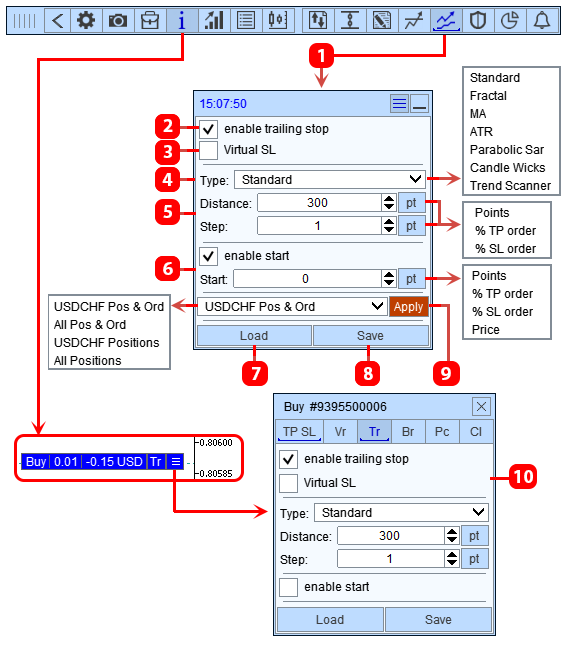
- The Trailing Stop function, which is applied to a new order and position.
- Enable the trailing stop function.
- Manage Virtual SL.
- Type of trailing stop.
- Trailing stop settings.
- Trailing stop start settings.
- Load settings from a template.
- Save settings to a template.
- Apply settings to selected orders and positions.
- Tab for editing the Trailing Stop function of an open order or position.
Standard Trailing Stop
Classic trailing stop. The SL follows the market price at a set distance.
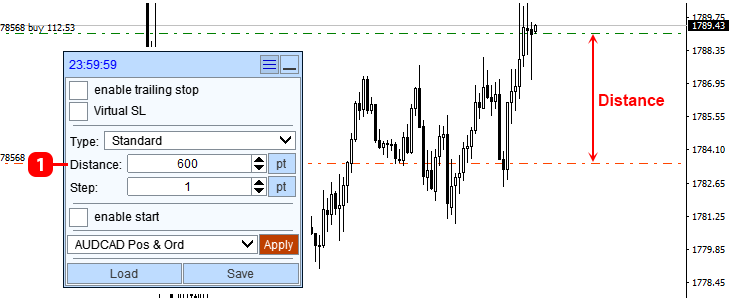
- Distance from the current price to the SL, with this distance the SL will follow the price.
Fractal Trailing Stop
The stop-loss moves along the tops of fractals.
A fractal is a figure consisting of three or more candles (bars), where the middle candle is the highest or lowest in that figure.
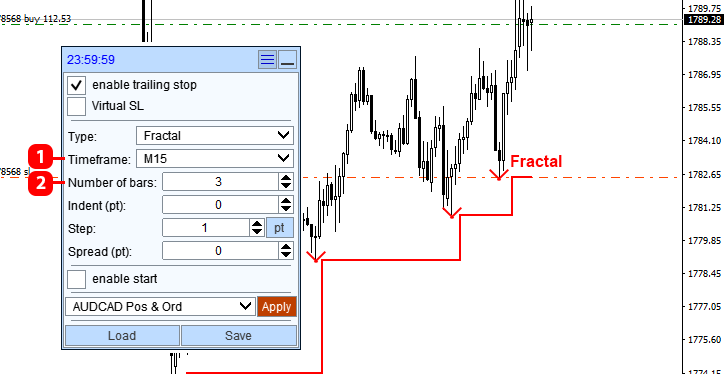
- Chart timeframe for finding fractals.
- Number of bars in a fractal.
MA Trailing Stop
The stop-loss moves along the Moving Average indicator.
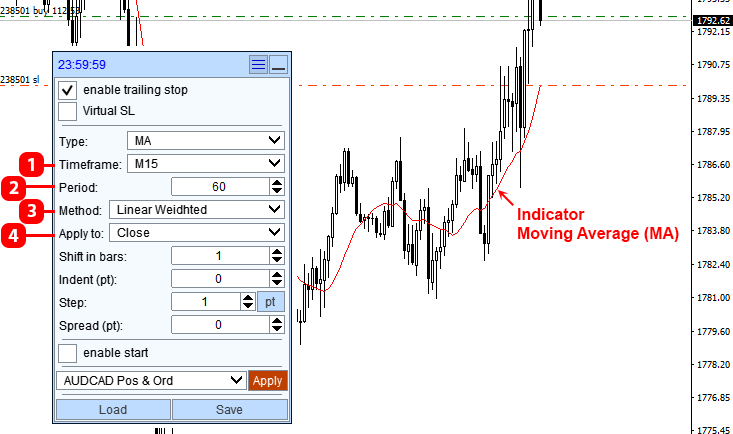
- Timeframe of the Moving Average indicator.
- Period of the Moving Average indicator.
- Method of averaging for the Moving Average indicator.
- Price used for the Moving Average indicator.
ATR Trailing Stop
Similar to the Standard trailing stop, but this type uses the Average True Range (ATR) indicator as the distance.
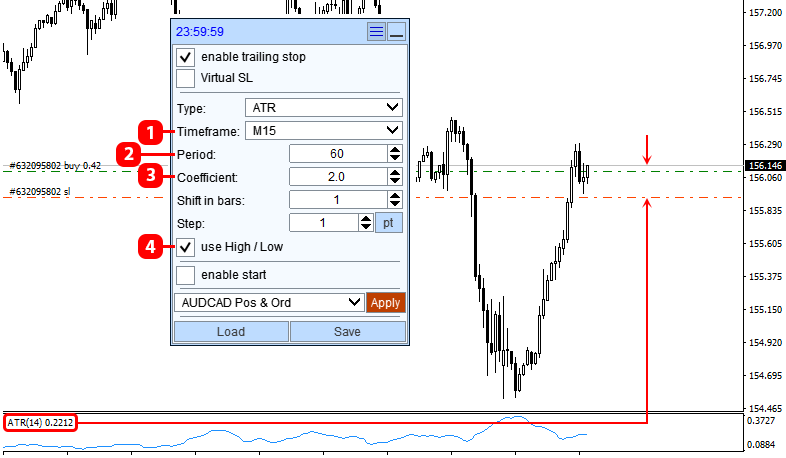
- ATR indicator timeframe.
- ATR indicator period.
- Multiplier. If you set it to 2, the trailing stop distance will be equal to twice the ATR value.
- Measure distance from the last candle:
- If enabled, the distance will be measured for Buy from the Low price, and for Sell from the High price.
- If disabled, the distance will be measured for Buy from the Bid price, and for Sell from the Ask price.
Parabolic Sar Trailing Stop
The stop-loss moves along the Parabolic SAR indicator.
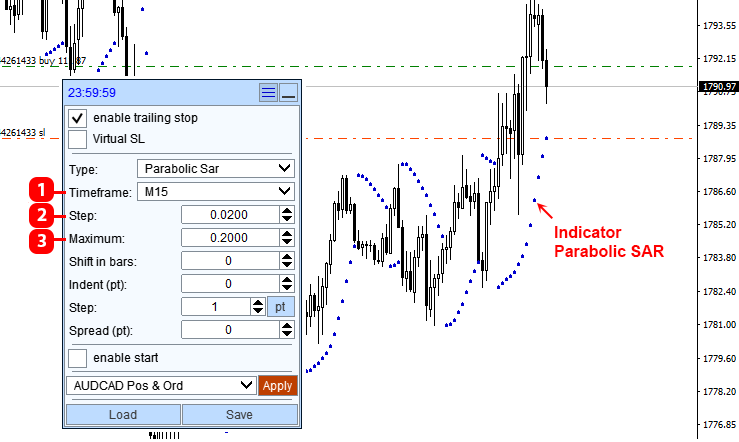
- Timeframe of the Parabolic SAR indicator.
- Step of price change for the Parabolic SAR indicator.
- Maximum step of the Parabolic SAR indicator.
Candle Wicks Trailing Stop
The SL moves along the candle lows for buys and candle highs for sells.
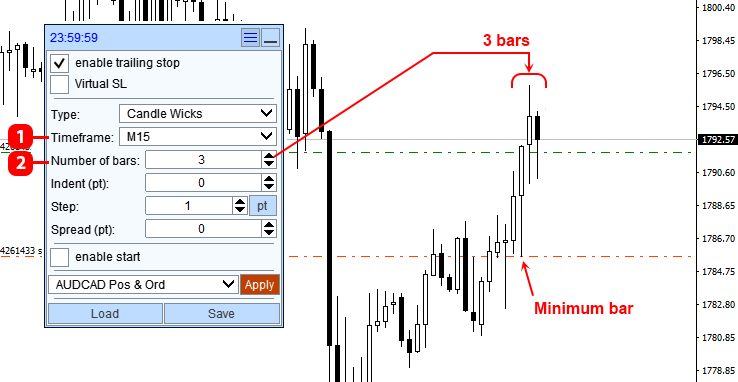
- The chart timeframe for looking for candles.
- The number of candles from which the app will select the minimum or maximum value to set the SL .
Trend Scanner Trailing Stop
The SL moves along the indicator line of Trend Scanner.
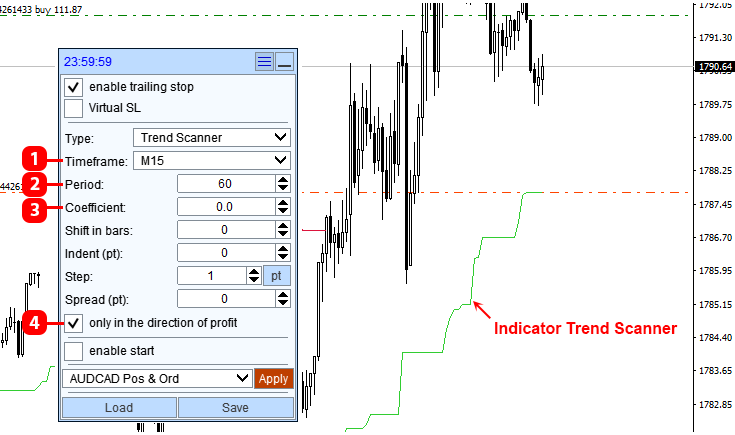
- Timeframe of the Trend Scanner indicator.
- Period of the Trend Scanner indicator.
- Coefficient of the Trend Scanner indicator.
- Move SL only in the direction of profit:
- If enabled, the SL will move only to reduce losses.
- If disabled, the SL will follow the Trend Scanner line, both reducing and increasing losses. The disabled setting applies only when Bar shift=0. Note that this will increase the number of position modifications.
Settings
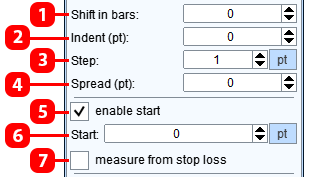
- Bar number from which the app will take the indicator data to calculate the trailing stop (bar numbering starts from zero and goes from right to left).
- SL offset from the calculated trailing stop price.
- Minimum step of the trailing stop. The SL will only move to the next price if the next price is at least the specified step away from the current SL price.
- Spread size for the symbol. When calculating the trailing stop based on the indicator, the chart built from the Bid price is used. Since Sell orders close at the Ask price, you can specify the spread size so that the function offsets the calculated SL level for Sell orders. If your account doesn’t have a fixed spread or you don’t know what this parameter is for, set it to 0.
- Enable activation of the trailing stop from a specified level.
- Distance from the order or position opening price to the function activation price.
- Trailing Stop Activation Conditions:
- Off - the trailing stop will activate when the current price reaches the activation price.
- On - the trailing stop will activate when the calculated trailing stop price reaches the activation price. That is, the SL will start moving from the activation level.
Break-even
How to set up the Break-Even function.
▶️ YouTube: https://youtu.be/xu5r-8wpGJk
The breakeven function works like this: when the price reaches a set Distance, the function will move the SL to the opening price of the position + an offset (Profit). The distance and offset are measured from the position's opening price, in the direction of profit. The function only triggers each breakeven level once. If, when the function activates, the current SL is already more profitable than the calculated one, it won’t be moved, since the function only moves the Stop-Loss in the direction of profit.
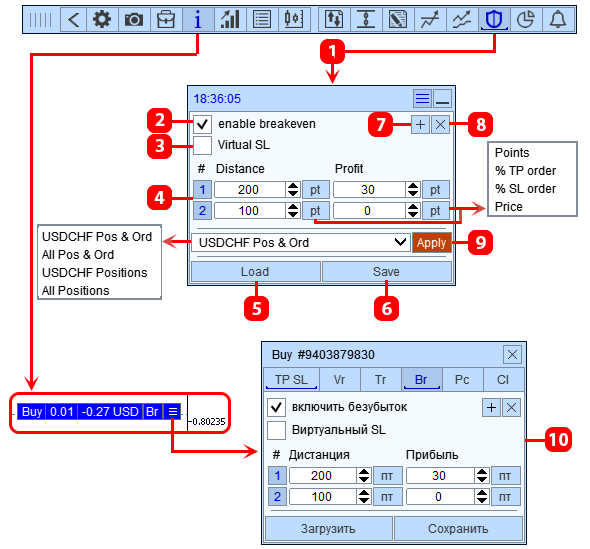
- Break-even function, which is applied to a new order and position.
- Turn on the break-even function.
- Manage the Virtual SL .
- Set break-even levels.
- Load a break-even template.
- Save break-even settings to a template.
- Create a new break-even level.
- Delete a break-even level.
- Apply settings to selected orders and positions.
- Tab for editing the Break-even function of an open order or position.
Partial closure
Partial Position Close Function.
▶️ YouTube: https://youtu.be/fdz6oidmdFc
The Partial Close function works like this: when the current price reaches the set Distance, the function will close the specified part of the position. The Distance is measured from the position's opening price, toward profit or loss. If the position amount is equal to or less than the partial close amount, the function will close the entire position.
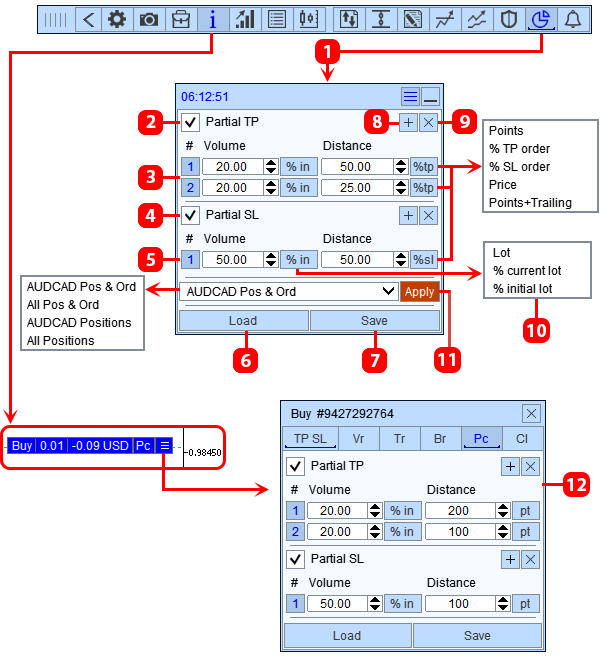
- Partial Close function, which is applied to a new order and position.
- Enable Partial Profit Close function.
- Set Partial Profit Close levels.
- Enable Partial Loss Close function.
- Set Partial Loss Close levels.
- Load Partial Close settings from a template.
- Save Partial Close settings to a template.
- Create a new Partial Close level.
- Delete a Partial Close level.
- Unit of measurement for the portion of a position to be closed:
- Lot - Fixed volume
- % of current lot - The portion of the position to be closed will be calculated as a percentage of the current position size, right before the partial close. When using this method, keep in mind that a partial close reduces the position size, which will affect subsequent partial close levels, as they will take a percentage of the current position size.
- % of initial lot - The portion of the position to be closed will be calculated as a percentage of the initial position size, meaning the lot size the position had at the time it was opened.
- Apply settings to the selected orders and positions.
- Tab for editing the Partial Close function of an open order or position.
Distance Units

- Points - The distance is set in points. Point - this is the smallest possible price change on a symbol:
- If the quote has a precision of 0.00000: 1 point = 0.00001.
- If 0.0000: 1 point = 0.0001.
- If 0.000: 1 point = 0.001.
- If 0.00: 1 point = 0.01.
- % of TP order * - The distance is calculated as a % of the current TP size of the order or position. For example, if: TP = 500 points, Distance = 70% of TP, the Distance in points will be 350 points. If the order or position has Virtual TP enabled, the Distance % will be calculated from the Virtual TP, regardless of whether the order or position has a real TP or not.
- % of SL order * - The distance is calculated as a % of the current SL size of the order or position. For example, if: SL = 800 points, Distance = 60% of SL, the Distance in points will be 480 points. If the order or position has Virtual SL enabled, the Distance % will be calculated from the Virtual SL, regardless of whether the order or position has a real SL or not.
- Price - The distance is set by price. With this calculation method, the distance is not tied to the order or position opening price, so this method is best used only when configuring a specific order or position function.
- Points + Trailing (only for partial closure) - The distance is set in points. This option has a trailing function that allows the Partial Close level to move along with the current price. The app will move the Partial Close level along with the current price while keeping the set maximum distance from the price. The Partial Close level only moves toward the price. For a BUY position, the level follows the BID price, and for a SELL position, it follows the ASK price.
How this mode works:
To set the function for a new order or position, you use the "% TP order" and "% SL order" methods.
As soon as you click the button to open an order or position, the app will apply the function settings to the open order with the following changes:
- Convert the values expressed as % into points.
- Change the method for the order or position from "% TP order" and "% SL order" to "Points".
Alert
How to set up an Alert.
▶️ YouTube: https://youtu.be/No97HhJc6X8
The set alert triggers when the price touches the line. You can set unlimited alerts at the same time on multiple symbols.
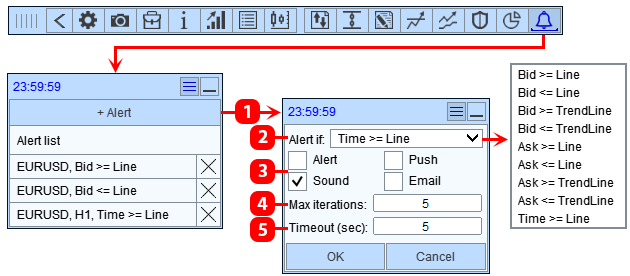
- Create a new alert.
- Alert conditions.
- Alert method:
- Alert - a pop-up on the chart
- Sound - you can choose a sound file in the panel settings under the "Sounds" tab
- Push notifications - a message to your mobile device
- EMAIL - a message to your email inbox
- Number of repeats.
- Pause between repeats.
Chart Management
How to set up the chart control panel. How to switch the symbol on the chart.
▶️ YouTube: https://youtu.be/9kiJecDI_ZQ
The "Chart Management" feature is designed to switch the symbol on the terminal charts.
The app can work with all terminal symbols at the same time, so all set functions will work regardless of the current symbol on the chart. For example, if you set functions for GBPUSD, AUDUSD, and EURUSD and then switch the chart to USDCHF, the app will continue to run the functions for GBPUSD, AUDUSD, and EURUSD.
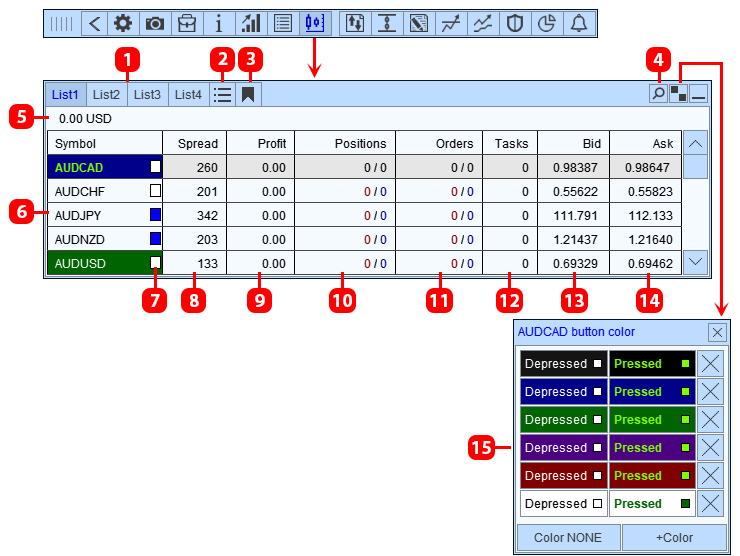
- Custom symbol lists.
- List of symbols with open orders or positions.
- Favorites symbol list.
- Symbol search.
- Current account profit.
- Buttons to switch symbols on the chart.
- Button to add a symbol to favorites.
- Spread size.
- Current profit. *
- Number of open positions. **
- Number of open pending orders. **
- Number of tasks set.
- Bid price.
- Ask price.
- Panel to set the button color for the current symbol.
** "Positions" and "Orders" can be displayed as:
- Quantity
- Buy / Sell Volume
- Volume Difference (Buy volume - Sell volume)
Info Panel
How to set up the info panel.
▶️ YouTube: https://youtu.be/u80_7nbRlLU
The info panel shows the current information for the symbol.
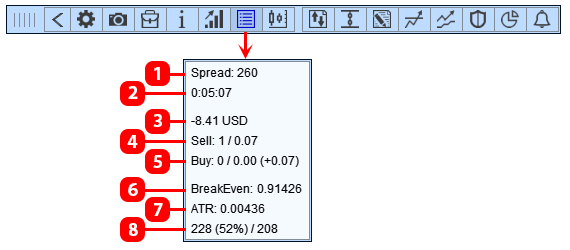
- Spread size.
- Time until the bar closes on the current timeframe.
- Profit on the current symbol.
- Number of Sell positions, their volume, and the difference from Buy. *
- Number of Buy positions, their volume, and the difference from Sell. *
- ATR indicator readings.
- ATR indicator range. **
- Breakeven price for positions on the current symbol.
- number of Buy positions 4;
- total volume of Buy positions 0.04;
- volume of Buy positions is 0.05 less than Sell.
- distance traveled - 110 points (distance from the closing price of the penultimate bar to the current price);
- distance traveled as a % of ATR - 9%;
- remaining move - 1139 points (remaining move = ATR in points - distance traveled = 1249-110).
Managing Orders and Positions
▶️ YouTube: https://youtu.be/5CNCLE6J3zI
The Managing Orders panel is designed for analyzing the status of open orders and positions, managing orders and positions, and creating and managing an order grid.
Positions and Orders Tabs
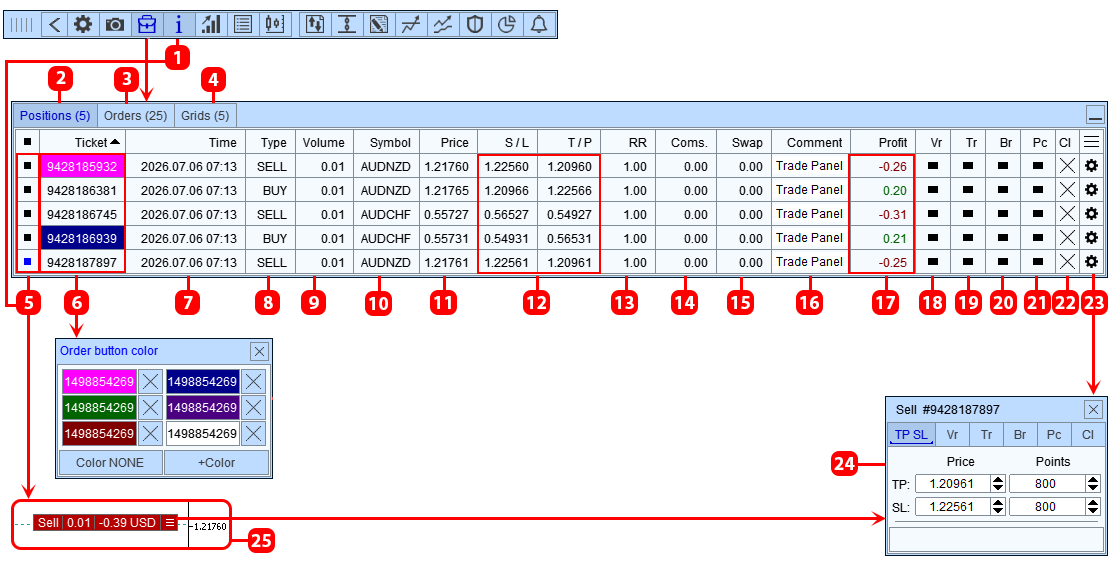
- Show order and position labels on the chart.
- Positions (quantity).
- Pending orders (quantity).
- Order grids (quantity).
- Show order or position label on the chart (25).
- Ticket. Click on the cell to edit the color for the cell and label.
- Opening time.
- Type.
- Volume.
- Symbol.
- Order or position opening price.
- SL and TP / Virtual SL and TP. Click on the cell to toggle.
- TP to SL ratio.
- Commission.
- Swap.
- Comment.
- Profit in currency / Profit in points / Profit as % of balance. Click on the cell to switch.
- Button for Virtual SL and TP availability.
- Button for Trailing Stop function availability.
- Button for Breakeven function availability.
- Button for Partial Close function availability.
- Button to close an order or position.
- Button to go to order or position management.
- Control panel for the selected order or position, see more details below.
- Order label: located at the order or position opening price. Shows order information and also highlights it with color if you set its color in cell 7.
Order Management
Tp Sl Tab
Editing TP and SL.
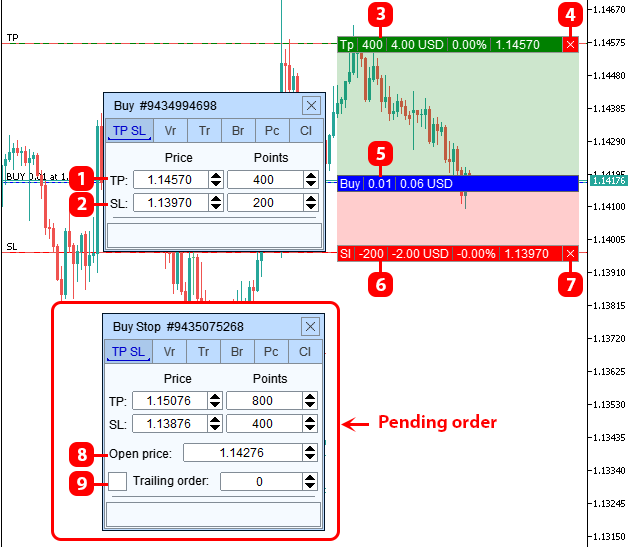
- TP price and its size in points.
- SL price and its size in points.
- TP label.
- Button to cancel TP.
- Position label.
- SL label.
- Button to cancel SL.
- Order opening price.
- Trailing of a pending order. The app will move the pending order following the movement of the current price at a set distance. The app only moves the pending order towards the current price.
Vr Tab
Editing virtual TP and SL.
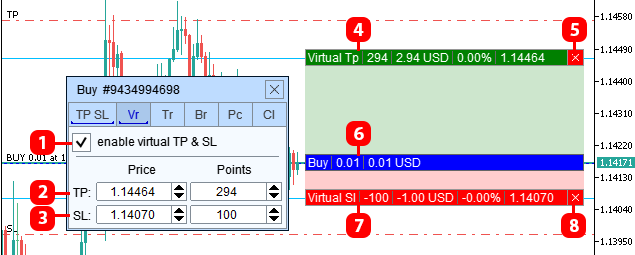
- Enable virtual SL and TP.
- Virtual TP price and its size in points.
- Virtual SL price and its size in points.
- Virtual TP label.
- Button to delete virtual TP.
- Order or position label.
- Virtual SL label.
- Button to delete virtual SL.
Tr Tab
Editing the trailing stop function.
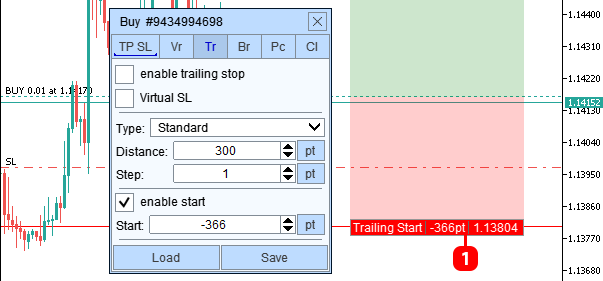
- Label for the trailing stop start level.
Br Tab
Editing the Break-even function.
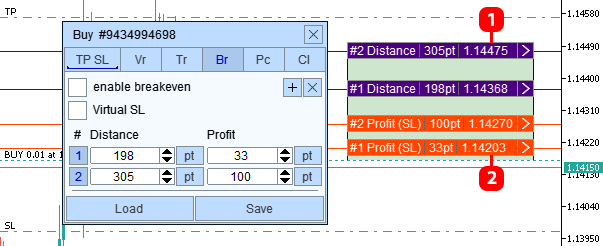
- "Distance" label of the break-even function.
- "Profit" label of the break-even function.
Pc Tab
Editing the partial closure function.
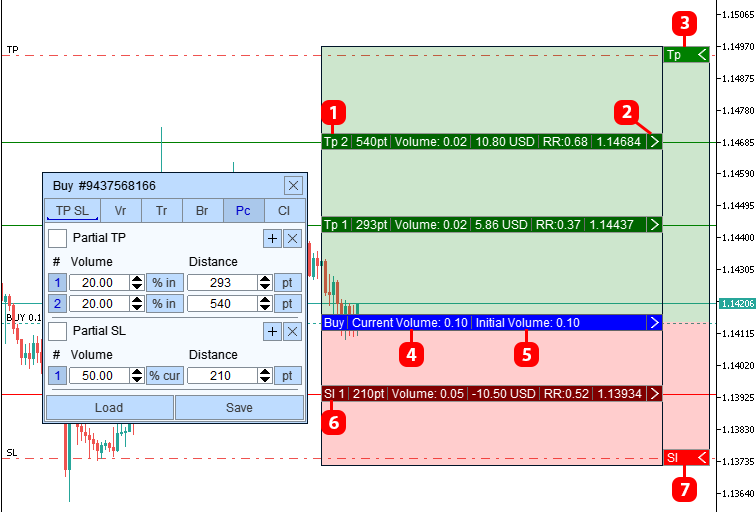
- Partial profit close level label.
- Button to expand/collapse the label.
- Button to expand/collapse the TP label.
- Current order or position volume.
- Initial order or position volume.
- Partial loss close level label.
- Button to expand/collapse the SL label.
Cl Tab
Full or partial position closure, deleting a pending order
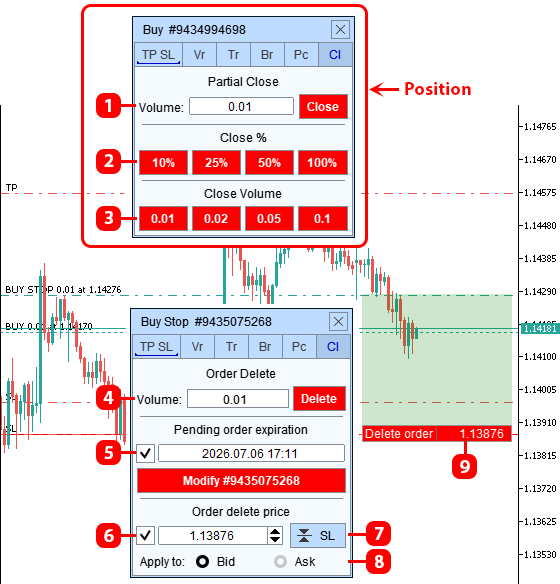
- Closing by the volume entered in the field.
- Closing by percentage.
- Closing by volume.
- Delete pending order.
- Set the expiration date of the pending order (if the order doesn't trigger by this date, the pending order will be deleted).
- Set the price at which the pending order will be deleted.
- Button for quickly entering the SL price of the pending order into the field.
- Activation price:
- Bid - the order will be deleted if the Bid price touches the set level.
- Ask - the order will be deleted if the Ask price touches the set level.
- Label for the pending order deletion level.
Grid Tab
The 'Grid' tab shows a list of grouped orders and positions opened using the 'Order Grid' feature, the 'Duplicate Orders' feature, or manually created with the '+ Grid' button.
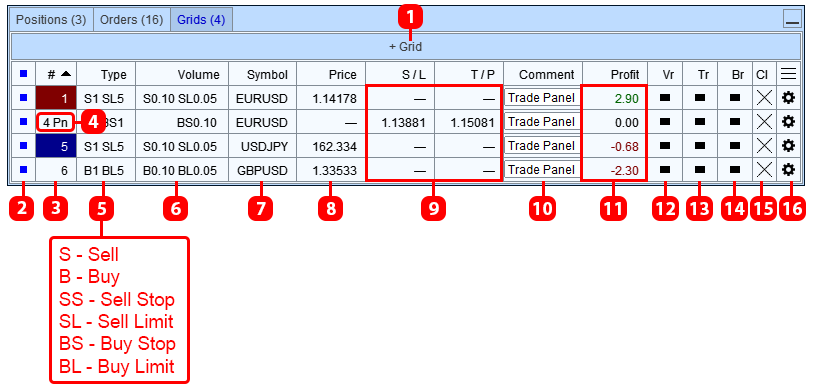
- Create a new group of orders.
- Show on the chart the order labels that belong to this group.
- Group number. Click on the cell to edit the cell color and the color of the order labels that belong to this group.
- Pn - Pending "order grid" (see above)
- Order and position types (total number)
- Order and position volume (total volume)
- Symbol on which the orders and positions from the group are opened.
- Break-even price of the grid. The price at which the total profit of the grid will be zero. Only the positions in the grid are used to calculate the price; if the price cannot be calculated or the grid consists only of pending orders, a '—' sign is displayed in the field.
- SL and TP / Virtual SL and TP of the grid. SL and TP values are displayed only if they are the same for all orders in the grid. If the SL or TP of the orders differ, the field shows a '—' sign. Click on the cell to switch.
- Comment for the order grid.
- Grid profit in currency / Grid profit in points / Grid profit as a percentage of the balance. Click on the cell to switch.
- Button indicating that the order or position in this group has Virtual SL and TP.
- Button for the Trailing Stop function.
- Button for the Breakeven function.
- Button to close all orders and positions in the group.
- Button to go to group management.
Order Group Management
Order List Settings
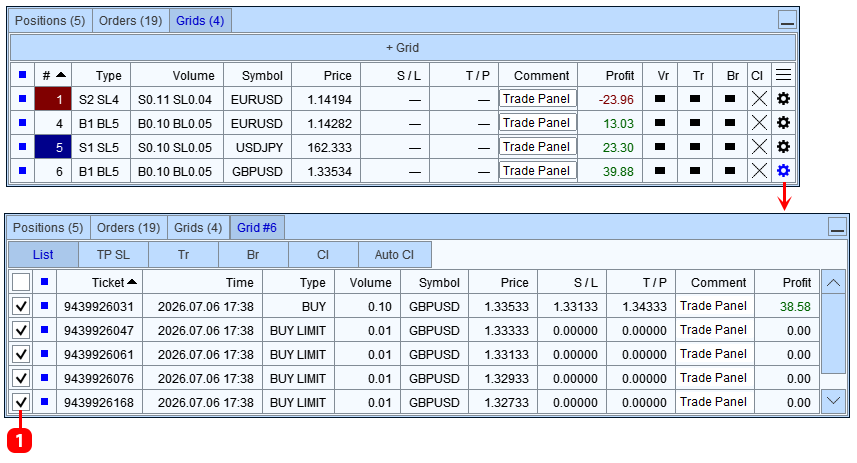
- Checkbox indicating whether an order or position belongs to a group.
TP and SL orders
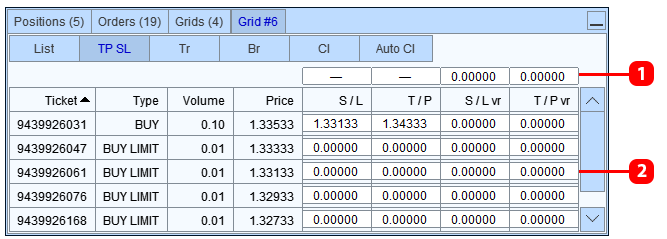
- Fields for editing the TP and SL of the group. The field shows the price if all orders and positions in the group have the same TP or SL. To set the same TP or SL for all orders and positions in the grid, enter the price in the field and click the "Modify" button.
- Fields for editing the TP and SL of an order.
Trailing Stop Function for a Group
You can set a trailing stop function for a group of orders, which will move the SL for all positions in the group at the same time.
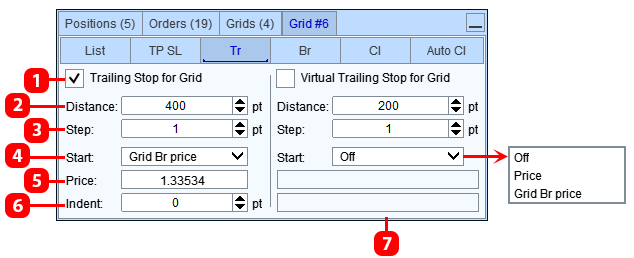
- Enable the trailing stop feature.
- Distance from the current price to the SL ; with this distance, the SL will follow the price.
- Trailing stop step.
- Trailing Stop Start:
- Price - the trailing stop feature activates if the current price reaches the price specified in field 5.
- Grid Br price - the trailing stop feature activates if the current price reaches the breakeven price of the group (the price at which the total profit of positions in the group will be zero).
- The price at which the trailing stop feature is activated. For the "Price" option, the price is entered manually, and for the "Grid Br price" option, it is calculated automatically (4).
- Offset of the start level from the group breakeven price. Used for the "Grid Br price" option.
- Trailing stop of the virtual SL .
Breakeven Function for a Group
For a group of orders, you can set up a Breakeven function. Here's how it works: when the current price reaches the specified distance from the group's breakeven price, the function will move the SL of all positions to the group's breakeven price + profit.
The group's breakeven price is the price at which the total profit of the positions in the group will be zero. You can also specify any other price instead of the group's breakeven price.
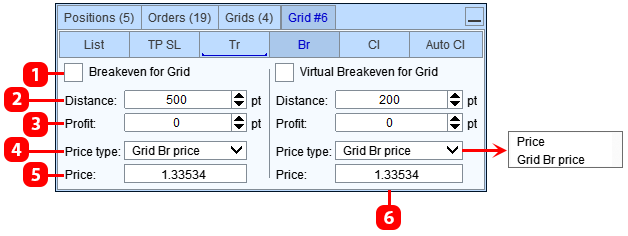
- Enable the Breakeven feature for the group.
- Distance - the distance from the group's breakeven price to the level, which, when reached by the current price, will move the group's positions' SL to the breakeven price + Profit (3).
- Profit (Offset) - the distance from the group's breakeven price to the level to which the group's positions' SL will be moved. If profit = 0, then when the breakeven function is triggered, the SL will be set to the group's breakeven price.
- Price type:
- Price — the price entered in field 5 is used as the price from which the Distance is measured and to which the SL will be moved.
- Grid Br price — the breakeven price of the group is used as the price from which the Distance is measured and to which the SL will be moved.
- Initial price for calculating breakeven function levels. For the "Price" option, the price is entered manually, while for the "Grid Br price" option, it is calculated automatically (4).
- Break-even for the virtual SL .
Closing the group
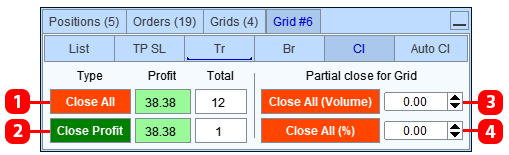
- Close all orders and positions in the group.
- Close only profitable positions in the group.
- Partially close positions in the group, specifying the portion to close in lots.
- Partially close positions in the group, specifying the portion to close as a % of the position size.
Auto group closing
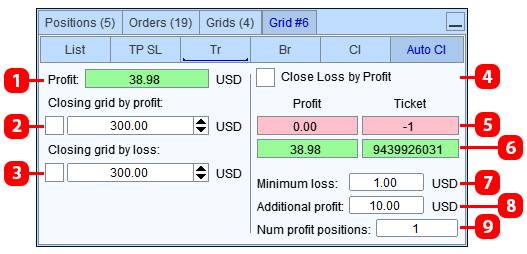
- Current profit of the order grid.
- Close a group of orders when a set profit is reached.
- Close a group of orders when a set loss is reached.
- Enable the Close loss with profit feature. *
- The most losing position in the order group. (-1 if none)
- The most profitable position in the order group.
- The minimum loss of a position at which the feature will start working.
- The minimum additional profit that will appear when closing a losing and profitable position.
- The maximum number of profitable positions whose profit can be used to cover a losing position.
*This function is designed to cover a losing position with a profitable one. The function searches within the group for the position with the biggest loss, which should be equal to or greater than the amount specified in the "Minimum Loss" parameter (8). Once it finds this losing position, the function will start selecting a profitable position that will cover the loss of the losing position and still leave a profit equal to or greater than the "Additional Profit" specified in field 9. As soon as the function selects the positions, it will close them, so the loss of the losing position will be covered by the profit of the profitable position, and the total profit from closing these positions will be equal to or greater than the Additional Profit indicated in field 9.
You can use several profitable positions to cover a losing position; to do this, enter the number of positions in field 10.
For example:
- Minimum loss = $600,
- Additional profit = $50,
- Number of profitable positions = 3.
According to these settings, the function will cover a losing position with a loss of $600 or more. The function can use between 1 and 3 profitable positions to cover it. As a result of closing the losing and profitable positions, their total profit should be at least $50.