

To enable Trade Manager to manage orders and positions 24/7, you can install it on a VPS. For this purpose, you can use a regular VPS or a MetaTrader VPS.
On a regular VPS (running Windows), the installation and use process is no different from a home PC: you install a terminal and activate the application.
On VPS MetaTrader, the installation process is different, and to properly install the application on VPS MetaTrader, you need to follow these steps:
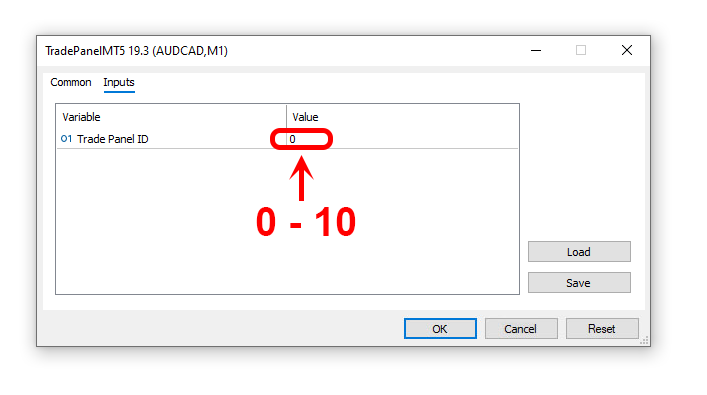
1) Install the Trade Panel on the chart with a trade panel ID from 0 to 10:
2) Set up the application.
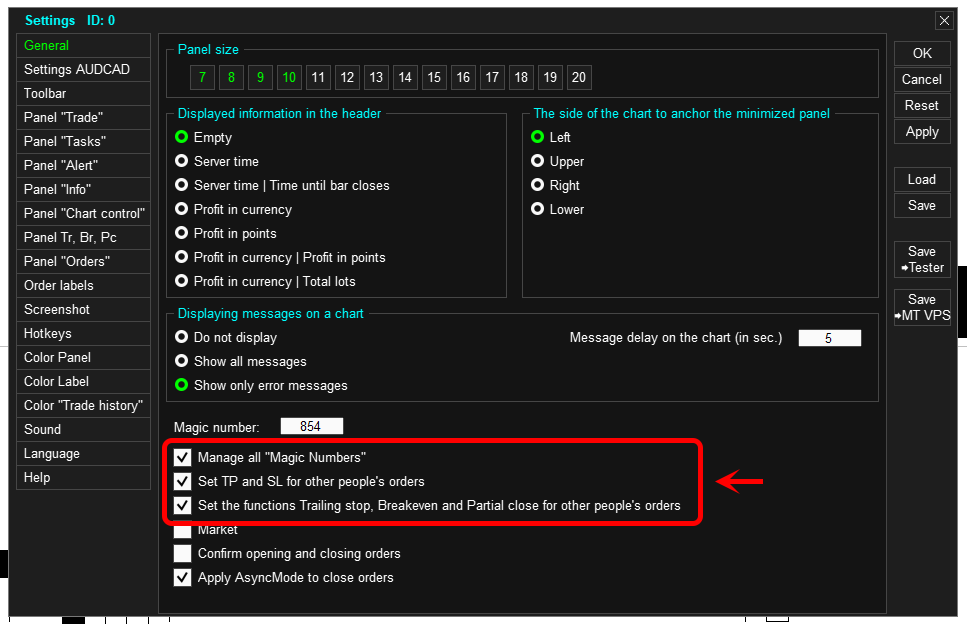
Enable these settings if you want the app to manage all orders on your trading account (e.g. orders opened from your phone or orders opened by another expert):
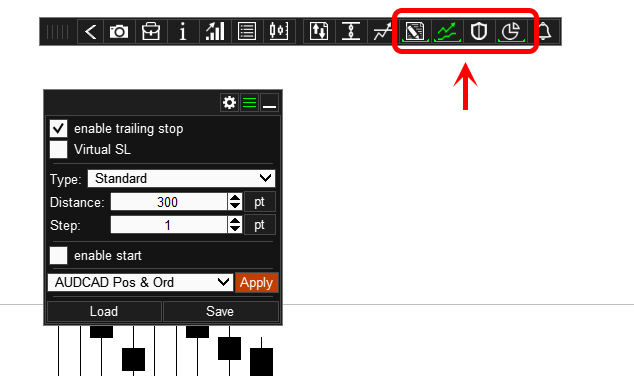
Enable all necessary order and position management functions. For example, you can enable closing orders and positions when a specified profit is reached, a trailing stop function, a partial position closure function, etc.
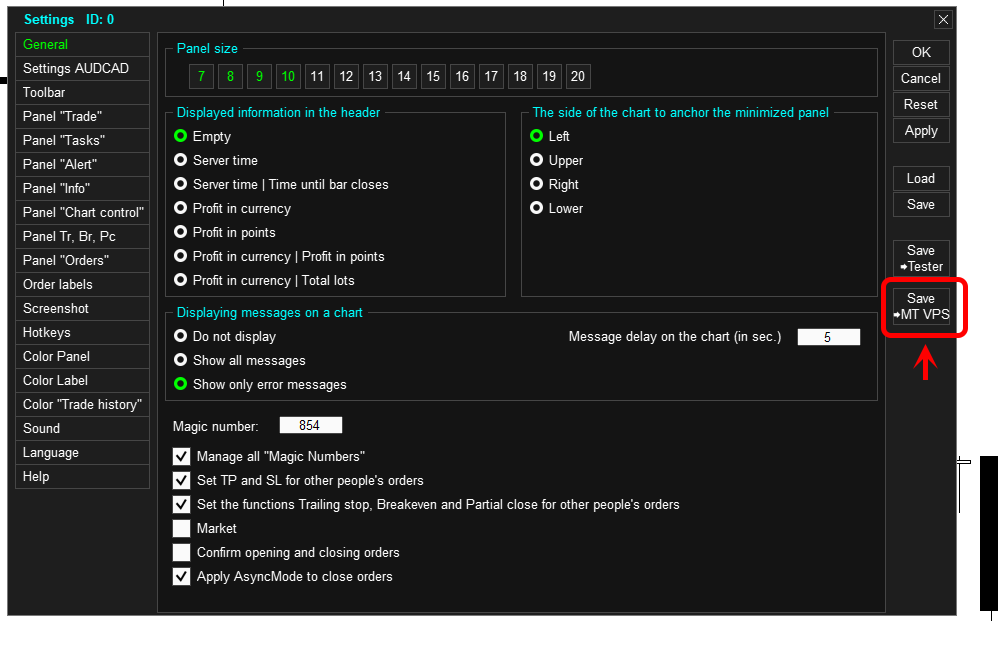
3) After configuring the settings, save them for migration to the MetaTrader VPS. To do this, go to the application settings and click the "Save for VPS" button:
4) Done, now you can migrate the application to the VPS:
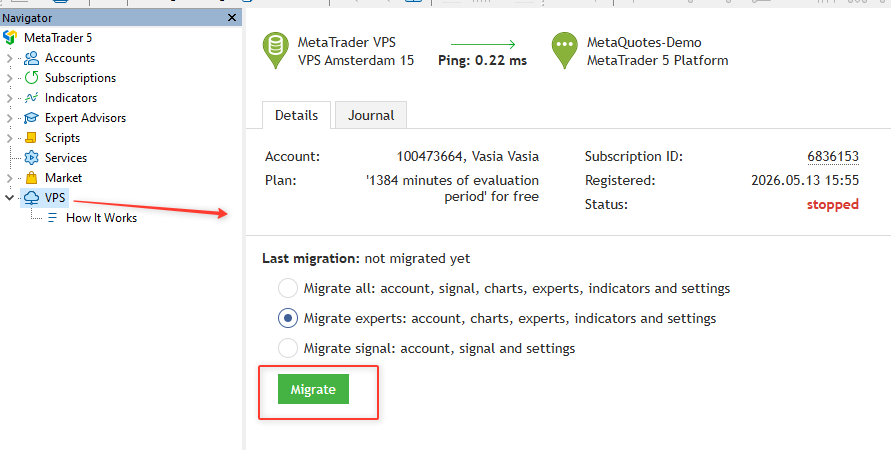
5) Please note! The application remaining on your terminal and the application migrated to the VPS are not automatically synchronized. This means that any changes to the application settings installed on your terminal will not affect the application settings on the VPS. If you need to change the application settings on the VPS, repeat all steps: "Configure Application" > "Click the Save for VPS button" > "Click the Migrate button."