How to Automate TradingView Alerts to MT4 Without Coding (Cloud Webhook Guide)

I missed a perfect NQ setup last year.
3 AM. TradingView fired an alert. My phone buzzed. By the time I opened the terminal, clicked through the order window, typed the lot size, and hit buy — price had already moved 15 points against me.
Not a losing trade. A correctly identified setup. Killed by 8 seconds of manual execution.
That's the real cost of manual trading. Not bad analysis. Latency.
This guide explains how cloud webhooks solve that problem — and how to set one up between TradingView and MetaTrader 4 without writing a single line of code.
What Is a Webhook and Why Does It Matter for Traders
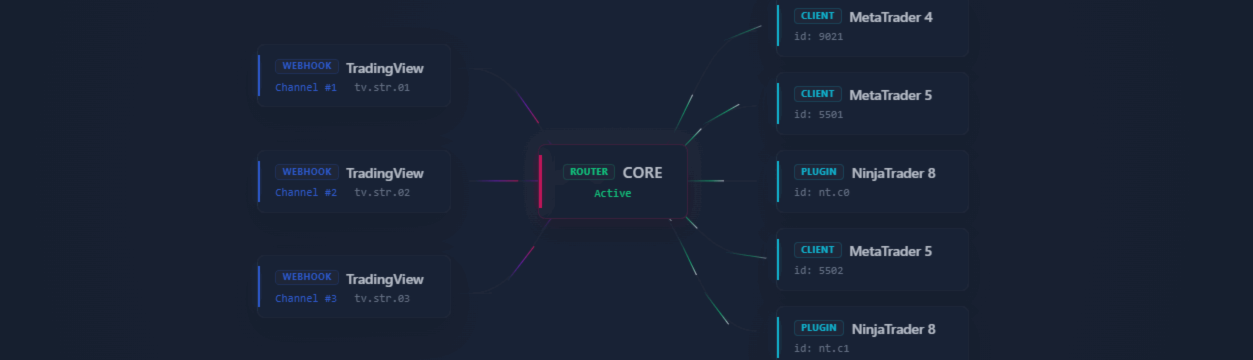
A webhook is an HTTP request triggered automatically when something happens. In trading terms: TradingView fires an alert → that alert sends an HTTP POST to a URL → the URL belongs to a cloud server → the server relays the command to your terminal.
The whole chain takes ~0.5 seconds from alert trigger to executed order in MT4.
Compare that to manual execution: you're looking at 5–30 seconds minimum, depending on how fast you notice the alert, switch windows, and place the order. On news releases or fast-moving markets, that gap is the difference between the price you wanted and the price you got.
The Standard Problem: Why Most Traders Don't Use Webhooks
If you've tried setting up a webhook connector before, you've probably hit one of these walls:
Symbol mapping. Your broker names the instrument EURUSD.ecn or EURUSD_i . TradingView knows it as EURUSD . Most connectors require you to manually define these mappings in a JSON config file. Miss a dot, add a space, use the wrong case — the alert fires but nothing happens in your terminal.
JSON payload syntax. Most webhook connectors require you to format your TradingView alert message as a specific JSON string, something like {"action":"buy","symbol":"EURUSD.ecn","risk":"1%"} . Every field, every comma, every quote mark must be exact.
VPS blind spots. Your MT4 terminal has to run 24/7. If your VPS drops connection or the EA crashes, the next signal goes nowhere and you don't know about it.
These aren't edge cases. They're the primary reasons traders set up automation and abandon it within a week.
How Cloud Webhooks Work: The Architecture
Here's the flow in plain terms:
TradingView Alert ↓ Webhook URL (cloud server) ↓ Signal logged + validated ↓ Receiver EA in MT4 terminal ↓ Order executed
The key component is the Receiver EA — a lightweight Expert Advisor you attach to a chart in MT4. It doesn't trade on its own. It listens for incoming commands from the cloud server and executes them according to the risk parameters you set locally.
That last part matters: your risk settings (lot size, max spread, daily loss limit) live in your terminal, not on a remote server. The cloud layer is just the signal pipe.
Step-by-Step Setup: TradingView to MT4 via Cloud Webhook
Step 1: Install the Receiver EA in MT4
Download the Receiver EA file and place it in your MT4 Experts folder:
File → Open Data Folder → MQL4 → Experts
Restart MT4. The EA should appear in your Navigator panel under Expert Advisors.
Drag it onto any chart — the instrument on that chart is what will receive trade commands. If you want to trade EURUSD, put it on a EURUSD chart. No symbol mapping config required. The EA reads the chart's instrument automatically.
Step 2: Configure Your Risk Parameters
When you attach the EA, you'll see input fields. Set these before you go live:
- Lot size mode: Fixed lot, % of balance, or % of equity
- Default lot: Starting value if using fixed mode
- Max spread: Orders won't execute if spread exceeds this value (critical on news)
- Daily loss limit: EA stops accepting new trades once this drawdown is reached
- Max open trades: Hard cap on simultaneous positions
These parameters protect your account at the terminal level. Even if a signal arrives during a spread spike, the EA checks your Max spread setting and skips the order rather than executing at a bad price.
For prop firm traders: set your Daily loss limit to 80–85% of your firm's actual limit. That buffer keeps you safe from the exact moment a position closes at a loss that would push you over the threshold.
Step 3: Get Your Webhook URL
After setting up your account on the connector platform, you'll receive a personal webhook URL. It looks like this:
https://[server]/webhook/[your-unique-token]
Copy this. You'll paste it into TradingView in the next step.
Step 4: Create a TradingView Alert
In TradingView, open any chart and create an alert on your indicator or strategy.
Under Notifications, enable Webhook URL and paste your URL.
In the Message field, write the action. The format is simple — no JSON required:
buy
or
sell
or for closing:
close
That's the entire alert message. The EA on the matching chart handles everything else: it reads the symbol from the chart, applies your lot sizing, checks spread, checks daily loss status, and executes.
Step 5: Test on Demo First
Always run your first alerts against a demo account. Check the connector's admin panel — it logs every incoming signal with timestamp, received command, and execution status. If something doesn't execute, the log tells you exactly why.
Common first-run issues:
- EA not running (AutoTrading disabled in MT4 — click the AutoTrading button in the toolbar)
- Terminal disconnected from broker (check the connection status bar at the bottom)
- Spread too wide during low-liquidity hours (adjust your Max spread setting)
Telegram Heartbeat: Knowing When Something Breaks
The weakest point of any automated system is the VPS. If your server drops connection and you don't know about it, the next signal arrives and gets swallowed by silence.
A proper connector should send you a Telegram notification if the terminal loses contact with the cloud server. Not after an hour — within seconds of the connection dropping.
This is the monitoring layer that makes automation actually reliable. You're not flying blind. You get:
- A message every time a trade opens or closes
- An immediate alert if the EA goes offline
Set this up before you go live. A missed signal is annoying. A missed close signal during a gap open is a blown account.
What Happens When You're Asleep
This is the actual value proposition of automation.
Your TradingView strategy fires a short entry at 2:47 AM London session open. You're asleep. The webhook receives the signal in ~0.5 seconds. The Receiver EA executes the order with your pre-set lot size and stop loss. Price hits take profit. The position closes. Telegram sends you a notification.
You wake up to a closed trade.
Without automation: you wake up, see the signal, see that price ran 40 pips, and then reversed. The setup is gone. The window was 3 minutes long.
Manual trading doesn't fail because of bad analysis. It fails because humans aren't awake at 2:47 AM.
Common Questions
Does this work with any MT4 broker? Yes. The Receiver EA connects to the cloud server independently of your broker. The only requirement is that your MT4 terminal is running (on a VPS or local machine) and AutoTrading is enabled.
Can I run multiple EAs on different charts? Yes. Each EA instance is independent. You can have EURUSD, GBPUSD, and NAS100 all receiving separate signals simultaneously.
What if my TradingView strategy fires multiple signals at once? The EA processes signals sequentially. If you have a Max open trades limit set, signals that would exceed it are rejected and logged.
Does the EA close trades automatically? Yes, if you send a close command via alert. You can also set TP/SL in the alert message or in the EA's default parameters.
The Setup Takes 4 Steps. The Manual Alternative Takes Every Night.
Webhook automation isn't complex once you see the architecture clearly. The hard part isn't technical — it's trusting a system enough to not watch it.
Start with demo. Run it for a week. Verify the logs match your TradingView alert history. Then move to live with proper risk limits set in the EA.
The connector used in this guide is available at nordman-connector.com — includes a 5-day free trial if you want to test the full setup before committing.
Alexei Kuntysh — Nordman Algorithms OÜ | Custom trading software since 2018 Rated 4.9★ on Trustpilot | 200+ projects delivered