
[Русский] - [English] - [中文] - [Español] - [Português] - [日本語] - [Deutsch] - [한국어] - [Français] - [Italiano] - [Türkçe]
Guide on installing apps from the MQL5 Market for MetaTrader 5 and MetaTrader 4 terminals.
Author of the guide: Vladimir Pastushak
Launch the terminal where you want to install the app
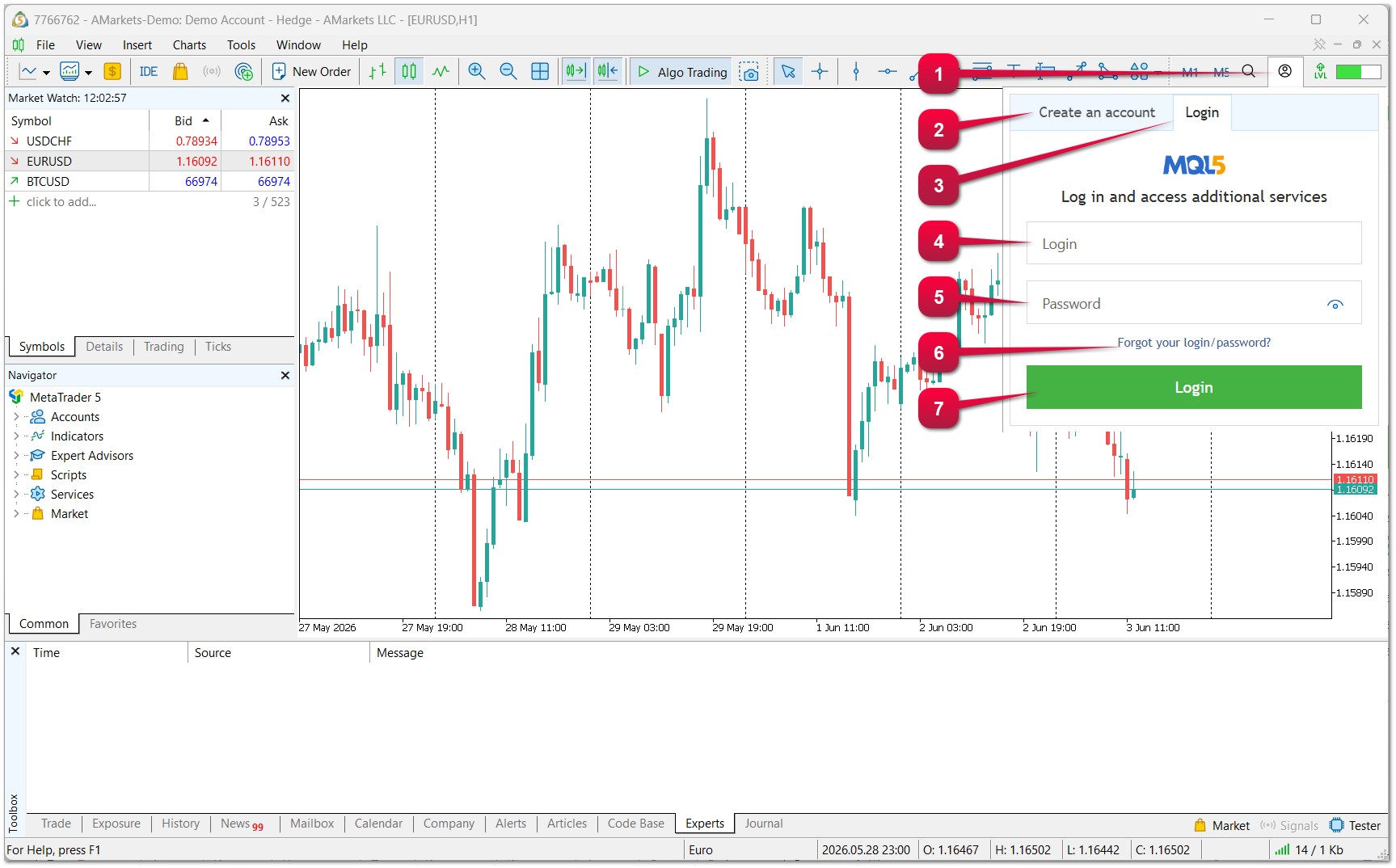
- Open the MQL5 Market services login window.
- If you don't have an account, you can create one by clicking "Create Account".
- Switch to the "Login" tab.
- Enter your login.
- Enter your password.
- If you have forgotten your password, you can recover it.
- Click the "Login" button
Important: Keep your Login and Password in a safe place; without them you will not be able to access your apps, services, data, and purchases. Do not share your Login and Password with third parties.
How to install an app from the MQL5 Market into a MetaTrader 5 terminal
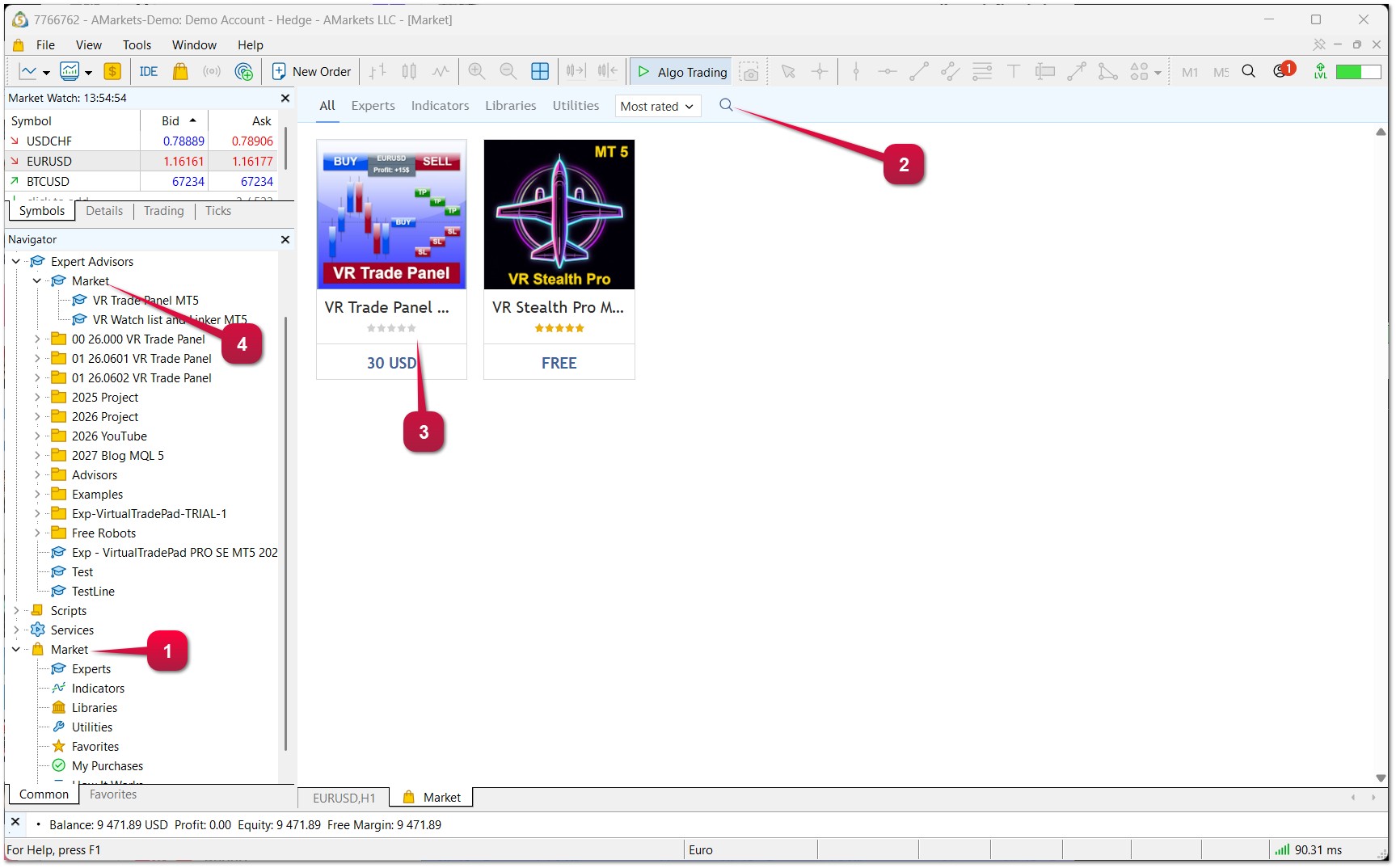
Go to the Navigator window
- In the Navigator, find the Market section.
- Enter the program name in the search field.
- Go to the program's page. The program page allows you to download, update, purchase the program, as well as read the description, instructions, and reviews.
- After downloading, the app will appear in the Navigator under the Market folder.
To run the app, simply drag it with your mouse onto the desired chart.
How to install an app from the MQL5 Market into a MetaTrader 4 terminal
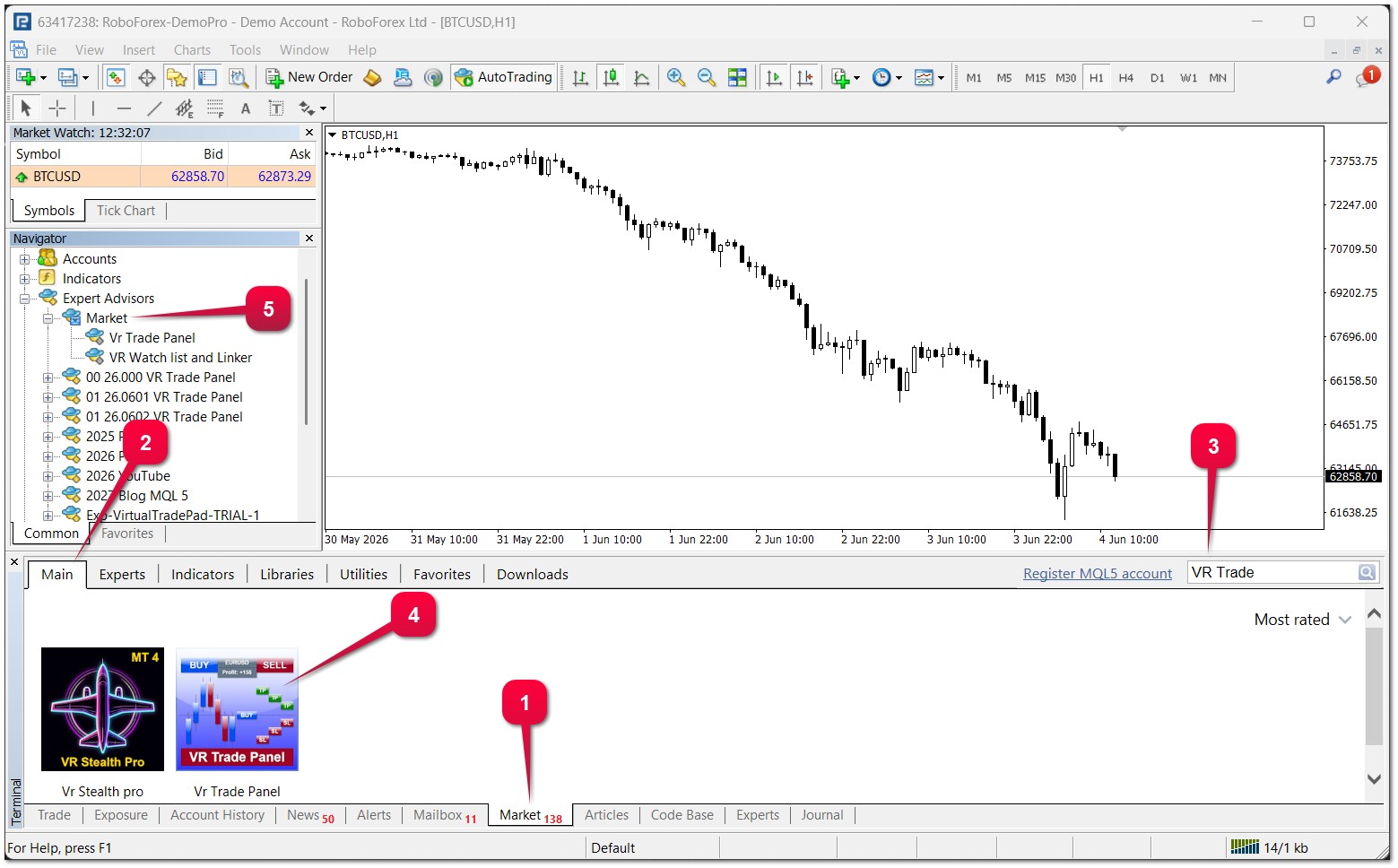
Go to the Terminal window (usually at the bottom of MetaTrader 4)
- In the Terminal window, find the "Market" tab (it is located in the lower part of the window).
- In the Terminal window, find the "Home" tab (it is the first one in the upper part of the window).
- Enter the app name in the search field.
- Go to the program's page. The program page allows you to download, update, purchase the program, as well as read the description, instructions, and reviews.
- After downloading, the app will appear in the Navigator under the Market folder.
To run the app, simply drag it with your mouse onto the desired chart.
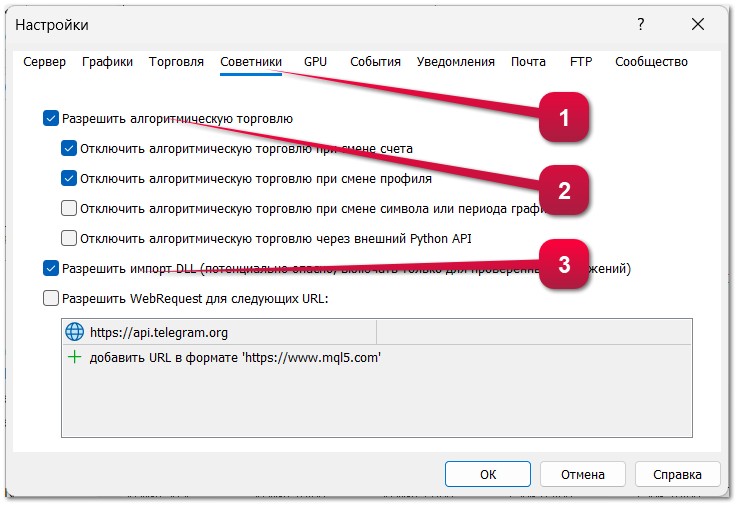
How to allow apps to perform trading operations in MetaTrader 4 and MetaTrader 5 TERMINAL SETTINGS (Expert Advisors, Trading Robots, Scripts).
- Go to the terminal settings (Ctrl + O).
- Go to the "Expert Advisors" tab.
- Check "Allow algorithmic trading".
- Check "Allow DLL imports" – This permission may be required if you are using a demo version of the app.
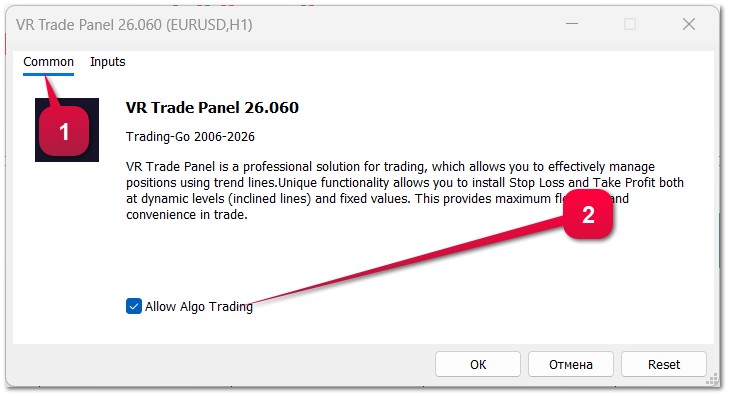
How to allow an app to perform trading operations in the APP SETTINGS (Expert Advisors, Trading Robots, Scripts).
Run the app on a chart – The app settings window will open.
- Go to the "Common" tab.
- Check "Allow algorithmic trading".
Friends, in my profile you will find even more educational materials and useful apps!
Best regards, Vladimir!