

Setup Guide: Telegram to MT5 and MT4 Multi-Channel Copier
The copier has two parts: a small Windows application that reads your Telegram channels, and an Expert Advisor that places the trades in MetaTrader. This guide gets you running in about 10 minutes, then explains the few settings that really matter and lists every input for reference.
The TelegramToMT5MultiChannelCopier.exe application works for both MT4 and MT5. Make sure you purchase the EA version that matches your terminal.
| === Download the copier application (TelegramToMT5MultiChannelCopier.zip, Version 1.33) here === Unzip it anywhere and run TelegramToMT5MultiChannelCopier.exe from inside the folder. Download it once: later versions are small update files. |
| Latest update: app-update-v1.33.zip Already have the copier folder? Put this file in its UPDATES HERE folder and open the app — see section 7. |
MT5 EA: https://www.mql5.com/en/market/product/172706 · MT4 EA: https://www.mql5.com/en/market/product/173429

📑 Contents
|
1. Quick start
Step 1 — Telegram API credentials (2 minutes, free)
The app talks to Telegram through its official API, so it needs an API ID and an API hash of your own.
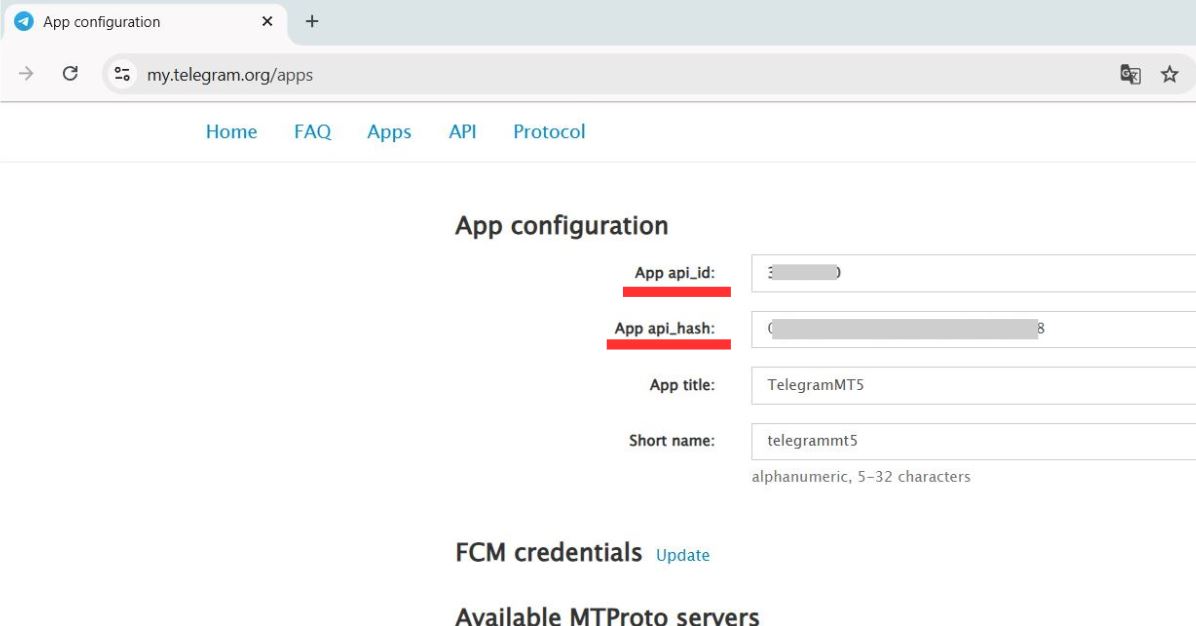
- Go to my.telegram.org/apps and log in with your phone number. Telegram sends the confirmation code to your Telegram app.
- Click API Development Tools and fill the form: any title and short name (e.g. "MT5 Copier" / "mt5copier"), platform Desktop, description optional.
- Click Create application. Copy the API ID (a number) and the API hash (a long string).
| ⚠️ Never share your API ID or API hash. They identify your personal Telegram application. 🔒 Privacy: your credentials and your Telegram session are created and stored only on your own computer. The app talks directly to Telegram's API — no third-party server is involved and nothing is sent anywhere else. The session appears in Telegram → Settings → Devices like any other login and you can revoke it there at any time. |
Step 2 — The Windows application
- Download the zip from the link above, unzip it anywhere and open TelegramToMT5MultiChannelCopier.exe from inside the unzipped folder. No installation. Keep the folder together (the exe, the app folder, the _internal folder and UPDATES HERE). Windows SmartScreen or Chrome may warn because the app is not digitally signed: "More info" → "Run anyway" (Chrome: "Keep").
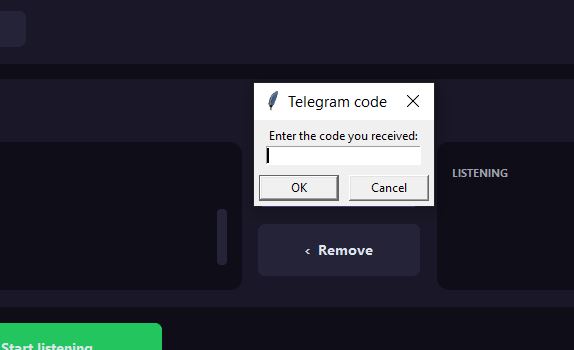
- In the Setup tab enter your API ID, API Hash and phone number with international prefix (e.g. +12345678910), then click Connect. Telegram sends a code to your Telegram app; type it in the dialog. With two-step verification the app also asks for your Telegram password.
- In the Terminal drop-down choose where the signals go: Default (all MT4/MT5) (every EA on this computer reads them) or one specific terminal. See 2.6 if you run several terminals.
- Open the Channels tab and select the channels to follow; they move to the Listening column. Signal bots (🤖) appear like channels. Private chats (👤) and your Saved Messages are hidden until you tick Show private chats 👤 (advanced) — Saved Messages is handy for testing: forward a signal to yourself and watch the app parse it. Forum topics appear as "Channel ▸ Topic" and can be followed individually. Signals posted in Discord channels are added from the Discord tab (see section 6).
- Click Start. The app is now listening; every detected signal is shown in the log at the bottom.
| 📷 Code not arriving? Click 📷 Login with QR instead and scan the code with your phone: Telegram → Settings → Devices → Link Desktop Device. Works with two-step verification too. ▶ Keep the app running (minimised is fine). If you close it, nothing is copied. It reconnects by itself after a network drop and resumes listening when Windows restarts it. |
Step 3 — The Expert Advisor
- After the purchase the EA appears under Navigator → Expert Advisors → Market. Drag it onto any chart — the chart symbol does not matter, the EA trades the symbol of each signal. If it is not listed, log in to your MQL5 account in Tools → Options → Community with the account that made the purchase and restart the terminal.
- In the Inputs tab, if you chose a specific terminal in the app, set Default all MT4/MT5 (false if specific terminal in app) to false. Otherwise the defaults already work: 0.01 lot per signal, pending order when the entry is more than 5 pips away, first TP only.
- Make sure AutoTrading is enabled twice: the AutoTrading button in the toolbar, and Allow Algo Trading (MT5) / Allow live trading (MT4) in the EA's Common tab. With only one of them the EA places no orders.
- Click OK. The Experts tab shows the banner and, when a signal arrives, its execution:
| Telegram to MT5 MultiChannel Copier v1.33 [SIGNAL #1] BUY XAUUSD entries=1 tps=2 -> 2 order(s), lot=0.01 each [EXEC] BUY XAUUSD entry=4400.00000 lot=0.01 tp=4410.00000 -> OK (retcode=10009 / done) |
| 🛡️ If an input has an impossible value (a negative gap, a lot of 0…), the EA refuses to start, shows an alert that names the input and the allowed range, and MetaTrader removes it from the chart. Fix the value and attach it again. |
2. The six settings that matter
Everything else can stay at its default. Input names below are exactly as you see them in the EA's Inputs tab.
2.1 How much to trade
Risk mode: Fixed lot / % balance / Money / Signal decides the size. With Fixed lot size the value is the total per signal: if the signal produces several orders (several TPs or several entries) the lot is split among them, so your exposure per signal stays the same whatever the channel sends. Prefer every order with the full lot? Set Fixed lot applies to EACH order (no split) to true — exposure then grows with the number of TPs. % of balance and Money to risk need an SL in the signal to compute the lot; without one the EA uses Fallback lot if risk calculation fails. Signal takes the lot written in the message, capped by Cap for the lot taken from signals.
2.2 Market order or pending order
When a signal carries an entry price, Switch to pending when entry is more than N pips away decides: within N pips of the current price the EA opens at market, farther away it places a LIMIT or STOP at the signal's price. 0 = always a pending order at the exact price. Set Use pending orders when entry is far from current price to false to open everything at market instead. Messages like "BUY NOW" or "AT MARKET" are executed at market immediately when Open 'BUY/SELL NOW' signals at market is on (default). When such a signal also carries an entry zone, a grid or layers, only the first order opens at market; the other entries keep their price and follow the pending-order rules above. Some channels post "BUY NOW" first and the full order (zone, SL, TPs) a moment later, as a new message or by editing the first one: by default the levels are given to the trade already open (one trade per signal). Tick Full order after 'BUY/SELL NOW' as a separate trade in the app's Setup tab to execute that full order as a second signal of its own — with its zone, grid or layers — while the "NOW" trade keeps running. When the channel edits the "NOW" message itself, the market trade also receives the SL and TPs of the edit. If a later edit adds take profits to a signal with several entries, its pending orders are re-split per entry price, one set per TP, as long as none of them has been filled.
Layer spacing pips, single-price signals builds layered entries from a signal that carries a single price (or none): with Range entries: how many orders at 2 or more, the first order opens as usual and the other entries are placed as LIMIT orders every N pips in the pull-back direction (below the price for a BUY, above for a SELL), same SL and TPs. A layer that would sit at or beyond the SL is not placed. Signals that carry an entry zone keep using the zone.
Three safety inputs around this: Pending order expiration in hours so yesterday's LIMIT cannot fill days later; Ignore signals older than N minutes so signals queued while the EA was stopped are not executed at stale prices (15-30 recommended); Skip entries more than N pips away to drop entries too far from the current price (for an entry zone the distance is measured to its nearest edge, and a "NOW" order executed at market is never dropped).
2.3 Several take profits
With Multi TP on, a signal with TP1/TP2/TP3 opens one position per TP, same SL, lot split among them. How many TPs to use limits them (1 = TP1 only), Safety cap: never open more than N positions per signal is the absolute ceiling and Lot weight per TP lets you give more lot to the first targets (0.5,0.3,0.2) or skip one (1,0,1). The weights are also respected when the levels arrive in a later message after a "BUY NOW".
Some channels post the entry with TP1 first and edit the message minutes later to add TP2, TP3… By then the trade is already open with TP1. When an edit adds TPs to a single open trade decides what to do with the new targets — the open trade is never closed or resized:
- Do nothing (default): the trade keeps SL + TP1.
- Open the new TPs with the lot left: only if the open trade uses less than the signal's total lot (e.g. with "Fixed lot applies to EACH order"), the remaining lot is spread over the new TPs.
- Open the new TPs with the normal lot per TP: each new TP gets the lot it would have had in a normal multi-TP split.
- Open the new TPs with the same lot as the open trade: every new TP opens with the lot of the existing trade.
Once positions are open, section 15. When a TP is hit can move the sisters' SL to breakeven, to the TP just reached or one TP behind, close part of them or delete the remaining pendings, without waiting for the channel.
2.4 The channel's BE, CLOSE and "move SL" messages
The app understands the follow-up messages of the channel — "move SL to breakeven", "close now", "cancel the pending", "SL to 2340", "TP2 to 2400", edits of the original message — and the EA applies them to the positions of that signal. If your channel posts them too early or too loosely, switch them off: Ignore BE messages, Ignore CLOSE messages. On BE: also delete unfilled pending orders removes the entries of that setup still waiting when the channel calls breakeven. Once the EA itself has secured a trade (automatic breakeven, trailing stop or the breakeven after a partial close), an SL sent by the channel can only improve that stop, never move it back. BE message while the trade is in loss decides what happens when the channel calls breakeven but the price is already past the entry: close the position at market (default), leave it as it is, or wait for the price to come back to the entry and set the SL then. A message such as "Close TP2 manually" closes only the position that carries that TP; the other TPs keep running. A partial-close message that names no percentage ("close partials") closes half of the position. Breakeven offset in pips (section 9) moves every breakeven N pips into profit instead of the exact entry. When the provider DELETES a signal message chooses what happens when the channel deletes its post. In the app, Cancel the signal's remaining pendings when a TP hit is announced (Setup tab) deletes the unfilled entries of a signal when the channel posts "TP1 hit" — off by default.
2.5 Symbol names of your broker
The EA finds the broker's symbol automatically (XAUUSD → XAUUSD.pro, GOLD, XAUUSDm…). If it fails: Suffix your broker adds to ALL symbols (.pro, m, -ECN, #) fixes every symbol at once; Per-symbol overrides (XAUUSD=GOLD.p,NAS100=USTEC.pro) handles the exceptions; If signal has no symbol, use this one is for gold-only channels that never name the instrument. When a channel writes its prices at ×10, ×100 or ×1000 of your broker's quote (silver as 6,158 while your broker quotes 61.58, for example), the EA detects it and reads every level of that signal and of its updates scaled, with a [SCALE] line in the Experts tab — no input needed. In the app, Custom Symbol Matches maps the words the channel uses (NQ, ORO, US30) to real symbols. Comma-separated whitelist / blacklist and the two channel filters choose which signals each EA accepts.
2.6 One EA or several terminals
The app writes the signals to a folder and every EA reads them there. Default (all MT4/MT5) in the app + Default all MT4/MT5… = true in the EA use the folder shared by all terminals; a specific terminal in the app + false in the EA use that terminal's own folder. If they do not match, the EA never sees a signal — the app now warns in its log when no EA is reading the folder it writes to, and the 🩺 Diagnosis button reports it.
Running the EA on several terminals or accounts from the shared folder? Give each one a different Unique ID per EA (e.g. "IC_Real", "Demo"). Each EA then executes every signal independently and applies its own filters. With a single EA leave it empty.
3. EA inputs reference
Default in brackets. Pips: 0.1 for gold, 0.01 for silver, the usual pip for forex.
1. Setup (basic)
| Default all MT4/MT5 (false if specific terminal in app) [true] — true = shared Common folder ("Default" in the app); false = this terminal's Files folder (specific terminal in the app). Check for new signals every N seconds [5] — Polling interval. 1-3 reacts faster with more CPU. Magic number [20260410] — Identifies this EA's trades. Change it only if another EA must not touch them. Slippage [10] — Maximum slippage in points for market orders. Unique ID per EA (empty for one; different on each) [""] — Short ID when several EAs read the same folder (see 2.6). Signal source: Telegram, Discord or both [Telegram and Discord] — Which signals this EA executes: both, Telegram only or Discord only. Signals of the other source stay in the queue for another EA (a second chart with its own lot, magic number or filters). Orders carry a "TG:" or "DC:" comment with the channel name. The EA warns when two charts on the same terminal take the same signals. |
2. Entry (market or pending)
| Use pending orders when entry is far from current price [true] — false = distant entries open at market instead. Switch to pending when entry is more than N pips away [5.0] — Market within N pips, pending beyond. 0 = always pending at the signal's price. Open 'BUY/SELL NOW' signals at market [true] — "NOW" / "AT MARKET" messages ignore the gap and open at market. With a zone, a grid or layers only the first order goes to market; the rest keep their price. Range entries: how many orders (1 = single) [1] — Entry zone "4594-4596" or layered entries: how many prices to use. 2+ = one order per price. Range: first / last / average price (if single entry) [Average] — Which price of the zone to use when the input above is 1. Grid: N orders across range (0=off, overrides UseEntryCount) [0] — Spreads exactly N orders evenly across the zone (BUY 4101-4107, Grid=3 → 4101, 4104, 4107). Max 20. Layer spacing pips, single-price signals (0=off) [0] — Single-price or market signals: the first order as usual, then Range entries − 1 LIMIT orders every N pips in the pull-back direction, same SL/TP. Layers at or beyond the SL are skipped. Signals with a zone are not affected. Skip new signals while a pending order is active [false] — Ignore new signals while a LIMIT/STOP of the EA is still open. Skip entries more than N pips away (0=off) [0] — Drop entries farther than N pips from the current price. An entry zone is measured to its nearest edge (price inside the zone = 0 pips); "NOW" orders executed at market are not checked. Ignore signals older than N minutes (0=off) [0] — Skip queued signals older than N minutes (logged [SKIP]). BE/close/modify messages are never skipped. 15-30 recommended. Pending order expiration in hours (0=no expiration) [0] — Expiration of every pending order the EA places. If the broker refuses it, GTC with a [WARNING]. Max new signals executed per minute (0=off, extra ones wait) [0] — Extra signals wait for the next minutes ([RATE-LIMIT]); nothing is dropped. Market closed: retry until it opens, max hours (0=off) [0] — Keep a signal that failed because the market was closed and retry for up to N hours ([WAIT]). Compensate broker spread on entry/SL/TP levels [false] — Adds the live spread to the legs executed at Ask (BUY entry, SELL SL/TP) so fills match the provider's Bid chart. |
3. Take Profit (multi-TP)
| Multi TP [false] — One position per TP of the signal. Off = one position with TP1. How many TPs to use: 0=all, 1=TP1 only, 3=TP1+TP2+TP3 [0] — Limit the TPs taken from the signal. Lot weight per TP, e.g. 0.5,0.3,0.2 (empty=equal, 0=skip) [""] — Share of the lot per TP; 0 skips that TP; TPs beyond the list are not opened. Safety cap: never open more than N positions per signal [5] — Absolute ceiling whatever the signal contains. When an edit adds TPs to a single open trade [Do nothing] — Open the TPs added by a later edit: with the lot left, the normal lot per TP, or the open trade's lot (see 2.3). Needs Multi TP; the open trade is never touched. |
4. Stop Loss (protection)
| Reject signals with no entry price (e.g. 'BUY NOW') [false] — Off = such signals open at market. Reject signals with no Stop Loss (safer) [false] — Discard signals without SL (prop-firm friendly). Fallback SL pips when signal has none (0=off, RISKY) [0.0] — Automatic SL at N pips when the signal has none. 0 = the trade opens without SL. |
5. Override SL/TP (ignore channel)
| ALWAYS use custom SL (ignores SL from signal) [false] / Custom SL distance in pips [100] — Replace the channel's SL by a fixed distance from the entry. ALWAYS use custom TP (ignores TP from signal) [false] / Custom TP distance in pips [100] — Replace the channel's TP by a fixed distance; multi-TP collapses to one position. Use default TP if signal has no valid TP [false] / Default TP in pips [50] — Fallback TP only when the signal has none (or a relative one like "TP 100 pips"). Add N pips to every TP (negative = closer, 0=off) [0.0] — Shift every TP of the provider (and of its later edits) N pips farther from the entry; negative = closer. A shift that would cross the entry is not applied. Add N pips to the SL (negative = closer, 0=off) [0.0] — Same for the SL: positive = wider, negative = tighter. Ignore CLOSE messages (keep positions running) [false] — Drop the channel's close instructions; positions end at SL/TP or trailing. Ignore BE messages (don't move SL to entry) [false] — Drop the channel's breakeven instructions. On BE: also delete unfilled pending orders [false] — A breakeven message also deletes that signal's LIMIT/STOP orders still waiting. BE message while the trade is in loss [Close the position at market] — The channel calls breakeven but the price is already past the entry: close at market, leave the position as it is, or wait for the price to return to the entry and set the SL then ([BE-WAIT]). Note that a trade opened seconds ago is already "in loss" by the spread. When the provider DELETES a signal message [Do nothing] — Do nothing / delete its pending orders / delete pendings and close its positions ([DELETED-MSG]). A deleted signal not yet executed is simply removed from the queue. |
6. Position size (risk)
| Risk mode: Fixed lot / % balance / Money / Signal [Fixed lot] — How the lot is computed (see 2.1). Fixed lot size (0.01 = micro, safest for beginners) [0.01] — Total lot per signal, split across its orders. % of balance to risk per trade (needs SL to calculate) [0.10] — 0.10 = 0.10 % of the balance; 1.0 = 1 %. Money to risk per trade in account currency (needs SL) [50.0] — Fixed money at risk per trade. Fallback lot if risk calculation fails [0.01] — Used when % or Money mode has no SL to work with. Cap for the lot taken from signals (0 = no cap) [30.0] — Ceiling for lots written in the message (Signal mode). Fixed lot applies to EACH order (no split) [false] — true = every order of a signal opens with the full lot. |
7. Filters (which signals to accept)
| Comma-separated whitelist. Empty = all. Ex: XAUUSD,EURUSD [""] — Only these symbols are traded. Comma-separated blacklist. Ex: USDJPY,NAS100 [""] — These symbols are ignored. Only trade these channel names. Empty = all [""] — Partial match, emojis tolerated. Ex: "GoldVIP,Premium Signals". Skip these channel names [""] — Channels this EA ignores (handy to pause one channel on one account). |
8. Broker matching (symbol adjust)
| Suffix your broker adds to ALL symbols. Ex: .pro, m, -ECN, # [""] — Applied to every symbol; empty = automatic detection. Per-symbol overrides. Ex: XAUUSD=GOLD.p,NAS100=USTEC.pro [""] — FROM=TO pairs; wins over the suffix and the detection. If signal has no symbol, use this one. Ex: XAUUSD [""] — Only when the message names no instrument. Empty = such signals are dropped. |
9. Breakeven (auto SL to entry) · 10. Trailing stop
| Move SL to breakeven (=entry) after N pips of profit [false] / Profit in pips required to trigger BE [20] — Automatic breakeven of the EA, independent of the channel's messages. Breakeven offset pips (0 = exact entry) [0] — Every breakeven the EA sets (the channel's BE, the automatic one, the one after a partial close and the one of section 15) goes N pips into profit instead of the exact entry, so a "risk-free" stop also covers commission. If the price is not far enough yet, the SL goes to the entry. With Compensate broker spread on, a SELL's breakeven sits one spread above the entry, so it closes at the entry on the Bid instead of a spread below. Enable trailing stop (SL follows profit) [false] / Activate trailing after N pips of profit [30] / SL stays N pips behind current price [15] — The SL follows the price at a fixed distance once the trade is N pips in profit; it never moves against you. Cancel related pending orders when trailing starts [true] — Deletes the same channel/symbol pendings when the trailing activates. Open without TP when trailing on (trailing decides exit) [false] — For pure trailing setups: the channel's TP would otherwise close the trade first. |
11. Partial close
| Enable partial close (take some profit, let rest run) [false] — Close part of the position at a profit and let the rest run. % of position to close (50 = half) — single-level only [50] / Trigger partial close at +N pips of profit — single-level [30] — One partial close. Multi-level: pips:%, ... e.g. 20:30, 40:20, 60:20, 100:30 [""] — Several partial closes, each a % of the original volume; levels ascending, total ≤ 100 %. When set, it replaces the single-level inputs. After partial close, move SL to breakeven (risk-free) [true] — SL to entry on the remaining volume after the first partial. |
12. Performance panel
A small window on the chart with one row per channel — trades, win rate, net result — for the last Day, Week, Month or All. Hover a row for pips, average per trade and profit factor; the CSV icon exports the closed trades of the current window to copier_export_<date>.csv in MQL5\Files (MQL4\Files); the arrow collapses the panel to a one-line pill that remembers its state.
| Show on-chart stats panel per channel [true] / Which corner the panel is anchored to [Top left] — Show it and where. History window in days (30 = last month) [30] / Panel refresh rate in seconds [30] / Max channels shown (rest grouped as 'Others') [10] — How far back the statistics go, how often they refresh, how many rows before grouping. Panel font size in pixels [9] / Panel background color / Panel header text color / Panel total row color — Appearance. |
13. Basket close (all positions at once)
| Close ALL when floating profit reaches N % balance (0=off) [0] / Close ALL when floating profit reaches N money (0=off) [0] / Close ALL when floating profit reaches N pips (0=off) [0] — Close every position of the EA when the floating profit reaches the target in %, money or pips (pips are summed over the positions of the scope); the first target reached fires. Basket scope: all channels / per channel / per symbol [All] / After closing the basket, also delete its pending orders [true] — Which basket is measured and closed ([BASKET]). |
14. Prop-firm mode (look like manual trading)
| Random delay before executing a signal, max seconds (0=off) [0] — Each new signal waits a random 1..N s ([PROP]). BE/close/modify are never delayed. Randomize entry/SL/TP by up to N points (0=off) [0] / Never randomize the SL/TP to a worse level [true] — Shift every level by a random 0..N points so several accounts never post identical trades. |
15. When a TP is hit (multi-TP signals)
For signals split into one position per TP: when one closes at its take profit, the EA manages the sisters of that same signal without waiting for the channel, however long after the fill the TP arrives. Other setups of the channel, and the opposite side, are never touched.
| Move the SL of the signal's OTHER positions to [Leave the SL as it is] — Leave it, move it to breakeven, move it to the TP just hit, or One TP behind (TP1 hit → breakeven, TP2 hit → TP1, TP3 hit → TP2). At the moment of the hit the price is right at that level, so the SL goes to breakeven first and climbs to the TP level as soon as the price moves far enough ([TP-WAIT]); if the price pulls back before that, the breakeven holds. Delete the signal's remaining pending orders [false] — Deletes the unfilled entries of that signal. Close this % of each remaining position (0=off, 100=all) [0] — Partial close of every sister (1-99); 100 closes the sisters entirely, so the first TP reached ends the whole signal. Also react to TPs hit while the EA was offline (last 24 h) [true] — Catches up on start-up ([TP-HIT]); positions opened after that TP are left alone. |
16. Daily target and daily loss limit
| Daily profit target in account currency (0=off) [0] / Daily profit target in % of balance (0=off) [0] — Once the day's result of the EA (closed trades plus floating) reaches the target, new signals are skipped until the next day ([DAILY-TARGET]); open trades, breakevens, closes and edits are still managed. Both set = the first reached fires. The day follows the broker's server time. Daily loss limit in account currency (0=off) [0] / Daily loss limit in % of balance (0=off) [0] — Same rule on the losing side: once the day's loss reaches the limit (both set = the stricter one), the EA stops taking new signals until the next day ([DAILY-LOSS]). When the daily loss limit is reached [Stop new signals for the day] — Only stop, or Stop and close everything: close every position of the EA and delete its pending orders, then stop for the day. Prop-firm friendly: set it below the firm's daily limit. |
4. App features
- Discord tab — copy signals from Discord channels too; see section 6.
- Full order after 'BUY/SELL NOW' as a separate trade (Setup tab) — see 2.2. Off by default: the full order that follows a "NOW" message gives its levels to the trade already open.
- Filter (button of each channel in the Listening list) — Only copy messages containing keeps the messages of one author (an emoji or a word they sign with); Skip new signals containing drops new signals that contain one of your words, emojis or links (promotions such as JOIN, t.me/). Follow-up messages are never skipped.
- Custom Keywords (Setup tab) — the words the app recognises for buy, sell, close, breakeven… in any language, including Chinese, Japanese and Korean. Add your channel's own words here.
- Custom Symbol Matches — map any token the channel uses to your broker's symbol (NQ → NAS100, ORO → XAUUSD.pro). Suffixes with . - _ and # are supported.
- 🎛 Control chat (Channels tab) — pick one of your own chats (Saved Messages, a private group or a bot) as a remote control. What you write there is a command, never a signal, and the copier answers in the same chat: close all, close XAUUSD, close <channel>, be all, cancel pendings, pause, resume, status, help. Acts on the trades of the last 48 hours.
- 🌐 Language — the whole app and the backtest reports in English, Spanish, Portuguese, German, French, Italian, Russian, Turkish, Chinese, Japanese or Korean. The app restarts and resumes listening by itself.
- Read image signals (experimental, may misread numbers) — for channels that post signals as pictures. Install Tesseract OCR first (free, github.com/UB-Mannheim/tesseract/wiki), then tick the box.
- Filter button per channel (Channels tab, Listening column) — Only copy messages containing the emojis or words you list (one is enough). For channels where several traders post and you only want one of them (each signs with an emoji), or to skip everything except the messages that carry a given word. Replies to an accepted message are accepted too. Also applied by the Backtest tab and shown in the Report tab.
- Cancel the signal's remaining pendings when a TP hit is announced — see 2.4.
- Show raw incoming messages in log and Open log file — dump every incoming message to the log to understand an unusual channel format; app.log keeps the history. Every signal also gets a [TIMING] line: when the channel posted it, how long Telegram took to deliver it and how long the app took to read and queue it — what remains until the order is the EA's polling interval (and the prop-firm random delay, if enabled).
- 🩺 Diagnosis — checks the whole chain Telegram → app → signal folder → EA and tells you what to fix (wrong folder, EA not running, filters that exclude everything…). 🧪 Test message — paste any message and see how the parser reads it.
- 📋 Report tab — your day at a glance: app and EA versions, Telegram and Discord, whether an EA is reading the queue, then every channel with its signals, trades, skipped signals (and why) and result, and a list of warnings with what to change. Today, yesterday or the last 7 days; Open in browser saves it as a page. When a message was not read correctly the tab asks you to send the Support bundle: it contains the exact messages, and the copier is fixed from them; the tab title shows a counter when something needs a look.
- Support bundle — one click creates a ZIP on your Desktop with the logs, your settings, the last 30 days of every channel you follow (Telegram and Discord) as the parser reads them and the EA's trade journal (every order, fill, modification, breakeven and close, per channel). Private data is masked. Attach it to any support request — it is all I need.
5. Backtest tab
Test a channel before you copy it. The tab replays the channel's past messages against your broker's prices, reading them exactly the way the copier reads them when it trades, and shows what the channel would have done in your account.
- Keep MetaTrader open with the EA running on a chart, open Backtest and choose a channel.
- Choose how many days to test and press ⚙ Use this EA's settings, so the test uses the configuration of your EA.
- Press 🔍 Analyze parsing to check how every message is understood, then ▶ Backtest. The report opens in your browser.
The report shows net result, win rate, profit factor and drawdown, the equity curve, results by day, week and month (compare them with what the channel publishes), results by symbol and a chart for every signal. Channels that post their signals as images cannot be tested. If something is misread, send me the Support bundle.
Full walkthrough with video: How to Backtest Telegram Signals in MT5 and MT4 Before You Pay for a Channel
6. Discord tab
The copier can follow signal channels on Discord as well, with your own Discord account: no bot to invite and no permission needed on the server. Discord signals are read and executed exactly like the Telegram ones, with the same EA and the same settings.
- Open the Discord tab and connect your account: press How to get the token, follow its steps and then Paste token from clipboard. What you paste stays on your computer, like your Telegram session, and Forget token removes it.
- Choose a Server in the drop-down and click the channels you want to follow; they move to the Listening to column (click again to remove one). Announcement channels are listed too.
- Press ▶ Start Discord. It runs independently of the Telegram Start button, and when you reopen the app it resumes by itself. Every message read is shown in the log at the bottom, exactly like a Telegram one.
What is supported: entry prices and zones, several take profits, "BUY NOW" / "SELL NOW", edits of the message, follow-ups by reply (breakeven, close, new SL or TP), signals posted by bots inside embeds, and images with OCR when it is enabled in Setup. Custom keywords, symbol matches and the per-channel Filter apply to Discord channels too.
In the EA: the input Signal source: Telegram, Discord or both (section 1) decides which signals the chart executes. Telegram and Discord (default) takes everything; Telegram only / Discord only let you run two charts, one per source, each with its own lot, risk and filters. Orders from Discord show the channel name in their comment, so the Performance panel and the Report tab keep them apart from the Telegram ones.
Before trading: connect Discord and watch how your channel is read in the log, or use 🧪 Test message with one of its posts; the EA is not needed for that. The Report tab shows the Discord state next to Telegram's, and the Support bundle includes the last 30 days of every Discord channel you follow, read the way the copier reads them.
| ⚠️ Use a separate Discord account just for the copier. Automating a personal account is not allowed by Discord's terms and the account can be limited. Create a second account, join the signal server with it, and connect that one. |
7. VPS, troubleshooting, updates
VPS: app and EA work on any Windows VPS with 2 GB of RAM or more, same setup as on a PC. Add the app to Windows startup so it comes back after a reboot; it resumes listening by itself and forces a reconnect if Telegram stays down for more than 5 minutes.
| The app cannot log in — Check API ID and hash (no spaces), the phone prefix and the internet connection. If the code never arrives, use 📷 Login with QR. The app shows signals but the EA opens nothing — AutoTrading enabled at both levels? Same folder on both sides (2.6)? Look at the Experts tab: every skipped signal says why ([SKIP], [FILTER], [ERROR]). The app's log warns when no EA is reading its folder; 🩺 Diagnosis checks the whole chain. Discord: "Token not valid" — The token changes when you change your Discord password or log out of all devices: copy it again (How to get the token) and paste it. Discord: no signals — Press ▶ Start Discord in the Discord tab (it has its own Start button) and check that the EA's Signal source is not "Telegram only". The EA disappeared from the chart — An input had an impossible value — the alert names it and the allowed range. Fix it and attach the EA again. [ERROR] Symbol 'XXX' not found in this broker — Map it with Custom Symbol Matches in the app or Per-symbol overrides in the EA (2.5). Order rejected — Margin, or SL/TP closer than the broker's minimum distance. The Experts tab shows the broker's reason. Two terminals, only one trades — Set a different Unique ID per EA on each one. One order instead of one per TP — Multi TP is off, or the channel added the TPs by editing the message after the trade opened — see 2.3. [STALE] lines in the Experts tab — The terminal stopped receiving prices for that symbol (frozen feed, expired demo). Pip-based management pauses until prices resume; restart the terminal and check Market Watch. Windows SmartScreen or Chrome warns about the download — "More info" → "Run anyway" (Chrome: "Keep"). The app is not digitally signed; the download never changes, so the warning fades as more people use it. |
Updating the app (from 1.30 on): download the latest app-update-vX.XX.zip from the link at the top, put it in the UPDATES HERE folder of your copier (do not unzip it) and open the copier: the update is applied automatically and the app starts on the new version. Your channels, settings and Telegram session are kept — no new login. The EA updates through the MQL5 Market as usual; the app's Diagnosis tells you when the EA or the app is behind the published version.
Coming from an older version (single .exe or the 1.29 folder build): download TelegramToMT5MultiChannelCopier.zip once and unzip it into a new folder. Then copy two files from the folder of your old copier into the new folder, next to TelegramToMT5MultiChannelCopier.exe: credentials.json (your channels and settings) and session_telegram_mt5.session (your Telegram login). Run the new exe: everything is there, and the old copier can be deleted. Do not unzip the new copier on top of the old folder.
8. What's new in 1.33
|
What's new in 1.32
|
Support
Questions or problems: private message on my MQL5 profile, https://www.mql5.com/en/users/oner. Click Support bundle in the Setup tab and attach the ZIP it creates on your Desktop — it contains everything I need, with your private data removed. Screenshots are not necessary.


