
1. What is UltraSync?
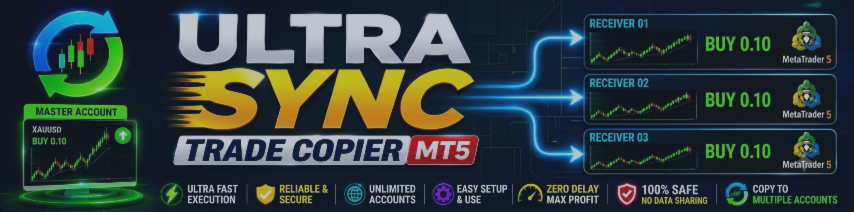
UltraSync copies your trades from one MetaTrader 5 account to other MetaTrader 5 accounts on the same computer. You trade one time, and all your other accounts follow automatically — usually in less than one second.
There are two roles:
- Master — the account where you trade. UltraSync watches this account.
- Receiver — an account that copies the Master. You can have up to 100 receivers.
Everything happens inside your computer. UltraSync does not use the internet to copy trades, does not need any website or cloud account, and does not need any extra program. The Master and all Receivers simply must run on the same Windows computer.
UltraSync copies everything that matters: market trades, pending orders, Stop Loss and Take Profit changes, trailing stops, partial closes, and full closes. Each Receiver can use its own lot size rule, its own filters, and its own protection limits.
MT5 Product link: https://www.mql5.com/en/market/product/185743
MT4 Product Link: https://www.mql5.com/en/market/product/185848
2. Words You Should Know
You do not need to be an expert. These are the only words this guide uses:
| Word | Simple meaning |
| MT5 / Terminal | The MetaTrader 5 program where you see charts and trades. |
| EA (Expert Advisor) | A small program that runs inside MT5. UltraSync is an EA. |
| Chart | The price picture of one symbol (for example EURUSD). |
| Lot | The size of a trade. 0.10 lot is small, 1.00 lot is big. |
| Pending order | A trade that waits and opens later at the price you choose. |
| SL / TP | Stop Loss / Take Profit. Prices where a trade closes by itself. |
| Spread | The small difference between buy price and sell price, in points. |
| Demo account | A practice account with play money. Always test here first. |
| Algo Trading | The button in MT5 that allows EAs to trade. It must be ON (green). |
| Channel ID | A number that connects one Master with its Receivers. Use the same number on both. |
3. What You Need
- A Windows computer (Windows 10 or 11).
- One MT5 terminal for every account. Two accounts = two MT5 programs installed.
- The file UltraSyncTradeCopier.ex5 (this is the product file).
| TIP — How to install MT5 two times on one computer Run the MT5 installer again. In the installer window click “Settings” and change the installation folder name (for example, add “2” at the end). Now you have two separate MT5 programs, one for each account. Terminals from different brokers also work fine together. |
4. Quick Start (5 Minutes)
If you only read one chapter, read this one.
- Put the file in each terminal. In MT5 click File → Open Data Folder. Open the MQL5 folder, then the Experts folder. Copy UltraSyncTradeCopier.ex5 into it. Close and open MT5 again. Do this in every terminal.
- Turn on Algo Trading. Click the “Algo Trading” button on the top toolbar so it becomes green. Do this in every terminal.
- Start the Master. In the Master terminal open any chart. In the Navigator window (press Ctrl+N) find UltraSyncTradeCopier under Expert Advisors and drag it onto the chart. In the window that opens set Mode = Master and click OK.
- Start the Receiver. In the Receiver terminal do the same, but set Mode = Receiver. Keep Channel ID = 1 on both sides.
- Check and test. The Receiver panel shows SYNCHRONIZED with a green light. Open a small trade on the Master. It appears on the Receiver in about 0.1 seconds. Done!
| IMPORTANT Always try UltraSync on demo accounts first. Go to real money only after everything works the way you want. |
5. Installation — Full Details 5.1 Copy the file into the terminal
- Open the MT5 terminal.
- Click File (top-left) → Open Data Folder. A Windows folder opens.
- Open the folder MQL5, then the folder Experts.
- Copy UltraSyncTradeCopier.ex5 into this Experts folder.
- Close MT5 completely and open it again (or right-click “Expert Advisors” in the Navigator and click Refresh).
Now you can see “Ultra Sync Trade Copier” in the Navigator window under Expert Advisors. Repeat these steps in every terminal you want to use.
5.2 Turn on Algo Trading
Look at the top toolbar of MT5. There is a button called “Algo Trading” with a small play symbol. Click it so it turns green. If it is red, EAs cannot trade and nothing will be copied.
5.3 Nothing else to allow
UltraSync does not need DLL permission and does not need any web address in the settings. When you attach the EA and MT5 shows the confirmation window, simply keep the “Allow Algo Trading” box ticked.
6. Setting Up the Master
The Master is the account you trade on. Set it up first.
- Open any chart in the Master terminal. The symbol does not matter.
- Drag UltraSyncTradeCopier from the Navigator onto the chart.
- In the Inputs tab set Mode = Master and Channel ID = 1. You can leave everything else as it is.
- Click OK.
You should now see the UltraSync panel on the chart with a blue MASTER badge, a green light, and the text “PUBLISHING”. This means the Master is working and ready to send trades.
The Master panel also has big trading buttons. You can trade with your normal MT5 tools too — UltraSync copies both. Chapter 9 explains the panel buttons.
| TIP — More than one group If you want two separate copy groups on one computer, give the second group a different Channel ID (for example 2) on its Master and its Receivers. |
7. Setting Up the Receivers
- Open any chart in the Receiver terminal.
- Drag UltraSyncTradeCopier onto the chart.
- Set Mode = Receiver and the same Channel ID as the Master.
- Choose how big the copied trades should be (Lot Sizing Mode — see chapter 11).
- Click OK.
The panel shows a purple RECEIVER badge. When the light is green and the text says SYNCHRONIZED, the Receiver sees the Master and is copying. Repeat these steps in every Receiver terminal — up to 100.
Receiver settings you should know
| Setting | What it does | Beginner advice |
| Copy Pending Orders | Also copies limit and stop orders. | Keep ON. |
| Copy Stop Loss / Take Profit | Copies SL and TP and follows every change. | Keep ON. |
| Copy Trades Opened Before Start | Also copies trades that already existed before you started the Receiver. | Keep OFF to be safe. |
| Close All If Master Goes Offline | Closes all copied trades if the Master disappears. | Keep OFF unless you need it. |
| Magic Number Stamped On Copies | A hidden ID so UltraSync knows its own trades. | Leave as it is. |
| Poll Interval (ms) | How often the Receiver checks for news. 50 = very fast. | Leave at 50. |
8. Your First Test (On Demo!)
Do this simple test one time. It takes 5 minutes and shows you that everything works.
| Do this on the Master | You should see on the Receiver |
| Open a small BUY trade (0.01 lot). | The same trade opens within about 0.1 seconds. |
| Give the trade a Stop Loss and Take Profit. | The copy gets the same SL and TP. |
| Move the Stop Loss. | The copy follows the new Stop Loss. |
| Close half of the trade (partial close). | The copy also closes the same part. |
| Close the trade fully. | The copy closes. |
| Place a pending order (for example Buy Limit). | The same pending order appears. |
| Delete the pending order. | The pending order disappears. |
| Close the Receiver terminal and open it again. | It reconnects and nothing is copied twice. |
9. The Trading Panel (Master)
The Master panel lets you trade with one click. The trade opens on the Master and is sent to all Receivers immediately.
The panel from top to bottom:
- Top bar: green/red light, product name, MASTER badge, and the minimize button ( – ).
- Second row: the chart symbol and the copy status.
- Info rows: your account, broker, balance, equity, spread, server time, and how many Receivers are online (for example RCV 3/3).
- Lot row: [-] lot size [+], and the “Dist” box for pending orders.
- Quick lot buttons: set a lot size with one click (0.01, 0.05, 0.10 …). You can change these values in the EA inputs.
- Order buttons and close buttons (see the table below).
- Bottom row: small control buttons and a message line that tells you what happened.
| Button | What it does |
| - / + | Makes the lot size smaller or bigger, one step at a time. |
| Lot box | Click it and type any lot size. Wrong values are corrected automatically. |
| Dist | Distance in points for pending orders (example: 100). |
| BUY | Opens a buy trade now, on the chart symbol, with your lot size. |
| SELL | Opens a sell trade now. |
| BUY LIM | Places a Buy Limit below the current price, “Dist” points away. |
| SELL LIM | Places a Sell Limit above the current price. |
| BUY STP | Places a Buy Stop above the current price. |
| SELL STP | Places a Sell Stop below the current price. |
| CLOSE BUY | Closes all buy trades on the account. |
| CLOSE SELL | Closes all sell trades on the account. |
| CLOSE ALL | Closes every trade on the account. |
| CLOSE PROFIT | Closes only the trades that are winning right now. |
| CLOSE LOSS | Closes only the trades that are losing right now. |
| CLOSE SYMBOL | Closes only the trades of the chart symbol. |
| PAUSE / RESUME | Stops or starts copying new trades (mainly used on Receivers). |
| STOP | Emergency stop. Click once — it asks “SURE?”. Click again within 4 seconds to close all copied trades and freeze copying. |
| CSV / JSON | Saves the log to a file (see chapter 19 for the folder). |
| SAVE / LOAD | Saves or loads your settings profile (the name comes from the “Profile Name” input). |
Good to know:
- Before every order the panel checks everything: is trading allowed, is the lot size legal, is there enough money, is the spread OK. If something is wrong, the order is NOT sent and the message line tells you why in plain words.
- Double clicks by accident are ignored. One click = one order, never two.
- Move the panel: hold the top bar with the mouse and drag. Make it wider or narrower: drag the small » corner at the bottom-right.
- Minimize with the – button. Only the small top bar stays. Click + to bring everything back. Nothing is lost.
- The panel remembers its place, its size, and your lot size — even after you restart the terminal.
- If you want a question window before every order, turn ON the input “Confirm Panel Orders”.
The Receiver panel has no trading buttons — a Receiver only follows the Master. It shows:
| Row | Meaning |
| Receiver Status | SYNCHRONIZED (green) = everything is fine. DISCONNECTED (red) = it cannot see the Master. |
| Master | The account number of the Master it follows. |
| Configuration | Your lot rule and copy direction, for example “Same Lot · Mirror”. |
| Last Sync | How long ago the last update from the Master arrived. |
| Recovery | How many trades are being tracked and how many were copied. |
| Sequence | A counter of Master updates. It grows when the Master trades. |
11. Choosing the Lot Size (Receiver)
Every Receiver decides its own trade size with the “Lot Sizing Mode” input. Example: the Master opens 1.00 lot.
| Mode | The Receiver opens | Good for |
| Same Lot | 1.00 — exactly the same. | Accounts of the same size. |
| Fixed Lot | Always the size you choose, for example 0.10. | Simple and predictable. |
| Lot Multiplier | 1.00 × your multiplier. With 2.0 it opens 2.00. | Copying bigger or smaller. |
| Balance Ratio | Sized by balance. Your balance is half of the Master’s → 0.50. | Fair automatic scaling. |
| Equity Ratio | Same idea, but uses equity instead of balance. | Scaling that includes open profit. |
| Risk Percentage | Sized so the Stop Loss risks your chosen % of balance. Needs a Stop Loss (no SL → same lot). | Fixed risk per trade. |
| Margin Ratio | Sized by free margin on both sides. | Advanced users. |
Copy Direction:
- Mirror Copy (normal): Master buys → Receiver buys.
- Reverse Copy: Master buys → Receiver sells. Stop Loss and Take Profit switch places automatically, and pending order types are converted correctly.
12. Filters — Copy Only What You Want
Filters are optional. If you are new, leave them all OFF — then everything is copied. Filters are checked at the moment a trade opens; a trade that is already copied is always managed until it closes.
| Filter | Example use |
| Trade Direction | Copy only buy trades, or only sell trades. |
| Trade Source | Copy only manual trades, or only trades made by robots (EAs). |
| Magic Number Filter | Copy only trades of one specific robot on the Master. |
| Symbol Filter | Copy only EURUSD and GBPUSD, or block gold, for example. |
| Comment Filter | Copy or block trades whose comment contains a certain word. |
| Trading Session Filter | Copy only inside your chosen hours (server time). |
| Allowed Weekdays | For example only Monday–Friday: 1,2,3,4,5. |
| Min / Max Master Lot | Ignore very small or very big trades. |
13. Different Symbol Names (Symbol Mapping)
Brokers sometimes use different names for the same market. Gold can be “XAUUSD” at one broker and “GOLD” at another. If the Receiver log says it cannot find a symbol, use symbol mapping.
In the Receiver inputs, write the pairs in “Mappings”, like this:
XAUUSD=GOLD;NAS100=USTEC;GER40=DE40
This means: when the Master trades XAUUSD, the Receiver trades GOLD, and so on. You can add as many pairs as you want, separated by ; (semicolon).
If your broker only adds letters around the name (for example EURUSD.m), use “Local Symbol Suffix” ( .m ) or “Local Symbol Prefix” instead — then you do not need to map every symbol.
| TIP To find the right names, open the Market Watch window (Ctrl+M) in the Receiver terminal and look at how the symbols are written there. |
14. Protecting Your Money (Receiver)
Each Receiver can protect itself. A value of 0 means the protection is off.
| Setting | What happens when it is reached |
| Max Copied Positions | The Receiver does not open more copies than this number. |
| Max Total Copied Lots | The total size of all copies stays under this limit. |
| Max Daily Loss (money) | If today’s loss reaches this amount, no new copies are opened until tomorrow. |
| Max Daily Profit (money) | Same idea for profit — stop after a good day. |
| Max Equity Drawdown % | If your equity falls this % from today’s highest point, the emergency stop fires. |
| Min Margin Level % | No new copies while your margin level is below this value. |
| Emergency Stop Closes All Copies | If ON, the emergency stop also closes all copied trades. |
PAUSE stops new copies but still manages the trades that are already open. STOP (emergency) freezes everything until you press RESUME. Both survive a restart — UltraSync remembers.
15. Daily Use
- Leave both terminals running. UltraSync works quietly in the background and uses almost no computer power.
- Look at the light: green = good. Red = the Receiver cannot see the Master (see chapter 17).
- Use PAUSE before news events if you do not want new copies for a while.
- Use SAVE to keep your favorite settings, and LOAD to bring them back. Set the name in the “Profile Name” input.
- Use CSV or JSON to export the log if you want to check the history or send it to support.
You do not need to worry about restarts. UltraSync was built to recover safely:
- If you restart a Receiver (or the whole computer), it remembers every copied trade and simply continues. Nothing is copied twice.
- If the broker connection drops for a moment, failed actions are retried automatically.
- If the Master terminal is closed, Receivers show DISCONNECTED and wait. When the Master comes back, they synchronize again by themselves. (If you prefer that Receivers close everything when the Master disappears, turn ON “Close All If Master Goes Offline”.)
- Every action is also written to an audit file with time, retries, and result — so you can always check later exactly what happened (chapter 19).
| Problem | Solution |
| The Receiver says DISCONNECTED. | Is the Master EA running with a green light? Is the Channel ID the same on both sides? Are both terminals on the same computer and the same Windows user? |
| Trades are not copied. | Open the Experts tab (in the Toolbox window) on the Receiver. UltraSync writes the exact reason there in plain words: a filter, a risk limit, pause, or a missing symbol. |
| “No local symbol” message. | The broker uses a different symbol name. Add a mapping (chapter 13). |
| Nothing trades at all. | Check that the Algo Trading button is green in the toolbar, and that the EA shows a small hat icon in the top-right corner of the chart. |
| Copied lots are too big or too small. | Check the Lot Sizing Mode on that Receiver (chapter 11). |
| Panel buttons do nothing. | The message line at the bottom of the panel tells you why (for example “trading disabled” or “spread too high”). |
| The panel is in the way. | Drag it by its top bar, make it narrower with the » corner, or minimize it with –. |
| I closed a copied trade by hand on the Receiver. | That is allowed. UltraSync notices it and simply stops managing that one trade. |
18. Frequently Asked Questions
Q: Do the accounts need the same broker?
A: No. Any brokers work together. If symbol names differ, use symbol mapping.
Q: Does it work with my EA / robot on the Master?
A: Yes. Trades from robots are copied too. You can even filter by the robot’s magic number.
Q: How fast is the copy?
A: Usually 5-10 milliseconds on a normal computer.
Q: Can Receivers be on another computer?
A: No. This is a local copier — Master and Receivers must be on the same computer. That is what makes it fast and simple.
Q: Can I use one demo and one real account?
A: Yes, any mix of demo and real accounts works.
Q: What if I trade on the Master with my phone?
A: It works. The Master terminal on the computer sees the trade and copies it. The computer must stay on.
Q: Does the copier trade on its own?
A: Never. It only copies what the Master does, and the panel only trades when you click.
Q: Is my account information sent anywhere?
A: No. UltraSync uses no internet connection at all. Everything stays on your computer.
19. Where UltraSync Saves Its Files
All files are inside the MT5 data folder (File → Open Data Folder → MQL5 → Files):
| Folder / file | Content |
| UltraSync\Logs\ | Daily log files and the audit files (audit_...csv) with every copy action. |
| UltraSync\Exports\ | The CSV / JSON files you create with the export buttons. |
| UltraSync\Profiles\ | Your saved setting profiles and automatic backups. |
| UltraSync\map_... .dat | The memory of copied trades (used for safe recovery). Do not delete it while trades are open. |
| UltraSync\panel_... .dat | The panel’s position, size, and lot memory. |
20. Before You Go Live — Checklist
- Everything tested on demo accounts (chapter 8 checklist all green).
- Lot Sizing Mode on every Receiver checked with one small test trade.
- Risk protections set on every Receiver (at least Max Daily Loss).
- Symbol mapping added where symbol names differ.
- Algo Trading is ON in every terminal.
- The computer stays on while you want copying to work (sleep mode off).
- You know where PAUSE and STOP are on the panel.
| YOU ARE READY Start with small lot sizes for the first days. Check the panel and the logs once a day. UltraSync does the rest. |