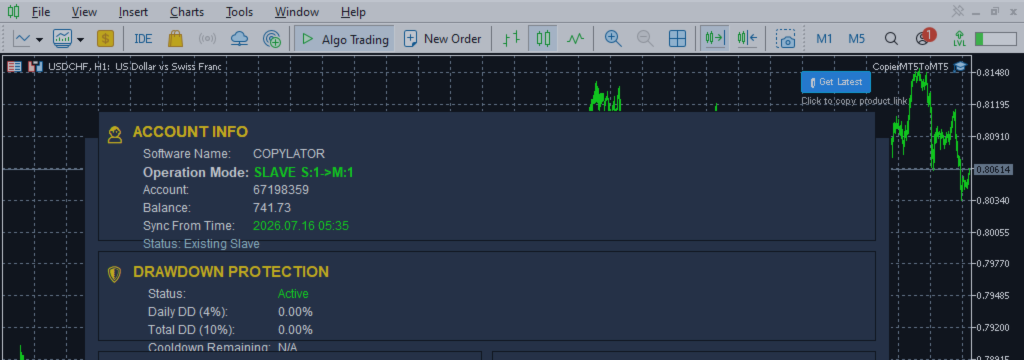
COPYLATOR – MT5 to MT5 Trade Copier for MetaTrader 5 with Drawdown Protection

PRODUCT ACCESS LINK ON MQL5 MARKET:
- Copier MT5 To MT5
https://www.mql5.com/en/ market/product/191385
COPYLATOR – MT5 Trade Copier
Key Highlights
- Advanced drawdown protection – closing, blocking, pending‑order deletion, cooldown timer.
- Multi‑Sender / Multi‑Receiver – one‑to‑many, many‑to‑one, or many‑to‑many copying.
- Complete trade replication – copies market orders, pending orders, SL, and TP with real‑time synchronization.
- Automatic symbol mapping – finds correct symbols, alerts if missing, allows manual override.
- Hedging & Netting support – auto‑detected, no manual setup.
- Real‑time SL/TP sync – updates stops even after trade is open, including trades opened without them.
- Flexible lot management – fixed lot, multiplier, balance‑ratio scaling, max lot cap.
- Smart error alerts – spread, margin, symbol, filters, etc.
- No DLL required – single‑chart installation.
- Investor Password Support – Connect COPYLATOR to the Sender account using an Investor Password (read-only access). COPYLATOR can read and copy the Sender's trades normally, even though the Sender account cannot be traded from. The copied trades are executed on the Receiver accounts using their normal trading access.
Overview
COPYLATOR replicates trades between multiple MT5 terminals on the same computer or VPS. Supports one‑to‑many, many‑to‑one, and many‑to‑many topologies using multiple EA instances. Set Mode and SenderAccountNumber per chart – no external software needed.
Use Cases
Multi‑account trading, prop firm management, signal replication, portfolio distribution, and personal use, etc.
Key Features
Advanced Drawdown Protection
Monitors daily and total drawdown (Equity or Balance). Daily drawdown is measured from the day's highest Equity or Balance peak, depending on the selected calculation mode. Cooldown timer prevents premature reopening. Daily reset at user‑defined GMT hour. Dedicated dashboard panel (Receiver mode) shows real‑time status, percentages, and remaining cooldown.
Practical use: Even without prop firms, this acts as a safety net – automatically stops copying and closes trades if Receiver losses exceed a set percentage, regardless of Sender performance.
Important: CloseOrdersOnDrawdown controls physical closing and pending‑order deletion. If false , no closing/deletion – DrawdownAction controls blocking independently.
Multi‑Sender and Multi‑Receiver Support
Run multiple EA instances to create any topology. Each Sender needs a unique account number; each Receiver specifies its Sender via SenderAccountNumber . All instances run independently and simultaneously.
Graphical Dashboard
Displays account info, sync status, mode, latency, and Drawdown Protection panel (Receiver mode). Visible by default in Receiver mode.
Reliable Trade Replication
Copies market orders, pending orders (Limit/Stop), SL, and TP. Automatically detects Hedging or Netting accounts and applies the appropriate synchronization method.
Real‑time SL/TP Sync: Any manual SL/TP changes on the Sender – including adding stops to trades that had none – are instantly replicated to all matching Receiver trades across Hedging, Netting, and pending orders.
Reverse Trade Mode
Copies trades in reverse direction (Buy↔Sell) with automatic SL/TP adjustment.
Symbol Mapping & Risk Management
Automatic mapping finds the correct symbol; if not found, a clear warning tells you which symbol is missing and how to add it via SymbolMappings . Manual mappings (e.g., XAUUSD:XAUUSDm) also supported.
Lot management: Combine fixed lot, multiplier, balance‑ratio scaling (using the Sender/Receiver balance ratio), and max lot cap – independently or together.
Additional Features
- Multiple Sender/Receiver terminals concurrently.
- Custom SL/TP (copy from Sender or fixed distances).
- Buy‑only / Sell‑only filters.
- Day & Time filters with auto‑close at window end.
- Maximum lot size limitation.
Complete Input Parameters
Core Settings
| Parameter | Description |
|---|---|
| Mode | SENDER or RECEIVER. |
| SenderAccountNumber | In Receiver mode: account to copy from. In Sender mode: ignored. |
| CopyPending | Copy pending orders (limit/stop) along with market orders. |
| CopyWithReversal | Reverse direction (Buy↔Sell) with auto SL/TP adjustment. |
| CopyStopLoss / CopyTakeProfit | Enable copying SL/TP from sender. |
| CustomStopLoss / CustomTakeProfit | Override with fixed distance in points; 0 = use sender's values. |
Symbol & Filtering
| Parameter | Description |
|---|---|
| EnableSymbolMapping | Auto‑replace sender symbols with mapped ones for receiver broker. |
| SymbolMappings | Pair mappings (e.g., XAUUSD:Gold). |
| MaxSpread | Maximum spread in points (not pips). For example, 30 points means 3.0 pips on a 5‑digit broker. Set to 0 to disable. |
| CopyLongOnly | Copy only Buy (long) trades. |
| CopyShortOnly | Copy only Sell (short) trades. |
Lot & Risk Management
| Parameter | Description |
|---|---|
| UseBalanceRatio | Scale lot size using the Sender/Receiver balance ratio. |
| EnableLotMultiplier | Multiply Sender volume by specified factor. |
| LotMultiplierValue | Multiplier factor. |
| FixedLotSize | Override volume with fixed lot; 0 = use multiplier/ratio logic. |
| MaxLotSize | Absolute lot cap. |
Day & Time Filters
| Parameter | Description |
|---|---|
| AllowMonday … AllowFriday | Enable or disable trading on each specific day (Monday–Friday). |
| EnableTimeFilter | Restrict to daily GMT window. |
| StartHourGMT / StartMinuteGMT | Window start. |
| EndHourGMT / EndMinuteGMT | Window end. |
| CloseOrdersAtEnd | Auto‑close all copied positions at window end. |
Drawdown Protection (Receiver Only)
| Parameter | Description |
|---|---|
| EnableDrawdownProtection | Master switch. |
| CloseOrdersOnDrawdown | If true, close orders; if false, only blocking (no closing/deleting). |
| MaxDailyDrawdownPercent | Daily loss % from peak (Equity or Balance). |
| MaxTotalDrawdownPercent | Total loss % from initial balance. |
| DrawdownBasedOn | EQUITY or BALANCE. |
| DrawdownAction | Blocking behaviour – see scenarios below. |
| DrawdownCooldownMinutes | Lock duration after trigger. |
| ResetHour / ResetMinute | Daily reset time (GMT). |
Configuration Examples
Example 1 – Fixed Lot Size:
FixedLotSize = 0.01 , EnableLotMultiplier = false , UseBalanceRatio = false .
Example 2 – Balance‑based scaling:
UseBalanceRatio = true , EnableLotMultiplier = false , FixedLotSize = 0 .
Example 3 – Copy only Buy trades:
CopyLongOnly = true , CopyShortOnly = false .
Example 4 – Full Drawdown Protection (close & block):
EnableDrawdownProtection = true , CloseOrdersOnDrawdown = true , DrawdownAction = CLOSE_ALL_BLOCK , MaxDailyDrawdownPercent = 5.0 , MaxTotalDrawdownPercent = 10.0 , DrawdownCooldownMinutes = 60 .
Drawdown Scenarios
Scenario 1 – Alert & Block only (no closing):
EnableDrawdownProtection = true , CloseOrdersOnDrawdown = false , DrawdownAction = CLOSE_ALL_BLOCK (or CLOSE_ALL_BLOCK_DELETE ). Trades not closed, new entries blocked. Pending orders not deleted when CloseOrdersOnDrawdown = false , regardless of DrawdownAction .
Scenario 2 – Full close & block:
CloseOrdersOnDrawdown = true , DrawdownAction = CLOSE_ALL_BLOCK . All positions closed, pending orders deleted, new entries blocked.
Scenario 3 – Close only (no blocking):
CloseOrdersOnDrawdown = true , DrawdownAction = CLOSE_ALL . Positions closed, pending orders deleted, new entries allowed immediately.
Scenario 4 – Alert only (no action):
CloseOrdersOnDrawdown = false , DrawdownAction = CLOSE_ALL . No trades are closed, no pending orders are deleted, and new entries are not blocked. Only a visual alert is shown.
Supported Trade Types
Market orders (Buy/Sell), pending orders (Buy Limit, Sell Limit, Buy Stop, Sell Stop), direction filtering (Long‑only / Short‑only).
Account Type Support
COPYLATOR supports all Forex account types, including ECN, etc. In general, accounts are categorized into two main types, both of which are fully supported:
- Hedging accounts: Full support for all features including Reverse Mode, pending order replication, and individual ticket‑based copying.
- Netting accounts: Only one position per symbol is allowed. Some features such as Reverse Mode and pending order replication may not be applicable and will be automatically ignored or adjusted by the EA to prevent errors. The system handles this seamlessly without requiring manual intervention.
SL/TP Modification: Add or modify SL/TP at any time, even after trade open. Works identically across Hedging, Netting, and pending orders.
Best Practices
- Set drawdown protection conservatively (e.g., 3–5% daily, 8–10% total) and test on demo.
- Run terminals continuously – use a VPS for 24/7 operation.
- Use time filters to avoid low‑liquidity hours.
Installation & Quick Start
Step 1 – Sender: Attach EA, set Mode = SENDER , enable AutoTrading.
Step 2 – Receiver(s): Attach EA, set Mode = RECEIVER , enter SenderAccountNumber , enable AutoTrading.
Step 3 – Verify: Sender dashboard shows connected Receivers. Open a trade – it appears on all Receivers.
Notes: One chart per terminal. Restart after config changes. Test on demo first.
Conclusion
COPYLATOR offers advanced drawdown protection, flexible lot management, real‑time SL/TP sync, and a full graphical dashboard. With auto‑detection of Hedging/Netting, smart error handling, and no external dependencies, it provides reliable trade replication across a wide range of MT5 brokers and account setups.
Important Notes
- All terminals must remain running.
- Each Sender must have a unique account number; each Receiver must specify the correct SenderAccountNumber .
- If the automatic symbol mapping fails to find a symbol, the EA will display a clear warning message. You can manually add the missing symbol pair in the SymbolMappings field using the format SenderSymbol:ReceiverSymbol (e.g., XAUUSD:XAUUSDm ). This ensures that trades are copied correctly even when broker symbols differ.
- The MaxSpread parameter is measured in points, not pips. For example, on a 5‑digit broker, 30 points equals 3.0 pips. Set to 0 to disable spread filtering.
- On Netting accounts, some features such as Reverse Mode and pending order replication may not be applicable due to the single‑position‑per‑symbol limitation. The EA automatically detects this and handles it seamlessly without manual intervention.


