
MT5 Expert Advisor Common Settings Guide – AI Filter, News Protection, Smart Lot & Prop Firm Rules

MT5 Expert Advisor – Common Settings Guide
This guide explains the common trading, risk-management and account-protection settings available across my MT5 Expert Advisors. Depending on the product, these modules may include intelligent signal filtering, economic news protection, automatic lot management, drawdown recovery and proprietary trading firm protection.
The guide covers the following sections:
- Smart AI Signal Filter,
- Economic News Filter and Event Protection,
- Smart Lot Scaling and Drawdown Recovery,
- Prop Firm Funded Account Protection.
This guide applies to all my Expert Advisors that include the same input sections and settings. Some products may not include every module described in this article, and the default values may differ depending on the trading strategy, symbol and product configuration.
The values displayed in the screenshots are configuration examples only. They should not be considered universal recommendations, because the appropriate settings depend on the account size, broker conditions, trading objectives, selected symbol and personal risk tolerance.
1. Smart AI Signal Filter Settings
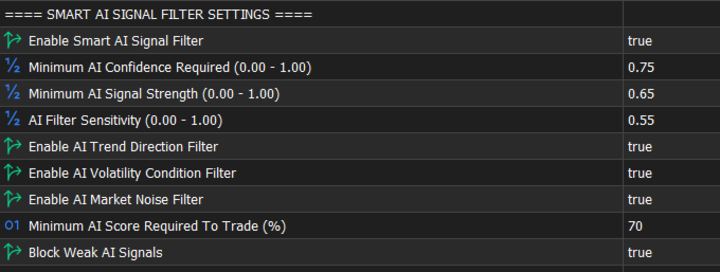
The Smart AI Signal Filter is designed to evaluate the quality of every trading opportunity before the EA is allowed to open a position.
It does not create random trades and does not replace the original entry strategy. Its role is to add an additional validation layer and reject signals that do not meet the configured quality requirements.
Enable Smart AI Signal Filter
This option activates or disables the complete Smart AI filtering module.
- true: the EA analyses each potential trade using the configured AI conditions,
- false: the AI validation layer is bypassed, and the EA relies on its standard entry conditions.
When this option is disabled, the other settings in this section are not applied.
Minimum AI Confidence Required (0.00–1.00)
This setting defines the minimum confidence level required before a signal can be accepted.
The value is expressed between 0.00 and 1.00.
Example:
- 0.75 = 75% minimum confidence.
With a value of 0.75, a signal must reach at least the required internal confidence level before it can proceed to the next validation stage.
A higher value generally produces stricter filtering and fewer eligible trades, while a lower value allows more signals to pass.
Minimum AI Signal Strength (0.00–1.00)
This setting defines the minimum internal strength required for a trading signal.
In the displayed example:
- 0.65 = 65% minimum signal strength.
Signal strength represents the quality and intensity of the detected trading opportunity according to the EA’s internal analysis.
This setting is different from AI confidence. Confidence evaluates how reliable the detected situation appears, while signal strength evaluates how strong the trading setup is.
AI Filter Sensitivity (0.00–1.00)
This setting controls how strongly the AI filter reacts to changes in market conditions.
In the example:
- AI Filter Sensitivity = 0.55.
A higher sensitivity value makes the filter react more strongly to smaller changes in trend, volatility, momentum, or market noise.
A lower value makes the filter more tolerant and may allow more borderline signals to pass.
In the displayed example, a value of 0.55 represents a medium sensitivity level. The appropriate value may vary depending on the product, symbol, timeframe and trading conditions.Enable AI Trend Direction Filter
This option validates whether the potential trade is aligned with the detected market direction.
- true: the EA checks the dominant trend before accepting the signal,
- false: trend-direction confirmation is not required.
When enabled, this filter helps reduce entries taken against the prevailing market direction.
It does not guarantee that every trade will follow a long-term trend, because the final decision also depends on the selected timeframe and the other signal conditions.
Enable AI Volatility Condition Filter
This option evaluates whether current market volatility is suitable for trading.
- true: volatility conditions must be acceptable before a trade can be opened,
- false: volatility is not used as an additional validation condition.
The filter can help avoid markets that are excessively quiet, unstable, or unsuitable for the strategy’s normal operating conditions.
Enable AI Market Noise Filter
This option is designed to detect and filter irregular or choppy market conditions.
- true: noisy or low-quality price behaviour can cause the signal to be rejected,
- false: the market noise condition is ignored.
This filter is particularly useful when price is moving without a clear structure or direction, because such conditions may generate false signals.
Minimum AI Score Required to Trade (%)
This setting defines the minimum final AI score required before the EA is authorised to open a trade.
In the example:
- Minimum AI Score = 70%.
The final AI score is obtained after combining the relevant signal-quality checks, such as confidence, strength, trend direction, volatility, and market noise.
A trade will only be accepted when the final score reaches or exceeds the configured minimum.
Block Weak AI Signals
This option provides an additional safeguard against low-quality AI signals.
- true: signals classified as weak are blocked,
- false: weak-signal classification is not used as a final rejection condition.
This option can reject a trade even when some individual requirements are satisfied, if the overall signal is still considered insufficiently reliable.
2. Economic News Filter and Event Protection
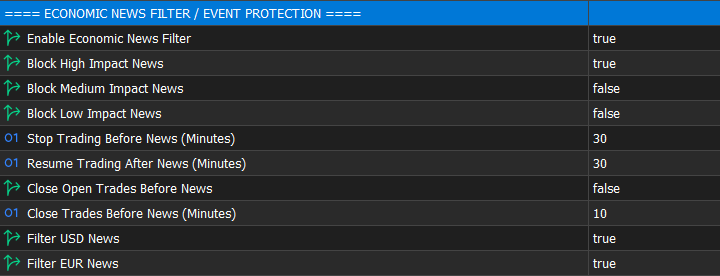
The Economic News Filter is designed to reduce exposure during scheduled economic events that may cause abnormal volatility, widened spreads, slippage, or rapid price movements.
The filter uses the selected impact levels, currencies, and protection periods to determine when trading should be suspended.
Enable Economic News Filter
This option activates or disables the complete economic news protection module.
- true: the EA checks scheduled economic events before opening trades,
- false: economic events are ignored.
When this option is disabled, the remaining settings in this section are not applied.
Block High Impact News
This option controls whether the EA blocks trading around high-impact economic events.
- true: high-impact events activate the protection period,
- false: high-impact events are ignored.
High-impact news may produce significant volatility and execution risk, especially on instruments such as XAUUSD.
Block Medium Impact News
This option determines whether medium-impact economic events should also suspend trading.
- true: medium-impact events activate the news filter,
- false: only the other selected impact levels are considered.
Activating this option increases protection but may reduce the number of available trading periods.
Block Low Impact News
This option determines whether low-impact events should activate the news filter.
- true: low-impact events are included,
- false: low-impact events are ignored.
Blocking low-impact events creates stricter protection, but it may keep the EA inactive for longer periods.
Stop Trading Before News (Minutes)
This setting defines how many minutes before a selected economic event the EA must stop opening new trades.
In the example:
- 30 minutes before the news.
If a qualifying event is scheduled at 15:30, the EA stops opening new trades from approximately 15:00.
This setting does not automatically close existing positions unless the separate closing option is enabled.
Resume Trading After News (Minutes)
This setting defines how many minutes the EA must wait after the economic event before resuming normal trading.
In the example:
- 30 minutes after the news.
If the event occurs at 15:30, the EA can resume trading from approximately 16:00, provided that no other blocked event is active.
This delay allows spreads and volatility to return closer to normal market conditions.
Close Open Trades Before News
This option determines whether existing positions should be closed before a selected economic event.
- true: the EA may close its eligible open positions before the news,
- false: existing positions remain open, while only new entries are suspended.
This option should be used carefully because closing positions before every major event may lock in a profit or a loss earlier than originally planned.
Close Trades Before News (Minutes)
This setting defines how many minutes before the economic event open trades should be closed.
In the example:
- 10 minutes before the news.
This value is only relevant when Close Open Trades Before News is set to true.
When the closing option is false, this number has no practical effect.
Filter USD News
This option determines whether economic events related to the United States dollar are included in the filter.
- true: USD events activate the configured protection,
- false: USD events are ignored.
For XAUUSD trading, USD news is particularly important because gold is quoted against the United States dollar and can react strongly to major American economic announcements.
Filter EUR News
This option determines whether economic events related to the euro are included in the filter.
- true: EUR events activate the protection period,
- false: EUR events are ignored.
EUR events may also influence global market sentiment, the dollar, liquidity, and precious metals, even when the traded symbol is not directly linked to the euro.
3. Smart Lot Scaling and Drawdown Recovery
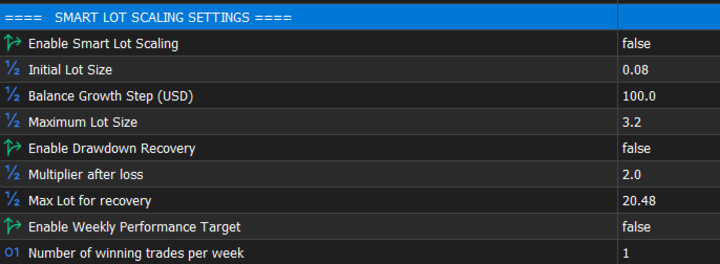
This section contains three independent money-management functions:
- Smart Lot Scaling,
- Drawdown Recovery,
- Weekly Performance Target.
These functions do not generate trading signals. They only affect position sizing or determine whether the EA may continue opening trades.
Enable Smart Lot Scaling
This option activates or disables automatic lot adjustment according to account growth.
- true: the EA can adjust the lot size as the account balance increases,
- false: Smart Lot Scaling is not applied.
When disabled, the EA uses the applicable fixed or standard lot-size logic.
Initial Lot Size
This setting defines the starting lot size used as the reference for Smart Lot Scaling.
In the example:
- Initial Lot Size = 0.08.
The appropriate initial lot depends on the account balance, selected symbol, leverage, stop-loss distance, and accepted risk level.
A larger initial lot increases both potential profit and potential loss.
Balance Growth Step (USD)
This setting defines the balance-growth interval used by the Smart Lot Scaling system.
In the example:
- Balance Growth Step = $100.
The EA uses this amount as a reference when evaluating whether account growth is sufficient to adjust the lot size.
This value does not open trades by itself and does not represent a profit target. It is only part of the lot-scaling calculation.
A smaller growth step may cause lot adjustments to occur more frequently, while a larger step generally produces slower scaling.
Maximum Lot Size
This setting defines the highest lot size that Smart Lot Scaling is allowed to use.
In the example:
- Maximum Lot Size = 3.20 lots.
Even if the balance continues to increase, the calculated smart lot cannot exceed this limit.
This protection is essential because it prevents unrestricted position-size growth.
Enable Drawdown Recovery
This option activates or disables the Drawdown Recovery system.
- true: the EA can increase the lot size of a subsequent valid trade after a qualifying loss,
- false: losses do not activate recovery lot sizing.
Drawdown Recovery does not open immediate or random trades after a loss. The EA must still wait until all original entry conditions are satisfied.
This system affects position size only and does not replace the strategy’s entry logic.
Multiplier After Loss
This setting defines the multiplier applied after a qualifying losing trade.
In the example:
- Multiplier After Loss = 2.0.
For example, if the applicable lot size is 0.10, a multiplier of 2.0 may produce a recovery lot of 0.20 for the next valid trade.
If another qualifying loss occurs, the recovery sequence may continue according to the EA’s internal logic, subject to the configured maximum recovery lot.
A high multiplier increases exposure rapidly and should therefore be used with strict risk limits.
Max Lot for Recovery
This setting defines the maximum lot size allowed during Drawdown Recovery.
In the example:
- Maximum Recovery Lot = 20.48 lots.
The recovery system is not permitted to exceed this value, even if the calculated recovery lot would otherwise be higher.
This is a critical safety limit. It should always be configured according to the account size and maximum acceptable drawdown.
The maximum recovery lot is separate from the maximum Smart Lot Scaling value because the two systems perform different functions.
Enable Weekly Performance Target
This option activates or disables the weekly winning-trade objective.
- true: the EA monitors the number of winning trades achieved during the current week,
- false: the weekly target does not restrict trading.
When the configured objective is achieved, the EA can stop opening additional trades for the remainder of the applicable trading week.
The purpose of this feature is to reduce overtrading after the weekly objective has already been reached.
Number of Winning Trades per Week
This setting defines the number of winning trades required to complete the weekly performance target.
In the example:
- Number of Winning Trades = 1.
When Weekly Performance Target is enabled, one eligible winning trade may be sufficient to complete the weekly objective.
This value should be selected according to the trading plan. A very low target reduces trading activity, while a higher target allows the EA to continue trading for longer.
4. Prop Firm Funded Account Protection
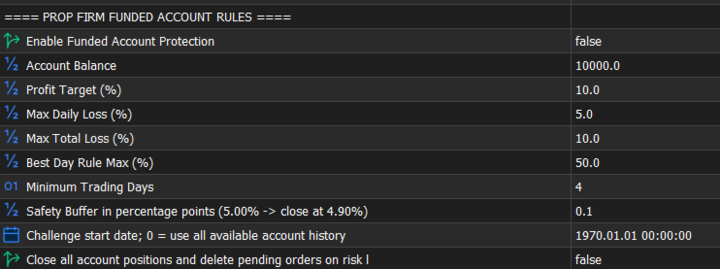
The Prop Firm Funded Account Protection module is designed to help traders monitor the main restrictions imposed by proprietary trading firms.
The system includes protection for:
- Profit target,
- Daily loss,
- Total loss,
- Best day consistency,
- Minimum trading days,
- Risk-limit safety buffer.
Prop firm rules are not identical. Before using this module, the trader must verify the official calculation method used by the selected company.
Enable Funded Account Protection
This option activates or disables the complete funded account protection module.
- true: the EA applies the configured prop firm rules,
- false: the protection rules displayed in this section are not enforced.
In the screenshot, the option is set to false, which means the module is currently disabled.
Account Balance
This setting defines the original account size used as the reference for percentage calculations.
In the example:
- Account Balance = $10,000.
The trader should normally enter the initial balance provided by the prop firm, not the current balance after trading.
For a $10,000 account:
- 5% equals $500,
- 10% equals $1,000.
Profit Target (%)
This setting defines the profit percentage required to reach the account objective.
In the example:
- Profit Target = 10%.
For a $10,000 account:
- $10,000 × 10% = $1,000.
The target is therefore reached when the account has generated approximately $1,000 in qualifying profit, according to the protection module’s calculation.
Max Daily Loss (%)
This setting defines the maximum daily loss permitted by the prop firm.
In the example:
- Maximum Daily Loss = 5%.
For a $10,000 account:
- $10,000 × 5% = $500.
The trader must confirm whether the prop firm calculates daily loss using balance, equity, the starting balance of the day, or another calculation method.
Max Total Loss (%)
This setting defines the maximum total loss permitted from the beginning of the challenge or funded account.
In the example:
- Maximum Total Loss = 10%.
For a $10,000 account:
- $10,000 × 10% = $1,000.
Unlike the daily loss limit, the total loss limit normally does not reset at the start of a new trading day.
Best Day Rule Max (%)
This setting controls the maximum percentage of total profit that may come from the best trading day.
In the example:
- Best Day Rule Maximum = 50%.
For example, if the best trading day generated $400, the total account profit may need to reach at least $800 for the best day to represent no more than 50% of the total profit.
This rule is commonly used to evaluate trading consistency.
Minimum Trading Days
This setting defines the minimum number of separate trading days required.
In the example:
- Minimum Trading Days = 4.
Even when the profit target has already been reached, the account may still need to complete the required number of trading days.
The exact conditions for counting a valid trading day depend on the rules of the selected prop firm.
Safety Buffer in Percentage Points
This setting creates a safety margin before the official risk limit is reached.
In the example:
- Safety Buffer = 0.10 percentage points.
If the maximum daily loss is 5.00%, the system applies its protection at approximately:
- 5.00% − 0.10% = 4.90%.
For a $10,000 account, 4.90% represents approximately $490.
The buffer helps reduce the risk of violating the official limit because of spread, commission, swap, slippage, execution delay, or equity movement during position closure.
Challenge Start Date
This setting defines the date from which the EA begins analysing the account trading history.
When a specific start date is selected, only trading activity recorded from that date is included in the challenge calculations.
The displayed value:
- 1970.01.01 00:00
represents the zero-date value in MetaTrader.
According to the input description, this means that the EA will use all available account history.
When the account contains old trades that are unrelated to the current challenge, the trader should enter the actual challenge start date.
Close All Account Positions and Delete Pending Orders on Risk Limit
This option determines what the EA should do when the configured risk limit is reached.
- true: the EA closes all account positions and deletes pending orders,
- false: the EA does not force-close all account positions through this option.
This setting must be used carefully because it is an account-level protection option.
When enabled, it may affect:
- trades opened by the Expert Advisor,
- manually opened positions,
- trades opened by other Expert Advisors,
- pending orders belonging to other strategies.
It should therefore only be activated when the trader fully understands its account-wide effect.
Example Configuration for a $10,000 Prop Firm Account
Based on the displayed settings:
- Initial account balance: $10,000,
- Profit target: 10% = $1,000,
- Maximum daily loss: 5% = $500,
- Daily protection with a 0.10% buffer: approximately $490,
- Maximum total loss: 10% = $1,000,
- Total-loss protection with a 0.10% buffer: approximately $990,
- Best day maximum: 50% of total profit,
- Minimum trading days: 4 days.
Compatibility Notice:
This guide applies only to Expert Advisors that display the same modules and input names. Some products may not include every feature described in this article, and product-specific default values may be different.
Important Risk Notice
Prop firm rules may differ significantly between companies. Traders must always verify the official terms of the selected firm before activating the protection module.
All settings should be tested in the MetaTrader Strategy Tester and on a demo account before being used on a live or funded account.




![[iVISTscalp5]: EURUSD. Forecast First. Market Reaction Afterwards//October 12-16, 2026](https://c.mql5.com/6/1038/splash-preview-777972.png "[iVISTscalp5]: EURUSD. Forecast First. Market Reaction Afterwards//October 12-16, 2026")