Power of Three AMD Protocol — Full Setup & User Guide (Official Documentation for MT5/MT4)

Power of Three AMD Protocol — Full Setup and User Guide
This is the official guide for every feature, every input setting, and every configuration step in the PO3 AMD Protocol indicator.
Whether you are brand new to ICT concepts or already trade the Power of 3 daily, this guide explains everything in plain language. No prior knowledge is assumed. If a term appears for the first time, it is explained immediately.
MT5 Version: https://www.mql5.com/en/market/product/171633
MT4 Version: https://www.mql5.com/en/market/product/171742
Free Demo: Available on both product pages.
Install the demo first to follow along with this guide.
If anything in this guide is unclear, message me directly via MQL5. I respond to every message personally.
Table of Contents
1. What This Indicator Does (And What It Does Not Do)
2. The Big Idea: What Is Power of 3?
3. Installation and First Load
4. The Most Important Setting: Operating Mode
5. Module 1 — Daily PO3 Candle Overlay
6. Module 2 — H4 PO3 Dashboard (The 6 Blocks)
7. Module 3 — Weekly PO3 Overlay
8. Module 4 — AMD Phase Labels (ACN, MPN, DBN)
9. Module 5 — Killzone Session Boxes
10. Module 6 — H4 Structural Mapping (On-Chart Lines)
11. Module 7 — Macro Liquidity Levels (PDH, PDL, PWH, PWL, PMH, PML)
12. Module 8 — NY Equity Open (Initial Balance)
13. Module 9 — Smart Sweep Alert Engine
14. Chart Themes
15. Layout and Spacing Controls
16. Recommended Setups for Different Trading Styles
17. Frequently Asked Questions
18. Troubleshooting
19. Complete Input Parameter Reference
20. Product Links and Support
21. Disclaimer
1. What This Indicator Does (And What It Does Not Do)
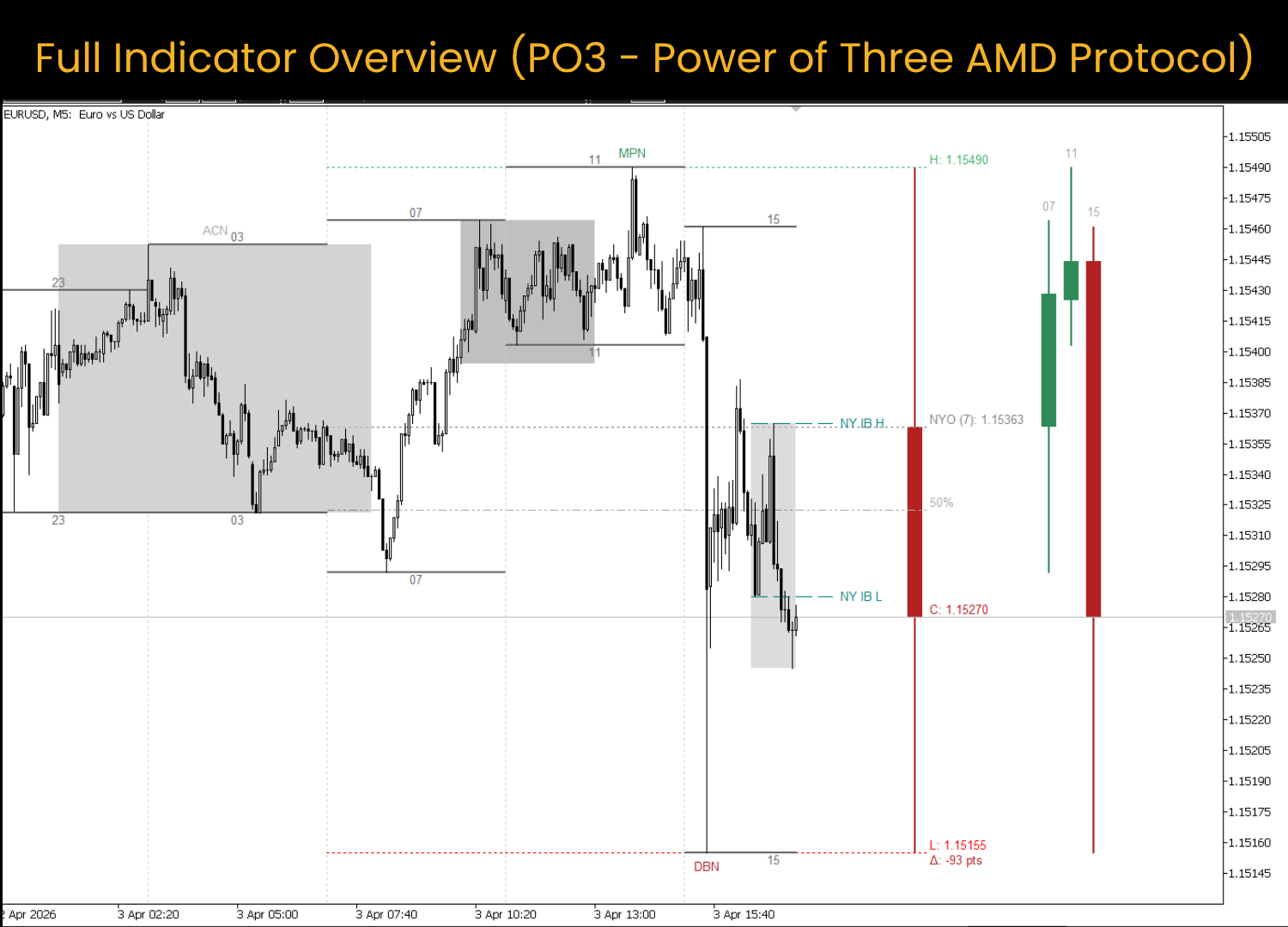
This indicator draws the daily story of price onto your chart. It shows you:
- Where the day started (the True Daily Open)
- What happened during the day (Accumulation, Manipulation, Distribution)
- Where the important levels are (previous day high/low, previous week high/low, session ranges)
- What the bigger picture looks like (the Daily candle, the H4 blocks, the Weekly candle)
- When something important happens (sweep alerts on your phone or email)
All of this appears on your lower-timeframe chart (M1, M5, or M15) so you can see the big picture and the small picture at the same time, without switching between charts.
What it does NOT do:
This indicator does not tell you when to buy or sell. It does not place trades for you. It does not draw arrows on your chart. It shows you the structure of the market — where price came from, where the key levels are, and what phase of the day you are in. You decide what to do with that information.
It works on every symbol in MetaTrader 5: Forex pairs (like EURUSD and GBPUSD), Gold (XAUUSD), Indices (US30, NAS100), Crypto (BTCUSD), and any other instrument your broker offers.
2. The Big Idea: What Is Power of 3?
Before you configure anything, it helps to understand the one concept this entire indicator is built around.
The Daily Cycle
Every trading day follows a pattern. It is not random. The pattern has three phases:
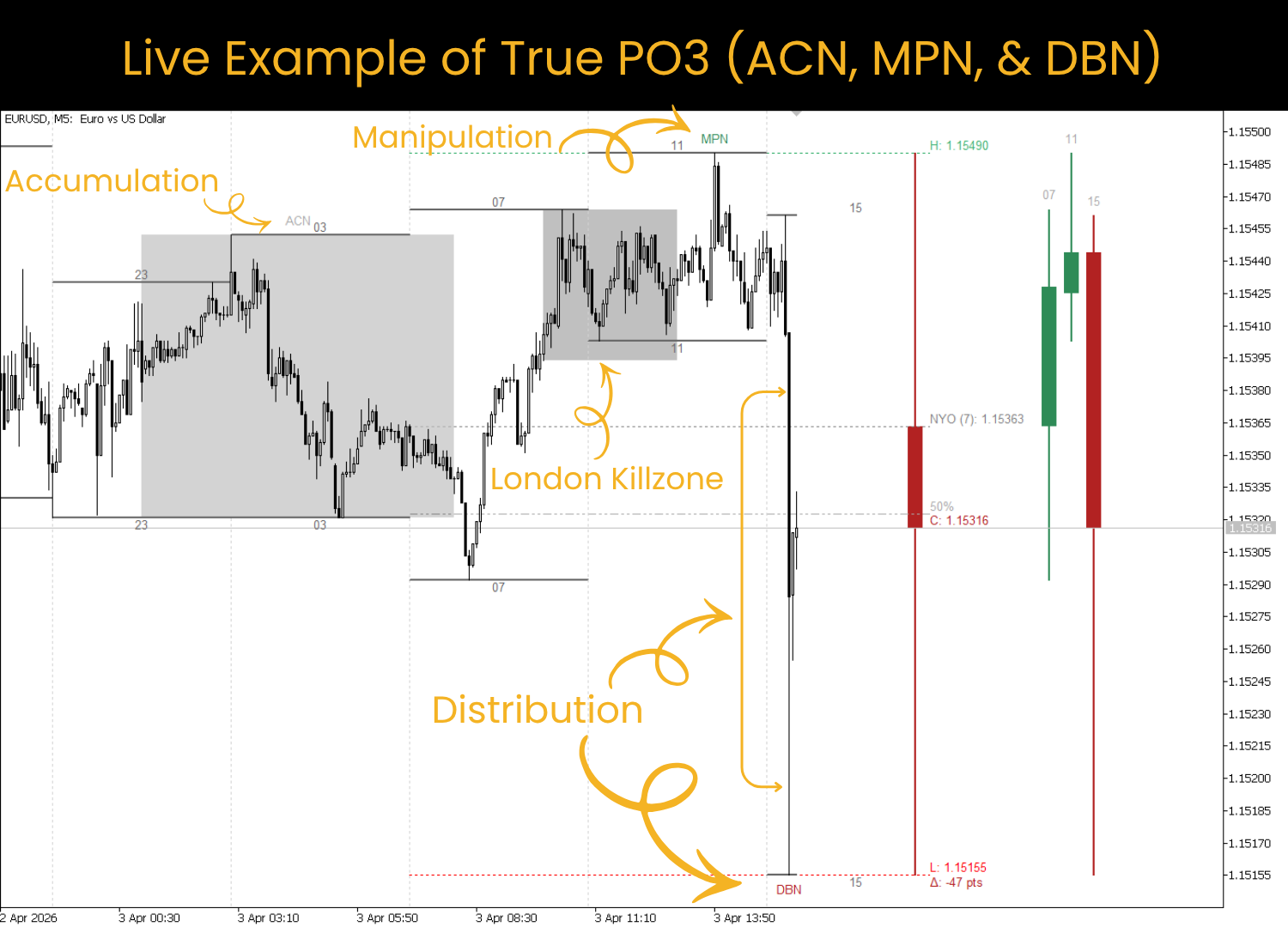
Phase 1 — Accumulation (ACN)
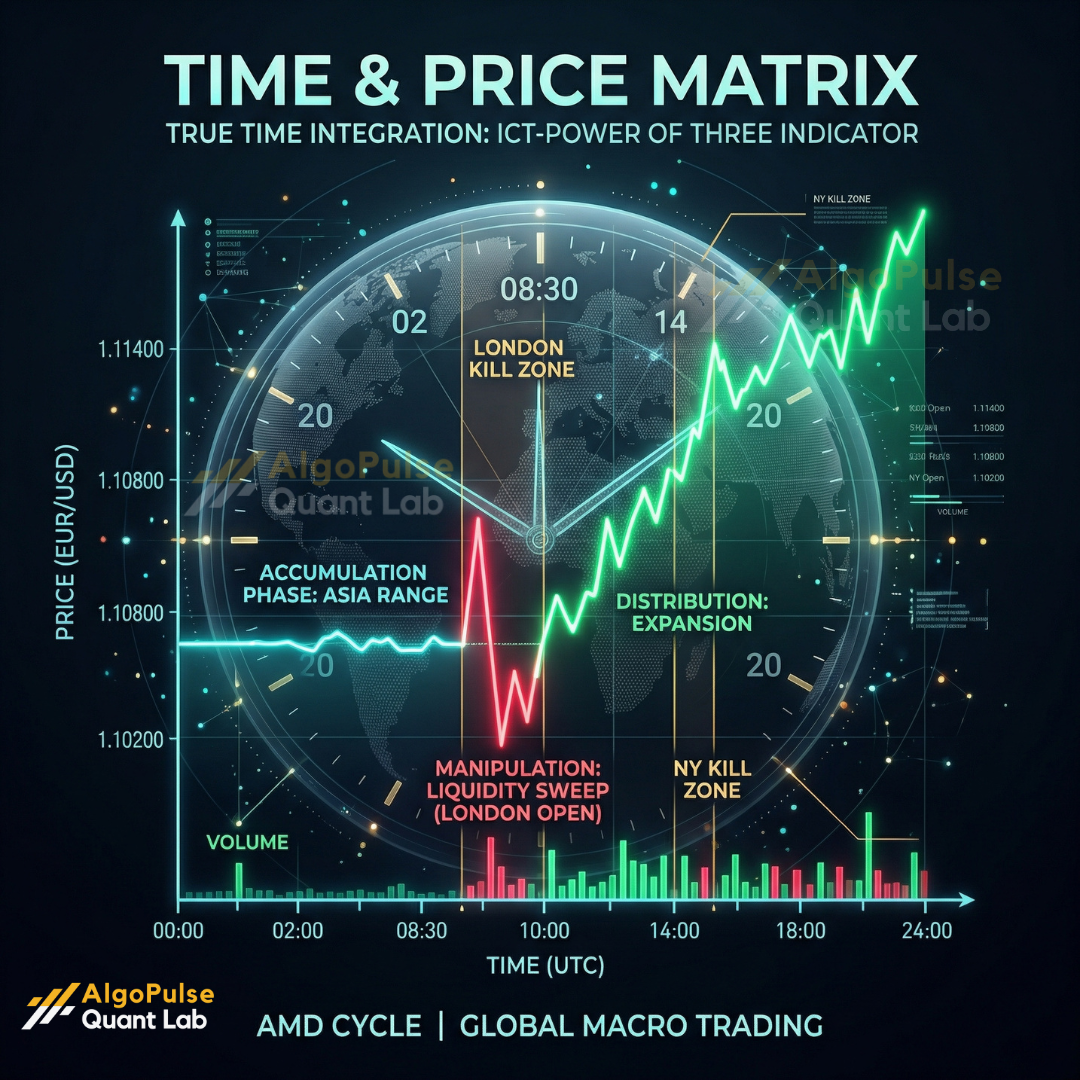
This is the quiet part of the day. It usually happens during the Asian session (roughly midnight to 8 AM London time). Price moves sideways in a small range. Big institutions are building their positions quietly during this phase.
Think of it like a rubber band being pulled back slowly. It is storing energy.
Phase 2 — Manipulation (MPN)
This is the fake move. It usually happens at the start of the London or New York session. Price suddenly moves in one direction — it looks like a breakout. Traders who were watching the Asian range think "it is breaking out, I should follow it."
But it is a trap. The move is designed to sweep the liquidity (the stop losses) sitting just beyond the Asian range. Once those stops are taken, the real move begins in the opposite direction. This is called the Judas Swing.
Phase 3 — Distribution (DBN)
This is the real move. After the fake move takes out liquidity, price reverses and moves aggressively in the opposite direction. This is where the day's actual trend forms.
If the manipulation swept the lows → distribution is bullish (price goes up).
If the manipulation swept the highs → distribution is bearish (price goes down).
Why Is It Called Power of 3?
Because the daily candle is built from these three phases: Accumulation sets the Open. Manipulation creates one extreme (the high or the low). Distribution creates the other extreme and the Close.
Open, High, Low, Close — the four points of a candle — are created by these three phases. That is the Power of 3.
What This Indicator Does With This Concept
It takes the Power of 3 idea and draws it on your chart automatically. You can see the daily candle forming in real time, the H4 blocks that make up the daily candle, the AMD labels showing which phase just happened, the session boxes showing when each killzone is active, and the liquidity levels that price is likely targeting. All of this updates in real time, on every tick.
3. Installation and First Load
Step 1: Get the Indicator
Purchase or download the free demo from the MT5 product page.
Step 2: Open MetaTrader 5
In the Navigator panel on the left side, expand "Indicators" under the "Market" section. You will see the indicator listed there.
Step 3: Add It to a Chart
Open any chart. I recommend starting with EURUSD on the M5 timeframe. Drag the indicator from the Navigator panel onto the chart. A settings window will appear.
Step 4: Click OK (Use Defaults First)
Do not change any settings on your first load. Click OK. The indicator will load with sensible defaults.
What Happens on First Load
1. The chart theme changes. The background becomes white, the grid disappears, and candle colors change to a clean institutional look. If you do not like it, you can change or disable it later (see Section 14).
2. The chart shifts to the right. Empty space appears on the right side of your chart. This is where the Daily PO3 candle and H4 blocks will be drawn. The indicator sets this up automatically.
3. Everything appears. You will see the Daily PO3 candle, the H4 blocks, AMD labels, session boxes, and liquidity lines all at once. It looks busy. That is normal for the first load. This guide walks you through every element.
4. The Most Important Setting: Operating Mode
Before you look at anything else, you need to understand this one setting. It controls how the entire indicator works.
Where to Find It
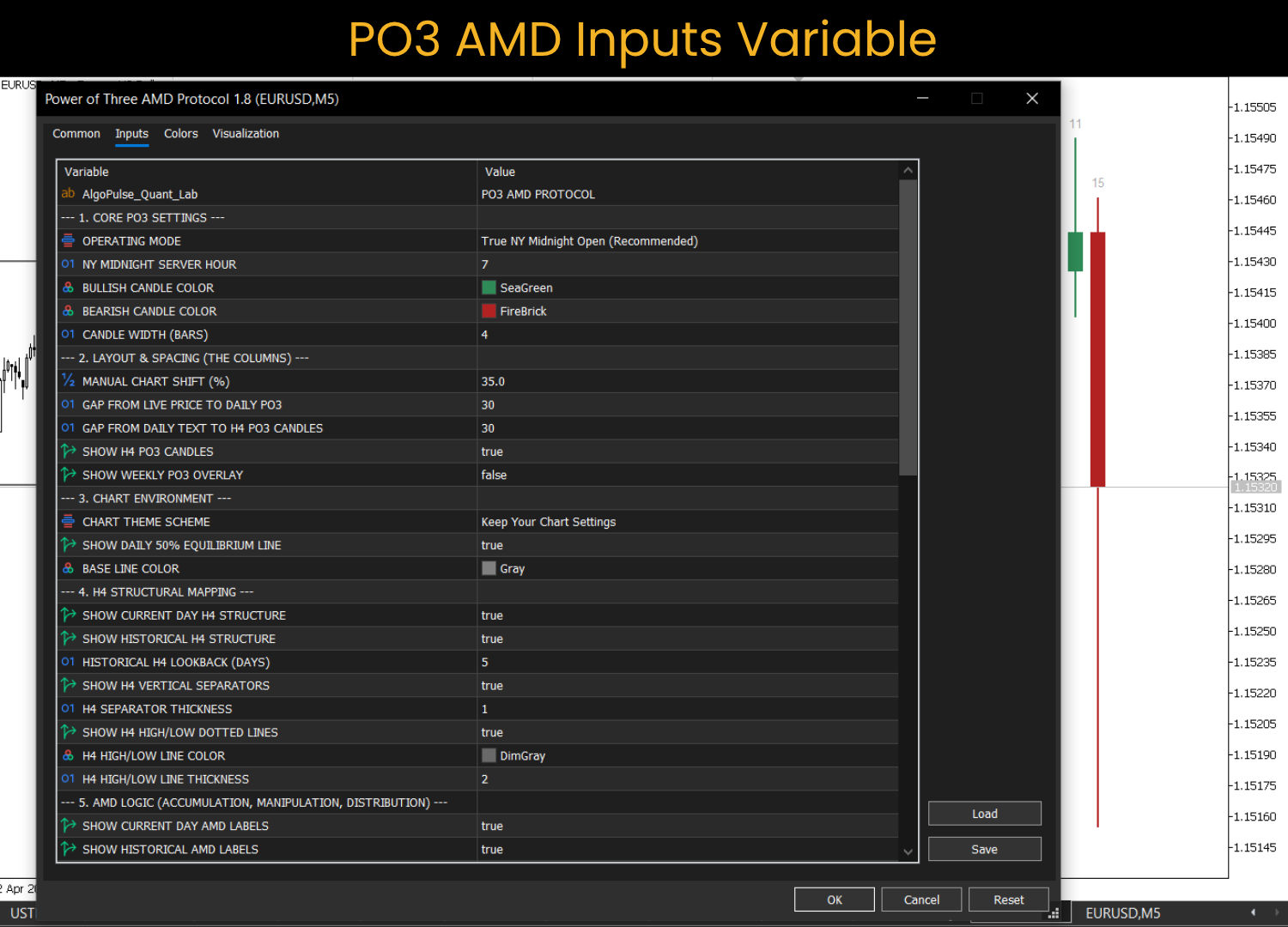
Open the settings panel. Expand the group called "--- 1. CORE PO3 SETTINGS ---". The first input is:
OPERATING MODE .............. True NY Midnight Open (Recommended)
What the Two Modes Mean
True NY Midnight Open (Recommended)
This mode defines the "day" as starting at midnight in New York. In ICT methodology, the real trading day does not start when your broker's daily candle starts. It starts at midnight Eastern US time. On a broker that runs on GMT+2 server time (like ICMarkets, Pepperstone, or FP Markets), New York midnight is 07:00 server time. So the indicator calculates the Daily PO3 candle from 07:00 today to 07:00 tomorrow.
The H4 blocks align to this anchor: 07:00, 11:00, 15:00, 19:00, 23:00, 03:00. The AMD labels (ACN, MPN, DBN) only work in this mode.
Standard Broker Open (00:00)
This mode defines the "day" as starting at your broker's midnight (00:00 server time). The H4 blocks align to 00:00, 04:00, 08:00, 12:00, 16:00, 20:00 — matching your broker's native H4 candles exactly. AMD labels are disabled in this mode.
How to Set the NY Midnight Hour
NY MIDNIGHT SERVER HOUR ...... 7
For most Forex brokers (GMT+2 or GMT+3 server time), the default value of 7 is correct.
How to check: Open any chart in MetaTrader. Look at the time on the horizontal axis. Compare it to the current time in New York. The difference is your broker's offset.
Common values:
- GMT+2 broker (most Forex brokers): NY Midnight Hour = 7
- GMT+3 broker (summer time): NY Midnight Hour = 7
- GMT+0 broker (UTC): NY Midnight Hour = 5
- GMT-5 broker (US Eastern): NY Midnight Hour = 0
If you are unsure, message me via MQL5 with your broker name and I will tell you the correct value.
5. Module 1 — Daily PO3 Candle Overlay
This is the big candle you see to the right of the live price area. It represents the current day's price action as a single candle — body and wicks — drawn as a visual block.
- Green body = the day is currently bullish (close is above open)
- Red body = the day is currently bearish (close is below open)
- The top wick extends to the day's high
- The bottom wick extends to the day's low
The candle updates in real time as the live price moves.
The OHLC Text Panel
To the right of the Daily PO3 candle, you will see text labels:
- NYO (7): 1.08520 — The day's open price. In Standard mode, this shows "O: 1.08520" instead.
- H: 1.09145 — The day's high (in green)
- L: 1.08320 — The day's low (in red)
- C: 1.09010 — The current close
- Delta: +49 pts — How far the close is from the open, in points. Helps gauge ADR exhaustion.
The Dotted Lines
Three dotted horizontal lines extend from the day's anchor time across your chart: a green line at the high, a red line at the low, and a grey line at the open. These help you see where the day's key levels sit relative to the live price candles.
The 50% Equilibrium Line
If SHOW DAILY 50% EQUILIBRIUM LINE is enabled (default: on), a dark grey dash-dot-dot line appears at the exact midpoint of the day's range with a "50%" label.
This is the daily equilibrium. If price is above this line, it is in "premium" territory. If price is below, it is in "discount" territory. In simple terms: look to sell above 50%, look to buy below 50%.
Key Input Settings
BULLISH CANDLE COLOR ......... SeaGreen
BEARISH CANDLE COLOR ......... FireBrick
CANDLE WIDTH (BARS) .......... 4
SHOW DAILY 50% EQUILIBRIUM LINE... true
BASE LINE COLOR .............. Gray
6. Module 2 — H4 PO3 Dashboard (The 6 Blocks)
To the right of the Daily PO3 candle and its text labels, you will see a row of smaller candles. These are the H4 blocks. Each trading day is divided into six 4-hour blocks representing the internal structure of the daily candle.
In True NY mode on a GMT+2 broker (NY Midnight Hour = 7), the six blocks are:
Block 1: 07:00 - 11:00 (labeled "07")
Block 2: 11:00 - 15:00 (labeled "11")
Block 3: 15:00 - 19:00 (labeled "15")
Block 4: 19:00 - 23:00 (labeled "19")
Block 5: 23:00 - 03:00 (labeled "23")
Block 6: 03:00 - 07:00 (labeled "03")
In Standard mode, they align to broker midnight:
Block 1: 00:00 - 04:00 (labeled "00")
Block 2: 04:00 - 08:00 (labeled "04")
Block 3: 08:00 - 12:00 (labeled "08")
Block 4: 12:00 - 16:00 (labeled "12")
Block 5: 16:00 - 20:00 (labeled "16")
Block 6: 20:00 - 00:00 (labeled "20")
Each block is drawn as a miniature candle with body and wicks. Green means the block closed higher. Red means it closed lower.
Why This Matters
The H4 blocks show you which part of the day created the high, the low, and the trend. The first H4 block's open matches the Daily PO3 candle's open exactly (in True NY mode). This is how you know the fractal alignment is correct.
Key Input Settings
SHOW H4 PO3 CANDLES ......... true
GAP FROM DAILY TEXT TO H4 PO3 CANDLES 30
7. Module 3 — Weekly PO3 Overlay
An optional larger candle that appears to the right of the H4 blocks. It represents the current week's price action as a single candle. Enable this if you want weekly context alongside the daily. Most intraday traders leave this off.
SHOW WEEKLY PO3 OVERLAY ...... false (off by default)
8. Module 4 — AMD Phase Labels (ACN, MPN, DBN)
Three small text labels that appear directly on your chart at specific price points, marking the three phases of the Power of 3 cycle.
This module only works in True NY Midnight Open mode.
What Each Label Means
ACN (Accumulation) — Appears above the Asian session range, roughly at the center. Marks where the quiet phase of the day happened.
MPN (Manipulation) — Appears at the day's false move (the Judas Swing). On a bullish day, MPN appears at the day's low (the fake bearish move). On a bearish day, MPN appears at the day's high (the fake bullish move).
DBN (Distribution) — Appears at the day's real move (the expansion). On a bullish day, DBN appears at the high. On a bearish day, DBN appears at the low.
Time-Locking
Labels only appear after the event has happened. You will never see a future label. This prevents speculative clutter.
Key Input Settings
SHOW CURRENT DAY AMD LABELS .. true
SHOW HISTORICAL AMD LABELS ... true
HISTORICAL AMD LOOKBACK (DAYS) 5
9. Module 5 — Killzone Session Boxes
Colored rectangular boxes drawn behind the price candles, highlighting specific trading sessions.
- Asian Session — Default: 01:00 to 08:00 server time. Color: Light Grey. This is the accumulation window.
- London Session — Default: 10:00 to 13:00 server time. Color: Silver. This is the London Killzone where the Judas Swing often occurs.
- New York Session — Default: 16:30 to 19:30 server time. Color: Gainsboro. This is the NY Killzone where distribution often accelerates.
Each box stretches from the session's lowest low to its highest high. If the session is still active, the box updates in real time.
Adjusting Session Times for Your Broker
The default times are set for GMT+2/+3 brokers. If your broker uses a different server time, shift all times by the difference.
Example: GMT+0 broker → subtract 2 hours from every default. Asian becomes 23:00 to 06:00. London becomes 08:00 to 11:00. New York becomes 14:30 to 17:30.
The indicator handles midnight wrapping automatically when a session crosses 00:00.
Key Input Settings
SHOW CURRENT DAY SESSIONS .... true
SHOW HISTORICAL SESSIONS ..... true
HISTORICAL SESSION LOOKBACK (DAYS) 5
ASIAN SESSION START TIME ..... 01:00
ASIAN SESSION END TIME ....... 08:00
ASIAN SESSION COLOR .......... LightGray
LONDON SESSION START TIME .... 10:00
LONDON SESSION END TIME ...... 13:00
LONDON SESSION COLOR ......... Silver
NEW YORK SESSION START TIME .. 16:30
NEW YORK SESSION END TIME .... 19:30
NEW YORK SESSION COLOR ....... Gainsboro
10. Module 6 — H4 Structural Mapping (On-Chart Lines)
This module draws lines directly on your chart (not in the dashboard area) showing H4 block boundaries and levels.
H4 Separator Lines (vertical) — Thin dotted vertical lines marking where each 4-hour block begins. In True NY mode: 07:00, 11:00, 15:00, 19:00, 23:00, 03:00. In Standard mode: 00:00, 04:00, 08:00, 12:00, 16:00, 20:00.
H4 High/Low Lines (horizontal) — Dotted horizontal lines at the high and low of each completed H4 block, with the block's hour label at the center. If current price approaches a previous H4 block's high or low, it may react at that level.
Key Input Settings
SHOW CURRENT DAY H4 STRUCTURE....... true
SHOW HISTORICAL H4 STRUCTURE........ true
HISTORICAL H4 LOOKBACK (DAYS)........ 5
SHOW H4 VERTICAL SEPARATORS .. true
H4 SEPARATOR THICKNESS ....... 1
SHOW H4 HIGH/LOW DOTTED LINES..... true
H4 HIGH/LOW LINE COLOR ....... DimGray
H4 HIGH/LOW LINE THICKNESS ...... 2
11. Module 7 — Macro Liquidity Levels
Horizontal lines showing where yesterday's high and low were, where last week's high and low were, and where last month's high and low were.
Why These Levels Matter
Price moves toward liquidity — the clusters of stop-loss orders sitting just beyond recent highs and lows. The previous day's high (PDH) has buy stops above it. The previous day's low (PDL) has sell stops below it. When price sweeps one of these levels, those stops get triggered. This is the fuel for the real move.
What Gets Drawn
- PDH / PDL — Previous Day High and Low. Color: Dark Orange.
- PWH / PWL — Previous Week High and Low. Color: Medium Purple.
- PMH / PML — Previous Month High and Low. Color: Dodger Blue.
Text Label Alignment
- Right Side (default) — Near the current live price. Best for live trading.
- Left Side — At the line's origin point.
- Center — In the middle of the line.
The liquidity lines extend beyond the current price to the right. The extension distance adjusts automatically based on your chart zoom level (the Dynamic Spacing Engine).
Key Input Settings
SHOW PREVIOUS DAY HIGH/LOW ... true
HISTORICAL PDH/PDL LOOKBACK (DAYS) 5
PDH/PDL COLOR ................ DarkOrange
SHOW PREVIOUS WEEK HIGH/LOW .. true
PWH/PWL COLOR ................ MediumPurple
SHOW PREVIOUS MONTH HIGH/LOW . false
PMH/PML COLOR ................ DodgerBlue
LIQUIDITY TEXT ALIGNMENT ..... Right Side (Near Live Price)
LIQUIDITY LINE EXTENSION (BARS) 10
12. Module 8 — NY Equity Open (Initial Balance)
Tracks the high and low of the first 30 minutes after the New York equity market opens. Two horizontal dashed lines in teal:
- NY IB H — The high of the first 30 minutes
- NY IB L — The low of the first 30 minutes
Why It Matters
The Initial Balance range often defines the direction for the rest of the NY session. If price breaks above IB H, the session tends to continue upward. If price breaks below IB L, it tends to continue downward. The first 30 minutes is the market "deciding" which direction to go.
Key Input Settings
SHOW NY EQUITY INITIAL BALANCE....... true
NY EQUITY OPEN TIME (BROKER TIME)...... 16:30
NY INITIAL BALANCE DURATION (MINUTES)...... 30
NY INITIAL BALANCE COLOR ..... Teal
13. Module 9 — Smart Sweep Alert Engine
The alert system tells you when price crosses a key level. It supports desktop popups, mobile push notifications, and email.
What It Alerts On
Macro Sweeps — Price crosses PDH, PDL, PWH, or PWL. These are major liquidity events.
Asia Session Sweeps (Judas Swing) — Price crosses the Asian session high or low after the Asian session has ended. This is the manipulation phase of the Power of 3.
How the Alert Engine Stays Smart
1. One alert per event per day. If PDH gets swept, you receive one alert. If price sweeps it again, no second alert. The flag resets at midnight for a new day.
2. Asia sweep alerts only arm after Asia closes. During the Asian session itself, price naturally touches the high and low as the range forms. The engine waits until the Asian session end time has passed before watching for Asia sweeps.
3. Smart Initialization on first load. If you add the indicator mid-day and PDH was already swept earlier, you do NOT get a stale alert. The engine pre-scans existing sweeps on first load.
Setting Up Mobile Push Notifications
Step 1: Install the MetaTrader 5 mobile app on your phone.
Step 2: Open the mobile app. Go to Settings, then Messages. You will see a MetaQuotes ID.
Step 3: In desktop MetaTrader, go to Tools → Options → Notifications tab. Enter the MetaQuotes ID.
Step 4: Click "Test" to verify.
Setting Up Email Alerts
Step 1: In desktop MetaTrader, go to Tools → Options → Email tab.
Step 2: Enter your SMTP server details. For Gmail:
SMTP Server: smtp.gmail.com
SMTP Port: 465
SMTP Login: your Gmail address
SMTP Password: your Gmail App Password
Gmail requires an App Password, not your regular password. Go to your Google Account → Security → 2-Step Verification → App Passwords. Create a new password for "Mail" and use it in MetaTrader.
Step 3: Enter your "From" and "To" email addresses.
Step 4: Click "Test" to verify.
Alert Message Format
PO3 AMD | EURUSD | PDH Swept PO3 AMD | GBPUSD | Asia High Swept (Judas Swing)
Key Input Settings
MASTER ALERT TOGGLE .......... false (off by default)
DESKTOP POPUP ALERTS ......... true
MOBILE PUSH NOTIFICATIONS .... true
EMAIL ALERTS ................. false
ALERT ON PDH/PDL/PWH/PWL SWEEP...... true
ALERT ON ASIA HIGH/LOW SWEEP...... true
When alerts are enabled, the Experts tab shows confirmation messages telling you which methods are active and what to configure.
14. Chart Themes
The indicator changes your chart's appearance on first load.
- Institutional (White Background) — Default. White background, black outlines, green/red fills. Grid hidden. Clean and professional.
- Dark Mode (Black Background) — Black background, lime outlines, inverted body colors. Good for low-light environments.
- Keep Your Chart Settings — The indicator does not touch your chart colors. Use if you have a custom template.
CHART THEME SCHEME ........... Institutional (White Background)
15. Layout and Spacing Controls
Chart Shift
MANUAL CHART SHIFT (%) ....... 35.0
Controls how much of the chart window is reserved for the dashboard area (Daily PO3, H4 blocks, Weekly PO3). Default 35% means roughly one-third of your screen is dashboard space. Increase if elements are cut off on the right edge.
Gaps Between Columns
GAP FROM LIVE PRICE TO DAILY PO3....... 30
GAP FROM DAILY TEXT TO H4 PO3 CANDLES........ 30
These control horizontal spacing between elements. If anything overlaps, increase the relevant gap value.
Dynamic Spacing Engine
This works automatically — no configuration needed. When you zoom in or out, the indicator recalculates all spacing to keep liquidity lines and dashboard elements properly positioned.
16. Recommended Setups for Different Trading Styles
Setup A — Scalper (M1 or M5 Chart)
Chart Timeframe: M1 or M5
Operating Mode: True NY Midnight Open
NY Midnight Hour: 7
Sessions: All three ON
H4 Lines: ON (separators + high/low)
PDH/PDL: ON, PWH/PWL: ON,
PMH/PML: OFF NY IB: ON
AMD Labels: ON (current day only)
H4 Overlay: ON
Weekly PO3: OFF
Alerts: Macro sweeps ON,
Asia sweeps ON
Full intraday structure for scalping around killzones. H4 lines and session boxes help identify which phase of the day is active.
Setup B — Intraday Trader (M5 or M15 Chart) (Recommended -M5)
Chart Timeframe: M5
Operating Mode: True NY Midnight Open
NY Midnight Hour: 7
Sessions: All three ON
H4 Lines: ON
PDH/PDL: ON,
PWH/PWL: ON,
PMH/PML: OFF
NY IB: ON
AMD Labels: ON (current + historical, 3-day lookback)
H4 Overlay: ON
Weekly PO3: OFF
Alerts: All ON
The default and most versatile setup. M5 gives enough detail for precise entries while keeping the chart readable.
Setup C — Swing Trader (M15 or H1 Chart)
Chart Timeframe: M15
Operating Mode: True NY Midnight Open
NY Midnight Hour: 7
Sessions: OFF
H4 Lines: ON (separators only, high/low OFF)
PDH/PDL: ON,
PWH/PWL: ON,
PMH/PML: ON
NY IB: OFF
AMD Labels: ON (historical, 5-day lookback)
H4 Ovrlay: ON
Weekly PO3: ON
Alerts: Macro sweeps ON,
Asia sweeps OFF
Swing traders benefit from the Weekly PO3 candle and PMH/PML levels. Session boxes are less relevant on H1.
17. Frequently Asked Questions
Q: What does "Non-Repainting" mean?
A: Once a candle closes, the levels and labels from that candle are locked forever. Only the current forming candle updates in real time.
Q: Why are the AMD labels not showing?
A: AMD labels only work in True NY Midnight Open mode. Switch your Operating Mode to True NY to enable AMD.
Q: I see "07" and "11" as H4 labels but my broker's H4 candles start at 00, 04, 08. Is something wrong?
A: No. In True NY mode, the H4 blocks are anchored to NY Midnight, not broker midnight. Your broker's native H4 candles are different because they use broker midnight. Both are correct — they measure different things.
Q: What is the correct NY Midnight Hour for my broker?
A: For most Forex brokers (ICMarkets, Pepperstone, FP Markets, XM, FXTM): use 7. For UTC/GMT+0 brokers: use 5. If unsure, message me with your broker name.
Q: Can I use this on Gold (XAUUSD)?
A: Yes. It works on every symbol your broker offers.
Q: Does this work in the Strategy Tester?
A: Yes. The indicator automatically applies the clean chart theme in the Tester to prevent visual artifacts.
Q: The session boxes are at the wrong times.
A: The default times assume a GMT+2 broker. Adjust all session start/end times by your broker's offset. See Section 9.
Q: Why did I get no alert when PDH was swept?
A: Three possible reasons: (1) Master Alert Toggle is OFF. (2) The "Alert on PDH/PDL/PWH/PWL Sweep" toggle is off. (3) PDH was already swept earlier today and the alert already fired (one alert per event per day).
Q: Can I turn off session boxes but keep AMD labels?
A: Yes. Every module is independent. Disable Sessions in group 6 while keeping AMD in group 5, or any combination.
Q: Can I run this on multiple charts?
A: Yes. Each chart runs its own independent instance.
18. Troubleshooting
Problem: Indicator loads but nothing appears.
Solution: Go to Tools → Options → Charts and increase "Max bars in chart" to at least 10,000. Right-click the chart and select Refresh.
Problem: The overlay candles are cut off on the right side.
Solution: Increase Manual Chart Shift percentage. Default is 35%. Try 40% or 45%.
Problem: AMD labels are not showing.
Solution: AMD only works in True NY Midnight Open mode. Check Operating Mode in group 1. Also verify SHOW CURRENT DAY AMD LABELS is true in group 5.
Problem: Alerts are not firing.
Solution: (1) Check MASTER ALERT TOGGLE is true. (2) Check at least one event category is enabled. (3) For mobile, verify MetaQuotes ID in Tools → Options → Notifications. (4) For email, verify SMTP in Tools → Options → Email.
Problem: H4 labels show "00, 04, 08" but I expected "07, 11, 15".
Solution: You are in Standard mode. Switch to True NY Midnight Open and set the correct NY Midnight Hour.
Problem: Liquidity lines look too short or too long.
Solution: Adjust LIQUIDITY LINE EXTENSION (BARS) in group 7. Try values between 5 and 20.
Problem: Everything overlaps and the chart is cluttered.
Solution: Increase gap values in group 2. Consider disabling modules you do not need — start with Sessions, AMD, and the Daily PO3 candle only, then add modules one at a time.
19. Complete Input Parameter Reference
Group 1 — Core PO3 Settings
OPERATING MODE ................. True NY Midnight Open
NY MIDNIGHT SERVER HOUR ........ 7
BULLISH CANDLE COLOR ........... SeaGreen
BEARISH CANDLE COLOR ........... FireBrick
CANDLE WIDTH (BARS) ............ 4
Group 2 — Layout and Spacing
MANUAL CHART SHIFT (%) ......... 35.0
GAP FROM LIVE PRICE TO DAILY PO3..... 30
GAP FROM DAILY TEXT TO H4 PO3 CANDLES...... 30
SHOW H4 PO3 CANDLES ............ true
SHOW WEEKLY PO3 OVERLAY ........ false
Group 3 — Chart Environment
CHART THEME SCHEME ............. Institutional (White Background)
SHOW DAILY 50% EQUILIBRIUM LINE...... true
BASE LINE COLOR ................ Gray
Group 4 — H4 Structural Mapping
SHOW CURRENT DAY H4 STRUCTURE .... true
SHOW HISTORICAL H4 STRUCTURE ... true
HISTORICAL H4 LOOKBACK (DAYS)..... 5
SHOW H4 VERTICAL SEPARATORS ..... true
H4 SEPARATOR THICKNESS ......... 1
SHOW H4 HIGH/LOW DOTTED LINES ........ true
H4 HIGH/LOW LINE COLOR ......... DimGray
H4 HIGH/LOW LINE THICKNESS ..... 2
Group 5 — AMD Logic
SHOW CURRENT DAY AMD LABELS .... true
SHOW HISTORICAL AMD LABELS ..... true
HISTORICAL AMD LOOKBACK (DAYS)....... 5
Group 6 — Market Sessions (Killzones)
SHOW CURRENT DAY SESSIONS ...... true
SHOW HISTORICAL SESSIONS ....... true
HISTORICAL SESSION LOOKBACK (DAYS)...... 5
ASIAN SESSION START TIME ....... 01:00
ASIAN SESSION END TIME ......... 08:00
ASIAN SESSION COLOR ............ LightGray
LONDON SESSION START TIME ...... 10:00
LONDON SESSION END TIME ........ 13:00
LONDON SESSION COLOR ........... Silver
NEW YORK SESSION START TIME .... 16:30
NEW YORK SESSION END TIME ...... 19:30
NEW YORK SESSION COLOR ......... Gainsboro
Group 7 — Macro Liquidity
SHOW PREVIOUS DAY HIGH/LOW ..... true
HISTORICAL PDH/PDL LOOKBACK .... 5
PDH/PDL COLOR .................. DarkOrange
SHOW PREVIOUS WEEK HIGH/LOW .... true
PWH/PWL COLOR .................. MediumPurple
SHOW PREVIOUS MONTH HIGH/LOW ..... false
PMH/PML COLOR .................. DodgerBlue
LIQUIDITY TEXT ALIGNMENT ....... Right Side (Near Live Price)
LIQUIDITY LINE EXTENSION (BARS)...... 10
Group 8 — NY Equity Open
SHOW NY EQUITY INITIAL BALANCE...... true
NY EQUITY OPEN TIME (BROKER TIME)........ 16:30
NY INITIAL BALANCE DURATION (MIN)...... 30
NY INITIAL BALANCE COLOR ....... Teal
Group 9 — Alert System
MASTER ALERT TOGGLE ............ false
DESKTOP POPUP ALERTS ........... true
MOBILE PUSH NOTIFICATIONS ...... true
EMAIL ALERTS ................... false
ALERT ON PDH/PDL/PWH/PWL SWEEP......... true
ALERT ON ASIA HIGH/LOW SWEEP ......... true
20. Product Links and Support
MT5 Version: https://www.mql5.com/en/market/product/171633
MT4 Version: https://www.mql5.com/en/market/product/171742
Free Demo: Available on both product pages
For questions, setup help, or feature requests, message me directly via MQL5:
https://www.mql5.com/en/users/talkingmarkets
I respond to every message personally.
21. Disclaimer
This indicator and guide are for educational and analytical purposes only. They do not constitute financial advice or trading signals. All trading involves risk. Past performance does not guarantee future results. Use discretion and proper risk management at all times.



