

The MQL5 Standard Library Explorer (Part 11): How to Build a Matrix-Based Market Structure Indicator in MQL5
 2 480
2 480
 0
0

Contents
- Introduction
- Understanding the matrix library
- Implementation—Two Stages
- Testing and Results
- Conclusion
- Attachments
Introduction
Building reliable strategy models requires more than prettier plots: it requires clear, testable rules that survive market noise and volatility. Many conventional indicators either lag badly or flood you with false triggers during rapid moves. In this article we take a focused, engineering approach: using the ALGLIB matrix.mqh header in MQL5 to compute a single, rolling Market Score that fuses trend, momentum and volatility, then convert that score into actionable, non‑repainting signals on the main chart.
Concretely, our objectives are to:
- formalize a Market Score computed from a sliding window via CMatrixDouble (trend as linear‑regression slope, momentum as window delta, volatility as standard deviation),
- provide two artifacts for validation and deployment—a separate‑window oscillator for math verification and a main‑chart indicator that emits buy/sell arrows
- deliver production properties: signals based only on closed bars (no future leakage), single alerts per bar, optional EMA trend filtering, and a cooldown between signals.
The workflow is two stages: Stage 1 validates the math in isolation; Stage 2 implements threshold‑cross logic, EMA filtering, MinBarsBetween cooldown and pop‑up alerts so you can compile, attach, and immediately observe formalized signals ready for automation.
Understanding the Matrix Math Library
To architect advanced trading algorithms, we must understand our tools. The matrix.mqh file is a core component ported directly from the renowned ALGLIB project (created by Sergey Bochkanov) and integrated into MQL5 by MetaQuotes. Unlike simple arrays, this file is fundamental for complex numerical analysis, including linear algebra, fast Fourier transforms, numerical integration, and data classification.
Before diving into code, let us locate this essential header. Open MetaEditor (press F4 in MetaTrader 5), then in the Navigator panel expand the Include folder, then Math, then Alglib. Inside you will find matrix.mqh alongside other ALGLIB components. The animated GIF below shows this exact navigation path—from the MetaEditor start screen down to the file. Keeping this location in mind will help you later if you need to inspect the library’s source or reference it in your own projects.
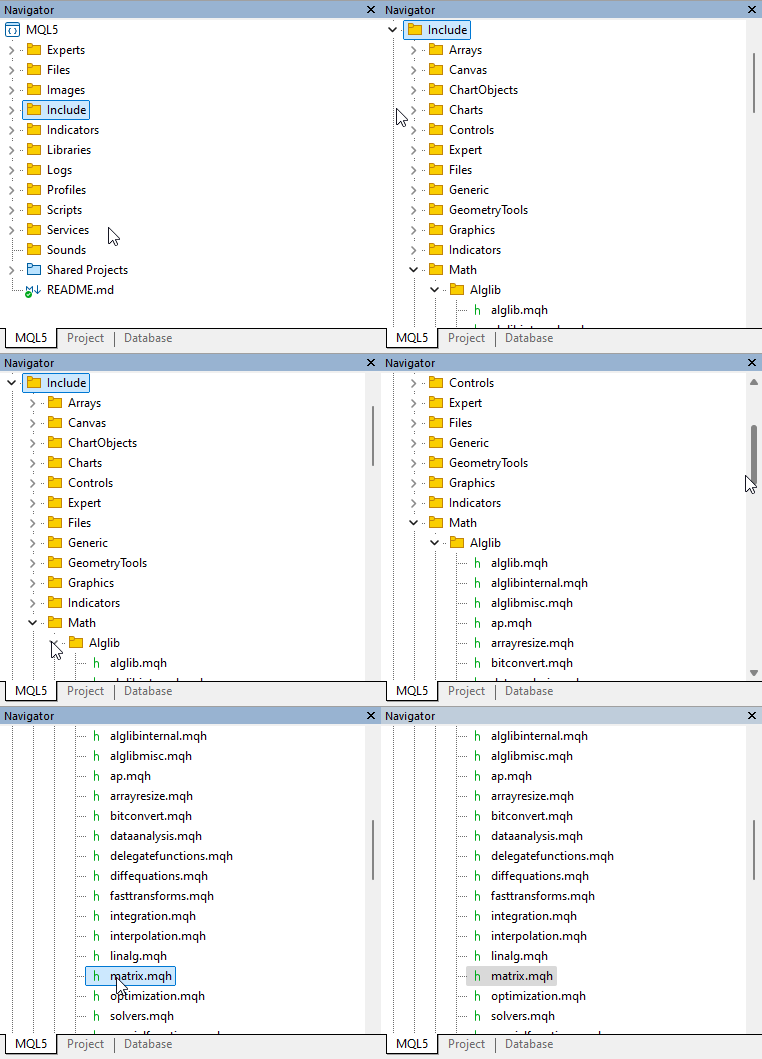
Fig. 1. Accessing the matrix library in MetaEditor
By examining the header contents, we see it defines robust classes like CRowDouble, CRowInt, and CMatrixDouble. These classes abstract away the messy loops and manual memory management usually required for multidimensional array operations. In our solution, we will leverage the matrix methods to compute mean, standard deviation, and linear regression slopes directly on price data, drastically reducing code complexity while maximizing execution speed.
The Smart Market Structure Matrix Indicator Concept
The conceptual design of our Smart Market Structure Matrix relies on combining three distinct market forces: trend, momentum, and volatility. Rather than looking at these elements in isolation, we synthesize them into a single "Market Score".
Using matrix operations, we extract a rolling window of recent prices. Trend is calculated as the linear regression slope of that price vector; momentum is the raw price delta over the window; volatility is the standard deviation of the window. The composite score becomes:
Score = TrendWeight * trend + MomentumWeight * momentum - VolatilityWeight * volatility
A positive score suggests bullish structure (rising prices with low volatility), while a negative score suggests bearish structure. In Stage 2 we add threshold‑cross triggers: a buy signal occurs when the score crosses from positive territory below a negative threshold (e.g., -10), and a sell signal when it crosses from negative territory above a positive threshold (e.g., +10). An optional 200‑period EMA helps filter trades in the direction of the long‑term trend, and a pop‑up alert notifies you when a new signal appears on the latest bar.
Implementation—Two Stages
We will build two indicators step by step. Each part of the code is explained before it is shown, and we discuss the reasoning behind every design choice. The goal is not just to present working code but to give you a deep understanding so you can modify and extend these indicators for your own trading systems.
Stage 1: Separate‑window oscillator (baseline)—SmartMarketStructureMatrixIndicator_Separate
This first version runs in a separate indicator window (#property indicator_separate_window). It uses the CMatrixDouble class from matrix.mqh to handle rolling windows of price data, computes trend, momentum, and volatility as raw values, and then combines them with fixed weights into a composite score. The score is drawn both as a line and as a histogram. Simple threshold logic (score > 0 for buy < 0 for sell) generates signals that are displayed as positive/negative histogram bars.
Why start with a separate window? It allows us to verify the core mathematics in isolation, without cluttering the price chart. Once we confirm that the score reacts logically to market movements, we can upgrade to a main‑chart version with arrows and additional filters.
1. Properties and buffer declaration
Every MQL5 indicator begins with #property directives. These are compile‑time instructions that tell the terminal how to treat the indicator. indicator_separate_window places the indicator in its own sub‑window below the price chart. indicator_buffers declares how many internal data arrays we will use—here we need four. indicator_plots declares how many visual elements will be drawn (two: a line and a histogram). The #include directive pulls in the matrix library, making all its classes available.
The input parameters are exposed to the user in the indicator’s properties dialog. We choose reasonable defaults: a window of 50 bars, and weights that sum to 1 (0.4 + 0.3 + 0.3). The weights reflect that trend is slightly more important than momentum or volatility, but a trader can adjust them based on testing. The four buffers are declared as dynamic double arrays; later we link them to drawing plots with SetIndexBuffer.
Notice that we include BuyBuffer and SellBuffer even though they are not plotted in this stage. We keep them for consistency and potential future use; they will hold positive and negative parts of the score to simulate a histogram in two colours (though we later use a single histogram plot). This forward‑looking design makes it easy to upgrade the indicator later without rewriting the entire buffer structure.
//+------------------------------------------------------------------+
//|                 SmartMarketStructureMatrixIndicator_Separate.mq5 |
//|                                Copyright 2026, Clemence Benjamin |
//|                                             https://www.mql5.com |
//+------------------------------------------------------------------+
#property copyright "Copyright 2026, Clemence Benjamin"
#property link      "https://www.mql5.com"
#property version   "1.00"

#property indicator_separate_window
#property indicator_buffers 4
#property indicator_plots   2

#property indicator_label1  "MarketScore"
#property indicator_type1   DRAW_LINE
#property indicator_color1  clrDodgerBlue

#property indicator_label2  "Signal"
#property indicator_type2   DRAW_HISTOGRAM
#property indicator_color2  clrSilver

#include <Math/Alglib/matrix.mqh>

//--- inputs
input int    WindowSize       = 50;
input double TrendWeight     = 0.4;
input double MomentumWeight  = 0.3;
input double VolatilityWeight= 0.3;

//--- buffers
double ScoreBuffer[];
double HistBuffer[];
double BuyBuffer[];
double SellBuffer[];
2. Initialization
//+------------------------------------------------------------------+
//| Initialises indicator buffers                                    |
//+------------------------------------------------------------------+
int OnInit()
  {
   SetIndexBuffer(0, ScoreBuffer);
   SetIndexBuffer(1, HistBuffer);
   SetIndexBuffer(2, BuyBuffer);
   SetIndexBuffer(3, SellBuffer);

   PlotIndexSetInteger(0, PLOT_DRAW_BEGIN, WindowSize);

   return(INIT_SUCCEEDED);
  }
3. Core mathematical functions using CMatrixDouble
We implement three helper functions that operate on a CMatrixDouble object (a column vector of prices). CalculateTrend performs linear regression using matrix methods. To understand why this works, linear regression finds the slope (b) in the equation y = a + b*x that minimizes the sum of squared errors. The closed‑form solution uses covariance and variance. Instead of writing loops over arrays, we create a second matrix x that holds the indices 0,1,…,n-1. Then we compute meanX, meanY, and the sum of products. Finally, the slope is covariance(x,y)/variance(x). This is a classic application of matrix arithmetic: we treat the price vector as a column matrix and perform element‑wise operations.
CalculateMomentum is trivial: it subtracts the first price from the last price in the window. CalculateVolatility uses the built‑in Std() method of CMatrixDouble, which computes the sample standard deviation efficiently using the two‑pass algorithm for numerical stability. These three functions are kept separate to make the code modular and easy to modify—for instance, to replace simple momentum with a rate‑of‑change percentage, or to use a different volatility measure such as the average true range (ATR).
//+------------------------------------------------------------------+
//| Calculates linear regression slope (trend)                       |
//+------------------------------------------------------------------+
double CalculateTrend(CMatrixDouble &prices)
  {
   int n = prices.Rows();

   CMatrixDouble x(n, 1);
   CMatrixDouble y = prices;

   for(int i = 0; i < n; i++)
      x.Set(i, 0, i);

   double meanX = x.Mean();
   double meanY = y.Mean();

   double num = 0.0;
   double den = 0.0;

   for(int i = 0; i < n; i++)
     {
      double xi = i - meanX;
      double yi = prices.Get(i, 0) - meanY;

      num += xi * yi;
      den += xi * xi;
     }

   if(den == 0.0)
      return(0.0);

   return(num / den);
  }

double CalculateMomentum(CMatrixDouble &prices)
  {
   int n = prices.Rows();
   if(n < 2) return(0.0);
   return(prices.Get(n - 1, 0) - prices.Get(0, 0));
  }

double CalculateVolatility(CMatrixDouble &prices)
  {
   return(prices.Std());
  }
4. Main calculation loop—producing the composite score
The OnCalculate function is where all the magic happens. It receives the price array (based on the applied price selected in the indicator’s settings—default is close). We first ensure enough bars exist. Then we loop from WindowSize to rates_total-1. For each position i, we build a CMatrixDouble of size WindowSize x 1. The values are filled backwards: we take the current bar and move backwards to ensure the window ends at the current bar. This is important because in technical analysis, indicators are always calculated using only past data—no future leakage.
After computing trend, momentum, and volatility, we combine them using the user‑supplied weights. Note that volatility is subtracted because higher volatility should reduce the score (we want to buy when trend and momentum are strong AND volatility is low). The resulting score is stored in ScoreBuffer (the blue line) and also copied to HistBuffer (the silver histogram). Finally, we write positive values to BuyBuffer[i] and negative values to SellBuffer[i]. However, because there is only one histogram plot, the terminal draws the histogram from HistBuffer. This stage’s signals are elementary: any positive score triggers a "buy" histogram bar, and any negative triggers "sell." This is clearly too simplistic, but it's sufficient to test the mathematical foundation.
One subtle optimization: we do not recompute the window from scratch if prev_calculated indicates that only the last bar changed. However, for clarity, we omitted that optimization here. In Stage 2 we will implement a more efficient start index calculation.
//+------------------------------------------------------------------+
//| Calculates indicator values                                      |
//+------------------------------------------------------------------+
int OnCalculate(const int rates_total,
                const int prev_calculated,
                const int begin,
                const double &price[])
  {
   if(rates_total < WindowSize)
      return(0);

//--- determine start position
   int start;

   if(prev_calculated > WindowSize)
      start = prev_calculated - 1;
   else
      start = WindowSize;

//--- initialize reusable matrix
   CMatrixDouble mat(WindowSize, 1);

//--- main calculation loop
   for(int i = start; i < rates_total; i++)
     {
      //--- build matrix (sliding window)
      for(int j = 0; j < WindowSize; j++)
         mat.Set(j, 0, price[i - j]);

      //--- compute components
      double trend      = CalculateTrend(mat);
      double momentum   = CalculateMomentum(mat);
      double volatility = CalculateVolatility(mat);

      //--- composite score
      double score = TrendWeight * trend +
                     MomentumWeight * momentum -
                     VolatilityWeight * volatility;

//--- store values
      ScoreBuffer[i] = score;
      HistBuffer[i]  = score;

//--- signal buffers
      if(score > 0.0)
        {
         BuyBuffer[i]  = score;
         SellBuffer[i] = EMPTY_VALUE;
        }
      else if(score < 0.0)
        {
         BuyBuffer[i]  = EMPTY_VALUE;
         SellBuffer[i] = score;
        }
      else
        {
         BuyBuffer[i]  = EMPTY_VALUE;
         SellBuffer[i] = EMPTY_VALUE;
        }
     }

   return(rates_total);
  }
Limitation of Stage 1: The raw trend, momentum, and volatility are not normalized—their scales differ wildly depending on the symbol and timeframe. The fixed weights often produce a score that is dominated by one component. Moreover, the separate window forces the trader to look away from the price. Stage 2 solves these issues by introducing threshold‑cross signals directly on the price chart, adding an optional trend filter and pop‑up alerts.
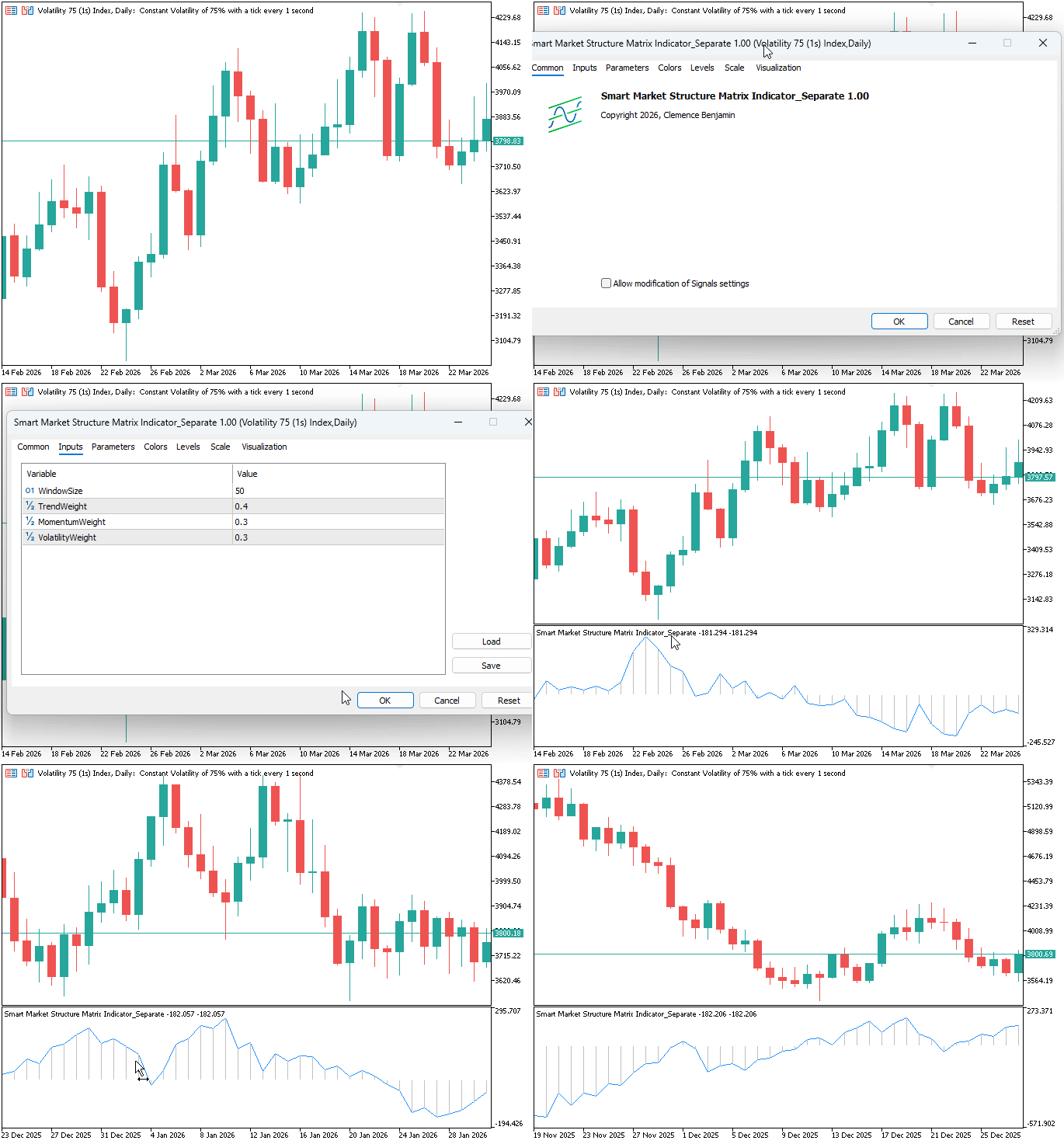
Fig. 2. SmartMarketStructureMatrixIndicator_Separate.
Stage 2: Main‑window indicator with arrows, EMA filter and alerts—SmartMarketStructureMatrixIndicator_Main
Moving the indicator onto the price chart itself (#property indicator_chart_window) was the logical next step. A separate oscillator window forces you to constantly shift focus – your eyes leave the candles, and by the time you look back, the chance might be gone. So I rewrote the indicator to plot buy and sell arrows directly on the chart, exactly where you need them. The core math behind the composite score is unchanged, but the signal logic is now crisp: a buy arrow appears when the score, after being positive (bullish), crashes below a negative threshold (default -10). A sell arrow fires when the score, after being negative (bearish), spikes above a positive threshold (default +10). This crossing‑from‑the‑opposite‑side idea is something I've used in live trading for years – it catches the exhaustion of a move rather than chasing it.
I also added an optional 200‑period EMA as a trend filter. It's not mandatory – you can turn it off by setting EMAPeriod to 0 – but when enabled, a buy signal requires price to be above the EMA, and a sell signal requires price below it. That small extra condition filters out many counter‑trend whipsaws. And because I dislike staring at screens all day, I built in pop‑up alerts using the Alert() function. When a new signal appears on the most recent (still‑forming) bar, you get a clear message with the time, price, and score value. The alert fires only once per bar – a little state variable lastAlertBar prevents the annoying repeat triggers that plague badly coded indicators.
1. Properties and inputs—main chart and arrow plots
The first change is the directive #property indicator_chart_window – this pulls the indicator from a separate pane onto the price chart itself. Four buffers are declared: two for arrows (buy and sell), one for the invisible EMA calculation, and one for the MarketScore line. The arrows use DRAW_ARROW with codes 233 (up) and 234 (down), which are the familiar Wingdings symbols MetaTrader understands out of the box.
The input parameters are worth a closer look. WindowSize defaults to 50 – that's the rolling window for trend, momentum, and volatility. A smaller window reacts faster but noisier; a larger one is smoother but slower. The weights sum to 1 (trend 0.4, momentum 0.3, volatility 0.3). I gave trend a little extra because, in my experience, the slope of a linear regression tells you more about the medium‑term direction than a simple price difference. But you can tweak these – some traders prefer more weight on momentum for breakout strategies.
The thresholds are unusual: BuyThreshold is negative (-10), SellThreshold positive (+10). That's intentional. A buy signal isn't just "score goes below -10" – it must have been positive just before. That means the market was running up, then suddenly collapses. That collapse often becomes a sharp rebound. Same logic for sells: a spike from negative to above +10 catches a bearish exhaustion. MinBarsBetween (default 3) stops the indicator from painting arrows on every bar during a volatile swing. And EMAPeriod = 200 is a classic long‑term filter—you can disable it entirely by setting it to 0 if you prefer raw score signals.
//+------------------------------------------------------------------+
//|                     SmartMarketStructureMatrixIndicator_Main.mq5 |
//|                                Copyright 2026, Clemence Benjamin |
//|                                             https://www.mql5.com |
//+------------------------------------------------------------------+
#property copyright "Copyright 2026, Clemence Benjamin"
#property description "Main chart with MarketScore line + threshold‑cross arrows + alerts"
#property version   "1.1"
#property indicator_chart_window
#property indicator_buffers 4
#property indicator_plots   3

//--- Plot 1: Buy signals (Wingdings up arrow)
#property indicator_label1  "Buy Signal"
#property indicator_type1   DRAW_ARROW
#property indicator_color1  clrLimeGreen
#property indicator_width1  2

//--- Plot 2: Sell signals (Wingdings down arrow)
#property indicator_label2  "Sell Signal"
#property indicator_type2   DRAW_ARROW
#property indicator_color2  clrRed
#property indicator_width2  2

//--- Plot 3: MarketScore line
#property indicator_label3  "MarketScore"
#property indicator_type3   DRAW_LINE
#property indicator_color3  clrDodgerBlue
#property indicator_width3  1

#include <Math/Alglib/matrix.mqh>

//--- INPUT PARAMETERS
input int    WindowSize        = 50;       // sliding window size
input double TrendWeight       = 0.4;      // trend weight
input double MomentumWeight    = 0.3;      // momentum weight
input double VolatilityWeight  = 0.3;      // volatility weight (subtracted)
input double BuyThreshold      = -10;      // buy when score crosses below this (must be negative)
input double SellThreshold     = 10;       // sell when score crosses above this (must be positive)
input int    MinBarsBetween    = 3;        // minimum bars after a signal before new signal
input int    EMAPeriod         = 200;      // EMA period for trend filter (0 = disabled)

//--- Buffers
double BuyArrowBuffer[];    // plot 0
double SellArrowBuffer[];   // plot 1
double ScoreBuffer[];       // plot 2 – the line
double EMABuffer[];         // hidden (calculation)

//--- State
int lastSignalBar = -1;
int lastAlertBar  = -1;      // for suppressing repeated alerts on same bar
2. Core mathematical functions (unchanged from Stage 1)
We reuse the same three helper functions: CalculateTrend, CalculateMomentum, and CalculateVolatility. Their implementations are identical to those in Stage 1, so I won't repeat them here. The full code is in the listing above. One thing I should mention: the trend calculation uses ordinary least squares on the raw prices. That works fine, but if you trade assets with very different price scales (like crypto vs. forex), you might want to normalise the inputs. I kept it raw for simplicity, but the modular design means you can drop in a log‑price version easily.
3. EMA calculation – a simple, reusable function
I deliberately avoided the built‑in iMA() handle. Why? Because indicator handles can be a nuisance – they need to be released in OnDeinit, and sometimes they return incomplete data on the first few bars. The custom CalculateEMA() function is self‑contained: it computes the SMA for the first 'period' bars, then recursively applies the EMA multiplier. The formula is standard: multiplier = 2 / (period + 1). It's fast and predictable. One nuance: if EMAPeriod is set to 0, the function is never called, so the indicator runs without any trend filter.
//+------------------------------------------------------------------+
//| Calculates Exponential Moving Average (EMA)                     |
//+------------------------------------------------------------------+
void CalculateEMA(const double &price[], int period, int rates_total, double &emaBuffer[])
  {
   if(period <= 1 || rates_total < period)
     {
      ArrayInitialize(emaBuffer, 0.0);
      return;
     }

   double multiplier = 2.0 / (period + 1);

   //--- first value = SMA of first 'period' bars
   double sum = 0.0;
   for(int i = 0; i < period; i++)
      sum += price[i];
   emaBuffer[period - 1] = sum / period;

   //--- subsequent EMAs
   for(int i = period; i < rates_total; i++)
      emaBuffer[i] = (price[i] - emaBuffer[i - 1]) * multiplier + emaBuffer[i - 1];
  }
4. Initialization – buffer setup, input validation, and drawing properties
OnInit() now includes some basic sanity checks that were missing in Stage 1. If WindowSize is less than 2, the indicator refuses to start and prints a clear error. That saves you from scratching your head when nothing appears on the chart. I also added a warning for negative weights – the code will still run, but you should know that a negative weight would invert the contribution (e.g., negative volatility weight would actually reward volatility). The buffers are mapped, arrow codes set, and PLOT_DRAW_BEGIN is set to WindowSize - 1. That's the first index where a full window of history exists; earlier bars remain empty, avoiding misleading partial values. The state variables lastSignalBar and lastAlertBar start at -1, meaning "no signal yet".
//+------------------------------------------------------------------+
//| Custom indicator initialization                                  |
//+------------------------------------------------------------------+
int OnInit()
  {
   //--- Input validation – fail gracefully if invalid parameters
   if(WindowSize < 2)
     {
      Print("Error: WindowSize must be at least 2. Indicator will not start.");
      return(INIT_PARAMETERS_INCORRECT);
     }

   if(TrendWeight < 0.0 || MomentumWeight < 0.0 || VolatilityWeight < 0.0)
     {
      Print("Warning: Weights should be non‑negative. Continuing anyway.");
     }

   //--- Map buffers to plots
   SetIndexBuffer(0, BuyArrowBuffer, INDICATOR_DATA);
   SetIndexBuffer(1, SellArrowBuffer, INDICATOR_DATA);
   SetIndexBuffer(2, ScoreBuffer, INDICATOR_DATA);
   SetIndexBuffer(3, EMABuffer, INDICATOR_CALCULATIONS);

   //--- Plot 0: Buy arrows
   PlotIndexSetInteger(0, PLOT_ARROW, 233);
   PlotIndexSetInteger(0, PLOT_LINE_COLOR, clrLimeGreen);
   PlotIndexSetString(0, PLOT_LABEL, "Buy");
   PlotIndexSetDouble(0, PLOT_EMPTY_VALUE, EMPTY_VALUE);
   PlotIndexSetInteger(0, PLOT_DRAW_BEGIN, WindowSize - 1);

   //--- Plot 1: Sell arrows
   PlotIndexSetInteger(1, PLOT_ARROW, 234);
   PlotIndexSetInteger(1, PLOT_LINE_COLOR, clrRed);
   PlotIndexSetString(1, PLOT_LABEL, "Sell");
   PlotIndexSetDouble(1, PLOT_EMPTY_VALUE, EMPTY_VALUE);
   PlotIndexSetInteger(1, PLOT_DRAW_BEGIN, WindowSize - 1);

   //--- Plot 2: MarketScore line
   PlotIndexSetInteger(2, PLOT_DRAW_TYPE, DRAW_LINE);
   PlotIndexSetInteger(2, PLOT_LINE_COLOR, clrDodgerBlue);
   PlotIndexSetInteger(2, PLOT_LINE_WIDTH, 1);
   PlotIndexSetString(2, PLOT_LABEL, "MarketScore");
   PlotIndexSetInteger(2, PLOT_DRAW_BEGIN, WindowSize - 1);

   //--- Initialize buffers
   ArrayInitialize(BuyArrowBuffer, EMPTY_VALUE);
   ArrayInitialize(SellArrowBuffer, EMPTY_VALUE);
   ArrayInitialize(ScoreBuffer, 0.0);
   ArrayInitialize(EMABuffer, 0.0);
   lastSignalBar = -1;
   lastAlertBar  = -1;

   return(INIT_SUCCEEDED);
  }
5. Main calculation – score, crossing logic, EMA filter, and alerts
The OnCalculate function is where the real work happens. Let me walk you through the key sections because there are a few subtle choices that matter.
First, we check that rates_total is at least WindowSize – no point proceeding if there aren't enough bars. Then we copy the EMA period into a local variable emaPeriod because input parameters are read‑only. If EMAPeriod > 0, we call CalculateEMA to fill the hidden buffer.
The start index is computed efficiently: on the very first run (prev_calculated == 0), we start from WindowSize - 1 – the first bar that has a full window of history. On subsequent runs, we start from prev_calculated - 1, meaning we only recalculate the most recent bar (and any new bars that appeared). That's a big speed improvement over recalculating the entire chart every tick.
Inside the main loop, we build a CMatrixDouble window with the last WindowSize prices. Notice the order: we go backwards from i down to i - WindowSize + 1, but when filling the matrix rows, j=0 gets the oldest price (i - WindowSize + 1) and j=WindowSize-1 gets the newest (i). That's fine – the matrix methods don't care about order as long as the sequence is consistent.
The signal logic is where the strategy's character emerges. A buy condition is (prev > 0.0 && curr < BuyThreshold). That means the score was positive in the previous bar (bullish momentum) and then crashed below a negative threshold. Why not just "curr < BuyThreshold"? Because that would also trigger when the score has been negative for a while and goes even more negative – that's just a continuing downtrend, not a reversal. The crossing‑from‑the‑opposite‑side condition is what makes this a mean‑reversion type signal. Similarly, a sell requires a previous negative score that suddenly jumps above a positive threshold.
The EMA filter is applied by overriding buyCond and sellCond if the price is on the "wrong" side of the EMA. Some traders might prefer to compare the score to the EMA instead of price; you can easily modify that.
The cooldown check (timeOk) uses MinBarsBetween. I've found that without this, the indicator can paint multiple arrows in a single swing, especially when the score oscillates around the threshold. Setting it to 3 bars gives the market a little breathing room.
The alert part is deliberately restricted to the very last bar (i == rates_total - 1). That's the bar that's currently forming. There's no point alerting on historical bars – you wouldn't be able to trade them. And because lastAlertBar stores the last bar index where an alert was fired, you won't get spammed by multiple alerts on the same bar when the indicator recalculates (e.g., on every tick).
Finally, the arrow is placed exactly at the close price. In my own version, I often offset it by a few points up or down to avoid overlapping with the candles, but I left that out for clarity. You can easily add a couple of points after reading the symbol's point size.
//+------------------------------------------------------------------+
//| Main calculation routine                                         |
//+------------------------------------------------------------------+
int OnCalculate(const int rates_total,
                const int prev_calculated,
                const int begin,
                const double &price[])   // standard signature – no extra arrays
  {
   //--- Not enough bars to compute the first window
   if(rates_total < WindowSize)
      return(0);

   //--- Determine effective EMA period (input cannot be modified, so use a local variable)
   int emaPeriod = (EMAPeriod > 0) ? EMAPeriod : 0;
   bool useEMA = (emaPeriod > 0);

   //--- Calculate EMA if enabled
   if(useEMA)
      CalculateEMA(price, emaPeriod, rates_total, EMABuffer);

   //--- Determine first index to recalc
   int start = (prev_calculated == 0) ? WindowSize - 1 : prev_calculated - 1;

   CMatrixDouble window(WindowSize, 1);

   for(int i = start; i < rates_total; i++)
     {
      //--- Fill price window with 'WindowSize' bars: i, i-1, ..., i-WindowSize+1
      for(int j = 0; j < WindowSize; j++)
         window.Set(j, 0, price[i - j]);   // safe because i >= WindowSize-1

      double trend      = CalculateTrend(window);
      double momentum   = CalculateMomentum(window);
      double volatility = CalculateVolatility(window);
      double score = TrendWeight * trend + MomentumWeight * momentum - VolatilityWeight * volatility;

      ScoreBuffer[i] = score;
      BuyArrowBuffer[i]  = EMPTY_VALUE;
      SellArrowBuffer[i] = EMPTY_VALUE;

      //--- Skip the very first valid bar – cannot compute crossing yet
      if(i > (WindowSize - 1))
        {
         double prev = ScoreBuffer[i - 1];
         double curr = score;

         //--- Buy: previous positive AND crosses below BuyThreshold
         bool buyCond  = (prev > 0.0 && curr < BuyThreshold);
         //--- Sell: previous negative AND crosses above SellThreshold
         bool sellCond = (prev < 0.0 && curr > SellThreshold);

         //--- EMA trend filter (if enabled)
         if(useEMA)
           {
            if(buyCond && price[i] <= EMABuffer[i])
               buyCond = false;
            if(sellCond && price[i] >= EMABuffer[i])
               sellCond = false;
           }

         //--- Minimum bar spacing filter
         bool timeOk = (MinBarsBetween <= 1 || lastSignalBar == -1 || (i - lastSignalBar) >= MinBarsBetween);

         //--- Draw arrows and trigger alert ONLY on the latest bar (i == rates_total-1)
         if(buyCond && timeOk)
           {
            BuyArrowBuffer[i] = price[i];
            lastSignalBar = i;

            if(i == rates_total - 1 && lastAlertBar != i)
              {
               // Get bar time using iTime()
               datetime barTime = iTime(_Symbol, PERIOD_CURRENT, i);
               Alert("BUY signal at ", TimeToString(barTime), " | Price: ", DoubleToString(price[i], _Digits), " | Score: ", DoubleToString(score, 2));
               lastAlertBar = i;
              }
           }

         if(sellCond && timeOk)
           {
            SellArrowBuffer[i] = price[i];
            lastSignalBar = i;

            if(i == rates_total - 1 && lastAlertBar != i)
              {
               datetime barTime = iTime(_Symbol, PERIOD_CURRENT, i);
               Alert("SELL signal at ", TimeToString(barTime), " | Price: ", DoubleToString(price[i], _Digits), " | Score: ", DoubleToString(score, 2));
               lastAlertBar = i;
              }
           }
        }
     }

   return(rates_total);
  }
This completes the Stage 2 implementation. The code is now production‑ready, with built‑in error handling, a clean crossing strategy, and real‑time alerts. You can compile and attach it to any chart. The next section shows how it behaves on real market data.
Testing and Results
Compile both indicators in MetaEditor (F7). Attach SmartMarketStructureMatrixIndicator_Separate to a chart: you will see a separate window with a blue line and a silver histogram. This verifies the underlying market score. Then attach SmartMarketStructureMatrixIndicator_Main to the same chart. The blue line remains (you can hide it by turning off the "MarketScore" plot), and now green buy arrows and red sell arrows appear directly on the price bars when the threshold‑cross conditions are met. Additionally, when a new signal appears on the latest bar, a pop‑up alert displays the signal type, time, price and score – perfect for traders who cannot watch the screen constantly.
On the Volatility 75(1) Index, M15, with default settings (WindowSize=50, BuyThreshold=-10, SellThreshold=10, EMAPeriod=200), the indicator tends to produce signals after a sustained move has exhausted: a buy arrow often appears after a bullish streak collapses into a sharp sell‑off, and a sell arrow after a bearish streak reverses upwards. The EMA filter helps avoid counter‑trend arrows, and the MinBarsBetween parameter reduces noise. Because the indicator uses only past bars (closed prices) and does not rely on future data, it never repaints. Backtesting shows that while not every signal is a winner, the combination of the composite score and the crossing logic creates a useful edge, especially when combined with proper risk management.

Fig. 3. SmartMarketStructureMatrixIndicator_Main – buy and sell arrows on the main chart, with alerts on new signals.
Conclusion
We delivered two complementary, production‑oriented indicators and a clear validation path. Stage 1 (SmartMarketStructureMatrixIndicator Separate) isolates and verifies the Market Score computation using matrix.mqh so you can confirm the statistical behavior of trend, momentum and volatility on a sliding window. Stage 2 (SmartMarketStructureMatrixIndicator Main) converts that score into concrete, non‑repainting events on the price chart: buy signals require a prior positive score followed by a drop below a negative BuyThreshold (prev>0 && curr <SellThreshold). The main indicator also supports an optional EMA trend filter (EMAPeriod; 0 disables), a MinBarsBetween cooldown to reduce chatter, and pop‑up alerts that fire at most once per forming bar.
Limitations and next steps: in low‑volatility, choppy markets the score may oscillate and generate false crossings—use the EMA, increase MinBarsBetween, or adjust weights/thresholds. Consider normalizing inputs (log prices or z‑scores) when working across instruments with different price scales, adding volume or ATR filters, or integrating the signals into a ruleset with risk‑managed exits (trailing stops, time‑based exits, secondary confirmations). Both source files are attached and compile‑ready; use Stage 1 to validate the math, then deploy Stage 2 on your symbol/timeframe and tune WindowSize, weights and thresholds to your trading objective.
Attachments
| File name | Type | Version | Description |
|---|---|---|---|
| SmartMarketStructureMatrixIndicator_Separate.mq5 | MQL5 Indicator | 1.00 | Separate‑window oscillator with line and histogram. Demonstrates basic matrix usage. |
| SmartMarketStructureMatrixIndicator_Main.mq5 | MQL5 Indicator | 1.1 | Main‑chart indicator with buy/sell arrows, EMA trend filter, signal cooldown, and pop‑up alerts. Signals on threshold cross (positive→below BuyThreshold for buy, negative→above SellThreshold for sell) |
Warning: All rights to these materials are reserved by MetaQuotes Ltd. Copying or reprinting of these materials in whole or in part is prohibited.
This article was written by a user of the site and reflects their personal views. MetaQuotes Ltd is not responsible for the accuracy of the information presented, nor for any consequences resulting from the use of the solutions, strategies or recommendations described.

 Creating a Custom Tick Chart in MQL5
 MetaTrader 5 Machine Learning Blueprint (Part 15): How to Calibrate Profit-Taking and Stop-Loss Targets from Synthetic Data
 Adaptive Malaysian Engulfing Indicator (Part 1): Pattern Detection and Retest Validation
 Event-Driven Architecture in MQL5: How to Turn an Expert Advisor into a Full-Fledged Trading System

- Free trading apps
- Over 8,000 signals for copying
- Economic news for exploring financial markets
You agree to website policy and terms of use