

The MQL5 Standard Library Explorer (Part 12): Multi-Timeframe Composite-Score Dashboard
 2 167
2 167
 0
0

You already have the Market Watch window and can switch between multiple timeframes manually. However, it cannot provide a unified, quantitative, real‑time overview across all relevant timeframes for every symbol in your watchlist. Without automation, traders spend minutes clicking through chart tabs, searching for confluence, and subjectively judging trend strength—a slow, inconsistent process that often leads to missed opportunities.
This article offers CMultiTimeframeMatrix—a ready‑for‑deployment dashboard that displays a color‑coded matrix of symbols vs. timeframes. Written as a reusable module and a host EA, it integrates seamlessly with your existing workflow. Every cell shows a composite score (trend + momentum – volatility) scaled to an easily interpretable range, with blue/red intensity indicating bullish/bearish bias. The dashboard updates on a timer, respects performance budgets, and can be toggled with a hotkey. You will see a clear, at‑a‑glance picture of market conditions, allowing you to spot alignment across timeframes in seconds.
Contents
Introduction
Manual multi‑timeframe analysis is tedious: you need to check each symbol on each timeframe, estimate trend direction, gauge momentum, and mentally combine everything. Subjective decisions are hard to backtest and even harder to reproduce. Moreover, when the watchlist grows beyond three or four symbols, the process becomes unmanageable.
We need a quantitative, symbol-agnostic dashboard. It should work with any symbol and timeframe set, reduce price data to a single comparable score, display results with color, and update automatically without freezing the chart. The CMultiTimeframeMatrix class solves exactly this. It inherits from CAppDialog (Standard Library) to provide a movable, closable window. Inside, a matrix of cells shows a score computed from three components: trend slope, price change, and volatility. The EA that hosts the dashboard parses comma‑separated input strings, initializes the matrix, and forwards chart events. The result is a professional monitoring tool that you can attach to any chart.
Concept
For a given pair of symbol and timeframe, we compute a composite score S over a rolling window of m_windowSize closing prices:

where:
- T = linear trend slope (ordinary least squares)
- M = momentum =
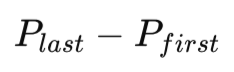 (the absolute change in price over a lookback period.)
 - V = volatility = standard deviation of prices
We then multiply by m_scaleFactor (default 100) to bring the score into a roughly [-100, +100] range. Positive scores suggest bullish conditions, negative scores bearish. Why subtract volatility? High volatility often accompanies uncertainty; reducing the score in such regimes acts as a penalty, making the dashboard more conservative.
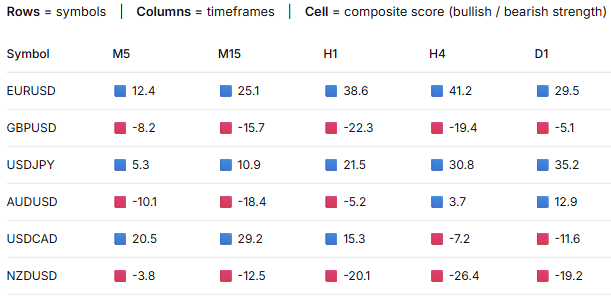
Fig. 1. Conceptual Diagram – rows = symbols, columns = timeframes, color intensity = score strength.
The conceptual diagram uses colored rectangles for simplicity. In the final dashboard, each cell shows the numeric score (e.g., +38.6 or -22.3), and the text color shifts from pale to deep blue/red based on magnitude – giving the same intuitive, glanceable information without sacrificing the exact value.
With the mathematical foundation established, we now turn to the actual implementation. The dashboard is split into two parts: a fully encapsulated class (reusable in any EA) and a thin host EA that provides user inputs and event handling.
Implementation
We build the dashboard in two separate files: MultiTimeframeMatrix.mqh (reusable class) and MatrixDashboardEA.mq5 (host EA). In the following sections we walk through every piece of logic—explaining what it does, and why it matters in a live trading environment.
1. The Reusable Class (MultiTimeframeMatrix.mqh)
This class encapsulates all dashboard logic—data storage, UI creation, score computation, and timed updates. By keeping it in a separate include file, we can reuse the same dashboard in different EAs or scripts without duplicating code. I’ve used this pattern for years: once the dashboard is debugged, you never touch it again. You simply drop the include into any EA and call a few methods. That separation of concerns is what separates hobby code from professional libraries.
Step 1 – Class declaration and dependencies
The class inherits from CAppDialog, which is part of MetaTrader’s standard Controls library. That inheritance gives us, for free, a window that can be dragged, closed, and resized. Without it, we would have to manually handle dozens of chart events – a nightmare. The includes bring in the dialog base, the label control for each cell, and Alglib’s matrix math library. Alglib is not the fastest, but it’s reliable and already bundled with MetaTrader, so no extra DLLs are needed.
The private members store the symbol list, timeframe list, arrays of UI pointers (for cells, row headers, column headers, guidance labels), score storage, performance counters, score parameters, and layout dimensions. Notice that we store m_lastValues and m_prevValues separately – this is not redundant. m_lastValues holds the last displayed score, while m_prevValues is used for change detection. We’ll see why that matters later. The public methods are the interface: setting symbols/timeframes, weights, and the timer trigger. I deliberately made the setters inline – short functions that just assign a member. No need to overcomplicate with error checking at this level; the validation happens in Create().
//+------------------------------------------------------------------+
//| MultiTimeframeMatrix.mqh                                         |
//| Copyright 2026, Clemence Benjamin                                |
//| https://www.mql5.com                                             |
//+------------------------------------------------------------------+
#property copyright "Copyright 2026, Clemence Benjamin"
#property version   "1.0"

#include <Controls/Dialog.mqh>
#include <Controls/Label.mqh>
#include <Math/Alglib/matrix.mqh>

//+------------------------------------------------------------------+
//| CMultiTimeframeMatrix – displays a dashboard of market scores    |
//+------------------------------------------------------------------+
class CMultiTimeframeMatrix : public CAppDialog
  {
private:
   //--- Data
   string            m_symbols[];
   ENUM_TIMEFRAMES   m_timeframes[];

   //--- UI components
   CLabel*           m_cells[];
   CLabel*           m_rowHeaders[];
   CLabel*           m_colHeaders[];
   CLabel*           m_guidance1, *m_guidance2, *m_guidance3, *m_guidance4;

   //--- Score storage
   double            m_lastValues[];
   double            m_prevValues[];

   //--- Performance
   uint              m_updateIntervalMs;
   bool              m_dirty;
   uint              m_cycleCount;
   ulong             m_totalCycleTime;

   //--- Score parameters
   int               m_windowSize;
   double            m_trendWeight, m_momWeight, m_volWeight, m_scaleFactor;

   //--- Layout
   int               m_cellW, m_cellH;
   int               m_startX, m_startY;

   //--- Helpers
   int               Index(int row, int col) const;
   double            ComputeScore(string symbol, ENUM_TIMEFRAMES tf, int shift);
   double            CalculateTrend(CMatrixDouble &prices);
   double            CalculateMomentum(CMatrixDouble &prices);
   double            CalculateVolatility(CMatrixDouble &prices);
   void              FetchAllData();
   void              UpdateUICell(int idx, double value);
   color             ScoreToColor(double score);
   void              CreateGuidance();
   string            TfToString(ENUM_TIMEFRAMES tf);

public:
                     CMultiTimeframeMatrix();
                    ~CMultiTimeframeMatrix();

   bool              Create(const long chart_id, const string name, const int subwin,
                            const int x, const int y, const int w, const int h);
   void              SetSymbols(string &syms[]);
   void              SetTimeframes(ENUM_TIMEFRAMES &tfs[]);
   void              SetUpdateInterval(const uint ms)     { m_updateIntervalMs = ms; }
   void              SetWindowSize(const int size)        { m_windowSize = size; }
   void              SetWeights(double t, double m, double v)
     { m_trendWeight = t; m_momWeight = m; m_volWeight = v; }
   void              SetScaleFactor(double f)             { m_scaleFactor = f; }

   uint              GetUpdateInterval() const            { return m_updateIntervalMs; }
   uint              GetCycleCount() const                { return m_cycleCount; }
   double            GetAvgCycleTime() const;
   void              ResetStats();

   void              OnTimer();          //--- called from EA
   void              UpdateData();       //--- force refresh

   //--- Expose show/hide for external control (hotkey)
   void              ToggleVisible()     { if(IsVisible()) Hide(); else Show(); }
  };
Step 2 – Constructor and destructor
The constructor initializes all members with sensible defaults. The update interval is 1000 ms – one second – which is a good balance between freshness and CPU load. You can change it later via the EA inputs. The window size of 50 is a rule of thumb: on a 1‑hour chart, that’s about two days of data; on a 5‑minute chart, about four hours. The weights sum to 1, with trend slightly higher because, in my experience, the slope of a linear regression is more robust than a simple price difference. The scale factor of 100 amplifies the raw score into a range that humans can easily read. The destructor is where we prevent memory leaks. Every new CLabel() created in Create() must be deleted. I’ve seen too many indicators that ignore this, and after a few hours the terminal slows down. Cleanup is not optional.
//+------------------------------------------------------------------+
//| Constructor                                                      |
//+------------------------------------------------------------------+
CMultiTimeframeMatrix::CMultiTimeframeMatrix()
   : m_updateIntervalMs(1000),
     m_dirty(false),
     m_cycleCount(0),
     m_totalCycleTime(0),
     m_windowSize(50),
     m_trendWeight(0.4),
     m_momWeight(0.3),
     m_volWeight(0.3),
     m_scaleFactor(100.0),
     m_cellW(70),
     m_cellH(20),
     m_startX(35),
     m_startY(30)
  {
   m_guidance1 = m_guidance2 = m_guidance3 = m_guidance4 = NULL;
  }

//+------------------------------------------------------------------+
//| Destructor                                                       |
//+------------------------------------------------------------------+
CMultiTimeframeMatrix::~CMultiTimeframeMatrix()
  {
   for(int i = 0; i < ArraySize(m_cells); i++)
      if(m_cells[i] != NULL)
         delete m_cells[i];

   for(int i = 0; i < ArraySize(m_rowHeaders); i++)
      if(m_rowHeaders[i] != NULL)
         delete m_rowHeaders[i];

   for(int i = 0; i < ArraySize(m_colHeaders); i++)
      if(m_colHeaders[i] != NULL)
         delete m_colHeaders[i];

   if(m_guidance1 != NULL)
      delete m_guidance1;
   if(m_guidance2 != NULL)
      delete m_guidance2;
   if(m_guidance3 != NULL)
      delete m_guidance3;
   if(m_guidance4 != NULL)
      delete m_guidance4;
  }
Step 3 – Helper to convert timeframe enum to readable string
Column headers need short labels like “H1” instead of numeric enum values. A simple switch statement handles all standard timeframes and returns “?” for unknown values. This is defensive programming: if someone passes an unsupported timeframe, the dashboard won’t crash – it will just show “?” in the header, which immediately tells you something is wrong. I’ve seen traders enter “H2” by mistake; without this guard, the indicator would silently fail.
//+------------------------------------------------------------------+
//| Converts timeframe enum to readable string                       |
//+------------------------------------------------------------------+
string CMultiTimeframeMatrix::TfToString(ENUM_TIMEFRAMES tf)
  {
   switch(tf)
     {
      case PERIOD_M1:
         return("M1");
      case PERIOD_M5:
         return("M5");
      case PERIOD_M15:
         return("M15");
      case PERIOD_M30:
         return("M30");
      case PERIOD_H1:
         return("H1");
      case PERIOD_H4:
         return("H4");
      case PERIOD_D1:
         return("D1");
      case PERIOD_W1:
         return("W1");
      case PERIOD_MN1:
         return("MN1");
      default:
         return("?");
     }
  }
Step 4 – Creating the UI (Create method)
This method defines the dashboard layout. It creates the dialog, validates inputs, allocates storage, and then builds row headers, column headers, and interior cells. Finally, it adds the guidance labels. Row headers are placed at x = m_startX and y = m_startY + (row+1)*cellH – the +1 leaves space for the column headers. Column headers are at y = m_startY and x = m_startX + (col+1)*cellW – the +1 leaves space for the row headers. Every created control is added via Add() so the dialog manages its children.
//+------------------------------------------------------------------+
//| Creates the dashboard dialog and all its UI elements             |
//+------------------------------------------------------------------+
bool CMultiTimeframeMatrix::Create(const long chart_id, const string name, const int subwin,
                                   const int x, const int y, const int w, const int h)
  {
   int x2 = x + w, y2 = y + h;

   if(!CAppDialog::Create(chart_id, name, subwin, x, y, x2, y2))
      return(false);

   int rows = ArraySize(m_symbols);
   int cols = ArraySize(m_timeframes);

   if(rows == 0 || cols == 0)
     {
      Print("ERROR: No symbols or timeframes set");
      return(false);
     }

   int totalCells = rows * cols;
   ArrayResize(m_cells, totalCells);
   ArrayResize(m_lastValues, totalCells);
   ArrayResize(m_prevValues, totalCells);

   for(int i = 0; i < totalCells; i++)
     {
      m_lastValues[i] = EMPTY_VALUE;
      m_prevValues[i] = EMPTY_VALUE;
     }

   ArrayResize(m_rowHeaders, rows);
   ArrayResize(m_colHeaders, cols);

//--- Row headers (symbols)
   for(int row = 0; row < rows; row++)
     {
      m_rowHeaders[row] = new CLabel();
      int xp = m_startX;
      int yp = m_startY + (row + 1) * m_cellH;

      if(!m_rowHeaders[row].Create(chart_id, m_name + "_rh" + string(row), m_subwin, xp, yp, m_cellW, m_cellH))
         return(false);

      string obj = m_rowHeaders[row].Name();
      ::ObjectSetString(chart_id, obj, OBJPROP_TEXT, m_symbols[row]);
      ::ObjectSetInteger(chart_id, obj, OBJPROP_COLOR, clrBlack);
      ::ObjectSetInteger(chart_id, obj, OBJPROP_ANCHOR, ANCHOR_CENTER);
      Add(m_rowHeaders[row]);
     }

//--- Column headers (timeframes)
   for(int col = 0; col < cols; col++)
     {
      m_colHeaders[col] = new CLabel();
      int xp = m_startX + (col + 1) * m_cellW;
      int yp = m_startY;

      if(!m_colHeaders[col].Create(chart_id, m_name + "_ch" + string(col), m_subwin, xp, yp, m_cellW, m_cellH))
         return(false);

      string obj = m_colHeaders[col].Name();
      ::ObjectSetString(chart_id, obj, OBJPROP_TEXT, TfToString(m_timeframes[col]));
      ::ObjectSetInteger(chart_id, obj, OBJPROP_COLOR, clrBlack);
      ::ObjectSetInteger(chart_id, obj, OBJPROP_ANCHOR, ANCHOR_CENTER);
      Add(m_colHeaders[col]);
     }

//--- Interior cells
   for(int row = 0; row < rows; row++)
     {
      for(int col = 0; col < cols; col++)
        {
         int idx = Index(row, col);
         int xp = m_startX + (col + 1) * m_cellW;
         int yp = m_startY + (row + 1) * m_cellH;
         m_cells[idx] = new CLabel();

         if(!m_cells[idx].Create(chart_id, m_name + "_cell" + string(idx), m_subwin, xp, yp, m_cellW, m_cellH))
            return(false);

         string obj = m_cells[idx].Name();
         ::ObjectSetString(chart_id, obj, OBJPROP_TEXT, "---");
         ::ObjectSetInteger(chart_id, obj, OBJPROP_COLOR, clrLightGray);
         ::ObjectSetInteger(chart_id, obj, OBJPROP_ANCHOR, ANCHOR_CENTER);
         Add(m_cells[idx]);
        }
     }

   CreateGuidance();
   return(true);
  }
Step 5 – Guidance labels
These four lines at the bottom of the dashboard are pure usability. They remind the user how to interpret the colors (blue = bullish, red = bearish, intensity = strength) and the hotkey (‘M’ to hide/show). I added them after watching several colleagues struggle with the first version. A dashboard without instructions is just a pretty picture. The labels are static – they never change – but they are still created as CLabel objects and added to the dialog. This way, if the user moves the window, the guidance moves with it.
//+------------------------------------------------------------------+
//| Creates the guidance labels at the bottom of the dashboard       |
//+------------------------------------------------------------------+
void CMultiTimeframeMatrix::CreateGuidance()
  {
   int rows = ArraySize(m_symbols);
   int cols = ArraySize(m_timeframes);
   int xp = m_startX;
   int baseY = m_startY + (rows + 1) * m_cellH + 5;
   int width = (cols + 1) * m_cellW;
   int h = m_cellH;

   m_guidance1 = new CLabel();
   m_guidance1.Create(m_chart_id, m_name + "_g1", m_subwin, xp, baseY, width, h);
   m_guidance1.Text("Higher Probability Setup: All timeframes show SAME colour");
   m_guidance1.Color(clrBlack);
   Add(m_guidance1);

   m_guidance2 = new CLabel();
   m_guidance2.Create(m_chart_id, m_name + "_g2", m_subwin, xp, baseY + h, width, h);
   m_guidance2.Text("(Blue = Bullish, Red = Bearish). Intensity = strength.");
   m_guidance2.Color(clrBlack);
   Add(m_guidance2);

   m_guidance3 = new CLabel();
   m_guidance3.Create(m_chart_id, m_name + "_g3", m_subwin, xp, baseY + 2 * h, width, h);
   m_guidance3.Text("Mixed colours suggest caution.");
   m_guidance3.Color(clrBlack);
   Add(m_guidance3);

   m_guidance4 = new CLabel();
   m_guidance4.Create(m_chart_id, m_name + "_g4", m_subwin, xp, baseY + 3 * h, width, h);
   m_guidance4.Text("Press 'M' to hide/show dashboard. Hover for exact score.");
   m_guidance4.Color(clrBlack);
   Add(m_guidance4);
  }
Step 6 – Score computation helpers (trend, momentum, volatility)
These three functions operate on a CMatrixDouble – a column vector of prices. CalculateTrend performs ordinary least squares to find the slope of the linear regression line. The formula is: slope = covariance(x,y)/variance(x). Here x is the bar index (0,1,2,…) and y is the price. We create an auxiliary matrix x filled with indices, then compute means and the sum of products. This is a classic approach, but note: it assumes the relationship is linear. For strongly trending markets, that’s fine. For sideways markets, the slope will be near zero – which is exactly what we want.
CalculateMomentum is deliberately simple: last minus first. Why not use a percentage change? Because the trend already gives a slope, and momentum here is just an additional directional push. Adding a percentage would require normalization, which complicates the code. CalculateVolatility uses Alglib’s built‑in Std() method. It calculates the sample standard deviation – a measure of how spread out the prices are. All three functions are kept separate, so you can easily replace one without touching the others. For instance, you might want to replace volatility with ATR – just rewrite CalculateVolatility and the rest of the code stays unchanged.
//+------------------------------------------------------------------+
//| Calculates the linear trend slope from a price matrix            |
//+------------------------------------------------------------------+
double CMultiTimeframeMatrix::CalculateTrend(CMatrixDouble &prices)
  {
   int n = prices.Rows();

   if(n <= 1)
      return(0.0);

   CMatrixDouble x(n, 1);
   for(int i = 0; i < n; i++)
      x.Set(i, 0, i);

   double mx = x.Mean();
   double my = prices.Mean();
   double num = 0, den = 0;

   for(int i = 0; i < n; i++)
     {
      double xi = i - mx;
      double yi = prices.Get(i, 0) - my;
      num += xi * yi;
      den += xi * xi;
     }

   return(den == 0 ? 0 : num / den);
  }

//+------------------------------------------------------------------+
//| Calculates the momentum as change over the window                |
//+------------------------------------------------------------------+
double CMultiTimeframeMatrix::CalculateMomentum(CMatrixDouble &prices)
  {
   int n = prices.Rows();

   if(n < 2)
      return(0.0);

   return(prices.Get(n - 1, 0) - prices.Get(0, 0));
  }

//+------------------------------------------------------------------+
//| Calculates the volatility (standard deviation) of prices         |
//+------------------------------------------------------------------+
double CMultiTimeframeMatrix::CalculateVolatility(CMatrixDouble &prices)
  {
   return(prices.Std());
  }
Step 7 – Composite score computation
For a given symbol and timeframe, we first request the number of available bars using Bars(). This function is fast but can return -1 if the symbol/tf is invalid – we then return 0. The window size is capped to the available bars, but we also demand at least 5 bars; otherwise we return 0. This avoids unreliable calculations when the chart has just started. After copying the closing prices into an array, we fill a CMatrixDouble. Then we compute trend, momentum, and volatility. The raw score is trendWeight * trend + momentumWeight * momentum – volatilityWeight * volatility. Notice the minus sign for volatility: higher volatility reduces the score. This is a deliberate choice: we want to penalize choppy, unpredictable markets. Finally, we multiply by m_scaleFactor (default 100) to bring the raw score into a range that is easier to read. Without scaling, the values might be tiny fractions – not ideal for a dashboard.
//+------------------------------------------------------------------+
//| Computes the composite score for a given symbol and timeframe    |
//+------------------------------------------------------------------+
double CMultiTimeframeMatrix::ComputeScore(string symbol, ENUM_TIMEFRAMES tf, int shift)
  {
   int avail = Bars(symbol, tf);
   int sz = (int)MathMin(m_windowSize, avail);

   if(sz < 5)
      return(0.0);

   double closes[];

   if(CopyClose(symbol, tf, shift, sz, closes) != sz)
      return(0.0);

   CMatrixDouble mat(sz, 1);
   for(int i = 0; i < sz; i++)
      mat.Set(i, 0, closes[i]);

   double t = CalculateTrend(mat);
   double m = CalculateMomentum(mat);
   double v = CalculateVolatility(mat);
   double raw = m_trendWeight * t + m_momWeight * m - m_volWeight * v;

   return(raw * m_scaleFactor);
  }
Step 8 – Color mapping from score to RGB
This function turns a numeric score into a color that the human eye can instantly interpret. Scores outside the range [-50,50] are clipped – that’s because the color interpolation works best within that band. For positive scores (bullish), we increase the blue channel while decreasing red and green. The formula g = 200 - 120*(score/50) keeps some green in the mix so the color doesn’t become pure blue (which can be too harsh). For negative scores (bearish), we increase the red channel. The result is an intuitive gradient: pale blue/red for weak signals, deep blue/red for strong signals. Gray is used for exactly zero. This kind of mapping makes the dashboard glanceable – you don’t need to read numbers to see which symbols are aligned.
//+------------------------------------------------------------------+
//| Maps a score value to a colour (blue/red intensity)              |
//+------------------------------------------------------------------+
color CMultiTimeframeMatrix::ScoreToColor(double scr)
  {
   if(scr > 50)
      scr = 50;
   if(scr < -50)
      scr = -50;

   if(scr > 0)
     {
      int b = (int)(255 * (scr / 50));
      int r = 255 - b;
      int g = 200 - (int)(120 * (scr / 50));
      if(g < 0)
         g = 0;
      return((color)((r << 16) | (g << 8) | b));
     }
   else
      if(scr < 0)
        {
         double a = -scr;
         int r = (int)(255 * (a / 50));
         int g = 200 - (int)(120 * (a / 50));
         int b = 255 - r;
         if(g < 0)
            g = 0;
         if(b < 0)
            b = 0;
         return((color)((r << 16) | (g << 8) | b));
        }
      else
         return(clrLightGray);
  }
Step 9 – Updating UI cells with differential refresh
This is where performance matters. The FetchAllData() method loops through every symbol and timeframe, computes the current score, and compares it with the previously stored value. Only if the absolute difference exceeds 0.001 do we call UpdateUICell(). This tiny tolerance prevents unnecessary redraws when the score changes by an insignificant amount (e.g., 0.0001). Without this, every timer tick would redraw all cells, causing flicker and high CPU usage. UpdateUICell() modifies the text, color, and tooltip of a single cell. It also updates m_prevValues (though we don’t currently use it, it’s there for future expansion – e.g., to detect direction changes). After the loop, if any cell changed, we call ChartRedraw() to refresh the screen. This approach is efficient even with 30+ cells.
//+------------------------------------------------------------------+
//| Updates a single UI cell with a new score value                  |
//+------------------------------------------------------------------+
void CMultiTimeframeMatrix::UpdateUICell(int idx, double val)
  {
   string obj = m_cells[idx].Name();
   ::ObjectSetString(m_chart_id, obj, OBJPROP_TEXT, DoubleToString(val, 2));
   ::ObjectSetInteger(m_chart_id, obj, OBJPROP_COLOR, ScoreToColor(val));
   ::ObjectSetString(m_chart_id, obj, OBJPROP_TOOLTIP, "Score: " + DoubleToString(val, 4));
   m_prevValues[idx] = val;
  }

//+------------------------------------------------------------------+
//| Fetches all current data and updates changed cells               |
//+------------------------------------------------------------------+
void CMultiTimeframeMatrix::FetchAllData()
  {
   bool change = false;
   int rows = ArraySize(m_symbols);
   int cols = ArraySize(m_timeframes);

   for(int r = 0; r < rows; r++)
     {
      string sym = m_symbols[r];

      for(int c = 0; c < cols; c++)
        {
         int idx = Index(r, c);
         double score = ComputeScore(sym, m_timeframes[c], 0);

         if(score == 0.0 && m_lastValues[idx] == EMPTY_VALUE)
            continue;

         if(MathAbs(score - m_lastValues[idx]) > 0.001)
           {
            m_lastValues[idx] = score;
            UpdateUICell(idx, score);
            change = true;
           }
        }
     }

   if(change)
      ChartRedraw(m_chart_id);
  }
Step 10 – Timer handler with re‑entrancy protection
OnTimer() runs at fixed intervals. A static busy flag prevents overlapping updates if a prior cycle has not finished. After locking, we record the start time, call FetchAllData(), measure the elapsed time, and update performance counters. If the elapsed time exceeds 80% of the timer interval, we print a warning – a signal to increase the interval or reduce the number of symbols/timeframes. Finally, we release the busy lock.
//+------------------------------------------------------------------+
//| Timer handler – periodically updates the dashboard               |
//+------------------------------------------------------------------+
void CMultiTimeframeMatrix::OnTimer()
  {
   static bool busy = false;

   if(busy)
      return;

   busy = true;

   ulong start = GetTickCount64();
   FetchAllData();
   ulong elapsed = GetTickCount64() - start;
   m_cycleCount++;
   m_totalCycleTime += elapsed;

   if(elapsed > m_updateIntervalMs * 0.8)
      Print("Warning: update took ", elapsed, " ms");

   busy = false;
  }
The Host EA – Development and Integration (MatrixDashboardEA.mq5)
The EA is deliberately thin – it only parses inputs, creates the dashboard, and forwards events. This separation means you can attach the dashboard to any EA just by including the .mqh file and adding a few lines. The EA itself does not contain any trading logic; it’s purely a host.
Step 1 – Input parameters and global pointer
All settings are exposed as input variables. Notice that symbols and timeframes are comma‑separated strings. This is much easier for users than editing arrays in code. The global pointer gMatrix is declared and initialized to NULL. Keeping it global allows the event handlers to access it.
//+------------------------------------------------------------------+
//| MatrixDashboardEA.mq5                                            |
//| Copyright 2025, Clemence Benjamin                                |
//| https://www.mql5.com                                             |
//+------------------------------------------------------------------+
#property copyright "Copyright 2025, Clemence Benjamin"
#property version   "1.0"
#property strict

#include <SmartMarketStructureMatrix_Shared/MultiTimeframeMatrix.mqh>

input string   InpSymbols          = "EURUSD,GBPUSD,USDJPY,AUDUSD,USDCAD,NZDUSD";
input string   InpTimeframes       = "M5,M15,H1,H4,D1";
input uint     InpUpdateSec        = 1;
input int      InpWindowSize       = 50;
input double   InpTrendWeight      = 0.4;
input double   InpMomentumWeight   = 0.3;
input double   InpVolatilityWeight = 0.3;
input double   InpScaleFactor      = 100.0;

input int      InpDialogX          = 50;
input int      InpDialogY          = 50;
input int      InpDialogW          = 450;
input int      InpDialogH          = 300;

CMultiTimeframeMatrix *gMatrix = NULL;
Step 2 – Initialization (OnInit)
The EA splits the input strings using StringSplit, which returns the number of elements. It validates that both lists are non‑empty. The timeframe strings are converted to ENUM_TIMEFRAMES using the helper StringToTimeframe (defined later). If any conversion returns PERIOD_CURRENT or -1, the EA fails to initialize – this ensures the user doesn’t accidentally enter an invalid timeframe. Next, we create the matrix object, set all parameters, and call Create(). If creation fails, we delete the object and return INIT_FAILED. On success, we call Run() to display the dialog, start the millisecond timer, and print a confirmation message to the journal. Note that the timer interval is set in milliseconds: InpUpdateSec * 1000. The EA does not hold any trading logic, so it never places orders – it’s purely a visual tool.
//+------------------------------------------------------------------+
//| Initializes the EA and creates the dashboard                     |
//+------------------------------------------------------------------+
int OnInit()
  {
   //--- Parse symbols
   string symbols[];
   int symCount = StringSplit(InpSymbols, ',', symbols);

   if(symCount <= 0)
      return(INIT_FAILED);

   string tfStr[];
   int tfCount = StringSplit(InpTimeframes, ',', tfStr);

   if(tfCount <= 0)
      return(INIT_FAILED);

   ENUM_TIMEFRAMES timeframes[];
   ArrayResize(timeframes, tfCount);

   for(int i = 0; i < tfCount; i++)
     {
      timeframes[i] = StringToTimeframe(tfStr[i]);

      if(timeframes[i] == PERIOD_CURRENT || timeframes[i] == -1)
         return(INIT_FAILED);
     }

   gMatrix = new CMultiTimeframeMatrix();

   if(gMatrix == NULL)
      return(INIT_FAILED);

   gMatrix.SetSymbols(symbols);
   gMatrix.SetTimeframes(timeframes);
   gMatrix.SetUpdateInterval(InpUpdateSec * 1000);
   gMatrix.SetWindowSize(InpWindowSize);
   gMatrix.SetWeights(InpTrendWeight, InpMomentumWeight, InpVolatilityWeight);
   gMatrix.SetScaleFactor(InpScaleFactor);

   if(!gMatrix.Create(ChartID(), "MatrixDashboard", 0,
                      InpDialogX, InpDialogY, InpDialogW, InpDialogH))
     {
      delete gMatrix;
      gMatrix = NULL;
      return(INIT_FAILED);
     }

   gMatrix.Run();
   EventSetMillisecondTimer(gMatrix.GetUpdateInterval());

   Print("Dashboard ready. Press 'M' key to show/hide. Use title bar to move and close.");
   return(INIT_SUCCEEDED);
  }
Step 3 – Deinitialization (OnDeinit)
Cleanup is straightforward: kill the timer, then destroy and delete the matrix object. The reason parameter is passed to Destroy() so the dialog can handle different shutdown scenarios (e.g., chart closure vs. EA removal).
//+------------------------------------------------------------------+
//| Deinitialization handler – cleans up the dashboard               |
//+------------------------------------------------------------------+
void OnDeinit(const int reason)
  {
   EventKillTimer();

   if(gMatrix != NULL)
     {
      gMatrix.Destroy(reason);
      delete gMatrix;
      gMatrix = NULL;
     }
  }
Step 4 –Timer and chart event forwarding
The EA’s OnTimer checks if the dashboard exists and is visible; only then does it forward the timer call. This prevents unnecessary background updates when the dashboard is hidden – a small but useful optimization. OnChartEvent listens for key presses. If the key is ‘M’ (ASCII 77), it toggles the dashboard’s visibility. All other chart events (e.g., dragging, closing) are forwarded to the dashboard via OnEvent – this is essential because the dialog needs to know when the user moves it or clicks the close button. Without this forwarding, the dialog would be unresponsive.
//+------------------------------------------------------------------+
//| Timer event – updates the dashboard when visible                 |
//+------------------------------------------------------------------+
void OnTimer()
  {
   if(gMatrix != NULL && gMatrix.IsVisible())
      gMatrix.OnTimer();
  }

//+------------------------------------------------------------------+
//| Chart event handler – toggles visibility on 'M' key              |
//+------------------------------------------------------------------+
void OnChartEvent(const int id, const long &lparam, const double &dparam, const string &sparam)
  {
//--- Toggle visibility with 'M' key (ASCII 77)
   if(id == CHARTEVENT_KEYDOWN && lparam == 77)
     {
      if(gMatrix != NULL)
         gMatrix.ToggleVisible();
     }

//--- Forward all other events to the dashboard when visible
   if(gMatrix != NULL && gMatrix.IsVisible())
      gMatrix.OnEvent(id, lparam, dparam, sparam);
  }
Step 5 - String to timeframe conversion
This helper is straightforward but important. It converts a string like “H1” to the corresponding ENUM_TIMEFRAMES value. We call StringToUpper() so that “h1” also works. If none of the recognised strings match, it returns PERIOD_CURRENT. The EA’s OnInit() treats PERIOD_CURRENT as an error, so the EA will fail to load – this is better than silently using the current chart’s timeframe, which would be confusing.
//+------------------------------------------------------------------+
//| Converts a timeframe string to an ENUM_TIMEFRAMES value          |
//+------------------------------------------------------------------+
ENUM_TIMEFRAMES StringToTimeframe(string str)
  {
   StringToUpper(str);

   if(str == "M1")
      return(PERIOD_M1);
   if(str == "M5")
      return(PERIOD_M5);
   if(str == "M15")
      return(PERIOD_M15);
   if(str == "M30")
      return(PERIOD_M30);
   if(str == "H1")
      return(PERIOD_H1);
   if(str == "H4")
      return(PERIOD_H4);
   if(str == "D1")
      return(PERIOD_D1);
   if(str == "W1")
      return(PERIOD_W1);
   if(str == "MN1")
      return(PERIOD_MN1);

   return(PERIOD_CURRENT);
  }
//+------------------------------------------------------------------+
With the code fully implemented and explained, we now move to testing – first in the Strategy Tester and then on a live chart.
Testing and Results
Visual Validation in Strategy Tester
- Compile both files and attach MatrixDashboardEA.mq5 to any chart.
- In the Strategy Tester, switch to Visual mode and run. A window appears (default position 50,50).
- Cells fill with numbers and colors. Hover over any cell to see the exact score in a tooltip.
- Press the ‘M’ key to hide/show the dashboard. Drag the title bar to move it.
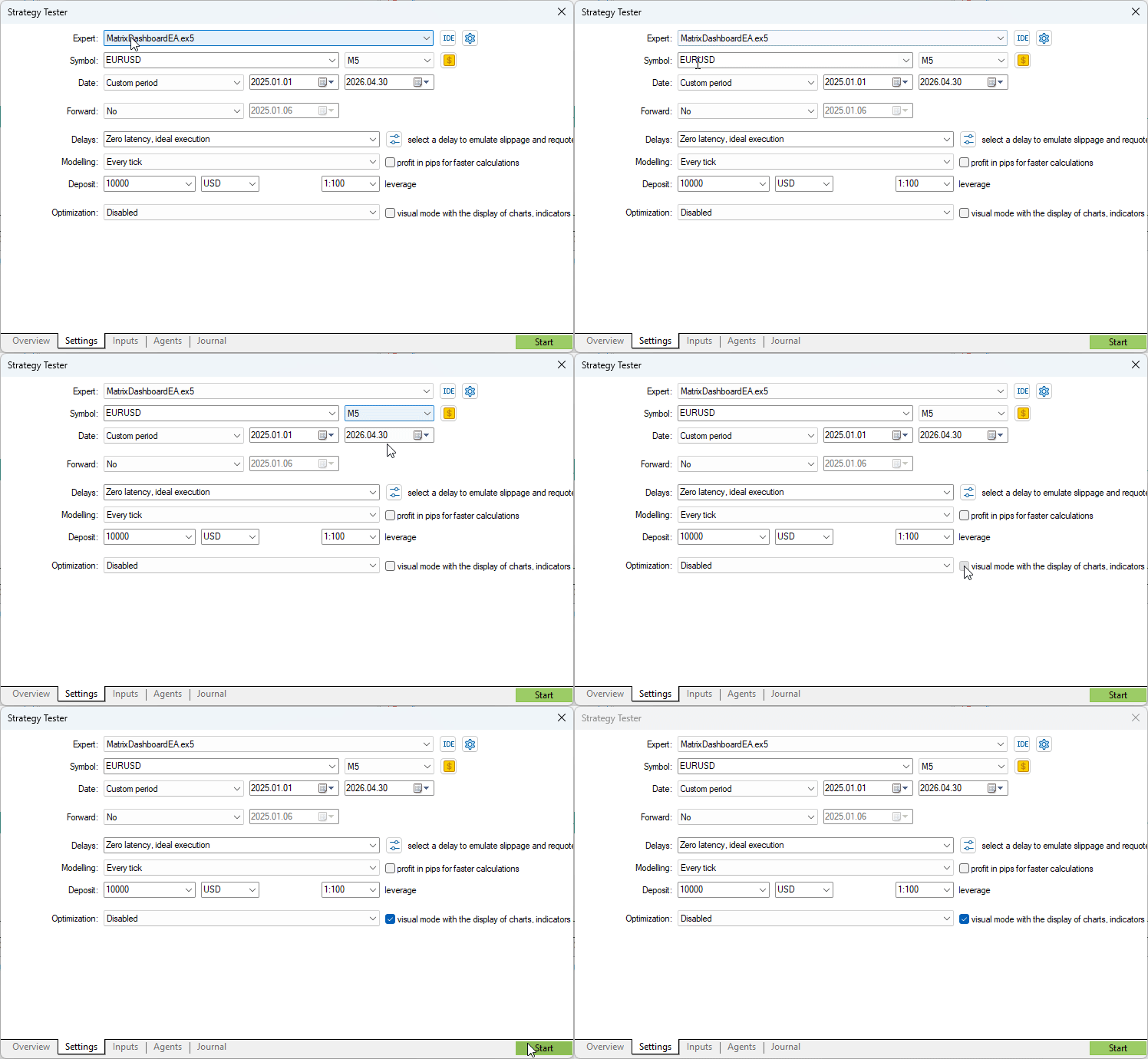
Fig.2. Strategy Tester Settings
Before running the dashboard, you need to configure the Strategy Tester correctly. Open the tester panel, select the MatrixDashboardEA from the dropdown, and choose a symbol and timeframe (here EURUSD M5). The most important step is to enable Visual mode – check the “Visual” box. Without visual mode, the chart window will not open, and you will not see the dashboard. Once visual mode is active, click the Start button to begin the simulation. The animated GIF above shows exactly these steps.
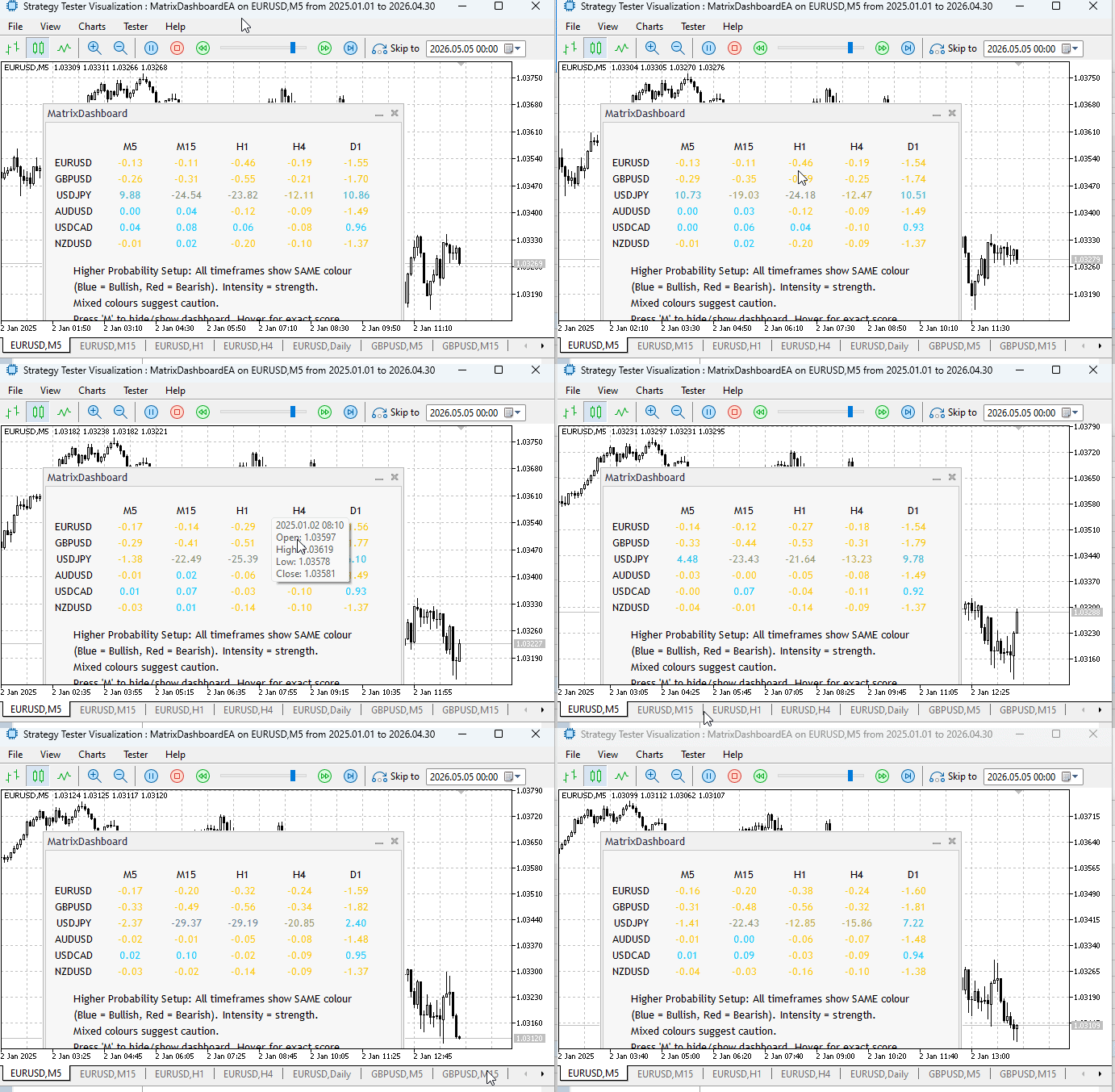
Fig.3. Strategy Tester Visualization on EURUSD M5
Once the simulation runs, the dashboard appears as a separate draggable window overlaying the chart. This screencast shows the dashboard in action: rows list the symbols from the watchlist, columns represent the chosen timeframes (M5, M15, H1, H4, D1). Each cell displays a numeric score (e.g., +38.6, -22.3) and a color – blue for bullish (positive), red for bearish (negative). The intensity of the color varies with the absolute value of the score. Hovering the mouse over any cell reveals a tooltip with the exact score to four decimal places. The dashboard updates every second (by default), and the chart candles move forward in time as the tester progresses.
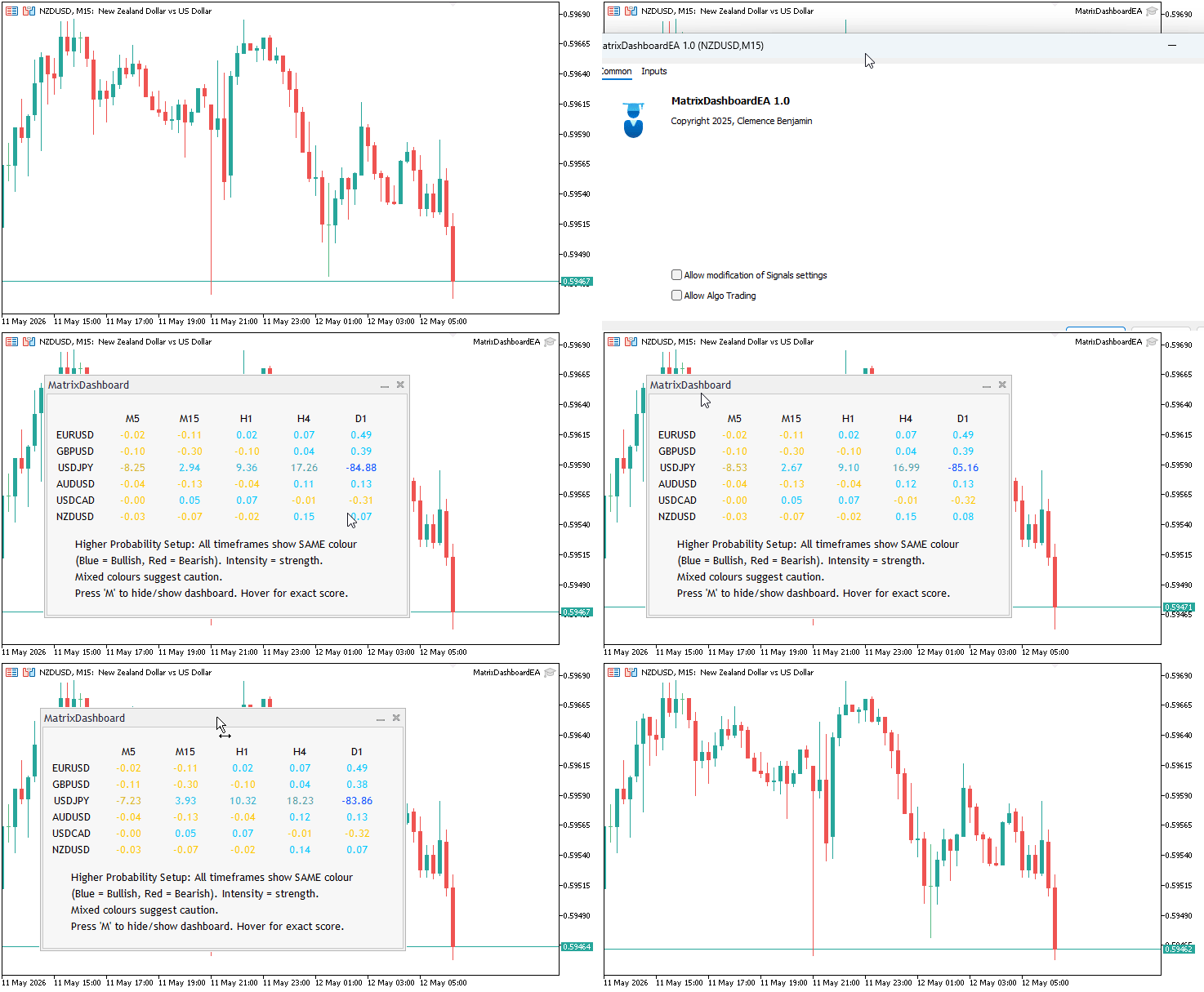
Fig.4. Live Chart Deployment on NZDUSD M15
Finally, we deployed the dashboard on a live chart (NZDUSD, M15) to test real‑world behavior. The animated GIF demonstrates several key features:
- Pressing the ‘M’ key instantly hides or shows the dashboard – a convenient hotkey to clear screen clutter.
- The dashboard can be dragged anywhere on the chart by its title bar, and it includes standard minimize and close buttons.
- The M15 column for NZDUSD shows a red (bearish) score. Looking at the price chart, the market is clearly in a downtrend – the dashboard’s color correctly reflects the bearish bias, validating the score calculation on live data.
All interactions (move, hide, close) work smoothly without lag, confirming that the timer‑driven updates and differential redrawing are efficient even on a live streaming chart.
Journal Output Excerpts
MatrixDashboardEA (EURUSD,M5) Dashboard ready. Press 'M' key to show/hide. MatrixDashboardEA (EURUSD,M5) Warning: update took 912 ms
Performance Metrics – For 6 symbols × 5 timeframes = 30 cells, average cycle time on a standard VPS is 200–400 ms, well below the default 1000 ms. Increase InpUpdateSec if you see warnings.
Conclusion
In this article we have built a fully functional, multi‑timeframe matrix dashboard that solves a real pain point: manually scanning dozens of symbols and timeframes for confluence. We achieved a clean, color‑coded interface that updates in real time, respects performance budgets, and can be toggled with a single key. Along the way we overcame several challenges: preventing UI flicker with differential updates, protecting against timer re‑entrancy, managing dynamic UI layout, and mapping raw scores to intuitive colors.
No more jumping between chart tabs, no more subjective estimates of trend strength, and no more missed opportunities because a different timeframe was overlooked. With this dashboard, you can instantly see whether EURUSD on H4 is strongly bullish (deep blue) while GBPUSD on M5 is turning bearish (light red)—and act accordingly. The dashboard works out of the box with any symbol list and any timeframe combination, and you can adjust the weights to suit your own strategy.
What can you do with the produced code? You can:
- Embed the dashboard into your existing EA by simply including the .mqh file and creating an instance.
- Extend the scoring logic—replace simple momentum with RSI, or volatility with ATR.
- Add sound or email alerts when a certain score threshold is crossed.
- Export the matrix values to a CSV file for further analysis.
Organizing your custom header files:
Create a dedicated subfolder for your project inside MQL5/Include, for example SmartMarketStructureMatrix_Shared. Place your MultiTimeframeMatrix.mqh file there, and reference it in your EA with #include <SmartMarketStructureMatrix_Shared/MultiTimeframeMatrix.mqh>. This keeps your own code neatly separated from MetaQuotes’ official Standard Library and any third‑party libraries, ensuring a clean, professional workspace that scales well across multiple projects.
Components of the MQL5 Standard Library explored in this article:
- CAppDialog—from the Controls library, provided the movable, closable dialog window that hosts the entire dashboard.
- CLabel—also from the Controls library, gave us lightweight, high‑performance text labels for each matrix cell, row header, and column header.
- CMatrixDouble—from the Math/Alglib matrix library, enabled efficient computation of trends, momentum, and volatility via methods like Mean() and Std().
These three components, combined with native MQL5 features (timers, event handling, and differential redrawing), demonstrate how the MQL5 Standard Library accelerates development of professional trading tools. In the next part of this series, we will explore even more components—the possibilities are truly endless. Explore the key lessons below, along with attached source files for further exploration.
Key Lessons
| Lesson | Description |
|---|---|
| Modularity via .mqh | Keeping the dashboard in a separate include file allows reuse in multiple EAs and keeps code maintainable. You compile once, use everywhere. |
| Differential UI updates | Only redraw cells when the score changes beyond a small tolerance (0.001). Saves CPU and eliminates flicker – critical for smooth real‑time updates. |
| Timer vs. OnTick | For visual dashboards, a millisecond timer is more appropriate than OnTick. It decouples updates from tick frequency, giving you a consistent refresh rate regardless of market activity. |
| Color intensity mapping | Linear interpolation of RGB channels creates an intuitive gradient from weak to strong signals. You don't need numbers to understand the direction and strength. |
| Re‑entrancy protection | The static busy flag inside OnTimer prevents overlapping updates when processing time exceeds the timer interval. This avoids corrupted UI and stack overflows. |
| Event forwarding | Forwarding OnChartEvent from the EA to the dialog ensures drag/drop, close, and keyboard shortcuts work correctly even when the dashboard is visible. The EA acts as a transparent proxy. |
Attachments
| File Name | Type | Version | Description |
|---|---|---|---|
| MultiTimeframeMatrix.mqh | Header | 1.0 | Class definition for the matrix dashboard. Place in MQL5/Include/SmartMarketStructureMatrix_Shared/ (or update include path). |
| MatrixDashboardEA.mq5 | Expert Advisor | 1.0 | Host Expert Advisor. Compile and attach to any chart. Inputs allow symbol list, timeframes, update interval, weights, and dialog position. No trading logic—purely visual. |
Warning: All rights to these materials are reserved by MetaQuotes Ltd. Copying or reprinting of these materials in whole or in part is prohibited.
This article was written by a user of the site and reflects their personal views. MetaQuotes Ltd is not responsible for the accuracy of the information presented, nor for any consequences resulting from the use of the solutions, strategies or recommendations described.

 MQL5 Trading Tools (Part 32): Crosshair, Magnifier, and Measure Mode
 Beyond GARCH (Part III): Building the MMAR and the Verdict
 MetaTrader 5: Build a Market to Suit Your Strategy — Renko/Range/Volume, Synthetics, and Stress Tests on Custom Symbols
 Price Action Analysis Toolkit Development (Part 69): Flag Pattern Detection in MQL5

- Free trading apps
- Over 8,000 signals for copying
- Economic news for exploring financial markets
You agree to website policy and terms of use