

Creating a Custom Tick Chart in MQL5
 3 354
3 354
 0
0

Table of Contents
- Introduction
- Project Overview and Implementation Plan
- Creating a Custom Tick Chart in MQL5
- Creating the Custom Symbol
- Opening the Custom Symbol Chart
- Creating Tick-Based Bars
- Updating the Live Tick Bar
- Conclusion
Introduction
MetaTrader 5 organizes price data using fixed time intervals, which often hides the true intensity of market activity. A one-minute candle formed from hundreds of ticks can appear identical to one created from only a few trades. For scalpers and tick-driven systems, this becomes a major limitation because MetaTrader 5 does not provide a native tick-bar chart.
This article shows how to produce activity‑driven candles that close after N ticks instead of after a clock interval. You will get a clear, executable goal: an EA that creates and configures a separate custom symbol, aggregates incoming ticks into OHLC bars of a user‑defined size (ticks‑per‑bar), assigns monotonic bar timestamps, and updates the forming candle in real time using CustomRatesUpdate. Inputs include the custom symbol name, ticks‑per‑bar, and an option to auto‑open the chart. The result is a live tick chart in MetaTrader 5 where each candle reflects market activity density rather than elapsed time.
Project Overview and Implementation Plan
Before implementing this in MQL5, it is important to clearly define what we are building. The development process is considerably more intentional and seamless when the end product is clearly visible. It also makes it easier for you to follow each step of the logic as we proceed.
What We Are Building
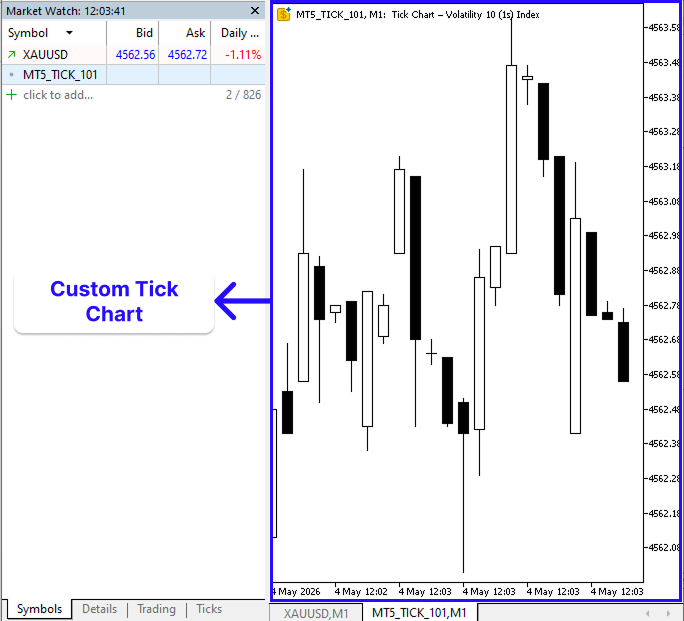
We are building a custom tick chart in MQL5 where each candle is formed based on a fixed number of ticks instead of time. In a standard MetaTrader 5 chart, candles are generated automatically based on time intervals such as one minute or five minutes, meaning price movement is grouped by time rather than actual trading activity. In our case, a new candle will only be created after a specified number of ticks, for example, 10 ticks per bar. This means each candle is built purely from market activity, making the chart more responsive to real trading intensity.
The EA starts recording each incoming tick in real time as soon as it is initiated on a symbol like EURUSD. Every tick denotes a new price update, and we utilize a counter to arrange these ticks into fixed blocks rather than depending on time. OHLC logic is used to create a complete candle once a block reaches the specified size.
Imagine a 10-tick candle on EURUSD that begins at 1.08721. The price goes up and down as the subsequent ticks come in, reaching values like 1.08725, falling to 1.08718, and culminating at 1.08730. The initial tick establishes the open. The candle's peak and low points are defined by these motions. The current price, such as 1.08726, becomes the close when the tenth tick happens. After that, the candle is finished, and a new one is started right away by the subsequent tick.
Implementation Plan
In this section, we will outline the step-by-step process we will follow to implement the custom tick chart in MQL5. This will give a clear roadmap of how we move from receiving raw market data to building structured candles based on a fixed tick size.
Creating the Custom Symbol:
This is the first step in implementing the custom tick chart in MQL5. Before we can process ticks or build candles, we need a separate symbol where our generated tick data and candles will be stored and displayed. That is why we create a custom symbol, which will serve as the destination for all the tick-based candles we create. We will create a function that runs during EA initialization. The EA itself will be attached to the chart of the symbol we would like to work with, for example, XAUUSD. From that point, all incoming ticks from XAUUSD will be used to build our custom tick chart.
The purpose of this function is to check whether the custom symbol already exists. If it already exists, we simply activate it so it becomes visible in Market Watch and ready for use. If it does not exist, we create it using the current symbol, in this case XAUUSD, as a template. Once the symbol is created, we configure it to behave like a real trading instrument. This includes setting properties such as price precision, minimum price movement, and tick size so that the price behavior matches XAUUSD. We also assign descriptive information like symbol name and currency details so it integrates properly with the platform.
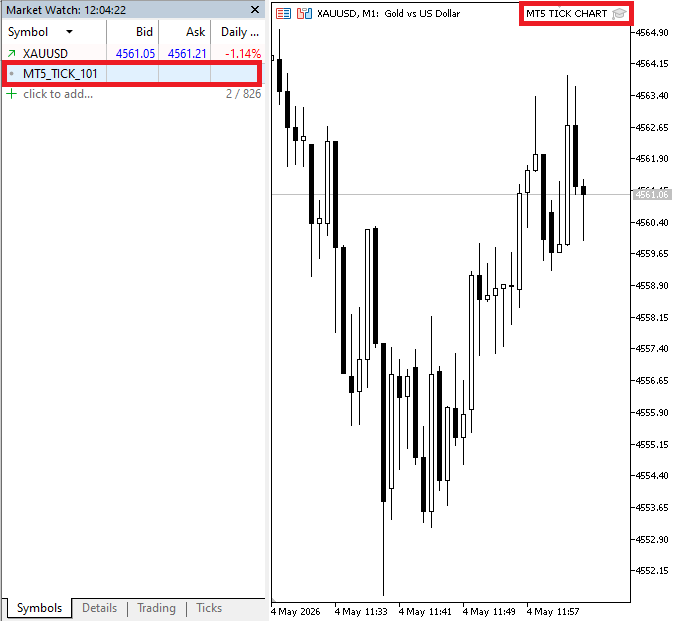
For instance, if our custom symbol is called MT5_TICK_101, it will appear in the Market Watch window after this phase. This confirms that the symbol was created successfully and its current availability for receiving data from XAUUSD. It is important to note that creating the symbol does not automatically produce visible candles on the chart, as display only occurs once tick data is processed and sent to the chart engine.
Opening the Custom Symbol Chart:
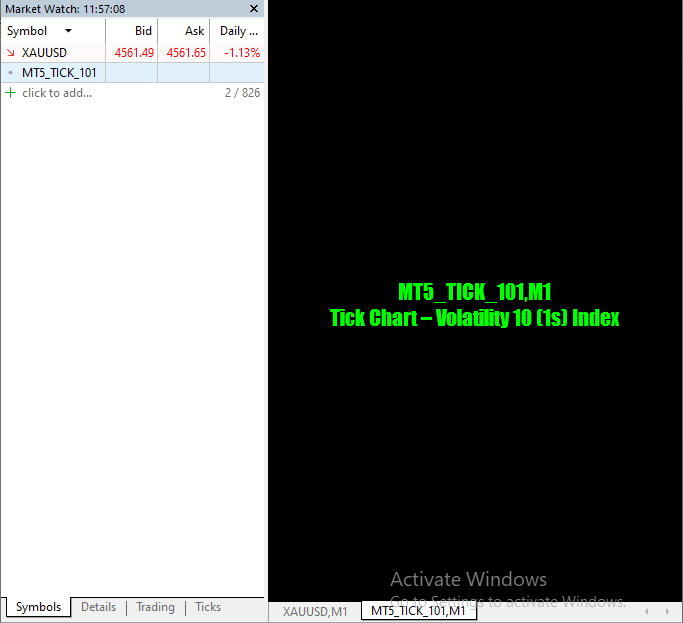
The EA creates a special chart for the unique tick-based symbol in this stage. It ensures a single regulated viewing environment by determining whether a chart for the symbol already exists and opening one automatically if it doesn't.
For example, when the EA starts on XAUUSD, it creates and opens a chart for a custom symbol such as MT5_TICK_101. At this stage, the chart will appear blank because no tick aggregation has been processed yet and no bar data has been pushed to the chart engine. In MetaTrader 5, creating a chart is not sufficient for visualization; candles only appear when generated rates are actively updated using a display update mechanism such as CustomRatesUpdate. This step, therefore, focuses only on preparing the visual workspace where tick-based candles will later be rendered.
Creating Tick-Based Bars:
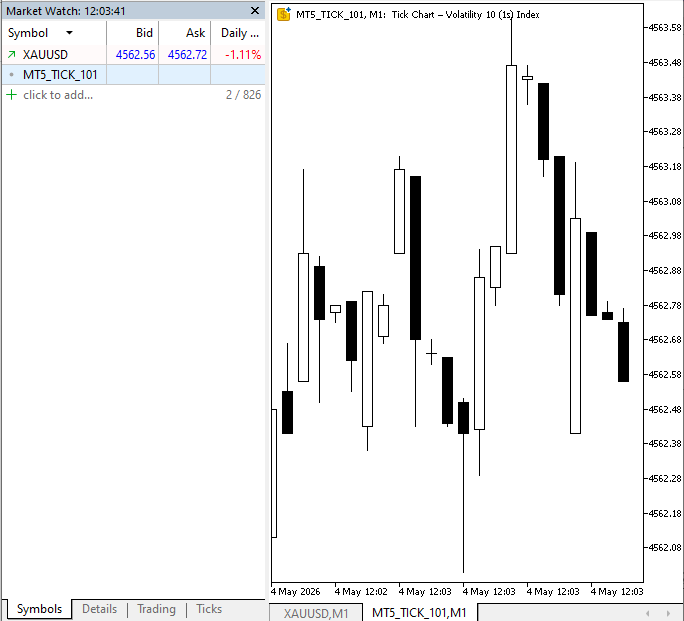
In this step, we start creating candles by allocating incoming ticks according to the number of ticks per bar into fixed-size batches. We take the price of each new tick and use it to update the values of the current bar. The sequence's first tick establishes the open, and when subsequent ticks occur, we constantly compare prices to update the high and low, with the most recent price serving as the close.
We keep track of how many ticks have been processed for the current bar by keeping a counter. The bar is deemed finished whenever this counter hits the specified limit, such as ten ticks. To make sure the platform recognizes it correctly, we then record the final OHLC values and give the bar a legitimate time. The CustomRatesUpdate function is then used to send this finished bar to the custom symbol, which is responsible for updating and displaying the candle on the chart.
It is important to note that this step only finalizes completed bars; it does not include the currently forming tick, since the active tick is still being processed in real time before the bar is closed. For example, if we are working with XAUUSD and the tick size is set to 10, the EA will take 10 consecutive price updates, track their movement, and then finalize one candle. Immediately after that, the process resets, and a new bar begins with the next incoming tick.
Updating the Live Tick Bar:
In this step, we ensure that the currently forming candle is continuously updated as every new tick arrives. This is where the chart becomes fully dynamic, because each price change is immediately reflected in the active bar.
Unlike the previous step, where we focus on completing a candle after a fixed number of ticks, here we are dealing with the live formation of that same candle. Every tick that comes in contributes to updating the OHLC values in real time. The open is set at the first tick, while the high and low continue to adjust as price moves. The close is constantly refreshed with the latest price until the bar is finalized. At this stage, CustomRatesUpdate is called in OnTick on every tick. This means the chart is updated on every single tick, ensuring the forming candle is constantly visible and up-to-date.
This modification is still connected to our tick counter logic, though. We keep track of the tick count to determine when a bar is entirely created, even if the update occurs on each tick. The process automatically moves on to the next cycle once the necessary number of ticks is reached and a new bar is generated. For instance, ticks 1 through 10 on a 10-tick bar created on XAUUSD constantly update the same candle in real time. CustomRatesUpdate continues to push live updates until tick 10, at which point the bar is finished and a new one starts, ensuring that the candle constantly represents the market.
Creating a Custom Tick Chart in MQL5
We will go from concept to practical implementation in this chapter now that we have a clear idea of what we want to create and how the system will operate. Step by step, we will start writing the custom tick chart in MQL5, converting the design into functional code.
Creating the Custom Symbol
Just as discussed in the implementation plan, the first stage creates and configures the custom symbol that will host the tick chart.
Example:
input string InpCustomSymbol = "TICK_101";   // Name of the custom symbol to create/use
input bool   InpOpenChart    = true;         // Whether to automatically open the chart
input int    InpTicksPerBar  = 30;          // Number of ticks that will form one candle

//+------------------------------------------------------------------+
//| Create or prepare custom symbol                                  |
//+------------------------------------------------------------------+
bool CreateCustomSymbol()
  {
//--- If symbol already exists, just select it and continue
   if(SymbolInfoInteger(InpCustomSymbol, SYMBOL_EXIST))
     {
      SymbolSelect(InpCustomSymbol, true);  // Make it visible in Market Watch
      return true;
     }

//--- Create new custom symbol using current symbol as template
   if(!CustomSymbolCreate(InpCustomSymbol, "", _Symbol))
     {
      Print("Failed to create custom symbol: ", GetLastError());
      return false;
     }

//--- Copy important trading properties from the original symbol
   CustomSymbolSetInteger(InpCustomSymbol, SYMBOL_DIGITS, _Digits);  // Decimal precision
   CustomSymbolSetDouble(InpCustomSymbol, SYMBOL_POINT, _Point);     // Smallest price step
   CustomSymbolSetDouble(InpCustomSymbol, SYMBOL_TRADE_TICK_SIZE,SymbolInfoDouble(_Symbol, SYMBOL_TRADE_TICK_SIZE));

//--- Set descriptive metadata
   CustomSymbolSetString(InpCustomSymbol, SYMBOL_DESCRIPTION, "Tick Chart - " + _Symbol);
   CustomSymbolSetString(InpCustomSymbol, SYMBOL_CURRENCY_BASE,SymbolInfoString(_Symbol, SYMBOL_CURRENCY_BASE));
   CustomSymbolSetString(InpCustomSymbol, SYMBOL_CURRENCY_PROFIT,SymbolInfoString(_Symbol, SYMBOL_CURRENCY_PROFIT));

   SymbolSelect(InpCustomSymbol, true);  // Make visible
   Print("Custom symbol created: ", InpCustomSymbol);

   return true;
  }
//+------------------------------------------------------------------+
//| Expert initialization function                                   |
//+------------------------------------------------------------------+
int OnInit()
  {
//--- Ensure custom symbol exists
   if(!CreateCustomSymbol())
      return INIT_FAILED;
//---
   return(INIT_SUCCEEDED);
  }
//+------------------------------------------------------------------+
Explanation:
The input parameters define the custom symbol name, control whether the chart opens automatically, and set the number of ticks used to form each candle in the tick-based chart system.
This step is responsible for creating and preparing the custom symbol that will act as the foundation for our tick-based chart. During initialization, the EA first defines a symbol name, in this case TICK_101, which represents the custom market environment where all generated price data and candles will be stored. Inside the creation function, the first check is to determine whether this symbol already exists using SymbolInfoInteger. If it already exists, the EA simply activates it using SymbolSelect, which makes it visible in Market Watch and ready for use. This prevents duplicate symbols and ensures the EA works with a single, consistent environment.
The current chart symbol (such as XAUUSD) is utilized as a template to generate the symbol if it doesn't already exist using CustomSymbolCreate. This keeps the new symbol completely customizable while allowing it to inherit a realistic market structure. The symbol is set up to function like an actual trading instrument after it is created. The relevant CustomSymbol routines are used to set important features like price precision (digits), minimum price movement (point), and tick size. By doing this, price updates on the custom symbol are guaranteed to be precise and in line with actual market activity.
The EA also assigns descriptive metadata, including a readable description and currency information, so the symbol integrates properly within the platform. Once everything is configured, SymbolSelect is called again to ensure the symbol is active and visible in Market Watch. Finally, during OnInit, this entire process is executed automatically. If the setup fails at any point, the EA stops; otherwise, the custom symbol is fully prepared and ready to receive and display the tick-based market data in the next stages.
Opening the Custom Symbol Chart
Following the implementation plan, the next stage prepares and opens the dedicated chart that will display the live tick-based candles.
Example:
//+------------------------------------------------------------------+
//| Check if a chart is already open                                 |
//+------------------------------------------------------------------+
bool IsChartOpen(string symbol, ENUM_TIMEFRAMES tf)
  {
   long id = ChartFirst();  // Get first chart ID

//--- Loop through all open charts
   while(id != -1)
     {
      //--- If both symbol and timeframe match, chart is already open
      if(ChartSymbol(id) == symbol && ChartPeriod(id) == tf)
         return true;
      id = ChartNext(id);  // Move to next chart
     }

   return false;  // No matching chart found
  }
Explanation:
This feature makes sure that a duplicate chart is not opened in MetaTrader 5 before generating a new one. After receiving a symbol and period, such as TICK_101 and M1, it looks through all the terminal's open charts to see if that particular chart is already available. ChartFirst() starts the process by returning the ID of the first open chart in MetaTrader 5. This can be compared to starting from the first chart in the list of all charts that are currently in use. The function returns the first chart in the internal list (for example, EURUSD, XAUUSD, or TICK_101)
The function uses while(id != -1) to initiate a loop after obtaining the first chart ID. This implies that it will keep reviewing charts one at a time until there are none left. The function navigates across open charts step-by-step because MetaTrader maintains them in a connected structure. The function verifies two crucial elements for every chart. ChartSymbol(id) and ChartPeriod(id) are used to compare the chart's symbol and timeframe, respectively. For instance, the program will compare each open chart to this precise combination if we are looking for TICK_101 on the M1 period.
Next, the function instantly returns true if it finds a match, indicating that a chart for TICK_101 on M1 is already open. This instructs the program that since the chart already exists and is active, there is no need to open a new one. It uses ChartNext(id) to go to the next chart if the current one does not match. Until every open chart has been examined, this process is repeated. The function ultimately returns false, indicating that the TICK_101 chart is not open and needs to be created if no matching chart is discovered after scanning everything.
The next step is to incorporate the ability to determine whether a custom symbol chart, such as TICK_101, is open so that, if it is not, the computer opens the chart automatically.
Example:
//+------------------------------------------------------------------+
//| Check if a chart is already open                                 |
//+------------------------------------------------------------------+
bool IsChartOpen(string symbol, ENUM_TIMEFRAMES tf)
  {
   long id = ChartFirst();  // Get first chart ID

//--- Loop through all open charts
   while(id != -1)
     {
      //--- If both symbol and timeframe match, chart is already open
      if(ChartSymbol(id) == symbol && ChartPeriod(id) == tf)
         return true;

      id = ChartNext(id);  // Move to next chart
     }

   return false;  // No matching chart found
  }

//+------------------------------------------------------------------+
//| Open custom chart if not already open                            |
//+------------------------------------------------------------------+
void OpenCustomChart()
  {
//--- Prevent opening multiple duplicate charts
   if(IsChartOpen(InpCustomSymbol, PERIOD_M1))
     {
      Print("Chart already open");
      return;
     }

//--- Open chart (M1 is just a container, not actually used for logic)
   long id = ChartOpen(InpCustomSymbol, PERIOD_M1);

   if(id == 0)
      Print("Failed to open chart: ", GetLastError());
  }
//+------------------------------------------------------------------+
//| Expert initialization function                                   |
//+------------------------------------------------------------------+
int OnInit()
  {
//---
// Ensure custom symbol exists
   if(!CreateCustomSymbol())
      return INIT_FAILED;

//--- Optionally open chart
   if(InpOpenChart)
      OpenCustomChart();
//---
   return(INIT_SUCCEEDED);
  }
//+------------------------------------------------------------------+
Explanation:
When the EA is activated, it makes sure that the TICK_101 chart is opened during initialization; when it is disabled, the user is responsible for doing so. The system checks to see if TICK_101 on the M1 timeframe is already active before opening any charts. If it is, it pauses right away to prevent duplication and logs a message saying the chart is already op.
The code then uses ChartOpen to open the chart if it isn't already open. In this instance, M1 has no bearing on the tick-based logic; it is merely utilized as a chart timeframe. It merely offers a visual area for the display of the personalized tick chart. Lastly, the EA verifies the value of InpOpenChart in the startup event handler. The chart will open automatically when the EA begins running on a symbol like XAUUSD if it is true. This is done by calling OpenCustomChart(). The user has complete discretion over whether the chart opens automatically; if it is false, in which case this step is entirely omitted.
Creating Tick-Based Bars
This stage builds candles strictly from a fixed number of ticks instead of time, ensuring each bar reflects real market activity, while also initializing real-time tick capture as the foundation for continuous bar formation.
Example:
//+------------------------------------------------------------------+
//| Expert tick function                                             |
//+------------------------------------------------------------------+
void OnTick()
  {
//---
   MqlTick tick;

//--- Get latest tick from broker
   if(!SymbolInfoTick(_Symbol, tick))
      return;

//--- Ignore invalid price
   if(tick.bid <= 0)
      return;

  }
//+------------------------------------------------------------------+
Explanation:
This function runs each time a new tick arrives (OnTick event). This is the primary location where we get real-time market data and determine how to handle it for our unique tick-based approach. We utilize MqlTick to save the most recent market data that the broker provides. All real-time pricing components, including bid, ask, last price, volume, and timestamp, are contained in this structure, but we can only access it once we have requested new data from the market.
The most recent update for the current symbol, such as XAUUSD, is then obtained using SymbolInfoTick. The real-time values originate from this source. The broker provides the bid and ask prices immediately using this function; they are not computed by hand. This function ensures that we are constantly working with the most recent state of the market by retrieving the most recent bid and ask values in real time every time OnTick executes. We verify the data after it has been retrieved by determining whether the bid price is higher than zero. This is a precautionary measure to make sure that no corrupted or empty market updates are being processed; the function uses return to quit right away if the data is invalid.
Our main focus in this step is the bid price, because it is the primary reference that determines how we build the OHLC structure of each candle. Every movement in price is evaluated based on the bid, and this is what drives the formation of the open, high, low, and close values in real time. Now that we can retrieve the latest market data continuously, the next logical step is to separate this incoming price flow into OHLC components. The open is set from the first valid price, the high and low are updated based on price movement, and the close is continuously refreshed using the most recent bid value.
Example:
//+------------------------------------------------------------------+
//| Tick-based candle state                                          |
//+------------------------------------------------------------------+
int      tick_count    = 0;   // Counts how many ticks have formed the current bar
double   open_price    = 0;   // Open price of current bar
double   high_price    = 0;   // Highest price reached in current bar
double   low_price     = 0;   // Lowest price reached in current bar
double   close_price   = 0;   // Latest price (updates every tick)
datetime bar_time      = 0;   // Time assigned to the current bar
//+------------------------------------------------------------------+
//| Expert tick function                                             |
//+------------------------------------------------------------------+
void OnTick()
  {
//---
   MqlTick tick;

//--- Get latest tick from broker
   if(!SymbolInfoTick(_Symbol, tick))
      return;

//--- Ignore invalid price
   if(tick.bid <= 0)
      return;

   double   price = tick.bid;
   datetime now   = tick.time;

//--- If first tick of new bar, initialize OHLC
   if(tick_count == 0)
     {
      open_price = price;
      high_price = price;
      low_price  = price;
      bar_time   = now;  // starting time of this bar
     }

//--- Update High and Low
   if(price > high_price)
      high_price = price;
   if(price < low_price)
      low_price  = price;

//--- Always update Close
   close_price = price;

//--- Increase tick counter
   tick_count++;

//--- If tick limit reached, close bar
   if(tick_count >= InpTicksPerBar)
     {
      tick_count = 0;        // reset for next bar
     }

  }
//+------------------------------------------------------------------+
Explanation:
Instead of depending on time-based intervals, each candle in TICK_101 is produced strictly from a defined number of ticks, meaning the chart is totally driven by market activity. To determine candle formation, the system keeps track of different internal values that represent the condition of the current candle. These include a counter for how many ticks have arrived, as well as values that hold the starting price, the highest price reached, the lowest price reached, and the most recent price. There is also a reference time used to identify the commencement of each candle.
When a new tick appears, we record the timing of the tick as well as the most recent bid price as the reference price. The price becomes the candle's open if this is the first tick of a new candle, meaning the tick counter is 0. The bar time is set to indicate the beginning of the candle in TICK_101, and both the high and low are initialized to the same value at the same time. Every new price is compared to the current high and low values as more ticks appear. The high is updated if the new price exceeds the current high. The low is changed if it is less than the existing low. The candle constantly reflects the most recent market change because the close price is updated with the most recent tick.
We can monitor the candle's progress since each incoming tick raises the tick counter by one. Until it hits the specified maximum in InpTicksPerBar, this counter keeps increasing. The candle is deemed finished once the necessary number of ticks has been attained. The tick counter is then reset to zero, and the current bar is finalized. This reset signals the start of a new candle, enabling TICK_101 to begin creating the subsequent one from the subsequent tick that comes in. All the tick processing and price tracking only collect and organize the data needed to form each candle, but they do not display anything on the chart by themselves. To actually make the OHLC values visible on the custom symbol, we must use CustomRatesUpdate, which sends the prepared candle data to TICK_101 so it can be rendered in real time.
Example://+------------------------------------------------------------------+ //| Tick-based candle state | //+------------------------------------------------------------------+ int tick_count = 0; // Counts how many ticks have formed the current bar double open_price = 0; // Open price of current bar double high_price = 0; // Highest price reached in current bar double low_price = 0; // Lowest price reached in current bar double close_price = 0; // Latest price (updates every tick) datetime bar_time = 0; // Time assigned to the current bar datetime last_bar_time = 0; // Time of the last completed bar (used to ensure uniqueness)
//+------------------------------------------------------------------+
//| Finalize and store completed candle                              |
//+------------------------------------------------------------------+
void CommitCompletedBar()
  {
//--- Ensure bar time is always increasing
   if(bar_time <= last_bar_time)
      bar_time = last_bar_time + 1;

   last_bar_time = bar_time;

   MqlRates rates[1];

//--- Final OHLC values for completed bar
   rates[0].time        = bar_time;
   rates[0].open        = open_price;
   rates[0].high        = high_price;
   rates[0].low         = low_price;
   rates[0].close       = close_price;
   rates[0].tick_volume = InpTicksPerBar;  // fixed tick count
   rates[0].spread      = 0;
   rates[0].real_volume = 0;

//--- Store final bar
   if(!CustomRatesUpdate(InpCustomSymbol, rates))
      Print("CommitCompletedBar failed: ", GetLastError());
  }
//--- If tick limit reached, close bar
if(tick_count >= InpTicksPerBar)
  {
   CommitCompletedBar();  // finalize candle
   tick_count = 0;        // reset for next bar
  }
Explanation:
This function is responsible for finalizing a completed candle and sending it to the custom symbol so it can be displayed on the chart. It is called when the required number of ticks for a candle has been reached. The system checks that the candle's time advances in a consistent order at the beginning of the function. Any time that does not advance is corrected since MetaTrader mandates that every bar have a distinct, sequential timestamp. This guarantees that the candles on TICK_101 stay correctly aligned and don't duplicate. The next candle is placed according to the adjusted time, which is then saved as the most recent reference.
The finished candle data is then stored in a structure. Before the completed bar is submitted to the chart, all OHLC values and other attributes are defined using this structure. The finished candle values are then assigned by the function. The open, high, low, and close prices that were gathered during the tick processing stage come after the time. These values indicate the last stage of price movement for that tick sequence because the candle is no longer moving currently.
To ensure uniformity across all bars, the tick volume is subsequently allocated depending on the predetermined number of ticks per candle. Since spread and real volume are not necessary in this unique tick-based structure, they are set to zero. Using CustomRatesUpdate, the finished candle is transmitted to the custom symbol. This crucial stage enables the candle to appear on the chart by pushing the completed OHLC data into TICK_101. An error notice is given so that the problem can be found if this update fails for any reason.
Next, the code checks whether the tick counter has reached the limit for the candle. Next, the precise number of ticks needed to finish a single bar is represented by this limit. The candle has gathered enough price updates to be finished once the counter equals or exceeds this value. The function in charge of shutting and storing the finished candle is called by the system when this condition is satisfied. This guarantees that all OHLC data is locked in and transmitted to the custom symbol for chart display. The tick counter is reset to zero as soon as the candle is finalized. To ensure continuous and clean candle production without mixing data between bars, this reset is crucial since it sets up the system to begin a fresh candle from the next incoming tick.
Updating the Live Tick Bar
The last step is updating the live tick bar, where the forming candle is continuously refreshed with each incoming tick so that the OHLC values reflect real-time market movement before the candle is completed.
Example://+------------------------------------------------------------------+ //| Update current (forming) candle | //+------------------------------------------------------------------+ void UpdateCurrentBar() { MqlRates rates[1]; //--- Populate current candle structure rates[0].time = bar_time; rates[0].open = open_price; rates[0].high = high_price; rates[0].low = low_price; rates[0].close = close_price; rates[0].tick_volume = (long)tick_count; // number of ticks so far rates[0].spread = 0; rates[0].real_volume = 0; //--- Push update to chart (this redraws candle live) CustomRatesUpdate(InpCustomSymbol, rates); }
//--- Update live (forming) candle
UpdateCurrentBar();

//--- If tick limit reached, close bar
if(tick_count >= InpTicksPerBar)
  {
   CommitCompletedBar();  // finalize candle
   tick_count = 0;        // reset for next bar
  }
Explanation:
The candle that is now forming is updated in real time by this function. Even before the candle is finished, it guarantees that each new tick is instantly reflected in the live candle shown on the custom symbol TICK_101. The first step in the function is to build a structure that will contain the forming candle's current state. Before being transferred to the chart, all OHLC values and associated data are produced in this structure, which serves as a temporary container. The first value assigned is the bar time, which represents the starting time of the current candle. This time does not change during the life of the candle and is used to identify it on the chart. Next, the open price is assigned. This represents the very first price that started the current candle and remains unchanged until the candle is completed.
The high and low values are then assigned. These reflect the highest and lowest prices reached so far during the formation of the candle. They are continuously updated elsewhere in the logic, and here they are simply passed into the structure so the chart can display the latest state. The close price is also assigned, and this represents the most recent market price. Unlike the open, high, and low, the close is constantly changing as new ticks arrive, making it the most dynamic part of the candle.
The function utilizes CustomRatesUpdate to push the updated candle data into the custom symbol after all values are ready. This crucial phase is what causes the chart's candle to instantaneously redraw, providing a real-time visual update on price movement. In the main tick processing flow, this function is called on every incoming tick right after updating the OHLC values. This means that every single tick immediately refreshes the forming candle on the chart, keeping it fully in sync with real market movement.
Conclusion
By following the steps in this article, you obtain a practical, verifiable solution for tick‑based charting in MetaTrader 5. The delivered EA:
- creates or activates a custom symbol (eg, TICK_101) with trading properties copied from the source instrument;
- optionally opens a dedicated chart for that symbol;
- collects incoming ticks and maintains open/high/low/close state while counting ticks;
- seals and sends a completed bar every N ticks with a unique timestamp;
- pushes the forming bar to the chart on every tick so it stays accurate.
Acceptance criteria you can check in the terminal: the custom symbol appears in Market Watch, its chart displays a continually updating live candle, and each candle closed contains exactly the configured number of ticks and an increasing timestamp. This architecture gives you an activity‑driven view of price action, improving visibility of momentum and micro‑structure. From here you can extend the EA with volume handling, persistent storage, different aggregation rules (eg, tick‑volume weighted), or hooks for strategy testing that require tick‑accurate bar boundaries.
The project is supported in Algo Forge.
Warning: All rights to these materials are reserved by MetaQuotes Ltd. Copying or reprinting of these materials in whole or in part is prohibited.
This article was written by a user of the site and reflects their personal views. MetaQuotes Ltd is not responsible for the accuracy of the information presented, nor for any consequences resulting from the use of the solutions, strategies or recommendations described.

 Adaptive Malaysian Engulfing Indicator (Part 1): Pattern Detection and Retest Validation
 The MQL5 Standard Library Explorer (Part 11): How to Build a Matrix-Based Market Structure Indicator in MQL5
 Exploring Conformal Forecasting of Financial Time Series
 MetaTrader 5 Machine Learning Blueprint (Part 15): How to Calibrate Profit-Taking and Stop-Loss Targets from Synthetic Data

- Free trading apps
- Over 8,000 signals for copying
- Economic news for exploring financial markets
You agree to website policy and terms of use