

Automating Terminal Startup for Service Tasks
 1 695
1 695
 4
4

Contents
- Introduction
- Launching the Platform from a Configuration File
- Programmatically Handling Startup from a Configuration File
- Periodic Scheduled Terminal Launch
- Full Automation Cycle by Means of Windows Tools
- Conclusion
Introduction
Starting from MetaTrader 5 build 4230 an interesting opportunity has appeared for platform users:
- The terminal now features support for the ShutdownTerminal parameter in the [StartUp] section of the user configuration files. It is used to launch the platform to execute one-off tasks using scripts. For example, you have a script that takes a screenshot of the chart. You can create a configuration file that launches this script along with the platform. If you add ShutdownTerminal set to 'Yes' to this file, the platform will automatically shut down immediately after the script completes.
- MQL5 now features the MQL_STARTED_FROM_CONFIG property in the ENUM_MQL_INFO_INTEGER enumeration. It returns true if the script/Expert Advisor was launched from the StartUp section of the configuration file. This means that the script/EA had been specified in the configuration file the terminal was launched with.
What does launching a terminal with a configuration file give us? Such launch can be performed, for example, from the command line, or from a program shortcut or script with pre-defined command-line arguments. Accordingly, we can not only manually launch the platform with a specific configuration file, but also launch it from the Windows Task Scheduler. To launch this way, we need to define a configuration file in advance and specify it to launch the client terminal.
Let's imagine this situation: We have a simple trading EA running all the time and would like to re-optimize it from time to time based on the most recent trading history. This means that we should periodically, for example, once a week or a month, run the optimization of its parameters and look at the results for new optimal settings for its parameters. This process can be automated so that the client terminal launches automatically, for example, on weekends at a specified time, runs our EA in the optimizer, and creates an XML file based on the results, from which we can select the desired optimal parameter values. Once optimization is complete and the report file is generated, the terminal closes, and all we have to do is open the report file from the terminal data folder to analyze it.
In addition, if the EA, when launched from the configuration file in the tester, should do additional things, but at the same time should avoid doing the same things in the production mode, then we can, by analyzing the MQL_STARTED_FROM_CONFIG flag, add branching logic to the program to handle such a launch. This could be, for example, an analysis of the latest trading history, taking screenshots of charts with trades, and so on. We can easily do all this using the new capabilities of the client terminal.
Launching the Platform from a Configuration File
The trading platform can be launched with a custom set of parameters. To do this, we need to create a custom file based on the original common.ini settings file. To run the platform with the settings file, we need to run the following command:
platform_path\terminal64.exe /config:c:\myconfiguration.ini
where "c:\myconfiguration.ini" is the path to the custom configuration file.
The configuration file parameters are divided into several blocks and correspond to the ones presented in the platform settings window.
You can find the most important configuration file parameters in the client terminal help.
It is not necessary to define all settings and parameters in the custom configuration file. It might be sufficient to specify only the necessary parameters to launch the desired script or EA in the desired mode. All missing parameters will be taken from the current terminal and tester settings.
For example, our terminal, designed to be launched from the command line, is located at C:\Program Files\MetaTrader 5\terminal64.exe. To open the terminal data directory, press Shift+Ctrl+D. The config\ subfolder of the data directory features the original file with the common.ini terminal settings. Based on this file, we need to create our own to be specified when launching the terminal from the command line.
Let's look at various aspects of launching the terminal from the command line.
Programmatically Handling Startup from a Configuration File
Let's write the following script in the MQL5\Scripts\MT5 Automation\Test_STARTED_FROM_CONFIG.mq5 folder:
//+------------------------------------------------------------------+
//|                                     Test_STARTED_FROM_CONFIG.mq5 |
//|                                  Copyright 2025, MetaQuotes Ltd. |
//|                                             https://www.mql5.com |
//+------------------------------------------------------------------+
#property copyright "Copyright 2025, MetaQuotes Ltd."
#property link      "https://www.mql5.com"
#property version   "1.00"
//+------------------------------------------------------------------+
//| Script program start function                                    |
//+------------------------------------------------------------------+
void OnStart()
  {
//---
   string text=(MQLInfoInteger(MQL_STARTED_FROM_CONFIG) ? "Started from config" : "Started manually");
   Alert(StringFormat("MT5 Automation Test Script: %s",text));
  }
When running the script normally, an alert will appear in the terminal with the following message:
MT5 Automation Test Script: Started manually
Now let's prepare the data for launching the terminal from the command line.
Open the file MQL5\config\common.ini and create a configuration file based on it:
[Common]
Login=98271878
Server=MetaQuotes-Demo

[Charts]
ProfileLast=default
MaxBars=50000
TradeHistory=1
TradeLevels=1

[StartUp]
Script=MT5 Automation\Test_STARTED_FROM_CONFIG
Symbol=EURUSD
Period=H1
Template=default.tpl
Here in the [Common] section we can find
- login (account number),
- the server on which the account is registered.
The [StartUp] section specifies
- the path to the test script file relative to the MQL5\Scripts\ subfolder in the terminal data directory,
- the symbol the script is to be launched on: EURUSD,
- chart period: H1,
- template applied to this chart: the default template for new charts (default.tpl).
We need to specify any of our available accounts so that the terminal can freely connect to them during automatic launch.
Save the file in a folder, for example, C:\MetaQuotes\Scripts\TestConfig.ini. This path was chosen simply for brevity and convenience — we will save all test files and scripts created within the framework of this discussion in this directory, so that everything is in one place, the path is short, clear, and does not require a long input of script launch keys.
Based on the location of the terminal executable file in C:\Program Files\MetaTrader 5\terminal64.exe and the configuration file in C:\MetaQuotes\Scripts\TestConfig.ini, the auto launch command will be like this:
C:\Program Files\MetaTrader 5\terminal64.exe /config:C:\MetaQuotes\Scripts\TestConfig.ini
Now we can enter the command:
terminal64.exe /config:C:\MetaQuotes\Scripts\TestConfig.ini
in the Windows command line, after first going to the terminal directory using the cd command.
Or, more conveniently, select the Run command from the context menu of the Start button and launch the terminal with the command
C:\Program Files\MetaTrader 5\terminal64.exe /config:C:\MetaQuotes\Scripts\TestConfig.ini
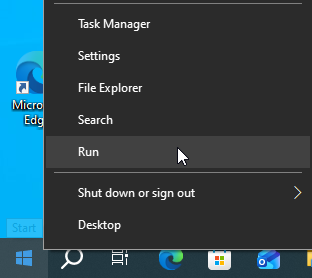
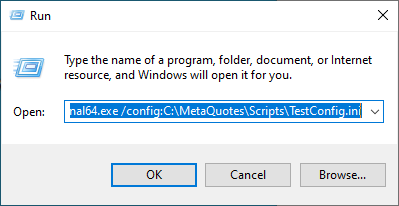
The terminal will be launched along with a test script, which will display the following alert:
MT5 Automation Test Script: Started from config
Here the script determined that it was launched from a configuration file and displayed an alert with the appropriate message.
Thus, by checking the value returned when requesting for the MQL_STARTED_FROM_CONFIG program property, we can do any processing we need when running the program from the command line with a custom configuration file. This means that the EA can easily trade in production mode when launched normally on a chart, but do completely different things (analysis, screenshots, testing, optimization, etc.) when launched from the command line.
In addition, we can forcefully close the terminal in the startup processing section from the configuration file of the script after the logic embedded in this section has completed:
if(MQLInfoInteger(MQL_STARTED_FROM_CONFIG))
  {
   // ... some code of yours
   TerminalClose(return_code);
  }
Moreover, we can read the terminal exit code in the script from which the command to open the terminal with the configuration file was executed. Thus, by returning the required terminal exit codes, we can externally process these codes to organize branching logic in the script the terminal was opened from.
Let's write a test script named Test_STARTED_FROM_CONFIG_2.mq5:
//+------------------------------------------------------------------+
//|                                   Test_STARTED_FROM_CONFIG_2.mq5 |
//|                                  Copyright 2025, MetaQuotes Ltd. |
//|                                             https://www.mql5.com |
//+------------------------------------------------------------------+
#property copyright "Copyright 2025, MetaQuotes Ltd."
#property link      "https://www.mql5.com"
#property version   "1.00"

#define   SYMBOL     "AUDUSD"
#define   PERIOD     PERIOD_H1
#define   COUNT      10000
#define   ATTEMPTS   3
#define   WAIT       1000

//+------------------------------------------------------------------+
//| Script program start function                                    |
//+------------------------------------------------------------------+
void OnStart()
  {
//--- Declare variables and print the terminal startup method to the journal
   int    err_code=0, received=0;
   bool   config_start=(bool)MQLInfoInteger(MQL_STARTED_FROM_CONFIG);
   string text=(config_start ? "Started from config" : "Started manually");
   Alert(StringFormat("MT5 Automation Test Script: %s",text));

//--- If running from the command line with a configuration file
   if(config_start)
     {
      //--- In a loop by the number of ATTEMPTS
      for(int i=0;i<ATTEMPTS;i++)
        {
         //--- print the attempt number in the log
         PrintFormat("Receiving %s data. Attempt %d",SYMBOL,i+1);
         //--- Get the SYMBOL data in the amount of COUNT and save the return code
         //--- If everything is successful, interrupt the loop, otherwise, wait WAIT seconds and repeat
         err_code=GetSymbolData(received);

         //--- Print the amount of data received
         PrintFormat("Received: %d",received);
         if(err_code==0)
            break;
         Print("...");
         Sleep(WAIT);
        }
      Print("All attempts completed");
      //--- Upon completion of all attempts to obtain symbol data,
      //--- close the terminal specifying the err_code return code
      TerminalClose(err_code);
     }
  }
//+------------------------------------------------------------------+
//| Get data for SYMBOL in the amount of COUNT                       |
//+------------------------------------------------------------------+
int GetSymbolData(int &data_received)
  {
   int err=0, copied=0;
   double array[];
//--- Request data for SYMBOL in the amount of COUNT
   ResetLastError();
   copied=CopyClose(SYMBOL,PERIOD,0,COUNT,array);
   err=GetLastError();

//--- If the amount of copied data is not equal to the requested one
   if(copied!=COUNT)
     {
      //--- If there is no error, then not all data has been received yet.
      //--- Specify the error code ERR_HISTORY_NOT_FOUND
      if(err==0)
         err=ERR_HISTORY_NOT_FOUND;
      PrintFormat("%s: CopyClose(%s, H1, 0 - %d) failed. Error %d",__FUNCTION__,SYMBOL,COUNT,err);
     }
   data_received=copied;
   return err;
  }
//+------------------------------------------------------------------+
The script requests a certain number of history bars for the symbol specified in the macro substitutions. Three attempts are made to obtain data, and the script terminates by closing the terminal. The terminal exit code will be the error code received when requesting historical data. We can read this code using Windows tools after the terminal finishes working.
We will set the script in TestConfig.ini:
[Common]
Login=98271878
Server=MetaQuotes-Demo

[Charts]
ProfileLast=default
MaxBars=50000
TradeHistory=1
TradeLevels=1

[StartUp]
Script=MT5 Automation\Test_STARTED_FROM_CONFIG_2
Symbol=EURUSD
Period=H1
Template=default.tpl
Now, the terminal with a configuration file containing a new script named Test_STARTED_FROM_CONFIG_2.mq5 will be opened from the command line.
In the C:\MetaQuotes\Scripts\ directory, create a new text file and save it under the name RunTest_STARTED_FROM_CONFIG_2.cmd.
This will be a test script in which we will set launching the terminal with the configuration file and a simple logic for processing the return code received when closing the terminal:
@echo off
CHCP 1251 > nul

ECHO Launching the terminal with the TestConfig.ini configuration file...

"C:\Program Files\MetaTrader 5\terminal64.exe" /config:C:\MetaQuotes\Scripts\TestConfig.ini

REM Immediately after the terminal64.exe process completes, check ERRORLEVEL
IF %ERRORLEVEL% EQU 0 (
    ECHO ==================================================
    ECHO Terminal completed without errors. Return code: %ERRORLEVEL%
    ECHO ==================================================
) ELSE (
    ECHO ==================================================
    ECHO Terminal shutdown with an error. Return code: %ERRORLEVEL%
    ECHO ==================================================
)

PAUSE
Now, if you run this script by double-clicking, the terminal will open, execute the script specified in the configuration file, and close. Immediately after closing the terminal, a record of the results of the terminal and the script running in it will be displayed in the console.
In this way, it is possible to write complex terminal operation logic depending on the return codes returned by the terminal when it is closed.
We can set these codes ourselves depending on how the script running in the terminal worked.
This gives us flexible options for creating various terminal autostart scenarios with different configuration files.
Periodic Scheduled Terminal Launch
Running a simple abstract script for tests will provide little concrete information. Let's look at everything using a real EA from CodeBase.
The code published in the Source Code Library can be downloaded from the Editor, and it will be located in the Downloads\ folder of the corresponding category.
Regarding the EA offered for download, it will be located in the \MQL5\Experts\Downloads\ExpWPRBB.mq5 folder.
Let's create a configuration file to run the EA from the command line:
[Common]
Login=98271878
Server=MetaQuotes-Demo

[Experts]
AllowLiveTrading=0

[Tester]
Expert=Downloads\ExpWPRBB
Symbol=EURUSD
Period=H4
Model=0
ExecutionMode=0
Optimization=1
OptimizationCriterion=0
Report=Reports\ExpWPRBB_report
ReplaceReport=1
In the [Common] section, indicate
- account number
- server the optimization will be carried out on.
In the [Experts] section, EA trading is disabled.
In the [Tester] section, specify:
- the name of the tested EA and the path to it relative to the MQL5\Experts\ folder,
- the chart symbol and period the optimization will be carried out on,
- tick generation mode (0 — all ticks),
- trading mode emulated by the strategy tester (0 — normal mode),
- optimization enabled - full enumeration of parameters,
- optimization criterion — maximum balance value,
- the name of the optimization report file and the path to it relative to the terminal data directory,
- each subsequent report file should be rewritten (replaced with a new one).
Let's save this file in the C:\MetaQuotes\Scripts\ directory under the name ExpWPRBBconfig01.ini - this will be our first configuration file for testing the EA optimization launch from the command line.
Now we can enter the following command in the Windows Run box:
C:\Program Files\MetaTrader 5\terminal64.exe /config:C:\MetaQuotes\Scripts\ExpWPRBBconfig01.ini 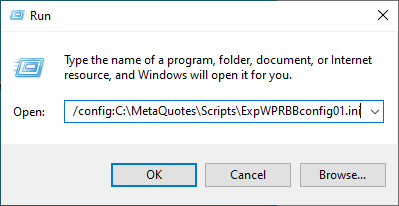
The terminal will be launched with EA optimization enabled:
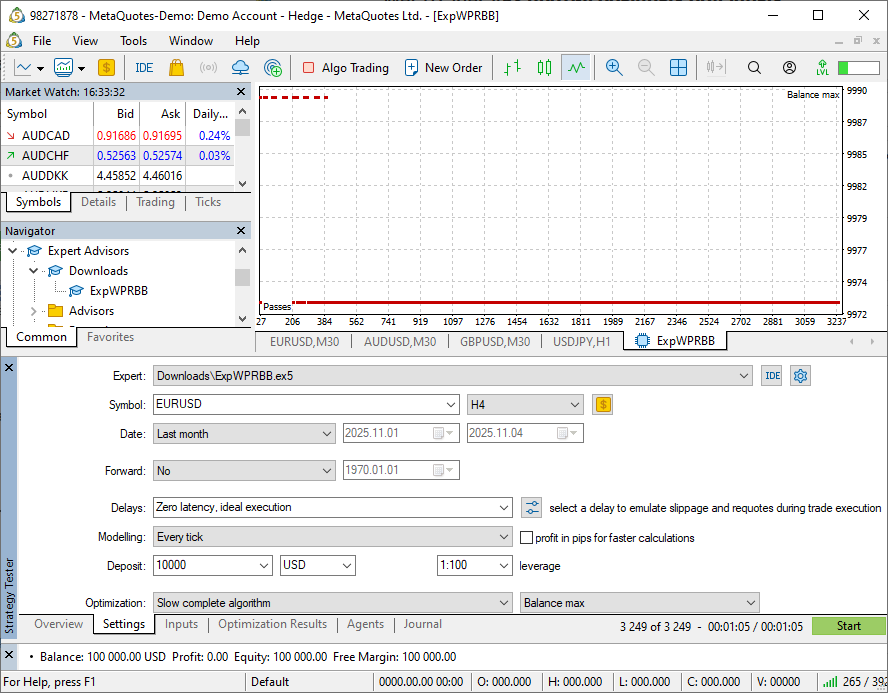
Once the optimization is complete, the terminal will remain open, and the report file will be written to the terminal data directory in the Reports\ subfolder with the name ExpWPRBB_report.xml, which can be run in MS Excel to view the optimization results.
At this stage, optimization has yielded negative results, since the terminal has set the optimization period to "Last month." If we start optimization at the beginning of a new month with the "Last month" period, the test will begin from the calendar start of the month and will be completed in just a few days (in this case, six).
To avoid such a discrepancy (after all, we want to run the test over a monthly period, and not over a calendar number of days from the beginning of the month), we need to specify the start and end dates of the test in the configuration file. We will come back to this later. For now, let's decide that such "tests for the sake of testing" simply by launching a separate terminal from the command line are informative, but not interesting. To benefit from the ability to launch a terminal from the command line in a specified configuration, it is necessary to, say, automatically launch the terminal at the desired time and date.
Starting with Windows NT 4.0 and including Windows 7, 8, 10, 11, the operating system has Task Scheduler - a standard system administration component designed to automate the execution of routine tasks, scripts and programs in the OS. This is a simple and convenient component where we can easily configure the task of launching a terminal from the command line with a configuration file.
In the scheduler, we can create the task we need, which will be executed when a specified event occurs, for example, the arrival of the required time.
There are several ways to open the Task Scheduler interface:
1. Through search- Click Start or the search icon (magnifying glass) on the taskbar;
- Start typing: "Task Scheduler";
- Click on the found application.
- Press Win + R;
- In the window that appears, enter the command: "taskschd.msc";
- Press Enter or OK.
- Open Control Panel;
- Go to the System and Security section;
- Click Windows Tools;
- Locate and launch Task Scheduler.
Performing any of these steps will open the Windows Task Scheduler:
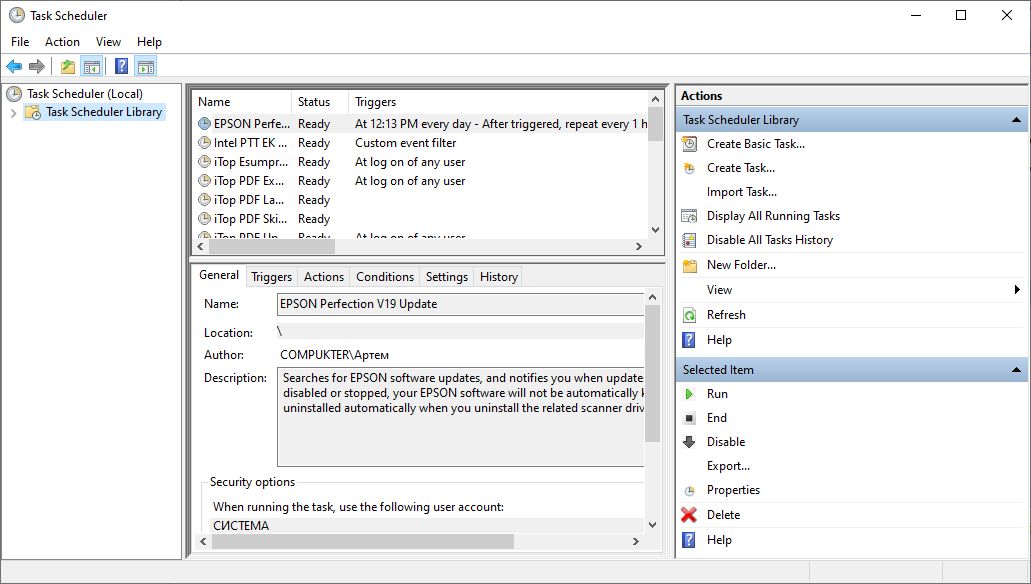
After opening the Task Scheduler interface, in its left window, place the cursor on Task Scheduler Library and select Create Basic Task in the Actions pane on the right.
The task creation wizard window will open. Enter the name of the task being created and its description, and click Next:
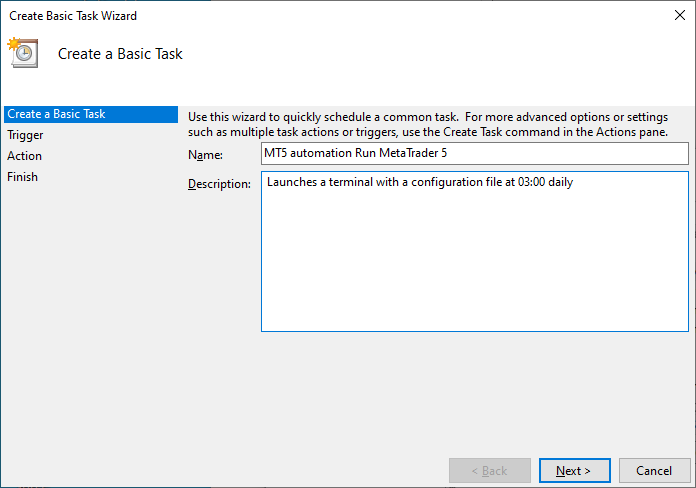
In the next window, select Daily and click Next:

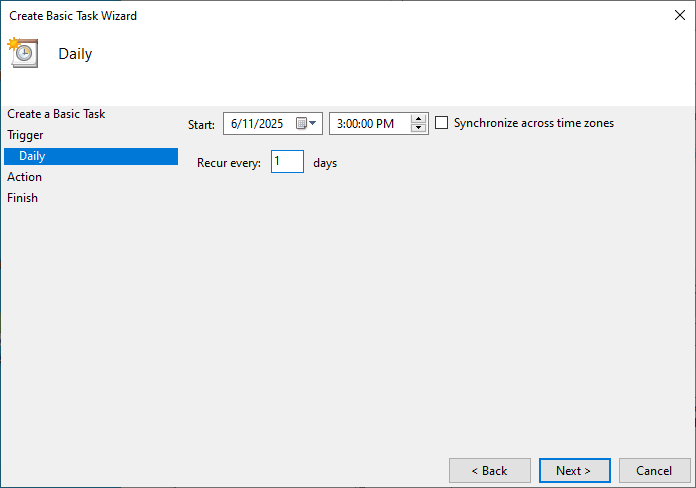
In the next window, we will be asked to enter the date from which the task will begin to be processed, the start time of the task, and its frequency.
Enter the desired date and time and set the frequency to 1 day, that is, daily, and click Next button:
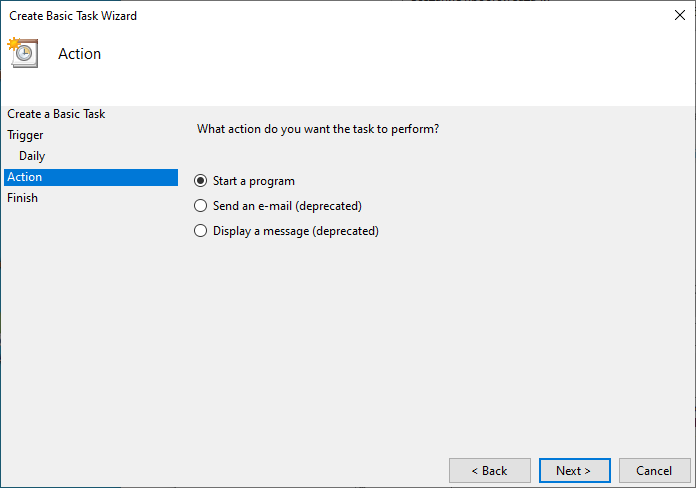
In the next window, select "Start a program" and click Next:
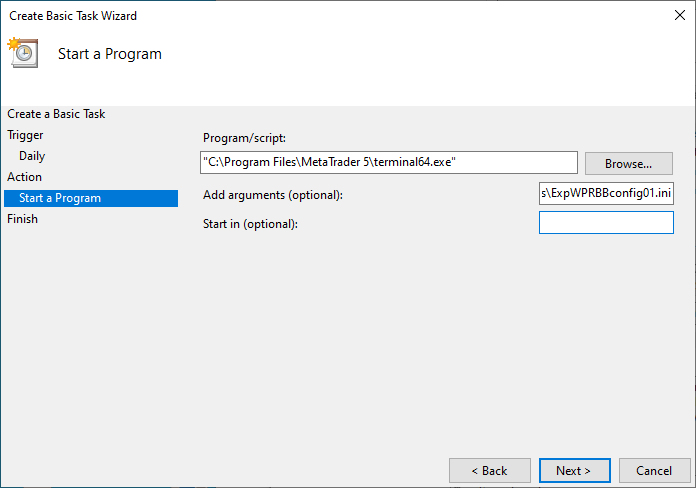
In the next window, in the Program/script field, enter the path to the terminal and its executable file, or select it using the Browse button.
In the arguments field, enter the key, with which the terminal should be launched ( /config:C:\MetaQuotes\Scripts\ExpWPRBBconfig01.ini ), and click Next:
The final window will open with all the parameters of the created task:
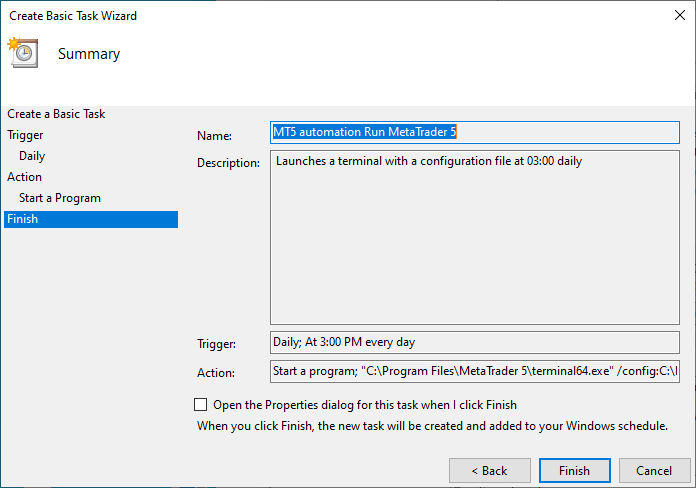
Click Finish, and the task will appear in the root of the Task Scheduler Library. It can be found in the top center window of the scheduler:
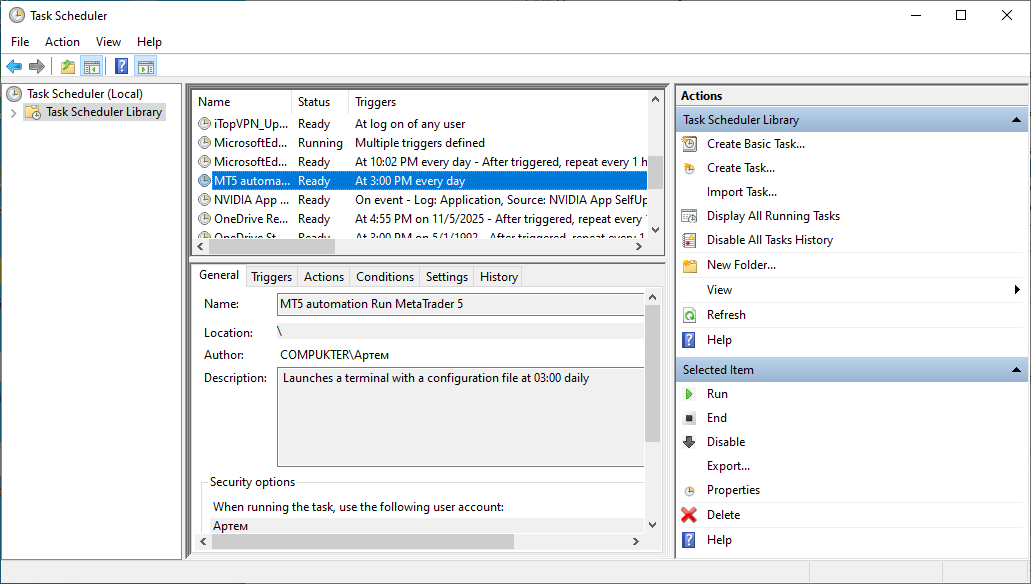
To immediately test the created task, select the task in the central window, and select Run in the Selected Item pane on the right.
The terminal will launch and begin optimizing parameters with the start and end dates set in the optimization settings window:

Here the "Last month" option is selected, and optimization starts from the start date of the month. I have already mentioned this feature, which is unsuitable for our task. I would like to conduct the test over a period of one month, and not from the beginning of the current month. We will return to this issue a little later, but for now let’s look at what we currently have.
We have created a task that will launch the specified terminal every day at 3 a.m., optimize the parameters, and write the report file to the terminal data directory in the Reports subfolder in the ExpWPRBB_report.xml file.
The disadvantages:
- optimization is carried out for the period set in the optimization settings in the terminal;
- after optimization is complete, the terminal does not close and remains running.
To fix the second issue, we need to go to the [Tester] section of the configuration file and set the terminal closing flag:
[Common]
Login=98271878
Server=MetaQuotes-Demo

[Experts]
AllowLiveTrading=0

[Tester]
Expert=Downloads\ExpWPRBB
Symbol=EURUSD
Period=H4
Model=0
ExecutionMode=0
Optimization=1
OptimizationCriterion=0
Report=Reports\ExpWPRBB_report
ReplaceReport=1
ShutdownTerminal=1
Now the terminal will automatically close after optimization is complete. However, the optimization period issue is different.
Of course, you can launch it every week and optimize only the last month. This approach will work in most cases and bring some results only towards the end of the month for this particular EA due to the small number of trades.
Ultimately, with this approach, it becomes necessary to configure the terminal to automatically launch at the end of the month and run automatic re-optimization of parameters once a month.
Let's see what other options there are.
The terminal has preset optimization periods:
- entire history — this is too much for re-optimization,
- last month — selects the optimization period not the way we need it to,
- last year — not suitable for the two reasons mentioned above,
- custom period — suitable, but with some nuances.
So, we see that the only option that works for us is the one with manually set dates. The configuration file allows setting the desired start and end dates for optimization:
[Common]
Login=98271878
Server=MetaQuotes-Demo

[Experts]
AllowLiveTrading=0

[Tester]
Expert=Downloads\ExpWPRBB
Symbol=EURUSD
Period=H4
Model=0
ExecutionMode=0
Optimization=1
OptimizationCriterion=0
FromDate=2025.10.06
ToDate=2025.11.06
Report=Reports\ExpWPRBB_report
ReplaceReport=1
ShutdownTerminal=1
But in this case, it turns out that for each startup, we need to manually enter the required dates into a file. Let's save it in the C:\MetaQuotes\Scripts\ folder under the name ExpWPRBBconfig.ini and replace the configuration file name with a new one in the startup arguments line.
Let's go back to the Task Scheduler, find the task we created and double-click on it. The properties window will open. Open Actions tab, select the action string and click Edit:
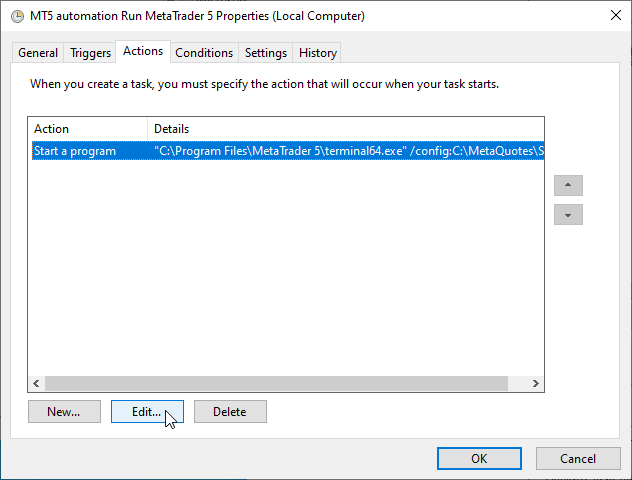
In the window that opens, change the name of the configuration file to the new one in the arguments field:
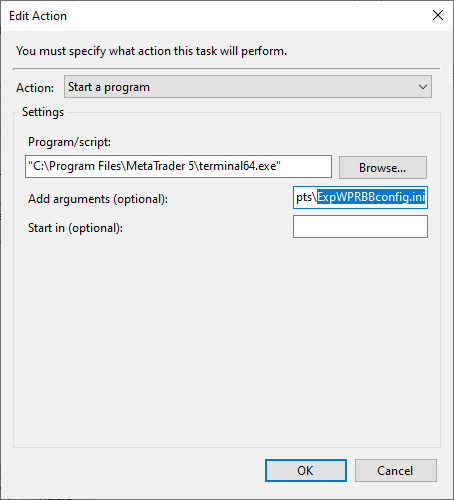
Click OK in both windows to save the changes.
Let's launch the task. Now optimization is performed over the time period specified in the configuration file:

Once optimization is complete, the terminal closes automatically.
You can view the optimization results in the automatically generated report file (terminal_data_directory)\Reports\ExpWPRBB_report.xml.
The question remains: how to change optimization dates? Two options seem to be possible:
- manually change the dates in the configuration file before each automatic launch;
- create a script that will perform such actions automatically.
Naturally, we find the second option more convenient and practical. Let's consider what possibilities are available.
Full Automation Cycle by Means of Windows Tools
So, we need to solve the issue of automatically setting the start and end dates of optimization in the configuration file. If we automatically set the required dates in the file before each launch, the optimization period problem will be solved. We can do this using PowerShell scripts. The script will search the configuration file for dates, calculate new ones, and replace the found date strings with the calculated values.
In the MS Windows operating system, conventional Command Prompt (CMD) previously served as the main automation tool. But as technology advanced, starting with Windows XP SP2 and Windows Server 2003 (and becoming standard in Windows 7 and beyond), PowerShell was born.
PowerShell is a powerful command-line tool that is both a shell and a scripting language developed by Microsoft. It is a key tool for automating system administration tasks in the Windows environment.
You can write the script in a regular Notepad, but it is better to use the built-in utility for writing, editing, and testing PowerShell scripts. To open the editor, you can enter "ise" in the search bar and run the resulting Windows PowerShell ISE program:
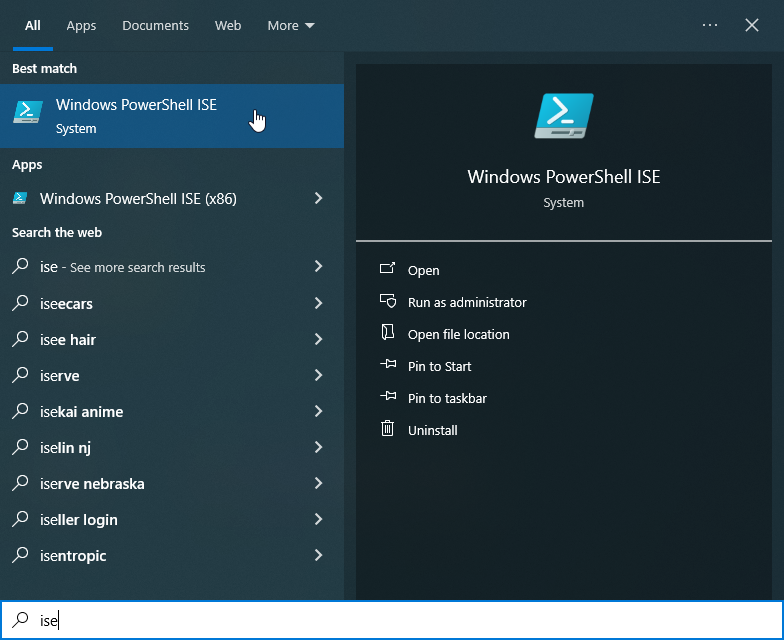
The PowerShell development environment will open, making it easy to write and debug your scripts:
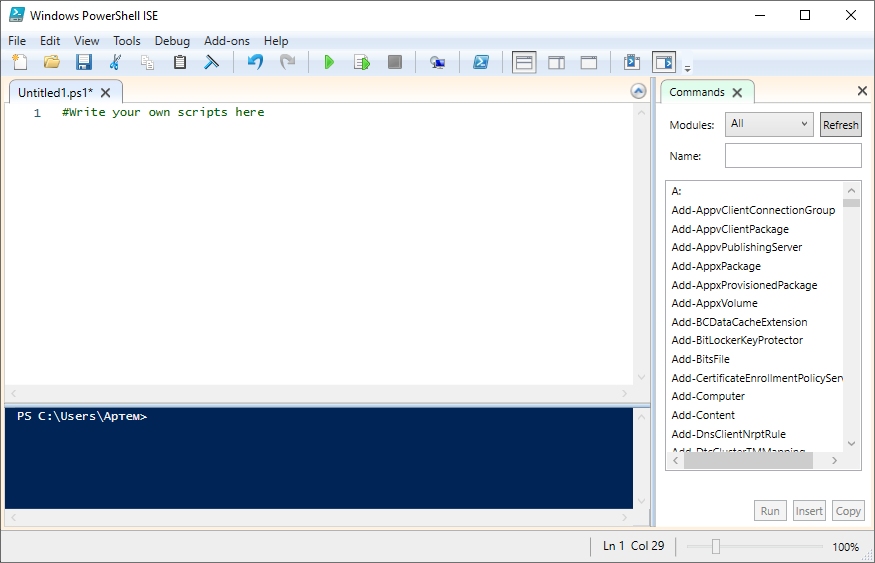
Let's write the first script, which sets a weekly optimization period:
# Path to the configuration file for launching MetaTrader 5
$filePath = "c:\MetaQuotes\Scripts\ExpWPRBBconfig.ini"

# Calculating new dates
# Start date: 7 days ago from the current date
$fromDate = (Get-Date).AddDays(-7).ToString("yyyy.MM.dd")

# End date: Current date
$toDate = (Get-Date).ToString("yyyy.MM.dd")

# Read the contents of the file and replace the lines with dates
(Get-Content -Path $filePath) -replace '^FromDate=.*$', "FromDate=$fromDate" `
    -replace '^ToDate=.*$', "ToDate=$toDate" | Set-Content -Path $filePath

# Output information to the console for debugging
Write-Host "Dates in $filePath file updated."
Write-Host "FromDate set to $fromDate"
Write-Host "ToDate set to $toDate"
The script subtracts 7 days from the current date and records the resulting date as the start of optimization. The script sets the end date of optimization to the current date.
After executing the script, the console closes automatically. To leave the console open for reading debug messages, we need to add the following line as the last line in the script:
Read-Host -Prompt "Press Enter to exit or close the window" So far so good. If we need to set a monthly optimization period, the script will be like this:
# Path to the configuration file for launching MetaTrader 5
$filePath = "c:\MetaQuotes\Scripts\ExpWPRBBconfig.ini"

# Calculating new dates
# Start date: one month ago from the current date
$fromDate = (Get-Date).AddMonths(-1).ToString("yyyy.MM.dd")

# End date: Current date
$toDate = (Get-Date).ToString("yyyy.MM.dd")

# Read the contents of the file and replace the lines with dates
(Get-Content -Path $filePath) -replace '^FromDate=.*$', "FromDate=$fromDate" `
    -replace '^ToDate=.*$', "ToDate=$toDate" | Set-Content -Path $filePath

# Output information to the console for debugging
Write-Host "Dates in $filePath file updated."
Write-Host "FromDate set to $fromDate"
Write-Host "ToDate set to $toDate"
The only difference between the two presented scripts is date calculation line.
Accordingly, to set the testing period to one year, we need to subtract one year from the current date:
# Path to the configuration file for launching MetaTrader 5
$filePath = "c:\MetaQuotes\Scripts\ExpWPRBBconfig.ini"

# Calculating new dates
# Start date: 1 year ago from current date
$fromDate = (Get-Date).AddYears(-1).ToString("yyyy.MM.dd")

# End date: Current date
$toDate = (Get-Date).ToString("yyyy.MM.dd")

# Read the contents of the file and replace the lines with dates
(Get-Content -Path $filePath) -replace '^FromDate=.*$', "FromDate=$fromDate" `
    -replace '^ToDate=.*$', "ToDate=$toDate" | Set-Content -Path $filePath

# Output information to the console for debugging
Write-Host "Dates in $filePath file updated."
Write-Host "FromDate set to $fromDate"
Write-Host "ToDate set to $toDate"
That is, we can create a number of separate scripts to set optimization periods and launch them according to the required condition.
However, it is better to combine such scripts into one and pass the required optimization period as an argument to it:
# Path to the MetaTrader 5 configuration file
$filePath = "C:\MetaQuotes\Scripts\ExpWPRBBconfig.ini"

# Get the first argument passed to the script.
# If the argument is not specified (empty), use 'Month' by default.
[string]$IntervalType = $args[0]
if([string]::IsNullOrEmpty($IntervalType))
  {
   $IntervalType = 'Month'
  }

# Calculate the start date depending on the passed parameter
$today = Get-Date

switch($IntervalType)
  {
    'Day'
      {
       $fromDate = $today.AddDays(-1)
       Write-Host "Mode: Daily (-1 day)"
      }
    'Week'
      {
       $fromDate = $today.AddDays(-7)
       Write-Host "Mode: Weekly (-7 days)"
      }
    'Month'
      {
       $fromDate = $today.AddMonths(-1)
       Write-Host "Mode: Monthly (-1 month)"
      }
    'Quarter'
      {
       $fromDate = $today.AddMonths(-3)
       Write-Host "Mode: Quarterly (-3 months)"
      }
    'Year'
      {
       $fromDate = $today.AddYears(-1)
       Write-Host "Mode: Annual (-1 year)"
      }
    default
      {
       $fromDate = $today.AddMonths(-1)
       Write-Host "Default mode: Monthly (-1 month)"
      }
  }

# Format dates: 1. start date 2. end date
$fromDateString = $fromDate.ToString("yyyy.MM.dd")
$toDateString = $today.ToString("yyyy.MM.dd")

# Replace lines in the file
(Get-Content -Path $filePath) -replace '^FromDate=.*$', "FromDate=$fromDateString" `
    -replace '^ToDate=.*$', "ToDate=$toDateString" | Set-Content -Path $filePath

# Output information to the console for debugging
Write-Host "Dates in the $filePath file updated successfully."
Write-Host "FromDate set to $fromDateString"
Write-Host "ToDate set to $toDateString"
We will save this last script in the C:\MetaQuotes\Scripts\ folder as UpdateDates.ps1.
This script can be simply run from its location folder by selecting "Run with PowerShell" from the right-click context menu, or from the development environment by pressing F5 (if script execution is enabled in the system, which is disabled by default), or from the command line, a bat file, or from the Task Scheduler. To launch it, you need to specify the required argument, which will determine the optimization period: the last day, last week, month, quarter, or year. If the script is launched without arguments, a monthly optimization period is selected by default. The script simply changes the optimization dates in the configuration file specified at the beginning of the script and saves it with the new dates. The updated configuration file will then be used to launch the platform.
We see that we need to perform two actions:
- run the script to set the optimization period in the configuration file (specifying the desired period),
- launch the client terminal with the updated configuration file.
This suggests creating and sequentially launching two tasks in the Task Scheduler: changing the optimization period and launching the terminal.
But we can write all these actions in one file and run it as a single task. This option is more interesting. Let's write a cmd file like this:
@echo off
REM Switch console encoding to Cyrillic for readability of output
CHCP 1251 > nul

REM Run a PowerShell script to update dates in an INI file
powershell -ExecutionPolicy Bypass -File C:\MetaQuotes\Scripts\UpdateDates.ps1

REM Pause 3 seconds
timeout /t 3 /nobreak > nul

REM Launch MetaTrader 5, using the already updated INI file
start "" "C:\Program Files\MetaTrader 5\terminal64.exe" /config:C:\MetaQuotes\Scripts\ExpWPRBBconfig.ini
Running this file will change the optimization period to 1 month and then launch the terminal with a configuration file to optimize the parameters.
We need to specify the desired optimization period. To achieve this, we will need to modify our batch file so that it accepts an external argument to pass to the PS script:
@echo off
CHCP 1251 > nul

REM Determine the passed parameter (for example, Day, Week, Month)
REM If the parameter is not specified, then the default will be  "Month"
IF "%1"=="" (SET Interval=Month) ELSE (SET Interval=%1)

REM Launch the script using 64-bit PowerShell version to update dates in an INI file
REM Pass the %Interval% variable as an argument
C:\Windows\System32\WindowsPowerShell\v1.0\powershell.exe -ExecutionPolicy Bypass -File C:\MetaQuotes\Scripts\UpdateDates.ps1 %Interval%

REM Pause 3 seconds
timeout /t 3 /nobreak > nul

REM Launch MetaTrader 5, using the already updated INI file
start "" "C:\Program Files\MetaTrader 5\terminal64.exe" /config:C:\MetaQuotes\Scripts\ExpWPRBBconfig.ini
Save this file in C:\MetaQuotes\Scripts\ as Optimize_MT5_AutoDate.cmd.
Important note: all scripts should be saved in ANSI encoding, otherwise there may be errors when reading one script from another.
Let's run the file by double-clicking on it. A terminal with a monthly optimization period (without arguments by default) will open and the optimization of the EA parameters will start. Once the optimization is complete, the results file will be written to (terminal data directory)\Reports\ExpWPRBB_report.xml.
If we now try to create multiple tasks to run automatic optimization for different optimization periods, we will encounter some unpleasant "surprises":
- The optimization results file is overwritten by new results, and there is only one of them. That is, for any optimization period, the file will contain the results of the most recent one of all those performed;
- We cannot predict the time it will take to complete each subsequent optimization, and therefore task runs may overlap in time, blocking the launch of the next task until the previous one is completed.
To solve the first problem, we need to not only change the start and end dates of optimization in the configuration file, but also change the name of the report file so that its name accurately indicates the optimization period.
To ensure that optimization runs from the Task Scheduler do not overlap, we will create a single script from which we will launch the entire required chain of optimization runs for different periods. We will pass a list of periods as arguments to this new script and run optimizations one after another in a loop. This will definitely limit the launch of the next optimization until the previous one is completed.
Let's refine the UpdateDates.ps1 script. A unique report file name will be created depending on the optimization period and its start and end dates:
# Path to the MetaTrader 5 configuration file
$filePath = "C:\MetaQuotes\Scripts\ExpWPRBBconfig.ini"

# EA/report base name
$expertName = "ExpWPRBB"
# Path to save reports (relative to the MetaTrader 5 data directory, as in the INI file)
$reportPathBase = "Reports\"

# Get the first argument passed to the script
[string]$IntervalType = $args[0]
if ([string]::IsNullOrEmpty($IntervalType))
  {
   $IntervalType = 'Month'
  }

$today = Get-Date

switch($IntervalType)
  {
   'Day'
     {
      $fromDate = $today.AddDays(-1)
      Write-Host "Mode: Daily (-1 day)"
     }
   'Week'
     {
      $fromDate = $today.AddDays(-7)
      Write-Host "Mode: Weekly (-7 days)"
     }
   'Month'
     {
      $fromDate = $today.AddMonths(-1)
      Write-Host "Mode: Monthly (-1 month)"
     }
   'Quarter'
     {
      $fromDate = $today.AddMonths(-3)
      Write-Host "Mode: Quarterly (-3 months)"
     }
   'Year'
     {
      $fromDate = $today.AddYears(-1)
      Write-Host "Mode: Yearly (-1 year)"
     }
   default
     {
      $fromDate = $today.AddMonths(-1)
      Write-Host "Default mode: Monthly (-1 month)"
     }
  }

# Format dates: 1. start date 2. end date
$fromDateString = $fromDate.ToString("yyyy.MM.dd")
$toDateString = $today.ToString("yyyy.MM.dd")

# Generate a unique report name using dates and interval
$reportName = "${expertName}_${IntervalType}_${fromDateString}_to_${toDateString}"
$fullReportPath = $reportPathBase + $reportName

# Replace lines in the file (FromDate, ToDate and Report)
(Get-Content -Path $filePath) `
    -replace '^FromDate=.*$', "FromDate=$fromDateString" `
    -replace '^ToDate=.*$', "ToDate=$toDateString" `
    -replace '^Report=.*$', "Report=$fullReportPath" | Set-Content -Path $filePath

# Output information to the console for debugging
Write-Host "Dates and the report file in the $filePath file updated successfully."
Write-Host "FromDate set to $fromDateString"
Write-Host "ToDate set to $toDateString"
Write-Host "Report set to $fullReportPath"
Now, each report will have its own unique file, allowing us to fully control all the results of various optimizations.
Let's refine the Optimize_MT5_AutoDate.cmd script:
@echo off

IF "%1"=="" (
   ECHO Error: Optimization interval not specified (Day, Week, Month, Quarter, Year).
   EXIT /B 1
)

REM Set the optimization interval
SET Interval=%1

ECHO --- Start optimization for interval: %Interval% ---

REM Fix the execution start time
SET StartTime=%TIME%
ECHO Start time: %StartTime%

REM Launch the UpdateDates.ps1 script using 64-bit version of PowerShell to update dates in an INI file
REM Pass the %Interval% variable as an argument
C:\Windows\System32\WindowsPowerShell\v1.0\powershell.exe -ExecutionPolicy Bypass -File C:\MetaQuotes\Scripts\UpdateDates.ps1 %Interval%

REM Pause 3 seconds before MT5 launches
timeout /t 3 /nobreak > nul

REM Launch the MetaTrader 5 terminal and wait for its completion
ECHO Launch the MT5 terminal. Waiting for optimization to complete...
"C:\Program Files\MetaTrader 5\terminal64.exe" /config:C:\MetaQuotes\Scripts\ExpWPRBBconfig.ini

REM Record the end time of execution
SET EndTime=%TIME%
ECHO End time: %EndTime%

ECHO --- %Interval% optimization complete ---
Now there is no default value here (the optimization period is Month) because the script will be called from the main one with an argument passed to it, and we need to accurately monitor the correctness of its call (the presence of an argument with the optimization period). This is why the script checks for the presence of the argument and, if it is not there, terminates with an error. Here we have added output to the console of the terminal startup time and its closing time after optimization is complete.
To control the script operation, we have added the output of some messages to the console. Now we will run this script from the main script, specifying the optimization arguments.
Let's write a general, main script that we will launch from the Task Scheduler, specifying the required optimization periods in the launch arguments:
@echo off
CHCP 1251 > nul

ECHO ===================================================
ECHO START OF THE GENERAL AUTOMATION CHAIN OF METAQUOTES MT5
ECHO Start time: %TIME%
ECHO ===================================================

REM Error counter
SET ErrorCount=0

REM If no argument is specified at startup, return an error
IF "%~1"=="" (
   ECHO Error: No optimization intervals were passed to the main script. Complete the work
   EXIT /B 1
)

REM Print all optimization intervals to the console
ECHO Passed intervals: %*

REM In a loop based on the number of arguments, we run optimization using the Optimize_MT5_AutoDate.cmd script
:Loop
IF "%~1" NEQ "" (
   ECHO ---------------------------------------------------

   REM Call the Optimize_MT5_AutoDate.cmd script with the current argument specified in %1
   REM While running, the script displays the start and end time of the current optimization in the console
   CALL C:\MetaQuotes\Scripts\Optimize_MT5_AutoDate.cmd %1

   REM Check the result of calling the Optimize_MT5_AutoDate.cmd script for execution errors
   IF %ERRORLEVEL% NEQ 0 (
      ECHO !!! ERROR !!! Script for %1 interval terminated with error code %ERRORLEVEL%
      SET /A ErrorCount+=1
   ) ELSE (
      ECHO %1 optimization successfully completed
   )
   REM Get the next argument
   SHIFT
   GOTO Loop
)

ECHO ===================================================
ECHO ALL CHAIN TASKS PROCESSED
ECHO Total number of errors: %ErrorCount%
ECHO End time: %TIME%
ECHO ===================================================

IF %ErrorCount% NEQ 0 (
   EXIT /B 1
) ELSE (
   EXIT /B 0
)
Save the script in the C:\MetaQuotes\Scripts\ folder as RunOptimizations.cmd (do not forget about ANSI encoding). We will launch it from the Task Scheduler.
We have already discussed how to create a simple task in Task Scheduler. Now we will simply go through all the steps of the task creation wizard.
Let's create a separate "MT5 automation" folder for optimization tasks:
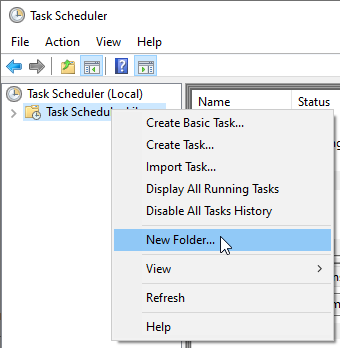
After creating the MT5 automation folder, select "Create Basic Task" from its context menu:
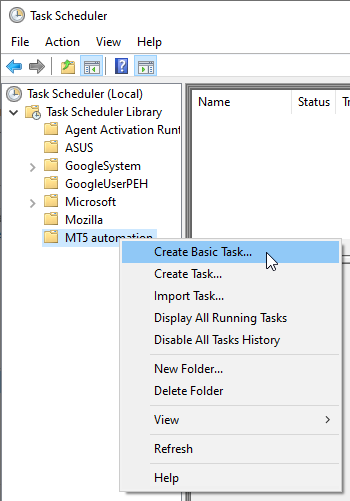
The familiar wizard for creating a simple task will open, where we will create tasks for launching the terminal and optimizing the EA parameters.
The UpdateDates.ps1 script, which sets the start and end dates of optimization, takes the values Day, Week, Month, Quarter, and Year as arguments, which sets the dates and naming of the report file for optimization for the last- day,
- week,
- month,
- quarter,
- year.
For an EA discussed in this article optimization for the last 24 hours is not required - there are too few trades during this period, and weekly optimization also does not produce stable results.
That is why the other periods are important to us here: monthly, quarterly, and annual optimization.
We can try to re-optimize the parameters the following way:
- once a week - for the last week and month;
- once a month - for the last month and quarter;
- once per quarter - for the last quarter and year.
When creating tasks, we must ensure that they do not overlap in launch time. In other words, if one task has already been launched and is running, then there is no need to launch the next one. To make things simpler, we will distribute tasks according to their launch time.
To try to eliminate task overlap, we must ensure that the minimum gap between tasks is equal to the maximum possible execution time of the longest optimization. The minimum intervals between launching different tasks depend on how long each specific optimization takes for each specific EA, system, or PC.
We cannot know exactly how long each optimization will take in each task. It can last 5 minutes or 5 hours, depending on:
- EA complexity,
- period size and optimization method,
- number of parameters tested.
But we can try to spread all tasks out over time in such a way as to protect ourselves as much as possible from the overlap of tasks that are completed at different times. In one task, two optimization runs are performed, and they follow each other exactly, since they are launched by one script. But three separate tasks (two optimization runs in each) can intersect in the scheduler. And these are the tasks that we should launch, allocating approximately 12 hours on weekends to each one.
The shortest task should be launched at the beginning of Saturday. The next task is also on Saturday, but at 12:00, and the last, longest one is at 00:00 on Sunday. Thus, we allocate 12 hours for each of the first two tasks, and the last one, the longest task, gets 24 hours to complete.
Let's create three such tasks. Let's assume that we already have the Task Scheduler open and the MT5 automation folder is created. Now we simply right-click on it and select the very first item from the context menu, Create Basic Task. After this, the basic task creation wizard will open.
Let's look at the sequence for creating all three tasks in this wizard (for each new task, you need to re-run the simple task creation wizard).
Task 1. Fast optimization. Runs every Saturday at 12:00 AM.
- Setting the name and description:
- Name: specify1. MT5_Optimization_Short_Term,
- Description: insert Running short optimizations at the start of each weekend,
- Click Next
- Trigger setup:
- Select Weekly,
- Click Next
- Start: set 00:00:00 and the current date,
- Recur every: set 1 week,
- Days of the week: check Saturday
- Click Next
- Action setup:
- Select "Start a program",
- Click Next
- Program/script: specify C:\MetaQuotes\Scripts\RunOptimizations.cmd
- Add arguments: enterWeek Month
- Click Next
- Summary:
- Click Finish.
Task 2. Medium-time optimization. Launched on the last Saturday of every month at 12:00 PM.
- Setting the name and description:
- Name: specify 2. MT5_Optimization_Medium_Term,
- Description: enter Run medium-length optimizations on the last Saturday of the month,
- Click Next
- Trigger setup:
- Select Monthly,
- Click Next
- Start: set the time to 12:00:00,
- Months: select <Select all months>,
- Days/On:
- Set the switch to On,
- In the first drop-down list, select "last",
- In the second drop-down list, select "Saturday",
- Click Next
- Action setup:
- Select "Start a program",
- Click Next.
- Program/script: set C:\MetaQuotes\Scripts\RunOptimizations.cmd,
- Add arguments: enter Month Quarter,
- Click Next
- Summary:
- Click Finish.
Task 3. Long-term optimization. Launched on the last Sunday of January, April, July and October at 00:00
- Setting the name and description:
- Name: specify 3. MT5_Optimization_Long_Term,
- Description: enter Quarterly launch of the longest optimizations on the last Sunday of the quarter,
- Click Next
- Trigger setup:
- Select Monthly,
- Click Next.
- Start: set 00:00:00 and the current date,
- Months: select the desired months from the bulleted list: January, April, July, October,
- Days/On:
- Set the switch to On,
- In the first drop-down list, select "last",
- In the second drop-down list, select "Sunday",
- Click Next.
- Action setup:
- Select "Start a program",
- Click Next
- Program/script: set C:\MetaQuotes\Scripts\RunOptimizations.cmd,
- Add arguments: enter Quarter Year,
- Click Next.
- Summary:
- Click Finish.
Let's create these three tasks and run the first one by selecting it in the task list and clicking Run in the Selected Item section in the right window.
It would be good if everything started and worked as planned. But it may happen that we will not see any visible results...
What is the problem? This is what the author encountered during launch and after analyzing the errors:
- The interpreter is very sensitive to various spaces, line breaks, and control characters entering the script text. Running scripts resulted in the error "Unexpected occurrence: .."
- The console is hidden and debug messages are not visible.
OK. Let's remove human-readable formatting of logic in script text and, where possible, write everything in one line, plus output messages to a log file for subsequent reading and analysis.
UpdateDates.ps1 PowerShell script:
# Path to the MetaTrader 5 configuration file
$filePath = "C:\MetaQuotes\Scripts\ExpWPRBBconfig.ini"

# EA/report base name
$expertName = "ExpWPRBB"
# Path to save reports (relative to the MT5 working folder, as in the INI file)
$reportPathBase = "Reports\"

# Get the first argument passed to the script.
[string]$IntervalType = $args[0]
if ([string]::IsNullOrEmpty($IntervalType))
  {
   $IntervalType = 'Month'
  }

$today = Get-Date

switch($IntervalType)
  {
   'Day'
     {
      $fromDate = $today.AddDays(-1)
      Write-Host "Mode: Daily (-1 day)"
     }
   'Week'
     {
      $fromDate = $today.AddDays(-7)
      Write-Host "Mode: Weekly (-7 days)"
     }
   'Month'
     {
      $fromDate = $today.AddMonths(-1)
      Write-Host "Mode: Monthly (-1 month)"
     }
   'Quarter'
     {
      $fromDate = $today.AddMonths(-3)
      Write-Host "Mode: Quarterly (-3 months)"
     }
   'Year'
     {
      $fromDate = $today.AddYears(-1)
      Write-Host "Mode: Yearly (-1 year)"
     }
   default
     {
      $fromDate = $today.AddMonths(-1)
      Write-Host "Default mode: Monthly (-1 month)"
     }
  }

# Format dates: 1. start date 2. end date
$fromDateString = $fromDate.ToString("yyyy.MM.dd")
$toDateString = $today.ToString("yyyy.MM.dd")

# Generate a unique report name using dates and interval
$reportName = "${expertName}_${IntervalType}_${fromDateString}_to_${toDateString}"
$fullReportPath = $reportPathBase + $reportName

# Replace lines in the file (FromDate, ToDate and Report)
(Get-Content -Path $filePath) `
    -replace '^FromDate=.*$', "FromDate=$fromDateString" `
    -replace '^ToDate=.*$', "ToDate=$toDateString" `
    -replace '^Report=.*$', "Report=$fullReportPath" | Set-Content -Path $filePath

# Output information to the console for debugging
Write-Host "Dates and the report file in the $filePath file updated successfully."
Write-Host "FromDate set to $fromDateString"
Write-Host "ToDate set to $toDateString"
Write-Host "Report set to $fullReportPath"

#To read messages, uncomment the line below
#Read-Host -Prompt "Press Enter to continue..."
Batch script (cmd script) Optimize_MT5_AutoDate.cmd:
@echo off
REM This is a child script called from RunOptimizations.cmd

IF "%1"=="" (ECHO Error: Optimization interval not specified. & EXIT /B 1)

SET Interval=%1

ECHO --- Start optimization for interval: %Interval% ---

SET StartTime=%TIME%
ECHO Start time: %StartTime%

REM Run a PowerShell script (its output is redirected to the log by the parent script)
C:\Windows\System32\WindowsPowerShell\v1.0\powershell.exe -ExecutionPolicy Bypass -File C:\MetaQuotes\Scripts\UpdateDates.ps1 %Interval%

timeout /t 3 /nobreak > nul

ECHO Launch the MT5 terminal. Waiting for optimization to complete...

"C:\Program Files\MetaTrader 5\terminal64.exe" /config:C:\MetaQuotes\Scripts\ExpWPRBBconfig.ini

SET EndTime=%TIME%

ECHO End time: %EndTime%
The main batch script (cmd script) RunOptimizations.cmd:
@echo off
CHCP 1251 > nul
SET LogFile=C:\MetaQuotes\Scripts\optimization_log.txt

ECHO [Start] %DATE% %TIME% > %LogFile%
ECHO =================================================== >> %LogFile%
ECHO START OF THE GENERAL AUTOMATION CHAIN OF METAQUOTES MT5 >> %LogFile%
ECHO Start time: %TIME% >> %LogFile%
ECHO =================================================== >> %LogFile%

SET ErrorCount=0

IF "%~1"=="" (ECHO Error: No optimization intervals were passed to the main script. Exit >> %LogFile% & EXIT /B 1)
ECHO Passed intervals: %* >> %LogFile%

:Loop
IF "%~1" NEQ "" (
   ECHO --------------------------------------------------- >> %LogFile%

   CALL C:\MetaQuotes\Scripts\Optimize_MT5_AutoDate.cmd %1 >> %LogFile% 2>&1

   IF %ERRORLEVEL% NEQ 0 (
      ECHO !!! ERROR !!! Script for %1 interval terminated with error code %ERRORLEVEL% >> %LogFile%
      SET /A ErrorCount+=1
   ) ELSE (
      ECHO %1 optimization successfully completed >> %LogFile%
   )

   SHIFT
   GOTO Loop
)

ECHO =================================================== >> %LogFile%
ECHO ALL CHAIN TASKS PROCESSED >> %LogFile%
ECHO Total number of errors: %ErrorCount% >> %LogFile%
ECHO End time: %TIME% >> %LogFile%
ECHO =================================================== >> %LogFile%
ECHO [End] %DATE% %TIME% >> %LogFile%

IF %ErrorCount% NEQ 0 (EXIT /B 1) ELSE (EXIT /B 0)
All scripts should be saved in ANSI encoding.
Let's now run the first of the three tasks we created. After launching, we see an empty console (all output is redirected to a file, and outputting to both the console and the file is more difficult than simply seeing an empty console) and we see how the terminal is launched twice with parameter optimization (1 - weekly, 2 - monthly period) with automatic closing after optimization is complete.
In the C:\MetaQuotes\Scripts\ folder, we can see a log file named optimization_log.txt:
[Start] 10.11.2025 15:45:24,80
===================================================
START OF THE GENERAL AUTOMATION CHAIN OF METAQUOTES MT5
Start time: 15:45:24,82
===================================================
Passed intervals: Week Month
---------------------------------------------------
--- Start optimization for interval: Week ---
Start time: 15:45:24,86
Mode: Weekly (-7 days)
The dates and report path in the C:\MetaQuotes\Scripts\ExpWPRBBconfig.ini file have been successfully updated.
FromDate set to 2025.11.03
ToDate set to 2025.11.10
Report set to Reports\ExpWPRBB_Week_2025.11.03_to_2025.11.10
Launching the MT5 terminal. Waiting for optimization to complete...
End time: 15:51:11,11
Week optimization successfully completed
---------------------------------------------------
--- Starting optimization for interval: Month ---
Start time: 15:51:11,15
Mode: Monthly (-1 month)
The dates and report path in the C:\MetaQuotes\Scripts\ExpWPRBBconfig.ini file have been successfully updated.
FromDate set to 2025.10.10
ToDate set to 2025.11.10
Report set to Reports\ExpWPRBB_Month_2025.10.10_to_2025.11.10
Launching the MT5 terminal. Waiting for optimization to complete...
End time: 16:09:09,49
Month optimization completed successfully
===================================================
ALL CHAIN TASKS HAVE BEEN PROCESSED
Total number of errors: 0
End time: 16:09:09,53
===================================================
[End] 10.11.2025 16:09:09,55
So far so good. Let's look for optimization reports in the Reports\ subfolder of the terminal data directory. We see two files:
- ExpWPRBB_Week_2025.11.03_to_2025.11.10.xml — report on the weekly optimization period,
- ExpWPRBB_Month_2025.10.10_to_2025.11.10.xml — report on the monthly optimization period.
Everything seems to be fine. But there may be one more problem that is worth mentioning. If we now look at the status of a successfully completed task in Task Scheduler, we will see "Running." Hm. All processes completed successfully, in the Task Manager there are no processes terminal64.exe, cmd.exe, powershell.exe associated with the task. This is not a freeze of any of the processes. This means that Task Scheduler cannot receive a message from nested running scripts about successful completion of their work.
This is a known Windows issue that depends on the OS version and updates. Since the script already does everything possible to terminate correctly, the only option left is to use the administrative control method:
We need to configure forced termination of the task in the Settings tab of the Task Scheduler - this is the standard solution provided by Windows developers for such situations.
Set a time limit for each task (for example, 4 hours, or more depending on the planned duration of the optimizations run by the scripts). Once this time has elapsed, Windows will force the task's status to be updated to Completed, even if it is stuck in the Running status. You can even give the task a day to complete, and then force it to complete from the scheduler in the task settings. In any case, each new launch is carried out no earlier than the following week. For daily tasks, you need to give them hours to complete - this depends on the duration of the specific optimization that is run daily. But the issue is solvable.
All is set. We have prepared all the necessary scripts and created three separate tasks to run optimizations of varying duration. Now the Task Scheduler will take care of regularly running re-optimization of the EA at different test intervals. All optimization result files will be written to the terminal data directory in the Reports\ subfolder, and the file names will correspond to the duration of the optimization, its start and end times. This way, we will always have up-to-date information on the EA's recommended key parameters at our fingertips. And then it is up to us to decide on introducing new parameters into the EA working on the trading account.
Conclusion
In this article, we learned how to automatically optimize a selected EA in the MetaTrader 5 client terminal using a combination of three components:- PowerShell script (.ps1) - dynamically updates the optimization start and end dates in the INI configuration file and generates unique names for report files.
- Batch files (.cmd) - control the startup logic. The main script sequentially calls the child script for each interval (Day, Week, Month, Quarter, Year), ensuring the order of execution and logging of the results of the work in a single log file.
- Windows Task Scheduler - used to set up a schedule and automatically run all three tasks (weekly, monthly, quarterly) at non-overlapping times on weekends.
Using simple scripts and the Task Scheduler, we can develop a robust and flexible system that allows us to run complex optimizations without user intervention.
But the possibilities considered are not limited to this.
In addition to automatic optimization of EA parameters, many other routine tasks related to MetaTrader 5 can be automated in a similar manner (via the CMD/PowerShell + Task Scheduler combination), for example:
- automatic start of control testing,
- downloading and updating the history of quotes,
- automatic reboot of the trading terminal,
- monitoring and sending notifications about the terminal status,
- backup of working folders, data and logs,
- remote trade management,
- etc.
More complex scripts can be created that interact with files or APIs to send basic commands (e.g. switching trading strategies, changing risk parameters) through the Scheduler or on demand.
All of these tasks use the same approach: the Task Scheduler runs a CMD/PowerShell script that performs the required actions on files, processes, and MetaTrader 5 terminal startup parameters. In this case, all service functionality can be written within the trading EA, and the EA itself can be launched from the command line and use a set of service functions without accessing the trading functions.
Scripts and files covered in the discussion of automatic optimization launch:
| Type | Name | Purpose |
|---|---|---|
| PowerShell script | UpdateDates.ps1 | Calculates the current start and end dates of the testing period and updates the corresponding lines (FromDate, ToDate, Report) in the configuration ini file for launching MetaTrader 5 |
| Batch file, cmd script | Optimize_MT5_AutoDate.cmd | Child (callable) script. Sequentially calls UpdateDates.ps1 to prepare the settings and launches the MetaTrader 5 terminal (terminal64.exe) with the updated ini file to perform one specific optimization |
| Batch file, cmd script | RunOptimizations.cmd | Main (parent) script. Manages the overall automation logic: takes a list of intervals (e.g. Week, Month), calls Optimize_MT5_AutoDate.cmd for each of them and collects all the output into a single log file |
| Configuration ini file | ExpWPRBBconfig.ini | Settings file for the MetaTrader 5 terminal. Defines the parameters of the expert (Expert), trading account (Login, Server), instrument (Symbol, Period), as well as critical testing/optimization parameters (FromDate, ToDate, Optimization, ShutdownTerminal). This file is dynamically modified by the UpdateDates.ps1 script before each terminal launch. |
| Configuration ini file | ExpWPRBBconfig01.ini | Settings file for the MetaTrader 5 terminal. Used in the first example of automating the launch of the ExpWPRBB EA. |
| MQL5 script | Test_STARTED_FROM_CONFIG.mq5 | Script for testing the MQL_STARTED_FROM_CONFIG flag |
| MQL5 script | Test_STARTED_FROM_CONFIG_2.mq5 | Script for testing terminal startup from a cmd script with processing of return codes when closing the terminal |
| Batch file, cmd script | RunTest_STARTED_FROM_CONFIG_2.cmd | CMD script for launching a terminal with processing of return codes when closing the terminal |
| Configuration ini file | TestConfig.ini | Settings file for the MetaTrader 5 terminal. Used in the example of automating the launch of the Test_STARTED_FROM_CONFIG.mq5 script |
| ZIP archive | MSScripts.zip | Archive containing all the scripts discussed in this article. |
Before using all scripts and the configuration file, you should enter your own EA names, trading account configurations, and file paths into them.
All files reviewed are located in the archive attached to the article. The MSScripts.zip archive can be unpacked to the root of the C: drive, and all files will be located in the required subfolders. You can download the EA file from CodeBase.
The complete source code of the project with all the files described in the article is available in the repository.
Translated from Russian by MetaQuotes Ltd.
Original article: https://www.mql5.com/ru/articles/20147
Warning: All rights to these materials are reserved by MetaQuotes Ltd. Copying or reprinting of these materials in whole or in part is prohibited.
This article was written by a user of the site and reflects their personal views. MetaQuotes Ltd is not responsible for the accuracy of the information presented, nor for any consequences resulting from the use of the solutions, strategies or recommendations described.

 Neural Networks in Trading: An Intelligent Forecast Pipeline (Conclusion)
 How to Detect and Normalize Chart Objects in MQL5 (Part 5): Fibonacci in Focus
 Detecting Structural Breakpoints in Price Series Using CUSUM in MQL5 (Part 2): Implementing the Detector as a Native MQL5 Indicator
 Machine Learning Without the Black Box: The Tsetlin Machine for Trading

- Free trading apps
- Over 8,000 signals for copying
- Economic news for exploring financial markets
You agree to website policy and terms of use
There is one point the author did not mention.
If you run the script from the config file (not for testing or optimisation using historical data, but specifically the script using current data!), the terminal continues to run once the script has finished executing.
If you insert the following lines at the end of the script
the client terminal will be shut down once the script has finished running.
Furthermore, the exit code can be processed in the terminal’s launch batch file.
I have updated and expanded the article in the ‘Programmatic processing of startup from a configuration file’ section.
Thank you, Slava.