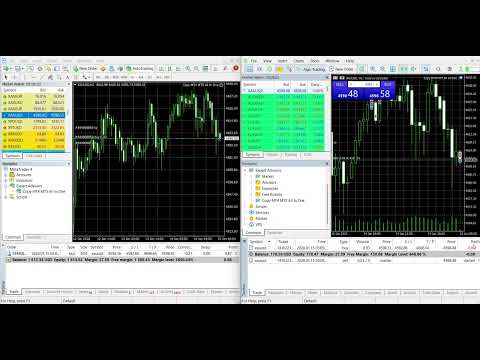
Copy MT4 And MT5 All In One
- Utilità
- Teerathad Booranawisedkul
- Versione: 1.0
- Attivazioni: 10
THIS IS THE MT4 VERSION
- Works ONLY on MetaTrader 4
- Cannot be installed on MetaTrader 5
- For MT5 support, purchase MT5 version separately
MT5 Version Available Here: Click to View MT5 Version
Copy MT5 MT4 All In One
MT4 to MT4
MT5 to MT5
MT4 to MT5
MT5 to MT4
SMART SYMBOL MAPPING (WORKS WITH ANY BROKER)
.r, .raw, .pro (Raw/Pro accounts)
-ecn, -zero (ECN accounts)
m, .mini, .micro (Mini accounts)
c, .cent (Cent accounts)
.vip, -prime, .classic (VIP accounts)
FIXED LOT SIZE
MULTIPLIER
PROPORTIONAL BY BALANCE
PROPORTIONAL BY EQUITY
RISK PER TRADE (% OF BALANCE)
RISK PER TRADE (% OF EQUITY)
RISK PER TRADE (FIXED MONEY)
LOT PER 1000 OF BALANCE
LOT PER 1000 OF EQUITY
MULTIPLIER BY BALANCE/EQUITY
REVERSE TRADING MODE
Master BUY → Slave SELL
Master SELL → Slave BUY
COPY ONLY NEW ORDERS
Start fresh without copying old positions
When enabled:
Skips all existing positions on startup
Only copies NEW orders after EA starts
Perfect for joining established master accounts
Prevents opening stale positions
STEP 1: INSTALL THE EA
For MetaTrader 5:
Open MT5
Click File → Open Data Folder
Navigate to MQL5 → Experts folder
Copy Copy MT4 MT5 All In One.ex5 file into this folder
Close the folder window
In MT5: Press Ctrl + N or click View → Navigator
Right-click on Expert Advisors → Click Refresh
You should see "Copy MT4 MT5 All In One" in the list
For MetaTrader 4:
Open MT4
Click File → Open Data Folder
Navigate to MQL4 → Experts folder
Copy Copy MT4 MT5 All In One.ex4 file into this folder
Close the folder window
In MT4: Press Ctrl + N or click View → Navigator
Right-click on Expert Advisors → Click Refresh
You should see "Copy MT4 MT5 All In One" in the list
STEP 2: CONFIGURE MASTER ACCOUNT (SENDER)
Open the chart where you want to run the EA (any symbol, any timeframe)
Drag and drop "Copy MT4 MT5 All In One" onto the chart
Settings window will open - Configure as follows:
Master Configuration:
=== Operation Mode ===
IsMaster = true (Enable sending)
IsSlave = false (Disable receiving)
=== File Settings ===
SharedFolder = "CopyTrade" (Keep default or change)
MyTerminalID = "MASTER" MUST BE UNIQUE!
=== Master Settings ===
MasterMagicFilter = 0 (0 = send all orders)
(Or specific magic number)
STEP 3: CONFIGURE SLAVE ACCOUNT (RECEIVER)
IMPORTANT: Slave can be on the same computer or different computer (using network shared folder)
Option A: Same Computer
Open the second terminal (can be same MT4/MT5 or different)
Open any chart
Drag and drop "Universal_CopyTrader_v3" onto the chart
Configure as Slave:
=== Operation Mode ===
IsMaster = false (Disable sending)
IsSlave = true (Enable receiving)
=== File Settings ===
SharedFolder = "CopyTrade" MUST MATCH MASTER!
MyTerminalID = "SLAVE1" MUST BE UNIQUE!
=== Slave Settings ===
SlaveMagicNumber = 77777 (For copied orders)
Lot Size Type = LOT_MULTIPLIER (Choose your mode)
Multiplier = 1.0 (1.0 = same size)
CopySLTP = true (Copy SL/TP)
MaxSlippage = 30 (Pips)
AutoMapSymbols = true (Auto-detect symbols)
ReverseOrders = false (Set true for hedging)
OnlyNewOrders = false (Set true to skip existing)
Option B: Different Computer (Network Setup)
On Master Computer:
Create shared folder:
Navigate to C:\Users\[YourName]\AppData\Roaming\MetaQuotes\Terminal\Common\Files\
Right-click CopyTrade folder
Click Properties → Sharing tab
Click Share → Add "Everyone" → Set to "Read/Write"
Note the network path: \\COMPUTER-NAME\CopyTrade
On Slave Computer:
Map network drive:
Open File Explorer
Click This PC → Map network drive
Choose drive letter (e.g., Z:)
Enter folder path: \\MASTER-COMPUTER\CopyTrade
Check "Reconnect at sign-in"
Click Finish
STEP 4: MULTIPLE SLAVES (OPTIONAL)
Open third terminal
Configure as Slave:
MyTerminalID = "SLAVE2" DIFFERENT from SLAVE1!
SharedFolder = "CopyTrade" (Same as master)
Lot Size Type = LOT_MULTIPLIER
Multiplier = 0.5 (Half size, for example)
Repeat for as many slaves as needed
Each slave must have UNIQUE Terminal ID
Example Setup:
Master: ID = "MASTER"
Slave 1: ID = "SLAVE1" (1.0x lots)
Slave 2: ID = "SLAVE2" (0.5x lots)
Slave 3: ID = "SLAVE3" (2.0x lots)