GOLDFast99
- Experts
-
Thanaris Pornpattanajamsai
 Professional MT5 / MQL5 developer specializing in Expert Advisors, custom indicators, trading dashboards, order management tools, risk management systems, and visual chart tools.
I can develop, fix, modify, and optimize trading robots and indicators for Forex, Gold, Indices, and Stocks. - Version: 1.0
- Activations: 5
GOLDFast99 is an automated Expert Advisor designed for trading Gold (XAUUSD) on MetaTrader 5. It uses BUY STOP and SELL STOP pending orders, automatic order repositioning, trailing stops, and adjustable lot management.
The system is designed primarily around the M5 timeframe. Its trading parameters can be customized to suit different broker conditions and risk preferences.
1. How GOLDFast99 Works
Step 1 – Market Direction
The EA determines the trading direction using one of several selectable methods:
-
Previous Candle: Uses the last completed candle. A bullish candle selects BUY STOP; a bearish candle selects SELL STOP.
-
EMA Trend: Uses two exponential moving averages. When the fast EMA is above the slow EMA, the system selects BUY STOP. Otherwise, it selects SELL STOP.
-
Alternate Direction: Alternates between buy and sell after completed trades.
-
Buy Only: Places BUY STOP orders only.
-
Sell Only: Places SELL STOP orders only.
-
Both Directions (OCO): Places BUY STOP and SELL STOP orders and attempts to cancel the opposite order when a position opens.
The default signal timeframe is M5.
Step 2 – Automatic Pending Order Placement
The EA places a stop pending order at a configurable distance from the current market price.
Example with InpEntryGapPoints = 300:
-
BUY STOP is placed above the current Ask price.
-
SELL STOP is placed below the current Bid price.
-
The order distance is calculated using the broker's symbol point size.
Step 3 – Automatic Pending Order Movement
Pending orders can be repositioned automatically as the market changes.
For a BUY STOP, the pending price can move downward when the Ask price falls. For a SELL STOP, the pending price can move upward when the Bid price rises.
Orders move only in the permitted direction when the minimum movement threshold and broker conditions are satisfied. This allows the order to remain positioned for a potential breakout without constantly moving it away from an approaching price.
Step 4 – Trade Execution and Stop Management
When the pending order is triggered, the EA manages the open position with:
-
An initial Stop Loss.
-
An optional fixed Take Profit.
-
Automatic Trailing Stop.
-
Adjustable trailing activation and movement steps.
-
Position and pending-order management for one active trade cycle.
Once an eligible position is active, remaining pending orders managed by the EA are removed.
Step 5 – Automatic Re-entry
After a trade closes, the EA evaluates the selected direction and may prepare another pending order.
Re-entry depends on the configured cooldown, trading session, spread, maximum daily trades, and risk protection settings.
The system does not require an unlimited sequence of additional positions or averaging into losing trades.
2. Adaptive Lot Management
GOLDFast99 includes three lot-sizing modes.
Mode 1 – Balance-Based Lot
Lot size is calculated from the account balance using:
Lot = Account Balance / InpBalanceUSDPerLot
For example, with a USD account balance of $1,000 and a divisor of 2,000, the raw calculated volume is 0.50 lot.
This is the initial calculation, not necessarily the final traded volume. The final volume is subject to the minimum and maximum lot settings, broker volume requirements, and the configured risk cap.
This mode can generate large position sizes relative to account capital and should be used carefully.
Mode 2 – Win/Loss Adaptive Lot
The EA calculates a base lot from the account balance and adjusts it according to consecutive winning or losing trade outcomes.
-
After a winning trade, the lot can increase using InpWinMultiplier.
-
After a losing trade, the lot can decrease using InpLossMultiplier.
-
The adjustment is limited by InpMaxStreak.
-
Final trade volume remains subject to lot limits and risk controls.
Example multipliers:
Win Multiplier = 1.12
Loss Multiplier = 0.75
These correspond to a 12% increase or a 25% reduction in the calculated volume for each respective consecutive result, before applicable volume limits.
Mode 3 – Fixed Lot
The EA uses a fixed volume selected by the trader, such as 0.01 or 0.02 lot.
This is the simplest mode for initial testing and allows more direct control over trade size.
3. Suggested Starting Capital and Lot Size
There is no universal minimum deposit because margin requirements, contract size, leverage, spread, and trading conditions differ between brokers.
For an initial evaluation, a USD 1,000 account with a fixed 0.01 lot is a conservative starting reference, provided the account meets the broker's margin requirements and the risk settings permit trading.
Suggested initial evaluation settings:
| Account Balance | Fixed Starting Lot |
|---|---|
| $500 | 0.01, subject to margin and risk checks |
| $1,000 | 0.01 |
| $2,000 | 0.01–0.02 |
| $5,000 | 0.02–0.05 |
| $10,000 | 0.05–0.10 |
These are illustrative starting volumes, not guaranteed safe lot sizes or minimum deposit requirements.
Important: Always calculate potential monetary loss at the selected Stop Loss before choosing the lot size.
For example, if XAUUSD uses a contract size of 100 ounces per lot and 500 points equals a $5.00 gold-price movement, an initial Stop Loss of 500 points represents approximately $5 of price risk at 0.01 lot, excluding spreads, commissions, and slippage.
The actual amount depends on the broker's symbol specifications.
For initial testing, consider limiting the estimated risk per position to approximately 0.5%–1% of account balance.
4. Input Parameter Guide
Group 01 – Signal and Entry
| Parameter | Description |
|---|---|
| InpMagic | Unique identifier used to recognize the EA's orders and positions. |
| InpSignalTF | Timeframe used for trading signals. Default: M5. |
| InpDirectionMode | Selects the method used to determine order direction. |
| InpFastEMA | Fast EMA period. Default: 9. Used in EMA mode. |
| InpSlowEMA | Slow EMA period. Default: 21. Used in EMA mode. |
| InpEntryGapPoints | Distance between market price and pending order. Default: 300 points. |
| InpPendingMoveStepPts | Minimum favorable movement before a pending order is repositioned. Default: 20 points. |
| InpPendingUpdateSec | Minimum time between pending-order update checks. Default: 1 second. |
| InpMaxSpreadPoints | Maximum allowed spread for new pending-order management. Default: 40 points. Set to 0 to disable this filter. |
Group 02 – Stop Loss and Automatic Trailing
| Parameter | Description |
|---|---|
| InpInitialSLPoints | Initial Stop Loss distance. Default: 500 points. |
| InpTakeProfitPoints | Optional fixed Take Profit. Default: 0, meaning no fixed TP. |
| InpTrailStartPoints | Favorable price movement required before trailing begins. Default: 50 points. |
| InpTrailDistancePoints | Target distance between current closing-side price and trailing SL. Default: 50 points. |
| InpTrailStepPoints | Minimum SL improvement required for another trailing modification. Default: 10 points. |
When trailing begins, the EA moves the Stop Loss only in the direction that improves protection. The actual distance is also subject to broker stop and freeze restrictions.
Group 03 – Lot Management
| Parameter | Description |
|---|---|
| InpLotMode | Selects Balance-Based, Win/Loss Adaptive, or Fixed Lot. |
| InpFixedLot | Fixed volume when Fixed Lot mode is selected. Default: 0.01. |
| InpBalanceUSDPerLot | Divisor for the balance-based calculation. Default: 2,000. |
| InpWinMultiplier | Multiplier applied after consecutive winning outcomes in adaptive mode. Default: 1.12. |
| InpLossMultiplier | Multiplier applied after consecutive losing outcomes in adaptive mode. Default: 0.75. |
| InpMaxStreak | Maximum number of consecutive outcomes included in the lot adjustment. Default: 4. |
| InpMinLotUser | Minimum user-defined lot size. Default: 0.01. |
| InpMaxLotUser | Maximum user-defined lot size. Default: 0.50. |
| InpRiskCapPercent | Maximum estimated initial SL risk as a percentage of account balance. Default: 3%. Setting 0 disables the cap and is not recommended. |
The balance calculation is intended for USD-denominated accounts. Accounts using another deposit currency require particular care because this divisor does not automatically convert account currency into USD.
If the calculated lot is below the permitted minimum volume, or the risk cap does not allow the minimum lot, the EA may skip opening a new order.
Group 04 – Safety and Trading Session
| Parameter | Description |
|---|---|
| InpDailyLossLimitPct | Stops initiating new trades when the current equity decline reaches the configured percentage relative to the day's starting equity. Default: 8%. |
| InpHardDrawdownPct | Activates a trading lock when equity drawdown from the EA session's recorded peak reaches the configured threshold. Default: 15%. |
| InpCloseOnHardDrawdown | Attempts to close EA-managed positions when the hard drawdown threshold is triggered. Default: true. |
| InpMaxTradesPerDay | Maximum permitted trade entries per trading day. Default: 120. |
| InpCooldownAfterWinSec | Waiting period after a profitable closed trade. Default: 2 seconds. |
| InpCooldownAfterLossSec | Waiting period after a losing closed trade. Default: 30 seconds. |
| InpStartHourServer | Starting hour for new trading activity, using broker server time. Default: 0. |
| InpEndHourServer | Ending hour for new trading activity, using broker server time. Default: 24. |
| InpRemovePendingsPause | Removes EA-managed pending orders when trading is paused or entry conditions are blocked. Default: true. |
The daily loss limit restricts new entries; it is not an automatic instruction to close every open position. Hard drawdown handling is a separate feature.
Risk controls depend on terminal operation, broker execution, and the EA's active runtime state. They cannot guarantee a maximum realized loss during gaps or slippage.
Group 05 – Dashboard and Tester
| Parameter | Description |
|---|---|
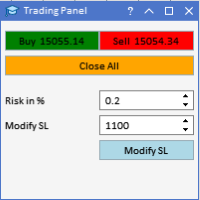
| InpDashboard | Displays the on-chart control panel. Default: true. |
| InpVerboseLog | Enables additional diagnostic messages. Default: false. |
| InpDeviationPoints | Permitted execution deviation for supported trade requests. Default: 20 points. |
5. On-Chart Dashboard
The EA includes a control panel displaying information such as:
-
Trading status and selected symbol.
-
Current BUY or SELL signal.
-
Calculated lot size for the next order.
-
Entry gap and Stop Loss settings.
-
Current spread.
-
Account balance.
-
Floating profit or loss.
-
Number of trades opened today.
-
Last closed trade result.
The dashboard also provides two controls.
PAUSE / RESUME: Stops or resumes automated new-entry management. Existing positions remain subject to trailing-stop management.
CLOSE ALL + PAUSE: Attempts to close positions managed by this EA, removes its pending orders, and pauses trading.
The dashboard is available on a chart and in visual testing mode. It is suppressed during nonvisual backtesting to reduce unnecessary graphical processing.
6. Recommended Initial Setup
For the first evaluation, use these settings as a starting reference:
Market and execution
-
Symbol: XAUUSD
-
Signal Timeframe: M5
-
Direction Mode: Previous Closed Candle
-
Entry Gap: 300 points
-
Pending Movement Step: 20 points
-
Initial Stop Loss: 500 points
-
Fixed Take Profit: 0
-
Trailing Start: 50 points
-
Trailing Distance: 50 points
-
Trailing Step: 10 points
Money management
-
Lot Mode: Fixed Lot
-
Fixed Lot: 0.01
-
Risk Cap: 1%
-
Maximum Lot: 0.02 for initial evaluation
-
Daily Loss Limit: 3%
-
Hard Drawdown Limit: 10%
-
Maximum Trades Per Day: 30
These are suggested initial testing parameters, not an optimized parameter set.
The selected values must be checked against the broker's XAUUSD digits, tick size, volume step, spread, stop level, and available margin.
7. Installation and Backtesting
-
Install GOLDFast99 in MetaTrader 5.
-
Open an XAUUSD chart.
-
Select the preferred timeframe and input settings.
-
Enable algorithmic trading.
-
Verify that the symbol is available for trading and that sufficient margin is available.
-
Test the EA in the MT5 Strategy Tester before live trading.
For a detailed backtest, use Every tick based on real ticks when reliable historical tick data is available.
Evaluate the strategy across trending markets, sideways markets, periods of high volatility, and different spread conditions.
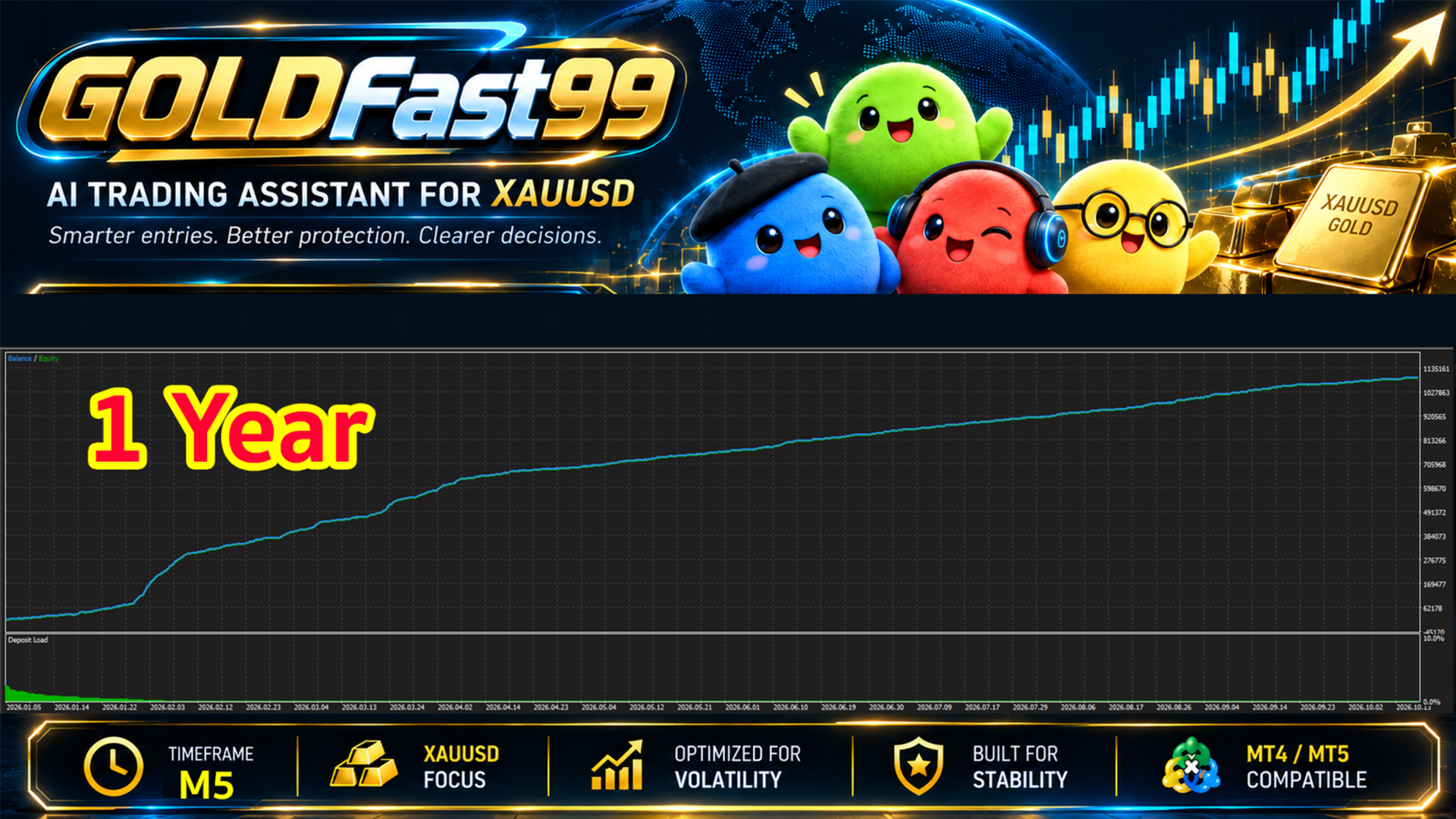
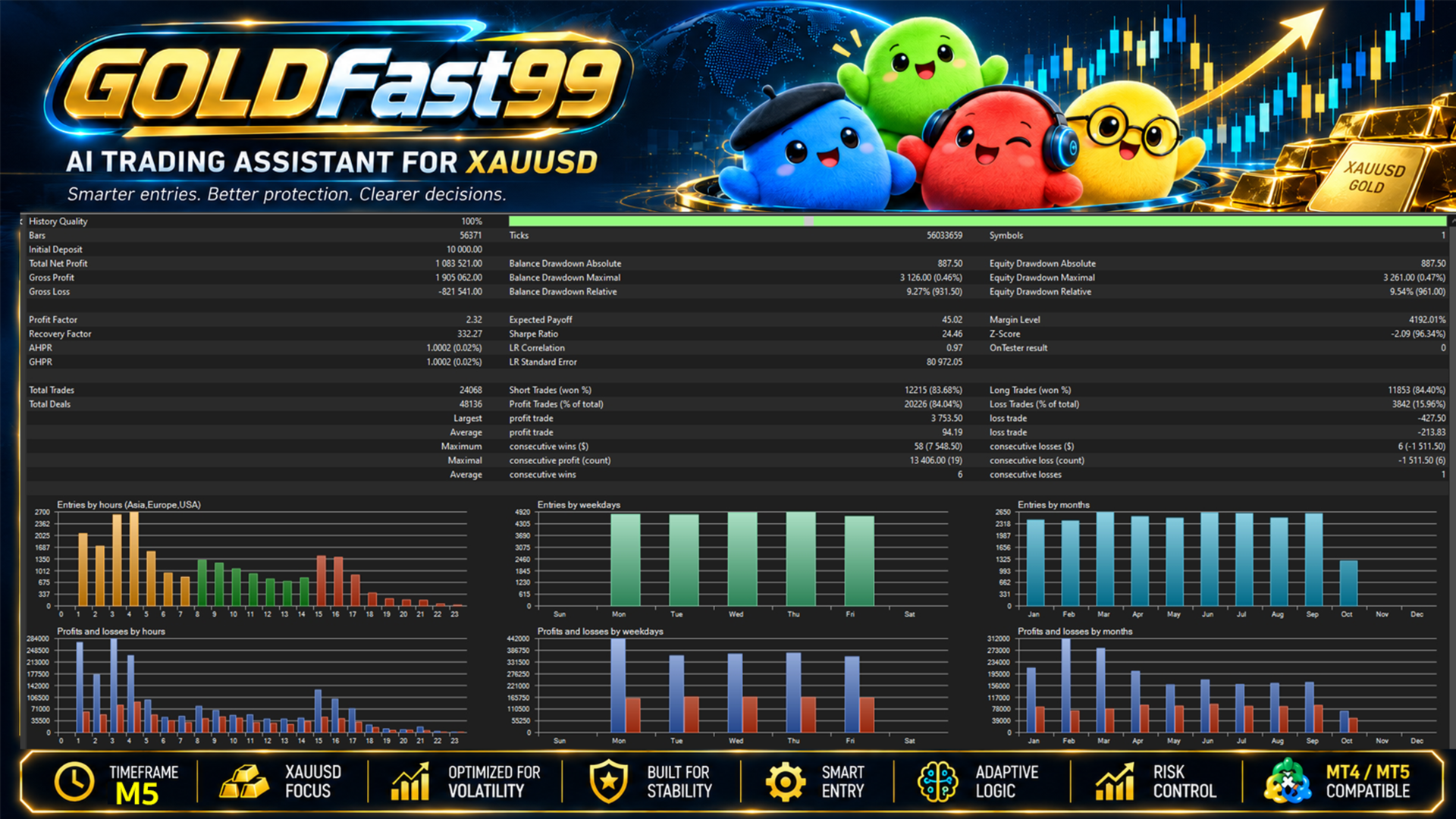
Review total profit and loss, maximum drawdown, recovery factor, trade frequency, execution costs, and consecutive losing trades. Historical results do not predict future performance.
8. Risk Disclosure
GOLDFast99 is automated trading software, not a profit guarantee.
Trading XAUUSD involves significant risk due to leverage, rapid price movements, spread expansion, slippage, price gaps, and execution delays.
The EA's adaptive lot sizing may increase exposure after winning trades. Using excessive leverage, large lot sizes, or an insufficient account balance can lead to substantial losses.
Users are responsible for selecting suitable trading parameters, monitoring margin requirements, and understanding the potential financial loss of each position.
Demo testing and independent evaluation are strongly recommended before using real funds.