
Why Is My MT4/MT5 Trade Copier Not Copying Trades? A Step-by-Step Troubleshooting Guide


Why Is My MT4/MT5 Trade Copier Not Copying Trades? A Step-by-Step Troubleshooting Guide
Local Trade Copier EA MT4/5© is designed for fast and reliable trade synchronization between MetaTrader 4 and MetaTrader 5 trading accounts running on the same Windows computer or Windows VPS.
However, if you have recently installed a trade copier, added a new trading account, changed brokers or modified your copying settings, you may occasionally need to investigate why a particular trade has not been copied to your Receiver account.
Some of the most common questions I receive from Local Trade Copier EA MT4/5© users are:
-
Why is my trade copier not copying any trades?
-
Why are some trades copied correctly while others are not?
-
Why is EURUSD copied successfully, but XAUUSD or NAS100 is not?
-
Why does copying stop when I turn off my computer?
-
Why are new trades not being copied after disabling Copy Current Trades?
-
Why has my previously working trade copier suddenly stopped copying?
-
Why does my Receiver Experts tab display trading error messages?
These situations can have different underlying causes, including installation and configuration settings, symbol differences between brokers, trading permissions, account restrictions and the performance of the Windows computer or VPS.
In this article, I will explain how to investigate these situations systematically, using practical examples based on actual Local Trade Copier EA MT4/5© customer support requests.
By following the steps below, you can identify the most common causes of unsuccessful trade copying and establish a reliable copying setup.
Quick Advice for Reliable Trade Copying
For the best possible Local Trade Copier EA MT4/5© performance:
-
Make sure all participating MetaTrader terminals are installed and running on the same Windows computer or Windows VPS.
-
Install the appropriate MT4 or MT5 version of Local Trade Copier EA directly through the MQL5 Market.
-
Make sure AutoTrading or Algo Trading is enabled in all participating terminals.
-
Check that the Receiver EA is configured with the correct Transmitter account number.
-
Confirm that your Receiver broker allows Expert Advisors and automated trading.
-
Compare the trading symbol names in the Transmitter and Receiver terminals.
-
Review your Receiver copying filters, lot size settings and account protection settings.
-
Check the Market Watch server times of both brokers when using time-sensitive copying settings.
-
Use a responsive Windows computer or VPS with sufficient CPU and RAM resources.
-
Always check the Receiver Experts and Journal tabs when a trade is not copied.
Most importantly, avoid changing several settings simultaneously without first identifying the possible cause of the problem.
A systematic troubleshooting approach is much more effective than randomly adjusting the Receiver settings.
Need Help with Your Local Trade Copier EA MT4/5© Setup?
If you experience trade-copying problems and cannot identify the cause, I am happy to help you or check your setup through AnyDesk.
MQL5.com profile:https://www.mql5.com/en/users/eleanna74
Company email:info@juvenille-emperor.com
When contacting me about a copying problem, please provide full screenshots of your Transmitter and Receiver terminals with their Market Watch windows open, the Receiver Local Trade Copier EA settings as a .set file, and the relevant Experts and Journal logs.
This information allows me to investigate your actual copying configuration and provide recommendations appropriate to your trading setup.
Local Trade Copier EA MT4/5©
Local Trade Copier EA MT4© – MQL5 Market
Local Trade Copier EA MT5© – MQL5 Market
Step 1: Make Sure All MetaTrader Terminals Are Running on the Same Windows Computer or VPS
The first and most important requirement is understanding how a local trade copier operates.
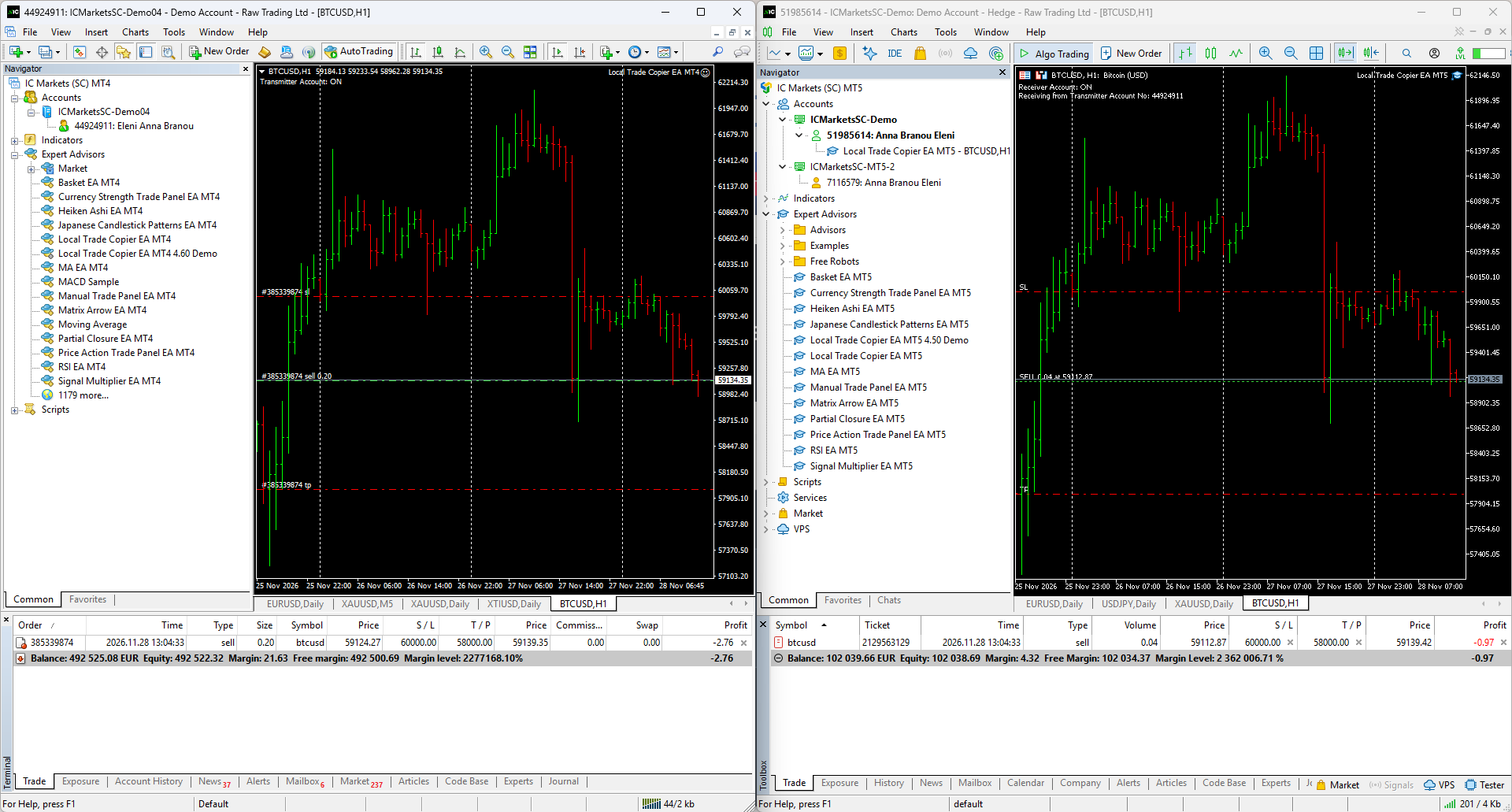
Local Trade Copier EA MT4/5© communicates locally between MetaTrader terminals installed and running on the same Windows computer or Windows VPS.
For example, if you want to copy trades from one MT5 Transmitter account to two MT5 Receiver accounts, you need three separate MT5 terminal installations running simultaneously on the same Windows computer or VPS.
Each terminal must be logged into its respective trading account.
The terminals do not need to belong to the same broker, and the trading accounts do not need to have the same balance, leverage or account currency.
However, all participating terminals must be running in the same local Windows environment.
A Real Support Example: Copying Stops When the Laptop Is Turned Off
A Local Trade Copier EA MT5© user reported that trade copying worked perfectly while both MetaTrader terminals were running on their laptop.
The user then purchased MQL5 VPS hosting for each terminal, expecting the two remotely hosted terminals to continue copying trades independently of the laptop.
However, whenever the laptop was switched off, trade copying stopped.
The reason was the type of VPS hosting being used.
MQL5 VPS hosting provides an isolated virtual environment for each migrated MetaTrader terminal. Two separate MQL5 VPS subscriptions do not provide a shared Windows environment in which two terminals can communicate locally.
For copying between separate MetaTrader terminals, you need a standard Windows VPS on which you can install and run all participating terminals together.
Once the Transmitter and Receiver terminals are properly installed and configured on the same Windows VPS, trade copying can continue independently of your personal computer.
You can switch off your laptop or disconnect your Remote Desktop session without interrupting the copying process, provided that the VPS and its MetaTrader terminals remain running.
Step 2: Check That Local Trade Copier EA Is Installed and Running Correctly
Local Trade Copier EA MT4/5© should be installed directly through the MQL5 Market section of each participating MetaTrader terminal.
First, make sure that you are logged into the MQL5.com account used to purchase the product under:
Tools >> Options >> Community
Then install the appropriate version through:
MetaTrader 4:
Terminal >> Market >> Purchased >> Install
MetaTrader 5:
Navigator >> Market >> My Purchases >> Install
Do not manually transfer purchased EX4 or EX5 files between computers or terminals as a substitute for the proper MQL5 Market installation and activation procedure.
After installation, attach Local Trade Copier EA to one chart of each participating terminal.
You do not need to attach the EA to every trading symbol that you want to copy.
One Transmitter EA instance can monitor the trading activity of the entire Transmitter account, while one appropriately configured Receiver EA instance can copy the eligible trades from that account.
Check the information displayed in the top-left corner of the chart to confirm that the EA is running in its intended operating mode.
For example, on the Receiver chart, you should see:
Receiver Account: ON
If this information is missing, check the Experts and Journal tabs for initialization, installation or trading permission messages.
Do not assume that an EA is operating correctly simply because its name appears on the chart.
Step 3: Check AutoTrading and Algo Trading Permissions
For Local Trade Copier EA MT4/5© to operate correctly, the appropriate Expert Advisor permissions must be enabled.
In MetaTrader 4, check the AutoTrading button on the main toolbar.
In MetaTrader 5, check the Algo Trading button on the main toolbar.
You should also open the Local Trade Copier EA properties on its chart and verify that the relevant automated trading permission is enabled.
In MetaTrader 5, this is the:
Allow Algo Trading
option.
In MetaTrader 4, check the corresponding Allow live trading option.
You should also review:
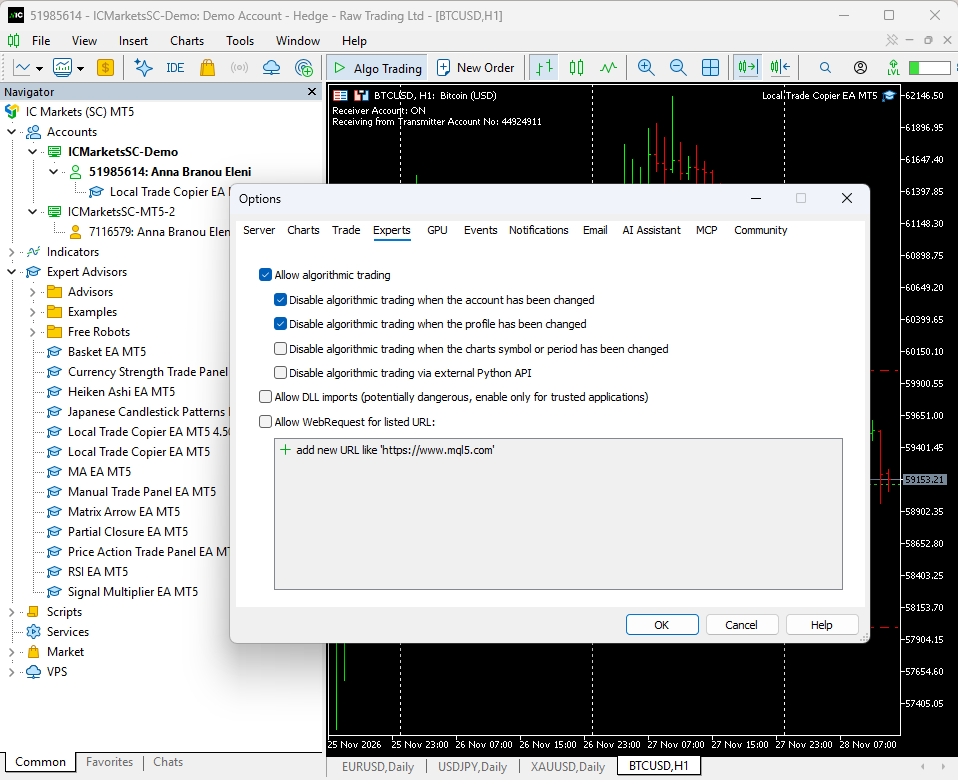
Tools >> Options >> Expert Advisors
MetaTrader includes safety settings that can automatically disable algorithmic trading when certain events occur, such as:
-
Switching trading accounts.
-
Changing profiles.
-
Changing the chart symbol or timeframe.
These settings can explain why an EA that was previously operating correctly is no longer active after an account or terminal configuration change.
Review these options according to your requirements, and always confirm that the EA is operating correctly after changing accounts or restarting your trading environment.
Step 4: Check the Receiver Account Mode and Transmitter Account Number
An incorrect Receiver configuration is one of the first things to investigate when a newly installed trade copier is not copying any trades.
For a standard one-Transmitter-to-one-Receiver configuration, the Transmitter Local Trade Copier EA can operate with its normal Transmitter settings.
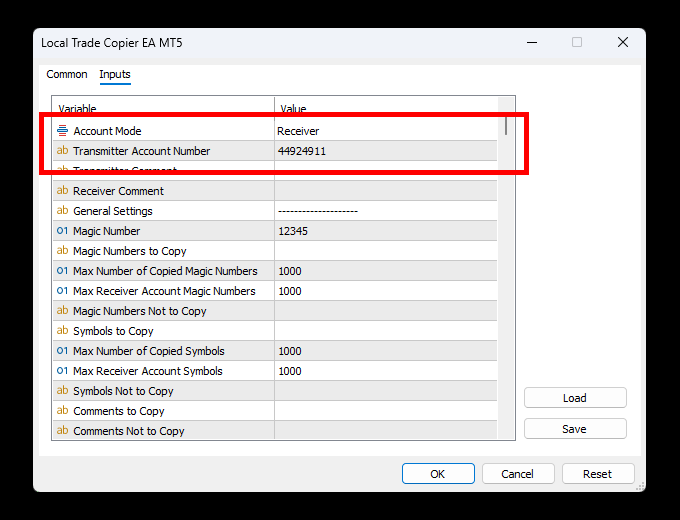
On the Receiver Local Trade Copier EA, check the following settings:
Account Mode: Receiver
Transmitter Account Number: The actual trading account number of your Transmitter account
Make sure you enter the Transmitter trading account number, not the Receiver account number or your MQL5.com account information.
This is particularly important if you operate several trading accounts or have recently changed the trading account in one of your MetaTrader terminals.
If you have multiple Receiver accounts copying the same Transmitter account, check the Transmitter Account Number setting in each Receiver EA individually.
Important: Do Not Change the Receiver Magic Number Unnecessarily
The Receiver Magic Number is used by Local Trade Copier EA to identify and manage its copied trades.
Do not confuse the Receiver Magic Number with the Transmitter Account Number or the Magic Numbers to Copy filter.
Changing or removing the Receiver Magic Number while copied trades are still open may prevent the EA from recognizing its previously copied positions.
This can result in unmanaged positions or duplicate trades, particularly when Copy Current Trades is enabled.
Always retain the appropriate Receiver Magic Number when troubleshooting an existing copying setup with open positions.
Step 5: Check Whether Your Receiver Broker Allows Expert Advisors
Even when AutoTrading or Algo Trading is enabled in your MetaTrader terminal, the Receiver broker must also permit automated trading on your particular trading account.
Some brokers and prop firms may apply different trading permissions to different account types or trading instruments.
A Real Support Example: AutoTrading Disabled by Server
A Local Trade Copier EA MT5© user operating 40 MetaTrader terminals reported that three of the terminals had suddenly stopped copying trades.
The Receiver Experts tabs displayed the following message:
[AutoTrading disabled by server]
The affected accounts had been working correctly the previous day, and Algo Trading had not been intentionally disabled in their MetaTrader terminals.
This particular message indicates that automated trading requests are being restricted by the broker's trading server.
It is different from disabling the Algo Trading button locally in MetaTrader.
If you encounter this message, contact your Receiver broker and ask specifically:
-
Is Expert Advisor trading permitted on my particular trading account?
-
Are automated trading operations permitted for the affected trading symbol?
-
Are there any temporary automated trading restrictions?
-
Have any account permissions or server settings recently changed?
Local Trade Copier EA cannot override trading restrictions imposed by the broker's server.
Similarly, if a prop firm prohibits the use of Expert Advisors or trade copiers, changing the EA's comments or Magic Number does not remove that restriction.
Always make sure your intended copying configuration complies with the rules of your broker or prop firm.
Step 6: Compare the Transmitter and Receiver Trading Symbol Names
If some trading symbols are copied successfully while others are not, symbol mapping should be one of your first checks.
Different brokers frequently use different names for the same underlying trading instrument.
For example:
| Trading Instrument | Transmitter symbol | Receiver symbol |
|---|---|---|
| Euro / US Dollar | EURUSD | EURUSD.r |
| Gold | XAUUSD | XAUUSDm |
| Gold | GOLD | XAUUSD |
| Nasdaq 100 | USTEC | US100.cash |
| Dow Jones 30 | DJ30 | US30 |
Open the Market Watch windows in both MetaTrader terminals:
View >> Market Watch
Compare the exact symbol names used by the Transmitter and Receiver brokers.
Make sure that the relevant trading instruments are available on both accounts.
Local Trade Copier EA MT4/5© includes automatic symbol mapping capabilities for common symbol naming differences, as well as manual prefix, suffix and special symbol mapping settings for other broker-specific names.
For example, the automatic mapping functionality can handle common dot-suffix differences such as EURUSD.r and EURUSD.
Other suffixes or completely different symbol names may require the appropriate manual mapping settings.
A Real Support Example: Copying USTEC from IC Markets to FTMO
A Local Trade Copier EA user was copying trades from IC Markets to FTMO.
Currency pairs such as USDJPY were being copied successfully, but Nasdaq 100 trades were not.
The Transmitter broker used the following symbol:
USTEC
The Receiver broker used:
US100.cash
Adding or removing the .cash suffix alone could not resolve the problem, because the main symbol names were also different.
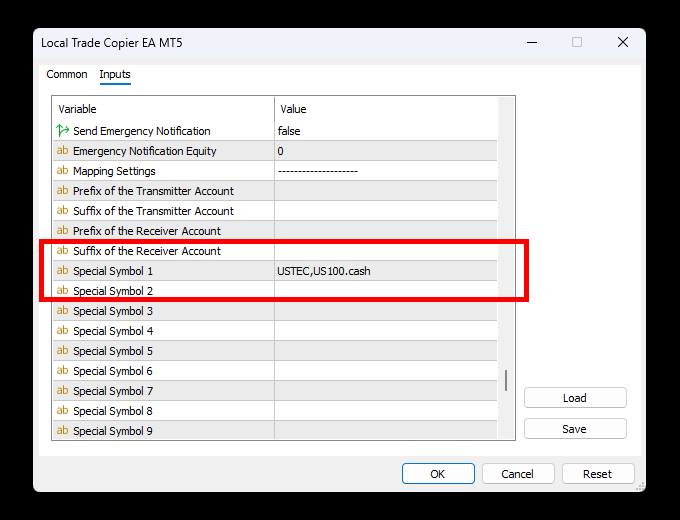
The appropriate solution was to configure the following setting in the Receiver Local Trade Copier EA:
Special Symbol 1: USTEC,US100.cash
This setting instructs the Receiver EA to copy trades from USTEC on the Transmitter account as US100.cash on the Receiver account.
The same principle applies to other completely different symbol names.
For example:
Special Symbol 1: GOLD,XAUUSD
or:
Special Symbol 1: DJ30,US30
The first symbol is always the original Transmitter symbol, and the second symbol is the corresponding Receiver symbol.
Make sure that the two instruments represent the intended underlying market, and compare their contract specifications when configuring your Receiver lot size and risk settings.
Correct symbol mapping does not necessarily mean that both brokers use identical contract sizes or trading conditions.
Step 7: Check Copy Current Trades and Copy New Trades
Another common source of confusion is the difference between copying existing Transmitter trades and copying newly opened trades.
Local Trade Copier EA MT4/5© allows you to control these two categories independently.
Copy Current Trades
This setting determines whether the Receiver should copy eligible trades that are already open on the Transmitter account when the copying setup is activated.
If you want to begin copying only future trading activity, you would normally use:
Copy Current Trades: false
Copy New Trades
This setting determines whether newly opened Transmitter trades should be copied to the Receiver account.
For normal continuous trade copying, use:
Copy New Trades: true
For example, if your Transmitter account already has five open positions and you want your newly configured Receiver account to copy only future trades, the appropriate configuration would normally be:
Copy Current Trades: false
Copy New Trades: true
Do not enable Copy Current Trades simply to test whether the copier is working on a live account.
Doing so may cause existing Transmitter positions to be copied immediately, depending on your other Receiver settings.
Instead, use two demo accounts and open a new test trade after both EA instances are active.
Step 8: Compare the Market Watch Server Times of Both Brokers
This is an important troubleshooting step that is sometimes overlooked when copying trades between different brokers.
The Transmitter and Receiver brokers may use different trading server time zones.
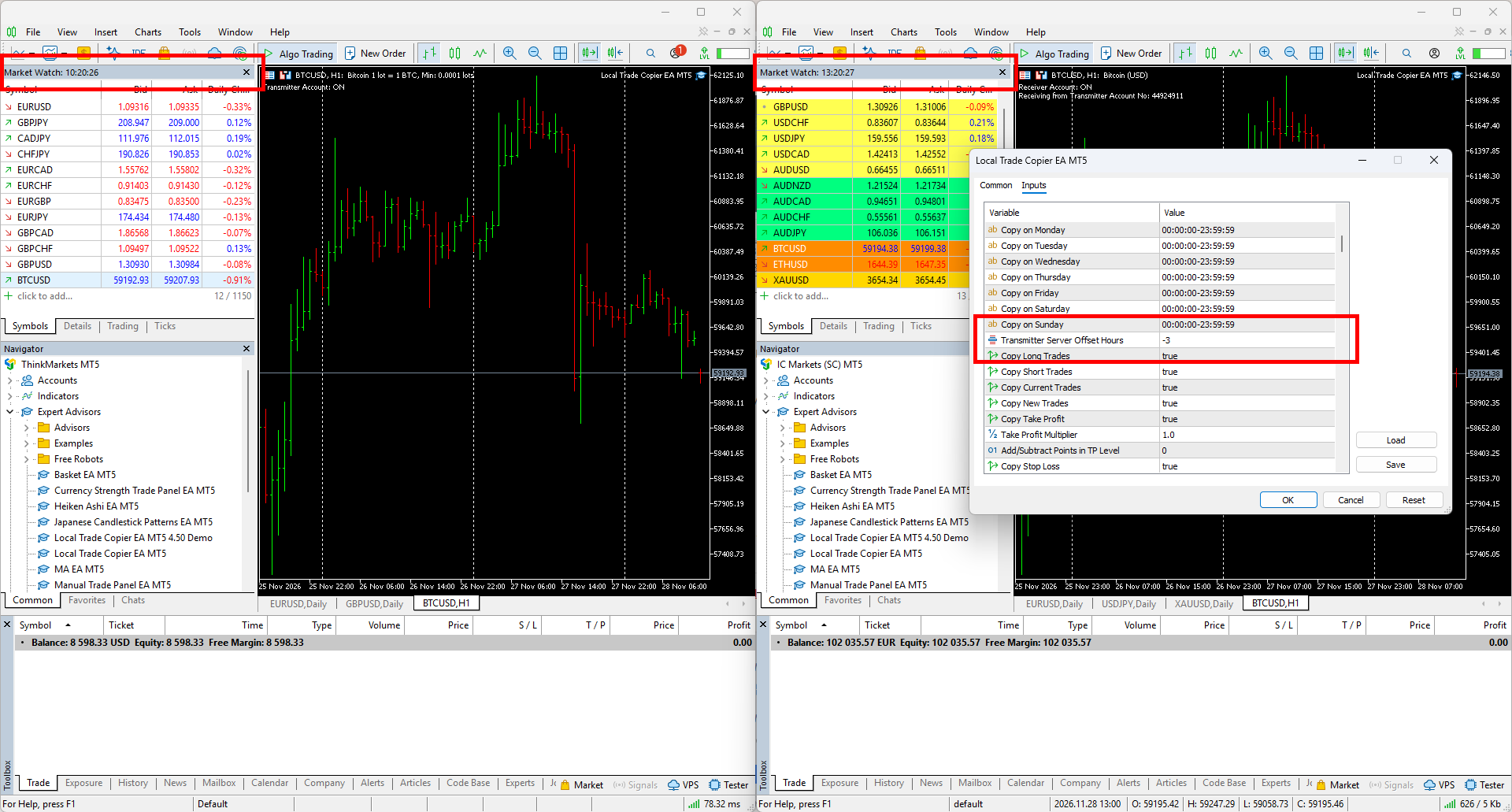
For example, the Market Watch time on the Transmitter terminal may be:
11:30:00
While the Market Watch time on the Receiver terminal is:
14:30:00
Although both terminals are running on the same Windows computer or VPS, their broker server times are three hours apart.
This difference can affect the interpretation of time-sensitive copying settings, including:
-
Copy Current Trades.
-
Copy New Trades.
-
Copying Expiration in Seconds.
-
Copying Delay in Seconds.
A Real Support Example: New Trades Are Not Being Copied
A Local Trade Copier EA user reported that trades were not being copied correctly when Copy Current Trades was set to false.
However, when the user enabled Copy Current Trades, the Receiver started copying previously opened positions as well.
The recommended troubleshooting step was to compare the Market Watch server times of both terminals and configure the Receiver setting:
Transmitter Server Offset Hours
For example:
| Transmitter Market Watch time | Receiver Market Watch time | Transmitter Server Offset Hours |
|---|---|---|
| 11:30:00 | 14:30:00 | -3 |
| 14:30:00 | 11:30:00 | +3 |
| 11:30:00 | 11:30:00 | 0 |
The setting represents the difference between the Transmitter broker's server time and the Receiver broker's server time.
Always configure this setting in the Receiver Local Trade Copier EA.
Compare the times during active market conditions, when the Market Watch times are updating normally.
Remember that some brokers adjust their server times seasonally. If your copying configuration depends on this setting, check the time difference again when daylight saving time changes occur.
Step 9: Review the Receiver Copying Filters
Local Trade Copier EA MT4/5© provides extensive filtering options that allow users to determine exactly which Transmitter trades should be copied.
These settings are particularly useful when:
-
Several Expert Advisors are trading on the same Transmitter account.
-
You want to copy only manually opened trades.
-
You want to copy only selected trading symbols.
-
You want to exclude a particular trading strategy.
-
You want different Receiver accounts to copy different categories of trades.
However, an incorrectly configured filter can also explain why a particular trade is not being copied.
Check whether you have configured settings such as:
-
Symbols to Copy.
-
Symbols Not to Copy.
-
Magic Numbers to Copy.
-
Comments to Copy.
-
Copy Long Trades.
-
Copy Short Trades.
-
Copy Market Trades.
-
Use Copying Expiration in Seconds.
-
Daily copying time restrictions.
Also review any other active inclusion or exclusion filters in your Receiver configuration.
Example 1: Copying Only Selected Trading Symbols
Suppose you have configured the Receiver EA with:
Symbols to Copy: EURUSD,GBPUSD,USDJPY
In this configuration, the Receiver is intended to copy only those selected symbols.
An XAUUSD trade would not be copied because Gold is not included in the permitted symbol list.
When configuring symbol filters, use the appropriate Receiver symbol names as described in the Local Trade Copier EA Settings/Inputs Guide.
Example 2: Copying Only Manually Opened Trades
A Local Trade Copier EA user wanted to copy manually opened trades while excluding trades opened by another Expert Advisor operating on the same Transmitter account.
The appropriate Receiver setting was:
Magic Numbers to Copy: 0
The value 0 is normally associated with manually opened MetaTrader trades.
With this filter configured, trades opened by Expert Advisors using other Magic Numbers are intentionally excluded.
If you later want to copy trades from one of those Expert Advisors, you will need to review the Magic Numbers to Copy setting.
Example 3: Copying Trades from a Specific Trading Strategy
If several Expert Advisors are operating on the same Transmitter account, you may have configured a specific trade comment in the:
Comments to Copy
setting.
If a newly introduced Expert Advisor uses a different trade comment, its trades may not satisfy the existing Receiver filter.
When investigating a trade that was not copied, compare its actual symbol, Magic Number and comment with the active Receiver copying filters.
In these situations, the copier may be operating exactly as configured by the user.
Step 10: Check Whether Pending Orders Are Enabled for Copying
Local Trade Copier EA MT4/5© can copy pending orders as pending orders, or it can copy the resulting market positions after the original pending orders are triggered on the Transmitter account.
If your Receiver is configured with:
Copy Pending Orders: false
you should not expect an untriggered Buy Limit, Sell Limit, Buy Stop or Sell Stop order to appear immediately on the Receiver account.
Instead, when the original pending order is triggered and becomes a market position on the Transmitter account, the resulting position can be copied, provided that it satisfies the Receiver copying settings and broker trading conditions.
This configuration can be particularly useful when the Transmitter and Receiver brokers have different market prices or pending-order placement restrictions.
For a detailed explanation of these situations, please read my related educational article:
Step 11: Review the Receiver Lot Size, Risk and Account Protection Settings
When a trade is not copied, it is also important to check whether the Receiver account can open the intended position under its current trading conditions.
For example, the Receiver may have:
-
Insufficient available free margin.
-
A different minimum or maximum permitted trading volume.
-
Different lot size increments.
-
Different contract sizes for the same trading instrument.
-
Active spread or copying price-difference restrictions.
-
Active account protection or drawdown-related restrictions.
Local Trade Copier EA MT4/5© provides extensive lot size, risk-management and account protection settings.
These settings allow you to configure each Receiver account according to its individual trading requirements.
However, they should be reviewed when investigating why a particular trade has not been opened.
A Real Support Example: No Money Error
A Local Trade Copier EA user reported that trades were not being copied to certain IC Markets accounts.
The Receiver terminal displayed the following error:
[No money]
This message indicates that the Receiver account has insufficient available margin for the requested trading operation.
The Transmitter account may have sufficient margin to open its original position, while the Receiver account may have a different balance, leverage, existing exposure or margin requirement.
In this situation, review the Receiver lot size calculation settings and the available free margin on the Receiver account.
Reducing the requested Receiver trading volume, where appropriate for your risk-management requirements, may allow the trade to be executed within the account's available margin.
Always test your intended lot size and risk configuration on a demo account before applying it to live trading.
Maximum Spread and Other Copying Restrictions
You should also review settings such as:
Maximum Spread in Points
Maximum Copying Difference in Points
If you have deliberately configured restrictive copying conditions, a particular trade may not qualify for copying at the prevailing market prices.
For example, the Receiver spread may temporarily increase during a major economic announcement or the broker's daily rollover period.
A trade that would normally satisfy your spread restriction may not satisfy it during that period.
Do not automatically remove these restrictions simply because a trade has not been copied. They may form an important part of your trading and risk-management strategy.
Step 12: Check the Receiver Experts and Journal Tabs
One of the most valuable sources of information when investigating a trade-copying problem is the Receiver MetaTrader terminal's Experts tab.
In MetaTrader 4, open:
View >> Terminal >> Experts
In MetaTrader 5, open:
View >> Toolbox >> Experts
You should also check the Journal tab for additional terminal, connection and trading information.
Look for messages recorded around the time when the original Transmitter trade was opened.
Some common messages include:
| Message | What to investigate |
|---|---|
| Invalid stops | Stop Loss or Take Profit levels and broker stop-distance restrictions |
| Invalid price | Requested trading price and pending-order placement conditions |
| No money | Available free margin and requested trading volume |
| Market closed | Trading sessions and symbol availability |
| Off quotes | Quote availability and current market conditions |
| Trade context busy | Terminal trading-operation availability |
| AutoTrading disabled by server | Broker-side automated trading permissions |
The presence of a trading error can help distinguish between a trade that did not satisfy the copying configuration and a trade for which an execution request was attempted but could not be completed.
For example, if the Receiver Experts tab displays an Invalid Stops error, the appropriate investigation is the validity of the requested Stop Loss or Take Profit levels under the Receiver broker's trading conditions.
Changing the Transmitter Account Number or reinstalling the copier would not address that particular trading restriction.
For more information about Invalid Stops and Invalid Price messages, please read my dedicated educational article on these errors.
If no relevant error appears in the Receiver Experts tab, review the installation, account configuration, symbol mapping, filters and terminal connectivity before drawing a conclusion.
The absence of an error message does not, by itself, establish the cause of an unsuccessful copying operation.
Step 13: Check the Performance of Your Windows Computer or VPS
If trade copying was previously working correctly but has recently become intermittent, it is important to investigate the trading environment.
Some users report that their trade copier works normally for several hours or days, then temporarily stops copying or synchronizing trades, before operating normally again.
Possible contributing factors include:
-
High CPU usage.
-
Insufficient available RAM.
-
Too many MetaTrader terminals running simultaneously.
-
Unresponsive or frozen MetaTrader terminals.
-
Temporary internet connection interruptions.
-
Broker server disconnections.
-
Increased broker execution delays.
-
MetaTrader or Windows updates and restarts.
Open Windows Task Manager using:
Ctrl + Shift + Esc
Review the CPU and memory usage of your computer or VPS while all your trading terminals are running.
Also check whether the prices displayed in the MetaTrader Market Watch windows are updating normally during active market conditions.
A terminal that is frozen, disconnected or not processing trading activity normally cannot provide a reliable environment for trade synchronization.
Very Short-Duration Transmitter Trades
Another situation that deserves particular attention is the copying of exceptionally short-duration trades.
Some scalping Expert Advisors may open and close positions within a very short period.
If the original position is closed before the Receiver terminal has completed the copying and execution process, the trade may not be reproduced in the same way on the Receiver account.
This is why terminal responsiveness, local computer performance, network connectivity and broker execution speed are particularly important when copying high-frequency or very short-duration trading strategies.
For a comprehensive explanation of Windows VPS configuration, terminal performance and copying delays, please read my related educational article:
Step 14: Perform a Simple Two-Account Demo Test
If you are still unsure why your trade copier is not copying trades, one of the most effective troubleshooting methods is to simplify the copying configuration and perform a controlled test.
I recommend using two demo trading accounts for this procedure.
Prepare Your Transmitter Account
-
Open the first MetaTrader terminal and log into your Transmitter demo account.
-
Attach the appropriate Local Trade Copier EA version to one chart.
-
Configure it as the Transmitter.
-
Enable AutoTrading or Algo Trading.
-
Confirm that the EA is running correctly.
Prepare Your Receiver Account
-
Open the second MetaTrader terminal on the same Windows computer or VPS.
-
Log into your Receiver demo account.
-
Attach the appropriate Local Trade Copier EA version to one chart.
-
Set Account Mode to Receiver.
-
Enter the correct Transmitter Account Number.
-
Retain an appropriate Receiver Magic Number.
-
Configure a small fixed lot size permitted by the Receiver demo account.
-
Set Copy Current Trades to false and Copy New Trades to true.
-
Check that no unintended copying filters or restrictions will interfere with the test.
-
Enable AutoTrading or Algo Trading.
Open a New Test Trade
Choose a commonly available trading symbol, such as EURUSD, during normal market trading hours.
Check that the symbol names are correctly mapped between both accounts.
Open a small manual test position on the Transmitter demo account, using valid trading parameters.
Observe the Receiver terminal and check whether the corresponding position is opened.
Then close the Transmitter test position and confirm that the Receiver position is closed when synchronized trade closure is enabled.
If the basic test is successful, you have established that the two terminals can communicate and that the Receiver account can execute copied trading operations.
You can then introduce your intended lot size settings, symbol filters, Magic Number filters and other advanced copying settings gradually.
By introducing these settings one at a time, you can identify whether a particular configuration option is responsible for the original situation.
If the basic test is unsuccessful, check the Receiver Experts and Journal tabs before making further changes.
Step 15: Perform a Clean Reinstallation if Necessary
If Local Trade Copier EA was previously working correctly but you continue experiencing unexplained copying problems after completing the previous troubleshooting steps, a clean reinstallation may help rule out installation or configuration-related issues.
Before proceeding, make sure that you have safely managed any existing copied positions and saved the relevant logs and settings for reference.
Removing the EA or restarting the terminals temporarily interrupts automated trade management.
Whenever possible, perform this procedure when no copied positions are open.
Follow these steps:
-
Remove Local Trade Copier EA from the participating charts.
-
Uninstall it from the Navigator section of the Transmitter and Receiver terminals.
-
Close both MetaTrader terminals completely.
-
Restart your Windows computer or VPS.
-
Open both terminals again.
-
Confirm that you are logged into your MQL5.com account under Tools >> Options >> Community.
-
Reinstall Local Trade Copier EA directly through the appropriate MQL5 Market section.
-
Attach the EA to the Transmitter and Receiver charts.
-
Configure the required settings manually from scratch.
-
Do not immediately reload an old .set file, as the purpose of this procedure is to rule out an outdated or incorrect configuration.
-
Enable AutoTrading or Algo Trading.
-
Perform a new two-account demo test.
-
Once the intended configuration has been verified, save your settings as fresh .set files.
A clean reinstallation should not be the first response to every unsuccessful trade-copying operation.
For example, an incorrect symbol mapping or a broker-side trading restriction can usually be identified and addressed without reinstalling the EA.
What Should I Check First? A Quick Troubleshooting Reference
The following table summarizes the most useful starting points for different trade-copying situations.
| Situation | What to check first |
|---|---|
| No trades are being copied | EA installation, operating modes, Transmitter Account Number and Algo Trading |
| Only one trading symbol is not copied | Symbol mapping, symbol filters and broker symbol availability |
| Manual trades are copied but EA trades are not | Magic Numbers to Copy and Comments to Copy |
| Existing trades are not copied | Copy Current Trades |
| Newly opened trades are not copied | Copy New Trades and Transmitter Server Offset Hours |
| Pending orders do not appear on the Receiver | Copy Pending Orders |
| Copying stops when the laptop is switched off | Whether all terminals are running on the same independent Windows VPS |
| Copying works intermittently | Terminal responsiveness, VPS resources, connectivity and trading logs |
| Receiver displays Invalid Stops or Invalid Price | Receiver broker trading conditions |
| Receiver displays No Money | Free margin and Receiver lot size settings |
| Receiver displays AutoTrading disabled by server | Broker-side automated trading permissions |
| Only one of several Receivers is affected | The individual Receiver's settings, trading conditions and terminal status |
This approach allows you to concentrate on the most relevant part of your copying configuration instead of changing unrelated settings.
What Information Should I Provide When Requesting Technical Support?
If you have followed the troubleshooting steps above and still cannot identify why a trade has not been copied, I will be happy to investigate your setup.
To help me identify the underlying cause as efficiently as possible, please provide:
1. A full screenshot of your Transmitter MetaTrader terminal
Please include the Market Watch window, the Local Trade Copier EA chart and the relevant trading information.
2. A full screenshot of your Receiver MetaTrader terminal
Please include the Market Watch window, the Local Trade Copier EA chart and the relevant trading information.
3. The Receiver Experts and Journal logs
Please provide the messages covering the time when the original Transmitter trade was opened and the Receiver trade was expected to be copied.
4. Your Receiver Local Trade Copier EA .set file
Open the Receiver EA properties and save your current settings as a .set file.
This allows me to review your actual copying configuration, including your symbol mapping, copying filters, lot size settings and other restrictions.
5. Information about the affected Transmitter trade
Please provide the trading symbol, opening time, trading direction, lot size and, if relevant, closing time.
6. Information about your Windows computer or VPS
Please provide:
-
The number of CPU cores or vCPUs.
-
The total available RAM.
-
The Windows or Windows Server version.
-
The number of MT4/MT5 terminals running simultaneously.
7. Symbol specifications from both brokers, if the problem affects a particular instrument
You can access the symbol specifications by right-clicking the relevant trading symbol in the Market Watch window and selecting Specification.
Please send this information privately rather than posting sensitive account information publicly.
Never send your trading account passwords or MQL5.com password.
With the relevant technical information, it becomes much easier to distinguish between configuration-related issues, trading restrictions, symbol differences and trading environment problems.
Reliable Trade Copying Begins with a Correctly Configured Trading Environment
Local Trade Copier EA MT4/5© provides extensive flexibility for copying trading activity between MetaTrader accounts with different brokers, account sizes, trading conditions and risk-management requirements.
This flexibility allows users to establish copying configurations ranging from a simple two-account setup to more advanced multi-account trading environments.
When a particular trade is not copied, the most effective approach is to identify which part of the copying and execution process requires attention.
Start with the basic installation and account configuration.
Then review the symbol mapping, copying filters, trading permissions, broker conditions and the performance of your Windows computer or VPS.
The Receiver Experts and Journal tabs, together with the actual Receiver settings, are particularly valuable when investigating a specific trading operation.
By following a systematic troubleshooting procedure, you can avoid unnecessary configuration changes and establish a reliable trade-copying environment that is appropriate for your trading strategy.
And remember, if you need assistance with your Local Trade Copier EA MT4/5© setup, I am always happy to help.
Which Version of Local Trade Copier EA Do I Need?
Local Trade Copier EA is available for both MetaTrader 4 and MetaTrader 5.
The version you need depends on the MetaTrader platforms involved in your copying setup.
|
Copying Between MT4 AccountsYou only need Local Trade Copier EA MT4©. |
Copying Between MT5 AccountsYou only need Local Trade Copier EA MT5©. |


Copying Between MT4 and MT5 Accounts
You need both versions of Local Trade Copier EA, regardless of the copying direction.
The MT4 version is installed in your MT4 terminals, and the MT5 version is installed in your MT5 terminals.
The two versions communicate with each other, allowing you to copy trades from MT4 to MT5 and from MT5 to MT4.
All participating Transmitter and Receiver terminals must be installed and running on the same Windows computer or Windows VPS.
Local Trade Copier EA MT4/5© English Guides
For complete instructions, please use the following English guides:
Local Trade Copier EA MT4/5© – Purchase, Installation & Quick Setup Guide
Local Trade Copier EA MT4/5© – Settings/Inputs Guide
Local Trade Copier EA MT4/5© – Troubleshooting Guide
You can also find the current web versions of the documentation here:
Purchase, Installation & Quick Setup Guide
Related Educational Articles
Prop Firm Maximum Daily Drawdown Rules: How to Configure Your Trade Copier Account Protection
Why Is My MT4/MT5 Trade Copier Not Copying Trades? A Step-by-Step Troubleshooting Guide
If you need assistance with installation, configuration or a copying problem, please contact me and I will be happy to help.
MQL5.com profile: https://www.mql5.com/en/users/eleanna74
Company email: info@juvenille-emperor.com


