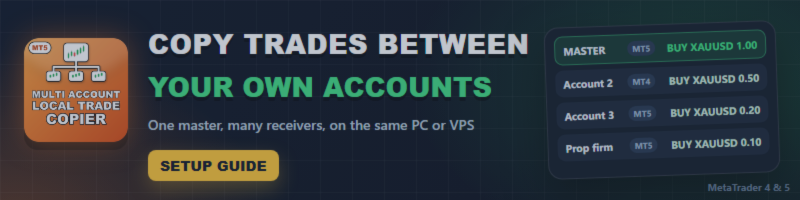

Multi Account Local Trade Copier copies trades between MetaTrader terminals running on the same Windows PC or VPS. This guide takes you from nothing to your first copied trade, then shows the settings for the most common setups and what to do when a trade is not copied.
Products: Multi Account Local Trade Copier MT5 and Multi Account Local Trade Copier MT4.
Which version do I need?
Each terminal needs the version of its own platform.
- MT5 to MT5: the MT5 version.
- MT4 to MT4: the MT4 version.
- MT4 to MT5, or MT5 to MT4: both versions, one in each terminal.
One activation is one computer, a PC or a VPS. On that computer you can run as many terminals and accounts as you need.
Step 1. Run several terminals at once
A terminal can only be open once from each folder, so you need one installation per account.
- Run the MetaTrader installer again, or your broker's installer.
- Click Settings on the first screen and choose a new folder, for example C:\MT5-Receiver1.
- Finish the installation and open that terminal. Log in to the account it will be used for.
- Repeat for each account.
Every terminal on the machine has to be open for the copy to work. On a VPS, leave them running there.
Step 2. Install the EA in every terminal
In each terminal, open the Market tab of the Toolbox, then Purchased, and click Install. Log in with your MQL5 account in that terminal first, under Tools, Options, Community.
Step 3. Attach the master
- In the terminal whose trades you want to copy, open any chart. Any symbol works: one chart is enough for the whole account.
- Drag Multi Account Local Trade Copier onto the chart.
- Set Mode to Master (sender) and click OK.
The panel on the chart shows MASTER a few seconds later. If it says NOT CONNECTED, the terminal has lost its connection with the broker: check the bottom right corner of the terminal.
Step 4. Attach each receiver
- In each terminal that will copy, open any chart and drag the EA onto it.
- In the Common tab, tick Allow Algo Trading (MT5) or Allow live trading (MT4).
- In the Inputs tab, set Mode to Receiver and choose your Lot mode.
- Click OK and turn on the Algo Trading button at the top of the terminal.
With Master ID (AUTO = auto) left as AUTO, the receiver connects to the active master by itself. The panel should show COPYING.
An MT5 receiver needs a hedging account.
Step 5. Test it
Open a small trade on the master with a stop loss. It should appear on the receiver with the latency shown on the panel. Move the stop loss, close half and close the rest, and check that the receiver follows.
By default, trades that were already open when you attach the receiver are not copied. To copy them, set Copy existing on start to true.
Common setups
Same lot on every account
Lot mode = Multiplier and Lot multiplier = 1.
Accounts of different sizes
Lot mode = Balance ratio. A receiver with half the balance of the master opens half the lot, with currency conversion included. Cent accounts are recognised.
The same risk in each trade
Lot mode = Risk % with Risk % per trade, or Risk money with Risk money per trade. The lot comes from the stop loss the copy will have, so it needs one. Without a stop loss, the copy uses Lot multiplier and the panel says so.
A fixed lot for some symbols
Lot per symbol (XAUUSD=0.05;EURUSD=0.10). The symbols you list always use that lot. The others follow Lot mode.
Prop firm accounts
Use these inputs in group 8, on the receiver:
- Daily max loss % or Daily max loss, money: stops new copies for the rest of the day. It counts from the balance at the start of the day and keeps counting after a restart.
- Max receiver drawdown % with Close all on drawdown: pauses and closes every copy when the floating drawdown reaches your limit.
- Stop below equity, money: pauses below a fixed amount. With Close all on drawdown it also closes every copy.
- Max open copies and Max open copies per symbol: limit how many trades are open at the same time.
Set the limits below your firm's own, because the EA reacts to them after the price has moved. Check that your firm allows trade copying on its accounts.
Two different brokers
- Leave Auto-detect symbols on. Prefixes, suffixes and common alternative names are found in both directions. If a symbol is not found, add it to Symbol map (A=B;C=D), for example XAUUSD=GOLD.
- Leave Match contract size on, so the lot means the same exposure when a broker uses a different contract.
- If prices differ between the brokers, use Broker price difference. Keep SL/TP distance from my entry is usually enough. Use Shift entry, SL and TP by the price gap if you also copy pending orders. Both need the master and the receiver to be updated.
Several masters on one account
Set Master ID by hand on each master and on its receiver, and give each receiver a different Magic number. With AUTO the receiver follows the most recently active master, and the panel warns you if there are several.
When a trade is not copied
Look at the panel of the receiver first. The status line tells you what is happening, and the line below it gives the reason for the last trade that was not copied.
- ALGO TRADING IS OFF: turn on the Algo Trading button at the top of the terminal, and check the tick in the Common tab of the EA.
- TRADING NOT ALLOWED (investor login?): this account is logged in with the investor password, which can only watch. Log in with the master password.
- TERMINAL NOT CONNECTED: this terminal has no connection with its broker.
- MASTER OFFLINE or Searching for an active master: the master is not running on this machine, or the EA was removed from its chart.
- MASTER NOT CONNECTED - waiting: the master has lost its connection with the broker. Your copies stay as they are and the copy continues when it comes back.
- STALE SNAPSHOT: the master terminal has frozen or has stopped updating.
- STOPPED: master is this same account: the master and this receiver are logged in to the same account.
- STOPPED: master account changed: this Master ID now belongs to another account, and there are copies from the previous one. They are left alone: close them or use a different Master ID.
- IDLE: already running on another chart: two EAs follow the same master with the same Magic number. Remove one, or give it another Magic number if you really want both.
- PAUSED: followed by the reason, such as your schedule, a daily limit or the Pause button.
- Skipped: a filter or a limit stopped that trade. It will not be copied later.
- Waiting: the spread or the price is beyond your limit. It is copied if it comes back while the master trade is still open.
- not copied: symbol not found: add it to Symbol map.
- not copied: symbol has another price here: a symbol with that name exists on this broker, but at a very different price, so it may be another instrument. If it really is the same one, add it to Symbol map.
- not copied: open failed: the reason given by the broker comes after it. The usual ones are not enough money, market closed or an invalid volume.
- SL/TP refused: the broker rejected the levels, usually because they are too close to the price. The trade stays open and the EA tries again a little later.
The Experts tab of the terminal keeps the same messages, and the CSV journal lists every action with its latency. You will find the journal in the Common\Files\MultiAccountCopier folder (in the terminal: File, Open Data Folder, then go up to Terminal\Common\Files).
Good to know
- All terminals must run on the same Windows machine. The copier does not work between two computers.
- When the master loses the connection or restarts, the copies stay open. If a trade was closed on the master during that time, the copy closes when the master comes back.
- A copy closed on the receiver, by its stop loss or by hand, is not opened again unless Reopen closed copies is on.
- The Strategy Tester runs a single terminal, so nothing can be copied there.
- To update, install the new version in every terminal. The copies already open are kept.
Need help?
Send me a private message on MQL5 with a screenshot of the receiver's panel and the Experts tab, and tell me what you expected to happen.