Why Is My MT4/MT5 Trade Copier Showing “Invalid Stops” or “Invalid Price”?


Why Is My MT4/MT5 Trade Copier Showing “Invalid Stops” or “Invalid Price”? Understanding Broker Restrictions, SL/TP Levels & Pending Orders
A Stop Loss, Take Profit or pending-order price that is perfectly valid on one MetaTrader trading account may not necessarily be valid on another.
Local Trade Copier EA MT4/5© is designed for fast and reliable trade synchronization between MetaTrader terminals running on the same Windows computer or Windows VPS.
However, when copying trades between different brokers, trading accounts or prop firms, the Receiver account must execute the copied trading operations according to its own trading conditions and symbol specifications.
These conditions may differ considerably from those of the Transmitter account.
For example, the Transmitter and Receiver brokers may have different:
-
Bid and Ask prices
-
Spreads
-
Minimum Stop Loss and Take Profit distances
-
Stops Levels
-
Freeze Levels
-
Symbol digits and tick sizes
-
Pending-order restrictions
-
Trading sessions and rollover periods
-
Liquidity and execution conditions
This is particularly important when copying trades on fast-moving instruments such as XAUUSD (Gold), NAS100, US30 and other indices.
In this article, I will explain what the “Invalid Stops” and “Invalid Price” messages mean, why they can occur when copying trades between MT4/MT5 accounts, and how to identify and address their underlying causes.
Quick Advice for Reliable Trade Copying Between Different Brokers
For the best possible Local Trade Copier EA MT4/5© performance:
-
Compare the trading symbol specifications of your Transmitter and Receiver brokers.
-
Pay particular attention to the Receiver broker's Stops Level and Freeze Level.
-
Check whether the Receiver broker has a significantly wider spread.
-
Make sure the Stop Loss and Take Profit levels are valid relative to the Receiver's current market price.
-
Take particular care when synchronizing trades or pending orders that were already open on the Transmitter.
-
Consider using the Keep Original TP/SL Distances setting when appropriate for your trading strategy.
-
Use the available Receiver TP/SL adjustment settings when necessary.
-
Consider copying only executed market trades if your Receiver broker has restrictive pending-order conditions.
-
Use a responsive Windows computer or Windows VPS with good connectivity to your brokers.
-
Always check the Receiver terminal's Experts and Journal tabs when a trading error occurs.
Most importantly:
A trading price that was valid on the Transmitter account is not automatically guaranteed to be valid on the Receiver account.
Need Help with Your Local Trade Copier EA MT4/5© Setup?
If you experience trade-copying problems, Invalid Stops or Invalid Price errors and cannot identify the cause, I am happy to help you or check your setup through AnyDesk.
MQL5.com profile: https://www.mql5.com/en/users/eleanna74
Company email: info@juvenille-emperor.com
When contacting me about a trading error, it is helpful to provide full screenshots of your Transmitter and Receiver terminals with the Market Watch windows open, the Receiver Local Trade Copier EA settings as a .set file, and the Experts and Journal logs covering the time when the error occurred.
Screenshots of the relevant symbol specifications on both accounts are also particularly useful.
Local Trade Copier EA MT4/5©
Local Trade Copier EA MT4© – MQL5 Market
Local Trade Copier EA MT5© – MQL5 Market
A Real Support Example: XAUUSD Trades and Invalid Stops Errors
I have received several support requests from Local Trade Copier EA MT4/5© users who experienced Invalid Stops errors when copying XAUUSD trades between different brokers.
These situations are particularly noticeable when the Transmitter is running a fast scalping Expert Advisor or a strategy that frequently modifies the Stop Loss of its open positions.
The user may observe that the Transmitter trade opens normally, but the Receiver Experts or Journal tab displays a message such as:
[invalid stops]
Alternatively, the Receiver trade may have already been opened correctly, but a subsequent Stop Loss or Take Profit modification is rejected.
At first sight, this may raise the question:
“Why is the Receiver broker rejecting the Stop Loss level when the Transmitter broker has accepted exactly the same level?”
The answer becomes much clearer when we consider that the two trading accounts operate under their own respective prices and trading conditions.
Even when both brokers offer the same instrument, such as XAUUSD, their Bid and Ask prices, spreads and minimum stop-distance requirements may not be identical.
During fast-moving market conditions, these differences become particularly important.
Understanding this distinction is the first step towards configuring a reliable trade-copying setup between different brokers.
Trade Copying and Trade Execution Are Two Different Operations
When a trade is opened or modified on the Transmitter account, the following process takes place:
Transmitter MT4/MT5 Terminal
↓
Local Trade Copier Communication
↓
Receiver MT4/MT5 Terminal
↓
Receiver Trading Request
↓
Receiver Broker Validation
↓
Trade Execution or Modification
Local Trade Copier EA MT4/5© communicates the trading activity between the Transmitter and Receiver terminals.
The Receiver terminal then submits the corresponding trading request.
That request must satisfy the trading conditions of the Receiver account.
For example, when the Receiver attempts to open a Buy trade with a Stop Loss and Take Profit, the requested levels must be acceptable under the Receiver broker's current prices and symbol specifications.
If the trading request contains a price or stop level that is not valid under those conditions, it may be rejected.
Therefore, successful communication between the Transmitter and Receiver and successful execution of the copied trading request are two separate parts of the copying process.
The Experts and Journal logs can help us establish exactly which part of the process requires attention.
What Does “Invalid Stops” Mean in MT4/MT5?
The Invalid Stops message indicates that the Stop Loss or Take Profit parameters of a trading request are not acceptable under the current trading conditions.
This can occur when:
-
A new market trade is opened with a Stop Loss or Take Profit.
-
The Stop Loss of an existing position is modified.
-
The Take Profit of an existing position is modified.
-
A pending order is placed with SL/TP levels.
-
The SL/TP levels of a pending order are modified.
Some common reasons for an Invalid Stops error include:
-
The Stop Loss is too close to the current market price.
-
The Take Profit is too close to the current market price.
-
The market price has already passed the requested level.
-
The requested SL/TP level is on the wrong side of the current market price.
-
The requested level does not satisfy the Receiver broker's minimum stop-distance requirements.
-
The requested price does not conform to the symbol's permitted price increments.
The important point is that these conditions must be evaluated using the Receiver broker's prices and specifications, not only those of the Transmitter.
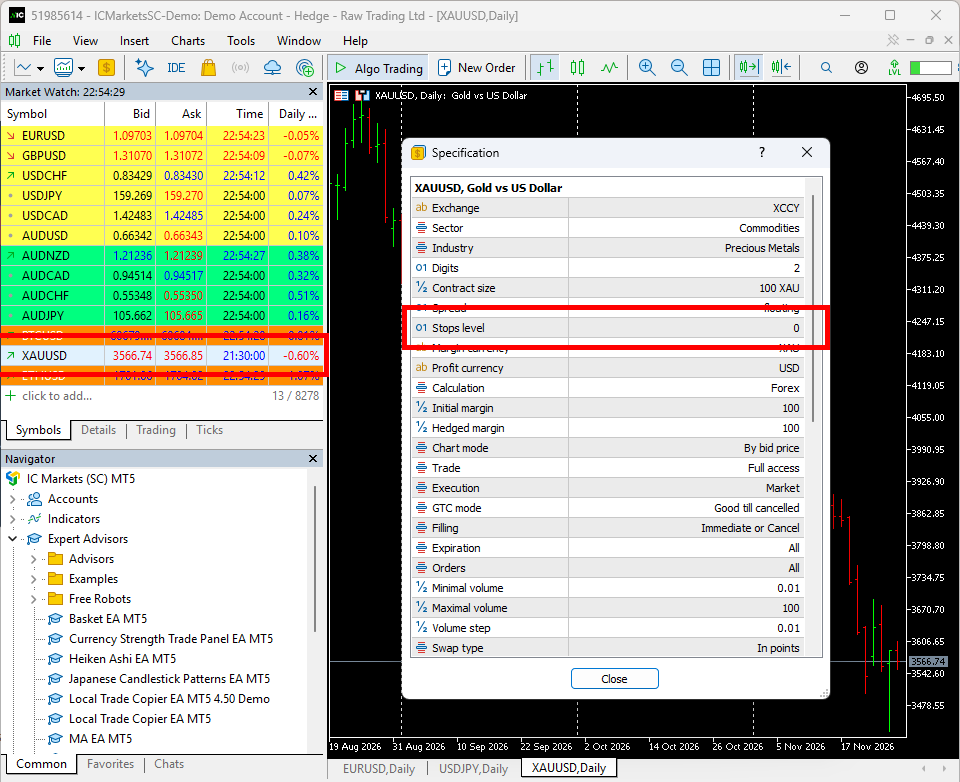
What Is the Stops Level in MetaTrader?
Every trading symbol has its own specifications.
One of these specifications is the Stops Level.
The Stops Level defines a minimum distance, expressed in points, that applies to relevant Stop Loss, Take Profit and pending-order prices.
You can find this information in your MetaTrader terminal:
-
Open the Market Watch window.
-
Locate the trading symbol you want to examine.
-
Right-click on the symbol.
-
Select Specification.
-
Find the Stops Level value.
For example, one broker may offer XAUUSD with a Stops Level of 0 points, while another broker may require a minimum distance of 50 points.
On a Gold symbol where one point equals 0.01, 50 points represent a price distance of 0.50.
This means that a stop level extremely close to the current market price may be accepted by the first broker but rejected by the second broker.
A displayed Stops Level of zero does not eliminate every possible execution restriction. The requested price must still be valid under the applicable trading conditions.
When copying trades between brokers, I recommend checking the symbol specifications on both terminals rather than assuming that they are identical.
What Is the Freeze Level?
Another important symbol specification is the Freeze Level.
The Freeze Level defines an area near the current market price in which certain trading operations, such as modifying or deleting an order or modifying a position, may be restricted.
This is particularly relevant to strategies that use:
-
Very tight trailing stops
-
Frequent Stop Loss modifications
-
Pending orders close to the market price
-
Rapid Break Even adjustments
For example, a trailing-stop modification may be accepted on the Transmitter account, while the corresponding modification falls within a restricted price area on the Receiver account.
You can also find the Freeze Level under:
Market Watch >> Right-click on the symbol >> Specification
The Stops Level and Freeze Level serve different purposes, but both are important when investigating rejected trading operations.
A Simple Example: Valid Stop Loss on the Transmitter, Invalid Stop Loss on the Receiver
Consider the following illustrative example involving a Buy position on XAUUSD.
Transmitter Account
Current Bid price: 2650.00
Requested Stop Loss: 2649.70
Distance between the current Bid price and Stop Loss: 0.30
Suppose the Transmitter broker accepts this Stop Loss.
Receiver Account
Current Bid price: 2649.85
Requested copied Stop Loss: 2649.70
Distance between the current Bid price and Stop Loss: 0.15
Suppose the Receiver broker requires a minimum Stop Loss distance of 0.50.
The same Stop Loss level that was valid on the Transmitter account is now too close to the current market price on the Receiver account.
The Receiver may therefore reject the trading request with an Invalid Stops message.
The two brokers are quoting the same trading instrument, and the same Stop Loss price is being requested, but the price relationship and minimum-distance requirements are different.
This is why comparing the actual market prices and symbol specifications is so important.

Why Are Invalid Stops Errors More Noticeable on XAUUSD?
Gold is an instrument that can experience considerable price movements over very short periods of time.
During high-impact economic announcements, periods of low liquidity or sudden market movements, the market price can change substantially between the moment a trading request is generated and the moment it is evaluated for execution.
In addition, different brokers may quote slightly different Gold prices and spreads.
This is especially important when the Transmitter trading strategy uses:
-
Very tight Stop Loss levels
-
Very small Take Profit targets
-
Fast trailing stops
-
Frequent trade modifications
-
Extremely short-duration scalping trades
A Stop Loss modification that is valid at one moment may no longer be valid a fraction of a second later.
A fast local trade copier and a responsive trading environment can help minimize unnecessary delays, but they cannot eliminate market movements or differences between independent broker price feeds.
If your trading strategy requires exceptionally tight stop levels, it is particularly important to test the complete Transmitter and Receiver setup under realistic trading conditions.
Absolute Stop Loss and Take Profit Levels vs. Original TP/SL Distances
One of the important considerations when copying trades between different brokers is whether you want the Receiver to use the exact same SL/TP prices or maintain the original distances of those levels from the trade's opening price.
Local Trade Copier EA MT4/5© provides the following Receiver setting:
Keep Original TP/SL Distances: true/false
Keep Original TP/SL Distances: false
In normal copying, the Receiver copies the original Stop Loss and Take Profit price levels of the Transmitter trade.
For example:
Transmitter EURUSD Buy opening price: 1.08700
Transmitter Take Profit: 1.08900
Transmitter Stop Loss: 1.08500
If the Receiver trade opens at 1.08720, its copied levels remain:
Receiver Take Profit: 1.08900
Receiver Stop Loss: 1.08500
The absolute price levels are preserved, but the distances from the Receiver's opening price are different.
Keep Original TP/SL Distances: true
Using the same example, if the Receiver trade opens at 1.08720, Local Trade Copier EA adjusts the SL/TP levels according to the difference in opening price:
Receiver opening price: 1.08720
Receiver Take Profit: 1.08920
Receiver Stop Loss: 1.08520
The original price distances from the opening price are preserved.
This setting can be particularly useful when the Transmitter and Receiver brokers have different prices or when copied trades are executed at different entry prices.
For this setting to apply to the corresponding copied levels, the Receiver's Copy Stop Loss and Copy Take Profit settings must remain enabled as required.
Please note that preserving the original TP/SL distances does not override the Receiver broker's Stops Level, Freeze Level or other trading requirements.
The adjusted levels must still be valid on the Receiver account.
Also, preserving the original price distances does not necessarily mean preserving the same monetary risk, since account currency, lot size and symbol contract specifications may differ.
Adjusting Receiver Stop Loss and Take Profit Levels
Local Trade Copier EA MT4/5© provides several settings that allow users to adjust the Stop Loss and Take Profit levels of their copied trades on the Receiver account.
These include:
-
Stop Loss and Take Profit multipliers
-
Add/Subtract Points in SL Level
-
Add/Subtract Points in TP Level
-
Keep Original TP/SL Distances
These options can be useful when the Receiver broker has different trading conditions from the Transmitter broker.
For example, if the original trading strategy uses a very tight Stop Loss and the Receiver broker requires a wider minimum distance, the user may choose to increase the Stop Loss distance on the Receiver account.
The Add/Subtract Points in SL Level setting can be used to adjust the original Stop Loss distance by a specified number of points.
However, the appropriate adjustment depends on the symbol's specifications, its current price, the spread and the trading strategy itself.
There is no universal adjustment value that is suitable for every broker and every trading instrument.
Remember that increasing a Stop Loss distance can also increase the potential monetary loss of a trade if its lot size remains unchanged.
For this reason, any Receiver-side SL/TP adjustment should be considered together with the Receiver's lot-size and risk-management settings.
I recommend testing these adjustments between demo accounts before applying them to a live or prop firm trading account.

Points, Pips and Symbol Digits Are Not Always the Same
When configuring Receiver SL/TP adjustments, it is important to understand the difference between points, pips and actual price distances.
For example:
On a five-digit EURUSD symbol:
-
1 point = 0.00001
-
10 points = 0.00010 (1 conventional pip)
-
50 points = 0.00050 (5 conventional pips)
On a two-digit XAUUSD symbol:
-
1 point = 0.01
-
10 points = 0.10
-
50 points = 0.50
On a three-digit XAUUSD symbol:
-
1 point = 0.001
-
10 points = 0.010
-
50 points = 0.050
As you can see, entering the same number of points on two different symbol formats does not necessarily represent the same actual price distance.
Local Trade Copier EA MT4/5© supports copying between brokers with different symbol digits, but when manually configuring point-based Receiver settings, you should always understand the relevant price distances.
Check the symbol specifications and make sure the configured adjustment produces the intended result on the Receiver account.
What Does “Invalid Price” Mean in MT4/MT5?
An Invalid Price message indicates that the requested trading price is not acceptable under the applicable trading conditions.
This can occur with market trades, but it is particularly important when copying pending orders.
A pending order must be placed on the appropriate side of the current market price.
For the four common pending-order types:
-
Buy Limit: Below the current Ask price.
-
Buy Stop: Above the current Ask price.
-
Sell Limit: Above the current Bid price.
-
Sell Stop: Below the current Bid price.
The requested entry price must also satisfy the applicable minimum-distance and price-increment requirements of the Receiver broker.
If a pending-order price no longer satisfies these conditions, the Receiver may reject the request.
A Real Support Example: An Older Buy Limit Order Is No Longer Valid
Another situation that can occur when synchronizing trading accounts is the copying of pending orders that were already placed on the Transmitter before the Receiver started copying them.
Consider the following example, based on a support case.
An index Buy Limit order was originally placed on the Transmitter at 29414 when the market price was above that level.
At that time, the Buy Limit order was valid.
Later, the user attempts to synchronize the existing pending order with the Receiver account.
However, the Receiver's current Ask price is now approximately 29250.
The original Buy Limit price of 29414 is now above the Receiver's current market price.
At this point, placing a new Buy Limit order at that price is no longer valid.
A pending Buy order above the current Ask price would normally be a Buy Stop, not a Buy Limit.
The Receiver may therefore display:
[invalid price]
Automatically changing the original Buy Limit into a Buy Stop would change the nature of the trading instruction and could produce a completely different trading result.
The original order type and its requested entry price must therefore be considered together when diagnosing this type of situation.
Be Particularly Careful When Copying Already-Open Trades
When a new trade is copied immediately after it is opened on the Transmitter, the two accounts will generally be operating under relatively close market conditions, although their prices may still differ.
When an existing trade is copied after several minutes, hours or days, the market conditions may have changed considerably.
For example:
-
The current market price may be far away from the original opening price.
-
The original Take Profit may already be very close to the current Receiver price.
-
The original Stop Loss distance may no longer be suitable for the Receiver's new entry price.
-
The original pending-order price may no longer be valid for its order type.
This does not mean that synchronizing already-open trades is generally problematic.
It simply means that the validity and risk characteristics of the original trading instructions must be evaluated under the current Receiver market conditions.
When adding a new Receiver to an existing Transmitter setup, consider whether you want to copy existing trades or only new trading activity.
Local Trade Copier EA MT4/5© provides settings for controlling this behavior, including Copy Current Trades.
The appropriate configuration depends on your particular trading strategy and the purpose of the new Receiver account.
A Real Support Example: Copying Pending Orders to a Prop Firm Account
A Local Trade Copier EA MT4/5© user contacted me about difficulties copying pending orders to a prop firm Receiver account.
During volatile market conditions, the Receiver terminal displayed errors such as:
[invalid request]
[invalid price]
The user wanted to know whether it was possible to ignore the original pending orders and copy the trades only after they had been executed on the Transmitter account.
The answer is yes.
Local Trade Copier EA MT4/5© provides the following Receiver setting:
Copy Pending Orders: false

With this configuration, the Receiver ignores the Transmitter's pending orders while they remain pending.
When a pending order is triggered on the Transmitter and becomes an open market position, the Receiver can copy that resulting position, provided it satisfies the configured copying settings and the Receiver's trading conditions.
The process becomes:
Transmitter Pending Order
↓
Pending Order Triggered on the Transmitter
↓
Transmitter Market Position
↓
Local Trade Copier Communication
↓
Receiver Market Trade
This configuration can be particularly useful when the Receiver broker or prop firm has more restrictive pending-order conditions than the Transmitter broker.
It allows the user to synchronize the executed trading activity without requiring both brokers to accept the original pending order at the same price.
There are, however, two important considerations:
First, the Receiver market trade is executed according to the available Receiver price at the time of copying.
Second, opening the corresponding market trade remains subject to the Receiver's copying filters, available margin and broker execution conditions.
Whether to copy pending orders directly or copy only the resulting market positions depends on the trading strategy and the trading conditions of the accounts involved.
Broker Rollover and Temporary Trading Restrictions
Some trading errors may occur predominantly during a particular period of the trading day, such as the broker's daily rollover.
During these periods:
-
Spreads may widen considerably.
-
Available liquidity may become limited.
-
Certain symbols may temporarily become unavailable for trading.
-
Trading requests or modifications may be restricted.
-
Broker execution conditions may differ from normal trading hours.
I have received support requests from users whose pending orders or copied trading requests were repeatedly rejected during their Receiver broker's rollover period, while copying operated normally before and after that period.
If a trading error consistently occurs during the same daily time window, the Receiver broker's trading schedule and rollover conditions are important areas to investigate.
Check the relevant Experts and Journal messages and, if necessary, ask your broker to confirm the trading conditions that applied at that particular time.
The fact that a manually opened trade is accepted does not necessarily mean that every pending order or SL/TP modification will also be accepted.
Different trading operations can have different price and parameter requirements.
Check the Receiver Experts and Journal Tabs
The MetaTrader Experts and Journal tabs are among the most useful tools for understanding what happened during a trade-copying operation.
When investigating rejected trading requests, look for messages such as:
-
Invalid stops
-
Invalid price
-
Invalid request
-
Off quotes
-
Requote
-
Market closed
-
Frozen
-
Not enough money
These messages do not all mean the same thing.
For example:
Invalid Stops: The requested Stop Loss or Take Profit parameters are not acceptable.
Invalid Price: The requested trading price is not acceptable.
Frozen: The requested trading operation is restricted by a freeze condition.
Market Closed: Trading is unavailable for the relevant symbol at that time.
Not Enough Money: The Receiver account does not have sufficient available funds or margin for the requested operation.
By examining the actual log messages, we can identify the appropriate area to investigate rather than changing unrelated copier settings.
It is particularly useful to examine the complete sequence of messages before and after the rejection.
An isolated error message may not provide enough information to determine the exact reason for the rejection.
What If the Receiver Trade Is Copied Successfully After a Delay?
Sometimes a user may notice that the Receiver initially displays an Invalid Price or Invalid Stops error, but the trade is subsequently copied successfully.
This may happen when the market conditions change and a later copying attempt is accepted.
Local Trade Copier EA MT4/5© provides the following setting:
Retry Attempts in Seconds
This setting determines the interval between retry attempts following unsuccessful trading operations.
Therefore, when investigating a delayed copied trade, it is useful to check whether the original trading request was rejected and a subsequent attempt was successful.
The interval between these attempts may explain part of the observed copying delay.
For more information about diagnosing copying delays, MetaTrader responsiveness and VPS performance, please also read my dedicated guide:
A Simple Diagnostic Test Using Two Demo Accounts
If you want to investigate differences between your Transmitter and Receiver trading conditions, I recommend performing a controlled test using two demo accounts.
Step 1 – Compare the symbol specifications
Open the relevant symbol's Specification window on both terminals.
Compare:
-
Stops Level
-
Freeze Level
-
Digits
-
Tick Size
-
Contract Size
-
Trading sessions
Step 2 – Compare the live prices
Open the Market Watch windows on both terminals.
Observe the Bid and Ask prices and spreads of the relevant trading symbol.
Step 3 – Test a straightforward market trade
Open a small market trade on the Transmitter demo account with suitable Stop Loss and Take Profit distances.
Confirm that the corresponding Receiver trade is opened and that its SL/TP levels are applied according to your selected Receiver settings.
Step 4 – Examine the relationship between the copied levels and the Receiver price
If a trading error occurs, check the requested SL/TP levels against the Receiver's current Bid and Ask prices and minimum-distance requirements.
Step 5 – Test the same rejected parameters manually on a Receiver demo account
Where practical, attempt to reproduce the same trading operation directly in the Receiver MetaTrader terminal using the same parameters under comparable market conditions.
For example, if a specific Stop Loss modification was rejected, try applying the same Stop Loss level manually.
If MetaTrader also rejects the manual operation, this provides useful evidence that the requested level is not acceptable under those trading conditions.
Remember that the market price may have changed since the original rejection, so a later successful manual operation does not necessarily mean that the same parameters were valid earlier.
Step 6 – Review the Experts and Journal logs
Compare the messages generated during the original copying attempt and the controlled test.
Step 7 – Adjust the Receiver configuration if necessary
Depending on your findings, consider whether preserving the original TP/SL distances, adjusting the SL/TP levels or changing your pending-order copying configuration is appropriate for your strategy.
Change one setting at a time so that you can understand its effect.
This approach is much more useful than changing many settings simultaneously without first identifying the underlying cause.
What I Recommend When Investigating Invalid Stops or Invalid Price Errors
If you encounter these errors while copying trades:
-
Identify the exact trading operation that was rejected: opening a market trade, placing a pending order or modifying an existing trade.
-
Check the Receiver Experts and Journal logs.
-
Compare the Transmitter and Receiver Bid and Ask prices.
-
Compare the symbol specifications on both accounts.
-
Check the Receiver broker's Stops Level and Freeze Level.
-
Determine whether the original Transmitter trade or pending order is new or was already open.
-
Check whether the original SL/TP levels satisfy the Receiver's current trading conditions.
-
Review the Receiver's TP/SL copying and adjustment settings.
-
Consider whether the Keep Original TP/SL Distances setting is appropriate for your strategy.
-
If pending orders are repeatedly rejected, consider whether copying only executed market positions would suit your trading setup.
-
Check whether the errors occur during high volatility, rollover or restricted trading periods.
-
Reproduce the relevant trading operation on a demo account where practical.
-
Contact me with the relevant screenshots, settings and log messages if further assistance is required.
The objective is not simply to eliminate a particular error message by changing settings.
The objective is to establish a copying configuration that remains consistent with your trading strategy and risk-management requirements.
Which Version of Local Trade Copier EA Do I Need?
Local Trade Copier EA is available for both MetaTrader 4 and MetaTrader 5.
The version you need depends on the MetaTrader platforms involved in your copying setup.
Copying Between MT4 Accounts
You only need Local Trade Copier EA MT4©.
Local Trade Copier EA MT4© – MQL5 Market
Copying Between MT5 Accounts
You only need Local Trade Copier EA MT5©.
Local Trade Copier EA MT5© – MQL5 Market
Copying Between MT4 and MT5 Accounts
You need both versions of Local Trade Copier EA, regardless of the copying direction.
The MT4 version is installed in your MT4 terminals, and the MT5 version is installed in your MT5 terminals.
The two versions communicate with each other, allowing you to copy trades from MT4 to MT5 and from MT5 to MT4.
All participating Transmitter and Receiver terminals must be installed and running on the same Windows computer or Windows VPS.
Reliable Trade Copying Requires an Understanding of Both Trading Accounts
Local Trade Copier EA MT4/5© provides extensive configuration options for copying trading activity between MetaTrader accounts with different brokers, account sizes, trading conditions and risk-management requirements.
When copying between independent brokers, however, the market prices and trading specifications of the two accounts are not necessarily identical.
A reliable trade-copying setup therefore combines:
-
Fast local trade synchronization
-
Responsive MetaTrader terminals
-
Suitable Receiver settings
-
An understanding of broker symbol specifications
-
Appropriate risk-management settings
-
Normal broker execution conditions
When an Invalid Stops or Invalid Price message appears, the most useful question is not simply:
“Why was this trade not copied?”
The better question is:
“Which trading parameter was rejected, and what were the Receiver account's trading conditions at that moment?”
Once that question is answered, it usually becomes much easier to understand the situation and configure the appropriate solution.
Local Trade Copier EA MT4/5© English Guides
For complete instructions, please use the following English guides:
Local Trade Copier EA MT4/5© – Purchase, Installation & Quick Setup Guide
Local Trade Copier EA MT4/5© – Settings/Inputs Guide – Part 1
Local Trade Copier EA MT4/5© – Settings/Inputs Guide – Part 2
You can also find the current web versions of the documentation, including the Troubleshooting Guide, on the Local Trade Copier EA website:
https://www.local-trade-copier.com/
Related Educational Article
Local Trade Copier EA MT4/5©
Local Trade Copier EA MT4© – MQL5 Market
Local Trade Copier EA MT5© – MQL5 Market
If you need assistance with installation, configuration or a copying problem, please contact me and I will be happy to help.
MQL5.com profile: https://www.mql5.com/en/users/eleanna74
Company email: info@juvenille-emperor.com