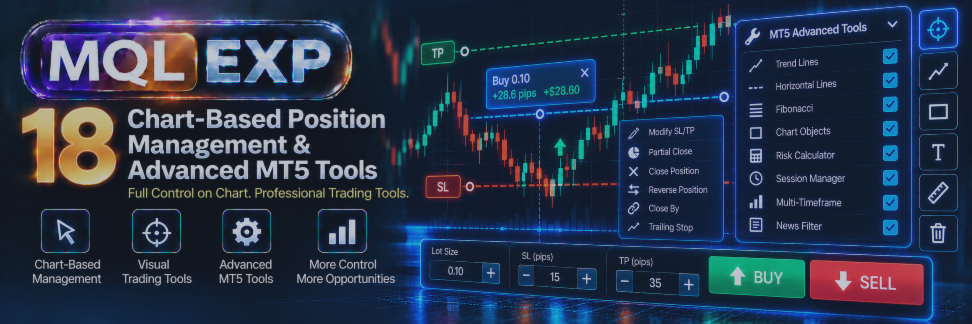
Multi Risk Manager Pro: The Complete Guide to Chart-Based Position Management, Smart Alerts and Advanced MT5 / 4 Tools

Modern trading requires more than calculating lot sizes and sending orders.
Once a position is opened, traders need to monitor changing risk, adjust protective levels, manage partial exits, track important prices, and maintain a clear overview of account conditions.
Switching repeatedly between the chart, order windows, and separate utilities can make these tasks more complicated.
Multi Risk Manager Pro for MetaTrader 5 / 4 brings together a wide range of trading and risk-management features in a unified chart-based interface.
Throughout this article series, we have explored its money-management methods, Risk-to-Reward Box, order execution, staged exits, position management, prop firm controls, trade copier, news filter, reporting tools, interface customization, account protection, and scalping functionality.
In this final guide, we focus on the remaining advanced tools and practical details that complete the Multi Risk Manager Pro workflow.
These include:
-
Visual position levels and drag-and-drop management.
-
Chart-based partial-close lines.
-
Applying chart levels to existing positions.
-
Advanced position editing and bulk actions.
-
Price and time alert lines.
-
Trading-session visualization and account overlays.
-
Context-sensitive help and customizable hotkeys.
-
Strategy identification, reporting, and notifications.
-
Account compatibility, Strategy Tester behavior, and operational limitations.
The objective is to explain how these tools fit together and how traders can evaluate them safely.
MT5 : https://www.mql5.com/en/market/product/201074
MT4 : https://www.mql5.com/en/market/product/201075
Public channel : https://www.mql5.com/en/channels/mqlexp
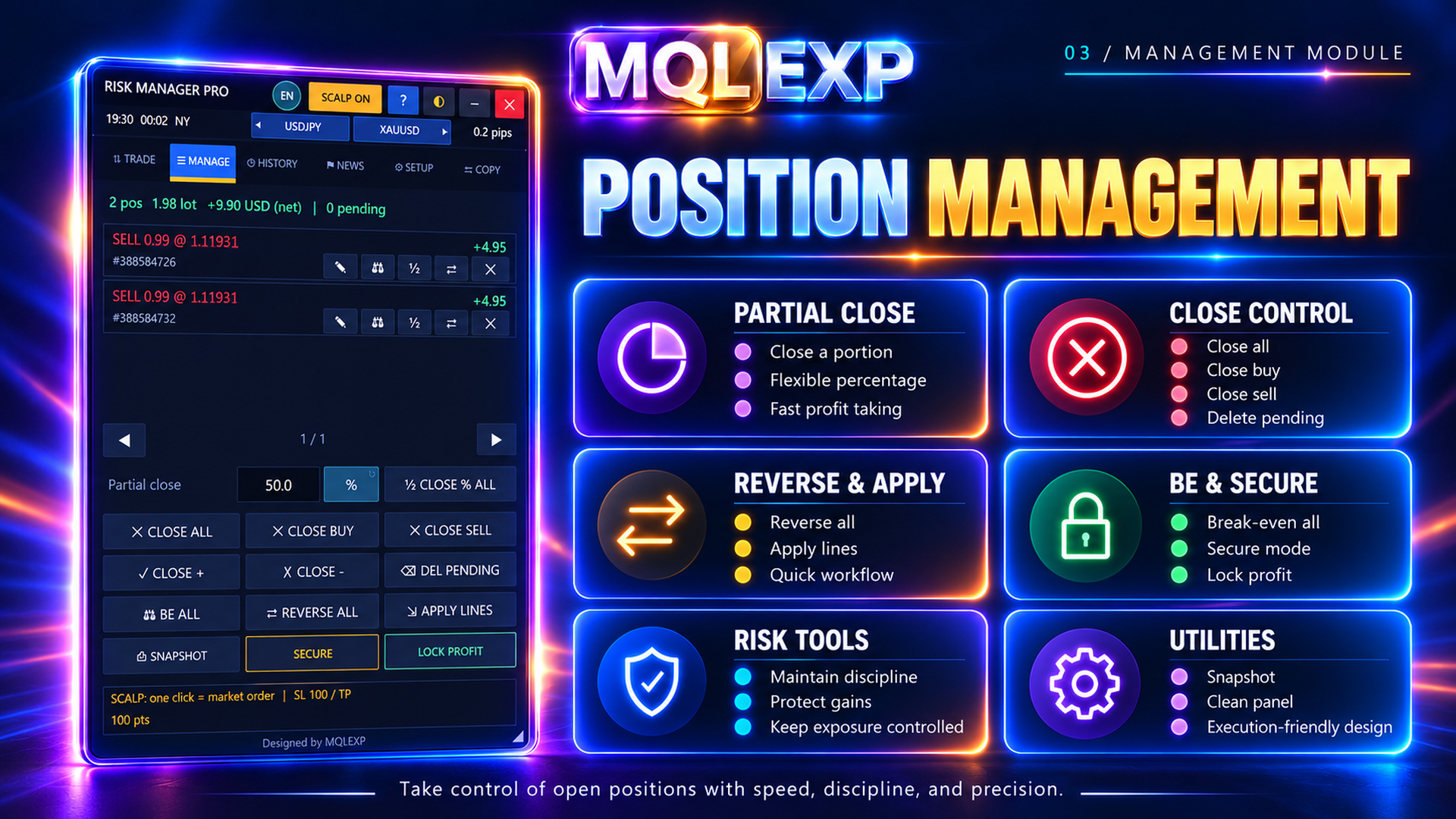
1. POS LEVELS: Managing Existing Trades Directly on the Chart
Many trading panels allow traders to place orders from the chart.
Multi Risk Manager Pro extends chart interaction to existing positions through its POS LEVELS feature.
Instead of viewing only the initial entry, stop-loss, and take-profit levels, traders can display additional management information associated with eligible open positions.
The documented POS LEVELS functionality can show:
-
Stop-loss and take-profit levels.
-
Break-even activation levels.
-
Trailing-stop activation levels.
-
Partial-close levels.
-
Hidden stop-loss and take-profit levels.
-
Price, monetary, and distance information associated with displayed levels.
The main POS LEVELS option is disabled by default in the referenced settings.
Once enabled, traders can configure which categories of levels appear on the chart.
This is particularly useful for positions that use several management rules.
Why visual levels matter
Suppose a trader opens a BUY position with an initial stop-loss and several planned management actions.
Without visual assistance, the trader may need to remember where break-even should activate, when trailing begins, and where partial closes are expected.
POS LEVELS can display those levels on the chart.
This makes it easier to examine the relationship between current market price, original risk, and the remaining position-management plan.
However, displayed information is only useful when its meaning is understood.
A visual level does not necessarily represent an order held by the broker.
Some levels are monitored and executed by the EA instead.
2. Drag-and-Drop Management of Position Levels
The documented POS LEVELS implementation supports dragging eligible levels directly on the chart.
A trader can move a displayed management level to change that level for the associated position.
This offers a more visual alternative to repeatedly entering prices into a separate order editor.
For example, a trader may want to modify an existing stop-loss level after market structure changes.
The chart-based approach allows the desired level to be adjusted through a graphical interaction, subject to the relevant settings and broker restrictions.
Important distinctions
Dragging a line is not a guarantee that the requested trading modification has been accepted.
The EA must process the change, and any broker-side modification must satisfy applicable trading requirements.
These may include:
-
Minimum stop distances.
-
Freeze-level restrictions.
-
Valid price increments.
-
Position eligibility.
-
Trading permissions.
-
Broker execution and modification rules.
After dragging a level, verify the resulting position and its actual protection.
Do not assume that every displayed line is equivalent to a successfully modified broker-held order.
3. Controlling Which Position Levels Are Visible
The referenced settings provide individual controls for different visual level categories.
| Setting | Purpose | Referenced default |
|---|---|---|
| level | Main POS LEVELS display | Off |
| sl/tp | Show SL/TP lines and details | On |
| be | Show break-even levels | On |
| tr | Show trailing levels | On |
| part | Show partial-close levels | On |
| line | Show average price line | Off |
| follow | Recalculate dependent levels when SL/TP changes | On |
These options allow traders to control chart complexity.
For a simple strategy, displaying stop-loss and take-profit information may be sufficient.
For a more advanced strategy, break-even, trailing, and partial-close levels can provide additional context.
The best display is not necessarily the one containing the largest number of lines.
It is the one that helps the trader understand the active plan without obscuring the chart.
4. Automatic Level Following
Multi Risk Manager Pro includes a documented Level Follow setting.
When enabled, changes to a position's stop-loss or take-profit can cause dependent management levels to be recalculated.
For example, an adjustment to the position's protective levels may affect the planned distances associated with break-even, trailing, or partial exits.
This can help maintain a relationship between the updated position structure and its management rules.
The referenced Level Follow setting is enabled by default.
Why this requires testing
Automatic recalculation may be desirable for one trading strategy but inappropriate for another.
A trader may want a management trigger to remain at its original price even after changing the stop-loss.
Another strategy may require triggers to move when the initial risk changes.
Before enabling this behavior on a live account, verify which levels are recalculated and how the resulting prices affect the position.
5. The Average Price Line
When several positions are associated with the same instrument, the average entry price can provide useful context.
Multi Risk Manager Pro documents an optional average price line.
This can help traders evaluate the price relationship between current market conditions and a group of positions.
For example, a trader holding multiple BUY positions may want to visualize their combined entry reference.
The average price line can make the relevant reference easier to see.
However, an average entry price should not be confused with a guaranteed account or basket break-even price.
Commissions, swaps, spreads, different position volumes, and execution conditions can affect the actual financial result.
Use the average price line as a visual reference and verify the financial calculations independently.
6. Special Considerations for Copied and Netting Positions
Not every position-management operation behaves identically across account types.
The documented implementation treats copied positions differently when their stop-loss and take-profit information is controlled by the sender.
For copied trades with the appropriate SL/TP copying configuration, displayed sender-controlled levels may be read-only.
This helps distinguish information that can be adjusted locally from information intended to follow the source account.
Netting accounts introduce another important consideration.
When additional volume is combined with an existing net position, the implementation may retain the management levels associated with the original position instead of using the levels calculated for the added volume.
For this reason, test chart-level management with the actual account structure you intend to use.
Do not assume that adding volume to a netting position produces the same behavior as opening a separate position on a hedging account.
7. Chart-Based Partial-Close Lines
One of the distinctive visual management features in Multi Risk Manager Pro is the ability to create partial-close lines.
These lines represent price levels at which the EA can attempt to close part of the volume of eligible positions.
Rather than manually monitoring the chart and clicking a partial-close button at the appropriate moment, a trader can configure a line in advance.
The documented interface provides a + PARTIAL LINE action.
A new line is initially placed at a configurable distance from the current price and can then be dragged to another level.
The referenced default distance is 200 points.
Example
Imagine a trader holds a BUY position of 1.00 lot.
The trading plan requires reducing exposure by 30% when price reaches a particular level.
A partial-close line can be configured with:
-
The intended price.
-
A partial-close amount of 30%.
-
The appropriate position target.
When the triggering condition is detected, the EA can attempt the corresponding partial close.
The actual result depends on position eligibility, broker volume restrictions, available market prices, and successful execution.
8. Partial-Close Line Controls
Each documented partial-close line provides several controls.
Amount
Defines how much of the eligible position should be closed.
Unit
Selects the method used to express the amount:
-
Percentage.
-
Lots.
-
Monetary amount.
Target
Determines which positions the line should affect:
-
ALL.
-
BUY.
-
SELL.
-
One selected ticket.
Delete
Removes the line from the chart.
These controls allow a trader to create a more specific partial-exit plan.
For example, one line might target only BUY positions, while another could target a particular position ticket.
Profit-only restriction
The documented configuration also includes an option to restrict partial-close line actions to positions currently in profit.
This can help distinguish profit-taking rules from other exposure-reduction operations.
However, a position's floating profit can change rapidly. A profit-only filter does not guarantee the result of the eventual close.
9. How Partial-Close Lines Trigger
A documented partial-close line reacts when price crosses its level.
Importantly, the trigger is not limited to a crossing from one particular direction.
A crossing from either side can activate the relevant action.
Once a line successfully closes eligible volume, it is removed.
This means that partial-close lines are effectively single-use.
The option related to removing a line after a touch mainly affects crossings where no eligible position was actually closed.
The implementation also removes partial-close lines when the chart symbol no longer has positions or orders covered by the relevant condition.
Operational limitation
Partial-close line management runs through the EA.
It requires MetaTrader 5 /4 and the EA to be active and the chart symbol to receive the necessary ticks.
A partial-close line is not a broker-held take-profit order.
If the terminal is offline or the market is not producing relevant price updates, the EA may not carry out the planned action at the intended moment.
10. APPLY LINES: Updating Existing Positions from Chart Levels
Multi Risk Manager Pro includes an APPLY LINES function.
This feature allows chart levels to be used when modifying eligible existing positions.
Depending on the configuration, the operation can apply:
-
Stop-loss and take-profit.
-
Stop-loss only.
-
Take-profit only.
The documented settings also allow traders to select the intended position group.
Available selections include positions on the relevant side of the lines, all positions, BUY positions, SELL positions, and profitable positions.
Additional options control take-profit handling for split orders and whether eligible pending orders should be included.
Practical example
Suppose a trader has several eligible BUY positions and wants to update their stop-loss using a level visible on the chart.
Instead of editing every position separately, APPLY LINES may provide a way to submit the relevant modifications through a coordinated operation.
Before using it, verify that the intended positions are eligible and that the chart levels are valid.
Important limitation
The documented implementation contains direction-related constraints.
Selecting a broad group such as ALL does not necessarily mean that positions on both sides of the chart lines can be modified indiscriminately.
The requested levels must still satisfy the applicable positional and trading conditions.
Always verify which positions were actually updated.
11. The Position and Order Editor
The MANAGE tab includes editing controls for individual positions and pending orders.
The documented position list provides actions such as:
-
ED: Open the editor.
-
BE: Apply break-even.
-
%: Perform a partial close.
-
REV: Reverse the position.
-
X: Close the position.
The position editor includes functions related to stop-loss, take-profit, hidden or visible protective levels, partial closing, strategy information, and copy-sending controls.
For pending orders, the editor can also provide access to price and volume changes.
Special warning for pending-order volume changes
According to the technical documentation, changing the volume of a pending order can require deleting and replacing that order.
This may result in a different ticket and the loss of staged-exit information associated with the previous ticket.
Therefore, when editing a pending order, verify both the new order details and any associated position-management settings.
Do not assume that every modification preserves the full management state of the original request.
12. Bulk Position Management
Managing several positions individually can take time.
Multi Risk Manager Pro provides bulk actions through the MANAGE tab.
The documented interface includes operations for closing:
-
All eligible positions.
-
BUY positions.
-
SELL positions.
-
Winning positions.
-
Losing positions.
It also provides a DEL PENDING action for eligible pending orders.
These operations can be useful when reducing exposure quickly or closing a group of positions according to a trading rule.
However, bulk actions can have significant financial consequences.
The normal MANAGE tab workflow uses confirmation for these operations.
Traders should review the intended scope and avoid treating a bulk-close request as a guarantee that every eligible position will be closed at the same price or instant.
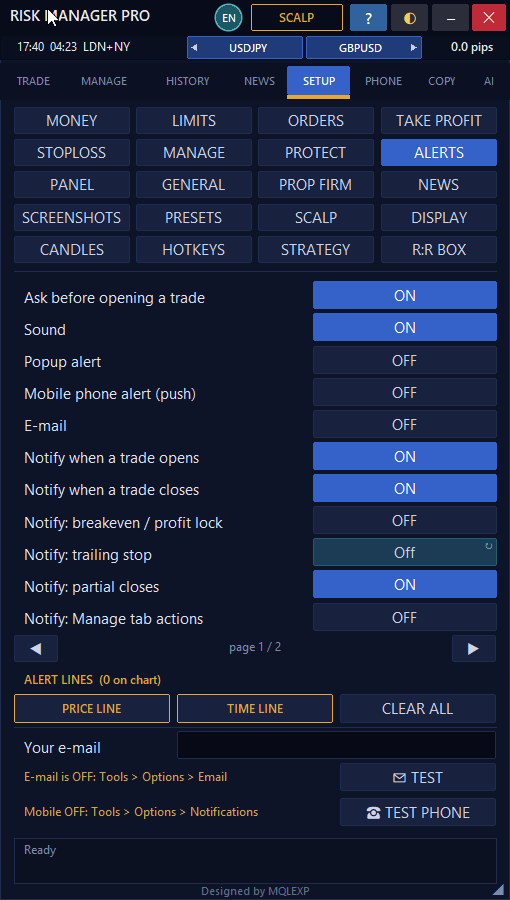
13. Price Alert Lines
Not every important chart level needs to trigger a trade.
Sometimes a trader simply wants to receive a notification when price reaches a selected area.
Multi Risk Manager Pro includes Price Alert Lines.
The documented implementation allows traders to add a dashed amber line to the chart.
The line can be moved to the desired price level.
When the Bid price crosses the level and the EA detects the crossing, the corresponding alert can be triggered.
A price line can be added through the relevant Alerts interface or with the documented Shift + A shortcut.
Practical uses
Price alert lines can be useful for:
-
Monitoring support and resistance areas.
-
Watching an important breakout level.
-
Tracking a price level near an intended manual entry.
-
Receiving a reminder when price approaches a previously identified zone.
However, an alert line does not independently interpret market structure or determine whether a trading opportunity is valid.
It is a notification tool, not a trading signal generator.
14. Time Alert Lines
Multi Risk Manager Pro also provides Time Alert Lines.
A time line is displayed vertically on the chart and can be used to mark an important future time.
The documented initial placement is five bars ahead.
The line includes time information and a countdown.
When the configured server time is reached and the relevant event is processed, the EA can generate an alert.
This may be useful for traders who want reminders about a planned review time, a strategy checkpoint, or another time-based event.
Re-arming alert lines
After a price or time alert triggers, the line can change to a grey, dotted appearance or be deleted according to configuration.
Dragging the line can re-arm it.
Alert-line behavior should be tested in the current terminal environment, particularly when relying on timing or price-crossing notifications.
15. Trading Sessions on the Chart
Understanding the time of day can be useful for strategies affected by market activity and liquidity.
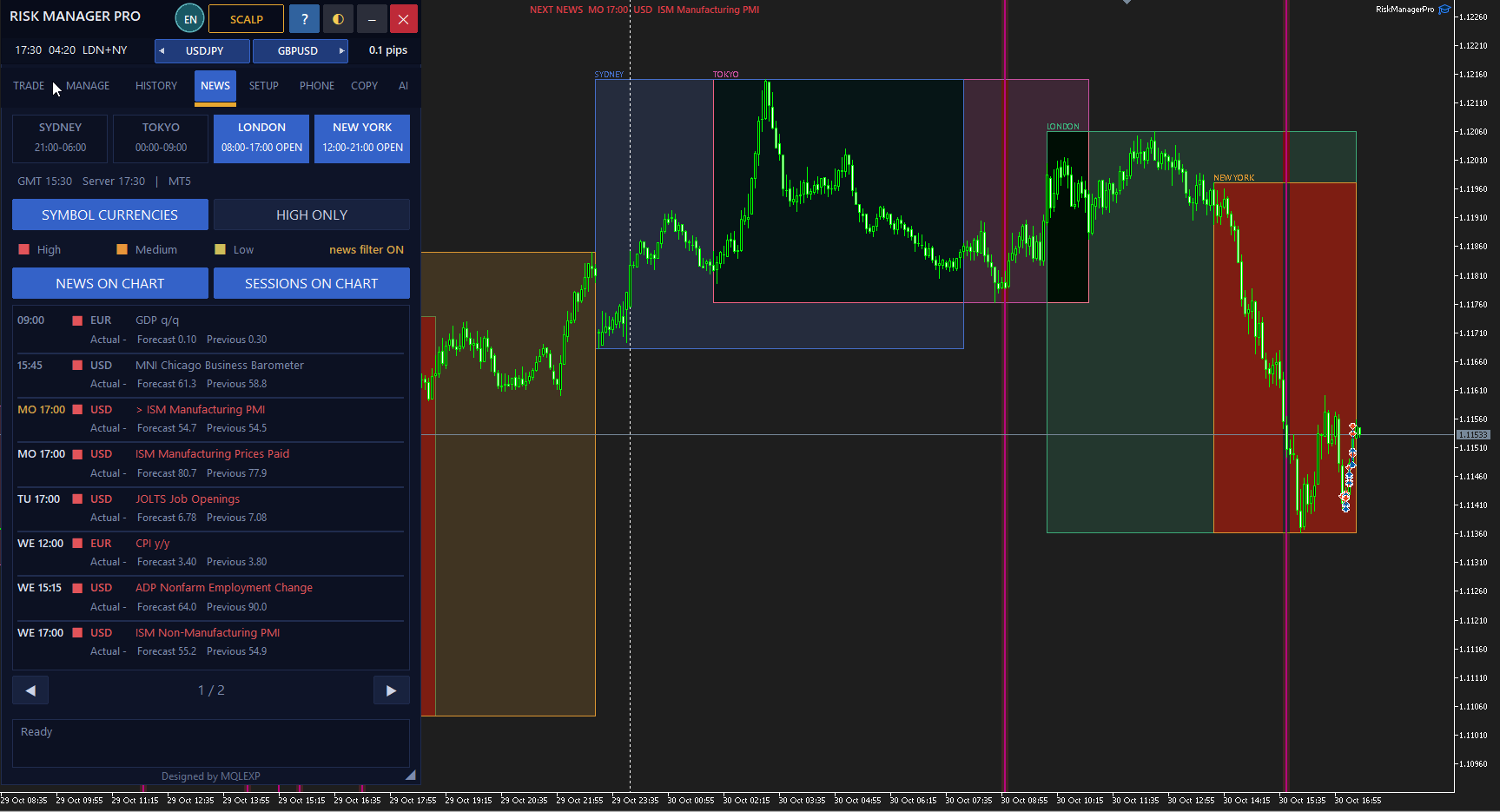
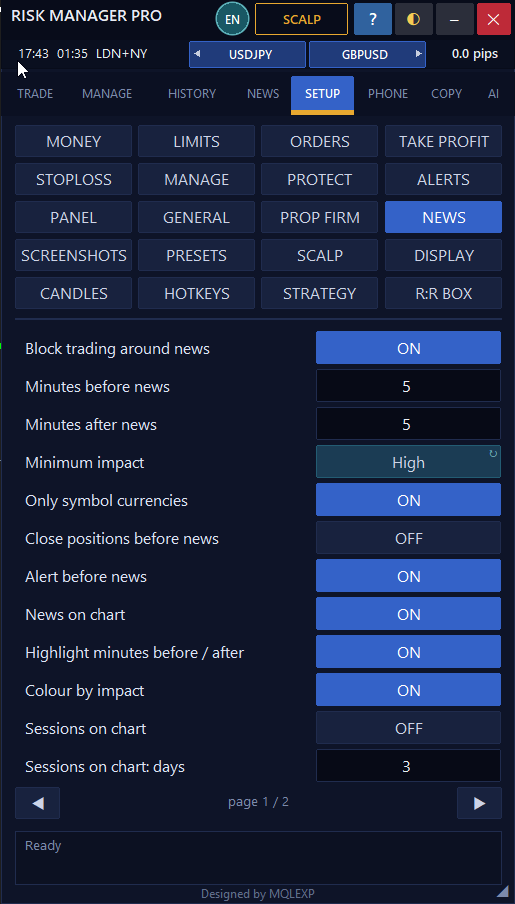
Multi Risk Manager Pro includes trading-session visualization.
The documented system displays four trading sessions through its interface and can draw session information on the chart.
The settings include several visual presentation modes, such as:
-
Background shading.
-
High/low boxes.
-
Session open and close lines.
-
Session high and low lines.
The trader can also configure how many days of session information appear on the chart.
Why session visualization helps
Session displays can make it easier to observe how price behaves during different trading periods.
For example, a trader may want to compare price movement during an active market session with a quieter period.
The display can also help identify historical session ranges.
However, session boundaries depend on their time definitions and applicable platform configuration.
They should not be confused with a guarantee of liquidity, volatility, or favorable trading conditions.
16. Account Overlay: Important Information Without Opening Another Tab
The documented Account Overlay provides a compact display of selected account information on the chart.
It can include:
-
Account balance.
-
Account equity.
-
Open profit and loss.
-
Today's profit and loss.
-
Drawdown from the recorded peak.
The overlay is disabled by default in the referenced configuration.
When enabled, it appears near the top-right area of the chart.
Why an overlay can be useful
A trader working with chart-based entries may not want to switch to another tab every time they need to check basic account conditions.
The overlay can keep selected figures visible while the chart remains the primary workspace.
However, displayed account metrics depend on the EA's calculations and available platform data.
Before using an overlay figure for critical account-protection decisions, understand how the value is calculated.
17. Customizing the Trade Tab Display
Multi Risk Manager Pro also allows users to select which informational rows appear in the TRADE tab.
The referenced settings include controls for displaying:
-
Risk.
-
Reward.
-
Stop-loss and target information.
-
Order details.
-
Exit plan.
-
Margin.
-
Spread and ATR.
-
Open risk.
-
Today's results.
-
Prop firm information.
Additional options control the default Risk-to-Reward row, option buttons, pending-order controls, strategy row, and prop chart.
This flexibility can help traders create a compact interface.
For example, a trader focused mainly on market orders may not need every pending-order control permanently visible.
A trader evaluating prop firm limits may prefer to keep the relevant account-protection information on screen.
The purpose of customization should be improved clarity, not simply hiding as much information as possible.
18. Built-In Context-Sensitive Help
A feature-rich trading panel can be difficult to learn if every function requires consulting external documentation.
Multi Risk Manager Pro includes an integrated help mode.
The documented implementation allows help mode to be activated through the ? control or the Shift + H shortcut.
When help mode is active, hovering over supported controls can display information about:
-
What the control does.
-
An example of how it is used.
-
The SETUP page containing its relevant configuration.
Settings rows also provide their own help information, including applicable ranges and examples.
This makes the help system useful during initial configuration and when exploring less frequently used controls.
Some localized help text may have formatting limitations, so verify readability in your selected interface language.
19. Fully Configurable Hotkeys
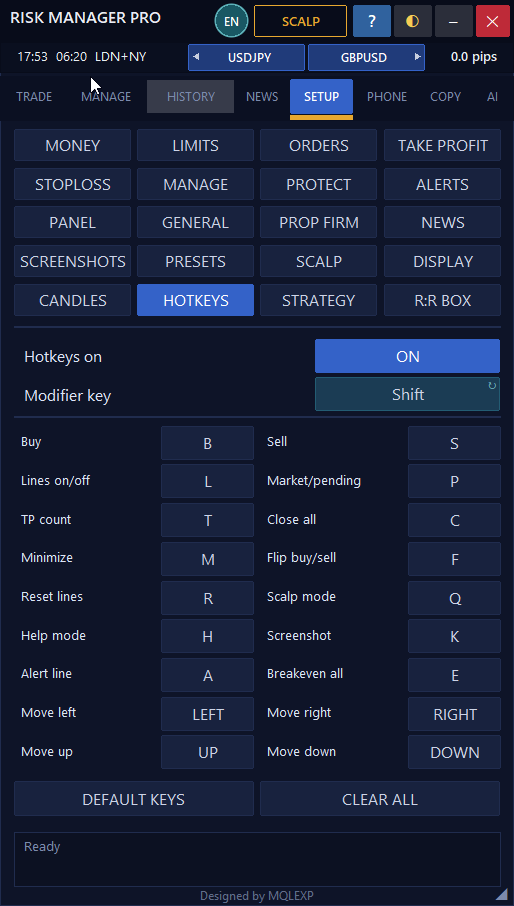
Multi Risk Manager Pro includes keyboard shortcuts for common trading and interface actions.
The referenced implementation supports a master hotkey switch and configurable modifiers.
The default modifier is Shift.
Examples of documented shortcuts include:
| Default shortcut | Action |
|---|---|
| Shift + B | Buy |
| Shift + S | Sell |
| Shift + L | Toggle chart lines |
| Shift + P | Market/pending mode |
| Shift + Q | Toggle Scalping Mode |
| Shift + E | Break-even all |
| Shift + C | Close all |
| Shift + R | Reset trade-planning lines |
| Shift + A | Add price alert line |
| Shift + K | Screenshot |
| Shift + H | Help mode |
| Shift + M | Minimize panel |
Arrow keys can also be used for panel movement according to the configured shortcut behavior.
Reassigning shortcuts
The documented settings allow traders to reassign individual keys.
A key already assigned to another action is removed from its previous assignment when reused.
The interface also provides commands for restoring default keys or clearing all shortcut assignments.
Important safety consideration
Keyboard shortcuts can trigger trading operations.
Before enabling them in a live environment, verify that the relevant chart has focus and that the shortcut performs the intended action.
An accidental BUY, SELL, reverse, or close command can immediately affect account exposure.
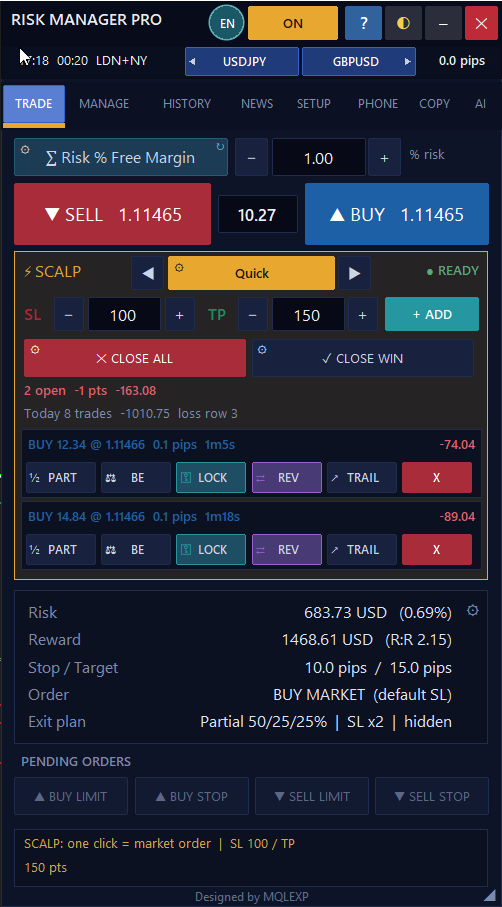
20. Strategy Identification and Trade Organization
Multi Risk Manager Pro includes strategy-related information that can help categorize trading activity.
Strategy labels can provide context for reporting and selected trading workflows.
For example, trades associated with a particular strategy identifier may be easier to find when reviewing historical performance.
The scalping system also documents profile-based tags in the form:
SCALP:profile
These tags can help distinguish scalp activity from other trades.
Strategy identification is useful for organization, but it does not automatically determine whether a trading method is profitable.
Accurate analysis still requires reviewing realized outcomes, execution costs, and the relevant sample of trades.
21. Notifications and Daily Summaries
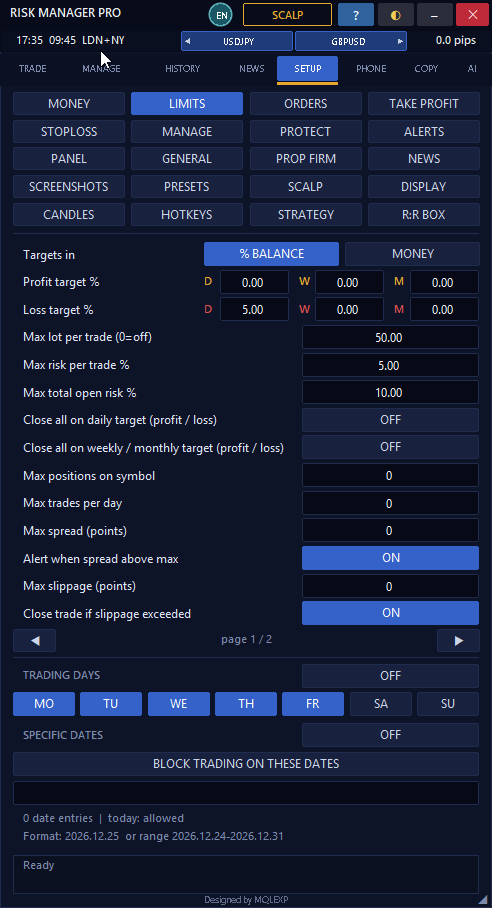
In addition to price and time alert lines, Multi Risk Manager Pro documents notifications for multiple trading events.
These include selected events related to:
-
Trade opening and closing.
-
Break-even and profit-locking actions.
-
Trailing-stop changes.
-
Partial closes.
-
Manual management operations.
-
Hidden exit activation.
The EA supports popup notifications and optional MT5 / 4 push and email delivery, subject to terminal configuration.
Daily account summary
The documented implementation also provides an optional daily summary.
It can report information such as:
-
Daily net profit and loss.
-
Daily result as a percentage.
-
Relevant EA trade results.
-
Winning and losing trade counts.
-
Account balance.
The referenced daily-summary feature is disabled by default.
Its scheduled time is based on the configured server-time reference.
Notification limitations
Push and email delivery must be configured in MetaTrader 5 / 4.
The EA cannot guarantee delivery when the network, platform, or notification service is unavailable.
Daily summaries are informational reports, not protective orders.
22. Screenshots and Animated Trading Records
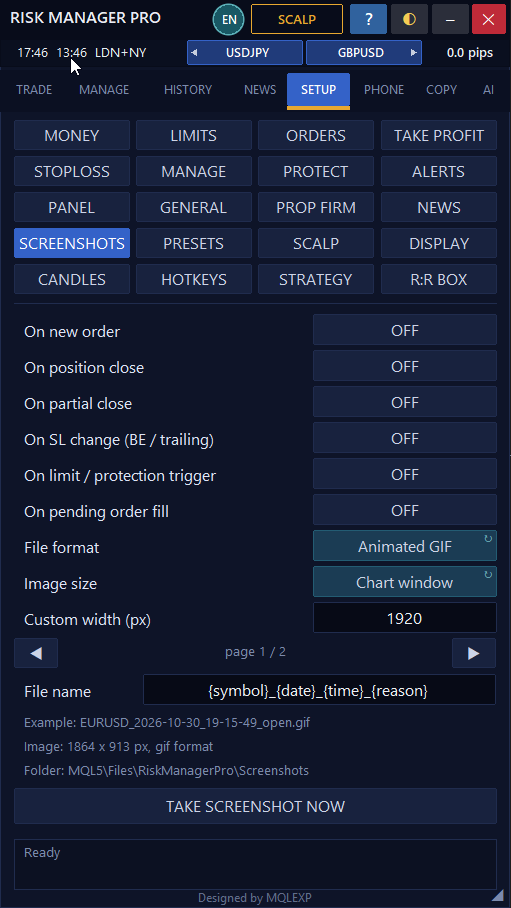
The EA includes tools for capturing visual records of trading activity.
Manual screenshot commands are available through the relevant interface and keyboard shortcuts.
The documented screenshot formats include PNG, GIF, BMP, and Animated GIF.
Automatic screenshots can also be configured for selected events, including:
-
New orders.
-
Pending-order activation.
-
Full or partial closures.
-
Stop-loss changes.
-
Selected limit or protection triggers.
The output is saved in the EA's designated screenshot folder.
Animated GIF
The documented animated GIF function records chart screenshots over a configured period.
This can be useful for visually reviewing a short sequence of chart changes.
However, the implementation is not a continuous high-frequency video recorder.
Its effective capture rate depends on the timer and configuration, and recorded playback may not perfectly represent elapsed real time.
Screenshots should be treated as supporting records rather than replacements for official trade history.
23. Advanced Account Compatibility
Multi Risk Manager Pro supports different MetaTrader 5 account environments, subject to broker restrictions.
These include hedging, netting, and supported cent-account configurations.
Hedging accounts
Hedging accounts can maintain separate positions on the same symbol, subject to broker rules.
They are generally more suitable for workflows involving independently managed positions or split orders.
Netting accounts
Netting accounts combine trading activity into a net position for each symbol.
The documented implementation adapts certain features for this structure.
For example, a split-order workflow may behave as partial-close management under netting conditions.
Adding volume to an existing position can also affect how stored per-position management levels are interpreted.
Cent accounts
The EA includes detection and configuration logic for supported cent-account currency conventions.
However, broker naming conventions vary.
A cent account using an unrecognized account-currency designation may require manual configuration.
Different risk currencies
The EA supports several risk currencies, including the account currency, USD, EUR, GBP, and JPY.
When conversion is necessary, an available conversion rate is required.
If the system cannot find an appropriate rate, the documented implementation can refuse the trade.
Make sure relevant currency pairs are available to the terminal when using cross-currency risk calculations.
24. Strategy Tester: Understanding What Is Actually Tested
MetaTrader 5 provides a Strategy Tester environment for evaluating Expert Advisors.
However, Multi Risk Manager Pro is primarily a trading and management interface rather than an autonomous signal-generating strategy.
Its documented Strategy Tester behavior reflects that distinction.
Non-visual testing
In non-visual mode, the implementation includes a demonstration routine that opens trades according to a predefined testing pattern.
This routine is intended to exercise management features such as break-even, trailing stop, and take-profit handling.
It should not be interpreted as evidence that the EA contains a profitable trading strategy.
Visual testing
In visual mode, the trading panel is drawn.
However, interactive chart events may not behave the same way as they do in a normal live terminal.
The documentation identifies limitations and unverified behavior regarding panel interaction in the Strategy Tester.
Why this matters
A successful backtest of the demonstration routine does not prove that discretionary entries made by a trader will be profitable.
Likewise, a feature that appears correctly in the tester may still require live demo testing to verify broker execution, event timing, and interface behavior.
25. Understanding Tick-Dependent Position Management
One of the most important operational details concerns how the EA processes position-management actions.
According to the technical documentation, several management functions run on ticks of the chart symbol.
These include relevant actions involving:
-
Break-even.
-
Trailing stops.
-
Hidden SL/TP.
-
Partial closes.
-
Position-level management.
-
Certain protective closing actions.
This means that some operations may not be processed when the chart symbol is not receiving ticks.
For example, if the EA is attached to a symbol whose market is closed, relevant management checks may not run even while another market remains active.
Why a VPS alone is not enough
Running MetaTrader 5 continuously on a VPS may improve platform availability, but it does not guarantee that every EA-managed action will always execute.
The terminal must remain connected, the EA must operate normally, the required market information must be available, and the broker must accept the trading request.
A broker-held stop-loss provides a different type of operational protection from an EA-managed hidden level or partial-close line.
Traders should understand this distinction before relying on automated exits.
26. Using Multiple Charts and Expert Advisors
Running the same EA on multiple charts can be useful when trading several symbols.
However, configuration and position ownership must be considered carefully.
The documented architecture uses per-chart settings and terminal-level variables for certain position-management information.
Multiple charts managing the same symbol may interact with the same position data.
If two EA instances are configured to manage identical positions, conflicting modifications may occur.
A similar problem can arise when another Expert Advisor independently manages the same stop-loss or take-profit.
For a reliable setup:
-
Define which EA instance is responsible for each position.
-
Review symbol and magic-number filters.
-
Avoid overlapping management rules unless their interaction is understood.
-
Test the configuration after a restart.
-
Verify the final broker-side orders and position details.
Careful separation of responsibilities is especially important for larger multi-chart environments.
27. Important Features That Should Not Be Misunderstood
The documented implementation includes many configuration options, but not every visible setting necessarily corresponds to an active feature.
In particular, the source audit identifies older or experimental settings that remain in the configuration registry without a working execution path.
For example, external command control through other EAs, global variables, or command files is not implemented in the reviewed version.
Similarly, some earlier interface controls have been removed even though corresponding settings remain in the registry.
Therefore, traders should rely on the currently implemented and accessible functions rather than assuming that every stored parameter represents a working capability.
This is especially important when comparing older screenshots or product descriptions with a newer release.
28. A Complete Advanced Workflow Example
To understand how the different tools fit together, consider a hypothetical discretionary trading workflow.
Stage 1 — Analyze the market
The trader reviews the main chart and uses multi-timeframe side candles to observe a higher timeframe.
Trading-session information provides additional time-of-day context.
Stage 2 — Identify important levels
Price alert lines are placed at selected chart levels.
The trader receives a notification if price crosses one of those levels while the relevant system is operating.
Stage 3 — Plan the trade
The Risk-to-Reward Box is used to define entry, stop-loss, and take-profit levels.
The position-sizing method calculates the intended trading volume.
Stage 4 — Review account exposure
The trader checks open risk, available margin, and applicable account-protection settings.
Stage 5 — Execute the order
The trade is submitted through the appropriate standard execution workflow.
The trader verifies the actual execution price and resulting position details.
Stage 6 — Enable position visualization
POS LEVELS is used to display the current protective and management levels.
The trader checks the positions of the stop-loss, break-even trigger, and any partial-close levels.
Stage 7 — Configure partial exits
If the trading plan requires it, a partial-close line is created for an eligible position.
The trader defines the target, closing amount, and applicable filters.
Stage 8 — Manage the position
As the market develops, the trader may adjust chart levels or use appropriate management operations.
Any resulting modifications are verified against the actual position state.
Stage 9 — Review the result
After the trade closes, the trader examines the HISTORY tab, reporting information, and any captured screenshots.
Stage 10 — Improve the process
The trader records findings and makes configuration changes only when supported by the strategy and testing results.
This workflow illustrates how multiple tools can support one trading process.
It does not imply that every feature should be enabled for every trade.
29. Final Verification Checklist
Before using the advanced tools with live capital, verify the following:
-
Confirm that the intended positions are eligible for management.
-
Enable POS LEVELS and identify the meaning of each displayed line.
-
Test dragging individual stop-loss and take-profit levels.
-
Verify Level Follow behavior after changing protective levels.
-
Test partial-close lines with different units and position targets.
-
Confirm how APPLY LINES selects and modifies positions.
-
Test the position editor and pending-order modifications.
-
Verify price and time alert lines.
-
Review trading-session visualization and account-overlay calculations.
-
Test hotkeys before enabling rapid trading actions.
-
Configure and test notification delivery.
-
Review account-type differences, particularly on netting accounts.
-
Verify EA behavior after terminal disconnection and restart.
-
Check how multiple EA instances interact when managing the same symbol.
-
Test broker order restrictions, volume steps, and execution behavior.
-
Confirm that settings, presets, and backups restore the intended configuration.
Use a demo account or another suitable controlled environment for these checks.
30. Final Overview of the Multi Risk Manager Pro Toolkit
Across this article series, we have examined the major functional areas of Multi Risk Manager Pro.
| Area | Main capabilities |
|---|---|
| Money management | Eight sizing methods, commission-aware risk calculations, risk currencies |
| Trade planning | Risk-to-Reward Box, draggable entry and exit levels |
| Order execution | Market and supported pending orders, confirmation, slippage checks |
| Position management | Break-even, trailing stop, partial exits, Lock Profit, Secure |
| Advanced exits | Multiple TP/SL levels, Reverse, Close By, hidden SL/TP |
| Account protection | Daily, weekly, and monthly limits, equity controls, exposure restrictions |
| Prop firm tools | Drawdown limits, profit targets, risk-room checks, holding restrictions |
| Trade copying | Local and relay-based copying, volume modes, filters, symbol mapping |
| News and sessions | Economic calendars, news restrictions, trading-session display |
| Scalping | One-click orders, dedicated AUTO management, profiles, time exits |
| Chart tools | POS LEVELS, partial-close lines, APPLY LINES, alert lines |
| Reporting | Trading history, performance statistics, equity visualization, data export |
| Interface | Themes, languages, hotkeys, account overlay, built-in help |
| Utilities | Screenshots, animated GIF, presets, backups, notifications |
The value of these tools comes from how well they support a consistent and controlled trading process.
Using more features does not automatically improve performance.
A trader with a simple strategy may need only position sizing, chart-based execution, and basic protective management.
A trader managing multiple accounts may focus more on trade copying, account limits, and reporting.
The appropriate configuration depends on the trading objectives and operational environment.
Conclusion: One Trading Workspace, Multiple Risk-Management Tools
Multi Risk Manager Pro is designed to bring trade planning, order execution, position management, account protection, and supporting chart utilities into one MetaTrader 5 / 4 workspace.
Its chart-based tools allow traders to visualize position-management levels, adjust eligible protections, plan partial exits, and monitor important prices without relying entirely on separate order dialogs.
Additional features such as alerts, trading-session visualization, account overlays, strategy tags, reporting, and configurable shortcuts help support a broader trading workflow.
The central principle remains the same throughout the entire article series:
A trading tool is most valuable when its behavior is understood, its settings are tested, and its use follows a clearly defined risk-management plan.
Before using Multi Risk Manager Pro with live funds, verify the current release on your own broker, account type, symbols, and trading environment.
No trading panel can eliminate market uncertainty, execution risk, or the possibility of financial loss.
With careful setup and testing, however, the available tools can help traders organize their trading operations and apply their chosen management rules more consistently.
Explore Multi Risk Manager Pro on the MQL5 Market and review its available settings to determine which tools fit your trading workflow.
This article describes documented product functionality. Actual behavior depends on the installed version, broker, account configuration, terminal connectivity, and market conditions. Trading involves risk, and past performance does not guarantee future results.