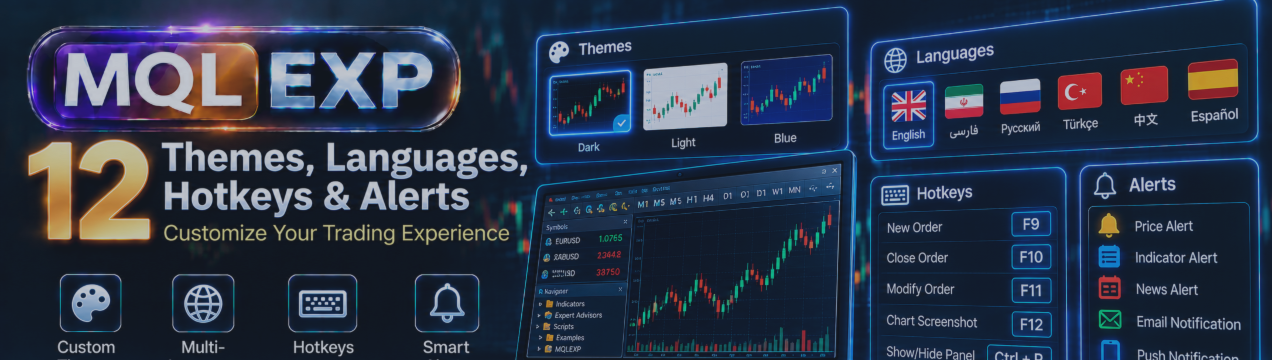
Customize Your MT5 Trading Workspace with Multi Risk Manager Pro: Themes, Languages, Hotkeys and Alerts

A trading platform should provide more than order execution. It should also offer a workspace that is comfortable, organized, and practical for daily use.
Different traders have different preferences. Some prefer dark charts and compact controls, while others want brighter colors, quick keyboard commands, or notifications when important trading events occur.
Multi Risk Manager Pro for MetaTrader 5 / 4 includes several interface customization features designed to help traders adapt the trading panel to their workflow.
In this article, we explore the documented themes, language options, keyboard shortcuts, alerts, and panel controls.
MT5 : https://www.mql5.com/en/market/product/201074
MT4 : https://www.mql5.com/en/market/product/201075
Public channel : https://www.mql5.com/en/channels/mqlexp
MT5 : https://www.mql5.com/en/market/product/201074
MT4 : https://www.mql5.com/en/market/product/201075
Public channel : https://www.mql5.com/en/channels/mqlexp
1. A Trading Panel Organized Around Key Tasks
Multi Risk Manager Pro organizes its main functionality into six tabs:
-
TRADE: Trade planning and order execution.
-
MANAGE: Position-management operations.
-
HISTORY: Trading records and performance review.
-
NEWS: Economic-news information and related controls.
-
SETUP: Configuration and customization.
-
COPY: Trade-copying functionality.
This organization helps separate different trading activities while keeping them accessible from one interface.
Instead of switching between unrelated tools, traders can move between trade execution, position management, reporting, and configuration within the EA's panel.
The exact appearance and available controls may depend on the installed version.
2. Choose from 20 Interface Themes
Color and contrast can affect how easily traders read information on a chart.
Multi Risk Manager Pro documents 20 interface themes, allowing traders to choose a visual style that suits their preferences.
A theme can help the trading panel fit more naturally into an existing chart setup.
For example, traders using dark chart backgrounds may prefer a theme with appropriate contrast, while those using light charts may choose a different appearance.
When selecting a theme, prioritize readability over decoration.
Important information such as lot size, stop-loss, take-profit, and risk values should remain easy to identify.
3. Custom RGB Colors
In addition to predefined themes, the EA supports custom RGB color settings.
RGB stands for Red, Green, and Blue. These three color components can be combined to create different interface colors.
Custom colors are useful when you want to match the panel to a specific chart template or personal workspace.
A practical approach is to choose colors that clearly distinguish interactive controls from informational elements without making the interface visually overwhelming.
After changing colors, check the panel under normal trading conditions to make sure labels and values remain readable.
4. Interface Languages
Multi Risk Manager Pro documents support for 16 interface languages:
-
English
-
Farsi (Persian)
-
Arabic
-
Chinese
-
Russian
-
Spanish
-
French
-
German
-
Turkish
-
Portuguese
-
Italian
-
Japanese
-
Korean
-
Indonesian
-
Hindi
-
Vietnamese
This multilingual support can make the panel more accessible to traders who prefer working in their native language.
Important language limitations
Language support does not necessarily mean that every part of the application is fully localized.
According to the documented implementation, some alerts, reports, and generated messages may remain in English.
Also, Persian and Arabic interface layouts are not fully right-to-left; they use a left-aligned layout.
Traders should review the selected language in the current version before assuming that every control and message has been translated.
5. Keyboard Shortcuts for Faster Interaction
Keyboard shortcuts can reduce the number of mouse actions required during routine trading tasks.
Multi Risk Manager Pro documents hotkeys for several functions, including:
-
Buy and Sell actions.
-
Switching between market and pending-order modes.
-
Toggling scalping mode.
-
Working with trade-planning lines.
-
Take-profit operations.
-
Closing positions.
-
Break-even actions.
-
Opening help.
-
Capturing screenshots.
-
Managing alert lines.
-
Moving or minimizing the panel.
The exact key combinations should be checked in the current settings or help interface.
Why hotkeys matter
During active trading, repeatedly navigating through menus can slow down a workflow.
Hotkeys can make frequently used operations more accessible, particularly for traders who work with multiple charts or regularly adjust positions.
However, shortcuts that trigger trading operations must be used carefully.
Before relying on them, confirm which actions execute immediately and which require additional confirmation.
An unintended shortcut can have financial consequences if it opens, modifies, or closes a trade.
6. Moving and Minimizing the Panel
A trading panel should not unnecessarily obscure the chart.
Multi Risk Manager Pro includes controls for moving and minimizing the panel.
These options can help traders maintain visibility of important price levels, chart patterns, and indicators while keeping trading tools available.
For example, you may prefer to minimize the panel while analyzing price action and expand it when preparing an order.
The most useful layout is one that provides quick access to controls without hiding information needed for trading decisions.
7. Alerts and Notifications
Alerts help traders stay informed about relevant events without constantly watching every control.
Multi Risk Manager Pro documents support for popup alerts and optional MetaTrader 5 / 4 push and email notifications.
The availability of push and email delivery depends on the terminal's notification configuration.
Popup alerts
Popup alerts can provide information directly in the MetaTrader 5 / 4 environment.
They may be useful when the trader is actively monitoring the terminal.
Push notifications
MetaTrader 5 / 4 supports push notifications to compatible mobile devices when the necessary terminal settings are configured.
Before relying on push notifications, verify that the terminal is correctly connected to the intended mobile notification destination and that a test notification can be received.
Email notifications
Email notifications require the appropriate email settings in MetaTrader 5 / 4.
Delivery also depends on the configured email service and network availability.
Important reminder
An alert is not the same as a guaranteed delivery or a guaranteed trading action.
Notifications can be delayed or missed because of connectivity issues, terminal configuration, or other technical conditions.
Do not use an alert as the sole protection against a critical account-risk event.
8. Screenshots and Trading Records
Multi Risk Manager Pro also documents screenshot functionality, including four supported screenshot formats, event-triggered screenshots, and animated GIF capabilities.
Screenshots can help traders document chart conditions, trade setups, and relevant moments during their trading sessions.
For example, capturing the chart around an entry or exit may help during a later performance review.
Event-triggered captures can be useful when the relevant feature is configured and operating correctly.
However, traders should verify the available capture events, output formats, file locations, and storage behavior in the installed version.
A screenshot provides a visual record of a moment in time; it does not replace complete trading history or execution records.
9. Presets, Backups and Settings Restoration
Customizing a trading workspace takes time. Once a useful configuration has been created, preserving it can make future setup easier.
Multi Risk Manager Pro documents support for presets, backups, and settings restoration.
These features can help traders maintain configurations for different workflows.
For example, a trader may prefer one configuration for discretionary trading and another for a faster execution style.
The EA also documents scalping-related profiles and settings.
Before relying on a backup or preset, test that the expected parameters are restored correctly.
This is particularly important when moving between terminals, brokers, account types, or EA versions.
10. A Practical Workspace Setup
Here is a simple process for configuring your trading environment.
Step 1 — Choose a theme.
Select one of the available themes and verify that all important values remain readable.
Step 2 — Adjust colors if needed.
Use the custom RGB options to match the panel to your chart layout.
Step 3 — Select your preferred language.
Check the translated controls and become familiar with any messages that remain in English.
Step 4 — Review the keyboard shortcuts.
Identify the commands you use frequently and test them carefully in a demo environment.
Step 5 — Configure notifications.
Enable the alert methods you need and verify push or email delivery through MetaTrader 5.
Step 6 — Arrange the panel.
Position or minimize the interface to maintain a clear view of your chart.
Step 7 — Save your configuration.
Use the available preset or backup functionality and test that it can be restored.
This approach helps create a consistent workspace without changing too many settings at once.
11. Important Considerations
Interface customization can improve convenience, but it should not interfere with trading safety.
Keep the following principles in mind:
-
Use readable colors and sufficient contrast.
-
Verify hotkeys before using them with live orders.
-
Remember that some language translations may be incomplete.
-
Test notification delivery rather than assuming it works.
-
Check screenshot and backup behavior in the current version.
-
Review restored settings before placing trades.
Customization should support a disciplined workflow, not encourage faster or more frequent trading without a clear strategy.
Conclusion
Multi Risk Manager Pro offers several ways to personalize the MetaTrader 5 / 4 trading environment.
With 20 interface themes, custom RGB colors, 16 language options, keyboard shortcuts, alerts, screenshot tools, and configuration-management features, traders can adapt the panel to their preferred workflow.
The goal is to create an interface that remains clear, consistent, and easy to operate.
Choose settings that improve readability, test shortcuts and notifications carefully, and maintain reliable backups of configurations you want to reuse.
A well-organized trading workspace can improve usability, but it does not replace sound trading decisions or appropriate risk management.




