Part 1: Getting started, chart synchronization and objects | Part 2: Bookmarks, settings and reference
Contents — Part 2
- Bookmark mode (Bookmark)
- Keyboard and mouse shortcuts
- Selection in this product and MT5 selection (active state)
- Scroll and MT5's built-in Auto Scroll
- Settings mode (Settings)
- Chart capacity
- Input parameters (colors and appearance)
- Notes and known behaviors
- Supported environment
- Support
■ Bookmark mode (Bookmark)
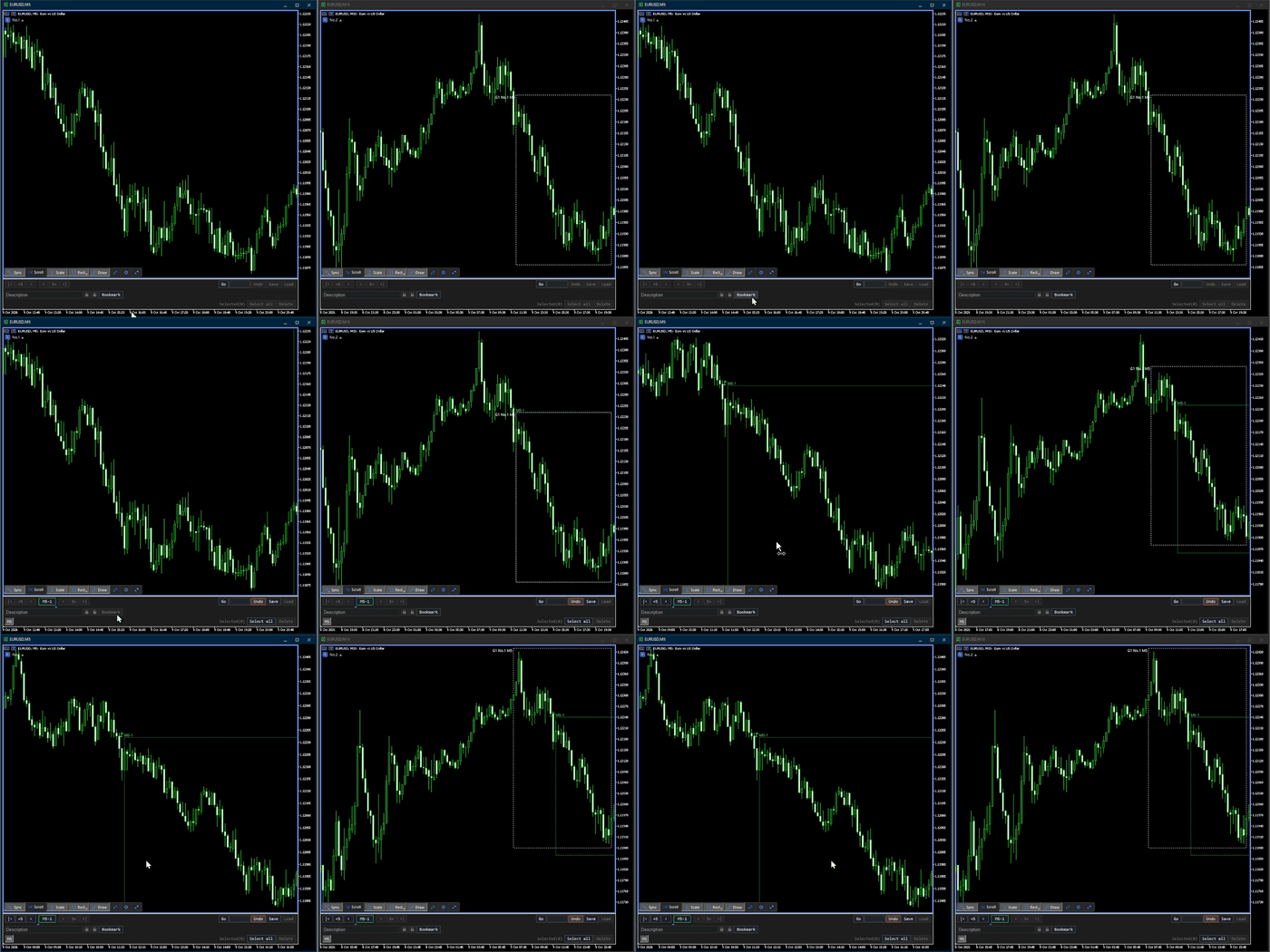
A bookmark records the range a chart is showing (its left and right times and its top and bottom prices) so that you can move the chart back to it later. Each recorded range is drawn as a rectangle with a flag icon (a bookmark rectangle) on the charts of the same symbol in the same group.
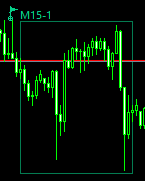
A bookmark rectangle: a flag icon and its label ( M15-1 ) sit at its top left.
● Opening Bookmark mode
Hover over the Rect button on the control panel and a small caret button ( /
/  ) appears in its bottom-right corner. Click it to open the subwindow at the bottom of the chart in Bookmark mode (click it again to close it). It has three rows.

- Row 1 — moving to bookmarks (the strip and Go), and [Undo]/[Save]/[Load] on the right
- Row 2 — the description field and locking, and Bookmark to record the current range
- Row 3 — the timeframe filter, and what acts on the selected bookmarks (Select all / Delete)
● Recording a bookmark
Move the chart to the position you want to record and press Bookmark on row 2. The range the chart is showing is recorded as a new bookmark.
- A new button appears on the row 1 strip. Its label is "timeframe of the chart it was recorded on - number" (such as M5-1 or H1-1 ); numbers are counted per timeframe
- A bookmark rectangle appears on the charts of the same symbol in the same group
- If a bookmark with the same range already exists, the button momentarily shows Exists and nothing is recorded
● The bookmark strip (row 1)
Row 1 lists the bookmarks of this sync group and symbol.
- Press a button to select that bookmark alone. With Scroll off, the chart also moves so the bookmark's right-edge time sits at the chart's right edge (the zoom does not change; with Scroll on, the chart stays at the latest bar)
- ‹ › move one at a time, «5 5» five at a time, |‹ ›| to either end
- The order is by time (oldest on the left)
- The
 below the strip (the current position mark) shows, at the boundary between buttons, which bookmarks the right edge of the chart's current range falls between. When exactly one bookmark is selected, it appears just to the right of that button
 - Type a button label ( M5-2 ) into the Go field on the right and press Enter or Go to move to that bookmark. The input text stays in the field
- With a number alone ( 2 ), each press cycles through visible bookmarks with that number, starting with the current chart's timeframe, then proceeding through the other timeframes from shortest to longest. Within a timeframe, bookmarks are ordered by right-edge time, then by bookmark ID for ties. After the last match, Go returns to the first
- A timeframe name ( h1 , for example) cycles through that timeframe's bookmarks in right-edge time order and makes the timeframe visible if its filter was off. A full label such as H1-1 also makes that timeframe visible. Matching is case-insensitive
- Your position among the matches appears as Go 2/3: … and is also available in the Go field's tooltip. Changing the input or the matches starts again from the first match. If nothing matches, the chart stays in place and Go: no match appears
- Clicking the Go field gives it a blue border while you operate it (Icon Color in CUSTOM colors). Press Esc or click outside the field to finish. During this time, Enter operates Go
The look of each button tells you the bookmark's state.
| Look | Meaning |
|---|---|
| Filled | currently selected |
 Padlock badge Padlock badge | locked |
● Selecting bookmarks
- A strip button — move there and select that one
- Click a flag icon on the chart — select just that bookmark
- Ctrl+click (strip buttons and flag icons) — add to, or remove from, the selection
- Select all — select every bookmark shown on the strip
Clicking empty space on the chart, or moving the chart, clears the selection (dragging or using the arrow keys with Ctrl held keeps it). Selected bookmark rectangles are drawn filled.
● What each button does
| Button | What happens |
|---|---|
| Bookmark | Records the current range as a new bookmark. |
| Delete | Deletes the selected bookmarks; they disappear from the other charts of the same group and symbol too. Locked bookmarks are skipped. Undo brings them back. |
 (Lock) (Lock) | Locks everything in the selection. The lock applies on the other charts too. |
 (Unlock) (Unlock) | Unlocks everything in the selection. |
● About locking
A locked bookmark can neither be deleted nor have its description changed. Press the (Unlock) button first if you want to change it.
● Undo
Undo on row 1 takes back the last operation, one per press. It keeps the last 20 operations.
It covers:
- recording
- deleting
- description changes
- Lock and Unlock
- Load
The history is shared across the group. The charts of one sync group and symbol keep one history, so Undo on any of them takes back the last operation done on any of them.
● Editing the description
The field on the left of row 2. It accepts text only while exactly one bookmark is selected; press Enter to confirm. With nothing selected, or with two or more, it cannot be typed into.
A description reaches the other charts of the same group and symbol. It holds 40 characters; anything longer is cut off. Undo takes a description change back.
● Showing and hiding timeframes (Timeframe filter)
The left side of row 3 holds a button for each timeframe bookmarks were recorded on ( [M1] , [M5] , [H1] and so on). Bookmarks of a timeframe you turn off are hidden from the strip and from the chart.
● Saving and loading (Save / Load)
Save and Load on the right of row 1 have nothing to do with the selection. They take every bookmark of this sync group and symbol as one set.
- Save — writes the whole set to a file. It overwrites, and cannot be taken back
- Load — replaces the set with the file's contents. It does not add to it
Pressing Undo straight after a load puts things back exactly as they were before it.
Save and Load are disabled when the saved file matches the current bookmarks, including after Undo returns them to the saved state. If there is no file, Save is available when bookmarks exist. An invalid file cannot be loaded, but Save can replace it with the current contents.
The file lives here inside MT5's data folder (File → Open Data Folder), one per symbol. Saving from a chart of the same symbol in another group overwrites the same file.
When the group that saved the file is still active for the same symbol, saving from another group asks for confirmation. Choose Overwrite to save, or Cancel or Esc to stop. Saving from the same group, or after the saving group has gone, needs no confirmation. Load remains available across groups. Resizing, appearance changes, or another click, key or wheel operation dismiss confirmation without saving. A change to the file or current contents also cancels confirmation. Press Save again if you still want to save. Older files without saving-group information acquire it on their next save.
MQL5\Files\KZ\KZChartSynchronizerMT5\Bookmarks\bookmarks_<symbol>.json
Before overwriting, one generation is kept as bookmarks_<symbol>.json.bak (only when the contents actually change).
● Group synchronization
Bookmarks are shared automatically across the charts of the same symbol in the same sync group. A bookmark recorded on one chart appears in Bookmark mode on the others right away. When you move to a bookmark with a strip button, the other charts follow through ordinary position synchronization (Position).
On a chart where Sync, or Bookmarks in Sync mode, is off, bookmark rectangles are hidden and Bookmark mode cannot be operated (see "Sync mode (synchronization settings)").
■ Keyboard and mouse shortcuts
To accelerate chart workflow and analysis, several convenient keyboard and mouse shortcuts are built into the tool:
| Action | Where | What happens |
|---|---|---|
| Ctrl+Shift+R | Active chart, outside text editing | Returns the main panel to the default bottom-left position with zero offsets and expands it; synchronization settings are preserved |
| Ctrl+click | Number buttons (such as M5-1 or TRD190 ), chart drawing objects and bookmark flags | Adds or removes the clicked item while keeping the rest of the selection |
| Ctrl+drag / Ctrl+left or right arrow | Chart | Scrolls the chart without clearing the selection |
| Ctrl+navigation button | Subwindow number strip | Scrolls only the number strip, leaving the chart position unchanged |
| Mouse wheel | Over the subwindow's row 1 number strip | Scrolls the number strip left or right. Ctrl+wheel is reserved for MT5 zoom and is not assigned to strip-only scrolling |
| Number button or Go while Scroll is ON | Object mode and Bookmark mode | Keeps the chart at the latest bar without jumping to the past. Selection, the current position mark and description viewing remain available. To jump to the past, turn Scroll off on the control panel first |
■ Selection in this product and MT5 selection (active state)
This product's selection is separate from the state MT5 calls "selected" in its menus. This manual calls the MT5 state active. Changing one does not necessarily change the other.
| This product's selection | MT5 selection (active state) | |
|---|---|---|
| Purpose | Chooses objects for this product's Delete, Lock, Sync, Unsync and other operations | Chooses objects to move or reshape by dragging in MT5 |
| How to select | Click an object on the chart, use its number button, or use Select all. Ctrl+click adds or removes an item | Double-click an object by default; MT5 can be configured to use a single click |
| On the chart | Colored frames appear at anchor points and other handle positions. Synced is blue and Local is gray by default | MT5's editing handles appear on the object |
| On the number button | Filled background | Underline |
| While locked | This product can still select the object. Unlock it before deleting, synchronizing or unsynchronizing it | MT5's "Disable selection" prevents the object from becoming active |
For example, selecting an object in this product does not necessarily make it a target of MT5's Delete key. MT5's Delete key acts on active objects; this product's Delete buttons act on its own selection (Synced on row 2 and Local on row 3).
An object can have both states at once. A filled number button with an underline means the object is selected in this product and active in MT5.
Select bookmarks with their number buttons or rectangle flag icons. That selection is used for this product's bookmark operations.
■ Scroll and MT5's built-in Auto Scroll
The indicator's Scroll keeps a chart following the latest bar. When Sync is on, Scroll's on/off state is shared by every Sync-enabled chart in the group, and while it is on they all follow the latest bar.
A new synchronization group's initial Scroll state is taken from the first chart's own Auto Scroll setting at the moment the indicator was attached. A chart that joins an existing group when the indicator is attached takes that group's Scroll state. Moving a chart into an existing group with Sync enabled adopts that group's current Scroll state; moving it into a brand-new group keeps whatever Scroll state it already had.
A temporary reinitialization, such as changing the chart's symbol or timeframe, leaves MT5's built-in Auto Scroll disabled.
■ Settings mode (Settings)
Clicking the Settings button (the gear) on the control panel opens the subwindow at the bottom of the chart in Settings mode (click Settings again to close it). This lets you change settings without opening MetaTrader 5's indicator properties dialog. Your settings are saved and survive timeframe changes and MetaTrader 5 restarts.
Use the tabs along the top to navigate settings:
- UI tab — How group membership is shown
- Group tab — Synchronization group colors
- Range tab — Update interval of the range rectangle
- Object Sync tab — Drawn-object synchronization
- Info tab — Information about this chart
● UI tab
The Reset button beside Reset Panel Position returns the main panel on this chart to its default bottom-left corner with zero offsets and expands it. Synchronization settings, group membership, bookmarks and objects are preserved. Layout editing and previews end. If the panel is covered, click empty space on the target chart and press Ctrl+Shift+R for the same recovery. The shortcut is inactive while editing text, including Go and description fields.

- Group Indicator — Chooses how the chart's synchronization group is shown. With Identity and Full Frame the identity badge sits at the top left of the chart; with Top Band it is replaced by Group 1 No 3 ▲ at the right end of the band, which opens the group menu in the same way.
- Identity : Only the identity badge, for a minimal look.
- Full Frame (default): Draws a frame in the group color around the entire chart.
- Top Band : Displays a thin stripe in the group color along the top edge of the chart.
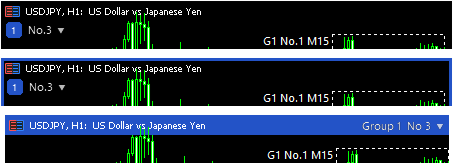
From the top: Identity , Full Frame and Top Band .
● Group tab

Lets you change the synchronization group's color.
- Displays the current group color. Clicking Generate creates a distinct new candidate color.
- Click Apply to use the chosen color, or click Reset to return to the default color.
- The changed color is shared by every chart in the same group. When all of the group's charts are removed, it is discarded, and the group starts with the default color next time.
● Range tab (Range Rectangle)

Sets the update interval of the range rectangle drawn on higher-timeframe charts by Rect.
- Range update interval (All Charts) — Sets how frequently range rectangle updates are batched ( 50 ms (default), 100 ms , 150 ms , 200 ms ). Shorter intervals deliver smoother tracking as lower-timeframe charts scroll, while longer intervals reduce terminal rendering load. A change is applied automatically to every chart running this indicator.
● Object Sync tab

Adjusts how drawn objects are synchronized.
- Max timeframe ratio (Group) — The maximum timeframe ratio for synchronizing to charts on a higher timeframe than the one an object was drawn on ( 10 , 20 , 30 , 60 (default), 120 , 240 ). With 60, for example, objects drawn on a 1-minute (M1) chart sync up to the 1-hour (H1) chart but not to 4-hour (H4) or daily charts. Objects always sync to lower timeframes regardless of the ratio. A change is applied automatically to every chart in the same group.
- Object indicator — What appears when you hover over a synchronized object (a setting for this chart only). None (default) shows nothing. Tooltip shows the timeframe the object was drawn on (such as M5 ).
- Include foreign objects — Which objects the Sync button in Object mode can take on (a setting for this chart only). With OFF (default), only objects this indicator had Unsynced and objects still carrying the name MT5 gave them. With ON , every Local object of a supported category, including ones drawn by other indicators or tools.
● Info tab

Shows this chart's chart ID, its group and No., its symbol, the window size and more. This is useful when describing your setup to support.
● Group (Grp) and Global (All) broadcast
Group Indicator, Object indicator and Include foreign objects have Grp (apply to every chart in the same group) and All (apply to every chart running this indicator) buttons on the right. They copy the value once, at the moment you click; later changes on either chart are not linked. Range update interval and Max timeframe ratio are applied automatically when you change them (they have no Grp or All buttons).
■ Chart capacity
This product does not impose any chart-count limit of its own (beyond MT5's own limit). In practice, how many charts you can run smoothly depends on your computer, MetaTrader 5's own terminal limits, your chart configuration (symbols, timeframes, other indicators and Expert Advisors), and general system resources. This product is not advertised or guaranteed as supporting an unlimited number of charts.
■ Input parameters (colors and appearance)
The indicator works with no configuration. If you want to adjust it, the following settings are available under "Inputs" in MetaTrader 5's indicator properties dialog. They only change how things look; none of them change how synchronization behaves.
● Common
- Color Mode — how colors are chosen. The default, "Auto", picks a built-in light or dark color scheme automatically from the chart's background brightness. "Custom" uses the color settings on this page as-is instead. "Dark" and "Light" always use the scheme Auto would pick for a dark or light background, whatever the chart's actual background — useful when Auto's judgement doesn't match your intent, such as on a mid-tone background.
The color settings apply only when Color Mode is Custom. While Auto is selected, the light or dark colors in the tables below are used, chosen from the chart's background brightness. While Dark or Light is selected, the dark or light colors are always used, regardless of the background. Each color setting starts out holding the dark color.
| Parameter | Used for | Auto: Light | Auto: Dark |
|---|---|---|---|
| Text Color | Text on the panel, the identity badge and the subwindow | ■ #1E1E1E | ■ #EEEEEE |
| Icon Color | Panel icons and accents such as the "+" in the group menu, the current-group dot and the reference-corner mark | ■ #686C70 | ■ #3183FF |
● Mainwindow Color (control panel)
| Parameter | Used for | Auto: Light | Auto: Dark |
|---|---|---|---|
| Panel Border Color | The control panel's border | ■ #BEBEBE | ■ #464646 |
| Panel Background Color | The control panel's background | ■ #F0F0F0 | ■ #1E1E1E |
| Button ON Color | Background of buttons that are on | ■ #D7E4F2 | ■ #333333 |
| Button OFF Color | Background of buttons that are off | ■ #F0F0F0 | ■ #2A2A2A |
| Action Button Color | Background of Edit, Settings, the minimize button, APPLY ALL and DONE | ■ #F0F0F0 | ■ #2A2A2A |
● Subwindow Color
| Parameter | Used for | Auto: Light | Auto: Dark |
|---|---|---|---|
| Background Color | The subwindow's background | ■ #F0F0F0 | ■ #1E1E1E |
| Text Input Background Color | Background of input boxes (Description and Go) | ■ #FFFFFF | ■ #22272B |
| Text Input Border Color | Border of input boxes | ■ #A0A0A0 | ■ #52595F |
| Button Border Color | Border of buttons | ■ #BEBEBE | ■ #52595F |
| Button ON Color | Background of buttons that are on | ■ #D7E4F2 | ■ #333333 |
| Button OFF Color | Background of buttons that are off | ■ #F0F0F0 | ■ #1C212B |
| Delete Button Color | Delete buttons | ■ #FF3A3A | ■ #FE634D |
| Undo Button Color | Undo buttons | ■ #C2850C | ■ #DF8F40 |
● Bookmark Mode Color and Object Mode Color (number buttons)
| Parameter | Used for | Auto: Light | Auto: Dark |
|---|---|---|---|
| Bookmark Color | Bookmark number buttons | ■ #06D189 | ■ #06D189 |
| Synced Object Color | Number buttons of Synced objects and their selection frames on the chart | ■ #3183FF | ■ #3183FF |
| Local Object Color | Number buttons of Local objects and their selection frames on the chart | ■ #626467 | ■ #C8C8C8 |
● Live Rectangle (range rectangle)
- Border Color — the border color. Outside Custom, the chart's foreground color is used (black on a light background, white on a dark one).
- Label Color — the color of the label naming the source chart. Outside Custom, the same as the border.
- Border Style — the border style, chosen from MT5's line styles (dotted by default).
- Border Width — the border thickness, from 1 to 5 (1 by default).
- Range Label Font Size — the label's font size (8 by default).
The inside of the range rectangle is not filled.
● Bookmark Rectangle
- Selected Fill Color — the fill color of selected bookmark rectangles. Rectangles that are not selected are not filled.
- Border Color — the border color.
- Label Color — the color of the number label (such as M5-1 ).
- Border Style — the border style (solid by default).
- Border Width — the border thickness, from 1 to 5 (1 by default).
- Bookmark Label Font Size — the label's font size (8 by default).
Outside Custom, a green color is used with the dark scheme and a gray color with the light scheme; the fill and border mix that color with the chart's background color.
■ Notes and known behaviors
- Profile switching behavior: Switching chart profiles in MetaTrader 5 tears down and recreates the indicator on every chart, so synchronization groups and chart numbers are rebuilt from scratch. Bookmarks that you have not Saved are lost at this point; Save the ones you want to keep before switching.
- Peer chart display during manual dragging: While you drag a chart back in time, other charts in the same group may momentarily jump to the latest bar because of MetaTrader 5's internal chart rendering. This is MT5 behavior; they return to their synchronized position within about 0.3–0.6 seconds.
- Undo history: The Undo history survives timeframe and input changes, but is cleared when MetaTrader 5 is closed.
- Using it alongside tools that do the same job: Running it together with another tool that synchronizes chart position or zoom, controls MT5's Auto Scroll, or synchronizes objects between charts can make charts move back and forth or create duplicate objects. Do not use such tools at the same time.
■ Supported environment
KZ Chart Synchronizer MT5 is built and verified for normal charts in the current public Windows version of MetaTrader 5. Behavior on macOS/Wine, MQL5 VPS, and the Strategy Tester is not currently guaranteed. Opening subwindows is disabled in the Strategy Tester.
■ Support
For questions or issues, please use MQL5 product comments or a private message to the author on MQL5.com.
Part 1: Getting started, chart synchronization and objects | Part 2: Bookmarks, settings and reference