
Available on the MQL5 Market: JET Trade Assistant PRO
JET Trade Assistant PRO is a trade panel and trade manager for MetaTrader 5. It calculates the position size from your risk, lets you plan the trade with lines drawn directly on the chart, and then manages the trade for you: partial exits and partial stops, up to four break-even levels, eight trailing-stop types, hidden stops, virtual orders, basket protection, prop-firm rules, a news filter, trading hours, time tasks, notifications, a day breakeven line and a trading journal with statistics.
This manual explains every button, field and setting. The panel speaks English, Portuguese, Spanish and Russian; the screenshots of this manual were taken from a BTCUSD demo chart.
Risk notice. Trading involves risk of loss. The panel executes and manages the orders you decide to place; it does not predict the market and does not guarantee any result. Always test on a demo account first.
New in version 2.00
- Partial stops (EXITS tab, section 6.2): up to four levels between the entry and the stop that close part of the volume on the way to the stop.
- News filter (TIME tab, section 10.3): blocks new entries around high-impact news of the MetaTrader economic calendar; it can also delete pending orders or close positions.
- Trading hours (TIME tab, section 10.2): new entries only inside the hours and days you choose.
- New position sizes (section 3.1): Reward % (volume from the money wanted at the take profit) and Lots / 1000 (volume proportional to the balance), plus risk reduction after a good day (section 8.3).
- Notifications (TOOLS tab, section 9.5): pop-up, push and e-mail for entries, exits, break-even and limits.
1. Installation and first start
- Buy or rent the product on the MQL5 Market and install it from the Market tab of your MetaTrader 5 terminal (Toolbox → Market → Purchased → Install).
- Open a chart of the symbol you want to trade and drag JET Trade Assistant PRO from the Navigator (Expert Advisors → Market) onto the chart.
- In the window that opens, on the Common tab, tick Allow Algo Trading. Make sure the Algo Trading button on the terminal toolbar is green.
- Adjust the inputs if you want (all of them can also be changed later in the panel) and press OK.
The panel appears at the top left of the chart. Your panel settings are saved per chart and are restored automatically the next time you attach the EA to the same chart (input Restore the last panel settings of this chart). When you change the inputs of the EA, the saved panel settings are ignored once and the new inputs are used.
Custom symbols and Renko charts. If the chart is a custom symbol (Renko, range bars, etc.), set the input Trade symbol to the real symbol of your broker (for example EURUSD ). The panel then reads the chart but sends the orders to the real symbol.
Strategy Tester. The panel works in the visual Strategy Tester: you can click the buttons and drag the lines while the test runs. In a non-visual test it places a demo trade every 24 bars so that all the automatic management (partials, break-even, trailing) can be checked.
2. The panel

- Header: product name, symbol traded by the panel and the ▲ / ▼ button that collapses the panel to the header only.
- Moving the panel: click on the header and drag it. The position is remembered.
- Tabs: TRADE, EXITS, TRADES, RISK, TOOLS, TIME and STATS.
- Mouse wheel: over a number field, the wheel increases or decreases the value; over a selector (the fields with ▾), it changes the option. Click a number field to type a value and press Enter.
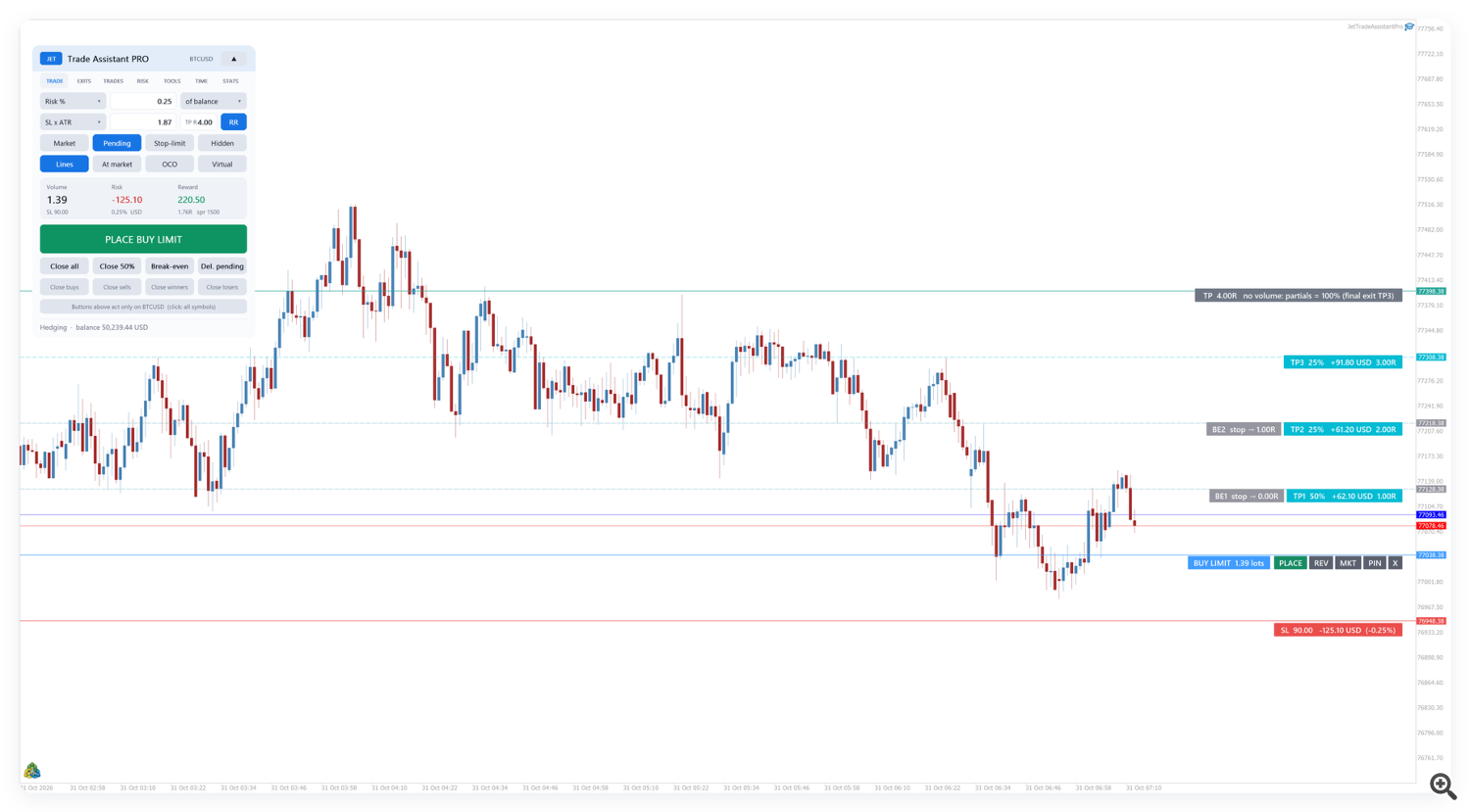
- Status line: at the bottom of the panel the last action or error is shown (for example BUY LIMIT 1.39 BTCUSD @ 77038.38 or Rejected: invalid stops).
- Theme: light, dark or automatic (follows the chart background) — TOOLS tab or input Theme.

3. TRADE tab — sizing and sending orders
3.1 Position size
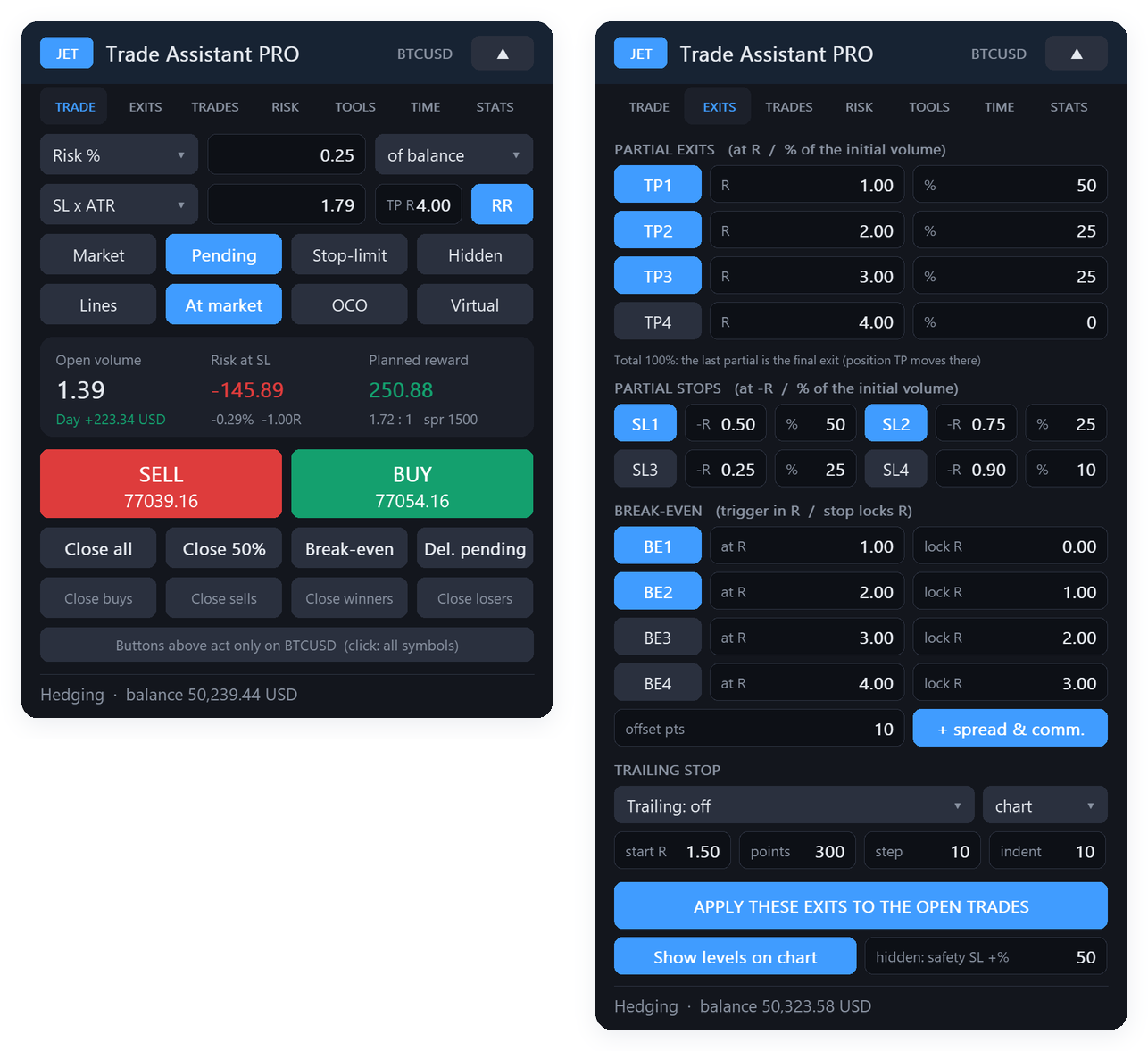
The first row defines how the volume is calculated:
| Mode | What it does |
|---|---|
| Risk % | Risks a percentage of the selected base (balance, equity, free margin, or the balance at the start of the day, week or month). |
| Risk money | Risks a fixed amount of money in the account currency. |
| Fixed lots | Always uses the same volume. |
| Reward % | Sizes the volume so that the take profit pays a percentage of the selected base. Needs a take profit (TP R > 0 or a TP line). |
| Lots / 1000 | A fixed volume for every 1,000 of the selected base (for example 0.01 lot per 1,000 USD of balance). |
Risk reduction (RISK tab, section 8.3) applies to every mode: after a good day the new trades use only part of the size.
The risk includes the commission. The commission is detected automatically from your trade history (TOOLS tab → Commission from history) or can be typed per lot. If the risk is smaller than the minimum lot of the symbol, the order is not sent, unless the input Risk below the minimum lot: trade the minimum lot is on.
3.2 Stop loss and take profit
- SL points / SL × ATR / SL N bars: distance of the stop when you send an order with the BUY / SELL buttons (without lines). Points is a fixed distance, × ATR is a multiple of the Average True Range, N bars places the stop behind the lowest low (buy) or highest high (sell) of the last N bars plus an indent.
- TP R: take profit as a multiple of the risk (R). 2.00 means the target is twice the stop distance. 0 = no take profit.
- RR: locks the take profit to the stop. With RR on, moving the stop line moves the target so the ratio stays the same (and moving the target moves the stop).
With the lines on, changing the SL field moves the SL line to that distance from the entry, and dragging the SL line writes the real distance back into the field. In N bars mode a dragged stop switches the field to points.
3.3 Order type and options
| Button | Function |
|---|---|
| Market | Entries at the current price. |
| Pending | Entries away from the price become limit or stop orders, depending on the side of the price. |
| Stop-limit | Entries beyond the price become stop-limit orders (the limit is placed a few ticks beyond the trigger — TOOLS tab). |
| Hidden | Stop loss and take profit are kept by the panel and not sent to the broker (see section 9). |
| Lines | Shows the order lines on the chart (section 4). |
| At market | Keeps the entry line glued to the current price, so PLACE sends a market order. |
| OCO | A filled order cancels the other pending orders of the panel on the symbol. |
| Virtual | Pending orders are kept by the panel and sent at market when the price reaches them (section 9). |
3.4 The preview card
Before you send anything the card shows Volume, Risk (money and % of the base) and Reward. With partial stops on, the risk is the money really lost if the stop is hit: the partial stops take their part on the way (the volume itself is still sized on the full stop distance, so partial stops only lower the loss). The reward already takes your partial exits into account: if TP1 closes 50% at 1R and the rest goes to 4R, the reward is 0.5 × 1R + 0.5 × 4R = 2.5R, not 4R. When all your partials add up to 100%, the last partial is the final exit and the TP of the order is moved to it.
When the lines are off and you already have trades of the panel on the symbol, the card shows those trades as they stand now: Open volume, Risk at SL (or Locked at SL when the stop is already in profit), Planned reward (remaining partials + rest at the TP), the reward:risk ratio and the Day result of the symbol.
3.5 Buttons
- SELL / BUY (lines off): sends a market order with the stop and target of the fields.
- PLACE … (lines on): sends the order drawn by the lines. The text shows the order that will be sent (BUY LIMIT, SELL STOP, BUY STOP LIMIT…).
- Close all, Close 50%, Break-even, Del. pending: act on the trades of the symbol.
- Close buys, Close sells, Close winners, Close losers.
- Buttons above act only on : click to make the buttons act on all symbols (the bar turns orange). Click again to return to the current symbol.
4. Planning the trade with lines
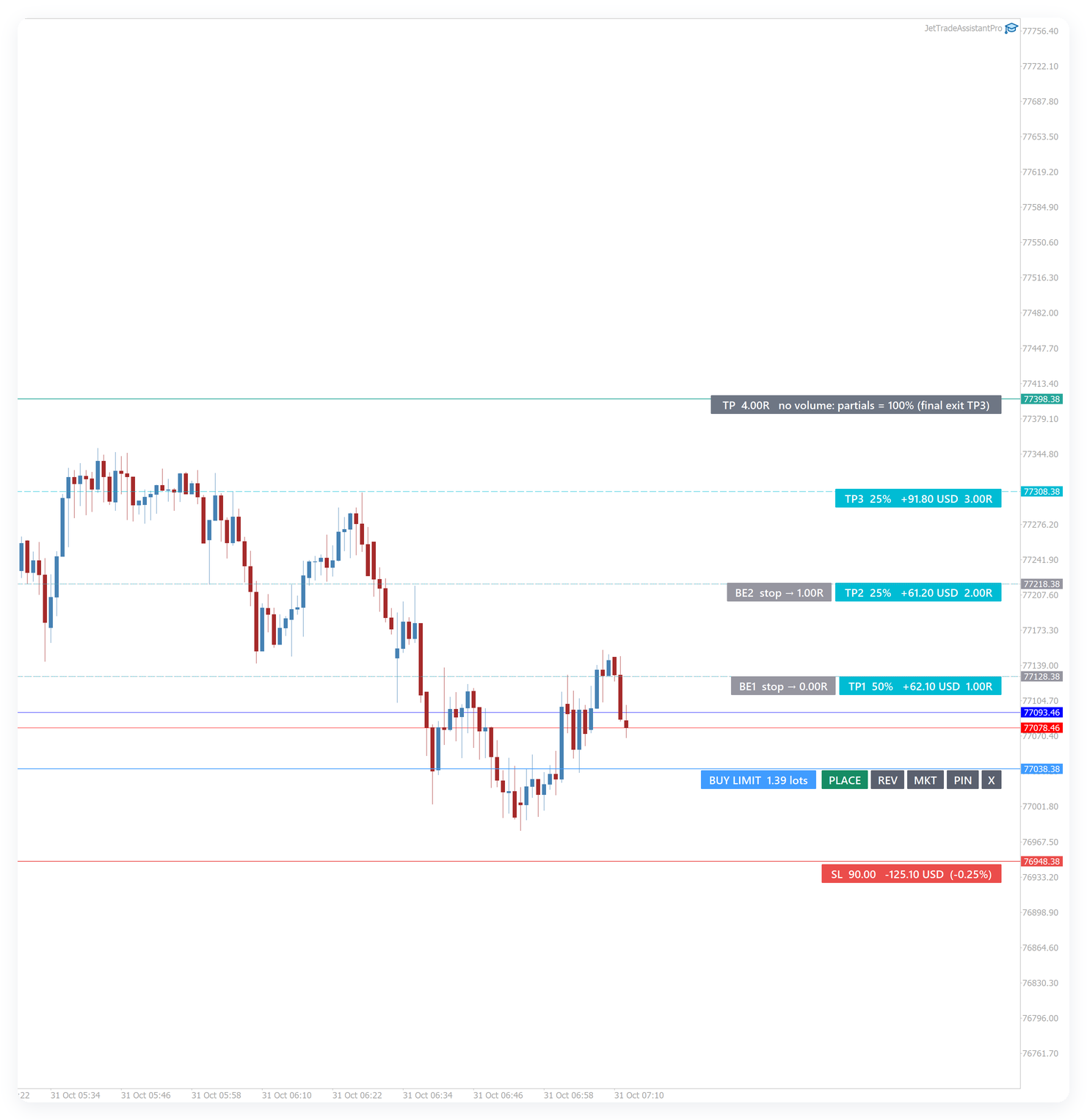
Press Lines (or Shift + L). Three lines appear: entry (blue), stop loss (red) and take profit (green). Drag them with the mouse — it works on live charts and in the visual Strategy Tester.
Each line carries an information box:
- Entry: order type and volume (BUY LIMIT 1.39 lots) and the buttons PLACE (send), REV (reverse buy/sell), MKT (entry glued to the market price), PIN (when on, moving the entry does not move the stop and target) and X (hide the lines).
- SL: distance, money lost, % of the balance.
- TP: distance, money, R. When partials are active the TP box shows the part of the volume that still goes to the TP and the total of the plan. When the partials add up to 100% it says final exit (partials = 100%).
- TP1…TP4 (dashed cyan lines): each partial exit with its %, money and R.
- BE1…BE4 (dotted grey lines): each break-even trigger and where the stop goes (stop → 0.00R = entry plus costs).
- SL1…SL4 (dashed orange lines): each partial stop with its %, money and R (section 6.2).
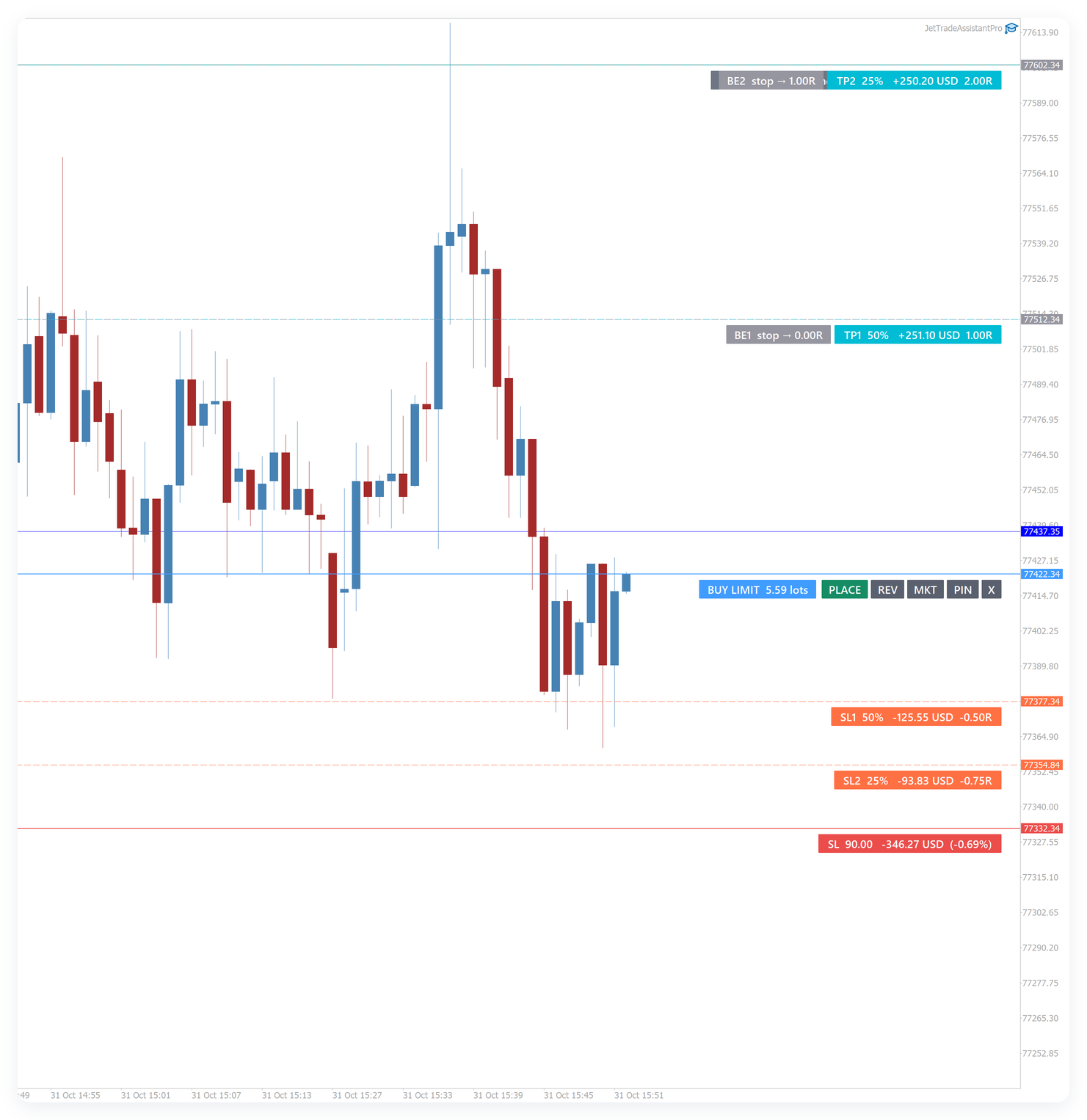
Every partial, partial stop and break-even line can be dragged individually: drag the line or grab its box. When a partial and a break-even sit on the same price, the boxes are side by side — grab the one you want to move. The new R is written into the EXITS tab.
The chart is shifted to the left automatically so that the last candles are never hidden behind the boxes; your own chart shift is restored when the boxes disappear.
Ladder: with ladder orders > 1 (TOOLS tab) a fourth line appears; the volume is split into N orders between the entry and the ladder line.
Hotkeys (Shift + key, input Hotkeys): B buy, S sell, L lines on/off, P place, R reverse, C close all, H close 50%, E break-even, D delete pending orders, M entry at market.
5. After PLACE: pending orders and open positions on the panel
The panel draws your orders and positions with the same look as the planning lines and hides the standard trade levels of the terminal (they come back when you remove the EA or turn Show levels on chart off).
5.1 Pending order

- The entry box shows the order type, the volume and an X button that cancels the order.
- Drag the entry line to move the order: the stop, target and stop-limit price move with it.
- Drag the SL or TP line to change them at the broker. The partials and break-evens are in R, so they follow the new stop distance.
- Partials and break-evens can be dragged one by one before the order is filled.
5.2 Open position
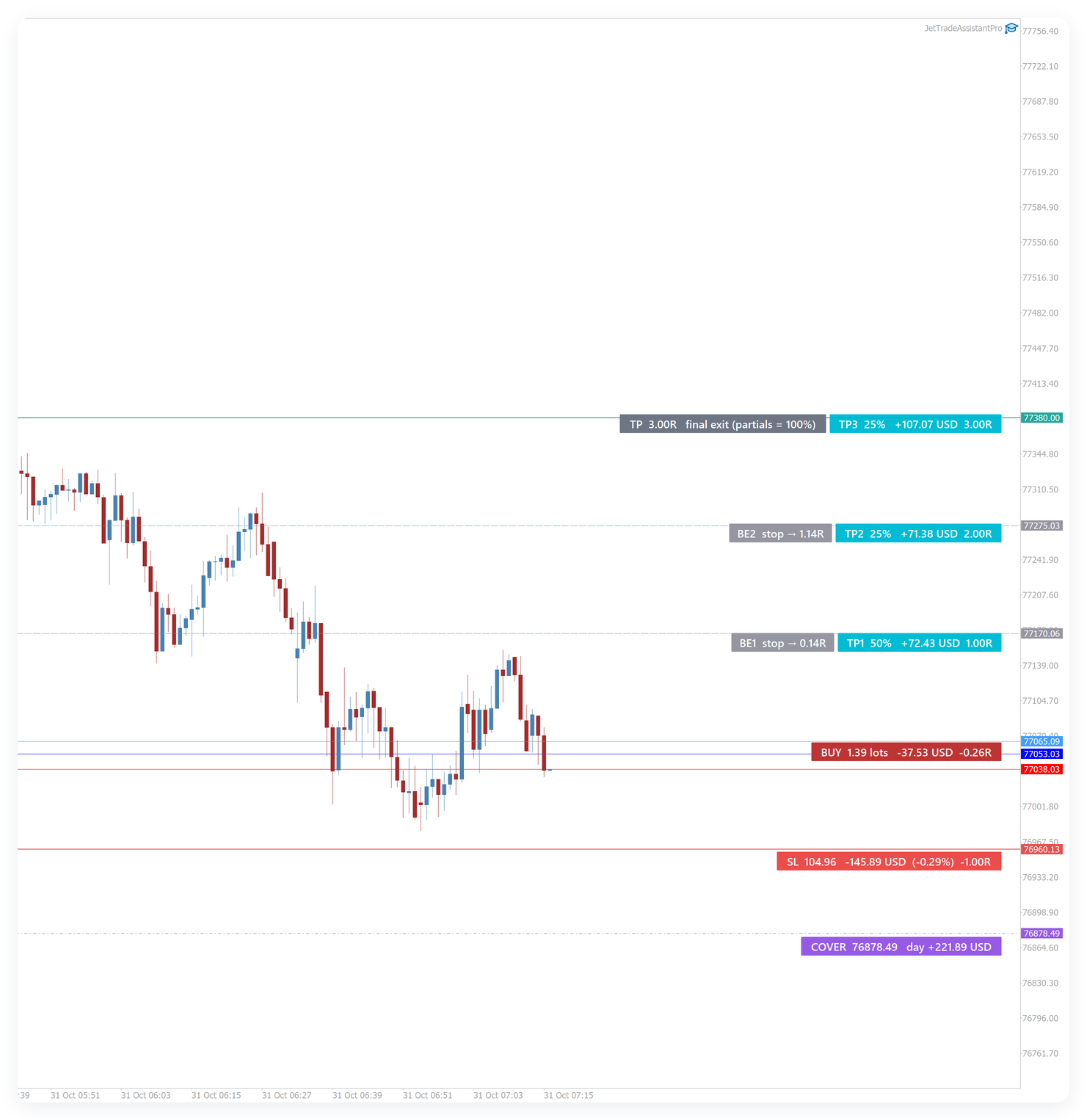
- The entry box shows the volume, the floating result in money and in R. It is green in profit and red in loss.
- SL: drag it to move the stop of the position. After a break-even the box turns green and shows the profit already locked.
- TP1…TP4, SL1…SL4 and BE1…BE4 still to come are drawn and can be dragged individually.
- When the partials add up to 100%, the TP of the position is placed on the last partial automatically.
- The purple day breakeven line is explained in section 7.2.
R values on an open position always use the initial risk (1R = the stop at entry), so moving the stop does not change the size of R.
6. EXITS tab — partial exits, partial stops, break-even and trailing
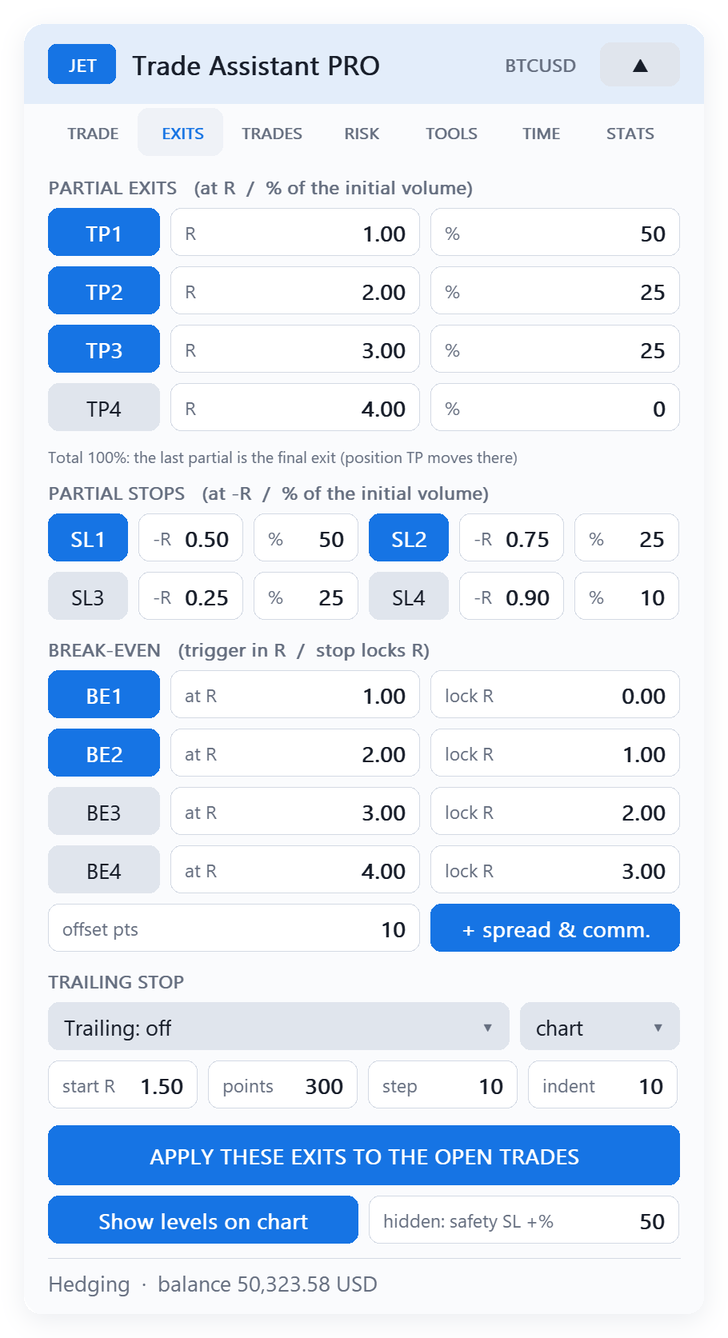
6.1 Partial exits
Up to four partial exits (TP1…TP4). For each one: on/off, R (distance in multiples of the initial risk) and % of the initial volume to close. The text under the list tells you what happens with your setting:
- Total below 100%: the rest runs to the TP of the order or to the trailing stop.
- Total 100%: the last partial is the final exit; the TP of the position is moved there.
6.2 Partial stops
Up to four partial stops (SL1…SL4) between the entry and the stop. For each one: on/off, -R (distance from the entry towards the stop, in multiples of the initial risk, from 0.01 to 0.99) and % of the initial volume to close. Example: SL1 at -0.5R closing 50% and SL2 at -0.75R closing 25% — if the stop is hit, the loss is 0.5 × 0.5R + 0.25 × 0.75R + 0.25 × 1R = 0.69R instead of 1R.
- The stop of the position closes whatever is left; a partial stop never closes the last minimum lot.
- A partial stop is skipped when the stop has already moved past it (break-even, trailing).
- The volume is sized on the full stop distance, so partial stops lower the loss and never raise the size.
- The levels are drawn on the chart (dashed orange) before and after the order is sent and can be dragged one by one.
6.3 Break-even (four levels)
For each level: on/off, at R (trigger) and lock R (where the stop goes). Example: BE1 at 1R lock 0R moves the stop to the entry when the price reaches 1R; BE2 at 2R lock 1R moves the stop to +1R when the price reaches 2R.
- offset pts: extra distance beyond the entry.
- + spread & comm.: the offset is calculated automatically as spread + commission, so a break-even stop really closes at zero.
6.4 Trailing stop
Eight types: fixed distance, ATR, moving average, Parabolic SAR, fractals, high/low of N bars, previous partial level and custom indicator buffer (name of the indicator in MQL5\Indicators and buffer number). Parameters: timeframe of the indicator, start R (the trailing starts only after this profit; 0 = at once), points / ATR multiple / period, step (minimum move) and indent. The stop only moves forward.
6.5 Apply and levels
- APPLY THESE EXITS TO THE OPEN TRADES: copies the current exit settings to every open trade in scope (levels already passed count as done).
- Show levels on chart: turns the drawing of orders, positions and levels on or off.
- hidden: safety SL +%: in hidden mode a safety stop is sent to the broker this percentage of the risk beyond the hidden stop (0 = none).
7. TRADES tab — positions, day breakeven and group actions

7.1 Positions and orders
- Top card: total buy and sell volume with the average price, and the open result.
- One row per position: volume, entry, result in money and R, and the buttons ½ (close half), BE (break-even) and X (close).
- One row per pending order: C creates a cancel level (a line; if the price reaches it before the order is filled, the order is deleted — drag the line to set the level) and X (delete).
- Virtual orders have their own row with X.
7.2 Day breakeven (cover point)
The PC / cover point is the price at which the day result of the symbol is zero: everything realized today on the symbol (profit, swap, commissions, fees) plus the open positions, minus the commission still to pay on exit. All positions of the symbol count — manual, from other EAs and from the panel. The price is rounded against you (a long needs the tick above, a short the tick below). With buys and sells of the same volume (hedge), there is no cover point.
- PC line: shows the purple line on the chart with the price and the day result.
- Cross alert: alert and push notification (if push is configured in the terminal) when the price crosses the cover point.
- SL at PC: moves the stop of the panel's positions on the symbol to the cover point, so the day cannot end in loss on this symbol. It only works when the cover point is on the protective side of the price (below the price for buys, above for sells).
7.3 Group
- BE buys / BE sells: all positions of one side go to the average entry + offset (common break-even).
- SL line → all / TP line → all: show the lines, move the SL or the TP line, press the button — every position of that side gets the same stop or target.
8. RISK tab — basket protection, prop-firm rules and risk reduction
8.1 Basket: close everything at (BASKET)
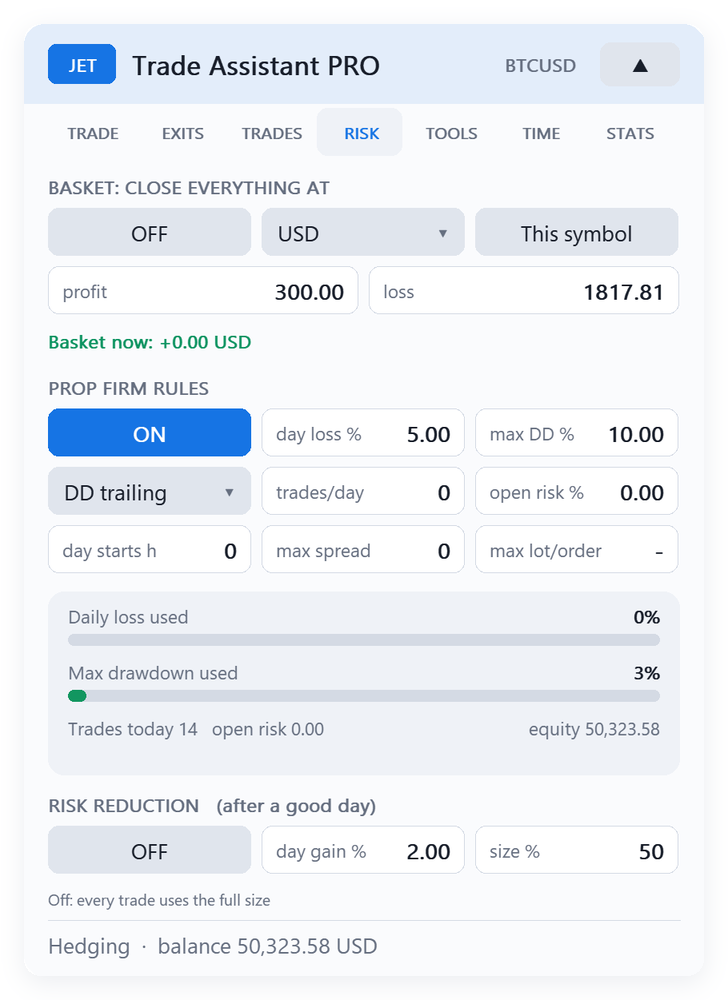
Closes all trades when the basket reaches a profit or a loss, in money, % of the balance or equity level. This symbol / All symbols selects the basket. The current basket result is shown and, for the basket of this symbol, two dashed lines on the chart show the price where the basket target and the basket stop are reached. Drag these lines to change the basket target or stop: the new value is written into the profit / loss field.
8.2 Prop-firm rules
When ON, the panel enforces:
- day loss % — daily loss limit (from the balance at the start of the trading day; day starts h sets the server hour of the reset);
- max DD % — maximum drawdown, DD static (from the starting balance) or DD trailing (from the highest equity);
- trades/day — maximum number of trades per day;
- open risk % — maximum open risk of the account (sum of the money lost if every stop is hit);
- max spread — market orders are blocked above this spread;
- max lot/order — bigger trades are split into several orders.
Bars show how much of each limit has been used. Before every entry the panel checks whether the new trade still fits in the limits. When the daily loss or the maximum drawdown is reached, the open trades are closed and new entries are blocked (entries blocked). The daily block is lifted automatically at the start of the next trading day; the drawdown block stays (even after a restart) until you press Reset.
8.3 Risk reduction (after a good day)
When ON, once the day result of the account reaches day gain % (from the balance at the start of the trading day, open trades included), every new trade uses only size % of the normal volume. Example: day gain 2% and size 50% — after +2% on the day, a 1% risk becomes 0.5%. The line under the fields shows the day result and the size in use; on the TRADE tab the risk of the card turns orange with x50%. It works with every sizing mode.
9. TOOLS tab — pending tools, external trades, presets, notifications
9.1 Pending orders
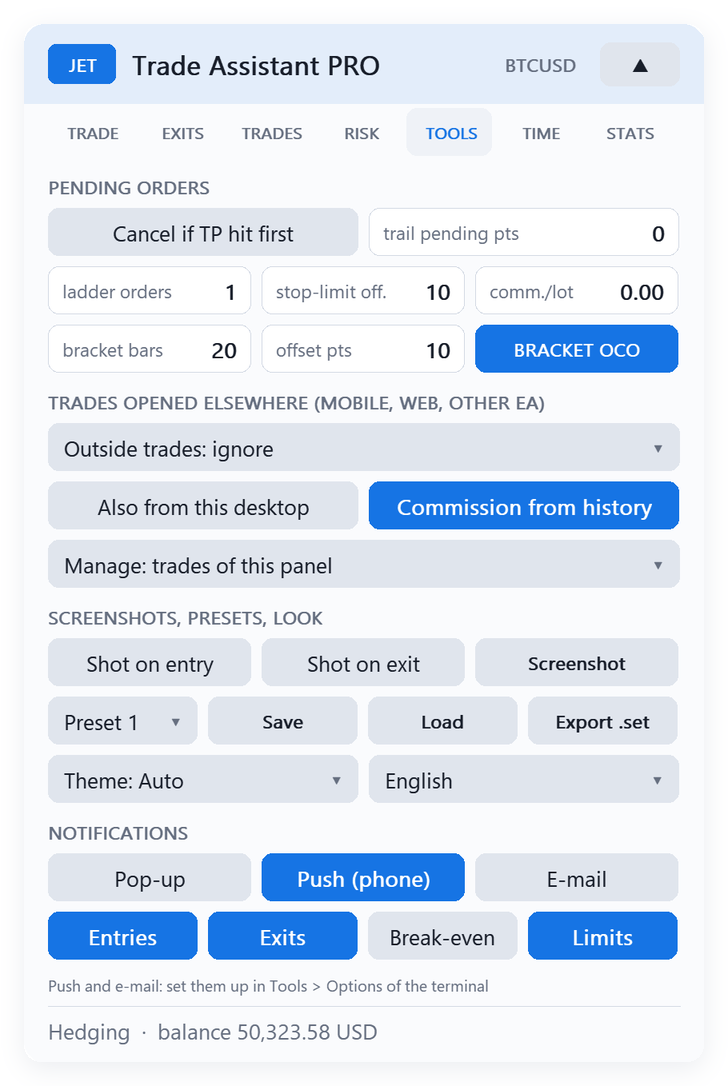
- Cancel if TP hit first: a pending order is deleted if the price reaches its take profit before the entry.
- trail pending pts: the pending order follows the price at this distance until it is filled (0 = off).
- ladder orders: number of orders of the ladder (section 4).
- stop-limit off.: distance between trigger and limit of stop-limit orders (ticks).
- comm./lot: commission per lot, round turn (when not read from the history).
- bracket bars / offset pts / BRACKET OCO: places a buy stop above the high and a sell stop below the low of the last N bars (+ offset), linked as OCO: when one is filled the other is cancelled.
9.2 Hidden stops and virtual orders
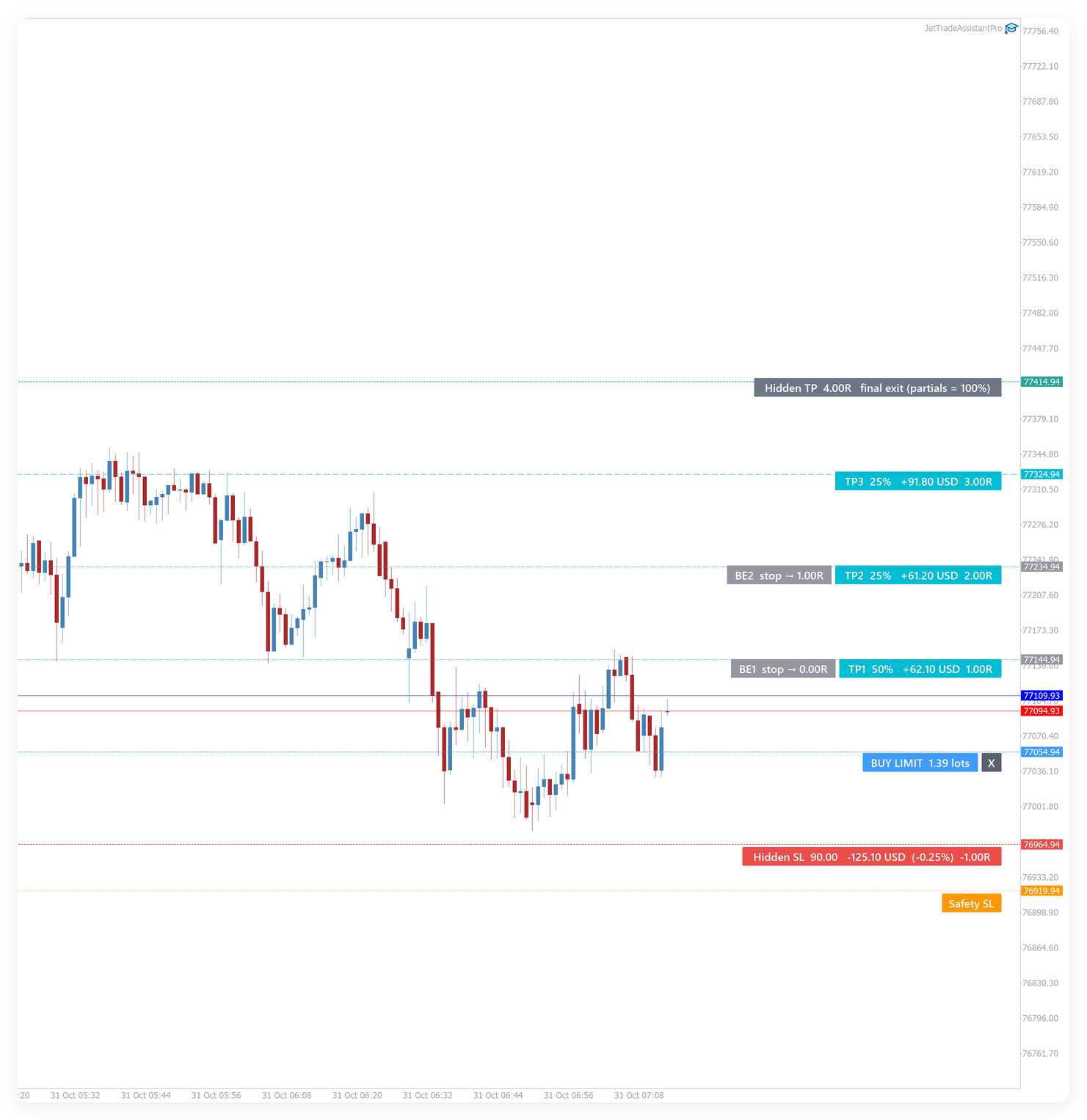
Hidden (TRADE tab): the stop loss and take profit are kept by the panel and the position is closed at market when they are reached. The broker only sees the safety SL, farther away. Hidden lines are dashed; the safety SL is dotted orange.
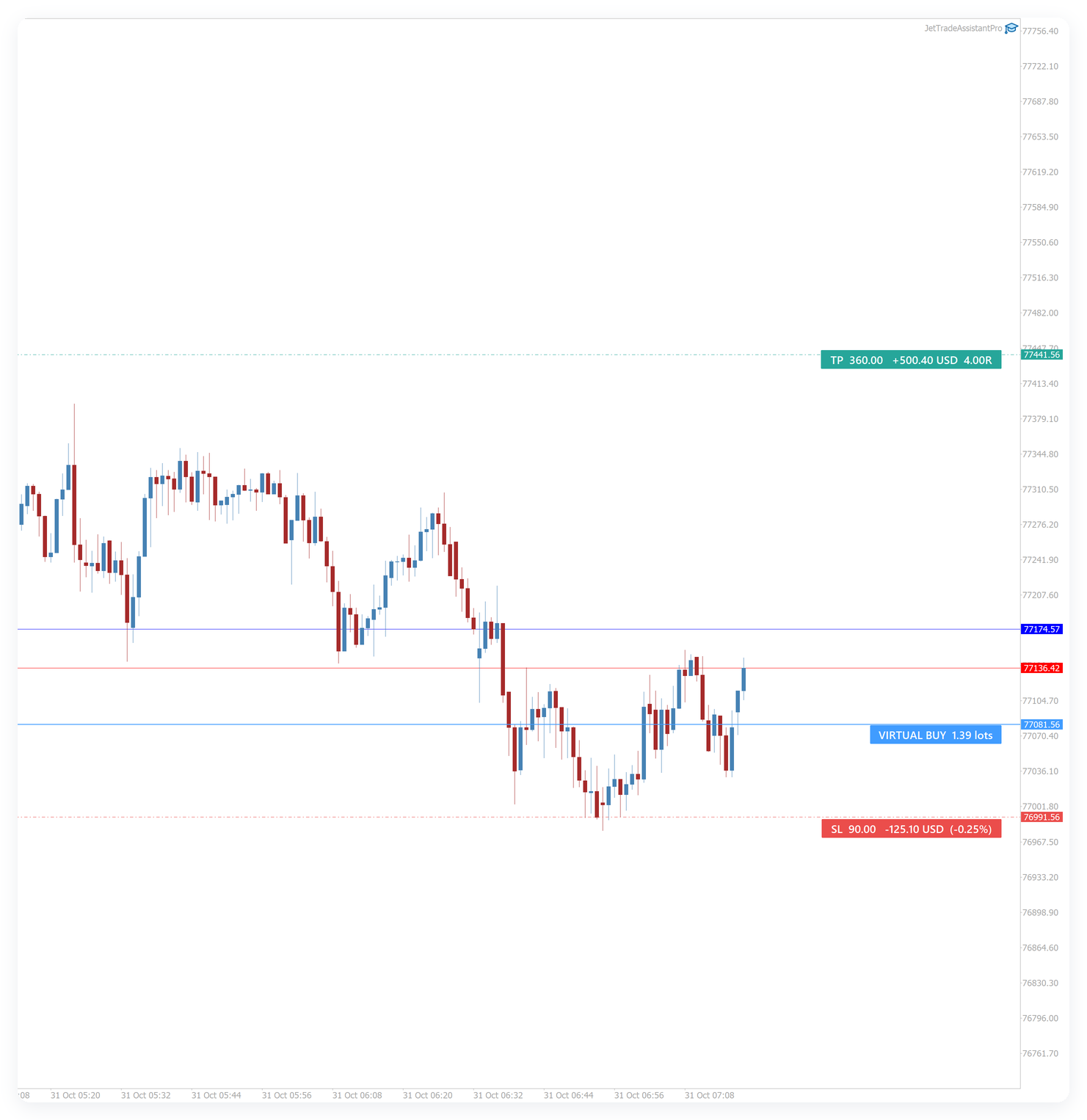
Virtual (TRADE tab): the pending order is not sent to the broker. The panel draws it (VIRTUAL BUY/SELL with its SL and TP) and sends a market order when the price reaches it. Useful to hide your intention and to avoid margin blocked by pending orders.
Both need the terminal running with the EA (a VPS is recommended). Executions at market can have slippage.
9.3 Trades opened outside the panel
TRADES OPENED ELSEWHERE (MOBILE, WEB, OTHER EA):
- Ignore — the panel does not touch them;
- Manage exits only — partials, break-even and trailing of the panel are applied;
- Size by risk and manage — the trade is resized to the panel risk (volume added or closed), the missing SL/TP are set and the exits are managed. Open a minimum-lot trade on your phone with a stop and the panel turns it into a trade with your risk.
Also from this desktop: applies the same to manual trades of this terminal. The scope selector (input Trades managed) selects which trades the panel manages: the trades of this panel, all trades of the symbol or all trades of the account.
9.4 Screenshots, presets, look
- Shot on entry / Shot on exit: saves a chart screenshot at every entry and exit (MQL5\Files\JetTA).
- Screenshot: manual screenshot.
- Presets 1–5: Save and Load complete panel settings.
- Export .set: writes a .set file with the current settings (load it in the inputs before migrating to a VPS).
- Theme and language.
9.5 Notifications
Channels: Pop-up (alert window of the terminal), Push (phone) and E-mail. Push needs your MetaQuotes ID in Tools → Options → Notifications of the terminal; e-mail needs the e-mail settings of the terminal. Events:
- Entries — every entry of the trades the panel manages (BUY 0.50 EURUSD @ 1.08500);
- Exits — partial exits and closed trades with the result (and SL / TP when it was the reason);
- Break-even — every automatic break-even move;
- Limits — prop-firm limits, basket target / stop and the start of a news window.
The terminal sends at most 10 push notifications per minute; extra messages are written to the Experts log.
10. TIME tab — time tasks, trading hours and news filter
10.1 Time tasks
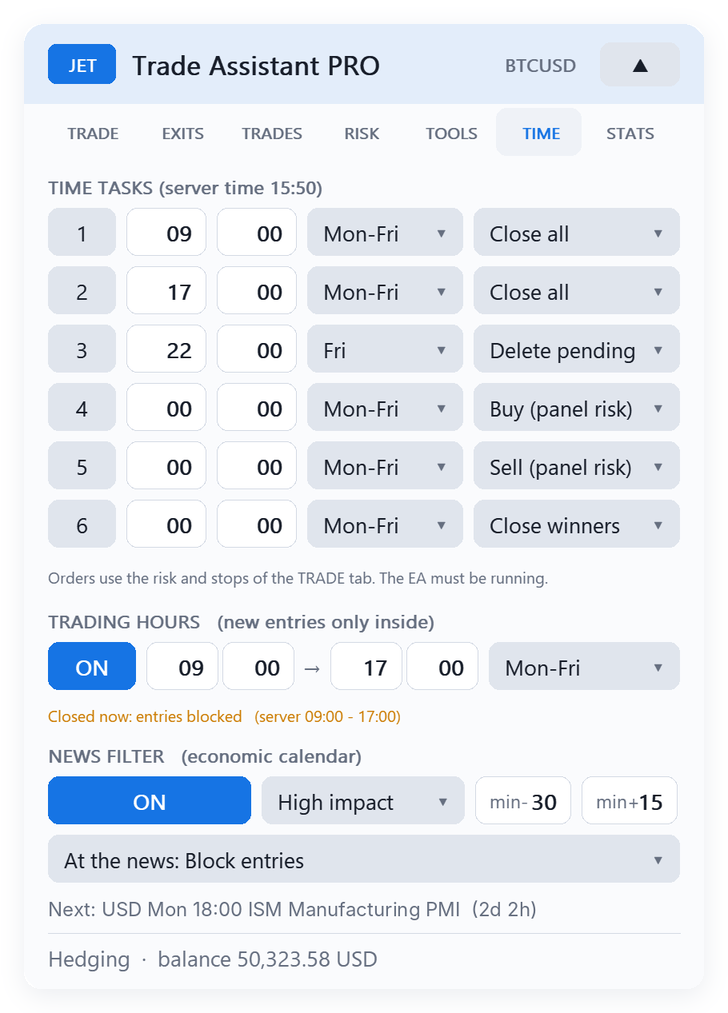
Six tasks in server time (TIME TASKS). For each: on/off, hour, minute, days (Monday–Friday, every day or one weekday) and action: buy, sell (using the risk and stops of the TRADE tab), close all, close buys, close sells, close winners or delete pending orders. Typical use: close everything before the end of the session, or delete pending orders on Friday night. The EA must be running at that time.
10.2 Trading hours
When ON, new entries are accepted only between the two times (server time) on the selected days (Monday–Friday, every day or one weekday). A window that passes midnight (for example 22:00 → 06:00) is accepted. Open trades keep being managed outside the window; use a time task to close them if you want. The line under the fields says whether the window is open now.
10.3 News filter
Uses the economic calendar of MetaTrader 5 for the currencies of the symbol (for example EUR and USD on EURUSD, USD on US indices, BRL on B3 futures):
- High impact or High + medium — which news are filtered;
- min- / min+ — minutes before and after the news when new entries are blocked;
- At the news — Block entries, Block + delete pending (pending and virtual orders of the panel on the symbol are deleted when the window opens) or Block + close positions (the positions of the panel on the symbol are closed too).
The line under the selector shows the next news with its time, or BLOCKED with the end of the window. The calendar is read every 5 minutes. The economic calendar does not exist in the Strategy Tester, so the filter is off there.
11. STATS tab — journal and statistics
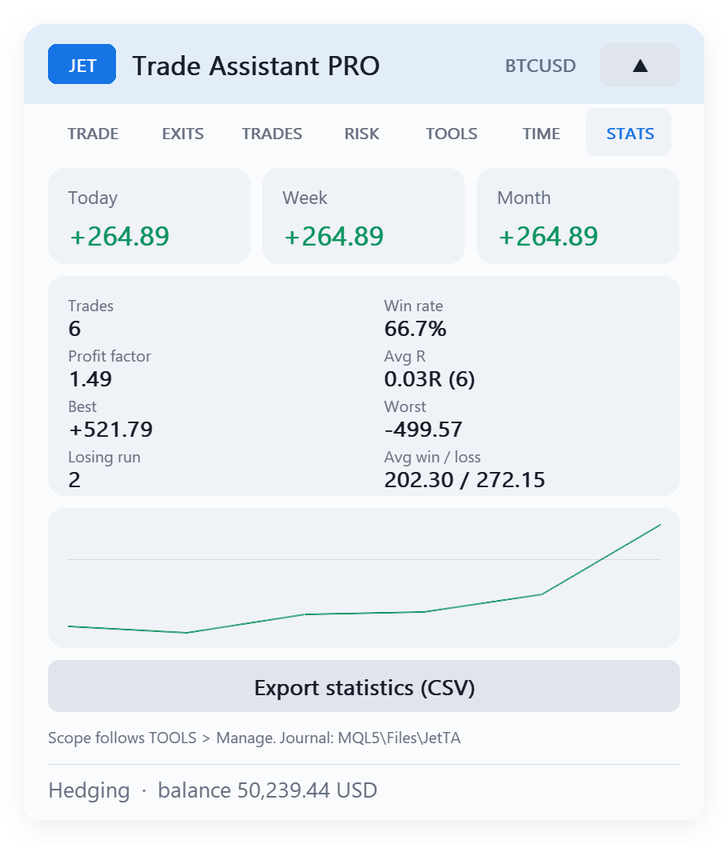
For Today, Week and Month: trades, win rate, profit factor, average R, average win / loss, best and worst trade, and the longest losing run. The equity curve appears after two closed trades. Export statistics (CSV) writes the data to MQL5\Files\JetTA. Every closed trade is written to the journal journal_<login>.csv in the same folder. The scope follows TOOLS → Scope.
12. Inputs (reference)
| Group | Main inputs |
|---|---|
| Position size | mode (% / money / lots / reward % / lots per 1000), risk %, risk money, fixed lots, risk base, trade the minimum lot when the risk is smaller, reward %, lots per 1000, risk reduction (on, day gain %, size %) |
| Stop and target | SL mode (points / ATR / bars), SL points, SL × ATR, bars, indent, ATR period, TP in R, RR lock |
| Orders | entry type away from price, stop-limit offset, commission, auto commission, max spread, max volume per order |
| Partial exits | TP1–TP4: on, R, % |
| Partial stops | SL1–SL4: on, -R, % |
| Break-even | BE1–BE4: on, trigger R, lock R; offset; offset = spread + commission |
| Trailing stop | type, start R, distance, step, ATR multiple, timeframe, MA period/method, bars, SAR step/max, indent, custom indicator and buffer |
| Hidden stops | hide SL/TP, safety SL % |
| Management | scope, external trades, size manual trades of this terminal |
| Basket protection | on, profit, loss, unit, all symbols |
| Prop-firm rules | on, day loss %, max DD %, DD type, starting balance, trades per day, open risk %, day reset hour |
| Pending tools | OCO, cancel when TP first, follow pending, ladder, bracket bars and offset, virtual pending |
| News filter | on, impact, minutes before, minutes after, action |
| Trading hours | on, from (hour, minute), to (hour, minute), days |
| Time tasks | 6 × (on, hour, minute, days, action) |
| Notifications | pop-up, push, e-mail; entries, exits, break-even, limits |
| Journal | screenshot on entry / exit |
| Panel | theme, language, font size, show levels, day breakeven line, cross alert, restore settings, hotkeys, panel X/Y, trade symbol, magic number |
13. Files
All files are in MQL5\Files\JetTA of your terminal: chart settings ( chart_<login>_<symbol>_<magic>.set ), trade plans ( book_*.csv , so partials and break-evens continue after a restart), journal, statistics, presets, exported .set files and screenshots.
14. Questions and troubleshooting
- Nothing happens when I click BUY / PLACE. Check that Algo Trading is on (green button) and that Allow Algo Trading is ticked in the EA properties. Read the status line at the bottom of the panel.
- "Rejected: invalid stops". The stop or target is too close to the price for the broker (stops level). Move it farther away.
- The volume is 0 / the order is not sent. The risk is below the minimum lot of the symbol. Increase the risk, use a shorter stop or turn on trade the minimum lot.
- My lines are not moving in the Strategy Tester. Use the visual mode; the panel drags its own lines with the mouse.
- Netting accounts. Partials and break-even work on the net position; opposite orders reduce it.
- Renko / custom charts. Set Trade symbol to the real symbol.
- After a restart the plans (partials, partial stops, break-evens, hidden stops) are read again from the file and the management continues.
- "Outside the trading hours" / "News …: entries blocked". The trading hours or the news filter of the TIME tab are blocking new entries; the status line says until when.
- The news filter says the calendar is not available. The terminal needs an internet connection to the MetaQuotes calendar; in the Strategy Tester the calendar does not exist.
- Updating from 1.00. Your saved panel settings are kept; the new features start with the values of the inputs (all off, except push notifications).
Support: send a private message on MQL5 to the author.