Scalping Mode in Multi Risk Manager Pro: One-Click Trading, Automatic Break-Even, Trailing Stop and Time-Based Exits

Scalping often requires traders to make decisions within short periods of time. When opportunities appear and disappear quickly, repeatedly opening order windows, entering stop-loss values, and adjusting positions manually can interrupt the trading workflow.
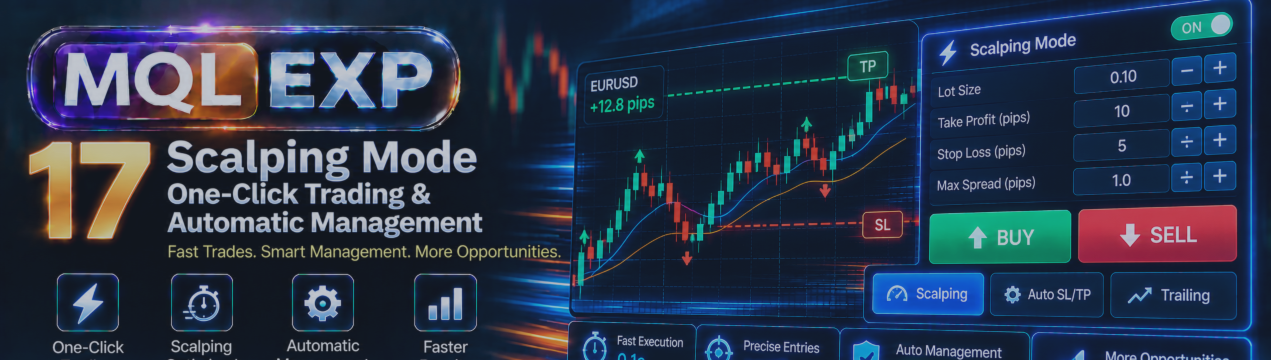
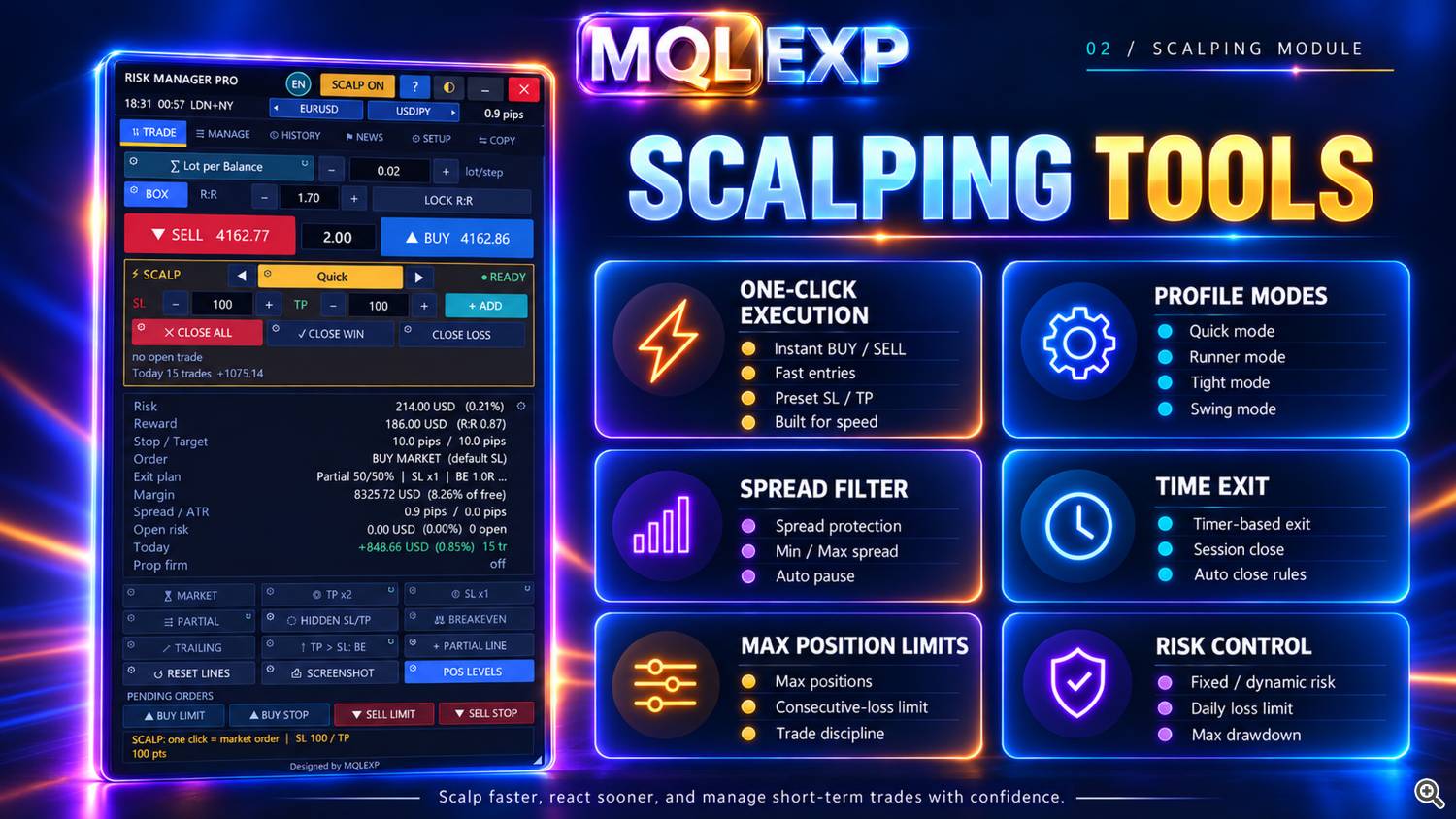
Multi Risk Manager Pro for MetaTrader 5 / 4 includes a dedicated Scalping Mode designed to streamline order execution and provide position-management controls for short-term trading.
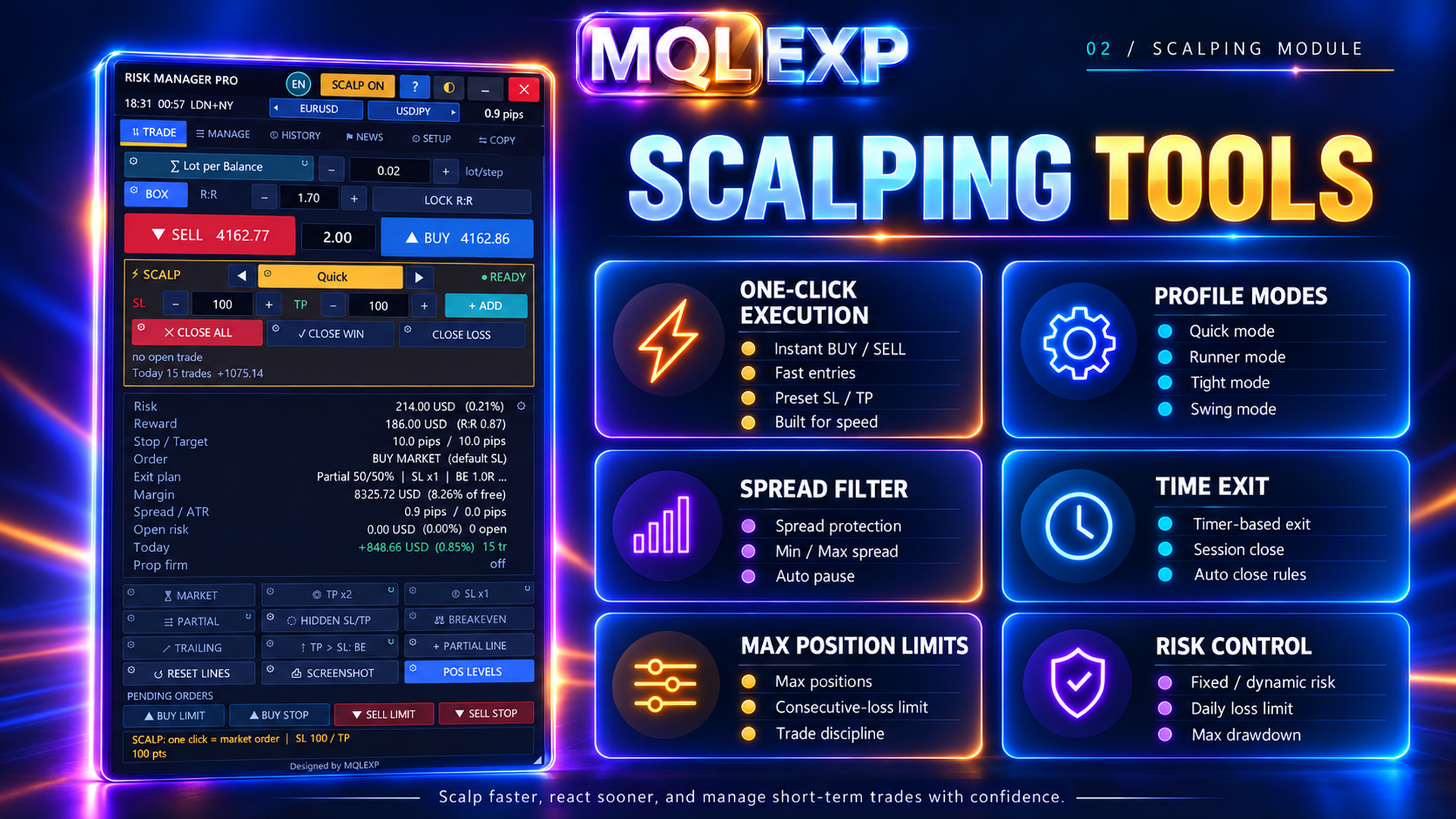
The feature combines one-click market execution, fixed stop-loss and take-profit distances, automatic break-even, trailing stops, partial closes, time-based exits, and reusable scalping profiles.
This guide explains how the documented system works, how to configure it, and which limitations traders should understand before using it.
MT5 : https://www.mql5.com/en/market/product/201074
MT4 : https://www.mql5.com/en/market/product/201075
Public channel : https://www.mql5.com/en/channels/mqlexp
MT5 : https://www.mql5.com/en/market/product/201074
MT4 : https://www.mql5.com/en/market/product/201075
Public channel : https://www.mql5.com/en/channels/mqlexp
1. What Is Scalping Mode?
Scalping Mode is a specialized execution and position-management workflow within Multi Risk Manager Pro.
When activated, the BUY and SELL controls are used for one-click market orders with configured stop-loss and take-profit distances.
Unlike the standard Risk-to-Reward planning workflow, Scalping Mode is designed to reduce the number of interactions needed to submit a trade.
However, it is important to understand what the feature does not do.
Scalping Mode does not generate trading signals or provide an autonomous scalping strategy.
Traders remain responsible for deciding when to enter the market, choosing the trading direction, and defining an appropriate risk-management plan.
2. How to Activate Scalping Mode
The documented implementation provides several ways to activate Scalping Mode:
-
Select SCALP in the panel header.
-
Use the Shift + Q keyboard shortcut.
-
Enable the Scalp Mode option in SETUP → Scalp.
The referenced default setting is Off.
When Scalping Mode is active, several aspects of the normal trading workflow change.
The EA uses one-click market-order behavior, skips the normal order-confirmation dialog, and uses asynchronous order submission by default.
The panel refresh timer is also set to 100 milliseconds in the documented implementation.
This shorter timer interval should not be interpreted as a guarantee of execution within 100 milliseconds. Actual execution depends on the trading terminal, broker, network connection, and market conditions.
3. What Changes Compared with Standard Trading?
Standard trading and Scalping Mode are designed for different workflows.
| Feature | Standard workflow | Scalping Mode |
|---|---|---|
| Order entry | Planned execution workflow | One-click BUY/SELL |
| Confirmation | Available according to settings | Skipped |
| Order type | Market and supported pending orders | Market orders |
| Stop-loss and take-profit | Configurable trade plan | Fixed distances in points |
| Position management | General management tools | Dedicated per-trade AUTO controls |
| Profiles | General presets | Separate scalp profiles |
While Scalping Mode is active, the documented implementation disables the normal pending-order workflow, EXECUTE button, strategy selection, and certain standard BE, TRAIL, EXIT, and AFTER buttons.
Their normal settings are not necessarily deleted; they are simply not used through those controls while Scalping Mode is active.
4. Configuring Stop-Loss and Take-Profit
Scalping Mode uses stop-loss and take-profit distances expressed in points.
The referenced settings include:
| Setting | Default |
|---|---|
| Scalp stop-loss | 100 points |
| Scalp take-profit | 150 points |
| Adjustment step | 10 points |
A take-profit value of zero disables the configured scalp take-profit.
Traders can adjust the stop-loss and take-profit values through the available panel controls or by entering the intended values.
Points versus pips
Points and pips are not always equivalent.
For example, on a typical five-digit EUR/USD quote:
-
10 points equal 1 pip.
-
100 points equal 10 pips.
-
150 points equal 15 pips.
However, the relationship between points and meaningful price movement varies between instruments.
Gold, indices, cryptocurrencies, and other symbols can have different point sizes.
Therefore, a 100-point stop-loss on one symbol should not be assumed to represent the same financial risk or market distance as 100 points on another.
Always verify the actual price distance and calculated position risk.
5. Position Sizing for Scalp Trades
Multi Risk Manager Pro documents two scalp volume modes:
Money Management: Uses the selected position-sizing method.
Fixed Lot: Uses a specified volume for scalp entries.
The default scalp lot mode is Money Management.
The referenced fixed scalp lot is 0.10.
An important implementation detail is that the fixed scalp lot setting bypasses the EA's maximum-risk cap, although other trading constraints may still apply. The documented entry path also requires the money-management calculation to succeed before the fixed-lot selection is applied.
This means that selecting Fixed Lot should not be interpreted as an independent guarantee of safe risk.
Before sending a scalp trade, check the final intended volume, stop-loss distance, and financial exposure.
6. Automatic Break-Even
Scalping Mode provides a dedicated automatic break-even function for individual scalp trades.
The relevant settings include:
-
abe: Enable automatic break-even for new scalp trades.
-
be: Trigger distance in points.
-
beoff: Break-even offset in points.
In the referenced configuration:
-
Automatic break-even is disabled by default.
-
The trigger distance defaults to 0 points, meaning the trigger is disabled.
-
The break-even offset defaults to 5 points.
Example
Suppose a BUY scalp position is opened at 1.10000.
If a trader configures automatic break-even to activate after 100 points of favorable movement, the EA can attempt to move the stop-loss when the relevant condition is reached.
A positive break-even offset places the intended stop beyond the entry price in the profitable direction.
The final realized result can still differ because of spread, commissions, swaps, slippage, and execution conditions.
Important configuration requirement
The documented panel does not allow an AUTO management switch to activate when the corresponding trigger distance is zero.
Instead, it directs the trader to the Scalp settings.
Therefore, entering a positive trigger distance is necessary before enabling the relevant automatic action.
7. Automatic Trailing Stop
A trailing stop adjusts protection as price moves favorably.
Scalping Mode provides a dedicated points-based trailing configuration.
The relevant settings are:
| Setting | Default |
|---|---|
| AUTO trailing for new trades | Off |
| Trailing start | 0 points |
| Trailing distance | 80 points |
| Trailing step | 5 points |
A trailing-start value of zero disables the automatic trigger.
The trailing distance determines the intended separation from market price, while the trailing step determines the required increment for adjustments.
Example
A trader might configure:
-
Trailing start: 120 points.
-
Trailing distance: 80 points.
-
Trailing step: 10 points.
After the configured favorable movement is reached, the trailing logic can begin adjusting the stop according to those parameters.
This is only an illustrative configuration, not a recommended setting.
The appropriate distances depend on market volatility, symbol specifications, trading costs, and the strategy.
Interaction with general trailing
One important documented behavior is that the EA's general break-even and trailing systems skip scalp trades while Scalping Mode is active.
Scalp trades use their dedicated AUTO management rules instead.
This helps separate the scalping workflow from standard position-management settings.
8. Automatic Partial Close
Scalping Mode also supports an automatic partial-close operation.
The documented settings include:
-
apc: Enable automatic partial close for new scalp trades.
-
pcat: Profit distance in points at which the partial close is triggered.
-
pcpct: Percentage of the position to close.
The referenced defaults are:
-
AUTO partial close: Off.
-
Trigger distance: 0 points, meaning Off.
-
Partial-close percentage: 50%.
Example
Suppose a trader opens a 0.40-lot position.
If the partial-close percentage is set to 50%, the intended partial-close volume is 0.20 lots.
The remaining position would be 0.20 lots if the requested operation is accepted and executed as intended.
Broker volume restrictions may affect the result.
Minimum lots, volume steps, and execution conditions can cause a partial-close request to fail or behave differently from the mathematical example.
The documented scalp AUTO partial close is intended to execute once when its condition is met.
9. Time-Based Exits
Not every short-term strategy relies exclusively on price targets.
Some trading plans require a position to be closed after a specified amount of time, regardless of whether the stop-loss or take-profit has been reached.
Multi Risk Manager Pro includes time-based exit settings for scalp trades.
The relevant parameters are:
-
maxmin: Close after a specified number of minutes.
-
maxsec: Close after a specified number of seconds.
Both settings default to zero, which disables the corresponding time-based limit.
Practical application
For example, a trading plan may require that an eligible scalp position not remain open beyond a configured duration.
The EA can attempt a closing operation when the applicable time-exit condition is reached.
However, an EA-managed time exit is not equivalent to a broker-held protective order.
It requires the EA to operate and receive the events needed to process the position.
If the terminal is offline or the chart symbol receives no ticks, the closing operation may be delayed.
The final closing price is also subject to market and broker execution conditions.
10. Per-Trade AUTO Controls
One useful aspect of the documented Scalping Mode interface is that automatic management can be controlled for individual scalp trades.
The scalp position rows include controls such as:
-
PART: Toggle automatic partial-close management.
-
BE: Toggle automatic break-even.
-
TRAIL: Toggle automatic trailing.
-
LOCK: Apply the profit-locking operation.
-
REV: Reverse the position.
-
X: Close the position.
The documented panel shows up to six rows, with three as the initial row-count setting.
Each row can display information such as the position direction, volume, entry price, distance, age, and profit or loss.
This provides a compact way to monitor active scalp positions.
Be especially careful with REV and close operations because the documented scalp controls can perform actions without the usual confirmation dialog.
11. Close All, Winners and Losers
The scalp panel includes dedicated closing controls.
The documented options are:
CLOSE ALL: Close eligible positions.
CLOSE WIN: Close eligible profitable positions.
CLOSE LOSS: Close eligible losing positions.
In the referenced settings, CLOSE ALL and CLOSE WIN are enabled by default, while CLOSE LOSS is disabled.
These controls operate without the normal confirmation step in the documented scalp interface.
Traders should verify the scope of each action before using it, particularly when several positions are open on the same symbol.
12. Built-In Scalping Profiles
Repeatedly entering the same scalping settings can be inconvenient.
Multi Risk Manager Pro includes a separate profile system for Scalping Mode.
The documented implementation provides four built-in profile names:
-
Quick
-
Runner
-
Tight
-
Swing
These profiles are created when the scalp-profile folder is empty.
They provide different configurations for management distances, such as break-even, trailing, and partial-close parameters.
However, profile names do not guarantee that a particular trading strategy or market condition will be profitable.
How profiles work
Scalp profiles are stored under:
MQL5\Files\RiskManagerPro\scalp\
The files use the EA's own .set format.
Traders can activate, add, or delete profiles through SETUP → Scalp.
The TRADE tab also provides profile navigation controls.
An asterisk displayed next to the profile name indicates unsaved changes.
Important limitation
The documented built-in profiles configure management distances but do not automatically enable all AUTO switches.
Therefore, loading a profile does not necessarily mean that break-even, trailing, or partial-close automation becomes active.
Verify the switches for the intended trades before entering the market.
13. Scalping Limits and Protection
Fast order entry can increase the importance of trading restrictions.
Multi Risk Manager Pro includes several limits specific to Scalping Mode:
| Protection | Setting |
|---|---|
| Maximum scalp spread | spread |
| Pause between trades | cool |
| Maximum open scalp trades | maxopen |
| Consecutive-loss restriction | lossrow |
| Daily scalp profit target | daytp |
| Daily scalp loss limit | daysl |
The referenced default for each of these limit values is zero, meaning the corresponding restriction is disabled.
These limits are intended to block new eligible scalp entries when their conditions are met.
They do not automatically close existing positions simply because a scalp-entry limit has been triggered.
How daily scalp results are evaluated
The technical documentation states that the daily scalp target, loss limit, and loss-sequence calculations use today's closing deals with the EA's magic number on the symbol.
This has important consequences:
-
Floating profit and loss are excluded from those calculations.
-
Partial closes can count as separate closing deals.
-
The result is not necessarily the same as whole-account daily performance.
Traders should distinguish these scalp-specific limits from broader account-protection rules.
14. The Flip Option: A Special Warning
Scalping Mode includes an optional Flip setting, disabled by default.
When enabled, clicking the opposite trading direction first closes positions on the opposite side of the symbol.
The documented implementation contains an important risk:
The existing opposite positions may be closed even if the new entry is subsequently blocked.
For example, clicking SELL while holding eligible BUY positions may close the BUY exposure before the system determines that the new SELL request cannot proceed.
This behavior should be tested carefully before enabling Flip.
It is not simply a guaranteed one-step replacement of one position with another.
15. Scalp Trades in History and Reporting
The documented implementation tags trades opened through Scalping Mode using a strategy identifier in the form:
SCALP:<profile>
This information can help distinguish scalp trades from other activity.
The HISTORY tools and trade copier can use the tag for relevant filtering.
This can be useful when comparing different scalp configurations or reviewing the results of a particular profile.
However, a profile tag is only a classification mechanism. It does not independently measure strategy quality or guarantee accurate performance conclusions.
16. A Practical Scalping Setup
For a first demo test, use a simple process.
Step 1 — Open a suitable chart.
Choose a familiar trading symbol and confirm that the market is active.
Step 2 — Enable Scalping Mode.
Activate SCALP through the panel or SETUP → Scalp.
Step 3 — Configure SL and TP.
Set the stop-loss and take-profit distances in points and confirm what those distances mean for the selected instrument.
Step 4 — Review position sizing.
Choose Money Management or Fixed Lot and verify the intended financial exposure.
Step 5 — Select a profile.
Start with one profile, then inspect the actual settings rather than relying on its name.
Step 6 — Configure AUTO management.
If you want automatic break-even, trailing, or partial closing, set positive trigger distances and enable the relevant switches.
Step 7 — Review scalp limits.
Consider appropriate spread, cooldown, and maximum-position restrictions based on your test objectives.
Step 8 — Submit a demo trade.
Use BUY or SELL and inspect the resulting position.
Step 9 — Observe management actions.
Verify whether automatic functions activate at the intended conditions.
Step 10 — Review and record the results.
Check the trade history, profile tag, execution costs, and any differences between intended and actual results.
17. Important Operational Limitations
Scalping Mode can simplify execution, but several limitations deserve attention.
No built-in entry strategy: The mode does not decide when the market offers a valid trading opportunity.
No confirmation: One-click operations can create or modify exposure immediately.
Broker execution: Spread, slippage, minimum trade volume, and filling restrictions still apply.
Tick-dependent management: EA-managed scalp functions rely on the terminal operating and receiving relevant chart-symbol ticks.
Fixed-lot risk: The documented fixed scalp lot option bypasses the EA's maximum-risk cap.
Daily limits: Scalp-specific daily controls use the documented closing-deal calculations rather than every component of total account equity.
Profile behavior: Loading a profile does not necessarily enable automatic management.
Flip behavior: Opposite positions can be closed even when the attempted replacement entry is blocked.
These limitations should be understood before using Scalping Mode with live funds.
Conclusion
Scalping Mode in Multi Risk Manager Pro provides a focused set of execution and management tools for MetaTrader 5 / 4.
Its one-click market trading workflow, configurable stop-loss and take-profit distances, automatic break-even, trailing stops, partial closes, time-based exits, and reusable profiles can help traders implement a structured short-term trading process.
Dedicated scalp limits and per-position controls provide additional flexibility, but they also require careful configuration.
The most effective approach is to begin with one simple profile, test all automatic actions on a demo account, verify the actual risk and execution behavior, and introduce additional automation gradually.
Scalping Mode helps manage the trading workflow. It does not replace a tested strategy, appropriate position sizing, or disciplined risk management.
Fast execution and automated management do not guarantee favorable fills, reduced losses, or profitable trading outcomes.