Part 1: Getting started, chart synchronization and objects | Part 2: Bookmarks, settings and reference
Contents — Part 1
- What this product is
- Quick start
- Attaching the indicator
- Automatic grouping
- The control panel
- Positioning the panel
- Minimizing the panel
- Sync and group participation
- Moving a chart between groups
- Sync mode (synchronization settings)
- Object mode
■ What this product is
KZ Chart Synchronizer MT5 is a MetaTrader 5 chart utility implemented as an indicator. It synchronizes navigation, scaling and range display across chart windows that you group together. It does not execute trades, place orders, or provide trading signals of any kind. It only observes and coordinates how charts are displayed.
■ Quick start
- Attach the indicator to a chart — the control panel appears automatically; no setup is required.
- Attach it to any other chart on the same symbol — it joins the same synchronization group automatically.
- At this point you can already:
- Move or horizontally zoom either chart, and the other follows to the same position and zoom (Sync).
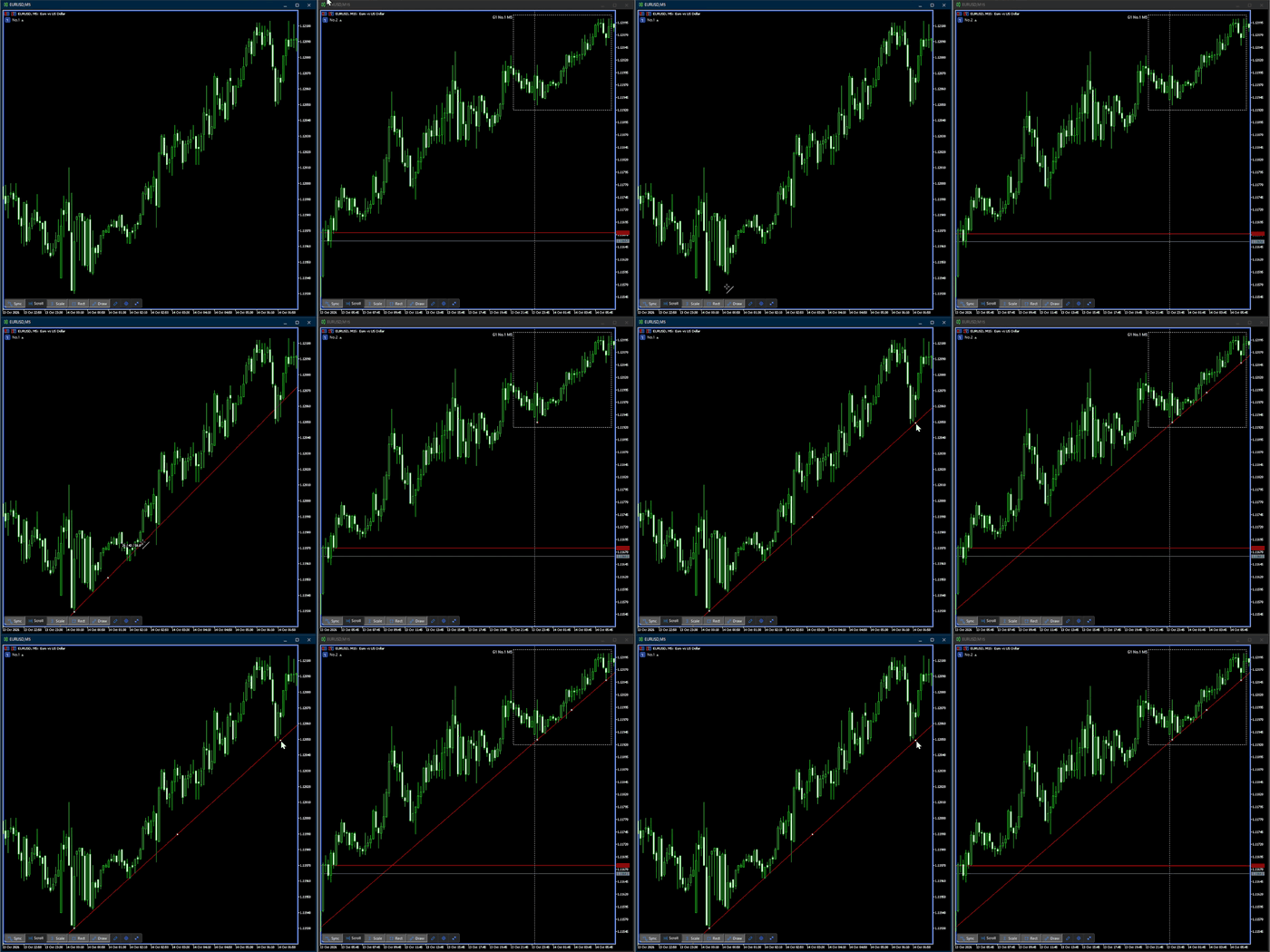
- On charts with different timeframes, see the lower-timeframe chart's visible range as a rectangle on the higher-timeframe chart (Rect).
- Draw lines, Fibonacci retracements, channels, arrows and text on one chart and see them on the other charts too (Draw; they do not reach a chart on a much higher timeframe).
- The control panel buttons switch what is synchronized, among other things:
 Sync — keep position and horizontal zoom matched with the other charts
 Scroll — keep scrolling to the latest bar automatically
 Scale — use MT5's automatic vertical (price) scale
 Rect — show the rectangle of the lower timeframe's visible range
 Draw — synchronize the objects you draw from now on
 Edit — move the panel anywhere you like
 Settings — change settings in the subwindow
 Minimize button — collapse the panel into a small badge
- Hover over Rect and click the caret button (
 /
/  ) that appears at its bottom right to open Bookmark mode. It records the chart's current range so you can jump back to it later.
 - The caret button on Draw opens Object mode, where you can find objects and move to them, delete them in bulk, and move them in and out of synchronization.
Everything below covers each of these in more detail, plus how to reposition or minimize the panel and customize its colors.
■ Attaching the indicator
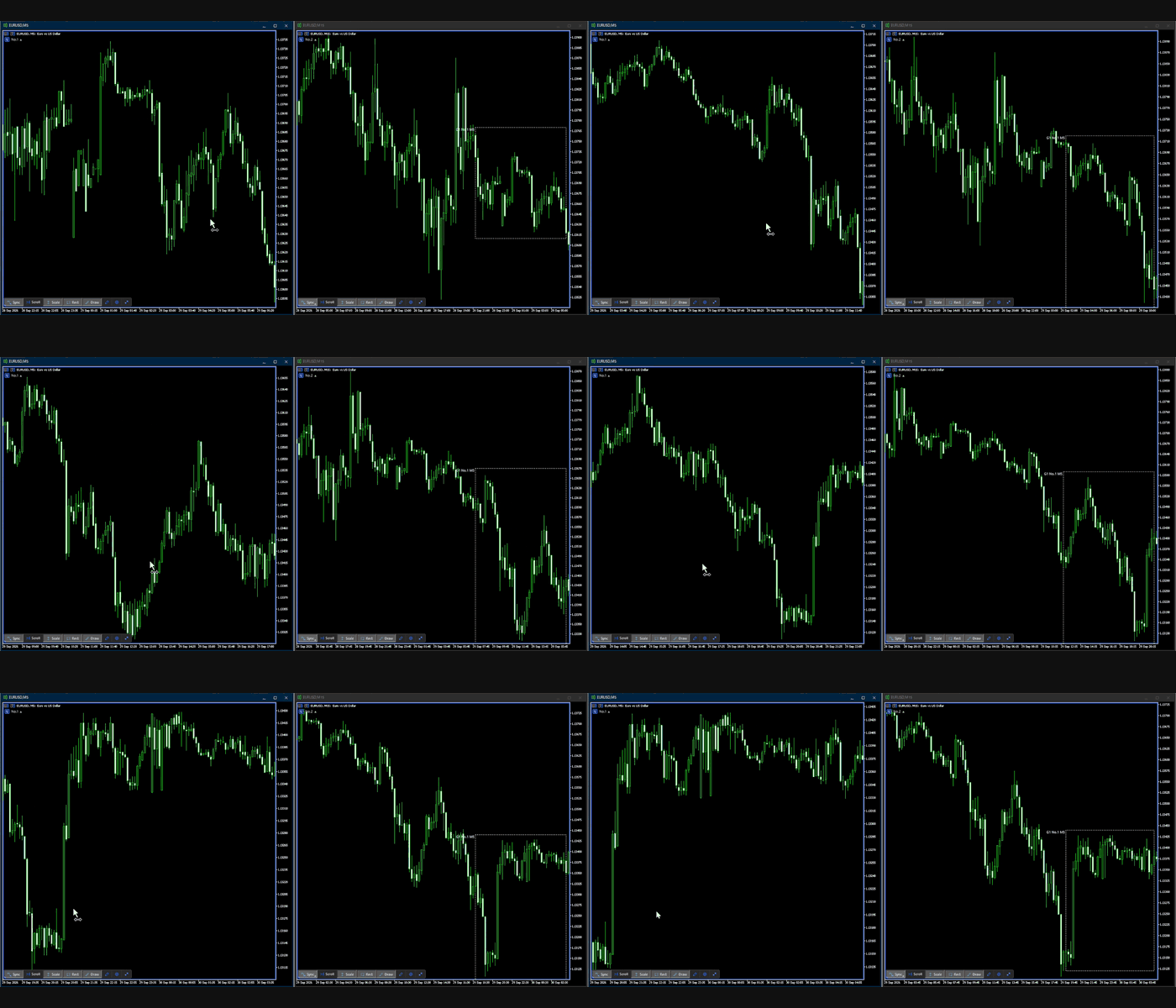
Attach KZ Chart Synchronizer MT5 to any chart the same way you attach any other indicator. A small control panel appears on the chart. No inputs need to be changed to get started; the panel and its behavior are ready to use immediately.
■ Automatic grouping
When the indicator is attached to a chart, it automatically looks for an existing synchronization group that already contains a chart on the same symbol:
- If one exists, the new chart joins that group.
- If none exists, the new chart starts a new group of its own.
- If the symbol is in more than one group, the new chart joins the group with the lowest number and starts with Sync off.
Groups can contain more than one symbol — you can always move a chart into a different group manually (see "Moving a chart between groups" below). Automatic grouping only decides where a chart starts out; it never moves a chart you've already placed.
■ The control panel
With the default display, the top-left corner of the chart (below the symbol and timeframe) shows the identity badge: the group's color and number, this chart's number (such as No.1 ), and a triangle ( ▲ when the group menu is closed, ▼ while it is open). With Group Indicator set to Top Band , the group and No. appear at the right end of the band instead. Wherever this manual says to click the identity badge, use that display when Top Band is selected.
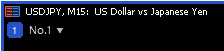
This is chart No.1 of synchronization group 1. The blue frame around the chart is in the group's color (when Group Indicator in the UI tab of Settings mode is Full Frame, the default).
The control panel holds the following buttons.
| Button | At a glance | |
|---|---|---|
| Sync | Keeps this chart's navigation and horizontal zoom matched to its group (caret button opens Sync mode) |
| Scroll | Follows the latest bar (replaces MT5's built-in Auto Scroll) |
| Scale | Uses MT5's normal automatic price scale |
| Rect | Shows the next lower-timeframe chart's visible range as a rectangle (caret button opens Bookmark mode) |
| Draw | Makes objects you draw from now on synchronized (caret button opens Object mode) |
| Edit | Lets you reposition the panel |
| Settings | Opens the subwindow in Settings mode (group display, group colors, range rectangle, object sync, and more) |
| Minimize button | Collapses the panel into a small minimized badge (the badge's button restores it) |

Top: the control panel in the light scheme (on a light chart background). Bottom: the dark scheme (on a dark chart background). By default the scheme follows the brightness of the chart background (see Color Mode under "Input parameters (colors and appearance)" below).
- Sync — whether this chart participates in the shared behavior of its synchronization group (see below). While Sync is on, this chart's navigation and horizontal (time-axis) zoom level are kept matched to the rest of its group. Horizontal zoom changes made with the plus/minus keys, the toolbar buttons or the scale slider at the top of chart properties are all synchronized. Turning Sync off stops this chart from matching the group's position and zoom, and keeps its other settings as they are. Clicking the caret button ( / ) that appears at its bottom right when you hover over the button opens the subwindow in Sync mode, where you choose in detail what is kept matched (see below).
- Scroll — keeps scrolling to the latest bar automatically. See "Scroll and MT5's built-in Auto Scroll" below.
- Scale — whether this chart uses MT5's normal automatic vertical (price) scale. Turning Scale on clears the one-to-one, fixed-range and points-per-bar scale modes, allowing MT5 to adjust the price-axis limits automatically around the displayed price bars. Turning Scale off enables the fixed-range mode and uses the upper and lower limits stored by MT5. If you change a vertical scale mode through chart properties or the price axis, the Scale indicator follows MT5's actual state. Scale is local to this chart; it does not affect other charts in the synchronization group or the horizontal scale slider.
- Rect — draws a rectangle on this chart showing the visible time range of the next lower-timeframe chart on the same symbol within the group, when one exists. On the lowest-timeframe chart in a symbol pairing there is nothing to show a rectangle for, so it stays off there regardless of the Rect setting. When there are several charts on the next lower timeframe, the rectangle shows one of them (by default the one with the lowest No.); you can choose which one in Sync mode. Turning Rect off does not stop this chart from sending its own visible range to higher-timeframe charts. Clicking the caret button ( / ) that appears at its bottom right when you hover over the button opens the subwindow in Bookmark mode, to record and jump between past chart positions (see below).
- Draw — whether chart objects you draw by hand from now on become synchronized with the rest of the group, and which categories of them. The caret button at the bottom right of the button opens the subwindow in Object mode (choose categories with the category buttons in its row 3). See "Synchronizing drawn objects (Draw)" below.
- Edit — lets you drag the panel to a new position, or snap it to any of the four chart corners, before confirming with DONE.
- Settings — opens the subwindow in Settings mode. You can change the group display, group colors, object sync options and more directly, without opening MT5 indicator properties (see below).
- Minimize button — collapses the whole panel into a small minimized badge, leaving more of the chart free. Clicking the button on the minimized badge restores the panel to its previous layout (see "Minimizing the panel" below).

Hovering over the Sync, Rect or Draw button shows a small caret button at its bottom right. Regardless of the panel corner, it points up (▲) when its mode is closed and down (▼) while that mode is open. It toggles the shared subwindow below the chart. While that button's subwindow is open, the caret stays visible after the cursor leaves.
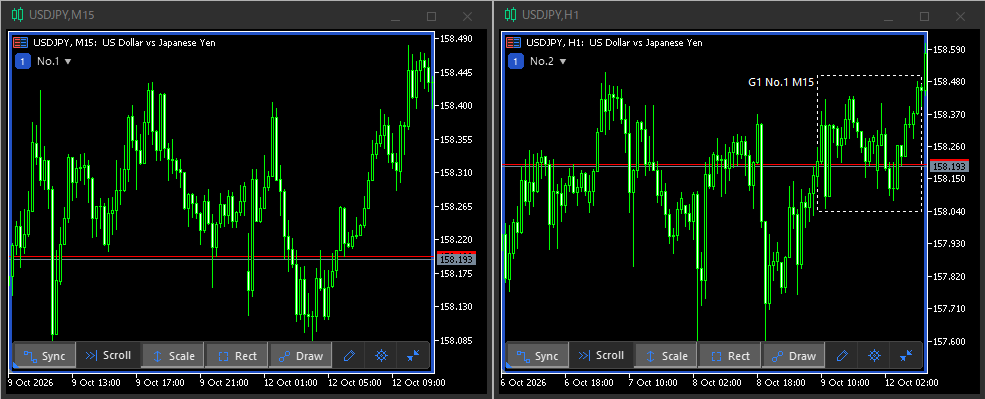
Left: the M15 chart (No.1). Right: the H1 chart (No.2), where a dotted rectangle shows the range the M15 chart is displaying. The label G1 No.1 M15 means the range of No.1, the M15 chart in synchronization group 1.
Clicking the identity badge opens a menu of the synchronization groups, where you can create a new group or move to an existing one (see "Moving a chart between groups" below).
When you scroll back to the oldest bar the chart can show, History limit reached (N bars) appears at the top center of the chart. Synced charts also stop at their own oldest bars.

■ Positioning the panel
- Click Edit to enter placement mode.
- Drag the panel by its
 drag area (the six dots, which turn into DRAGGABLE when you hover over them) to anywhere on the chart, or click one of the four corner icons (


 ) to snap it to a corner — using a corner button also changes the reference corner; the panel automatically switches between its normal, compact and wrapped (multi-row) layouts depending on how much horizontal space is available at that position.
 - Click
 DONE to confirm the new position, or
  APPLY ALL to broadcast the same corner and offset to every other chart running this indicator, across all synchronization groups.
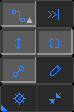
On a narrow chart the panel wraps into several rows like this (the wrapped layout).
The confirmed position is remembered for that chart and restored the next time you open MetaTrader 5.

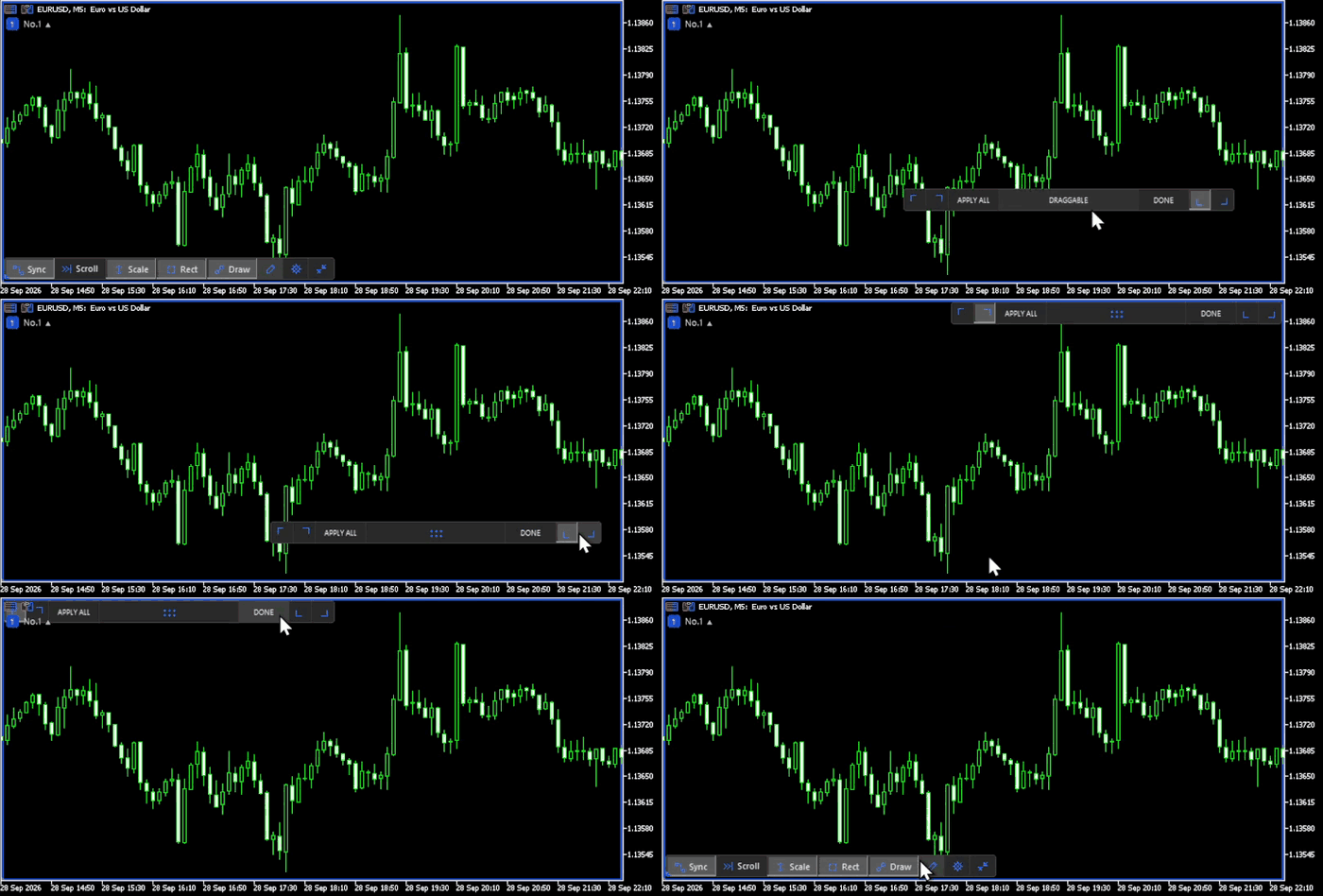
The panel in placement mode. From the left: the corner buttons for top left and top right, APPLY ALL, the drag area, DONE, and the corner buttons for bottom left and bottom right. The corner button shown pressed in is the corner the panel is currently anchored to.
■ Minimizing the panel
- In the normal, compact or wrapped (multi-row) layout, click the panel's minimize button to collapse the whole panel into a single small badge, freeing up chart space.
- Click that badge to
 restore the panel to its previous layout.
The group identification stays visible while the panel is minimized, so the synchronization group menu remains reachable. With Group Indicator set to Identity or Full Frame , open it from the identity badge at the top left; with Top Band , use the display at the right end of the band.

Left: the panel as normally shown. Right: the panel minimized (the minimized badge).
■ Sync and group participation
Sync controls whether a chart takes part in its group's shared behavior: navigation, horizontal zoom, the Scroll state, and the display of synchronized objects and bookmarks. A chart with Sync off keeps its own local settings and does not match the rest of the group's position or zoom, even though it still belongs to that group. While Sync is off, synchronized objects and bookmark rectangles are also hidden on that chart (they are not deleted).
Turning Sync back on adopts the group's current Scroll state and horizontal zoom immediately, and the hidden objects and bookmark rectangles reappear with any changes made in the meantime. The position is matched the next time any chart in the group is moved (if the group's Scroll is on, the chart moves to the latest bar right away).
■ Moving a chart between groups
Click the identity badge at the top left of the chart to open the group menu. Choose an existing group's chip to move into that group, or choose "+" to move the chart into a brand-new group of its own ("+" appears only when your group has other charts besides this one). The moved chart takes the last No. in its new group, and the charts left in the old group are renumbered. The menu closes when you move the mouse outside the identity badge and the menu.
For how Scroll state carries over, see "Scroll and MT5's built-in Auto Scroll" below. Other settings (Sync, Scale, Rect, Draw) stay as you had them. Synchronized objects and bookmarks of the old group disappear from this chart, and those of the new group appear.
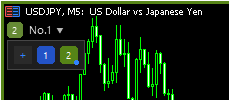
The group menu opened on a chart in group 2. The dot at the bottom right of a chip marks the group the chart is in.
■ Sync mode (synchronization settings)
Hover over the Sync button and a small caret button appears in its bottom-right corner. Click it to open the subwindow below the chart in Sync mode, where you choose in detail what Sync keeps matched. You can open it and change the settings even while Sync is off.

Row 1 shows, within the same group and symbol, the chart on the next lower timeframe ( Lower ) and on the next higher timeframe ( Higher ) relative to this chart (in the middle). If there is no such chart, it shows None .
The four buttons in row 2 turn each part on or off. Each part only works when it is on in both the sending and the receiving chart.
| Button | When on | When off |
|---|---|---|
| Position | Matches the position on the time axis | Does not match the position. Scroll turns off too (turning Scroll on turns Position back on) |
| Zoom | Matches the horizontal zoom | Does not match the zoom |
| Objects | Exchanges synchronized objects and shows them on this chart | This chart stops taking part in object synchronization. Synchronized objects are hidden on this chart, and Object mode cannot be operated (a faint overlay reading SYNC OFF covers it). Anything you draw in the meantime stays on this chart only (Local). When you turn it back on, the chart catches up with the changes made in the meantime before showing them |
| Bookmarks | Shows bookmark rectangles and lets you work with bookmarks | Bookmark rectangles are hidden and Bookmark mode cannot be operated (a faint overlay reading SYNC OFF covers it). Bookmarks created, changed or deleted on other charts are still received, and the list under the overlay stays up to date |

Object mode on a chart with Objects turned off in Sync mode: a veil covers it and SYNC OFF is shown.
Scroll SHARED at the right ( Scroll LOCAL while Sync is off) only shows whether the Scroll state is shared with the group; clicking it does nothing. Use the Scroll button on the control panel to turn Scroll on or off.
● When several charts share a timeframe (Lower / Higher)
When two or more charts are on the next lower timeframe, the higher chart's range rectangle shows only one of them. You can choose which one from either the higher or the lower chart.
Lower on the higher chart — click the chip with ▼ to list the candidates (No., timeframe and chart ID). The chart you choose is the one whose range this chart's rectangle shows. If you choose nothing, the chart with the lowest No. is used.
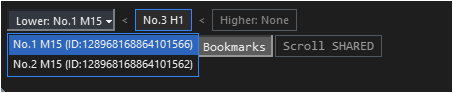
The Lower candidates opened in Sync mode on the higher chart (No.3 H1).
Higher on the lower chart — has ▼ and opens only when two or more charts share this chart's timeframe. It lists each higher chart with an ON/OFF state; ON means that higher chart shows this chart's range. Clicking an OFF entry makes that higher chart show this chart's range; clicking an ON entry switches that higher chart to the remaining chart with the lowest No. The dropdown stays open, so you can switch several in a row.
The Higher chip shows the higher chart showing this chart's range (such as No.1 H1 ), or the count (such as 2 H1 charts ) when there are two or more. If no higher chart shows this chart's range, it shows Unpaired .

The Higher candidates opened in Sync mode on the lower chart (No.4 M15). The candidates are No.1 H1 and No.2 H1. Neither higher chart shows this chart's range in this example, so the chip reads Unpaired .
A pairing you chose is kept across MT5 restarts and indicator input changes. Changing either chart's timeframe or symbol, moving it to another group, or removing the indicator cancels the choice and returns to the default (the lowest No.).
A dropdown closes when the mouse pointer leaves the dropdown and the chip that opened it, or when you press the left mouse button outside the subwindow (on the chart or the panel).
■ Object mode
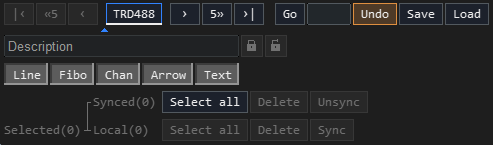
The caret button on the Draw button opens the subwindow in Object mode, for finding objects, moving to them, deleting them in bulk, and moving them in and out of synchronization. It has three rows.

- Row 1 — moving between objects (the strip and Go), and [Undo]/[Save]/[Load] on the right
- Row 2 — the description field and locking, and what acts on synchronized objects
- Row 3 — the category settings, and what acts on objects this chart alone has
- [Undo], [Save] and [Load] on row 1 — these ignore the selection. Undo takes back the last operation (see "Undo" below); Save and Load take all synchronized objects in this group on this symbol at once, in and out of a file (Local objects are excluded)
On a narrow chart the right-hand part folds onto further rows (described below).
● Synced and Local
Objects come in two kinds.
- Synced — mirrored to the other charts in the group
- Local — present only on this chart
Both can be selected, deleted and locked here. The only difference is whether anything reaches the other charts — which is exactly what separates the Delete on row 2 from the one on row 3 below.
● Synchronizing drawn objects (Draw)
Draw synchronizes chart objects you draw by hand — lines, Fibonacci retracements, channels, arrows and text — across every same-symbol chart in the group. It is on by default, with all five categories selected.
Draw and Objects: what each controls
| Setting | Controls | When off |
|---|---|---|
| Draw on the control panel | Whether objects drawn from now on become synchronized | New objects stay Local. Objects already synchronized continue to synchronize |
| Objects in Sync mode | Whether this chart participates in object synchronization (while Sync on the control panel is also on) | Synchronized objects are hidden and Object mode cannot be operated. Objects drawn during this time stay Local |
To synchronize newly drawn objects automatically, turn on Sync, Objects, Draw and the object's category.
Click the Draw button to choose whether objects you draw from now on become synchronized. A small caret button appears in the corner of the button when you hover over it — click it to open the subwindow in Object mode. Choose which categories to include with the category buttons in row 3 of Object mode. Turning a category on while Draw is off also turns Draw on, and turning every category off also turns Draw off.
- Lines ( Line ) — horizontal lines, vertical lines, trend lines
- Fibonacci ( Fibo ) — the Fibonacci retracement tool only (other Fibonacci variants such as fan, arc, channel, time zones and expansion are not yet supported)
- Channels ( Chan ) — the equidistant (parallel) channel tool
- Arrows ( Arrow ) — the arrow markers from the toolbar's arrow menu (thumbs up/down, buy/sell arrows, and so on)
- Text ( Text ) — the text tool
Scrolling the chart does not automatically change the time or price of either Fibonacci anchor. Move the Fibonacci object itself when you want to change its placement.
Shapes such as rectangles, ellipses and triangles, as well as the Gann and Elliott Wave tools, are not covered by any category and are never synchronized.
An object becomes synchronized in exactly two ways: while Draw is on, you draw a new one in a category that is on and keep the name MT5 gives it, or you bring an existing one in with the Sync button in Object mode. An object already on the chart that is not synchronized stays that way no matter how much you move or edit it — select it and press Sync if you want it in.
Turning Draw off does not stop objects that are already synchronized. Draw only decides whether what you draw from now on is included. To stop synchronizing a particular object, use Unsync in Object mode; to stop synchronization on this chart altogether, turn off Sync or Objects in Sync mode.
Drawing, moving, editing or deleting a synchronized object is mirrored automatically between charts that have both Sync and Objects (in Sync mode) on. When you move an object by dragging it, the other charts follow when you release the mouse button. Deleting a synced object from any chart removes it from every chart that has a copy — there is no "original" chart that has to stay.
Objects are only mirrored between charts on the same symbol. An object always reaches charts on the same or a lower timeframe than the chart it was drawn on, and reaches higher-timeframe charts only when the timeframe ratio is within Max timeframe ratio in Settings (60 by default). With the default, for example, an object drawn on a 1-minute chart reaches the 1-hour chart (60×) but not the 4-hour or daily chart, while an object drawn on a daily chart reaches every lower timeframe down to 1 minute.
With Object indicator in Settings set to Tooltip , hovering over a synchronized object shows the timeframe it was drawn on (such as M5 ) in a tooltip (the default, None , shows nothing).
If you rename a synced object through MT5's object list or properties dialog, it stays on that chart as a Local object with the new name, and its copies on other charts are deleted. Further moves, edits, and deletion affect only that chart.
● The object strip (row 1)
Row 1 lists the objects you can work with on this chart (Synced and Local).
- Press a button to select that object alone. With Scroll off, the chart also moves so the object sits in the centre (with Scroll on, the chart stays at the latest bar)
- ‹ › move one at a time, «5 5» five at a time, |‹ ›| to either end
- Labels read "type + id" ( TRD190 ). The id belongs to the object, so it does not change when the order does
- The order runs left to right across the chart
- The
 below the strip (the current position mark) shows, at the boundary between buttons, which objects the centre of the chart falls between
 - Type 190 or TRD190 into the Go field on the right and press Enter or Go to move to an object whose number button label ends with that text. If several objects match, each press moves to the next one in strip order, returning to the first after the last. The input text stays in the field
- Enter only a type abbreviation ( TRD / HLN / VLN / FIB / CHN / TXT / ARR ) to cycle through objects of that type. ARR includes all arrow types. Matching is case-insensitive. Use ? to find objects without a number
- Your position among the matches appears as Go 2/3: … and is also available in the Go field's tooltip. Changing the input or the contents or order of the list starts again from the first match. If nothing matches, the chart stays in place and Go: no match appears
- Clicking the Go field gives it a blue border while you operate it (Icon Color in CUSTOM colors). Press Esc or click outside the field to finish. During this time, Enter operates Go
The look of each button tells you the object's state.
| Look | Meaning |
|---|---|
| Blue | Synced |
| Gray | Local |
| Filled | currently selected |
| Underlined | activated in MT5 |
 Padlock badge Padlock badge | locked |
● Selecting objects
What these buttons act on is this indicator's own selection, which is a different thing from MT5's "active" state (what MT5's menus call "selected"; by default a double-click shows its handles). Selected objects get a small frame drawn on each of their anchor points (and, for lines such as trend lines, on the middle of the line), coloured like the strip buttons: blue for Synced, gray for Local (the default colors; you can change them under "Object Mode Color" in the inputs).
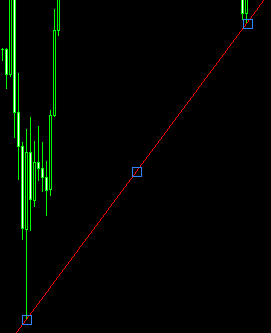
A selected trend line (Synced): frames on both ends and on the middle.
To build a selection:
- Click — select just that object
- Ctrl+click — add to, or remove from, the selection
- Click on empty space — clear the selection (clicking the panel or the subwindow does not clear it)
- A strip button — move there and select that one
- Select all — selects that row's kind: Synced on row 2, Local on row 3. It adds rather than replaces, so pressing both selects everything
The subwindow shows Selected(5) with its two parts, Synced(3) and Local(2) .
● Each button acts on a different part
| Button | Acts on | What happens |
|---|---|---|
| Delete (row 2) | Synced only | Deletes the objects. Copies on the other charts of the same group and symbol go with them. Undo brings them back. |
| Unsync | Synced only | Stops synchronizing. The objects stay on this chart as Local objects, and their copies on the other charts are removed. |
| Sync | Local only | Starts synchronizing them: copies are sent to the other charts, and they are mirrored from then on. An object you had Unsynced joins with a new tracking ID; its displayed number may change. This differs from Undo of Unsync, which restores the previous ID. |
| Delete (row 3) | Local only | Deletes the objects from this chart. Local objects do not exist on the other charts, so nothing happens there. Undo brings them back. |
 (Lock) (Lock) | Both | Locks everything in the selection (MT5's "Disable selection"). Synchronized objects are locked on the other charts too. |
 (Unlock) (Unlock) | Both | Unlocks everything in the selection. |
● About locking
Object locking prevents selection and dragging in MT5 and excludes the object from this product's Delete, Sync and Unsync operations. It does not prevent deletion with MT5's Backspace command. Deleting a synchronized object with Backspace also deletes its copies on other charts.
While locked, Delete on rows 2 and 3, Unsync and Sync all skip the object. Press the (Unlock) button first if you want to delete it or change how it is synchronized. This indicator's own selection (the one that draws frames) still works on locked objects.
(Unlock) button to release a lock. A locked object gives no right-click properties menu in MT5. This indicator's lock uses MT5's "Disable selection", so turning on "Disable selection" for an object directly also locks it. With both blue (Synced) and gray (Local) objects in the selection, each button still only deletes its own kind.
Unsync is limited to Synced objects and Sync to Local ones. While your selection holds nothing but Local objects, Delete on row 2 and Unsync are disabled. Use Delete on row 3 to delete the unlocked Local objects in your selection.
● Undo
Undo on row 1 takes back the last operation, one operation per press. It keeps the last 20 operations.
It covers what you do to objects, however you do it:
- deleting — with the Delete buttons, MT5's Delete key or BackSpace
- moving, and edits in MT5's properties dialog
- descriptions written in the field on row 2
- Lock and Unlock
- drawing a new object — undoing it removes the object
- Sync and Unsync
- Load
- bringing an object back with MT5's Ctrl+Z — undoing it removes the object again
One operation is one press, however many objects it touched: five objects deleted together come back together, and a Lock on a selection holding both Synced and Local objects is released in one press. Undo does not change whether an object is activated in MT5.
The history is shared across the group. The charts of one sync group and symbol keep one history, in the same order, so Undo on any of them takes back the last operation done on any of them. That includes an operation another chart did to its own Local objects: the change then happens on that other chart, and the chart you pressed on may look unchanged — as it also does when the object in question is only drawn on lower timeframes.
The history is cut short in a few cases:
- After a Load, the operations before it that touched Synced objects can no longer be taken back (the Load itself can). Operations on Local objects remain.
- When a chart is closed, has the indicator removed, or moves to another group or symbol, the Local operations only that chart could undo are dropped. A chart that moves takes on the history of its new group.
Changing a chart's timeframe keeps its history.
● Editing the description
The field on row 2, directly above the category buttons on row 3. It accepts text only while exactly one object is selected; press Enter to confirm. With nothing selected, or with two or more, it shows a dimmed Description and cannot be typed into.
What you edit is the "description" each MT5 object has (the description field in its properties dialog). So on a text object it is the text you see on the chart, and editing it here changes what is displayed.
A description on a Synced object reaches the other charts. It holds 63 characters; MT5 truncates anything longer. Undo takes a description change back.
● Saving and loading (Save / Load)
Save and Load on the right have nothing to do with the selection or with what is activated. They take every synchronized object for this sync group and symbol as one set (Local objects are not included). Save from any chart in the group produces the same file (including objects that chart does not draw).
- Save — writes the whole set to a file. It overwrites, and cannot be taken back
- Load — replaces the set with the file's contents. It does not add to it
Pressing Undo straight after a load puts things back exactly as they were before it: what was loaded goes, and what was there returns.
Undo works from any chart in the group.
Both buttons are disabled while the file and the current set already agree (both appear dark). With no file saved yet, only Save is available. Save is also available with no objects at all.
The file lives here inside MT5's data folder (File → Open Data Folder), one per symbol. Saving from a chart of the same symbol in another group overwrites the same file.
When the group that saved the file is still active for the same symbol, saving from another group asks for confirmation. Choose Overwrite to save, or Cancel or Esc to stop. Saving from the same group, or after the saving group has gone, needs no confirmation. Load remains available across groups. Resizing, appearance changes, or another click, key or wheel operation dismiss confirmation without saving. A change to the file or current contents also cancels confirmation. Press Save again if you still want to save. Older files without saving-group information acquire it on their next save.
MQL5\Files\KZ\KZChartSynchronizerMT5\Objects\objects_<symbol>.json
Before overwriting, one generation is kept as objects_<symbol>.json.bak — and only when the contents actually change, so saving the same thing repeatedly leaves the last different state intact. To keep more than one saved set, copy the file and rename it; rename it back when you want to load it.
● On a narrow chart
Three rows is the shape while the chart is wide enough. As it narrows, the right-hand part folds onto two further rows and the subwindow grows taller to match.
Object mode wrapped onto five rows, with the action buttons moved to the two lower rows.
| Width | Shape |
|---|---|
| Enough | The three rows as shown |
| Narrow | Everything from Selected(N) rightwards — the counts and their buttons — moves down two rows (onto rows 4 and 5), as one block |
The block never breaks in the middle. The two rows always fold together and keep their left edge aligned. Further narrow widths do not split the action buttons; the block remains intact and gently clips off the right edge.
● How this differs from MT5's own keys
MT5 has its own keys for removing and restoring objects. They do not work the way these buttons do, so it is worth keeping them apart.
| Acts on | Per press | |
|---|---|---|
| MT5's Delete key | Objects activated in MT5 | All of them at once |
| MT5's BackSpace key | The most recently created object, regardless of what is activated | One |
| MT5's Ctrl+Z | The last operation | One object |
| This indicator's Undo | The last operation in the group | The whole operation |
Undo covers what you do with this indicator's buttons and with MT5 alike — the Delete key, dragging, the properties dialog. How you did it does not matter.
The granularity is the part that surprises. Delete five objects at once, and this indicator's Undo brings all five back in one press, while MT5's Ctrl+Z needs five.
Deleting a Synced object by hand does remove it from the other charts as well. Pressing Ctrl+Z afterwards brings it back on your chart only, as far as MT5 is concerned — but the indicator notices and restores it on the other charts too, so deleting and undoing by hand keeps the group in step. That Ctrl+Z is itself an operation: pressing Undo after it removes the object again.
BackSpace works the other way round from Ctrl+Z : it removes the object most recently created or brought back, one per press. It does not remove a copy that synchronization created on another chart.
By default, Sync will only take on objects this indicator itself had Unsynced, plus objects still carrying the default name MT5 gives them (something shaped like H1 Trendline 51030 ). Turning on Include foreign objects in the Object Sync tab of Settings opens it up to every Local object of a supported category. Adopting objects another indicator drew, though, can end up fighting that indicator every time it redraws them.
Part 1: Getting started, chart synchronization and objects | Part 2: Bookmarks, settings and reference