
Overview | Castlist | Spotlight | Backstage
Backstage Settings, Files and Safe Recovery Manual
Backstage maintains a historical chain, not one disposable CSV. This guide explains every input, the active CSV/state pair, ForceFullRebuild, account replacement, read-only analysis and safe recovery.
Result of this guide
You will be able to identify the files Backstage owns, change an input deliberately, verify what was restored, continue after a Demo-account replacement and recover without unnecessarily destroying locally preserved history.
Before you begin
Open Backstage in the intended terminal and record the dashboard account, output paths, latest successful export and current file sizes. Copy the active CSV and state to a safe backup location before recovery work. Keep only one Backstage instance active.
Open and verify the inputs
- Open the Backstage chart.
- Press F7 or open EA Properties.
- Choose the Inputs tab.
- Compare the effective values with the active dashboard Source.
- Change only one operational setting at a time and verify the next export.
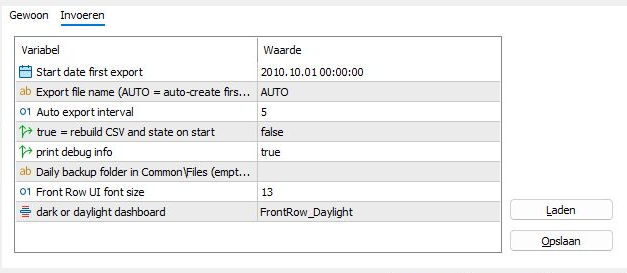
Change operational inputs deliberately and verify the following export.
The eight inputs
| Setting | Default | Effect and safe use |
|---|---|---|
| ExportFrom | 2010.10.01 00:00 | Earliest available history scanned during a first/full build; cannot restore history the broker no longer supplies |
| FileName | AUTO | Defines the active CSV/state identity; keep AUTO unless you have a deliberate naming design |
| ExportIntervalMinutes | 5 | Automatic scan interval, minimum one minute |
| ForceFullRebuild | false | One-time destructive reconstruction command; not a normal refresh button |
| DebugLog | true | Adds diagnostic detail to the MT5 log |
| BackupPath | empty | Empty uses Common\Files\FrontRow\Backup |
| FontSize | 13 | Dashboard readability only |
| DashboardTheme | Daylight | Appearance only |
Effective settings are stored terminal-locally in MQL5\Files\FrontRow\Data\Settings Backstage.csv . In the same terminal they restore continuity after restart, update or reattachment. A new PC, VPS or terminal requires deliberate restoration and verification.
CSV and state always belong together
Trade Data Demo 123456.csv
Trade Data Demo 123456.csv.state
The CSV contains reconstructed closed positions. State records processed positions and successful scan progress. Copy, rename and restore both together.

The CSV and state must be copied, renamed and restored together.
Use ForceFullRebuild only with evidence
- Make an external copy of the active CSV and state.
- Confirm the correct terminal, account, filename and available MT5 History.
- Set ForceFullRebuild = true only when complete reconstruction is genuinely required.
- Confirm the change.
- Backstage removes the active pair and immediately saves the switch back to false .
- Wait for reconstruction and verify source, first/latest date, count and known Magic# values.
The automatic return to false occurs before rebuild success is guaranteed. A rebuild can shorten history when the broker no longer provides older trades. Never use it for a temporary file lock or a slow first build.
Daily backup and your disaster backup
After a successful export Backstage attempts one daily refresh of CSV and state. You remain responsible for an independent multi-generation backup outside the active PC or VPS. Include the active pair, daily backup directory, terminal settings and shared Castlist/Spotlight management data.
Continue after a Demo account expires
- Copy the existing CSV/state pair externally.
- Log the replacement Demo account into the same configured terminal.
- Let Backstage complete a normal cycle—do not rebuild automatically.
- Confirm old rows remain.
- Close one new trade.
- Confirm it appears once with the new account number.
- Compare MT5, CSV, Castlist and Spotlight.
Backstage can continue the saved Demo chain because the persistent file identity and progress context belong to the configured terminal workflow, not solely to the current broker login.
One writer, multiple readers
Backstage alone writes the active CSV/state pair. Castlist and Spotlight read it. Excel, ChatGPT, databases and scripts can analyse a current copy or demonstrably read-only access that neither writes nor exclusively locks the active CSV. The state file is never an analysis source.
If CSV open failed appears, close software holding the file and allow the next normal cycle. Do not rebuild for a temporary lock.
Safe recovery order
- Stop structural changes.
- Preserve the current files untouched.
- Identify the last known-good matching pair and settings.
- Restore CSV and state together.
- Verify filename and terminal settings.
- Start exactly one Backstage.
- Check dates, counts and known Magic# values.
- Verify one later incremental trade before declaring recovery complete.
Stop and investigate when
- the Source path differs from the expected file;
- history begins later than the preserved copy;
- trade count falls unexpectedly;
- a known Magic# disappears;
- a second Backstage warning appears;
- another application repeatedly locks the active CSV.
This completes the initial Front Row 1.0 manual route. Return to Castlist for the next portfolio review cycle.
Continue through the manual
Next: Castlist Quick Start Manual — verify management continuity from the persistent source.
Other useful follow-ups:
- Spotlight Quick Start Manual — verify the recovered source analytically.
- Front Row User Guide 1.0 — return to the complete Front Row route.
- Castlist Management Manual — resume the Status, Note and Review cycle.



