EuroScalper user guide: the EURUSD scalping cockpit for MT5 and MT4

This is the user guide for EuroScalper for MT5 and MT4, a market cockpit for EURUSD scalpers and day traders. One compact panel shows what every timeframe is doing, what trading costs right now and whether conditions suit a scalp, with a small execution section that sizes each trade from your risk. More about it is on euroscalper.com.
How-tos and articles: How to read multi timeframe RSI and divergence for EURUSD scalping and EURUSD scalping costs: spread, commission and ATR, and when not to trade.
What it is
- An Expert Advisor with a panel. It never trades by itself: an order is sent only when you click Buy or Sell.
- A multi timeframe grid: oscillator value, slope, the newest divergence and the trend on up to nine timeframes, M1 to D1 by default.
- A market strip: spread in pips and as a share of the short ATR, the daily ATR, today's range, the open sessions, the next high-impact news release, the cost of a 1 lot round trip and a bar countdown.
- A conditions light in the header: READY, QUIET, NEWS, SPREAD or CLOSED.
- An execution section: lot size from your risk, one-click Buy and Sell with stop loss and take profit attached, break-even and close.
- Alerts for new divergences, upcoming news and a wide spread.
It is built for EURUSD and works on any symbol.
Install and first run
- 1. Install it from the Market: in the terminal press Ctrl+T, open the Market tab, then Purchased, and click Install.
- 2. Open a EURUSD chart. M5 is a good start for scalping, but the grid reads every timeframe you list, whatever the chart shows.
- 3. In the Navigator, find EuroScalper under Expert Advisors, Market, and drag it onto the chart.
- 4. On the Common tab, allow Algo Trading (MT4: "Allow live trading") if you want to use the Buy and Sell buttons. Also switch on the Algo Trading button in the toolbar (MT4: AutoTrading). The cockpit itself works without it.
- 5. Check the Inputs tab, at least the risk mode and value, the stop loss and take profit, and the maximum spread. Then press OK.
The panel opens at the top left. While the history of each timeframe loads, cells read "loading" or "..." for a moment. A chart holds one Expert Advisor, so EuroScalper takes the place of any other EA on that chart. Panel settings you change by clicking (risk, stop, target, folded sections) are kept when you change the chart's symbol or timeframe.
The header and the conditions light
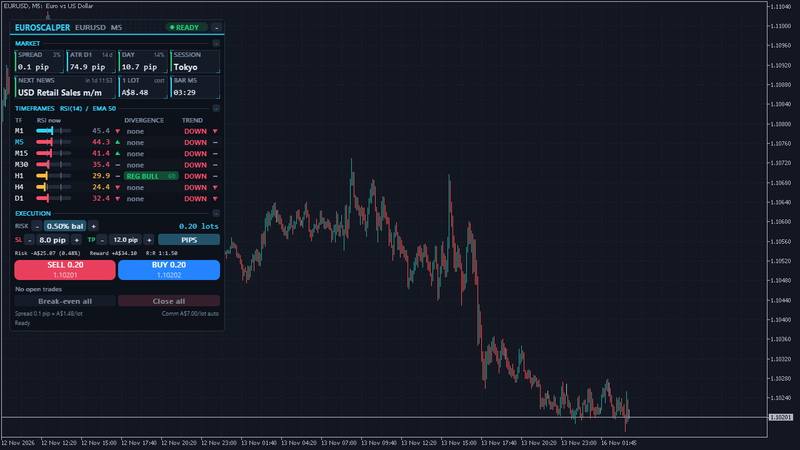
The header shows EUROSCALPER, the symbol and the chart timeframe, the conditions light and a minus button that minimises the panel to a bar. Drag the header to move the panel.
The conditions light is a status chip that sums up whether conditions suit a scalp:
- READY (green): the spread is within your limits, no high-impact release is near, and London or New York is open.
- QUIET (amber): everything else is fine, but the session check fails, for example in the late Asian hours.
- NEWS (red): a high-impact release is inside the news window, by default from 15 minutes before to 5 minutes after it.
- SPREAD (red): the spread is above your limit in pips (1.5 by default) or as a share of the short ATR (20% by default).
- CLOSED (red): the market is closed.
- NEWS? (red): the bundled news calendar has ended, so the panel does not know the news times. See the news section below.
Hover the light to read which check failed and what the limits are. It is a guide. It never blocks a trade unless you switch on the news block in the inputs.
The market strip
The first section, MARKET, has seven tiles:
- SPREAD: the spread now in pips, with its share of ATR(14) on M5 in the corner. It turns red when it is above either limit. Hover it for the spread in points and its cost for 1 lot.
- ATR D1: the average true range of the last 14 closed daily bars, a typical day's move. ATR is a simple average of true range, as in MT5.
- DAY: today's range from high to low, with the share of ATR D1 in the corner. From 100%, today has already moved a typical day.
- SESSION: which main sessions are open now: Tokyo (09:00 to 18:00 Tokyo time), London (08:00 to 17:00 London time) and New York (08:00 to 17:00 New York time), each with its own daylight saving. Overlaps read "LDN + NY" or "TKY + LDN".
- NEXT NEWS: the next high-impact release for the symbol's currencies, with a countdown. It turns amber in the last hour before a release and red inside the news window.
- 1 LOT: the round trip cost of 1.0 lot now, spread plus commission, in your account currency. Swap is not included.
- BAR: the time left until the current bar of the chart timeframe closes, on the server clock.
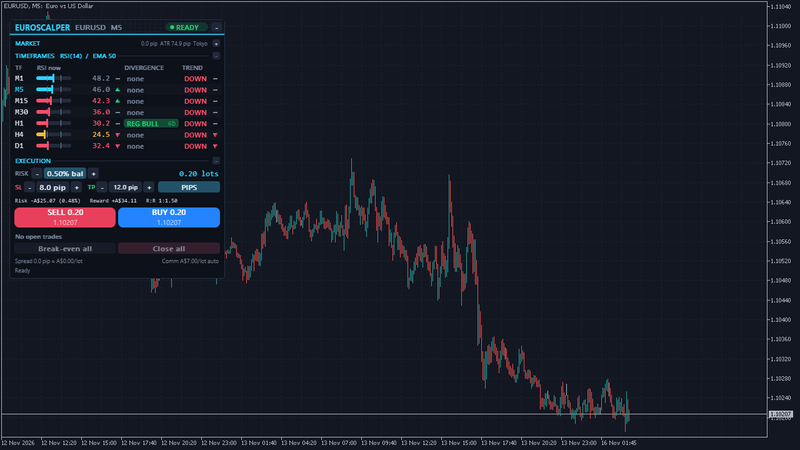
Click the minus on the section title to fold it. A folded section keeps one summary line: spread, ATR and session for the market strip.
News on MT5 and MT4
On MT5, EuroScalper reads the terminal's economic calendar for the currencies of the symbol (EUR and USD on EURUSD), at high importance by default. You can add currencies in the inputs.
MT4 has no economic calendar, so EuroScalper brings bundled calendars, built from the official schedules: US releases (Non-Farm Payrolls, CPI, PPI, Retail Sales, advance GDP, PCE and FOMC rate decisions) and the euro area (ECB rate decisions and press conferences, euro area CPI flash). They run to 31 December 2027. After that date the news tile says the calendar has ended and the light shows NEWS?, so the panel never reads as news free when it does not know. MT5 uses these bundled tables only when the terminal calendar gives nothing.
In the Strategy Tester the calendar cannot be read, so the news tile shows "Not in tester".
The timeframe grid
The second section, TIMEFRAMES, has one row per timeframe. The title names the oscillator and the trend EMA, for example "RSI(14) / EMA 50". The chart's own timeframe is highlighted.
- Gauge and value: where the oscillator sits in its range. RSI 14 by default; MACD, Stochastic, CCI or Momentum instead. With RSI, 70 and above shows in amber as overbought, 55 to 70 green, 45 to 55 neutral, 30 to 45 red, and 30 or below amber as oversold. By default the value is the forming bar's, so it moves with price; switch "Show the forming bar's value" off to read the last closed bar.
- Slope arrow: rising, falling or flat over the last 3 closed bars. A change within 5% of the oscillator's 100-bar range counts as flat, so small wiggles do not flip the arrow.
- DIVERGENCE: the newest divergence on that timeframe and how many closed bars ago it was confirmed, for example "REG BULL 2b". A filled badge is regular, an outlined badge is hidden. "new" means the last closed bar confirmed it. "none" means no divergence within the age limit.
- TREND: UP or DOWN, the last closed bar's close against EMA 50, and an arrow for the EMA's own slope.
Divergences are found on closed bars only. A divergence on the panel never changes or disappears later, which is why it appears a few bars after the swing it belongs to. The how-to How to read multi timeframe RSI and divergence explains how to read the grid from the top down.
Hover any cell for what it means and how it is worked out, for example the two swings of a divergence and the time of the newer one.
The execution section
The third section, EXECUTION, turns your risk into a lot size and sends orders.
- RISK: minus, value and plus. Click the value to switch between % of balance, a money amount and fixed lots; the panel keeps about the same size when it switches. The lot size on the right is worked out from your stop loss and the commission, and rounded down to the broker's lot step.
- SL and TP: distances in pips, or in multiples of ATR(14) on M5. Click the unit chip (or a value) to switch units; the distances stay the same. TP 0 means no take profit. On symbols without pips (not 5 or 3 digit), the panel counts in points and starts with ATR distances.
- Readout: the money at risk including commission, its share of the balance, the reward after commission and the R:R.
- SELL and BUY: one click sends a market order with the stop loss and take profit attached, at the bid or the ask shown on the button.
- Open trades: up to three rows of your trades on the symbol, each with its profit and a BE (break-even) and X (close) button. More trades show as "+n more".
- Break-even all and Close all. Close all asks once more: the first click arms it ("Click again to close"), a second click within three seconds closes.
- Cost footer: the spread for 1 lot in money and the commission per lot. Commission is measured from your own closed trades, or typed in the inputs. "not found" means there were none to measure: set it in the inputs so the lot size includes it.
- Message line: the result of the last action, in plain words.
Some details worth knowing:
- Break-even moves the stop to the entry plus 0.2 pip (the offset is an input), only when that tightens the stop and the price is far enough from it for the broker to accept. Otherwise it says "not far enough in profit for break-even yet" and changes nothing.
- If the spread is wider than your stop, the panel does not send the order and says the stop is inside the spread, so you can widen it.
- Every order carries a request tag. If the server is slow to answer, the panel looks for the order before it could ever send it again, so one click does not open two trades.
- Break-even and close act on the panel's own orders (its magic number) and, by default, on manual trades of the chart symbol. Trades of other Expert Advisors are left alone.
Alerts
- New divergence on the timeframes you choose, M15, H1 and H4 by default. The alert fires once, when the confirming bar closes.
- High-impact release approaching, once per release, when its news window starts.
- Spread above the limit, off by default.
Each alert can go out as a popup, a sound, a push notification to your phone and an email, with a minimum gap between alerts of one kind (60 seconds by default). Push needs your MetaQuotes ID in Tools, Options, Notifications, and email needs the mail settings in Tools, Options, Email. For Telegram and Discord alerts, switch on "Send to DuoFX Alert Relay" in the inputs and run the free DuoFX Alert Relay in the same terminal.
Panel size, folding and themes
The panel is about 360 pixels wide. Each section folds to one summary line, and the minus in the header minimises the panel to a bar that keeps the spread and the conditions light. On a small chart the panel steps the font down first, then folds the execution section, then the market strip, by itself.
The theme follows your chart's background, dark or light, or you can set it in the inputs. Only changed cells are redrawn, so the panel does not flicker, and the grid reads new values when a bar closes rather than on every tick.
Settings
- Market cockpit: timeframes (comma separated, up to nine), oscillator and its periods, forming or closed bar value, slope bars and flat band, trend EMA, short ATR timeframe.
- Divergences: types shown, bars before and after a swing, distance between swings, clean lines, overbought and oversold filter, minimum price gap in ATR, maximum age per timeframe group.
- Conditions light and news: maximum spread in pips and as % of ATR, session check, news window before and after, importance, extra currencies, optional news block for panel orders (and whether it also blocks once the bundled calendar has ended).
- Execution: show the section, risk mode and value, SL and TP unit and values, maximum lots per order, commission, break-even offset, manual trades in scope, magic number, comment, slippage.
- Alerts: alert types and timeframes, popup, sound and file, push, email, DuoFX Alert Relay, minimum gap.
- Panel: corner, offsets, theme, fonts, font size, start minimised.
FAQ
- Does it trade by itself? No. Orders are sent only when you click Buy or Sell.
- Does it repaint? Divergences, slopes and the trend use closed bars only. The oscillator value shows the forming bar by default, so it moves until the bar closes; switch it to closed bars in the inputs if you prefer.
- Can I use it on other pairs, gold or indices? Yes. Pips are used on 5 and 3 digit symbols and points elsewhere, and other symbols start with SL and TP in ATR. The conditions light's spread limit in pips is set for EURUSD, so adjust it for other markets.
- Does it work in the Strategy Tester? Yes, in visual mode with the panel and its buttons. The news countdown shows "Not in tester".
- Is the money at risk exact? It uses the symbol's current tick value and your commission. A stop can fill further away in gaps and fast markets, so the loss can be larger than the readout.
- Does it have a daily loss lock or trailing stop? No. It is a cockpit with a small execution section: risk sizing, Buy and Sell, break-even and close.
Risk note: trading forex and CFDs carries a high risk of loss, and scalping with tight stops is sensitive to spread, slippage and news. EuroScalper is a tool for information and order entry. It is not financial advice and does not promise any result.