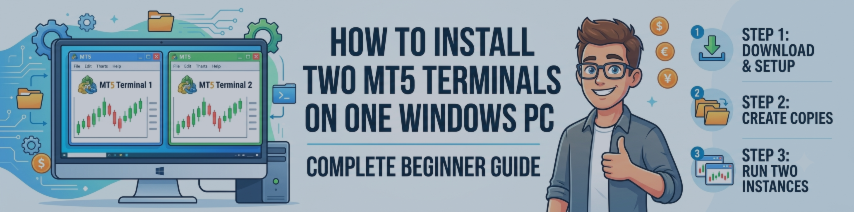
How to Install Two MetaTrader 5 (MT5) Terminals on One Windows PC (Complete Beginner Guide)

Running two MT5 terminals on the same Windows computer is useful when you want to:
- Trade with different brokers
- Copy trading purpose for two or more different accounts
- Use separate Live and Demo accounts
- Run different Expert Advisors (EAs)
- Keep personal and prop firm accounts separate
- Test strategies without affecting your main account
The official MetaQuotes documentation supports running multiple MT5 terminals, provided each installation is in its own directory.
PRODUCT LINK MT5: https://www.mql5.com/en/market/product/185743
PRODUCT LINK MT4: https://www.mql5.com/en/market/product/185848
YOUTUBE VIDEO: Video
PRODUCT LINK MT4: https://www.mql5.com/en/market/product/185848
YOUTUBE VIDEO: Video
Before You Start
Requirements
- Windows 10 or Windows 11
- MT5 installation file
- Administrator permission (recommended)
- About 500 MB of free disk space per installation
Step 1 – Download MT5
Download MetaTrader 5 from your broker or from the official MetaQuotes website.
Do not install it yet.
Step 2 – Start the Installation
Double-click
mt5setup.exe
You'll see the installation wizard.
Most beginners immediately click Next.
Don't do that.
Instead click
Settings
This is the most important step.
Step 3 – Select a Different Installation Folder


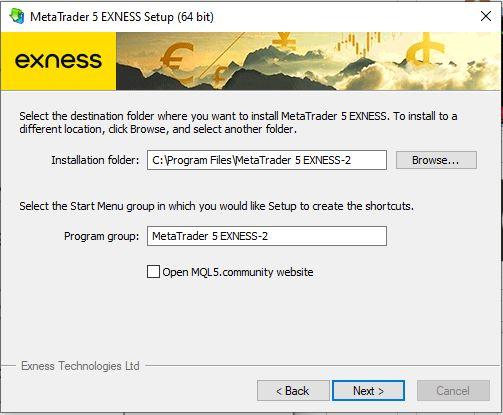
Change the installation directory.
Example for the first installation:
C:\Program Files\MT5 BROKER 1
or
D:\Trading\MT5 Live
Click Next.
Wait until installation finishes.
Step 4 – Install the Second MT5 Terminal
Run
mt5setup.exe
again.
Click
Settings
Choose another folder.
Example:
C:\Program Files\MT5 BROKER 2
or
D:\Trading\MT5 Demo
Never install into the same folder.
MetaQuotes states that multiple simultaneously running terminals require separate installation directories.
Step 5 – Rename Desktop Shortcuts
Windows may create two shortcuts named MetaTrader 5.
Rename them.
Example
MT5 - Live MT5 - Demo
or
MT5 - BROKER 1 MT5 - BROKER 2
This prevents opening the wrong terminal by mistake.
Step 6 – Open Both Terminals
Double-click the first shortcut.
Open the second shortcut.
You should now see two independent MT5 windows running simultaneously.
Each terminal can:
- Connect to a different broker
- Use different accounts
- Run different EAs
- Have different charts
- Use different indicators
Step 7 – Login to Different Trading Accounts
In each terminal
File → Login to Trade Account
Enter
- Login ID
- Password
- Server
Repeat in the second MT5 terminal.
Step 8 – Verify the Data Folder
This is the easiest way to confirm that each installation is independent.
Inside MT5
File → Open Data Folder
A different data folder should open for each installation.
According to MetaQuotes, Windows creates a unique data folder (identified by a unique instance ID) for each installation path when running in the default mode.
Understanding the Installation Folder vs Data Folder
Many beginners confuse these.
Installation Folder
Contains the MT5 program files.
Example:
C:\Program Files\MT5 Live
Data Folder
Contains your personal trading data.
Including
- Expert Advisors
- Indicators
- Scripts
- Templates
- Profiles
- History
- Logs
Open it from:
File → Open Data Folder
Do not manually guess its location.
Where Should I Install My Expert Advisors?Always copy your EA into the correct terminal's data folder:
MQL5 → Experts
Each MT5 installation has its own data folder, so EAs, indicators, templates, and profiles remain separate.
Portable Mode (Advanced Users)MetaTrader 5 also supports Portable Mode, where all platform data is stored inside the installation folder instead of the Windows AppData directory.
Launch MT5 with:
terminal64.exe /portable
However, MetaQuotes notes that Portable Mode has additional permission requirements and is intended for advanced scenarios. For most Windows 10/11 users, the standard installation mode is recommended.
Common Mistakes
❌ Installing both terminals into:
C:\Program Files\MetaTrader 5
Result:
- You won't have two independent installations.
- Updates and shortcuts can become confusing.
❌ Copying one MT5 folder to another
While some traders report success by copying the installation folder, this is not the officially recommended installation method. For reliability and future updates, use the installer and choose a different folder for each terminal.
❌ Forgetting which account is open
Rename shortcuts and consider using different chart colors or profiles for each terminal to avoid placing trades in the wrong account.
Frequently Asked Questions
Can I run two MT5 terminals at the same time?
Yes. Install each terminal in a different folder.
Can I run more than two?
Yes. You can install multiple MT5 terminals, each in its own installation directory. The practical limit depends on your PC's CPU, RAM, and storage.
Can each terminal use a different broker?
Yes. Each terminal can connect to a different broker and trading account.
Do I need Portable Mode?
No. Most users should use the default installation mode. Portable Mode is primarily for advanced use cases and has additional requirements.
Final Thoughts
The safest and officially supported way to run multiple MT5 terminals on one Windows PC is to install each copy using the MT5 installer and select a different installation folder. Each installation receives its own data directory, allowing you to keep brokers, accounts, Expert Advisors, indicators, and settings separate without conflicts. This approach is the one recommended by MetaQuotes and is the most reliable for long-term use.