Phoenix Trade Manager MT5 v7.1 PRO — User Guide
Free demo version available. Please check the bottom of this page attached.
Product page: https://www.mql5.com/en/market/product/177690
Installation guide: https://www.mql5.com/en/blogs/post/771417
| Phoenix Trade Manager MT5 is a chart-based trade management utility for MetaTrader 5. It places, manages, and closes orders from an on-chart panel and adds risk-based lot sizing, multiple take-profit levels, several trailing-stop methods, break-even automation, an equity guard, a spread monitor, a candle timer, and a session manager. This guide describes every tab of the panel and every control on it. All examples use the Default (light) theme and the English interface language.
|
1. Installation and first start
- After purchase, the utility appears in MetaTrader 5 under Navigator → Expert Advisors → Market.
- Drag it onto the chart of the symbol you want to trade.
- In the EA dialog, enable Allow Algo Trading and click OK.
- Make sure the Algo Trading button in the terminal toolbar is also enabled — without it the panel can be displayed but cannot send orders.
1.1 Input parameters
The inputs set the panel defaults at start-up. Every value can also be changed later directly on the panel.
| Group | Parameter | Default | Purpose |
| Risk | InpRiskPct | 1.0 | Default risk per trade as a percentage of the account balance. |
| Risk | InpCustomVal | 1000.0 | Fixed money amount used when the risk mode is "Custom USD". |
| Risk | InpRiskMode | % Balance | Lot calculation mode: % Balance, Custom USD, Fixed Lot, or Auto Risk. |
| Trade Defaults | InpLot / InpTP / InpSL | 0.01 / 200 / 100 | Default lot size and Take Profit / Stop Loss distances in points. |
| Trade Defaults | InpRTP / InpRSL | 2.0 / 1.0 | Default reward and risk ratio values for the RR row. |
| Trade Defaults | InpSprLim | 0 | Spread limit in points; 0 disables the filter. |
| Break Even | InpBEOn / InpBEDist / InpBEOff / InpBESpr | off / 200 / 5 / off | Break-even automation: on/off, trigger distance, offset in points, add spread to the offset. |
| Trailing | InpTrOn / InpTrType / InpTrDist / InpTrStep / InpTrStart | off / Fixed / 50 / 10 / 0 | Trailing stop: on/off, method, distance, step, and minimum profit before trailing starts. |
| Trailing | InpMAPer / InpATRPer / InpATRMul / InpSARStep / InpSARMax | 14 / 14 / 2.0 / 2 / 20 | Indicator settings used by the MA, ATR, and Parabolic SAR trailing methods. |
| TTM | InpTTMOn, InpTTMT1/A1, InpTTMT2/A2 | off | Trade Time Manager: two schedulable time events with an action each (buy, sell, close, exit). |
| Misc | InpOCO / InpHideSLTP / InpVirt | off | One-Cancels-Other for pending orders, hide SL/TP lines, virtual (panel-managed) SL/TP. |
| Panel | InpPX / InpPY | 20 / 20 | Initial panel position on the chart in pixels. |
2. Panel layout
The panel is 380 pixels wide and consists of a title bar, a top bar, and five main tabs: Trade, PRO, Close, Settings, and Info. The Trade tab has four sub-tabs: Home, TP/SL, Trailing, and BE. The PRO tab contains five tool pages: Speed, Guard, Spread, Timer, and Session.
- Title bar — shows the product name and version. The _ button minimizes the panel to the title bar only; X removes the utility from the chart. Drag the title bar to move the panel.
- Top bar — the ▼ symbol button opens a scrollable dropdown of Market Watch symbols; selecting one switches the whole chart and panel to that symbol. The middle badge shows the active modes (BE, TR, OCO, LOCKED, or READY when nothing is active). On the right are a clock and a screenshot button that saves a chart image.
3. Trade tab — Home
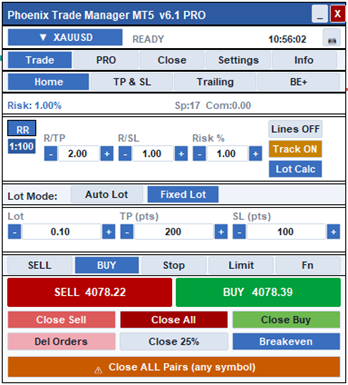
Figure 1. Trade → Home: order entry, risk inputs, and quick close actions.
3.1 Risk and RR row
- Risk % / Spread bar — shows the active risk setting and the live spread of the selected symbol.
- RR badge and leverage button — the button below RR shows the account leverage used in margin estimates.
- R/TP and R/SL — reward/risk multipliers. When you work with ratio-based targets, TP and SL distances are derived from these values.
- Risk % — risk per trade used by the automatic lot calculation.
- Lines ON/OFF — shows draggable entry, SL, and TP lines on the chart, so a trade can be planned visually before sending it.
- Track ON/OFF — when enabled, the chart lines follow the current price until you fix them.
- Lot Calc — recalculates the lot from the current Risk %, SL distance, and symbol tick value.
3.2 Lot mode and trade inputs
- Auto Lot / Fixed Lot — Auto Lot sizes each order from the risk settings; Fixed Lot always uses the value in the Lot field.
- Lot / TP / SL — the lot size and the TP and SL distances in points used for the next order. The −/+ steppers change values in symbol-valid increments.
3.3 Order type selector and order buttons
- Sell / Buy / Stop / Limit / Fn — choose between market orders and pending orders. With Stop or Limit selected, the order confirmation window adds a pending-price section (see section 10).
- SELL / BUY — the two large buttons show the live Bid and Ask and send the order. By default a confirmation window opens first; with PRO Fast Mode enabled (section 7.1) the order is sent immediately.
3.4 Quick close row
- Close Sell / Close All / Close Buy — close all sell positions, all positions, or all buy positions on the current symbol.
- Del Orders — deletes all pending orders of the symbol.
- Close N% — partially closes positions by the selected percentage; clicking the button opens a 25/50/75/100% menu.
- Breakeven — moves the stop loss of open positions to the entry price plus the configured offset, after a confirmation.
- Close ALL Pairs — closes every open position in the account regardless of symbol. The orange color and warning icon mark it as an account-wide action.
4. Trade tab — TP/SL (multiple take-profit levels)
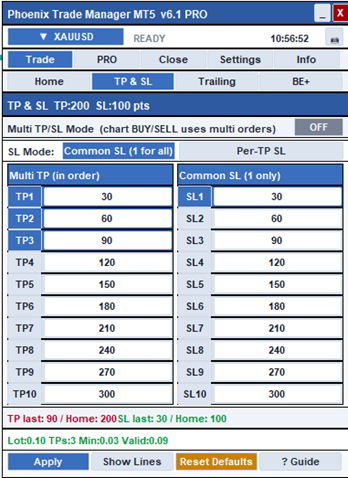
Figure 2. Trade → TP/SL: up to ten take-profit levels with a common or per-TP stop loss. Rows TP5–TP10 are shortened here; the real panel shows all ten rows.
- Multi TP/SL Mode — the master switch. When ON, the BUY/SELL buttons on the Home tab split the total lot across all selected TP levels and send one order per level.
- SL Mode — Common SL applies one stop loss to every part; Per-TP SL lets each part have its own stop level from the SL column.
- TP1…TP10 / SL1…SL10 — click a row button to enable or disable the level; type the distance in points into its field. Levels are used in order.
- Totals rows — compare the farthest selected TP/SL with the Home tab values and show the lot arithmetic: total lot, number of TPs, the minimum total lot required (one minimum lot per part), and the nearest valid total. Values turn red when the configuration is not consistent.
- Apply — saves the configuration (a confirmation summary opens first). Lines draws the TP/SL levels on the chart. Reset Defaults restores the standard level ladder. Guide opens the built-in help window.
| Note. When you press BUY or SELL in multi mode, a Place Multi-TP Orders window lists every part with its exact price and lot before anything is sent — see section 10. |
5. Trade tab — Trailing
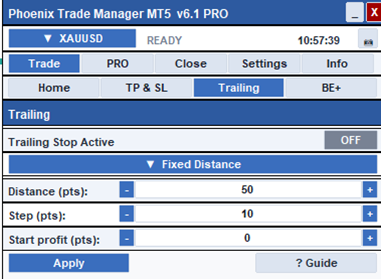
Figure 3. Trade → Trailing with the Fixed Distance method selected. The dropdown offers seven trailing methods.
The dropdown selects one of seven trailing methods. Each method shows only its own parameters:
| Method | How the stop is moved | Parameters |
| Fixed Distance | Keeps the SL a constant distance behind price, advancing in steps. | Distance, Step, Start profit |
| Fractals | Follows the most recent fractal level. | Start profit |
| Moving Avg | Follows a moving average line. | MA Period, Start profit |
| Parabolic SAR | Follows the Parabolic SAR dots. | SAR Step, SAR Maximum |
| ATR | Trails at a multiple of the Average True Range. | ATR Period, ATR Multiplier, Start profit |
| Partial Close | Closes part of the position as price advances instead of only moving the SL. | Distance, Step, Start profit |
| High/Low Bar | Follows the high/low of recent bars. | Start profit |
Start profit is the minimum profit in points a position must reach before trailing begins. Apply opens a confirmation showing the chosen method and values before activating.
6. Trade tab — BE (Break Even+)
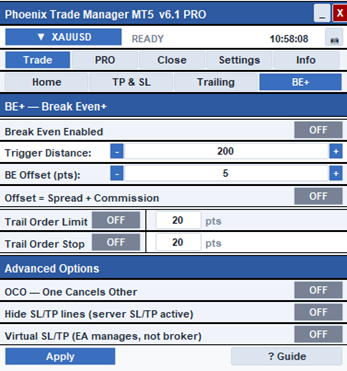
Figure 4. Trade → BE: break-even automation, pending-order trailing, and advanced order options.
- Break Even Enabled — when a position has gained the Trigger Distance in points, its SL is moved to entry price plus the BE Offset.
- Offset = Spread + Commission — replaces the fixed offset with the live spread (plus commission), so the protected level truly covers costs.
- Trail Order Limit / Trail Order Stop — keep unfilled limit/stop pending orders at the set distance from the moving price, so the pending entry follows the market.
- OCO — when one of two opposite pending orders fills, the other is deleted automatically.
- Hide SL/TP lines — visually hides the SL/TP levels on the chart while they stay active on the server.
- Virtual SL/TP — SL and TP are not sent to the broker; the utility watches the price and closes the position itself when a level is reached. Note that virtual levels only work while the terminal and the utility are running.
- Apply — opens a confirmation summary (trigger, offset, OCO/Hide/Virtual states) before activating.
7. PRO tab
The PRO tab starts with a Floating P/L bar — current floating profit/loss in account currency, the open-position count, and the buy/sell breakdown — followed by five tool pages.
7.1 PRO → Speed (fast trading and hotkeys)
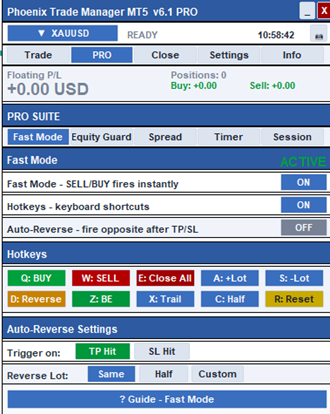
Figure 5. PRO → Speed: one-click trading, the hotkey map, and auto-reverse settings.
- Speed Mode — the BUY/SELL buttons send orders immediately, skipping the confirmation window. Intended for fast manual trading; use with care.
- Hotkeys — enables the keyboard shortcuts shown in the grid: Q buy, W sell, E close all, A/S increase/decrease lot, D reverse position, Z breakeven, X toggle trailing, C close half, R reset.
- Auto-Reverse — after a position closes by TP and/or SL (selectable triggers), the utility opens a position in the opposite direction. The reverse order lot can be the Same, Half, or a Custom value.
7.2 PRO → Guard (daily loss limit and profit target)
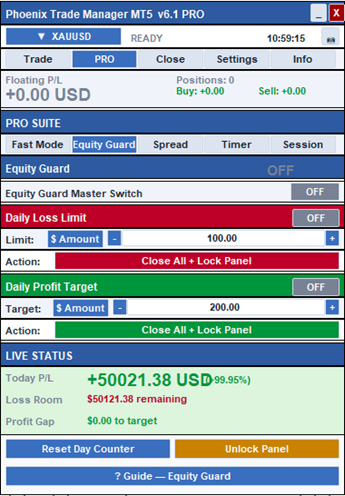
Figure 6. PRO → Guard: daily loss limit, daily profit target, and the live status box.
- Master Switch — enables the guard engine. Each limit also has its own ON/OFF button in its header.
- Daily Loss Limit — when today's loss reaches the limit (entered as a $ Amount or a % of balance), the chosen action runs: Close All Trades or Close All + Lock Panel. Locking disables the trading buttons for the rest of the day; the header turns red and the mode badge shows LOCKED.
- Daily Profit Target — the same logic for a profit goal, with the same two actions.
- LIVE STATUS — today's profit/loss since the daily anchor balance, the remaining loss room, and the gap to the profit target, all updated live.
- Reset Day Counter — restarts the daily calculation from the current balance. Unlock Panel manually removes a guard lock.
7.3 PRO → Spread (monitor and entry filter)
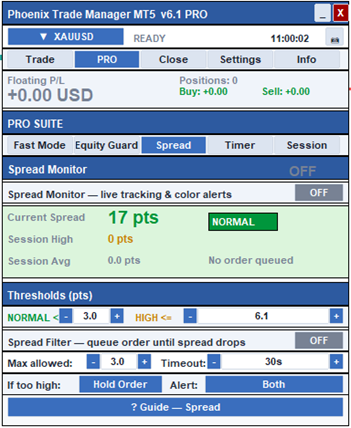
Figure 7. PRO → Spread: live spread box with status pill, thresholds, and the order queue filter.
- Spread Monitor — tracks the live spread and colors it by the thresholds: green (Normal), orange (High), red (Extreme). The box also shows the session high and session average.
- Thresholds — the two boundary values (in points) that define Normal and High.
- Spread Filter — if an order is requested while the spread exceeds Max allowed, the order is queued and sent automatically as soon as the spread drops, or handled by the If too high action (Hold Order keeps waiting, Cancel Order discards it) when the Timeout expires. The status line shows "ORDER QUEUED — waiting for spread" while a queue is active.
- Alert — Sound, Visual, or Both when the spread state changes.
7.4 PRO → Timer (candle countdown and tick speed)
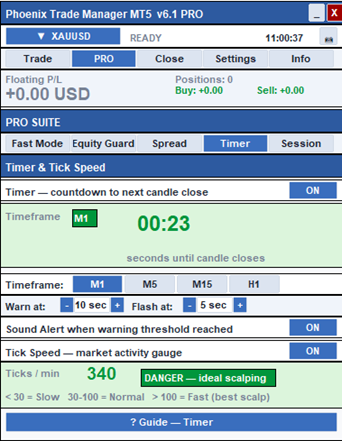
Figure 8. PRO → Timer: candle-close countdown with alert thresholds and the tick-speed gauge.
- Candle Timer — a large countdown to the close of the current candle on the selected timeframe (M1, M5, M15, or H1). The box is green, turns orange at the Warn at threshold, and red (flashing) at the Flash at threshold; a sound alert can be played at the warning level.
- Tick Speed — counts incoming ticks per minute as a simple activity gauge: below 30 is slow, 30–100 normal, above 100 fast.
7.5 PRO → Session (market sessions, kill switch, trade filter)
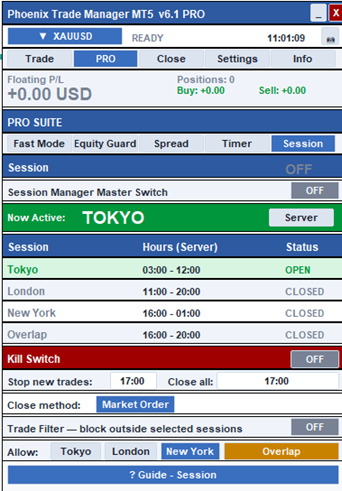
Figure 9. PRO → Session: live session table, end-of-day kill switch, and the session trade filter.
- Session table — Tokyo (00:00–09:00 GMT), London (08:00–17:00 GMT), New York (13:00–22:00 GMT), and the London/New York overlap (13:00–17:00 GMT). Open sessions are highlighted, and the badge on top shows which session is active now. The Server / Local / GMT button switches the time zone in which hours are displayed.
- Kill Switch — an end-of-day routine: after the Stop new trades time no new orders are accepted, and at the Close all time every position is closed using the selected Close method (market or limit order).
- Trade Filter — blocks new orders outside the sessions you allow with the Tokyo / London / New York / Overlap buttons.
8. Close tab
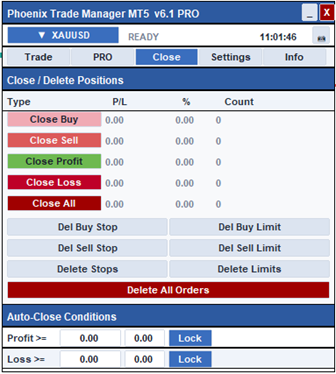
Figure 10. Close tab: batch close with live P/L, pending-order cleanup, and auto-close conditions.
- Close table — each row shows the live profit/loss, its percentage of balance, and the position count for that group; clicking the row button closes the group: buys only, sells only, only profitable positions, only losing positions, or everything on the symbol. When Manage All Symbols is enabled in Settings, the rows cover the whole account.
- Delete buttons — remove pending orders by type (buy stop, buy limit, sell stop, sell limit, all stops, all limits) or all at once.
- Auto-Close Conditions — set a money or percentage level; when the floating P/L of the symbol reaches it, all positions are closed automatically. Lock arms the condition. After a batch close, a report window summarizes what was closed.
9. Settings and Info tabs
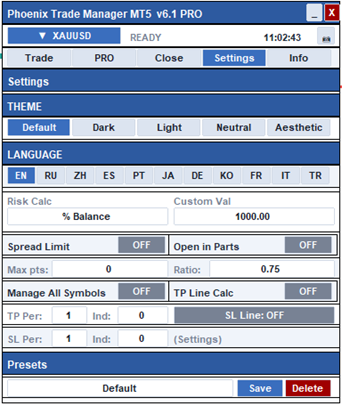
Figure 11. Settings tab: theme, language, risk mode, filters, line calculators, and presets.
- THEME — five color schemes: Default, Dark, Light, Neutral, Aesthetic. The Dark theme also restyles the chart colors.
- LANGUAGE — eleven interface languages: English, Russian, Chinese, Spanish, Portuguese, Japanese, German, Korean, French, Italian, Turkish.
- Risk Calc / Custom Val — the lot-sizing mode (% Balance, Custom USD, Fixed Lot, Auto Risk) and the money amount used by the Custom mode.
- Spread Limit — blocks new orders when the spread exceeds Max pts.
- Open in Parts — splits a new order into parts using the configured ratio.
- Manage All Symbols — extends the Close tab and management functions from the chart symbol to the whole account.
- TP Line Calc / SL Line Calc — periodic indicator-based recalculation of TP/SL line levels (period and indicator index fields).
- Presets — save the complete panel configuration under a name, reload it later, or delete it. Panel state (tab, theme, inputs, toggles) is also preserved automatically across symbol switches and restarts.
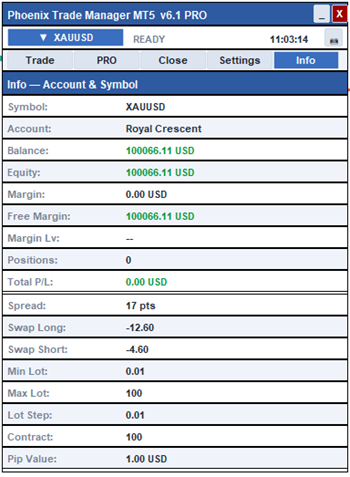
Figure 12. Info tab: live account metrics and the trading conditions of the selected symbol.
The Info tab is read-only. The account block shows balance, equity, margin, free margin, margin level, open-position count, and total floating P/L. The symbol block shows the spread, long/short swap rates, minimum/maximum lot, lot step, contract size, and pip value — useful for checking a broker's conditions before trading a new symbol.
10. Confirmation windows and overlays
Several actions open a window next to the panel before anything is executed:
- Order confirmation — opens for BUY/SELL (unless Speed Mode is on) and shows lot, balance, money risk, entry price, and the exact SL and TP prices. For pending orders it adds a type selector (Buy Stop / Sell Stop / Buy Limit / Sell Limit), an offset in points or percent, the computed entry price, and a manual price override.
- Place Multi-TP Orders — in multi TP/SL mode, lists every part with its TP distance, exact buy/sell price, and lot, plus the SL plan, with Place Buy / Place Sell / Cancel buttons.
- Breakeven / Break Even+ / Trailing / TP&SL confirmations — summarize the exact settings before they are applied.
- Position context menu — per-position actions: close, close and reverse, breakeven+5, hide SL/TP, partial close, edit order, trailing, color, and comment.
- Trade Time Manager — schedules actions (buy, sell, close buys/sells/all, exit) at a specific date and time with weekday repeats.
- Close report — after a batch close, a summary of tickets, lots, and results.
- Guide windows — every PRO page has a Guide button that opens a built-in, draggable help popup describing that tool.
11. Frequently asked questions
| Question | Answer |
| The panel shows but the buttons do not trade. | Enable Algo Trading in the terminal toolbar and Allow Algo Trading in the EA properties. |
| Does it work on any symbol? | Yes — forex, metals, indices, crypto CFDs; any symbol your broker provides. Point-based inputs follow the symbol's tick size. |
| Do virtual SL/TP survive a terminal restart? | Virtual levels are managed by the utility, so the terminal and the chart must stay open. Use server SL/TP if you switch the terminal off. |
| Why is the panel locked? | The Account Guard reached its daily loss limit or profit target with the "Close All + Lock Panel" action. Use Unlock Panel on the Guard page to release it. |
| Multi-TP says my lot is invalid. | The total lot must be at least the symbol's minimum lot multiplied by the number of selected TP levels. The TP/SL tab shows the minimum and the nearest valid total. |
| Does it trade automatically? | No. It is a manual-trading utility. The only automated actions are the ones you arm yourself: break-even, trailing, auto-close conditions, guard limits, kill switch, and scheduled TTM events. |
12. Free demo version (MetaQuotes-Demo account only)
A free demo version of Phoenix Trade Manager MT5 is available so you can try every function of the panel on a live chart before purchasing. The demo version works only on a MetaQuotes-Demo account — on any other broker server (demo or real) the panel will display a notice and will not trade.
12.1 How to use the demo version
- In MetaTrader 5, open a MetaQuotes demo account: File → Open an Account, select MetaQuotes Ltd (server MetaQuotes-Demo), and create the demo account.
- Log in to that account (File → Login to Trade Account) and make sure the connection status in the lower-right corner is active.
- Download the demo version from the MQL5 Market and attach it to any chart.
- Enable Allow Algo Trading in the EA dialog and the Algo Trading toolbar button, exactly as described in section 1.
- All tabs and functions described in this guide — order entry, multi TP/SL, trailing, break-even, the PRO suite — are fully working on the MetaQuotes-Demo account, so you can evaluate the complete workflow risk-free.
| Note. If you attach the demo version while logged in to any other server, it will not operate — this is a limitation of the demo version, not an error. The full version from the product page works on any broker, on both demo and real accounts. |
| Disclaimer. This utility executes the actions you configure; it does not provide trading advice or signals. Past performance of any manual strategy does not indicate future results. Always validate your settings on a demo account first. |
Phoenix Trade Manager MT5 v6.1 PRO — © Mohamed Samsudeen.
Product page: https://www.mql5.com/en/market/product/177690
For questions and support, please use the Comments section of the product page.