
TradeAssist Risk Panel MT5 v2.0: Application Guide
Product: TradeAssist Risk Panel MT5
Version: v2.0
Platform: MetaTrader 5
Product page: https://www.mql5.com/en/market/product/176745
Free demo: available on the product page (the "Free demo" button) — try every feature in the Strategy Tester before buying.
Questions and feedback: the Comments section of the product page.
TradeAssist Risk Panel MT5 is a manual trading utility for MetaTrader 5. It does not provide trading signals, it does not predict market direction, and it does not decide when to buy or sell. The trader makes the trading decision. TradeAssist helps with execution, risk calculation and position management.
List of Main Features
Risk Management
- Automatic lot calculation from the risk amount and the SL distance.
- 8 risk calculation modes: Fixed $, % Balance, % Equity, % Free Margin, % Custom base, % Balance of previous Day / Week / Month — plus fixed manual lot.
- TP by Risk/Reward ratio; SL/TP by fixed points, exact price, or the high/low of the last N bars (Bars method).
- Live preview of lot, money risk and RR before the order is sent.
- Spread filter: block new orders when the spread is too wide.
- Profit / loss threshold: close everything automatically when the total reaches your limit.
Position and Order Management
- Market orders, Limit / Stop pending orders, and Buy / Sell Stop Limit.
- Batch close by direction / profit / loss / all, and batch deletion of pending orders by type.
- Multi-level partial close: up to 10 TP levels and 10 SL levels per position, 3 lot methods, 6 price methods, dynamic levels.
- Trailing stop with 6 variants: Points, Fractals, MA, Parabolic SAR, ATR, High/Low of previous bar.
- Automatic break even with 4 trigger units and spread+commission offset, plus one-click manual breakeven.
- Trailing of pending Limit / Stop orders behind the price.
- Hide SL TP: stealth stops monitored inside the EA, invisible to the broker.
- Apply any automation per position, per symbol or to all positions; new positions inherit the template.
- Settings presets: save, load and switch complete configurations.
Graphic Panel Functions
- Draggable Entry / SL / TP chart lines with live labels and green/red profit-risk zones.
- Order lines for every position and pending order, each with a "..." management menu on the chart.
- In-chart confirmation overlay before every trading action.
- Two-row 8-tab panel: Trade / Close / Set / Info + In parts / Trailing / BE+ / Notify.
- Light / dark theme, HiDPI displays support, adjustable panel width and font size, English / Chinese interface.
- Symbol switcher with sorted dropdown, spread display, candle close countdown / server time.
- WeChat and Telegram push notifications for order and position events.
What's new in v2.0
Version 2.0 is a major upgrade over v1.x:
- New two-row tab layout with 8 pages: Trade / Close / Set / Info and In parts / Trailing / BE+ / Notify.
- 8 risk calculation modes: Fixed $, % Balance, % Equity, % Free Margin, % Custom, % Balance of previous Day / Week / Month, plus Manual lot.
- Buy / Sell Stop Limit pending orders.
- Close page: one-click batch close and pending-order deletion with live profit statistics, plus profit/loss threshold auto close.
- Settings presets: save, load and switch complete panel configurations.
- SL/TP line by Bars method: place default SL/TP at the high/low of the last N bars.
- Trailing Stop page: 6 trailing variants (Points, Fractals, MA, Parabolic SAR, ATR, High/Low of previous bar), applied per position, per symbol or to all positions.
- Break even+ page: automatic break even with 4 trigger units, spread+commission offset, trailing of pending orders, and Hide SL TP (stealth stops).
- In parts page: multi-level partial close — up to 10 TP levels and 10 SL levels per position, 3 lot methods, 6 price methods, dynamic levels.
- Order line "..." menu: manage every position/order directly on the chart (close, reverse, breakeven, hide SL/TP, partial close %, edit, comment, and jump to Trailing / Break even / Partial Close pages).
- Light / dark theme, HiDPI support, in-chart confirmation dialogs, WeChat and Telegram notifications.
Management Scope and Magic Number
TradeAssist uses an Expert ID (input InpExpertID , default 260508 ) and derives a separate magic number for each symbol from it. By default the panel manages only:
- positions and orders on the current chart symbol,
- opened by TradeAssist itself (matching magic number).
Manual positions and positions of other EAs are ignored unless you enable InpManageManualPositions , the ID all checkbox on the Close page, or Manage all symbols in the Set page (see below).
Recommended usage: one chart, one TradeAssist instance per symbol. Do not attach two instances to the same symbol.
Trade Tab
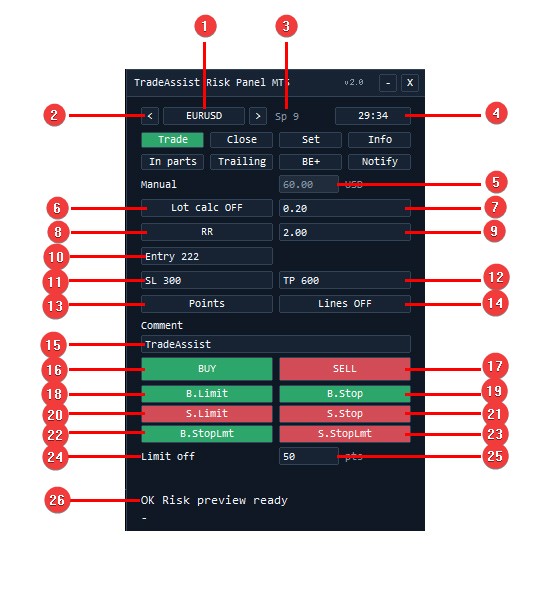
- Symbol selector — Shows the current chart symbol. Click to open a scrollable, alphabetically sorted symbol list and switch the chart to another symbol without leaving the panel.
- Previous / next symbol arrows — The < and > buttons step through your Market Watch symbols one by one.
- Spread — Current spread of the symbol in points. Example: Sp 9 .
- Bar countdown / server time — By default shows the time remaining until the current bar closes. Click the button to switch to the trading server time display. Example: 29:34 .
- Risk value field — The amount you are willing to risk on the next trade. Its meaning follows the selected risk mode (see "Risk Modes"): a money amount in $ mode, a percent in % modes. In Manual mode the field is read-only and shows the estimated risk of the manual lot. The label on the left always shows the active risk mode (here: Manual ).
- Lot calc ON/OFF — Toggles automatic lot calculation. Lot calc ON : the lot size is computed from the risk value (5) and the SL distance (11). Lot calc OFF : the panel uses the fixed manual lot (7).
- Manual lot field — Fixed lot size used when Lot calc is OFF. Example: 0.20 .
- RR button — Toggles Risk/Reward mode for the TP. When active, TP is placed automatically at SL distance × RR .
- RR value — The risk/reward ratio. Example: 2.00 means the TP distance is twice the SL distance.
- Entry field — Entry level for pending orders. In Points mode it is the distance from the current market price; in Price mode it is an absolute price. Pending orders can be placed with this field alone — chart lines are not required.
- SL field — Stop Loss. Points or price depending on mode (13). 0 = no SL.
- TP field — Take Profit. Points or price depending on mode (13). 0 = no TP.
- Points / Price mode — Switches the Entry / SL / TP fields between distance in points and absolute prices. The button label shows the current mode.
- Lines ON/OFF — Shows or hides the draggable Entry / SL / TP chart lines (see "Entry / SL / TP Chart Lines"). With lines ON, orders are placed at the line levels.
- Comment field — Order comment attached to new orders. Default: TradeAssist .
- BUY — Opens a market Buy with the calculated (or manual) lot, SL and TP. With Lines ON and the entry line moved away from market, the button automatically becomes a Limit / Stop order at the line level.
- SELL — Same as (16) for Sell.
- B.Limit — Places a Buy Limit at the Entry level (10).
- B.Stop — Places a Buy Stop at the Entry level.
- S.Limit — Places a Sell Limit at the Entry level.
- S.Stop — Places a Sell Stop at the Entry level.
- B.StopLmt — Places a Buy Stop Limit: the Entry level is the stop trigger; when it is reached, a Buy Limit is placed at trigger − limit offset (25).
- S.StopLmt — Places a Sell Stop Limit: trigger at Entry, then a Sell Limit at trigger + limit offset .
- Limit offset label — Belongs to the Stop Limit orders (22)(23).
- Limit offset value — Distance in points between the stop trigger and the limit price. Example: 50 pts.
- Status line — Shows the panel state, calculation results and error messages. Example: OK Risk preview ready .
Risk Modes
The active risk mode is selected in the Set tab ("Risk calc") and shown next to the risk value field on the Trade tab. Modes:
- Manual — No risk calculation. The panel trades the fixed manual lot (Trade tab, Lot calc OFF ).
- Fixed $ — Risk value is a money amount. Example: risk 100.00 USD with SL 300 points → lot is sized so that hitting the SL loses about 100 USD.
- % Balance — Risk value is a percent of the current account balance.
- % Equity — Percent of current equity.
- % Free — Percent of free margin.
- % Custom — Percent of a fixed base amount you define in the Set tab ( % Custom base ). Useful for prop-firm rules based on the initial account size.
- % B prev Day — Percent of the balance at the start of the previous trading day.
- % B prev Week — Percent of the balance at the start of the previous week.
- % B prev Month — Percent of the balance at the start of the previous month.
Modes 7–9 keep the risk base constant during the period even while the balance changes intraday — a common funded-account requirement.
Close Tab
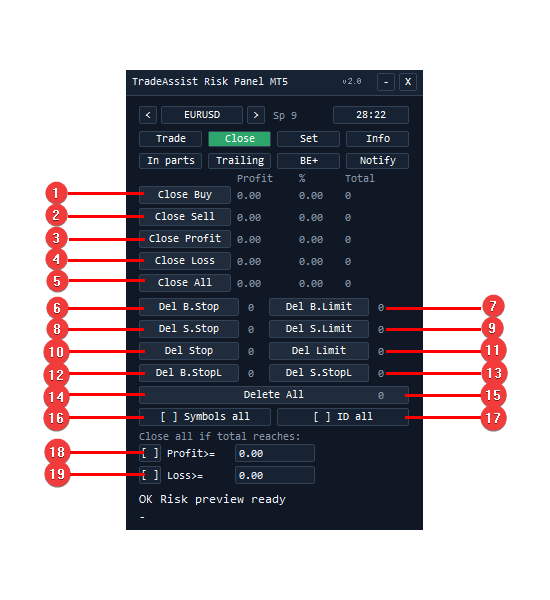
The table columns show live statistics for each group: Profit (floating P/L), % (percent of balance) and Total (number of positions/orders). All buttons respect the scope checkboxes (16)(17) and ask for confirmation before acting.
- Close Buy — Closes all Buy positions in scope.
- Close Sell — Closes all Sell positions in scope.
- Close Profit — Closes all positions currently in profit.
- Close Loss — Closes all positions currently in loss.
- Close All — Closes every position in scope.
- Del B.Stop — Deletes all Buy Stop pending orders. The number on the right of each row is the live count of such orders.
- Del B.Limit — Deletes all Buy Limit pending orders.
- Del S.Stop — Deletes all Sell Stop pending orders.
- Del S.Limit — Deletes all Sell Limit pending orders.
- Del Stop — Deletes all Stop orders (buy + sell).
- Del Limit — Deletes all Limit orders (buy + sell).
- Del B.StopL — Deletes all Buy Stop Limit orders.
- Del S.StopL — Deletes all Sell Stop Limit orders.
- Delete All — Deletes every pending order in scope.
- Pending count — Total number of pending orders in scope.
- [ ] Symbols all — When checked, the Close/Delete buttons and the statistics cover all symbols, not only the current chart symbol.
- [ ] ID all — When checked, positions and orders of any Expert ID (including manual trades and other EAs) are included. Use with care.
- [ ] Profit >= — Automatic protection: when the total floating profit of the scope reaches this value, the panel closes all positions in scope. Example: Profit>= 500.00 .
- [ ] Loss >= — Same for total loss: when the total floating loss reaches this value, everything in scope is closed.
Set Tab
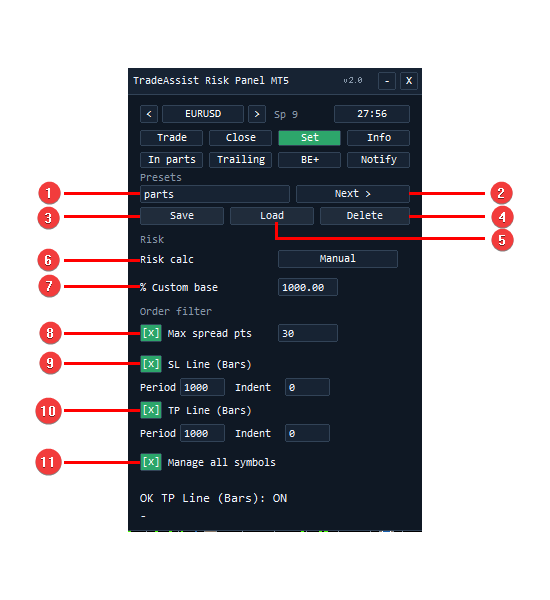
- Preset name — Name of the current settings preset. Presets store the complete panel configuration (risk settings, order filter, Trailing / Break even+ / In parts templates, etc.).
- Next > — Cycles through the saved presets.
- Save — Saves the current panel configuration under the preset name (1).
- Delete — Deletes the preset shown in (1).
- Load — Loads the preset shown in (1) and applies it to the panel.
- Risk calc — Dropdown with the risk calculation modes: Fixed $ , % Balance , % Equity , % Free , % Custom , % B prev Day , % B prev Week , % B prev Month (see "Risk Modes"). When Lot calc is OFF on the Trade tab, the button shows Manual .
- % Custom base — The fixed base amount used by the % Custom mode. Example: 1000.00 .
- [X] Max spread pts — Spread filter. When enabled, new orders are blocked while the current spread exceeds this value (in points). Example: 30 .
- [X] SL Line (Bars) — Bars method for the default SL. When enabled, the SL line / default SL is placed at the lowest low (for Buy) or highest high (for Sell) of the last Period bars, plus Indent extra points — instead of a fixed point distance.
- [X] TP Line (Bars) — Same method for the TP line: the extreme of the last Period bars ± Indent .
- [X] Manage all symbols — When checked, the automation engines (Break even+, Trailing Stop, In parts) manage matching positions on all symbols, not only the current chart symbol.
Info Tab
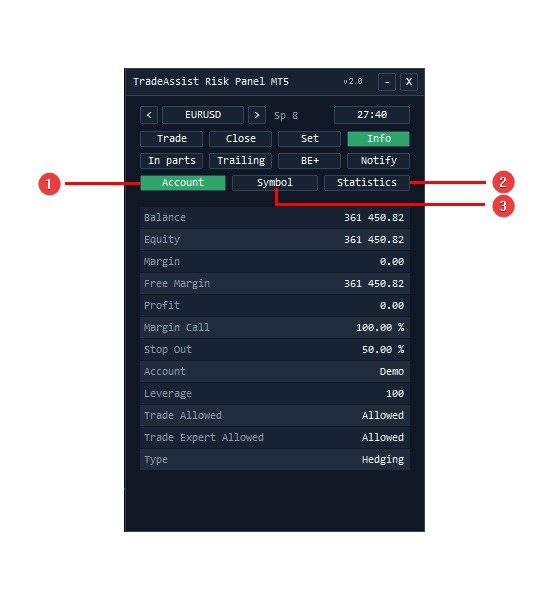
- Account — Account overview: Balance, Equity, Margin, Free Margin, floating Profit, Margin Call and Stop Out levels, account type (Demo/Real), Leverage, trade permissions, and margin mode (Hedging/Netting).
- Statistics — Trading statistics of the account/panel (closed trades summary).
- Symbol — Contract specification of the current symbol: digits, tick size and value, stop/freeze levels, lot step and limits, swaps, etc.
In parts Tab (Multi-Level Partial Close)

The In parts page closes a position in several steps ("scaling out"): up to 10 levels on the TP side and 10 levels on the SL side. Each level fires once when price reaches it.
- Lot method dropdown — How the lot of each level is interpreted:
- Lot % in — percent of the position's initial lot;
- Lot % — percent of the current remaining lot;
- Lot — fixed lot amount.
- Price method dropdown — How the level prices are interpreted:
- Auto — levels are spaced evenly between entry and the position's TP (or SL): with N active levels, level i sits at i/N of the distance. The position must have a TP (SL) set, otherwise that side is skipped; levels re-space automatically when you drag the TP/SL line;
- Points — distance from entry in points;
- Price — absolute price;
- RR — multiple of the SL distance;
- % Price — percent of the entry price;
- % TP/SL — percent of the entry→TP (or entry→SL) distance.
- [X] TP in parts — Enables partial closing on the profit side.
- TP1…TP10 rows — Each row is one level: [lot] [price] using the methods (1)(2). Example with Lot % in + Points : TP1 50 100 , TP2 50 200 = close 50% of the initial lot at +100 points, the rest at +200 points. Rows with price 0 are inactive (except in Auto mode, where prices are computed automatically).
- [X] SL in parts — Enables partial closing on the loss side (cut the position in steps as price moves against it).
- SL1…SL10 rows — Same as (4), levels measured toward the stop side.
- [ ] Dynamic (TP side) — Dynamic levels: untriggered levels follow the price when it moves away from them and stay when it approaches (favorable-only, like a trailing mechanism).
- Start (TP side) — Profit threshold in points; the dynamic behaviour (7) starts only after the position gains this much.
- [ ] Dynamic (SL side) — Same as (7) for the SL-side levels.
- Start (SL side) — Same as (8) for the SL side.
- Scope dropdown + Apply — Choose what the template applies to: <symbol> Positions (all positions of the current symbol), All positions , or one specific position from the list. Then press Apply to activate. New positions matching the scope inherit the template automatically.
Trailing Tab
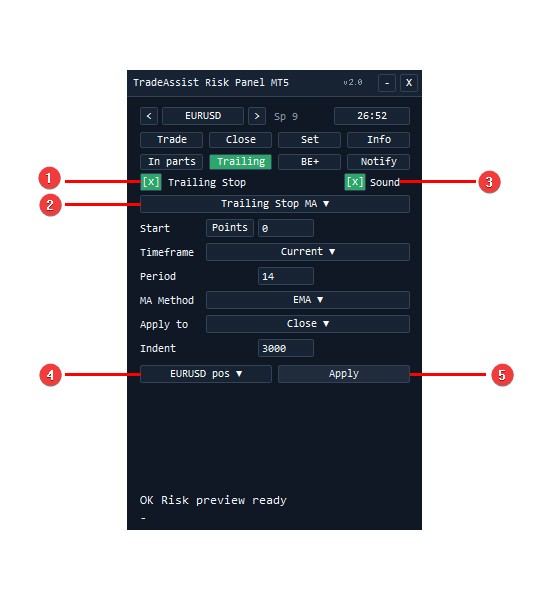
Automatic trailing stop, configured per position, per symbol or for all positions. The SL only moves in the favorable direction — it is never moved back.
- [X] Trailing Stop — Master enable for the trailing template.
- Variant dropdown — Six trailing algorithms; the parameter rows below change with the variant:
- Trailing Stop (classic) — parameters Start / Distance / Step , each with a unit selector ( Points / RR / %Price / %TP ). SL follows price at the set distance, moving at least Step at a time.
- Trailing Stop Fractals — SL follows the latest confirmed fractal ( Timeframe , Indent in points).
- Trailing Stop MA — SL follows a moving average: Timeframe , Period , MA Method (SMA/EMA/SMMA/LWMA), Apply to (Close/Open/High/Low…), Indent .
- Trailing Stop Parabolic SAR — SL follows the SAR dots ( Timeframe , SAR settings, Indent ).
- Trailing Stop ATR — SL trails at an ATR-based distance ( Timeframe , Period , Indent ).
- Trailing Stop High Low prev bar — SL follows the previous bar's low (Buy) or high (Sell) ( Timeframe , Indent ).
Start is common to all variants: the profit required before trailing arms. - [X] Sound — Plays a sound each time the trailing stop actually moves the SL.
- Scope dropdown — <symbol> pos (current symbol), All pos , or one specific position.
- Apply — Activates the template for the selected scope. New matching positions inherit it automatically. When both Break even+ and Trailing want to move the SL, the more favorable SL wins.
BE+ Tab (Break even and more)
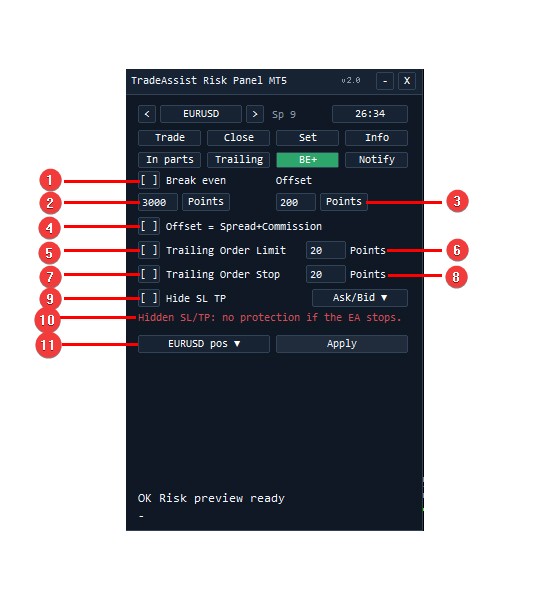
- [ ] Break even — Enables automatic break even: once the position gains the Start amount (2), the SL is moved to entry + offset (3). It fires once per position and only ever improves the SL.
- Start value + unit — Profit needed to trigger BE. Units: Points / RR / %Price / %TP . Example: 3000 Points .
- Offset value + unit — Distance beyond the entry where the SL is placed, locking a small profit. Example: 200 Points → SL = entry + 200 points (Buy).
- [ ] Offset = Spread+Commission — Overrides (3): the offset is computed automatically from the current spread plus the position's commission, so "break even" truly covers costs.
- [ ] Trailing Order Limit — Trails pending Limit orders: when price moves away from the pending entry, the order (with its SL/TP) follows, staying at the distance (6) from the market.
- Trailing Order Limit distance — Distance in points for (5). Example: 20 .
- [ ] Trailing Order Stop — Same as (5) for pending Stop orders.
- Trailing Order Stop distance — Distance in points for (7).
- [ ] Hide SL TP + Ask/Bid — Stealth stops: removes the SL/TP from the broker server and monitors them inside the EA. When the selected price ( Ask or Bid ) touches the hidden level, the position is closed at market. The broker cannot see your stop levels.
- Warning line — Hidden SL/TP: no protection if the EA stops. Hidden stops exist only while the EA is running — if the terminal or EA is stopped, the position has no server-side protection. Use a VPS and keep the terminal running.
- Scope dropdown + Apply — Same scope logic as the other pages: <symbol> pos / All pos / a single position, then Apply.
Notify Tab
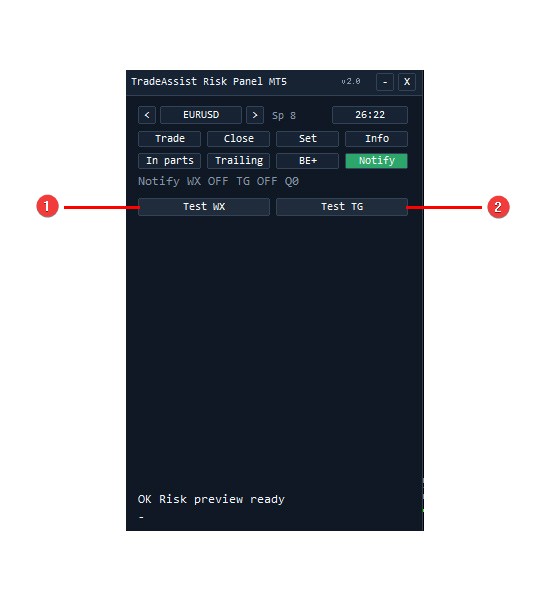
Sends push notifications about order and position events to WeChat and/or Telegram. The status line shows the current state, e.g. Notify WX OFF TG OFF Q0 (WX = WeChat, TG = Telegram, Q = queued messages).
- Test WX — Sends a test WeChat notification through the notification server ( https://alert.tradeaibox.com ).
- Test TG — Sends a test Telegram message using your bot token and chat ID (input parameters).
Setup: enable InpNotificationsEnabled plus InpWeChatEnabled / InpTelegramEnabled in the inputs, and add the server URLs to Tools → Options → Expert Advisors → Allow WebRequest for listed URL:
- https://alert.tradeaibox.com (WeChat)
- https://api.telegram.org (Telegram)
Without the WebRequest whitelist entries, notifications are silently disabled (the panel still trades normally).
Entry / SL / TP Chart Lines
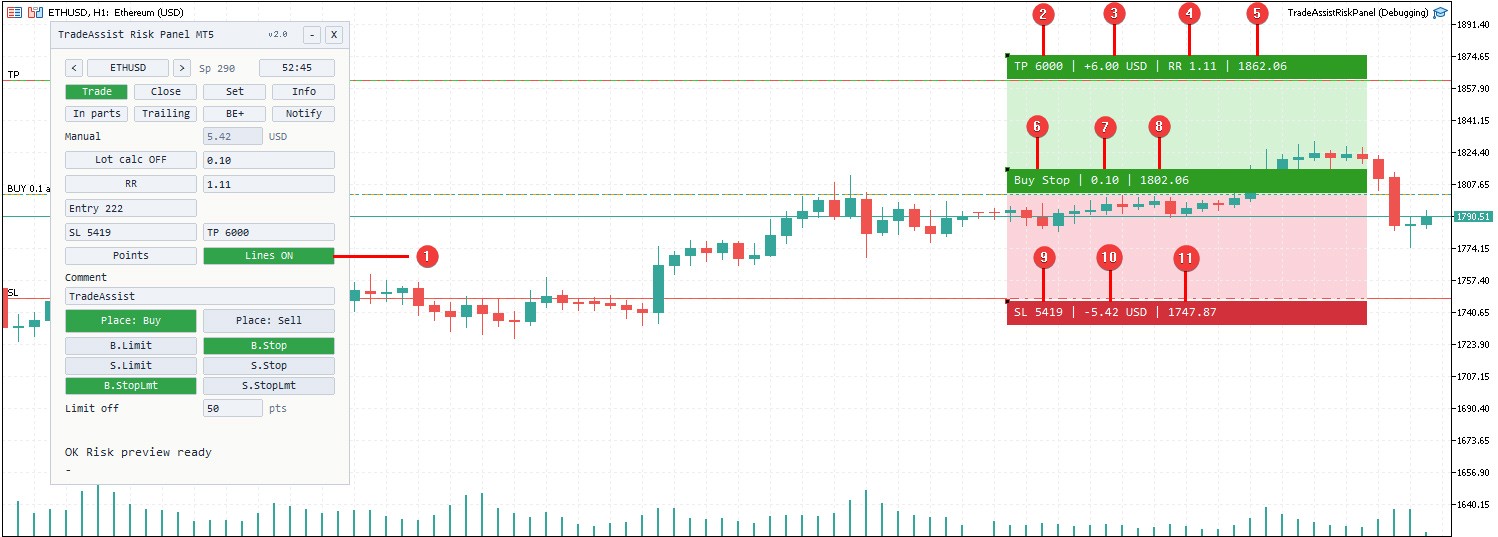
With Lines ON the panel draws three draggable lines on the chart. The screenshot shows a Buy Stop being prepared:
- Lines ON — The switch on the Trade tab (item 14) that shows/hides the lines. With lines ON the market buttons change to Place: Buy / Place: Sell and orders are placed at the line levels.
- TP distance — Points from the entry line to the TP line, updated live while you drag.
- Projected profit — Money result at the TP for the current lot.
- RR — Reward:risk ratio of the current line geometry.
- TP price — The TP line level.
- Order type — The entry-line label shows exactly what will be placed ( Buy Stop here). Dragging the entry line above/below the market switches automatically between market, Limit and Stop.
- Lot — The lot that will be sent, recalculated live from the risk settings as the lines move.
- Entry price — The entry line level (for pending orders this is the trigger price).
- SL distance — Points from the entry line to the SL line.
- Projected loss — The money at risk at the SL; matches the Risk field on the Trade tab.
- SL price — The SL line level.
The zone between entry and TP is shaded green (potential profit) and the zone between entry and SL red (risk), so the trade geometry is visible at a glance. The order is placed as market, Limit or Stop depending on where the entry line sits relative to the current price.
The lot / risk preview on the Trade tab updates in real time as you drag. With InpKeepLinesAfterOrder the lines stay after the order is placed.
Order Lines and the "..." Menu
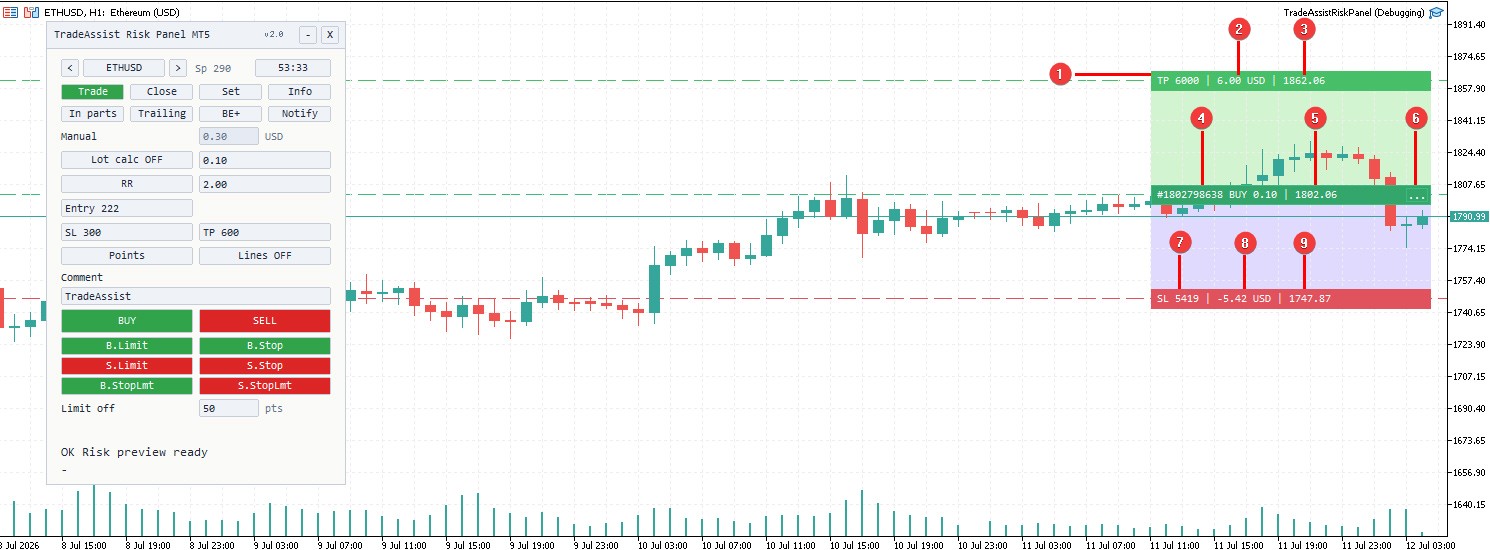
Every position and pending order managed by the panel gets an order line on the chart, with its own TP/SL labels showing live profit:
- TP line — This order's take-profit level, with its label on the right.
- TP profit — Money result if the TP is hit.
- TP price — The take-profit price level.
- Ticket — The order number ( #1802798638 ).
- Direction, lot and open price — BUY 0.10 | 1802.06 ; the order line itself sits at the open price.
- "..." button — Opens this order's management menu (below).
- SL distance — Points from the open price to the stop loss.
- SL loss — Money at risk if the SL is hit.
- SL price — The stop-loss price level.
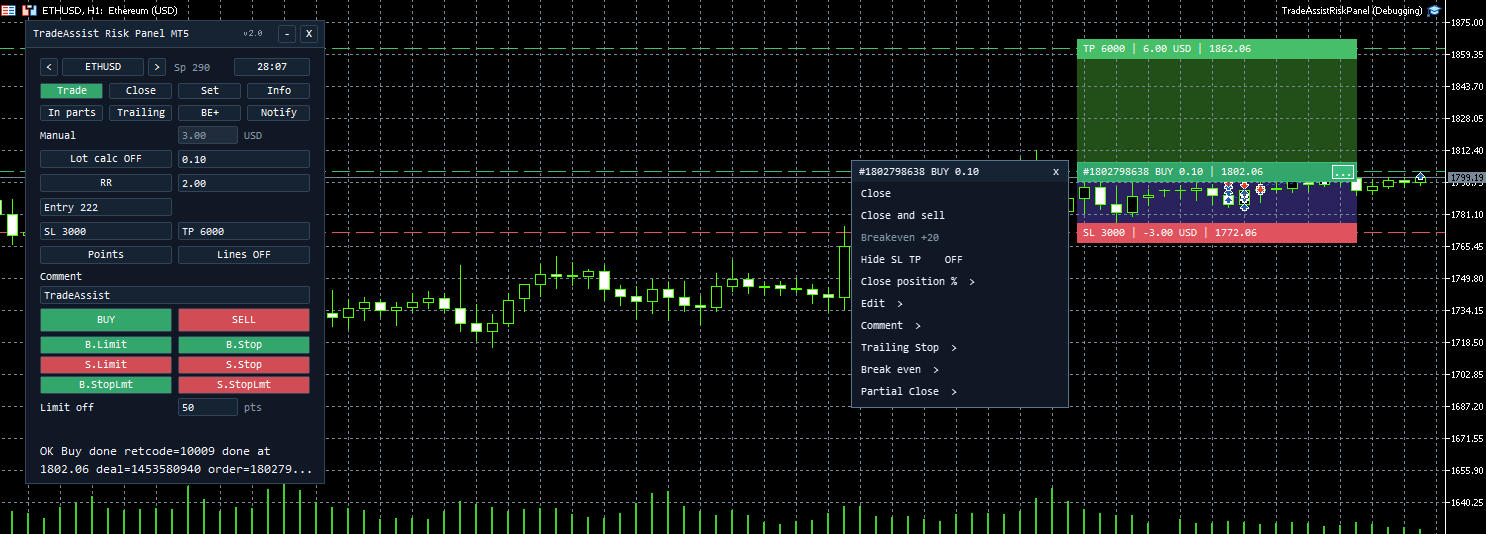
Clicking ... opens a per-order menu:
- Close — Closes / deletes this position or order (with confirmation).
- Close and sell / Close and buy — Closes the position and immediately opens the opposite direction (reverse).
- Breakeven +N — Instantly moves the SL of this position to entry + N points (one-time, manual).
- Hide SL TP OFF / Show SL TP ON — Toggles stealth stops for this single position (same mechanism as BE+ page item 9).
- Close position % > — Closes a percentage of the position (partial close by percent).
- Edit > — Edit the SL/TP of this order directly.
- Comment > — Attach a local text note to this order (persisted on disk, not sent to the broker).
- Trailing Stop > — Jumps to the Trailing page with this position pre-selected; configure and press Apply there.
- Break even > — Jumps to the BE+ page with this position pre-selected.
- Partial Close > — Jumps to the In parts page with this position pre-selected.
Pending order lines can be dragged to move the pending entry price; SL/TP move together with it.
Confirmation Dialogs
With InpConfirmTradingActions = true (default) every trading action — new order, batch close, delete, breakeven, hide SL/TP, apply — shows an in-chart confirmation overlay summarizing the action (symbol, direction, lot, entry, SL, TP, risk). Nothing is sent to the broker until you press Confirm. Keeping confirmations enabled is strongly recommended.
Breakeven (menu) vs Break even+ vs Trailing Stop
- Breakeven +N (order-line menu) — Manual, instant, one position: moves the SL to entry+N right now.
- Break even+ page — Automatic: waits until the profit reaches Start, then moves the SL to entry+Offset once.
- Trailing Stop page — Automatic and continuous: keeps moving the SL as price advances, per the selected variant.
Break even+ and Trailing can run together; when both want to move the SL, the more favorable level is used, and the SL is never moved backward.
Input Parameters
General
- InpShowPanel — Default: true — show or hide the main panel.
- InpLanguage — Default: English — panel language (English / Chinese).
- InpConfirmTradingActions — Default: true — require confirmation before every trading action.
- InpAlertOnOrderError — Default: true — pop an MT5 Alert when an order is blocked or fails.
- InpTimerSeconds — Default: 1 — panel refresh timer, seconds.
- InpExpertID — Default: 260508 — Expert ID; a separate magic number is derived per symbol.
- InpKeepLinesAfterOrder — Default: true — keep Entry/SL/TP lines after the order is placed.
Panel UI
- InpPanelTheme — Default: Auto — panel theme (Auto / Dark / Light).
- InpPanelCompactMode — Default: false — compact / DPI compatibility mode.
- InpPanelFontSizeOffset — Default: 0 — font size adjustment, −3…+2.
- InpPanelWidth — Default: 300 — panel width, 220…320.
- InpShowButtonTooltips — Default: false — show button hover tooltips.
Management Scope
- InpManageManualPositions — Default: false — also manage positions opened manually.
- InpManageAllSymbols — Default: false — manage positions on all symbols (mirrors the Set page checkbox).
- InpAllowAccountWideActions — Default: false — allow account-wide batch actions.
Risk
- InpUseEquityBase — Default: true — use equity as the default % base.
- InpDefaultRiskMode — Default: Fixed money — initial risk mode.
- InpDefaultRiskBase — Default: Balance — initial base for % risk.
- InpRiskCustomValue — Default: 1000.0 — base amount for % Custom .
- InpDefaultRiskPercent — Default: 0.1 — initial risk percent.
- InpDefaultFixedRiskMoney — Default: 100.0 — initial fixed risk amount.
- InpDefaultManualLot — Default: 0.10 — initial manual lot.
- InpDefaultEntryPoints — Default: 200 — default pending entry distance, points.
- InpDefaultSLPoints — Default: 300 — default SL distance, points.
- InpDefaultTPPoints — Default: 600 — default TP distance, points.
- InpStopLimitOffsetPoints — Default: 50 — Stop Limit: limit price offset from trigger, points.
- InpAtrPeriod / InpAtrIndent — Defaults: 14 / 1.0 — ATR period and multiplier for ATR-based default SL.
- InpSlBarsEnabled / InpSlBarsPeriod / InpSlBarsIndent — Defaults: false / 10 / 0 — SL line by Bars method.
- InpTpBarsEnabled / InpTpBarsPeriod / InpTpBarsIndent — Defaults: false / 10 / 0 — TP line by Bars method.
Manual Management
- InpDefaultPartialClosePercent — Default: 50.0 — default percent for "Close position %".
Trade
- InpMaxSpreadPoints — Default: 0 — spread filter, 0 = off.
- InpDeviationPoints — Default: 20 — max price deviation for market orders, points.
- InpDefaultOrderComment — Default: TradeAssist — default order comment.
Break Even
- InpBreakEvenEnabled — Default: true — enable the break-even engine.
- InpBreakEvenStartPoints — Default: 200 — default BE trigger, points.
- InpBreakEvenOffsetPoints — Default: 20 — default BE offset, points.
Trailing Stop
- InpTrailingEnabled — Default: true — enable the trailing engine.
- InpTrailingStartPoints — Default: 300 — default trailing start, points.
- InpTrailingDistancePoints — Default: 150 — default trailing distance, points.
- InpTrailingMinIntervalSeconds — Default: 1 — minimum seconds between SL modifications.
Notifications
- InpNotificationsEnabled — Default: false — master switch.
- InpWeChatEnabled — Default: false — WeChat channel.
- InpNotificationServerUrl — Default: https://alert.tradeaibox.com — WeChat notification server.
- InpTelegramEnabled — Default: false — Telegram channel.
- InpTelegramBotToken / InpTelegramChatId — your Telegram bot credentials.
- InpNotifyTimeoutMs / InpNotifyMaxRetries — Defaults: 1500 / 1 — network timeout and retries.
Common Messages
- OK Risk preview ready — The panel has calculated the lot / risk preview; ready to trade.
- Invalid stops — SL or TP direction is wrong, or the distance to the current market price is smaller than the broker's stop level / freeze level.
- Max spread exceeded — The order was blocked by the spread filter (Set tab, item 8).
- Lot adjusted — The calculated lot was normalized to the broker's minimum / maximum / lot step.
- Hidden SL/TP: no protection if the EA stops — Warning shown while stealth stops are active; keep the terminal running.
- Order errors (rejections, requotes) are reported in the status line and, if InpAlertOnOrderError is on, as MT5 Alerts with the broker return code.
Usage Recommendations
- Test the panel on a demo account first and learn every button before trading real money.
- Keep the confirmation dialogs enabled — they are the last checkpoint before an order reaches the broker.
- Run one TradeAssist instance per symbol, one chart each. Do not attach two instances to the same symbol.
- The automation features (Break even+, Trailing, In parts, Hidden SL/TP, threshold auto-close) work only while the terminal and the EA are running. Use a VPS for 24/5 operation.
- Be especially careful with Hide SL TP: if the EA stops, the position has no server-side protection.
- Before using Symbols all / ID all on the Close page, make sure you understand that the buttons will then affect the whole account.
- Use presets to save your tested configurations, and the spread filter to avoid trading in bad market conditions.
This utility helps with execution and risk display. It does not guarantee trading results.