

Controlling MetaTrader 5 from Telegram with Hermes and MCP
 247
247
 1
1

Introduction
If you develop or maintain MQL5 projects, you probably know the situation: the code may live in a repository anywhere, but certain tasks still have to happen on the machine where MetaTrader 5 is actually installed. Compiling in MetaEditor, launching the Strategy Tester, checking symbol properties, reviewing account history, or confirming what terminal instance is currently connected — all of that depends on access to a local MT5 terminal.Traditional remote-access tools such as RDP solve that problem in the broadest possible way: they give you a full desktop session. But that is often more access than you want to grant, and more exposure than you want to manage. For many development and testing tasks, what you really need is something narrower: a controlled path that lets an authorized user send a specific request from a phone or another computer, have that request executed locally, and get back a result that can be checked against the terminal.
This article describes exactly that pattern. Hermes Agent runs on a Windows machine, connects a private Telegram bot to MetaTrader 5’s native MCP interface (build 6060 or later), and turns approved Telegram messages into bounded MCP operations. Instead of exposing the whole desktop, you expose only the subset of terminal actions that you deliberately enable.
In practice, that means Hermes can use selected MCP tools to perform tightly scoped tasks: for example, inspect market data, query account history, edit and compile source files within an approved workflow, or start Strategy Tester jobs with explicitly defined parameters. The important point is not convenience alone, but control: only the enabled tools are available, the sender can be restricted by Telegram user ID, and the returned output can be compared with MetaTrader 5, MetaEditor, or Strategy Tester records.
This is not a trading system and not a claim about trading performance. It is a technical integration pattern: a way to create a narrower, auditable channel for remote development, testing, and inspection of a local MetaTrader 5 environment.
What Hermes Agent is
Hermes Agent is an open-source AI-agent application that runs on the user's computer. It interprets accepted requests, selects the appropriate connected MCP tool, and returns the result in readable form. In this setup, Hermes provides the Telegram-facing workflow, while MetaTrader 5 exposes terminal operations through MCP.
How the components work together
Component responsibilities
| Component | Role |
|---|---|
| Hermes Agent | Interprets requests and selects MCP tools. |
| Hermes gateway | Receives Telegram messages and routes them to Hermes. |
| Telegram bot | Messaging channel for user requests and Hermes replies. |
| MetaTrader 5 MCP interface | Exposes supported terminal functions as tools. |
| MetaEditor | Source editing and compilation. |
| Strategy Tester | Backtesting and optimization. |
Request and response path
A request follows this route:
authorized user → Telegram bot → Hermes gateway → Hermes Agent → MetaTrader 5 MCP interface → enabled MetaEditor, Strategy Tester, market data, account history, or trading MCP tools.
What crosses each boundary
Telegram carries the user's natural-language request to the bot. The Hermes gateway validates the sender and passes accepted messages to Hermes. Hermes converts the request into MCP-tool parameters. MetaTrader 5 executes the permitted operation and returns a structured result.
Hermes then formats that result as a readable reply. Telegram delivery confirms only message transport. Compiler diagnostics, Strategy Tester results, account-history records, and trade-server responses remain authoritative.
Requirements and AI-service options
Required environment
The demonstrated installation uses native Windows PowerShell and requires the following environment:
- Windows 10 or Windows 11 with PowerShell available.
- MetaTrader 5 build 6060 or later installed, with the MCP tab available under Tools → Options.
- A Telegram account for each authorized user.
- Internet access to retrieve the Hermes Agent installer from the official project repository.
- One supported AI-service access method.
The Hermes native-Windows guide states that Windows 10 and 11 are supported without WSL, Cygwin, Docker, or administrator rights. MetaQuotes introduced native MCP support in build 6060; update the MetaTrader 5 terminal if the MCP tab is absent.
Version reference and execution record
The source reference for the instructions below is Hermes Agent 0.21.0, commit fbd40c907d75e6b5cb0037845f06228ac1aa594f. This reference identifies the source version; successful integration requires the checks described below.
Before reproducing the workflow, record the successful hermes --version output, Hermes checkout revision, Windows and PowerShell versions, MetaTrader 5 and MetaEditor builds, and the AI-service/model selection. Save the names and parameter schemas of the MCP tools actually used. Check the installed command help and tool descriptions against this record before executing an example.
Keep MetaTrader 5 and its internal MCP server running. For account-dependent requests, confirm the intended account is logged in and the broker server is connected. For symbol/history queries and tester jobs, check symbol availability and the required data coverage first. A terminal-version query or a test using existing local history does not necessarily require a live broker connection.
The initial setup is complete when an authorized Telegram request reaches the selected MetaTrader 5 MCP server and returns an inspection result that matches the intended terminal. Verify the user allowlist and Hermes gateway before enabling development or testing tools.
Flexible AI-service selection
Hermes supports different AI-service configurations depending on the installed version, including subscription-based, API-based, and other supported access methods. Choose a configuration based on cost, usage, and reliability. The AI-service configuration and the MetaTrader 5 MCP connection are configured separately. The selected model participates in interpreting requests and tool results within the execution workflow. Request content and returned data may be processed by the selected AI service.
Installing Hermes on Windows
Start the installer
Download the installer from an identified revision of the official repository, inspect it locally, and execute it explicitly. The following template requires a reviewed 40-character commit, rather than a mutable branch:
$hermesRevision = '[REVIEWED 40-CHARACTER COMMIT]'
if ($hermesRevision -notmatch '^[0-9a-fA-F]{40}$') { throw 'Set the reviewed commit first.' }
$hermesInstaller = Join-Path $PWD 'hermes-install.ps1'
Invoke-WebRequest -Uri "https://raw.githubusercontent.com/NousResearch/hermes-agent/$hermesRevision/scripts/install.ps1" -OutFile $hermesInstaller
Get-FileHash -LiteralPath $hermesInstaller -Algorithm SHA256
notepad.exe $hermesInstaller
Check the repository source and the downloaded script before continuing. The Hermes Agent 0.21.0 installer supports -Commit and -ForceCommit. After inspecting the script, use the same commit for its repository checkout:
& $hermesInstaller -Commit $hermesRevision -ForceCommit
hermes --version
Use a fresh installation for this procedure. -ForceCommit can move an existing checkout to the selected revision; preserve existing work before using it. Retain the script hash, installer revision, resulting Hermes version, and checkout revision. A script hash identifies its bytes but does not authenticate its source. The installer also downloads runtimes and dependencies; pinning Hermes alone does not verify that entire supply chain.
Before installation, confirm that the selected commit contains these installer parameters. After installation, verify that the checkout matches that commit. A source reference alone does not establish a successful installation.
The screenshots illustrate the author's environment. Hermes replies summarize operations; original compiler diagnostics, executed tester settings, and terminal records provide the evidence for each result.
Image 1 shows the initial Hermes Agent setup screen in Windows PowerShell. For installation, use the download, inspection, and execution steps above rather than the command shown in the image.
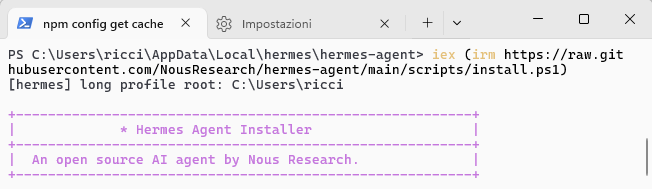
Image 1: The installation command and the initial Hermes Agent setup screen in Windows PowerShell.
What the default installer prepares
The Windows installer prepares the Hermes environment automatically, including the required runtime dependencies and launcher configuration. By default, it installs Hermes under %LOCALAPPDATA%\hermes\hermes-agent and updates the user PATH. The installer then runs the command to start Hermes setup in the same PowerShell window. Optional dependencies for unrelated features are checked later only if those features are used.
Choose the setup mode
Select option 2, Full setup, to configure the AI service, messaging platform, local tools, and optional capabilities shown in Image 2.
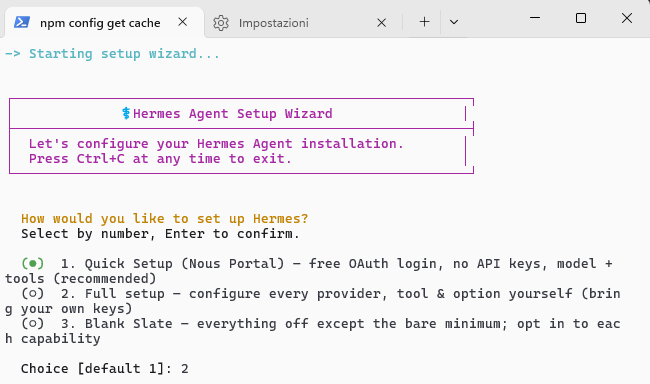
Image 2: Selecting Full setup in the Hermes setup wizard.
Image 3 shows the supported AI-service configurations. Select the option that matches the access method and deployment environment.
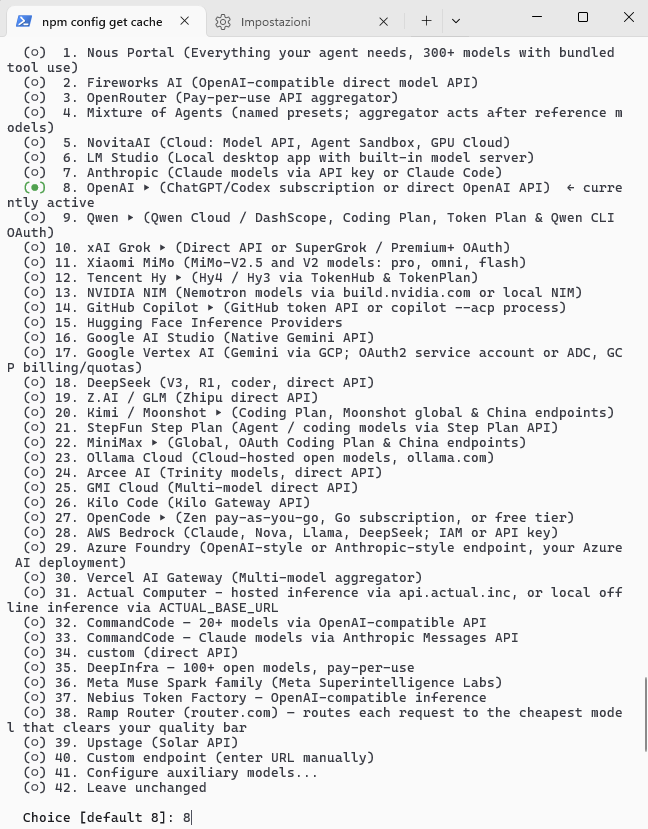
Image 3: Selecting a supported AI-service configuration during Full setup.
Reopen or narrow the Hermes setup wizard
Use hermes setup to reopen the full Hermes setup wizard, hermes model to change only the AI-service configuration, or hermes gateway setup to reconfigure messaging.
Connecting Hermes to Telegram
Choose the Telegram bot-creation option
In Full setup, select Telegram and choose Automatic or Manual bot creation. The Automatic method uses QR-code confirmation. The Manual method demonstrated below uses BotFather to create the Telegram bot, after which the user enters the Telegram bot token in the Hermes setup wizard.
Create a private Telegram bot manually
Open @BotFather and verify the exact username. Send /newbot, provide a display name, and choose a unique username ending in bot. Image 4 shows this exchange and token issuance.
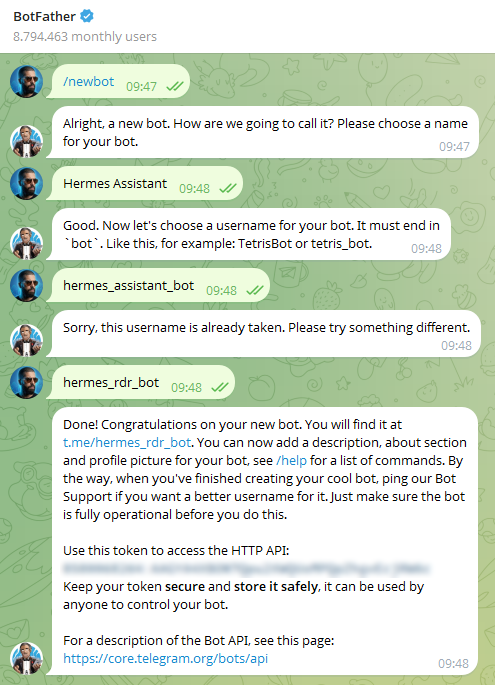
Image 4: Creating the private Telegram bot that will route requests to Hermes.
Treat the Telegram bot token as a secret and enter it only in the Hermes setup wizard. If it is exposed, use /revoke in BotFather, generate a replacement, and update Hermes. A leaked token can let another party send messages as the bot, interfere with message delivery, and access updates available through the Bot API.
Configure the authorized user
Send a message to @userinfobot and record the authorized user's numeric Telegram user ID. Enter the Telegram bot token and this ID when the Hermes setup wizard requests Allowed user IDs. Only IDs in TELEGRAM_ALLOWED_USERS can trigger Hermes; separate multiple authorized IDs with commas.
For a private chat, the same numeric Telegram user ID can serve as the optional Home channel ID for scheduled results and notifications. The field can also remain blank for later configuration. Image 5 shows the Manual configuration screen with the Telegram bot token masked during entry.
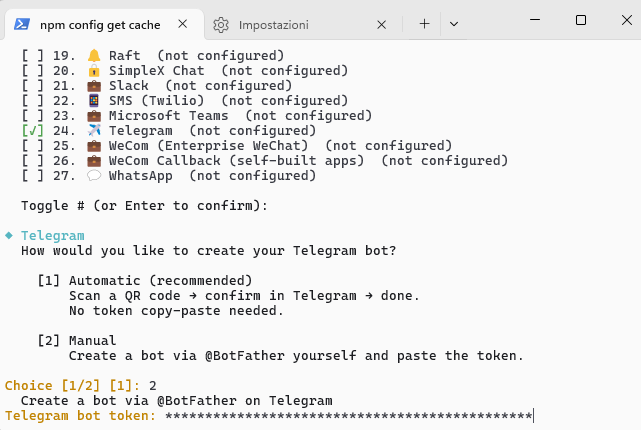
Image 5: Entering the Telegram bot token.
The Hermes Telegram guide also documents manual configuration through environment variables.
An attacker controlling an authorized user's Telegram session can submit requests to the enabled Hermes capabilities. Protect the account with two-step verification, review active sessions, and suspend gateway access or remove the compromised user ID if an incident occurs.
Private chats and group privacy
BotFather's group privacy mode can remain enabled for this private-chat workflow. With privacy mode enabled, Telegram delivers commands, direct replies, and selected service messages, but not ordinary group messages. If a later deployment requires them, configure BotFather and the Hermes group allowlists deliberately.
Complete and verify the Hermes gateway setup
Save the Telegram settings, start the Hermes gateway when prompted, and optionally enable automatic startup with Windows. Then open the Telegram bot and send/start. A response checks the bot command path through Telegram and the Hermes gateway. It does not verify the AI service or the MetaTrader 5 MCP connection. Test the user allowlist separately with an authorized user and a user outside the allowlist.
The documented Windows gateway installation starts at user login, without an open PowerShell window. Availability depends on the launch task or Startup-folder policy, network access, and the Hermes gateway process. MetaTrader 5 must also be running for terminal requests.
Understanding the MetaTrader 5 MCP interface
MetaTrader 5 build 6060 introduced the native MetaTrader 5 MCP interface, which exposes selected operations as MCP tools for AI agents. The build 6060 release notes describe support for market analysis, strategy testing, trading, and Expert Advisor development.
The interface supports the built-in AI Assistant and external MCP-compatible agents. In this external workflow, Hermes receives Telegram requests. It uses each MCP tool's description and parameter schema via the MetaTrader 5 MCP connection.
Exact MCP tool names depend on the MetaTrader 5 terminal build. The installed MCP server may expose fewer operations than the documentation describes, and Hermes registers only the tools selected for that connection. The table groups the documented operations by responsibility.
| Area | Typical purpose | State effect |
|---|---|---|
| MetaEditor | Create, open, modify, and compile MQL5 files when the corresponding MCP tools are available. | Changes source files or produces MetaEditor compiler diagnostics. |
| Strategy Tester | Start backtests or bounded optimizations and retrieve the available Strategy Tester results. | Starts computational jobs and creates Strategy Tester results. |
| Market data | Inspect symbols, quotes, specifications, and available history. | Normally read-only. |
| Account history | Read orders, deals, and related account-history records exposed by the MetaTrader 5 MCP connection. | Read-only when limited to account-history MCP tools. |
| Trading | Open, modify, or close orders and positions only when explicitly enabled. | Changes account state. |
Limit the available permissions
Access policy and confirmation
| Level | Permission or control |
|---|---|
| Telegram user | A numeric Telegram user ID in the user allowlist may submit requests. This does not grant every MetaTrader 5 operation. |
| Hermes gateway | Checks the sender and routes accepted requests and confirmation messages. Keep administrative commands restricted according to the installed Telegram configuration. |
| Hermes Agent | Interprets requests using the selected AI service. Its enabled local tools and operating-system rights also matter; MCP tool selection alone is not a sandbox. |
| MCP tools | Only the selected MCP tool set is registered for use. The MCP API key authenticates the connection; the confirmation policy governs covered state-changing calls. |
| MetaTrader 5 | Executes calls in the selected terminal instance, subject to available tools, terminal state, and applicable settings. Do not assume built-in AI Assistant settings govern an external agent. |
| Trading account | Account permissions, broker rules, margin mode, and symbol constraints determine allowed trading operations. Initial integration requires no trading MCP tools. |
The initial selected MCP tool set contains only the market-data or account-history tools needed for the inspection request. Add source-changing/compilation tools and Strategy Tester tools separately, after their checks below. Keep trading MCP tools disabled. Make MCP configuration changes locally as the operator, not through a Telegram instruction.
Use hermes tools to inspect the local tools enabled for Telegram as well. Disable unrelated shell, file, browser, and configuration-changing capabilities in the initial profile. Review the resulting inventory; the stated policy does not establish operating-system isolation or per-user permissions for each MCP operation.
For an enforced local-only configuration policy, the Hermes process identity needs read access to configuration and secrets, while policy-editing rights remain with the operator. If both run under the same Windows identity, file permissions cannot distinguish the operator from Hermes; disabling configuration-changing tools is then an application-level restriction, not that operating-system boundary.
Hermes Agent 0.21.0 supports a per-server confirmation gate. In the existing server entry, add the following key without replacing its URL, headers, or selected MCP tool set:
mcp_servers:
  metatrader5:
    trust: untrusted
This is a partial configuration fragment. Replace metatrader5 with the saved server name. In Hermes Agent 0.21.0, trust: untrusted requires approval before calls to tools without readOnlyHint: true. Missing approval, confirmation errors, or a confirmation timeout block the call. The default full trust setting does not apply this gate.
Inspect each enabled tool's annotation: a state-changing tool marked read-only can bypass this gate. The confirmation message identifies the server and tool, so require a separate preview of the resolved target and parameters. Review any approval-bypass or remembered-approval settings, and use approval for one call rather than a persistent grant.
Before enabling source changes, demonstrate the gate from Telegram using a disposable file: deny a proposed write and verify the file is unchanged; repeat with explicit one-call approval and compare the file with the approved change. Also test an unanswered confirmation and an ambiguous target. An ambiguous or incomplete request must stop for clarification before any modifying call.
The confirmation gate depends on the installed MCP tool annotations and the Telegram confirmation path. Its presence in the source does not establish that both work in a particular installation. Complete the checks above before using the modifying examples.
If a required modifying tool is exempted from the gate, use an independently enforced confirmation mechanism or leave that tool disabled. The same rule applies to any local tool capable of changing the target.
Establishing the MetaTrader 5 MCP connection with Hermes
Enable the MetaTrader 5 internal MCP server
Open MetaTrader 5 and select Tools → Options → MCP. Select Enable internal server if it is not already enabled.
Use the exact address and MetaTrader 5 MCP configuration displayed by the MetaTrader 5 terminal rather than values from a screenshot. The loopback address shown in Image 6 restricts the example MetaTrader 5 internal MCP server to the local computer. Select Generate when a new MCP API key is required.
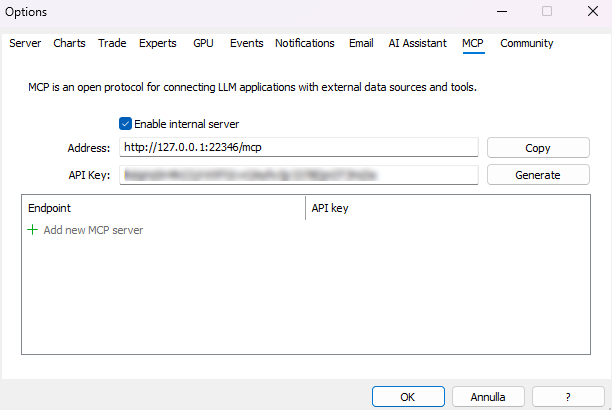
Image 6: MetaTrader 5 supplies the configuration used to establish the MetaTrader 5 MCP connection with Hermes.
Copy the MetaTrader 5 MCP configuration
Select Copy beside the address. Treat both the MCP API key and the complete MetaTrader 5 MCP configuration as secrets. If the key is exposed, generate a replacement in the MCP tab and update Hermes.
Add the MetaTrader 5 MCP configuration locally
On the computer running Hermes, open the active configuration:
hermes config edit
Add the HTTP server entry under mcp_servers. Preserve the copied server name, URL, request-header name, and header value exactly. Leave unrelated settings unchanged.
Use the dedicated MCP management commands to inspect and restrict the MetaTrader 5 MCP connection:
hermes mcp list
hermes mcp test metatrader5
hermes mcp configure metatrader5
The test and configure commands require the saved server name. Replace metatrader5 with the name returned by hermes mcp list. The test command checks the MetaTrader 5 MCP connection and MCP tool discovery. The configure command controls the selected MCP tool set.
In Hermes Agent 0.21.0, /reload-mcp is a Hermes chat command available through the CLI chat and messaging gateway. It reloads MCP servers and rechecks tool availability; MetaTrader 5 does not process it. Confirm that it is supported in the installed version.
If the command is absent, finish pending work, restart the Hermes gateway or CLI process that loads the configuration, and repeat hermes mcp list, hermes mcp test with the saved server name, and the inspection query. A new conversation alone does not prove that a persistent gateway reloaded its configuration.
Connection identity and retained data
This demonstration uses one terminal. For multiple instances, save a separate Hermes server entry for each endpoint/port and its corresponding MCP API key, and record the terminal data path, broker server, and account. Name the intended server explicitly in requests and verify the returned instance/account context before account-dependent actions; stop if the instance is ambiguous.
| Data | Location and access |
|---|---|
| Configuration and keys | For the default native Windows installation, %LOCALAPPDATA%\hermes\config.yaml stores settings and MCP headers; %LOCALAPPDATA%\hermes\.env stores configured environment secrets, including messaging credentials. Profiles or HERMES_HOME can change these paths. If an MCP header uses a supported environment reference, its value is stored in the active secret scope instead. |
| Hermes messages and results | The active Hermes home contains state.db for sessions and may contain session exports or other history artifacts. Requests and tool results can be retained independently of the Telegram chat. |
| Gateway, Telegram adapter, and MCP errors | The active home\logs directory contains agent.log, gateway.log, and errors.log according to the execution mode. Gateway logs cover the platform adapter; MCP activity/errors can enter agent/error logs. Do not assume a separate secret-free MCP log. |
| Telegram and AI service | Telegram retains the chat under its service behavior; the selected AI service processes the content sent to it. Their storage and retention are separate from local Hermes files. |
| MetaTrader 5 and MetaEditor | Use File → Open Data Folder for the selected terminal. Terminal logs are under Logs; MQL5 program logs under MQL5\Logs. Preserve the actual MetaEditor compilation log used for the file. |
| Strategy Tester | Keep the executed settings and exported report together with the test identifier. Tester/agent journals are in the Tester and tester-agent data locations for that installation; identify the actual paths from the selected terminal and agents. |
Confirm the active home/profile before editing secrets. Inspect Windows file permissions with icacls on config.yaml and .env; restrict access to the operator, the Hermes process identity, and necessary system administration. Values in these files are not protected merely by calling them secrets. Account-history data and logs require the same access review.
Logging redaction in Hermes is a safeguard, not proof that arbitrary messages, exports, or copied configuration contain no secrets. Share only redacted diagnostic copies. Retain the settings, approvals, compiler diagnostics, and tester reports needed to audit the task; remove disposable diagnostic copies after review according to a declared local retention period. Log rotation does not delete all session history or service-side copies.
Verify the MetaTrader 5 MCP connection from Telegram
Begin with the MetaTrader 5 MCP connection test only; do not combine it with a source edit, test, or order operation.
Illustrative prompt — Check whether the MetaTrader 5 MCP connection is available. Report the connected component categories without changing files, starting a test, or modifying account state.
The successful Telegram check in Image 7 lists the connected MetaEditor, MetaTrader 5 Terminal, and MetaTrader 5 Market Data categories together with the number of tools discovered for each.
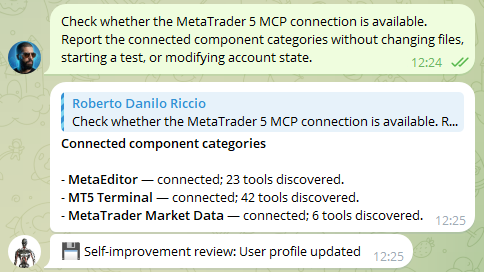
Image 7: Hermes confirms the available MetaTrader 5 MCP connection through Telegram.
A successful MetaTrader 5 MCP connection test proves connectivity and MCP tool discovery. Complete verification with a read-only request whose result can be checked in the MetaTrader 5 terminal. Account selection, symbol settings, and trading permissions remain separate.
Final integration check
Verify the workflow boundary by boundary: Hermes installation, Hermes gateway, MetaTrader 5 MCP connection, and one read-only MetaTrader 5 terminal request. Troubleshoot the first failed step before changing later settings.
1. Confirm the Hermes installation
Open a new PowerShell window and request the installed version:
hermes --version
A version response identifies the installed Hermes and confirms that its launcher can run. Record the output and checkout revision. If the launcher fails, resolve that installation error before proceeding; the source package version alone does not pass this check.
2. Confirm the Hermes gateway
Check the Hermes gateway state:
hermes gateway status
If the Hermes gateway is not running, use hermes gateway run for a foreground diagnostic test. Keep the window open, message the Telegram bot, and inspect the output. A reply to /start checks the command transport, not the AI service. Confirm an authorized user can submit requests and a user outside the user allowlist cannot invoke the workflow.
3. Confirm the MetaTrader 5 internal MCP server
List the saved servers and test the entry created from the MetaTrader 5 MCP configuration:
hermes mcp list
hermes mcp test metatrader5
The example uses metatrader5 as the saved server name; replace it with the name shown by hermes mcp list. A successful test confirms the MetaTrader 5 MCP connection and MCP tool discovery, not every optional MCP tool.
4. Confirm one read-only MetaTrader 5 MCP request
Send a request whose result can be compared directly with the connected MetaTrader 5 terminal:
Illustrative prompt — Through [SAVED MCP SERVER NAME], use only the selected read-only market-data MCP tool to report whether [EXACT BROKER SYMBOL] is available. Identify the returned terminal context where exposed. Do not change files, start a test, or submit trades. Do not change Market Watch; if the tool requires symbol selection or a state-changing operation, stop and explain that requirement.
Compare the reply with the intended MetaTrader 5 terminal and preserve the selected server/tool, resolved arguments, timestamp, and returned result. A model-generated response with a verified tool result checks this request through the AI service; it does not validate every model, tool, account, or future request. Only then proceed to the development or testing section and its additional checks.
If a check fails
Stop at the first failed step. The table maps each visible symptom to the next relevant check.
| Visible symptom | Likely boundary | Next check |
|---|---|---|
| PowerShell does not recognize hermes after installation. | The current shell has not loaded the updated user PATH. | Open a new PowerShell window and run hermes --version. |
| The bot exists, but it does not reply to messages. | The Hermes gateway may not be running, or the Telegram bot settings in the active Hermes configuration may be incomplete. | Run hermes gateway status. Use hermes gateway run for a visible Hermes gateway foreground test. |
| The bot is online, but one user is ignored. | The authorized user's numeric Telegram user ID is absent from TELEGRAM_ALLOWED_USERS. | Run hermes gateway setup, correct the user allowlist, restart the Hermes gateway, and retry from that authorized user. |
| The MetaTrader 5 internal MCP server is configured, but the MetaTrader 5 MCP connection test fails. | The MetaTrader 5 internal MCP server may be disabled, or its address or MCP API key may not match the saved MetaTrader 5 MCP server entry. | Reopen Tools → Options → MCP and enable the MetaTrader 5 internal MCP server. Copy a new MetaTrader 5 MCP configuration, then rerun hermes mcp test metatrader5 and replace the example name when necessary. |
| The MetaTrader 5 MCP connection succeeds, but the expected MCP tool is unavailable. | The MCP tool may be excluded from the selected MCP tool set or absent from that MetaTrader 5 terminal build. | Run hermes mcp configure metatrader5, replacing the example server name when necessary, and inspect the discovered MCP tool inventory before changing the selected MCP tools. |
Development and compilation from Telegram
Enable only the required MetaEditor MCP tools after the inspection check and confirmation test. Identify the terminal data directory and exact file path, preview the source or diff, and obtain explicit confirmation before writing. An unknown target, missing setting, or changed scope requires clarification and a new preview.
A bounded development workflow
With the required MetaEditor MCP tools enabled, Hermes can coordinate this bounded development workflow:
Telegram request → resolve target and preview source → human confirmation → create or modify source → compile in MetaEditor → review diagnostics → preview and confirm any correction → recompile within the approved limit → report
Use a four-stage development request
| Stage | Required instruction | Verification |
|---|---|---|
| 1. Identify | Give the exact file path and state whether the file already exists. | Hermes reports the selected terminal and resolved target before editing; an ambiguous target stops the request. |
| 2. Constrain | Define the requested behavior and list the behavior that must remain unchanged. | Review the proposed source or diff and parameters, then explicitly approve the specific modification. |
| 3. Compile | Set a maximum attempt count. Any source correction must be previewed and confirmed before writing; compilation uses the approved target. | The reply includes the attempt count, final compilation status, errors, warnings, file names, and line numbers. |
| 4. Confirm | Request a concise description of the final source change. | Compare the reply with the source and MetaEditor compiler diagnostics. |
The following example first prepares a small non-trading Expert Advisor for review. Execution follows only after confirmation. Image 8 shows a code-and-compile result summary; it does not show the separate preview and confirmation steps.
Illustrative prompt — Prepare TelegramCompileDemo.mq5 for [SAVED MCP SERVER NAME]. Resolve its full path within the intended terminal's MQL5\Experts directory and report whether it already exists. Preview the full proposed source or diff; do not write or compile yet.

On each new bar, compare the closing price of each of the two most recently completed bars with its corresponding value from a 20-period simple moving average. Write a message to the Journal if those comparisons indicate a bullish or bearish cross. Do not place, modify, or close trades. Stop if the server, target, or requested behavior is ambiguous.
Review the source and resolved path, then submit the bounded execution request and approve each required modifying call through the verified confirmation mechanism:
Illustrative prompt — Apply the reviewed source to [APPROVED FULL PATH] through [SAVED MCP SERVER NAME]. Do not overwrite an existing file unless that overwrite was explicitly approved. Compile that file in MetaEditor, with at most [MAXIMUM ATTEMPTS] compilation attempts.

If compilation fails, return the exact diagnostics and a proposed correction. Wait for confirmation before writing the correction. Stop when the attempt limit is reached or the approved behavior or target must change. Report the source/executable paths, implementation summary, attempt count, final compilation status, and error and warning counts. Do not start a tester job or submit trades.
The single reply reproduced in Image 8 contains the resolved paths, final compilation status, attempt count, error and warning counts, and implementation summary.
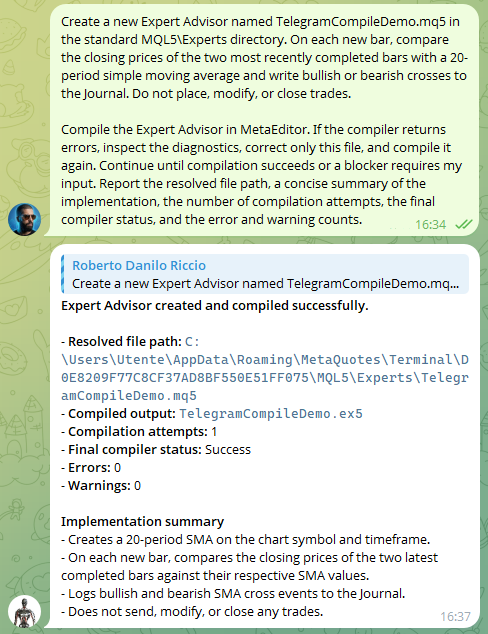
Image 8: Example of a bounded code-and-compile workflow initiated from Telegram for a demonstration Expert Advisor.
A successful compilation confirms only that MetaEditor accepted the source; it does not prove logical correctness or live-account safety.
If compilation fails, the next correction step should use the exact MetaEditor compiler diagnostics, including file names and line numbers. Review warnings deliberately: a zero-error build can still contain implicit conversions, unused values, or other issues.
Backtesting and optimization from Telegram
Complete the inspection and confirmation checks first, then enable only the required Strategy Tester MCP tools. Preview the resolved job settings before launch and stop on missing or unsupported parameters. Preserve the original report and executed settings, not only a Telegram summary.
Define the test completely
Images 9 and 10 show the backtest and optimization results returned through Hermes. Supply every test setting and verify the executed settings and results against the original Strategy Tester reports.
Specify the Expert Advisor, broker symbol, timeframe, date boundaries, exact Strategy Tester model, initial deposit, and all external inputs by their MQL5 names. Include fixed values even when they match current defaults.
Use the broker's exact symbol name because suffixes and contract specifications can differ. State both date boundaries and use the model label shown in your installed Strategy Tester. A source revision can change input defaults.
| Record | Required settings or evidence |
|---|---|
| Program and versions | Exact EA/source revision, .ex5 path and version or hash, terminal/MetaEditor builds, and all MQL5 input names/values. Archive the executable identity used by the run. |
| Market data and time | Broker server, exact symbol, timeframe, date boundaries, Strategy Tester model, quote source and coverage/testing quality, and the timestamp convention including broker timezone and DST handling. Record unknown data provenance as a limitation. |
| Costs, account, and execution | Spread mode and observed spread behavior, commission and swap rules, deposit/currency, leverage, margin mode, and execution/delay settings. Some values come from broker/symbol data rather than a writable tester field. |
| Execution evidence | Resolved settings before launch, confirmation, test identifier, executed settings, original report and journal, completion/failure status, and differences from the requested settings. |
Identical prompts do not guarantee identical numerical results with different quotes, executable versions, costs, or execution settings. Record fields that the selected tool cannot set and verify their actual values in the Strategy Tester before proceeding.
Illustrative prompt — Prepare one backtest through [SAVED MCP SERVER NAME]. Return the resolved settings and wait for confirmation before launch:
Expert Advisor: [EXACT EA NAME OR PATH]
Symbol: [SYMBOL]
Timeframe: [TIMEFRAME]
Dates: [START DATE] through [END DATE]
Model: [EXACT STRATEGY TESTER MODEL]
Initial deposit: [AMOUNT AND CURRENCY]
Inputs: [EXACT INPUT NAMES AND VALUES]
Run record: [PROGRAM, DATA, COST, ACCOUNT, AND EXECUTION SETTINGS FROM THE TABLE ABOVE]

Stop if a required setting is missing or cannot be represented. After the reviewed settings are explicitly approved, start only that run. Do not optimize. When the run finishes, return the test identifier and a concise summary. Do not infer profitability beyond this run.
The backtest response reproduced in Image 9 records the executed settings and test identifier before reporting data volume, final balance, and the run-specific net result.
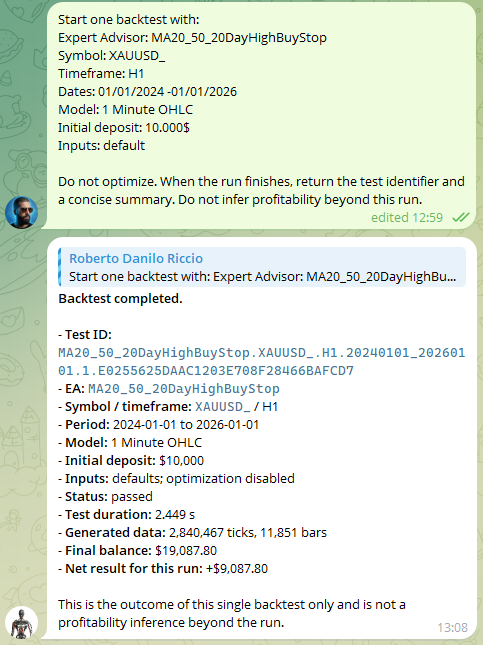
Image 9: Example of starting a defined Strategy Tester backtest from Telegram and receiving its result summary.
After the run, verify the executed Expert Advisor, symbol, timeframe, dates, Strategy Tester model, deposit, leverage where relevant, and all external inputs directly in the Strategy Tester. Interpret net profit together with drawdown, trade count, testing quality, and costs.
Bound an optimization
Define each optimized input with start, step, and stop values, plus the fixed inputs and optimization criterion. Keep the search space reviewable because each additional optimized input rapidly increases the parameter combinations.
Declare the criterion before the run; selecting it after reviewing results makes the experiment harder to reproduce.
For a complete grid, count the valid values of each input and multiply those counts before launch. Record the maximum passes, wall-clock deadline, permitted local agents/CPU cores, and a RAM threshold. A genetic search has a different pass schedule and must be identified explicitly.
Use only the specified tester agents and disable unapproved remote/cloud agents. Monitor elapsed time, completed passes, CPU use, and RAM in the tester and Windows Task Manager. The operator stops the job in Strategy Tester when the deadline, pass budget, or RAM threshold is reached, or on repeated failures. Record completed, interrupted, and failed passes.
These are operator-supervised limits unless the selected tool demonstrably enforces them. An MCP request timeout is not a tester-job cancellation. Verify the Stop control on a short trial job before launching the full search, and do not leave a manually supervised job unattended.
Illustrative prompt — Prepare a bounded optimization through [SAVED MCP SERVER NAME] for [EXACT EA NAME OR PATH] using the same symbol, timeframe, dates, Strategy Tester model, and deposit as test [TEST IDENTIFIER]. Optimize only:
[INPUT 1]: start [VALUE], step [VALUE], stop [VALUE]
[INPUT 2]: start [VALUE], step [VALUE], stop [VALUE]

Keep every other input fixed at [VALUES]. Use [EXACT OPTIMIZATION CRITERION] and [COMPLETE GRID OR GENETIC SEARCH]. Limits: [MAXIMUM PASSES], [WALL-CLOCK DEADLINE], [PERMITTED LOCAL AGENTS/CPU CORES], [RAM THRESHOLD].

Report the resolved ranges, combination count where applicable, inherited run record, and actual stop/monitoring method. Wait for confirmation before launch. The operator supervises the declared limits and stops the job when a limit is reached. Report completed, failed, and interrupted runs and the original results location; do not select a live-trading configuration.
After the bounded grid completes, the response shown in Image 10 summarizes the metric ranges without selecting a live-trading configuration.
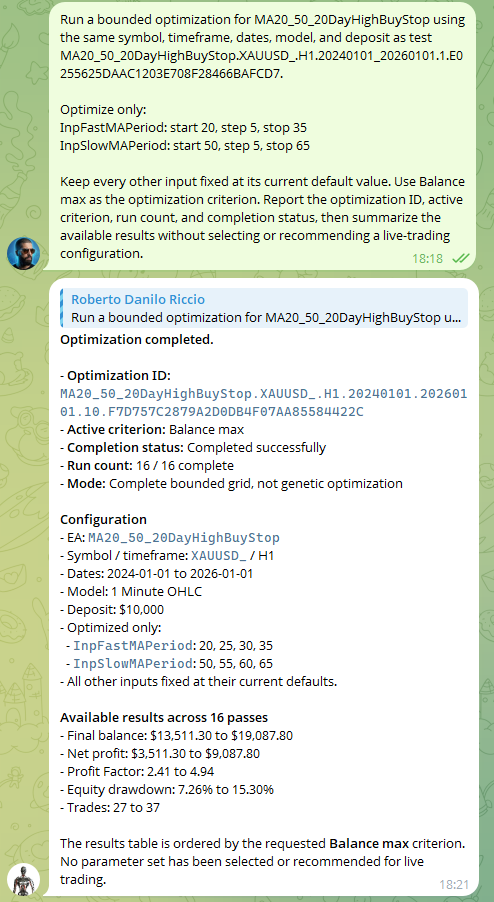
Image 10: Example of starting a bounded Strategy Tester optimization from Telegram and receiving its completion summary.
A strong in-sample result does not establish future profitability and requires out-of-sample validation. The reply should identify the job, requested ranges, completed runs, and any interrupted or failed runs. Inspect the detailed Strategy Tester results before interpreting a parameter set.
Market data, account history, and trading MCP tools
Read-only inspection
Market-data and account-history MCP tools support inspection without submitting an order. Read-only here means no source changes or trade execution; a query may still load history, update caches, contact the broker, or select a symbol in Market Watch. Check the chosen tool's behavior when those effects must be excluded.
Returned fields depend on the MCP tools exposed by the MetaTrader 5 MCP interface. History and position requests must identify the intended broker/account and the time convention.
Illustrative prompt — Using read-only MetaTrader 5 MCP tools, report whether [SYMBOL] is available and return only the symbol specification fields exposed by the MetaTrader 5 MCP connection. Do not modify Market Watch or account state.
The read-only response displayed in Image 11 confirms EURUSD availability and returns the symbol fields exposed by the MetaTrader 5 MCP connection.
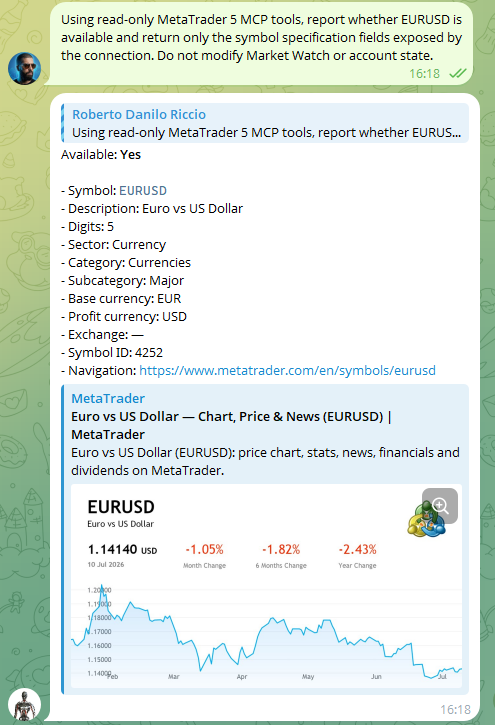
Image 11: Example of retrieving read-only MetaTrader 5 market data through Telegram.
Illustrative prompt — Using read-only MetaTrader 5 MCP tools, summarize deals between [START TIME] and [END TIME]. Group them by symbol and identify the account-history records used. Do not place, modify, or close an order.
Illustrative prompt — Using read-only MetaTrader 5 MCP tools, list the open positions visible to the connected MetaTrader 5 terminal. Return symbol, direction, volume, open price, and the other fields actually exposed. Do not change any position.
Verify exact prices, timestamps, costs, and position state in the MetaTrader 5 terminal when precision matters.
Trading MCP tools
Keep trading MCP tools disabled while learning the workflow and test them only on a demo account. An incorrect or ambiguous request can open, modify, or close real orders and positions.
If enabled later, preview the exact account/broker, symbol, direction, order type, volume, price conditions, and protective levels. Include the magic number, slippage/deviation and its units, filling type, and expiration/time policy where applicable. Record defaults that a tool uses rather than assuming them.
Separately inspect netting/hedging mode, margin mode and available margin, symbol stop level and freeze level, and broker execution restrictions. These are account/symbol conditions, not necessarily writable order parameters. Require explicit human confirmation before a trading call and inspect the trade-server result afterward. Do not retry an uncertain result without checking the actual order/position state.
Documentation basis
Documentation describes capabilities; the installed version, discovered schemas, and per-operation checks determine what works in a particular environment. Links to main can change independently of the recorded source reference.
- Hermes Agent: Windows Native Guide
- Hermes Agent: Telegram Setup
- Hermes Agent: CLI Command Reference
- Hermes Agent: MCP Configuration Reference
- Hermes Agent: Slash Commands Reference
- MetaTrader 5 build 6060 release notes
Conclusion
The described integration produces a reproducible, bounded workflow for remote development, testing, and inspection of MetaTrader 5 using Hermes and MCP.
Start with the least-privileged configuration: enable only read-only market-data and account-history tools, verify the end-to-end path, then add MetaEditor compilation, Strategy Tester jobs, or trading tools only after you define clear verification steps for each capability.
Minimum verification checklist to consider successful integration:
- hermes -version reports the installed Hermes version.
- hermes gateway status shows the local gateway state; a separate Telegram exchange confirms the bot's request-and-response path.
- hermes mcp list identifies the configured server; hermes mcp test <server> checks connectivity and tool discovery for that server.
- A single read-only Telegram request returns terminal version or symbol availability that you can confirm in MetaTrader 5.
Operational rules and precautions:
- Treat Telegram bot tokens, MCP API keys, and any configuration values as secrets; rotate them if exposed.
- Keep trading-related MCP tools disabled until you have a documented, tested process and explicit authorization for any execution requests.
- Always include exact settings (file paths, EA names, symbol names, timeframes, date ranges, Strategy Tester model, and all inputs) in test or optimization prompts so runs are reproducible and verifiable.
- Require human confirmation before any source-file modification or trade execution and preserve compiler diagnostics, test identifiers, and Strategy Tester results as authoritative records.
Remote access via Hermes reduces operational friction but does not replace source review, test validation, credential protection, or user responsibility for trading decisions.
Warning: All rights to these materials are reserved by MetaQuotes Ltd. Copying or reprinting of these materials in whole or in part is prohibited.
This article was written by a user of the site and reflects their personal views. MetaQuotes Ltd is not responsible for the accuracy of the information presented, nor for any consequences resulting from the use of the solutions, strategies or recommendations described.


 Features of Custom Indicators Creation
 The MQL5 Standard Library Explorer (Part 18): Building a Multi-Symbol Indicator Cache
 Features of Experts Advisors
 Neural Networks in Trading: A Spike-Semantic Approach to Spatiotemporal Identification (Conclusion)

- Free trading apps
- Over 8,000 signals for copying
- Economic news for exploring financial markets
You agree to website policy and terms of use