Building AI-Powered Trading Systems in MQL5 (Part 12): Giving the Assistant Chart Vision and Tool Access
 1 401
 0

Introduction
Our AI assistant can hold a conversation and place trades, but it is blind. It knows only what the user types into the prompt, so when a trader asks what it makes of the chart in front of them, or how their open trades are doing, the assistant has nothing to look at. It cannot see the price action on the screen or read the account state: open positions, trade history, indicator values, and chart objects. The model can reason only over what is typed into text; anything omitted effectively does not exist for it. That gap between what the trader sees and what the assistant knows is what keeps it a chat box rather than a co-pilot. This article is for MetaQuotes Language 5 (MQL5) developers building AI interfaces who want their assistant to reason from the live chart and account rather than typed descriptions alone.
In our previous article (Part 11), we made the interface fast, repainting only what changed under rapid interaction. In this article, we narrow that gap with two new abilities: vision and tool access. The assistant can capture the chart as a screenshot and attach it to a message, viewing it in the panel, and it can call tools that read selected account and market data on demand. We will cover the following topics:
- Understanding Vision Input and Tool Calling
- Sending Chart Vision to the Model
- Giving the Model Market Tools
- Visualization
- Conclusion
By the end of this article, you will be able to:
- Capture the current chart as a screenshot and attach it to a message, then view it in the panel through a thumbnail and a full-image viewer.
- Send that visual content to the model so it reasons from the chart it can see rather than a typed description alone.
- Give the model a set of tools it can call on its own to read live positions, trade history, indicator values, chart objects, and the economic calendar.
Understanding Vision Input and Tool Calling
Until now, the assistant has lived entirely in text. A message goes up as words, a reply comes back as words, and anything about the chart or the account has to be typed out by hand before the model can reason about it. The two abilities we add in this article break that limit from opposite ends: vision lets the model take in a picture, and tool calling lets the model reach out for data it does not have. One widens what we can send; the other widens what the model can fetch.
Vision input rests on the fact that a modern model can accept an image alongside text in the same message. We capture the chart as a screenshot, encode it as base64, and attach it to the message as image content. The model then receives the chart as an image and can interpret the candles, levels, and drawn objects visible in it, though it is reading pixels rather than chart data and can misjudge fine detail. Anything drawn on the chart is captured with it, so a chart we have marked up becomes something the assistant can read rather than guess at. The illustration below traces this path from the chart to the model.
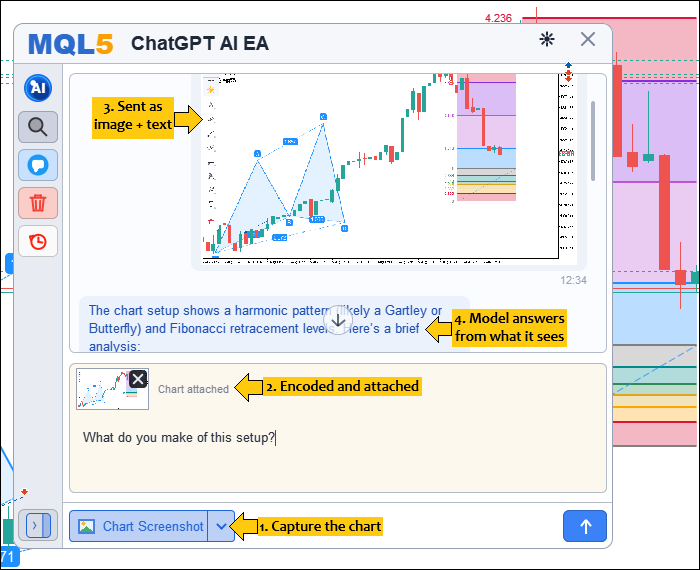
Tool calling flips the direction of the exchange. Instead of us pushing everything the model might need into the prompt, we hand the model a menu of tools it can request, each described by a name, a purpose, and the inputs it accepts. When the model decides it needs live data to answer, it does not reply with prose; it replies with a call, naming the tool and its arguments. Our program runs that call against the terminal, returns the result, and lets the model continue with the answer in hand. The illustration below shows this round trip.

In practice, they work best together. Vision provides the market's structure at a glance, while tools provide the precise figures: position sizes, indicator readings, and upcoming calendar events. We decide what the model may see by choosing what to capture and attach, and we decide what it may fetch by choosing which tools to expose and what each one is allowed to read. The model supplies the reasoning; we supply the eyes and the reach, and keep control of both.
Sending Chart Vision to the Model
Sight comes in three steps: capture a clean chart image, encode it into something a request can carry, and stage it to travel with the next message. We start where the pixels turn into a payload: the encoder.
Encoding the Image
A request can only carry text, so the raw image bytes have to become base64 before anything else.
string Ai12_Base64Encode(const uchar &data[])
  {
   uchar key[]; uchar out[];
   int n = CryptEncode(CRYPT_BASE64, data, key, out);
   if(n <= 0) return "";
   string s = CharArrayToString(out, 0, n, CP_UTF8);
   StringReplace(s, "\r", "");
   StringReplace(s, "\n", "");
   return s;
  }
Here, inside the "Ai12_Base64Encode" function, we run the image bytes through the CryptEncode call in base64 mode and strip any line breaks so the result is one clean string safe to drop into JavaScript Object Notation (JSON). We treat this as the bridge between binary pixels and a text payload, and we pass every image we send across it. With the encoder ready, we can capture the chart itself and feed it in.
Capturing the Chart
The screenshot has to be of the clean chart, not the panel sitting over it, and it needs to come back at the chart's own pixel size, held between 320 by 240 and 4096 by 4096.
string Ai12_CaptureMessageImage(string &outB64, int &outW, int &outH)
  {
   outB64 = ""; outW = 0; outH = 0;

//--- Capture at the chart's pixel size, clamped to a safe range
   int cw = (int)ChartGetInteger(0, CHART_WIDTH_IN_PIXELS);
   int ch = (int)ChartGetInteger(0, CHART_HEIGHT_IN_PIXELS);
   if(cw < 320)  cw = 320;  if(cw > 4096) cw = 4096;
   if(ch < 240)  ch = 240;  if(ch > 4096) ch = 4096;

//--- Unique, stable base name (persists with the chat)
   const string base = "aiimg_" + IntegerToString((int)ChartID())
                     + "_" + IntegerToString((int)GetTickCount());

//--- Hide the panel canvases so the screenshot captures the clean chart only
   ObjectSetInteger(0, AI_CANVAS_NAME_MAIN,   OBJPROP_TIMEFRAMES, OBJ_NO_PERIODS);
   ObjectSetInteger(0, AI_CANVAS_NAME_PROMPT, OBJPROP_TIMEFRAMES, OBJ_NO_PERIODS);
   ChartRedraw();

//--- PNG (API payload + archival) and BMP (canvas display) at the captured size
   bool okPng = ChartScreenShot(0, AI_IMG_DIR + base + ".png", cw, ch, ALIGN_RIGHT);
   ChartScreenShot(0, AI_IMG_DIR + base + ".bmp", cw, ch, ALIGN_RIGHT);

//--- Restore the panel immediately
   ObjectSetInteger(0, AI_CANVAS_NAME_MAIN,   OBJPROP_TIMEFRAMES, OBJ_ALL_PERIODS);
   ObjectSetInteger(0, AI_CANVAS_NAME_PROMPT, OBJPROP_TIMEFRAMES, OBJ_ALL_PERIODS);
   ChartRedraw();

   if(!okPng) { Print("Vision: screenshot failed, err=", GetLastError()); return ""; }
   outW = cw; outH = ch;   // captured dimensions (aspect for inline + viewer)

//--- Read PNG bytes -> base64 for the request
   int ph = FileOpen(AI_IMG_DIR + base + ".png", FILE_READ | FILE_BIN);
   if(ph != INVALID_HANDLE)
     {
      uchar bytes[];
      int sz = (int)FileReadArray(ph, bytes, 0, WHOLE_ARRAY);
      FileClose(ph);
      if(sz > 0) outB64 = Ai12_Base64Encode(bytes);
     }
   return base;
  }
In "Ai12_CaptureMessageImage", we read the chart's pixel size, clamp it to between 320 by 240 and 4096 by 4096, and temporarily hide the panel canvases so the screenshot contains only the chart. Under a unique base name, we save two copies, a Portable Network Graphics (PNG) for the request and archive and a BMP for showing in the panel, restore the panel at once, and read the PNG back through the encoder so we hand the caller both the base64 and the native width and height. Since capturing does nothing on its own until a message wants it, we next stage the shot as a pending attachment.
Staging and Removing the Attachment
Behind the new "Chart Screenshot" footer action sits a small piece of state and two actions that fill and clear it.
//--- Attachment state (declared in AI Canvas State.mqh)
bool   g_ai_attachPending = false;   // A screenshot is staged for the next send
string g_ai_attachBase    = "";      // Base file name of the staged image
int    g_ai_attachW       = 0;       // Native width of the staged image
int    g_ai_attachH       = 0;       // Native height of the staged image
string g_ai_attachB64     = "";      // Base64 payload of the staged image

void Ai_AttachChartScreenshot()
  {
//--- Drop a previous un-sent attachment's files first
   if(g_ai_attachPending && StringLen(g_ai_attachBase) > 0)
     {
      FileDelete(AI_IMG_DIR + g_ai_attachBase + ".png");
      FileDelete(AI_IMG_DIR + g_ai_attachBase + ".bmp");
     }
   g_ai_attachPending = false;
   g_ai_attachBase = ""; g_ai_attachB64 = "";
   g_ai_attachW = 0; g_ai_attachH = 0;

   string b64 = ""; int w = 0, h = 0;
   string base = Ai12_CaptureMessageImage(b64, w, h);
   if(StringLen(base) == 0 || StringLen(b64) == 0)
     {
      Ai_ShowToast("Could not capture chart screenshot", true);
      return;
     }

   g_ai_attachPending = true;
   g_ai_attachBase = base;
   g_ai_attachB64  = b64;
   g_ai_attachW = w; g_ai_attachH = h;
   Ai_ShowToast("Chart attached - sends with your next message", false);
   Ai_RenderAll(); ChartRedraw();
  }

void Ai_RemoveAttachment()
  {
   if(StringLen(g_ai_attachBase) > 0)
     {
      FileDelete(AI_IMG_DIR + g_ai_attachBase + ".png");
      FileDelete(AI_IMG_DIR + g_ai_attachBase + ".bmp");
     }
   g_ai_attachPending = false;
   g_ai_attachBase = ""; g_ai_attachB64 = "";
   g_ai_attachW = 0; g_ai_attachH = 0;
   Ai_RenderAll(); ChartRedraw();
  }
Reached from that footer action, we define the "Ai_AttachChartScreenshot" function to clear any earlier staged shot, capture a fresh one, and hold its base name, dimensions, and base64 in the attachment globals until we send. For the opposite case, we add the "Ai_RemoveAttachment" function, where we delete the staged files and reset the same state when we drop the attachment before sending. Either way, we are only holding the image, so we finish by folding it into the message content the model actually receives.
Building the Multimodal Content
To let the model see, the message stops being a plain string and becomes a content array holding both the text and the encoded image.
string Ai12_BuildVisionContent(const string escapedText, const string b64)
  {
   const string detail = "high";   // deliberately-attached chart: read it closely
   string content = "[";
   content += "{\"type\":\"text\",\"text\":\"" + escapedText + "\"},";
   content += "{\"type\":\"image_url\",\"image_url\":{\"url\":\"data:image/png;base64,"
              + b64 + "\",\"detail\":\"" + detail + "\"}}";
   content += "]";
   return content;
  }
Given the escaped prompt text and the base64 image, we define the "Ai12_BuildVisionContent" function to wrap the two into a content array, where we tag the image as a base64 data URL and ask for a high-detail read since we attached it deliberately. We rely on this payload to turn a plain message into one the model can see, and we reach for it in the send path whenever a shot is staged. The image now travels to the model, but we still need it on screen, so from here we decode it back into pixels and draw it as a thumbnail and a full viewer.
Decoding the Stored Image
To show a saved screenshot back in the panel, we read the BMP copy off disk and turn it into the ARGB pixels the canvas draws with.
int Ai_LE32(const uchar &b[], int p)
  {
   return (int)b[p] | ((int)b[p+1] << 8) | ((int)b[p+2] << 16) | ((int)b[p+3] << 24);
  }

bool Ai_DecodeBMP(string file, uint &px[], int &w, int &h)
  {
   int fh = FileOpen(file, FILE_READ | FILE_BIN);
   if(fh == INVALID_HANDLE) return false;
   uchar b[];
   int sz = (int)FileReadArray(fh, b, 0, WHOLE_ARRAY);
   FileClose(fh);
   if(sz < 54 || b[0] != 'B' || b[1] != 'M') return false;

   int dataOff = Ai_LE32(b, 10);
   int bw      = Ai_LE32(b, 18);
   int bhRaw   = Ai_LE32(b, 22);
   int bpp     = (int)b[28] | ((int)b[29] << 8);
   bool topDown = (bhRaw < 0);
   int bh = topDown ? -bhRaw : bhRaw;
   if(bw <= 0 || bh <= 0 || (bpp != 24 && bpp != 32)) return false;

   int bpx     = bpp / 8;
   int rowSize = ((bw * bpx + 3) / 4) * 4;   // rows padded to 4 bytes
   w = bw; h = bh;
   ArrayResize(px, bw * bh);
   for(int y = 0; y < bh; y++)
     {
      int srcRow  = topDown ? y : (bh - 1 - y);   // BMP is bottom-up by default
      int rowBase = dataOff + srcRow * rowSize;
      int dstBase = y * bw;
      for(int x = 0; x < bw; x++)
        {
         int p = rowBase + x * bpx;
         if(p + 2 >= sz) { px[dstBase + x] = 0xFF000000; continue; }
         uint bl = b[p], gr = b[p+1], re = b[p+2];
         px[dstBase + x] = 0xFF000000 | (re << 16) | (gr << 8) | bl;
        }
     }
   return true;
  }
In the "Ai_DecodeBMP" function, we read the whole BMP file, check its header, and pull the width, height, and bit depth, leaning on the small "Ai_LE32" helper to read each little-endian field. We then walk the rows, flipping bottom-up files right-side up and reordering each pixel from the BMP's blue-green-red bytes into the top-down ARGB the canvas expects. With raw pixels in hand, we cache them at a light size so drawing a thumbnail stays cheap.
Caching the Thumbnail
Rather than decoding on every frame, we keep a small least-recently-used cache of downscaled thumbnails, one slot per image.
struct AiImgThumb
  {
   string key;      // marker base name
   uint   px[];     // ARGB pixels, top-down (w*h)
   int    w;
   int    h;
   uint   used;     // last-access tick (LRU)
   bool   valid;
  };
AiImgThumb g_ai_imgCache[AI_IMG_CACHE_MAX];

int Ai_GetImageThumb(string base)
  {
//--- Already cached?
   for(int i = 0; i < AI_IMG_CACHE_MAX; i++)
      if(g_ai_imgCache[i].valid && g_ai_imgCache[i].key == base)
        { g_ai_imgCache[i].used = GetTickCount(); return i; }

//--- Decode from disk
   uint px[]; int w = 0, h = 0;
   if(!Ai_DecodeBMP(AI_IMG_DIR + base + ".bmp", px, w, h)) return -1;

//--- Downscale the native BMP to a light thumbnail for cheap inline caching
   const int cap = 640;
   if(w > cap || h > cap)
     {
      double s = MathMin((double)cap / (double)w, (double)cap / (double)h);
      int nw = (int)MathRound(w * s);
      int nh = (int)MathRound(h * s);
      if(nw < 1) nw = 1; if(nh < 1) nh = 1;
      uint sp[];
      ArrayResize(sp, nw * nh);
      for(int y = 0; y < nh; y++)
        {
         int sy = (int)((double)y * (double)h / (double)nh);
         if(sy >= h) sy = h - 1;
         int srow = sy * w, drow = y * nw;
         for(int x = 0; x < nw; x++)
           {
            int sx = (int)((double)x * (double)w / (double)nw);
            if(sx >= w) sx = w - 1;
            sp[drow + x] = px[srow + sx];
           }
        }
      ArrayResize(px, nw * nh);
      ArrayCopy(px, sp);
      w = nw; h = nh;
     }

//--- Pick a slot: first invalid, else least-recently-used
   int slot = -1; uint oldest = UINT_MAX;
   for(int i = 0; i < AI_IMG_CACHE_MAX; i++)
     {
      if(!g_ai_imgCache[i].valid) { slot = i; break; }
      if(g_ai_imgCache[i].used < oldest) { oldest = g_ai_imgCache[i].used; slot = i; }
     }
   g_ai_imgCache[slot].key = base;
   ArrayResize(g_ai_imgCache[slot].px, ArraySize(px));
   ArrayCopy(g_ai_imgCache[slot].px, px);
   g_ai_imgCache[slot].w = w;
   g_ai_imgCache[slot].h = h;
   g_ai_imgCache[slot].used  = GetTickCount();
   g_ai_imgCache[slot].valid = true;
   return slot;
  }
We define the "AiImgThumb" structure to hold one cached thumbnail and, in the "Ai_GetImageThumb" function, first look for the image already in a slot before touching the disk. On a miss, we decode it, downscale anything larger than a 640-pixel cap so the cached copy stays light, and store it in a free slot or the least-recently-used one when the cache is full. A bounded pixel cache lets the chat render thumbnails without decoding on every scroll. Next, we draw the thumbnail and store its on-screen rectangle for click handling.
Drawing and Registering the Thumbnail
Painting a thumbnail into the chat means scaling the cached pixels into place and recording the on-screen rectangle so a click can later open it.
//--- On-screen thumbnail rects for this frame, rebuilt each chat render for hit-testing
string g_ai_imgClickBase[];
int    g_ai_imgClickL[];
int    g_ai_imgClickT[];
int    g_ai_imgClickR[];
int    g_ai_imgClickB[];

void Ai_BlitThumb(CAiCanvasFast &canvas, int slot, int dx, int dy, int dw, int dh,
                   int clipL, int clipT, int clipR, int clipB)
  {
   if(slot < 0 || slot >= AI_IMG_CACHE_MAX || !g_ai_imgCache[slot].valid) return;
   int sw = g_ai_imgCache[slot].w;
   int sh = g_ai_imgCache[slot].h;
   if(sw <= 0 || sh <= 0 || dw <= 0 || dh <= 0) return;

   for(int y = 0; y < dh; y++)
     {
      int py = dy + y;
      if(py < clipT || py >= clipB) continue;
      int sy = (int)((double)y * (double)sh / (double)dh);
      if(sy >= sh) sy = sh - 1;
      int srcRow = sy * sw;
      for(int x = 0; x < dw; x++)
        {
         int px = dx + x;
         if(px < clipL || px >= clipR) continue;
         int sx = (int)((double)x * (double)sw / (double)dw);
         if(sx >= sw) sx = sw - 1;
         canvas.PixelSet(px, py, g_ai_imgCache[slot].px[srcRow + sx]);
        }
     }
  }

void Ai_RegisterImgRect(string base, int x, int y, int w, int h, int paneTop, int paneBot)
  {
   int t = MathMax(y, paneTop);
   int b = MathMin(y + h, paneBot);
   if(b <= t) return;   // fully clipped away
   int n = ArraySize(g_ai_imgClickBase);
   ArrayResize(g_ai_imgClickBase, n + 1);
   ArrayResize(g_ai_imgClickL, n + 1);
   ArrayResize(g_ai_imgClickT, n + 1);
   ArrayResize(g_ai_imgClickR, n + 1);
   ArrayResize(g_ai_imgClickB, n + 1);
   g_ai_imgClickBase[n] = base;
   g_ai_imgClickL[n] = x;
   g_ai_imgClickT[n] = t;
   g_ai_imgClickR[n] = x + w;
   g_ai_imgClickB[n] = b;
  }
Through the "Ai_BlitThumb" function, we scale the cached pixels into the target rectangle with nearest-neighbor sampling, clipping to the pane so a thumbnail never spills past the chat edges as it scrolls. Each time we draw one, we call the "Ai_RegisterImgRect" function to append its clipped on-screen rectangle to a set of parallel arrays we rebuild every chat render. Keeping this fresh hit-test list is what lets a click on a thumbnail find the right image, which we will use when the viewer opens.
The Compose Chip
Before an image is even sent, the staged attachment shows as a small chip above the prompt, with its own thumbnail and a remove badge.
int Ai_ComposeChipH()
  {
   return (g_ai_attachPending ? 52 : 0);
  }

bool Ai_GetComposeThumbRect(int &l, int &t, int &r, int &b)
  {
   if(!g_ai_attachPending) return false;
   int rL, rT, rR, rB;
   Ai_GetPromptPaneRect(rL, rT, rR, rB);
   const int thumbH = 40;
   double aspect = (g_ai_attachH > 0) ? (double)g_ai_attachW / (double)g_ai_attachH : 1.6;
   int thumbW = (int)MathRound(thumbH * aspect);
   if(thumbW < 24) thumbW = 24;
   if(thumbW > 96) thumbW = 96;
   l = rL + 8; t = rT + 6; r = l + thumbW; b = t + thumbH;
   return true;
  }

bool Ai_GetComposeRemoveRect(int &l, int &t, int &r, int &b)
  {
   int tl, tt, tr, tb;
   if(!Ai_GetComposeThumbRect(tl, tt, tr, tb)) return false;
   const int sz = 14, m = 3;   // fully inset inside the thumbnail's top-right
   r = tr - m; t = tt + m; l = r - sz; b = t + sz;
   return true;
  }

void Ai_DrawComposeChip(CAiCanvasFast &canvas, int dx, int dy, int clipR, int clipB)
  {
   if(!g_ai_attachPending) return;
   int tl, tt, tr, tb;
   if(!Ai_GetComposeThumbRect(tl, tt, tr, tb)) return;
   const int l = tl + dx, t = tt + dy, r = tr + dx, b = tb + dy;

//--- Thumbnail (or placeholder) + frame
   int slot = Ai_GetImageThumb(g_ai_attachBase);
   if(slot >= 0)
      Ai_BlitThumb(canvas, slot, l, t, r - l, b - t, 0, 0, clipR, clipB);
   else
      canvas.FillRectangle(l, t, r - 1, b - 1, ColorToARGB(g_ai_border, 255));
   canvas.Rectangle(l - 1, t - 1, r, b, ColorToARGB(g_ai_borderAccent, 255));

//--- "Chart attached" label to the right of the thumbnail
   const int lh = AiTextHeight("Arial", 8);
   AiStampTextAA(canvas, r + 10, t + (b - t - lh) / 2, "Chart attached", "Arial", 8, g_ai_subText);

//--- Draw the remove badge dark at rest and themed red on hover, keeping the X visible
   int xl, xt, xr, xb;
   if(Ai_GetComposeRemoveRect(xl, xt, xr, xb))
     {
      const int bl = xl + dx, bt = xt + dy;
      const int bsz = xr - xl;
      const bool hov = (g_ai_hover == AI_HOV_COMPOSE_REMOVE);
      const uint badgeBg = hov ? ColorToARGB(g_ai_closeBgHover, 255)
                               : ColorToARGB((color)C'25,28,36', 235);
      g_ai_prim.FillRoundRectSharp(canvas, bl - 2, bt - 2, bsz + 4, bsz + 4, 4, badgeBg);
      const color xcol = hov ? g_ai_closeColorHover : (color)C'235,238,245';
      AiDrawIconX(canvas, bl, bt, bsz, ColorToARGB(xcol, 255));
     }
  }
We size the chip with the "Ai_ComposeChipH" function, place its thumbnail and remove the badge with the two rectangle helpers, and paint it with the "Ai_DrawComposeChip" function, reusing the same thumbnail cache and blit as the chat. The remove badge routes to the "Ai_RemoveAttachment" function we wrote earlier, giving us a way to drop the shot before sending. When wired, it looks as follows.

Seeing the attachment before it goes is only half of it, though, so we let a click open the full-resolution image in a viewer.
Opening the Full-Image Viewer
Clicking a thumbnail opens a viewer that decodes the image at native resolution and lays out a pannable viewport with its own scrollbars.
//--- Full-image viewer state (native-resolution, pan with the real H/V pills)
bool   g_ai_imgFullView = false;
string g_ai_imgFullBase = "";
uint   g_ai_fullPx[];                 // decoded native pixels
int    g_ai_fullW = 0, g_ai_fullH = 0;
AiScrollState g_ai_fullVScroll;       // vertical pan (reuses the app scrollbar)
AiScrollState g_ai_fullHScroll;       // horizontal pan
int    g_ai_fullVpL = 0, g_ai_fullVpT = 0, g_ai_fullVpR = 0, g_ai_fullVpB = 0;   // viewport
int    g_ai_fullCloseL = 0, g_ai_fullCloseT = 0, g_ai_fullCloseR = 0, g_ai_fullCloseB = 0;

void Ai_OpenImageFull(string base)
  {
   g_ai_imgFullBase = base;
   AiScrollInit(g_ai_fullVScroll);
   AiScrollInit(g_ai_fullHScroll);
   int w = 0, h = 0;
   if(Ai_DecodeBMP(AI_IMG_DIR + base + ".bmp", g_ai_fullPx, w, h))
     { g_ai_fullW = w; g_ai_fullH = h; }
   else
     { g_ai_fullW = 0; g_ai_fullH = 0; ArrayResize(g_ai_fullPx, 0); }
   g_ai_imgFullView = true;
   Ai_RenderAll();
   ChartRedraw();
  }

void Ai_CloseImageFull()
  {
   g_ai_imgFullView = false;
   g_ai_imgFullBase = "";
   ArrayResize(g_ai_fullPx, 0);
   g_ai_fullW = 0; g_ai_fullH = 0;
   Ai_RenderAll();
   ChartRedraw();
  }

void Ai_ViewerLayout()
  {
   const int dW = Ai_DashboardW();
   const int dH = Ai_DashboardH();
   const int margin = 12, headerH = 30, sbW = 4, gap = 4, cbSz = 20;

//--- Close button inset in the header, top-right
   g_ai_fullCloseR = dW - margin;
   g_ai_fullCloseL = g_ai_fullCloseR - cbSz;
   g_ai_fullCloseT = margin;
   g_ai_fullCloseB = g_ai_fullCloseT + cbSz;

//--- Viewport strictly below the header (never under the close button)
   int vpL = margin, vpT = margin + headerH, vpR = dW - margin, vpB = dH - margin;
   bool vOn = (g_ai_fullH > (vpB - vpT));
   bool hOn = (g_ai_fullW > (vpR - vpL));
   if(vOn) vpR -= sbW + gap;
   if(hOn) vpB -= sbW + gap;
   g_ai_fullVpL = vpL; g_ai_fullVpT = vpT; g_ai_fullVpR = vpR; g_ai_fullVpB = vpB;
   const int vpW = vpR - vpL, vpH = vpB - vpT;

//--- Vertical pan scrollbar (right gutter)
   g_ai_fullVScroll.trackL = vpR + gap; g_ai_fullVScroll.trackR = vpR + gap + sbW;
   g_ai_fullVScroll.trackT = vpT;       g_ai_fullVScroll.trackB = vpB;
   g_ai_fullVScroll.viewportH = vpH;    g_ai_fullVScroll.totalH = g_ai_fullH;
   AiScrollClamp(g_ai_fullVScroll);

//--- Horizontal pan scrollbar (bottom gutter). viewportH/totalH hold widths.
   g_ai_fullHScroll.trackL = vpL;       g_ai_fullHScroll.trackR = vpR;
   g_ai_fullHScroll.trackT = vpB + gap; g_ai_fullHScroll.trackB = vpB + gap + sbW;
   g_ai_fullHScroll.viewportH = vpW;    g_ai_fullHScroll.totalH = g_ai_fullW;
   AiScrollClamp(g_ai_fullHScroll);
  }
In the "Ai_OpenImageFull" function, we decode the picture at full size into a dedicated buffer and switch the viewer on, while the "Ai_CloseImageFull" function tears that state back down. The "Ai_ViewerLayout" function then works out the viewport, insetting a right and bottom gutter for a vertical and horizontal scrollbar only when the image overflows, and reuses our existing scroll state for both axes. With the layout resolved, we paint the visible slice of the image and its scrollbars.
Painting the Viewer
With the layout known, we copy only the visible region of the native image into the viewport and draw the two scrollbar pills and the close button over it.
void Ai_BlitFullRegion(CAiCanvasFast &canvas, int dstL, int dstT, int dstW, int dstH)
  {
   const int sX = g_ai_fullHScroll.scrollPx;
   const int sY = g_ai_fullVScroll.scrollPx;
   for(int y = 0; y < dstH; y++)
     {
      int sy = sY + y;
      if(sy < 0 || sy >= g_ai_fullH) continue;
      int srow = sy * g_ai_fullW, dy = dstT + y;
      for(int x = 0; x < dstW; x++)
        {
         int sx = sX + x;
         if(sx < 0 || sx >= g_ai_fullW) continue;
         canvas.PixelSet(dstL + x, dy, g_ai_fullPx[srow + sx]);
        }
     }
  }

void Ai_PaintViewerBody()
  {
   const uint backArgb = ColorToARGB(g_ai_panelAlt, 255);
   const int vpL = g_ai_fullVpL, vpT = g_ai_fullVpT, vpR = g_ai_fullVpR, vpB = g_ai_fullVpB;
   g_ai_canvMain.FillRectangle(vpL, vpT, vpR - 1, vpB - 1, backArgb);
   Ai_BlitFullRegion(g_ai_canvMain, vpL, vpT, vpR - vpL, vpB - vpT);
   g_ai_canvMain.Rectangle(vpL - 1, vpT - 1, vpR, vpB, ColorToARGB(g_ai_borderAccent, 255));

//--- Clear the scrollbar gutters to the backdrop first to avoid alpha buildup
   const uint gutterArgb = ColorToARGB(g_ai_bg, 255);
   if(AiScrollVisible(g_ai_fullVScroll))
      g_ai_canvMain.FillRectangle(g_ai_fullVScroll.trackL, g_ai_fullVScroll.trackT,
                                   g_ai_fullVScroll.trackR, g_ai_fullVScroll.trackB, gutterArgb);
   if(AiScrollVisible(g_ai_fullHScroll))
      g_ai_canvMain.FillRectangle(g_ai_fullHScroll.trackL, g_ai_fullHScroll.trackT,
                                   g_ai_fullHScroll.trackR, g_ai_fullHScroll.trackB, gutterArgb);

//--- Keep scrollbars visible whenever the image overflows for a position reference
   AiScrollDraw(g_ai_canvMain, g_ai_fullVScroll, g_ai_prim, true);
   AiScrollDrawH(g_ai_canvMain, g_ai_fullHScroll, g_ai_prim, true);
  }

void Ai_DrawViewerClose()
  {
   const int l = g_ai_fullCloseL, t = g_ai_fullCloseT, r = g_ai_fullCloseR, b = g_ai_fullCloseB;
//--- Clear to backdrop first (removes any stale hover fill)
   g_ai_canvMain.FillRectangle(l - 1, t - 1, r + 1, b + 1, ColorToARGB(g_ai_bg, 255));
   const bool hov = (g_ai_hover == AI_HOV_VIEWER_CLOSE);
   if(hov)
      g_ai_prim.FillRoundRectSharp(g_ai_canvMain, l, t, r - l, b - t, 5, ColorToARGB(g_ai_closeBgHover, 255));
   const int sz = 14;
   const color fg = hov ? g_ai_closeColorHover : g_ai_closeColor;
   AiDrawIconX(g_ai_canvMain, l + (r - l - sz) / 2, t + (b - t - sz) / 2, sz, ColorToARGB(fg, 255));
  }

void Ai_RenderImageViewer()
  {
   if(!g_ai_imgFullView || !g_ai_canvMainExists) return;
   const int dW = Ai_DashboardW();
   const int dH = Ai_DashboardH();

//--- Themed backdrop over the whole panel (matches light/dark like the rest)
   g_ai_canvMain.FillRectangle(1, 1, dW - 2, dH - 2, ColorToARGB(g_ai_bg, 255));
   Ai_ViewerLayout();

   if(g_ai_fullW > 0 && g_ai_fullH > 0 && ArraySize(g_ai_fullPx) > 0)
     {
      const string dimStr = IntegerToString(g_ai_fullW) + " x " + IntegerToString(g_ai_fullH) + "  (true size)";
      AiStampTextAA(g_ai_canvMain, 12, 14, dimStr, "Arial", AI_FONT_TIMESTAMP, g_ai_subText);
      Ai_PaintViewerBody();
     }
   else
     {
      const string na = "Image not available";
      const int naW = AiTextWidth(na, "Arial", AI_FONT_BODY);
      AiStampTextAA(g_ai_canvMain, (dW - naW) / 2, dH / 2, na, "Arial", AI_FONT_BODY, g_ai_subText);
     }

   Ai_DrawViewerClose();
   Ai_DrawPanelBorder(dW, dH);
  }

void Ai_RenderViewerScroll()
  {
   if(!g_ai_imgFullView || !g_ai_canvMainExists) return;
   Ai_ViewerLayout();
   Ai_PaintViewerBody();
   Ai_DrawViewerClose();
   g_ai_canvMain.Update();
   ChartRedraw();
  }
We copy only the scrolled-to slice of the image with the "Ai_BlitFullRegion" function, then assemble the viewport, its border, and both scrollbars in the "Ai_PaintViewerBody" function, clearing the gutters first so repeated pans do not build up alpha. The "Ai_RenderImageViewer" function draws the whole viewer once over the panel with the true-size label and close button, while the lighter "Ai_RenderViewerScroll" function repaints just the body during a pan, echoing the partial-redraw approach from the previous version. Panning needs a scrollbar on the horizontal axis too, which the vertical-only helpers from before did not cover.
The Horizontal Scrollbar
We mirror the existing vertical scrollbar with a horizontal set, so the viewer can pan a wide image left and right.
bool AiScrollThumbRectH(const AiScrollState &s, int &thL, int &thR)
  {
   if(!AiScrollVisible(s)) { thL = 0; thR = 0; return false; }
   int trackW = s.trackR - s.trackL;
   if(trackW <= 0) { thL = 0; thR = 0; return false; }
   int thumbW = (int)((double)trackW * (double)s.viewportH / (double)s.totalH);
   if(thumbW < 20) thumbW = 20;
   if(thumbW > trackW) thumbW = trackW;
   int maxScroll = AiScrollMax(s);
   int travel = trackW - thumbW;
   double ratio = (maxScroll == 0) ? 0.0 : (double)s.scrollPx / (double)maxScroll;
   thL = s.trackL + (int)((double)travel * ratio);
   thR = thL + thumbW;
   return true;
  }

bool AiScrollHitTestThumbH(const AiScrollState &s, int x, int y)
  {
   int thL, thR;
   if(!AiScrollThumbRectH(s, thL, thR)) return false;
   const int padX = 5, padY = 9;
   return AiPointInRect(x, y, thL - padX, s.trackT - padY,
                         (thR - thL) + 2 * padX, (s.trackB - s.trackT) + 2 * padY);
  }

bool AiScrollHitTestAreaH(const AiScrollState &s, int x, int y)
  {
   if(!AiScrollVisible(s)) return false;
   const int pad = 6;
   return AiPointInRect(x, y, s.trackL, s.trackT - pad,
                         s.trackR - s.trackL, (s.trackB - s.trackT) + 2 * pad);
  }

void AiScrollBeginDragH(AiScrollState &s, int mouseX)
  {
   s.dragging = true;
   s.dragOriginPx = s.scrollPx;
   s.dragOriginY = mouseX;   // reuse field to store the X anchor
  }

void AiScrollUpdateDragH(AiScrollState &s, int mouseX)
  {
   if(!s.dragging) return;
   int thL, thR;
   if(!AiScrollThumbRectH(s, thL, thR)) { s.dragging = false; return; }
   int trackW = s.trackR - s.trackL;
   int thumbW = thR - thL;
   int travel = trackW - thumbW;
   if(travel <= 0) return;
   int dx = mouseX - s.dragOriginY;
   int maxScroll = AiScrollMax(s);
   s.scrollPx = s.dragOriginPx + (int)((double)dx / (double)travel * (double)maxScroll);
   AiScrollClamp(s);
  }
We add the horizontal counterparts to the scroll helpers, computing the thumb along the track width in the "AiScrollThumbRectH" function, testing hits with grab tolerance, and translating a horizontal drag into a scroll offset in the "AiScrollUpdateDragH" function. Reusing the same "AiScrollState" and reading its width into the same fields lets one drawing routine, "AiScrollDrawH", render the pill the same anti-aliased way as the vertical one. The viewer now has everything to display and pan, so the last piece is the input that drives it.
Handling Viewer Interaction
While the viewer is open, we route every click, drag, and hover to its own handler so it takes over the panel cleanly.
void Ai_ViewerInteract(int lx, int ly, int mstate, bool freshPress)
  {
   const bool btnDown = ((mstate & 1) == 1);

//--- Active vertical scrollbar drag
   if(g_ai_fullVScroll.dragging)
     {
      AiScrollUpdateDrag(g_ai_fullVScroll, ly);
      if(!btnDown) AiScrollEndDrag(g_ai_fullVScroll);
      Ai_RenderViewerScroll();
      return;
     }
//--- Active horizontal scrollbar drag
   if(g_ai_fullHScroll.dragging)
     {
      AiScrollUpdateDragH(g_ai_fullHScroll, lx);
      if(!btnDown) AiScrollEndDrag(g_ai_fullHScroll);
      Ai_RenderViewerScroll();
      return;
     }
//--- Active grab-pan on the image
   if(g_ai_fullGrabPan)
     {
      g_ai_fullHScroll.scrollPx = g_ai_fullGrabScroll0X - (lx - g_ai_fullGrabAnchorX);
      g_ai_fullVScroll.scrollPx = g_ai_fullGrabScroll0Y - (ly - g_ai_fullGrabAnchorY);
      AiScrollClamp(g_ai_fullHScroll);
      AiScrollClamp(g_ai_fullVScroll);
      if(!btnDown) g_ai_fullGrabPan = false;
      Ai_RenderViewerScroll();
      return;
     }

//--- Fresh press
   if(freshPress)
     {
      if(AiPointInRect(lx, ly, g_ai_fullCloseL, g_ai_fullCloseT,
                        g_ai_fullCloseR - g_ai_fullCloseL, g_ai_fullCloseB - g_ai_fullCloseT))
        { Ai_CloseImageFull(); return; }
      if(AiScrollVisible(g_ai_fullVScroll) && AiScrollHitTestThumb(g_ai_fullVScroll, lx, ly))
        { AiScrollBeginDrag(g_ai_fullVScroll, ly); return; }
      if(AiScrollVisible(g_ai_fullHScroll) && AiScrollHitTestThumbH(g_ai_fullHScroll, lx, ly))
        { AiScrollBeginDragH(g_ai_fullHScroll, lx); return; }
      if(AiPointInRect(lx, ly, g_ai_fullVpL, g_ai_fullVpT,
                        g_ai_fullVpR - g_ai_fullVpL, g_ai_fullVpB - g_ai_fullVpT))
        {
         g_ai_fullGrabPan = true;
         g_ai_fullGrabAnchorX = lx; g_ai_fullGrabAnchorY = ly;
         g_ai_fullGrabScroll0X = g_ai_fullHScroll.scrollPx;
         g_ai_fullGrabScroll0Y = g_ai_fullVScroll.scrollPx;
         return;
        }
      Ai_CloseImageFull();   // click on the backdrop closes
      return;
     }

//--- Pure hover: close button + scrollbar pills
   const bool overClose = AiPointInRect(lx, ly, g_ai_fullCloseL, g_ai_fullCloseT,
                                         g_ai_fullCloseR - g_ai_fullCloseL, g_ai_fullCloseB - g_ai_fullCloseT);
   const int  newHovV = overClose ? AI_HOV_VIEWER_CLOSE : AI_HOV_NONE;
   const bool vArea  = AiScrollHitTestArea (g_ai_fullVScroll, lx, ly);
   const bool vThumb = AiScrollHitTestThumb(g_ai_fullVScroll, lx, ly);
   const bool hArea  = AiScrollHitTestAreaH (g_ai_fullHScroll, lx, ly);
   const bool hThumb = AiScrollHitTestThumbH(g_ai_fullHScroll, lx, ly);
   const bool changed = (newHovV != g_ai_hover)
                        || (vArea != g_ai_fullVScroll.hoveredArea)
                        || (vThumb != g_ai_fullVScroll.hoveredThumb)
                        || (hArea != g_ai_fullHScroll.hoveredArea)
                        || (hThumb != g_ai_fullHScroll.hoveredThumb);
   g_ai_hover = newHovV;
   g_ai_fullVScroll.hoveredArea = vArea; g_ai_fullVScroll.hoveredThumb = vThumb;
   g_ai_fullHScroll.hoveredArea = hArea; g_ai_fullHScroll.hoveredThumb = hThumb;
   ObjectSetString(0, AI_CANVAS_NAME_MAIN, OBJPROP_TOOLTIP, overClose ? "Close" : "\n");
   ChartSetInteger(0, CHART_MOUSE_SCROLL, false);
   if(changed) Ai_RenderViewerScroll();
  }
In the "Ai_ViewerInteract" function, we first continue any active drag or grab-pan, updating the scroll offset and repainting only the body. On a fresh press, we test the close button, then each scrollbar thumb, then the viewport itself, where we start a grab-pan that drags the image directly, and a press anywhere else on the backdrop closes the viewer. Pure hover just tracks the close button and pills and repaints when the state changes, which keeps the viewer responsive without redrawing the whole panel. Here is a representation of the full viewer. We keep the image at its native resolution in the full viewer and add scrollbars only when it overflows the viewport.

The one thing left is making sure these images do not outlive the chats they belong to. At the same moment, we append a marker of the form "[img:base:width:height]" to the user's turn in the stored history, which is how both the inline thumbnail and the cleanup below find the files that belong to that message.
Cleaning Up Images
When a chat is deleted, we remove the screenshots it referenced so they do not linger on disk.
void Ai_DeleteChatImages(const string history)
  {
   int pos = 0;
   while(true)
     {
      int ip = StringFind(history, "[img:", pos);
      if(ip < 0) break;
      int ep = StringFind(history, "]", ip);
      if(ep < 0) break;
      string inner = StringSubstr(history, ip + 5, ep - (ip + 5));   // base:w:h
      string parts[];
      if(StringSplit(inner, ':', parts) >= 1 && StringLen(parts[0]) > 0)
        {
         FileDelete(AI_IMG_DIR + parts[0] + ".png");
         FileDelete(AI_IMG_DIR + parts[0] + ".bmp");
        }
      pos = ep + 1;
     }
  }
In "Ai_DeleteChatImages", we scan the stored chat history for image markers, extract each base name, and delete the corresponding PNG and BMP files. Calling this from the chat-delete path is what keeps the screenshots tied to the life of their conversation rather than piling up. We delete the referenced files from the configured image directory. See the illustration below from the disk directory.

That closes the vision side of the panel: we capture, encode, and send an image, show it as a thumbnail and a full viewer, and clean it up with its chat. With sight handled, we turn to the second new ability, giving the model tools to fetch live market data.
Giving the Model Market Tools
Vision lets the model see the chart; tools let it request the numbers behind it, which our code then reads from the terminal and hands back. We hand the model a menu of functions it can call, run whichever one it asks for against the terminal, and feed the result back. We start with the menu. The model can only call what it knows about, so we describe every tool as a JSON schema of its name, purpose, and inputs.
string Ai12_ToolsDefinitionJson()
  {
   string t = "[";
   t += "{\"type\":\"function\",\"function\":{\"name\":\"get_indicator\","
        "\"description\":\"Latest value of a standard indicator on the current or given timeframe.\","
        "\"parameters\":{\"type\":\"object\",\"properties\":{"
          "\"name\":{\"type\":\"string\",\"enum\":[\"RSI\",\"MA\",\"MACD\",\"ATR\",\"STOCH\"]},"
          "\"period\":{\"type\":\"integer\"},"
          "\"timeframe\":{\"type\":\"string\"}},\"required\":[\"name\"]}}},";
   t += "{\"type\":\"function\",\"function\":{\"name\":\"get_open_positions\","
        "\"description\":\"List all open positions.\","
        "\"parameters\":{\"type\":\"object\",\"properties\":{}}}},";
   t += "{\"type\":\"function\",\"function\":{\"name\":\"get_chart_objects\","
        "\"description\":\"List drawn chart objects (trendlines, lines, rectangles, fibos) with price levels.\","
        "\"parameters\":{\"type\":\"object\",\"properties\":{}}}},";
   t += "{\"type\":\"function\",\"function\":{\"name\":\"get_trade_history\","
        "\"description\":\"Summarize recent closed trades.\","
        "\"parameters\":{\"type\":\"object\",\"properties\":{\"days\":{\"type\":\"integer\"}}}}},";
   t += "{\"type\":\"function\",\"function\":{\"name\":\"get_economic_calendar\","
        "\"description\":\"Upcoming calendar events for the symbol's currencies.\","
        "\"parameters\":{\"type\":\"object\",\"properties\":{\"days\":{\"type\":\"integer\"}}}}}";
   t += "]";
   return t;
  }
In the "Ai12_ToolsDefinitionJson" function, we build the array of five tool definitions we send with every request: an indicator reader that accepts a name, period, and timeframe, plus positions, chart objects, trade history, and calendar readers, each naming the arguments it takes. The description on each is what the model reads to decide when a tool fits the question, so we keep them short and literal. For implementation, we used a small set; adjust the definitions to match your needs. Since the model answers with a tool name and raw argument JSON, we need each tool to actually run against the terminal, starting with the indicator reader.
Reading an Indicator
The first tool returns the value of a standard indicator on the current, still-forming bar, which can change before that bar closes, picking the right one from the name the model passed.
string Ai12_Tool_GetIndicator(JsonValue &args)
  {
   string name = args["name"].ToString(); StringToUpper(name);
   int period = (int)args["period"].ToInteger(); if(period <= 0) period = 14;
   ENUM_TIMEFRAMES tf = Ai12_ParseTimeframe(args["timeframe"].ToString());
   const string sym = Symbol();

   int handle = INVALID_HANDLE, bufcount = 1;
   if(name == "RSI")        handle = iRSI(sym, tf, period, PRICE_CLOSE);
   else if(name == "MA")    handle = iMA(sym, tf, period, 0, MODE_SMA, PRICE_CLOSE);
   else if(name == "ATR")   handle = iATR(sym, tf, period);
   else if(name == "MACD"){ handle = iMACD(sym, tf, 12, 26, 9, PRICE_CLOSE); bufcount = 2; }
   else if(name == "STOCH"){ handle = iStochastic(sym, tf, period, 3, 3, MODE_SMA, STO_LOWHIGH); bufcount = 2; }
   else return "Unknown indicator '" + name + "'.";
   if(handle == INVALID_HANDLE) return "Failed to create " + name + " handle (err " + IntegerToString(GetLastError()) + ").";

   double b0[]; double b1[]; string res;
   if(CopyBuffer(handle, 0, 0, 2, b0) < 2) { IndicatorRelease(handle); return name + ": no data yet."; }
   if(bufcount == 2 && CopyBuffer(handle, 1, 0, 2, b1) < 2) { IndicatorRelease(handle); return name + ": partial data."; }
   if(name == "MACD")
      res = "MACD on " + sym + ": main=" + DoubleToString(b0[1], 5) + ", signal=" + DoubleToString(b1[1], 5);
   else if(name == "STOCH")
      res = "Stochastic on " + sym + ": %K=" + DoubleToString(b0[1], 2) + ", %D=" + DoubleToString(b1[1], 2);
   else
      res = name + "(" + IntegerToString(period) + ") on " + sym + " " + EnumToString(tf)
          + ": " + DoubleToString(b0[1], 5) + " (prev " + DoubleToString(b0[0], 5) + ")";
   IndicatorRelease(handle);
   return res;
  }
In the "Ai12_Tool_GetIndicator" function, we read the requested name, period, and timeframe from the parsed arguments, then create the matching indicator handle, tracking whether it has one buffer or two. We copy the last two values, format a short line per indicator type, and release the handle before returning. We hand the model plain readable text rather than raw numbers, since that is what it consumes back as the tool result. Positions come next, and they follow the same shape.
Listing Open Positions
The positions tool walks every open trade and returns a one-line summary of each.
string Ai12_Tool_GetPositions()
  {
   int total = PositionsTotal();
   if(total <= 0) return "No open positions.";
   string r = IntegerToString(total) + " open position(s):";
   for(int i = 0; i < total; i++)
     {
      ulong ticket = PositionGetTicket(i);
      if(ticket == 0 || !PositionSelectByTicket(ticket)) continue;
      const string psym = PositionGetString(POSITION_SYMBOL);
      const int    pdig = (int)SymbolInfoInteger(psym, SYMBOL_DIGITS);
      r += "\n#" + IntegerToString((long)ticket) + " " + psym + " "
         + ((PositionGetInteger(POSITION_TYPE) == POSITION_TYPE_BUY) ? "BUY" : "SELL") + " "
         + DoubleToString(PositionGetDouble(POSITION_VOLUME), 2) + " @ "
         + DoubleToString(PositionGetDouble(POSITION_PRICE_OPEN), pdig)
         + " SL " + DoubleToString(PositionGetDouble(POSITION_SL), pdig)
         + " TP " + DoubleToString(PositionGetDouble(POSITION_TP), pdig)
         + " P/L " + DoubleToString(PositionGetDouble(POSITION_PROFIT), 2);
     }
   return r;
  }
In the "Ai12_Tool_GetPositions" function, we select each open position in turn and append its ticket, symbol, direction, volume, entry, stop, target, and floating profit to one growing string. This is the tool that answers a question like whether our trades are in profit, turning the account state into text the model can read straight back. Chart objects work the same way, reporting the levels we have drawn.
Reading Chart Objects
The chart-objects tool reports the drawn lines, rectangles, and fibos along with their price levels.
string Ai12_Tool_GetChartObjects()
  {
   int total = ObjectsTotal(0, -1, -1);
   if(total <= 0) return "No objects drawn on the chart.";
   const int dig = (int)SymbolInfoInteger(Symbol(), SYMBOL_DIGITS);
   string r = ""; int shown = 0;
   for(int i = 0; i < total && shown < 40; i++)
     {
      string nm = ObjectName(0, i, -1, -1);
      ENUM_OBJECT ot = (ENUM_OBJECT)ObjectGetInteger(0, nm, OBJPROP_TYPE);
      string line = "";
      switch(ot)
        {
         case OBJ_HLINE:     line = "Horizontal line @ " + DoubleToString(ObjectGetDouble(0, nm, OBJPROP_PRICE, 0), dig); break;
         case OBJ_VLINE:     line = "Vertical line @ " + TimeToString((datetime)ObjectGetInteger(0, nm, OBJPROP_TIME, 0)); break;
         case OBJ_TREND:     line = "Trendline " + DoubleToString(ObjectGetDouble(0, nm, OBJPROP_PRICE, 0), dig) + " -> " + DoubleToString(ObjectGetDouble(0, nm, OBJPROP_PRICE, 1), dig); break;
         case OBJ_RECTANGLE: line = "Rectangle " + DoubleToString(ObjectGetDouble(0, nm, OBJPROP_PRICE, 0), dig) + " / " + DoubleToString(ObjectGetDouble(0, nm, OBJPROP_PRICE, 1), dig); break;
         case OBJ_FIBO:      line = "Fibonacci " + DoubleToString(ObjectGetDouble(0, nm, OBJPROP_PRICE, 0), dig) + " -> " + DoubleToString(ObjectGetDouble(0, nm, OBJPROP_PRICE, 1), dig); break;
         default: continue;
        }
      r += (shown > 0 ? "\n" : "") + line; shown++;
     }
   if(shown == 0) return "No price-level objects drawn.";
   return "Drawn objects:\n" + r;
  }
In the "Ai12_Tool_GetChartObjects" function, we walk the chart objects, keep only the price-bearing types, and format each with its level or endpoints, capping the list so a busy chart cannot flood the reply. Pairing this with vision is useful, since the model can see a level on the screenshot and read the stored price of a line, trendline, or rectangle here. For a Fibonacci object we return only its two anchor prices, not the levels drawn between them. Trade history goes further back, summarizing what has already closed.
Summarizing Trade History
The history tool totals up to the twenty most recent closed trades within a window of days.
string Ai12_Tool_GetTradeHistory(JsonValue &args)
  {
   int days = (int)args["days"].ToInteger(); if(days <= 0) days = 7;
   datetime from = TimeCurrent() - (datetime)days * 86400;
   if(!HistorySelect(from, TimeCurrent())) return "Could not load trade history.";
   int deals = HistoryDealsTotal(), shown = 0; double net = 0.0; string r = "";
   for(int i = deals - 1; i >= 0 && shown < 20; i--)
     {
      ulong ticket = HistoryDealGetTicket(i);
      if(ticket == 0) continue;
      if(HistoryDealGetInteger(ticket, DEAL_ENTRY) != DEAL_ENTRY_OUT) continue;
      double profit = HistoryDealGetDouble(ticket, DEAL_PROFIT)
                    + HistoryDealGetDouble(ticket, DEAL_SWAP)
                    + HistoryDealGetDouble(ticket, DEAL_COMMISSION);
      net += profit;
      r += "\n" + TimeToString((datetime)HistoryDealGetInteger(ticket, DEAL_TIME), TIME_DATE|TIME_MINUTES)
         + " " + HistoryDealGetString(ticket, DEAL_SYMBOL) + " "
         + DoubleToString(HistoryDealGetDouble(ticket, DEAL_VOLUME), 2) + " lots  P/L " + DoubleToString(profit, 2);
      shown++;
     }
   if(shown == 0) return "No closed trades in the last " + IntegerToString(days) + " day(s).";
   return "Last " + IntegerToString(shown) + " closed trade(s), net " + DoubleToString(net, 2) + ":" + r;
  }
In the "Ai12_Tool_GetTradeHistory" function, we select the deal history over the requested window, keep only the closing deals, and walk back from the newest, summing profit, swap, and commission into a per-trade line and a running net. We stop after twenty, so when more trades closed in the window, the net covers the newest twenty rather than the whole period. We default the window to a week when the model omits it, so the tool always returns something sensible. The last tool looks the other way in time, at events still ahead.
Reading the Economic Calendar
The calendar tool lists upcoming events for the symbol's own currencies.
string Ai12_Tool_GetCalendar(JsonValue &args)
  {
   int days = (int)args["days"].ToInteger(); if(days <= 0) days = 2;
   datetime from = TimeCurrent(), to = TimeCurrent() + (datetime)days * 86400;
   string base = SymbolInfoString(Symbol(), SYMBOL_CURRENCY_BASE);
   string prof = SymbolInfoString(Symbol(), SYMBOL_CURRENCY_PROFIT);

   MqlCalendarValue values[];
   int n = CalendarValueHistory(values, from, to, NULL, NULL);
   if(n <= 0) return "No calendar data available (broker calendar may be off).";
   string r = ""; int shown = 0;
   for(int i = 0; i < n && shown < 15; i++)
     {
      MqlCalendarEvent ev;
      if(!CalendarEventById(values[i].event_id, ev)) continue;
      MqlCalendarCountry cn;
      if(!CalendarCountryById(ev.country_id, cn)) continue;
      if(ev.importance == CALENDAR_IMPORTANCE_NONE) continue;
      if(cn.currency != base && cn.currency != prof) continue;
      string imp = (ev.importance == CALENDAR_IMPORTANCE_HIGH) ? "HIGH"
                 : (ev.importance == CALENDAR_IMPORTANCE_MODERATE ? "med" : "low");
      r += "\n" + TimeToString(values[i].time, TIME_DATE|TIME_MINUTES) + "  "
         + cn.currency + "  [" + imp + "]  " + ev.name;
      shown++;
     }
   if(shown == 0) return "No notable " + base + "/" + prof + " events in the next " + IntegerToString(days) + " day(s).";
   return "Upcoming events:" + r;
  }
In the "Ai12_Tool_GetCalendar" function, we pull the calendar values over the coming days, then keep only the notable events tied to the symbol's base or quote currency, tagging each with a high, medium, or low importance. Filtering to the two currencies that actually move the pair is what keeps the reply relevant rather than a wall of unrelated releases. With all five tools written, we need one place that routes the model's call to the right one.
Dispatching a Tool Call
The dispatcher parses the argument JSON once and forwards the call to the tool the model named.
string Ai12_DispatchTool(const string toolName, const string argsJson)
  {
   JsonValue args;
   string a = argsJson; if(StringLen(a) == 0) a = "{}";
   int idx = 0; char buf[];
   int len = StringToCharArray(a, buf, 0, WHOLE_ARRAY, CP_UTF8);
   args.DeserializeFromArray(buf, len, idx);
   if(toolName == "get_indicator")         return Ai12_Tool_GetIndicator(args);
   if(toolName == "get_open_positions")    return Ai12_Tool_GetPositions();
   if(toolName == "get_chart_objects")     return Ai12_Tool_GetChartObjects();
   if(toolName == "get_trade_history")     return Ai12_Tool_GetTradeHistory(args);
   if(toolName == "get_economic_calendar") return Ai12_Tool_GetCalendar(args);
   return "Unknown tool: " + toolName;
  }
In the "Ai12_DispatchTool" function, we deserialize the raw argument string into a JSON value once, defaulting to an empty object, then match the tool name to its function and return that tool's text. This is the single hinge between the model's request and the terminal, and keeping it in one place means adding a tool later is one more branch here. What remains is the send path that offers the tools, detects a tool call, runs it through this dispatcher, and hands the result back for the model to finish its answer.
Building the Live Market Context
Beyond the tools it can call, we also auto-attach a snapshot of the market to every message, so the model starts with the basics without asking.
string Ai12_TimeframeName(ENUM_TIMEFRAMES tf)
  {
   switch(tf)
     {
      case PERIOD_M1:  return "M1";   case PERIOD_M5:  return "M5";
      case PERIOD_M15: return "M15";  case PERIOD_M30: return "M30";
      case PERIOD_H1:  return "H1";   case PERIOD_H4:  return "H4";
      case PERIOD_D1:  return "D1";   case PERIOD_W1:  return "W1";
      case PERIOD_MN1: return "MN1";
     }
   return EnumToString(tf);
  }

string Ai12_BuildMarketContext()
  {
   if(!Enable_AI_Context) return "";

   const string sym = Symbol();
   const ENUM_TIMEFRAMES tf = (ENUM_TIMEFRAMES)Period();
   const int    digits = (int)SymbolInfoInteger(sym, SYMBOL_DIGITS);
   const double point  = SymbolInfoDouble(sym, SYMBOL_POINT);
   const double bid    = SymbolInfoDouble(sym, SYMBOL_BID);
   const double ask    = SymbolInfoDouble(sym, SYMBOL_ASK);
   const double spreadPts = (point > 0.0) ? (ask - bid) / point : 0.0;

   string ctx = "LIVE MARKET CONTEXT (auto-attached, do not repeat back verbatim):\n";
   ctx += "Symbol: " + sym + "  Timeframe: " + Ai12_TimeframeName(tf) + "\n";
   ctx += "Server time: " + TimeToString(TimeCurrent(), TIME_DATE|TIME_MINUTES) + "\n";
   ctx += "Bid: " + DoubleToString(bid, digits) + "  Ask: " + DoubleToString(ask, digits)
        + "  Spread: " + DoubleToString(spreadPts, 1) + " pts\n";

   int nbars = Context_Candles;
   if(nbars < 1) nbars = 1;
   if(nbars > 60) nbars = 60;
   MqlRates rates[];
   ArraySetAsSeries(rates, false);
   int copied = CopyRates(sym, tf, 1, nbars, rates);
   if(copied > 0)
     {
      ctx += "Recent " + IntegerToString(copied) + " closed candles (time O,H,L,C):\n";
      for(int i = 0; i < copied; i++)
         ctx += "  " + TimeToString(rates[i].time, TIME_DATE|TIME_MINUTES) + "  "
              + DoubleToString(rates[i].open,  digits) + ","
              + DoubleToString(rates[i].high,  digits) + ","
              + DoubleToString(rates[i].low,   digits) + ","
              + DoubleToString(rates[i].close, digits) + "\n";
     }

   int totalPos = PositionsTotal();
   if(totalPos <= 0)
      ctx += "Open positions: none\n";
   else
     {
      ctx += "Open positions (" + IntegerToString(totalPos) + "):\n";
      for(int i = 0; i < totalPos; i++)
        {
         ulong ticket = PositionGetTicket(i);
         if(ticket == 0 || !PositionSelectByTicket(ticket)) continue;
         const string psym = PositionGetString(POSITION_SYMBOL);
         const int    pdig = (int)SymbolInfoInteger(psym, SYMBOL_DIGITS);
         ctx += "  #" + IntegerToString((long)ticket) + " " + psym + " "
              + ((PositionGetInteger(POSITION_TYPE) == POSITION_TYPE_BUY) ? "BUY" : "SELL") + " "
              + DoubleToString(PositionGetDouble(POSITION_VOLUME), 2) + " lots @ "
              + DoubleToString(PositionGetDouble(POSITION_PRICE_OPEN), pdig)
              + "  SL " + DoubleToString(PositionGetDouble(POSITION_SL), pdig)
              + "  TP " + DoubleToString(PositionGetDouble(POSITION_TP), pdig)
              + "  P/L " + DoubleToString(PositionGetDouble(POSITION_PROFIT), 2) + "\n";
        }
     }

   ctx += "Account: balance " + DoubleToString(AccountInfoDouble(ACCOUNT_BALANCE), 2)
        + " " + AccountInfoString(ACCOUNT_CURRENCY)
        + ", equity " + DoubleToString(AccountInfoDouble(ACCOUNT_EQUITY), 2)
        + ", free margin " + DoubleToString(AccountInfoDouble(ACCOUNT_MARGIN_FREE), 2) + "\n";
   return ctx;
  }
In the "Ai12_BuildMarketContext" function, we assemble a short system snapshot: the symbol and timeframe named through the small "Ai12_TimeframeName" helper, the current bid, ask, and spread, a handful of recent closed candles, any open positions, and the account balance and equity. We gate the whole thing behind a toggle and cap the candle count, so we control how much rides along and never flood the request. Where the tools answer specific questions on demand, this gives the model a standing picture every turn, and the send path is where both meet the request.
Sending With Vision and Tools
The send path ties it together: it attaches the context, folds in any staged image, offers the tools, and runs a short loop that executes tool calls and lets the model finish. The image reaches it through a second variable rather than the staging one. When we submit a message, the payload in "g_ai_attachB64" is copied into "g_ai_pendingVisionB64" and the staging slot is cleared, and the send path below reads that pending copy and clears it once it has been folded into the request.
string Ai12_Send(string prompt, double temperature = 1.0)
  {
   string ctx = Ai12_BuildMarketContext();

//--- Include vision content only when the user attached a chart for this message
   string visionContent = "";
   if(StringLen(g_ai_pendingVisionB64) > 0)
     {
      visionContent = Ai12_BuildVisionContent(AiJsonEscape(prompt), g_ai_pendingVisionB64);
      g_ai_pendingVisionB64 = "";
     }

   string messages  = AiBuildMessagesFromHistory(prompt, ctx, visionContent);
   string toolsJson = (Enable_AI_Tools ? Ai12_ToolsDefinitionJson() : "");

   int maxRounds = AI_Tool_Rounds;
   if(maxRounds < 1) maxRounds = 1;
   if(maxRounds > 8) maxRounds = 8;

   for(int round = 0; round <= maxRounds; round++)
     {
      string req = "{\"model\":\"" + OpenAI_Model + "\",\"messages\":" + messages
                 + ",\"max_tokens\":" + IntegerToString(MaxResponseLength)
                 + ",\"temperature\":" + DoubleToString(temperature, 2);
      if(StringLen(toolsJson) > 0)
         req += ",\"tools\":" + toolsJson + ",\"tool_choice\":\"auto\"";
      req += "}";

      char postData[];
      int dataLen = StringToCharArray(req, postData, 0, WHOLE_ARRAY, CP_UTF8);
      ArrayResize(postData, dataLen - 1);
      string headers = "Authorization: Bearer " + OpenAI_API_Key + "\r\n"
                     + "Content-Type: application/json; charset=UTF-8\r\n"
                     + "Content-Length: " + IntegerToString(dataLen - 1) + "\r\n\r\n";

      char result[]; string resultHeaders;
      int res = WebRequest("POST", OpenAI_Endpoint, headers, 60000, postData, result, resultHeaders);
      if(res != 200)
        {
         string body = CharArrayToString(result, 0, WHOLE_ARRAY, CP_UTF8);
         return "API request failed: HTTP " + IntegerToString(res) + ", err "
              + IntegerToString(GetLastError()) + ", " + body;
        }

      string response = CharArrayToString(result, 0, WHOLE_ARRAY, CP_UTF8);
      JsonValue root; int index = 0; char ca[];
      int cl = StringToCharArray(response, ca, 0, WHOLE_ARRAY, CP_UTF8);
      if(!root.DeserializeFromArray(ca, cl, index))
         return "Error: failed to parse API response: " + response;

      JsonValue *errNode = root.FindChildByKey("error");
      if(errNode != NULL) return "API Error: " + Ai12_JStr(errNode, "message");

      JsonValue *choices = root.FindChildByKey("choices");
      if(choices == NULL || ArraySize(choices.m_children) == 0)
         return "Error: no choices in response: " + response;
      JsonValue *msg = choices.m_children[0].FindChildByKey("message");
      if(msg == NULL) return "Error: no message in response: " + response;

      JsonValue *tcalls = msg.FindChildByKey("tool_calls");
      int ncalls = (tcalls == NULL) ? 0 : ArraySize(tcalls.m_children);

      if(Enable_AI_Tools && ncalls > 0 && round < maxRounds)
        {
         string asstCalls = "["; string toolResults = "";
         for(int i = 0; i < ncalls; i++)
           {
            JsonValue *tc = GetPointer(tcalls.m_children[i]);
            string id    = Ai12_JStr(tc, "id");
            JsonValue *fn = (tc == NULL) ? NULL : tc.FindChildByKey("function");
            string fname = Ai12_JStr(fn, "name");
            string fargs = Ai12_JStr(fn, "arguments");
            if(StringLen(fargs) == 0) fargs = "{}";
            if(i > 0) asstCalls += ",";
            asstCalls += "{\"id\":\"" + id + "\",\"type\":\"function\",\"function\":{\"name\":\""
                       + fname + "\",\"arguments\":\"" + AiJsonEscape(fargs) + "\"}}";
            string toolRes = Ai12_DispatchTool(fname, fargs);
            toolResults += ",{\"role\":\"tool\",\"tool_call_id\":\"" + id + "\",\"content\":\""
                        + AiJsonEscape(toolRes) + "\"}";
           }
         asstCalls += "]";
         string asstMsg = "{\"role\":\"assistant\",\"content\":null,\"tool_calls\":" + asstCalls + "}";
         string bodyMsgs = StringSubstr(messages, 0, StringLen(messages) - 1);
         messages = bodyMsgs + "," + asstMsg + toolResults + "]";
         continue;
        }

      JsonValue *content = msg.FindChildByKey("content");
      string outText = (content == NULL) ? "" : content.ToString();
      if(StringLen(outText) > 0 && outText != "null")
        {
         StringReplace(outText, "\\n", "\n");
         StringTrimLeft(outText); StringTrimRight(outText);
         return outText;
        }
      return "Error: empty response from model.";
     }
   return "Error: tool-call loop exceeded " + IntegerToString(maxRounds) + " rounds.";
  }
Here, we define the send path to get everything tied together. We open by attaching the market context and, only when a shot is staged, folding the image into the message through the "Ai12_BuildVisionContent" function, then offer the tools when they are enabled. The loop is the heart of it: we post the request, and if the model replies with tool calls, we run each through the "Ai12_DispatchTool" function, append the assistant's calls and our results back into the conversation, and go round again so the model can read the data and answer. When it returns plain content instead, we clean and hand back the text, and a round cap keeps the loop from ever running away. That completes the tool side, and with both new abilities wired into one send path, the assistant now reasons from what it sees on the chart and what it fetches from the terminal rather than typed text alone.
Visualization
We compile the program, load it onto a chart, and put both new abilities through their paces. The result is captured below as a video.
During testing, capturing a chart staged the screenshot as a compose chip, and sending it let the assistant answer about the actual price action on the screen, with the thumbnail opening into a pannable full-resolution viewer. Asking about the account and market triggered the matching tool calls, and the assistant read back live positions, indicator values, chart objects, trade history, and calendar events rather than anything we typed in.
Conclusion
In conclusion, we have given our AI assistant two abilities it lacked: sight and reach, so it reasons from the live chart and account rather than typed descriptions alone. On the vision side, we capture the chart, encode it, and send it as image content. In the panel, we display it as a compose chip, an inline thumbnail, and a pannable full-resolution viewer with a horizontal scrollbar. On the tool side, we advertise a menu of functions the model can request, dispatch each request against the terminal in our own code, and loop the results back, so it can draw on live positions, indicator values, chart objects, recent trade history, and upcoming calendar events, backed by a market snapshot auto-attached to every message. The gap we opened between what we see on the screen and what the assistant knew is now much narrower: it sees an image of the same chart we do and can ask for a bounded set of the numbers behind it, then answers from both.
Attachments
| S/N | Name | Type | Description |
|---|---|---|---|
| 1 | AI Canvas Theme.mqh | Include file | Defines the layout constants, font sizes, glyph codes, and the dark and light color palettes applied through a single theme switch |
| 2 | AI Canvas Primitives.mqh | Include file | Provides the low-level drawing primitives, the fast direct-buffer canvas, the text and glyph caches, and the vector logo and icon drawers, now including the attach-image icon |
| 3 | AI JSON FILE.mqh | Include file | Provides the JSON parser and serializer used by the encrypted chat persistence and the tool-call arguments |
| 4 | AI Canvas State.mqh | Include file | Holds the program-wide state, the chats array, dashboard flags, and the dispatch tables, now with the staged-attachment state and the "Chart Screenshot" footer action |
| 5 | AI Canvas Scrollbar.mqh | Include file | Defines the scrollbar state struct and the vertical scroll helpers, now paired with a horizontal scrollbar set for panning the image viewer |
| 6 | AI Canvas Editor.mqh | Include file | Defines the multi-line text editor class with caret blinking, selection, word-wrap, click-to-position, and per-keystroke editing |
| 7 | AI Canvas Render.mqh | Include file | Renders the entire dashboard and now decodes screenshots, draws the compose chip and inline thumbnails, and paints the full-resolution image viewer |
| 8 | AI Logic.mqh | Include file | Implements the request lifecycle and chat persistence, now with chart capture and encoding, the multimodal send loop, and the five market-data tools with their dispatcher |
| 9 | AI Canvas Interact.mqh | Include file | Routes mouse and keyboard events to the right action, now including the full-image viewer interaction for panning, hover, and close |
| 10 | AI Canvas Shell.mqh | Include file | Owns the program lifecycle, canvas creation and destruction, layout recomputation, the new-bar auto-signal tick path, and the show-and-hide pair |
| 11 | AI EA PART 12.mq5 | Expert Advisor | The main program entry point that declares the user inputs, includes the ten module headers, and forwards each event to the matching shell function |
| 12 | MQL5.zip | Archive | A ready-to-extract archive containing all 11 project files in a single folder. Unzip it into your MetaTrader 5 terminal data folder; the files will be placed under MQL5/Experts/ with every file in its correct location, ready to compile |
The project is supported in Algo Forge: https://forge.mql5.io/29210372/Article-23893-Building-AIPowered-Trading-Systems-MQL5-Part-12
Warning: All rights to these materials are reserved by MetaQuotes Ltd. Copying or reprinting of these materials in whole or in part is prohibited.
This article was written by a user of the site and reflects their personal views. MetaQuotes Ltd is not responsible for the accuracy of the information presented, nor for any consequences resulting from the use of the solutions, strategies or recommendations described.