

Building AI-Powered Trading Systems in MQL5 (Part 10): A Resolution-Independent Vector Icon System
 863
863
 0
0

Introduction
If you build your interface on the CCanvas class in MQL5 and keep your icons as embedded ".bmp" resources, the startup routine is familiar: load each image, resize it to fit the header and the sidebar, then stamp the pixels onto the canvas. That pipeline costs us on two fronts. For distribution, every mark is another resource compiled into the build, and the artwork lives outside the code where it has to be maintained by hand. For quality, a bitmap is fixed at the resolution it was drawn, so the sidebar orb that looks right at eighty-one pixels goes soft when the sidebar collapses and squeezes it to thirty, and the interpolated edges make the whole panel look rough. Themes compound both, since a dark mode, a light mode, and a hover state each need either another image or more branching in the loader. Our AI chat interface had exactly this setup, loading and resizing six bitmaps at startup.
What we want in its place is a way to draw every logo and glyph from code alone: no resource folder to ship, no blur at any size, and recoloring taken straight from the active palette. This article is for MetaQuotes Language 5 (MQL5) developers building canvas interfaces who want precisely that.
In our previous article (Part 9), the chat interface still read every brand mark and sidebar icon from an embedded ".bmp" resource, scaled it, and stamped it onto the canvas as raw pixels. In this article, we remove that pipeline and draw each icon procedurally from a small set of anti-aliased primitives. We build the primitives once, compose every logo and icon on top of them, and wire the new drawers into the header, the sidebar, and the theme button. We will cover the following topics:
By the end of this article, you will be able to:
- Build a set of anti-aliased vector primitives, the "AiVecStroke", "AiVecDisc", "AiVecRing", "AiVecRoundRect", "AiVecRoundRectRing", and "AiVecPoly" functions, each shading a pixel by how much of it the shape covers so every edge stays smooth at any size.
- Compose complete logos and icons on top of those primitives, positioning each part as a fraction of its box, so the MQL5 wordmark, the layered AI orb, and every sidebar glyph are drawn from geometry rather than stored as pixels.
- Wire the new drawers into the "Ai_RenderHeader", "Ai_RenderSidebarLogo", and "Ai_RenderSidebarBtn" functions so the interface compiles and runs with no image resources at all, and every mark recolors from the active theme.
From Embedded Bitmaps to a Vector Icon System
A bitmap icon is a fixed grid of colored pixels captured at one size. That is fine while the icon is shown at exactly the size it was drawn, but an interface rarely cooperates: the same logo appears large in the header and small in a collapsed sidebar. To fit, the bitmap has to be resized, and stretching a small grid of pixels to a larger one forces the program to invent the in-between pixels by interpolation, which blurs edges and muddies fine detail. On top of that, each bitmap is a separate file the program must carry and load, so the artwork lives outside the code where it cannot adapt to color themes or hover states without preparing yet another image.
A vector icon flips this around. Instead of storing pixels, we store the recipe for the shape, a circle of a given radius, a line between two points, a rounded rectangle, and redraw it from that recipe at whatever size we need. Because the shape is described by geometry rather than a pixel grid, it is sharp at thirty pixels or a hundred, and it costs nothing extra to ship since it is code, not a file. The key detail that keeps a vector icon clean is anti-aliasing. Instead of turning each pixel fully on or off, we compute per-pixel coverage and blend by that fraction, so edges fade smoothly instead of forming a staircase. This coverage-based approach underpins the primitives used throughout the interface.
In practice, you design a vector icon the way you would sketch it with a compass and ruler. Break the mark into simple parts and express each as a primitive: a sun is a small filled disc ringed by eight short strokes, a moon is one disc with a second disc of the background color carved out of it to leave a crescent, a search icon is a ring with a short handle. Position every part in proportion to the icon's box, using fractions of its size rather than fixed pixels, so the same recipe scales cleanly. Feed the drawer the color it should use, taken from the active theme, and the same icon serves both light and dark modes without a second copy.
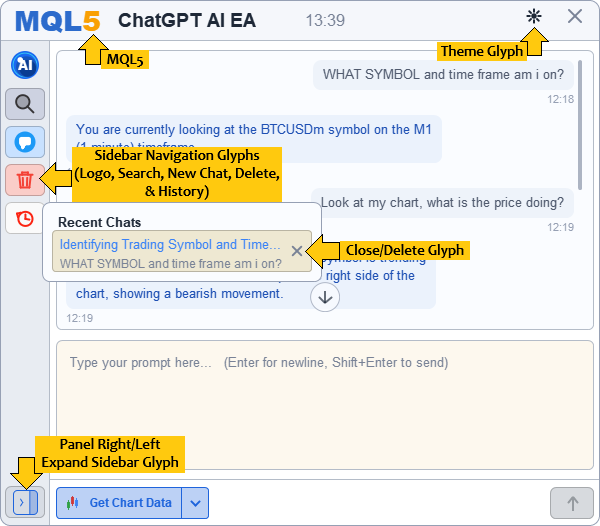
That gives us the shape of the work ahead, and we do it in four stages: the primitives first, a handful of coverage-based helpers every mark is drawn with; then the drawers, one function per logo and icon composed from those primitives; then the wiring, where each bitmap call site in the header and sidebar renderers is replaced by its drawer; and finally the cleanup, where the six ".bmp" resources and the load-and-resize pass that served them are dropped. We hold the drawer layer to three requirements: every part is positioned as a fraction of the icon box, so one function covers both the eighty-one-pixel and the thirty-pixel sidebar sizes; every drawer takes its color as a parameter, so the active theme decides it; and any mark that carves its shape out with the background, such as the moon, receives that background color as well. In a nutshell, here is a visualization of the vectorized UI.
Implementation in MQL5
First, we need to define some helper functions for anti-aliased vector primitives, and we do so in the primitives file. We define six drawing helpers that every logo and icon is later built from, along with a set of brand color constants for the wordmark and the orb. Each helper paints one basic shape with smooth edges.
//+------------------------------------------------------------------+
//| VECTOR BRAND MARKS AND SIDEBAR ICONS                             |
//+------------------------------------------------------------------+
//--- Draw all brand marks and icons as resolution-free vectors, replacing old BMP resources
#define AI_BRAND_BLUE   C'44,107,204'     // MQL wordmark blue
#define AI_BRAND_AMBER  C'249,160,4'      // MQL5 "5" amber
#define AI_ORB_DEEP     C'9,60,146'       // orb core, darkest
#define AI_ORB_MID      C'22,85,189'      // orb body
#define AI_ORB_LIVE     C'26,104,240'     // orb lit face
#define AI_ORB_RIM      C'55,208,242'     // orb cyan rim highlight

//+------------------------------------------------------------------+
//| Draw thick anti-aliased vector stroke with round caps            |
//+------------------------------------------------------------------+
void AiVecStroke(CCanvas &canvas, const double x0, const double y0,
                 const double x1, const double y1, const double thick, const uint argb)
  {
   double half = MathMax(0.5, thick * 0.5);
   double dx = x1 - x0, dy = y1 - y0;
   double len2 = dx * dx + dy * dy;
   int bx0 = (int)MathFloor(MathMin(x0, x1) - half - 1.0);
   int bx1 = (int)MathCeil (MathMax(x0, x1) + half + 1.0);
   int by0 = (int)MathFloor(MathMin(y0, y1) - half - 1.0);
   int by1 = (int)MathCeil (MathMax(y0, y1) + half + 1.0);
   for(int py = by0; py <= by1; py++)
      for(int px = bx0; px <= bx1; px++)
        {
         double sx = px + 0.5, sy = py + 0.5;
         double t  = (len2 > 1e-9) ? ((sx - x0) * dx + (sy - y0) * dy) / len2 : 0.0;
         if(t < 0.0) t = 0.0;
         if(t > 1.0) t = 1.0;
         double qx = x0 + t * dx - sx, qy = y0 + t * dy - sy;
         double cov = (half + 0.5) - MathSqrt(qx * qx + qy * qy);
         if(cov <= 0.0) continue;
         if(cov > 1.0) cov = 1.0;
         AiIconAAPlot(canvas, px, py, cov, argb);
        }
  }

//+------------------------------------------------------------------+
//| Draw anti-aliased filled disc                                    |
//+------------------------------------------------------------------+
void AiVecDisc(CCanvas &canvas, const double cx, const double cy, const double r, const uint argb)
  {
   if(r <= 0.0) return;
   int x0 = (int)MathFloor(cx - r - 1.0), x1 = (int)MathCeil(cx + r + 1.0);
   int y0 = (int)MathFloor(cy - r - 1.0), y1 = (int)MathCeil(cy + r + 1.0);
   for(int py = y0; py <= y1; py++)
      for(int px = x0; px <= x1; px++)
        {
         double dx = (px + 0.5) - cx, dy = (py + 0.5) - cy;
         double cov = 0.5 - (MathSqrt(dx * dx + dy * dy) - r);
         if(cov <= 0.0) continue;
         if(cov > 1.0) cov = 1.0;
         AiIconAAPlot(canvas, px, py, cov, argb);
        }
  }

//+------------------------------------------------------------------+
//| Draw anti-aliased ring                                           |
//+------------------------------------------------------------------+
void AiVecRing(CCanvas &canvas, const double cx, const double cy,
               const double r, const double thick, const uint argb)
  {
   if(r <= 0.0 || thick <= 0.0) return;
   double half = thick * 0.5;
   int x0 = (int)MathFloor(cx - r - thick - 1.0), x1 = (int)MathCeil(cx + r + thick + 1.0);
   int y0 = (int)MathFloor(cy - r - thick - 1.0), y1 = (int)MathCeil(cy + r + thick + 1.0);
   for(int py = y0; py <= y1; py++)
      for(int px = x0; px <= x1; px++)
        {
         double dx = (px + 0.5) - cx, dy = (py + 0.5) - cy;
         double cov = (half + 0.5) - MathAbs(MathSqrt(dx * dx + dy * dy) - r);
         if(cov <= 0.0) continue;
         if(cov > 1.0) cov = 1.0;
         AiIconAAPlot(canvas, px, py, cov, argb);
        }
  }

//+------------------------------------------------------------------+
//| Draw uniform rounded-rectangle outline                           |
//+------------------------------------------------------------------+
void AiVecRoundRectRing(CCanvas &canvas, const double x, const double y,
                        const double w, const double h, const double r,
                        const double thick, const uint argb)
  {
   if(w <= 0.0 || h <= 0.0) return;
   double rr   = MathMin(r, MathMin(w, h) * 0.5);
   double half = MathMax(0.5, thick * 0.5);
   double cx = x + w * 0.5, cy = y + h * 0.5;
   int x0 = (int)MathFloor(x - thick - 1.0), x1 = (int)MathCeil(x + w + thick + 1.0);
   int y0 = (int)MathFloor(y - thick - 1.0), y1 = (int)MathCeil(y + h + thick + 1.0);
   for(int py = y0; py <= y1; py++)
      for(int px = x0; px <= x1; px++)
        {
         double qx = MathAbs((px + 0.5) - cx) - (w * 0.5 - rr);
         double qy = MathAbs((py + 0.5) - cy) - (h * 0.5 - rr);
         double ax = MathMax(qx, 0.0), ay = MathMax(qy, 0.0);
         double d  = MathSqrt(ax * ax + ay * ay) + MathMin(MathMax(qx, qy), 0.0) - rr;
         double cov = (half + 0.5) - MathAbs(d);
         if(cov <= 0.0) continue;
         if(cov > 1.0) cov = 1.0;
         AiIconAAPlot(canvas, px, py, cov, argb);
        }
  }

//+------------------------------------------------------------------+
//| Fill rounded rectangle with anti-aliased corners                 |
//+------------------------------------------------------------------+
void AiVecRoundRect(CCanvas &canvas, const double x, const double y,
                    const double w, const double h, const double r, const uint argb)
  {
   if(w <= 0.0 || h <= 0.0) return;
   double rr = MathMin(r, MathMin(w, h) * 0.5);
   int x0 = (int)MathFloor(x - 1.0), x1 = (int)MathCeil(x + w + 1.0);
   int y0 = (int)MathFloor(y - 1.0), y1 = (int)MathCeil(y + h + 1.0);
   for(int py = y0; py <= y1; py++)
      for(int px = x0; px <= x1; px++)
        {
         double sx = px + 0.5, sy = py + 0.5;
         double qx = MathAbs(sx - (x + w * 0.5)) - (w * 0.5 - rr);
         double qy = MathAbs(sy - (y + h * 0.5)) - (h * 0.5 - rr);
         double ax = MathMax(qx, 0.0), ay = MathMax(qy, 0.0);
         double cov = 0.5 - (MathSqrt(ax * ax + ay * ay) + MathMin(MathMax(qx, qy), 0.0) - rr);
         if(cov <= 0.0) continue;
         if(cov > 1.0) cov = 1.0;
         AiIconAAPlot(canvas, px, py, cov, argb);
        }
  }

//+------------------------------------------------------------------+
//| Fill convex polygon with anti-aliased edges                      |
//+------------------------------------------------------------------+
void AiVecPoly(CCanvas &canvas, double &xs[], double &ys[], const int n, const uint argb)
  {
   if(n < 3) return;
   double minx = xs[0], maxx = xs[0], miny = ys[0], maxy = ys[0];
   for(int i = 1; i < n; i++)
     {
      if(xs[i] < minx) minx = xs[i];
      if(xs[i] > maxx) maxx = xs[i];
      if(ys[i] < miny) miny = ys[i];
      if(ys[i] > maxy) maxy = ys[i];
     }
//--- 3x3 supersample inside the bounding box: cheap and exact enough at icon sizes
   for(int py = (int)MathFloor(miny); py <= (int)MathCeil(maxy); py++)
      for(int px = (int)MathFloor(minx); px <= (int)MathCeil(maxx); px++)
        {
         int hits = 0;
         for(int sy = 0; sy < 3; sy++)
            for(int sx = 0; sx < 3; sx++)
              {
               double tx = px + (sx + 0.5) / 3.0, ty = py + (sy + 0.5) / 3.0;
               bool inside = false;
               int j = n - 1;
               for(int i = 0; i < n; j = i++)
                  if(((ys[i] > ty) != (ys[j] > ty)) &&
                     (tx < (xs[j] - xs[i]) * (ty - ys[i]) / (ys[j] - ys[i]) + xs[i]))
                     inside = !inside;
               if(inside) hits++;
              }
         if(hits == 0) continue;
         AiIconAAPlot(canvas, px, py, hits / 9.0, argb);
        }
  }
We define the "AiVecStroke", "AiVecDisc", "AiVecRing", "AiVecRoundRect", "AiVecRoundRectRing", and "AiVecPoly" functions to draw a thick line, a filled circle, a circle outline, a filled rounded rectangle, a rounded-rectangle outline, and a filled polygon. The first five share one trick: for each candidate pixel, they compute its distance to the shape's edge and turn that distance into a coverage fraction, while "AiVecPoly" instead samples each pixel on a three-by-three grid and counts how many sub-points land inside. Every helper hands its final coverage to the "AiIconAAPlot" function, which blends the color into the canvas by that fraction. These six are the whole toolbox, which is why the brand colors are defined here too, ready for the drawers that follow.
The idea that makes these sharp is coverage-based anti-aliasing. A naive shape colors each pixel fully on or fully off, which leaves a jagged staircase along any curve or diagonal. Instead, we treat a pixel as partly inside the shape: a coverage near one means the pixel sits well within the edge, a value near zero means it barely clips the boundary, and we fade the color by that amount. Measuring distance to the edge and clamping it to the zero-to-one range is what produces that soft, exact border at any size, and because the distance is recomputed every time we draw, the same primitive stays clean whether the icon is thirty pixels wide or a hundred. Next, we will define helpers to aid in drawing the new AI orb logo and MQL5 wordmark, just like the bitmap files did. Here is the logic we use to achieve that.
Drawing the Brand Logos
We define two logo drawers that replace the header and sidebar bitmaps: the MQL5 wordmark and the layered AI orb.
//+------------------------------------------------------------------+
//| Draw MQL5 wordmark sized to fill its box                         |
//+------------------------------------------------------------------+
void AiDrawLogoMQL5(CCanvas &canvas, const int x, const int y, const int w, const int h)
  {
   const int padX = 5;
   const int usableW = w - padX * 2;
   if(usableW <= 10) return;

   int fs = h;
   int tw = 0, th = 0;
   for(; fs >= 8; fs--)
     {
      tw = AiTextWidth("MQL", "Arial Black", fs) + AiTextWidth("5", "Arial Black", fs);
      th = AiTextHeight("Arial Black", fs);
      if(tw <= usableW && th <= h) break;
     }
   if(fs < 8) return;

   int tx = x + padX + (usableW - tw) / 2;
   int ty = y + (h - th) / 2;
   int wMQL = AiTextWidth("MQL", "Arial Black", fs);
   AiStampTextAA(canvas, tx,        ty, "MQL", "Arial Black", fs, AI_BRAND_BLUE);
   AiStampTextAA(canvas, tx + wMQL, ty, "5",   "Arial Black", fs, AI_BRAND_AMBER);
  }

//+------------------------------------------------------------------+
//| Draw layered AI orb logo                                         |
//+------------------------------------------------------------------+
void AiDrawLogoOrb(CCanvas &canvas, const int x, const int y, const int size)
  {
   double cx = x + size / 2.0, cy = y + size / 2.0;
   double R  = size / 2.0 - 1.0;
   if(R <= 1.0) return;
   AiVecDisc(canvas, cx, cy, R,        AiColorWithPercentOpacity(AI_ORB_LIVE, 12));
   AiVecDisc(canvas, cx, cy, R * 0.94, AiColorWithPercentOpacity(AI_ORB_LIVE, 20));
   AiVecDisc(canvas, cx, cy, R * 0.88, ColorToARGB(AI_ORB_RIM, 255));
   AiVecDisc(canvas, cx, cy, R * 0.82, ColorToARGB(AI_ORB_LIVE, 255));
   AiVecDisc(canvas, cx + R * 0.10, cy + R * 0.12, R * 0.74, ColorToARGB(AI_ORB_MID,  255));
   AiVecDisc(canvas, cx + R * 0.20, cy + R * 0.24, R * 0.60, ColorToARGB(AI_ORB_DEEP, 255));
   AiVecDisc(canvas, cx - R * 0.34, cy - R * 0.36, R * 0.20,
             AiColorWithPercentOpacity(clrWhite, 45));
   int fs = (int)MathRound(size * 0.34);
   if(fs >= 7)
     {
      int tw = AiTextWidth("AI", "Arial Black", fs);
      int th = AiTextHeight("Arial Black", fs);
      AiStampTextAA(canvas, (int)MathRound(cx - tw / 2.0), (int)MathRound(cy - th / 2.0),
                    "AI", "Arial Black", fs, clrWhite);
     }
  }
First, we define the "AiDrawLogoMQL5" function to paint the wordmark by fitting real text to its box rather than storing a picture of it. It shrinks the font size until "MQL" and the "5" fit the usable width and height, then centers them and stamps the two parts in different brand colors: the blue for the letters and the amber for the digit. Sizing the type to the box is what lets the same wordmark fill a wide header or a narrow space without ever being stretched.
Then, we define the "AiDrawLogoOrb" function to build the sidebar mark from stacked discs drawn with the "AiVecDisc" primitive. It layers from the outside in: two faint outer halos, a bright cyan rim, the lit face, then progressively smaller and darker discs offset down and to the right to suggest a sphere catching light from the upper left, finished with a small white highlight and the letters "AI" centered on top. Because every layer is defined as a fraction of the orb's radius, the mark scales cleanly. The same function therefore renders both the eighty-one-pixel expanded logo and the thirty-pixel collapsed one without scaling artifacts. The drawing logic we used can be adapted to draw other logos; we just wanted to maintain the visual consistency from the image files. Next, we will define the close and theme icon drawers.
Drawing the Close and Theme Icons
We define three icons here: the close X and the sun and moon that mark the theme button.
//+------------------------------------------------------------------+
//| Draw close/delete X icon                                         |
//+------------------------------------------------------------------+
void AiDrawIconX(CCanvas &canvas, const int x, const int y, const int size, const uint argb)
  {
//--- Span 20%-80% of the box at a flat 2px weight
   const double t = 2.0;
   AiVecStroke(canvas, x + size * 0.20, y + size * 0.20, x + size * 0.80, y + size * 0.80, t, argb);
   AiVecStroke(canvas, x + size * 0.80, y + size * 0.20, x + size * 0.20, y + size * 0.80, t, argb);
  }

//+------------------------------------------------------------------+
//| Draw sun icon with disc and spokes                               |
//+------------------------------------------------------------------+
void AiDrawIconSun(CCanvas &canvas, const int x, const int y, const int size, const uint argb)
  {
   double cx = x + size / 2.0, cy = y + size / 2.0;
   const double t = 2.0;
   AiVecDisc(canvas, cx, cy, size * 0.17, argb);
   for(int i = 0; i < 8; i++)
     {
      double a = i * (M_PI / 4.0), cs = MathCos(a), sn = MathSin(a);
      AiVecStroke(canvas, cx + cs * size * 0.27, cy + sn * size * 0.27,
                          cx + cs * size * 0.41, cy + sn * size * 0.41, t, argb);
     }
  }

//+------------------------------------------------------------------+
//| Draw crescent moon icon with star                                |
//+------------------------------------------------------------------+
void AiDrawIconMoon(CCanvas &canvas, const int x, const int y, const int size,
                    const uint argb, const uint bg)
  {
   double cx = x + size / 2.0, cy = y + size / 2.0;
   double R  = MathMax(3.0, size * 0.34);
   double carveCx = cx + R * 0.5, carveCy = cy - R * 0.5;
   AiVecDisc(canvas, cx, cy, R, argb);
   AiVecDisc(canvas, carveCx, carveCy, R, bg);
//--- star nestled in the crescent's opening, one point straight up
   double ax = carveCx - cx, ay = carveCy - cy;
   double al = MathSqrt(ax * ax + ay * ay); if(al < 1e-6) al = 1.0;
   double sCx = cx + ax / al * R * 0.60, sCy = cy + ay / al * R * 0.60;
   double sOut = R * 0.52, sIn = R * 0.21;
   double sx[10], sy[10];
   for(int v = 0; v < 10; v++)
     {
      double rr = (v % 2 == 0) ? sOut : sIn;
      double aa = -M_PI / 2.0 + v * (M_PI / 5.0);
      sx[v] = sCx + rr * MathCos(aa);
      sy[v] = sCy + rr * MathSin(aa);
     }
   AiVecPoly(canvas, sx, sy, 10, argb);
  }
We define the "AiDrawIconX" function to draw the close mark as two diagonal strokes crossing between the twenty and eighty percent points of the box, so it sits centered with even margins at any size. The "AiDrawIconSun" function then places a small filled disc at the center and rings it with eight short spokes, stepping around the circle in equal angles so the rays stay evenly spaced. Both express every position as a fraction of the icon size, which keeps them proportional whether drawn small in the header or larger elsewhere.
The moon is the one worth dwelling on, because it draws a crescent without ever describing a crescent shape. In the "AiDrawIconMoon" function, we paint a full disc in the icon color, then paint a second disc in the background color, offset up and to the right, directly on top of it. That second disc erases the part of the first it overlaps, and the sliver left uncovered is the crescent. We then build a small five-point star as ten alternating outer and inner points and fill it with the "AiVecPoly" primitive, tucked into the crescent's opening. This carve-with-the-background technique requires the background color, so the moon icon takes an extra parameter, unlike the other icons. It is a common way to produce a concave shape using only simple filled discs. We used that approach to keep the idea simple. With the theme icons done, what remains is the sidebar icons, specifically the search, new chat, clear, history, and the toggle icons. Here is the approach we used to define their drawing.
Drawing the Sidebar Icons
We define the four sidebar action icons: search, new chat, clear, and history.
//+------------------------------------------------------------------+
//| Draw magnifier search icon                                       |
//+------------------------------------------------------------------+
void AiDrawIconSearch(CCanvas &canvas, const int x, const int y, const int size, const uint argb)
  {
//--- Fill the lens with a 30% translucent wash folded into coverage
   double cx = x + size * 0.40, cy = y + size * 0.40;
   double r  = size * 0.30;
   const double t = 2.0;
   const double fillPct = 0.30;

//--- glass fill inside the lens
   double rIn = r - t * 0.5;
   for(int py = (int)MathFloor(cy - rIn - 1); py <= (int)MathCeil(cy + rIn + 1); py++)
      for(int px = (int)MathFloor(cx - rIn - 1); px <= (int)MathCeil(cx + rIn + 1); px++)
        {
         double dx = (px + 0.5) - cx, dy = (py + 0.5) - cy;
         double cov = 0.5 - (MathSqrt(dx * dx + dy * dy) - rIn);
         if(cov <= 0.0) continue;
         if(cov > 1.0) cov = 1.0;
         AiIconAAPlot(canvas, px, py, cov * fillPct, argb);
        }

//--- ring and handle
   AiVecRing(canvas, cx, cy, r, t, argb);
   double k = 0.7071;
   AiVecStroke(canvas, cx + r * k, cy + r * k, x + size * 0.88, y + size * 0.88, t, argb);
  }

//+------------------------------------------------------------------+
//| Draw new-chat speech bubble icon                                 |
//+------------------------------------------------------------------+
void AiDrawIconNewChat(CCanvas &canvas, const int x, const int y, const int size, const uint argb)
  {
//--- Draw a solid disc with a white speech bubble on top
   double cx = x + size / 2.0, cy = y + size / 2.0;
   AiVecDisc(canvas, cx, cy, size / 2.0 - 0.5, argb);

   uint w = ColorToARGB(clrWhite, 255);
   double bw = size * 0.54, bh = size * 0.38;
   double bx = cx - bw / 2.0, by = cy - bh / 2.0 - size * 0.04;
   AiVecRoundRect(canvas, bx, by, bw, bh, size * 0.11, w);
//--- tapered tail under the bubble's left third
   double tipX = bx + bw * 0.30, tipY = by + bh + size * 0.16;
   for(double s2 = 0.0; s2 <= 1.0; s2 += 0.05)
     {
      double ax = bx + bw * 0.18 + (tipX - (bx + bw * 0.18)) * s2;
      double bxx = bx + bw * 0.50 + (tipX - (bx + bw * 0.50)) * s2;
      double yy  = by + bh + (tipY - (by + bh)) * s2;
      AiVecStroke(canvas, ax, yy, bxx, yy, 1.2, w);
     }
  }

//+------------------------------------------------------------------+
//| Draw trash bin clear icon                                        |
//+------------------------------------------------------------------+
void AiDrawIconClear(CCanvas &canvas, const int x, const int y, const int size, const uint argb)
  {
   const double t = 2.0;
   double cx = x + size / 2.0;
   double lidY = y + size * 0.26;
//--- lid and handle
   AiVecStroke(canvas, x + size * 0.16, lidY, x + size * 0.84, lidY, t, argb);
   AiVecStroke(canvas, cx - size * 0.13, y + size * 0.16, cx + size * 0.13, y + size * 0.16, t, argb);
   AiVecStroke(canvas, cx - size * 0.13, y + size * 0.16, cx - size * 0.13, lidY, t, argb);
   AiVecStroke(canvas, cx + size * 0.13, y + size * 0.16, cx + size * 0.13, lidY, t, argb);
//--- body: tapered sides plus base
   double bTop = lidY + t * 0.5, bBot = y + size * 0.84;
   AiVecStroke(canvas, x + size * 0.24, bTop, x + size * 0.30, bBot, t, argb);
   AiVecStroke(canvas, x + size * 0.76, bTop, x + size * 0.70, bBot, t, argb);
   AiVecStroke(canvas, x + size * 0.30, bBot, x + size * 0.70, bBot, t, argb);
//--- ribs
   AiVecStroke(canvas, cx - size * 0.10, bTop + size * 0.10, cx - size * 0.09, bBot - size * 0.08, t, argb);
   AiVecStroke(canvas, cx + size * 0.10, bTop + size * 0.10, cx + size * 0.09, bBot - size * 0.08, t, argb);
  }

//+------------------------------------------------------------------+
//| Draw clock-with-arrow history icon                               |
//+------------------------------------------------------------------+
void AiDrawIconHistory(CCanvas &canvas, const int x, const int y, const int size, const uint argb)
  {
   double cx = x + size * 0.52, cy = y + size * 0.54;
   double R  = size * 0.32;
   const double t = 2.0;
//--- clock face, open at the upper-left so the arrow can enter
   AiVecRing(canvas, cx, cy, R, t, argb);
//--- hands: 10 o'clock and 3 o'clock
   AiVecStroke(canvas, cx, cy, cx, cy - R * 0.62, t, argb);
   AiVecStroke(canvas, cx, cy, cx + R * 0.55, cy + R * 0.10, t, argb);
//--- return arrow head at the upper-left, pointing back into the dial
   double ax = x + size * 0.14, ay = y + size * 0.30;
   AiVecStroke(canvas, ax, ay, ax + size * 0.16, ay - size * 0.04, t, argb);
   AiVecStroke(canvas, ax, ay, ax + size * 0.04, ay + size * 0.16, t, argb);
  }
We define the "AiDrawIconSearch" function to draw a magnifier as a ring with a short diagonal handle, plus a faint wash inside the lens. That wash is the one detail worth noting: rather than filling the glass solidly, it multiplies each pixel's coverage by thirty percent through the "AiIconAAPlot" function, so the interior reads as translucent glass instead of a solid dot. The "AiDrawIconClear" function builds a trash bin the way you would sketch one, from a lid, a handle, two tapered sides, a base, and a pair of ribs, each a single stroke. The "AiDrawIconHistory" function draws a clock as a ring with two hands and adds a small return-arrow head at the upper left to signal going back in time.
The "AiDrawIconNewChat" function is the one that leans hardest on the primitives working together. It lays down a solid disc, sets a white rounded rectangle on top for the speech bubble, then draws the bubble's tail by stacking short horizontal strokes that shrink and shift as they descend, tapering to a point. Composing a filled shape from a run of narrowing strokes is a simple way to sketch a triangle without a dedicated primitive, and it shows how far a few basic helpers stretch once you combine them. For the toggle, we use the following approach.
Drawing the Sidebar Toggle
We define the "AiDrawIconToggle" function to draw the collapse and expand control, a rounded frame with a shaded side column and a chevron pointing the way the sidebar will move.
//+------------------------------------------------------------------+
//| Draw sidebar collapse/expand toggle icon                         |
//+------------------------------------------------------------------+
void AiDrawIconToggle(CCanvas &canvas, const int x, const int y, const int size,
                      const bool pointLeft, const uint argb)
  {
//--- Snap the 1px border to pixel centres so the stroke reads solid
   const double t = 1.0;
   const double L = MathFloor(x + 1.0) + 0.5, R = MathFloor(x + size - 1.0) + 0.5;
   const double T = MathFloor(y + 1.0) + 0.5, B = MathFloor(y + size - 1.0) + 0.5;
   const double w = R - L, h = B - T;
   if(w <= 6.0 || h <= 6.0) return;
//--- Fix the corner radius at 4px regardless of icon size
   const double rad = MathMin(4.0, MathMin(w, h) * 0.5);

//--- narrow column, on the side the action points to
   const double colW = w * 0.32;
   const double divX = pointLeft ? (L + colW) : (R - colW);

//--- Fill the column at 30%, folded into coverage since plotting ignores colour alpha
   const double fillPct = 0.30;
   for(int py = (int)MathFloor(T); py <= (int)MathCeil(B); py++)
      for(int px = (int)MathFloor(L); px <= (int)MathCeil(R); px++)
        {
         double sx = px + 0.5, sy = py + 0.5;
         if(pointLeft ? (sx > divX) : (sx < divX)) continue;
         double qx = MathAbs(sx - (L + w * 0.5)) - (w * 0.5 - rad);
         double qy = MathAbs(sy - (T + h * 0.5)) - (h * 0.5 - rad);
         double ax = MathMax(qx, 0.0), ay = MathMax(qy, 0.0);
         double cov = 0.5 - (MathSqrt(ax * ax + ay * ay) + MathMin(MathMax(qx, qy), 0.0) - rad);
         if(cov <= 0.0) continue;
         if(cov > 1.0) cov = 1.0;
         AiIconAAPlot(canvas, px, py, cov * fillPct, argb);
        }

//--- 2) frame, single uniform ring
   AiVecRoundRectRing(canvas, L, T, w, h, rad, t, argb);

//--- 3) divider
   AiVecStroke(canvas, divX, T, divX, B, t, argb);

//--- Define the chevron by arm length and half-angle to set the mouth opening
   const double armLen    = size * 0.15;           // short arms: compact mark
   const double halfAngle = 58.0 * M_PI / 180.0;   // 116 degree mouth - wide and open
   double openL = pointLeft ? divX : L;
   double openR = pointLeft ? R    : divX;
   double ccx   = (openL + openR) / 2.0;
   double ccy   = (T + B) / 2.0;
   double s     = pointLeft ? 1.0 : -1.0;
   double dx    = armLen * MathCos(halfAngle);
   double dy    = armLen * MathSin(halfAngle);
   double vx    = ccx - s * dx * 0.5;              // vertex, nudged so the V sits centred
   AiVecStroke(canvas, vx, ccy, vx + s * dx, ccy - dy, t, argb);
   AiVecStroke(canvas, vx, ccy, vx + s * dx, ccy + dy, t, argb);
  }
The "AiDrawIconToggle" function draws a framed panel whose chevron and shaded column both flip by the "pointLeft" flag, so one implementation covers both the collapse and expand states. It fills a narrow side column at thirty percent coverage to suggest the panel edge, draws the frame with the "AiVecRoundRectRing" primitive and the divider with a single stroke, then builds the chevron from two strokes meeting at a vertex. The chevron is defined by an arm length and a half-angle rather than fixed endpoints, which lets us set the mouth opening by angle and keep the arrow centered in its half of the frame.
Two small precision details make this icon read cleanly at its size. We snap the frame's edges to pixel centers by flooring each coordinate and adding a half pixel, so a one-pixel border lands on a single row of pixels instead of smearing across two and looking gray. And we hold the corner radius fixed at four pixels rather than scaling it with the icon, so the frame keeps the same gentle rounding at every size the sidebar uses. Here is an example of left sidebar glyph anatomy.
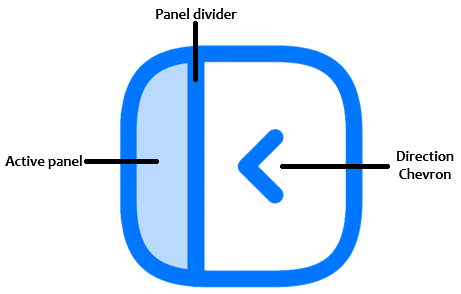
With the glyph helpers done, what remains is wiring them for rendering, and we implement that in the render file.
Wiring the Vector Icons into the Header
We update the "Ai_RenderHeader" function to paint the wordmark, theme button, and close button with the new vector drawers instead of stamped bitmaps and font glyphs.
//+------------------------------------------------------------------+
//| Render dashboard header                                          |
//+------------------------------------------------------------------+
void Ai_RenderHeader()
  {
//--- Existing logic

//--- Draw the MQL5 wordmark as vector text (was a stamped 104x40 bitmap)
   AiDrawLogoMQL5(g_ai_canvMain, AI_SIDE_PAD, (AI_HEADER_H - 40) / 2, 104, 40);

//--- Render theme toggle button
   int tL, tT, tR, tB;
   Ai_GetThemeBtnRect(tL, tT, tR, tB);
   const bool themeHov = (g_ai_hover == AI_HOV_THEME);
   if(themeHov)
     {
      const color hoverBg = AiDarkenColor(g_ai_headerBg, 0.85);
      g_ai_canvMain.FillRectangle(tL, tT, tR - 1, tB - 1, ColorToARGB(hoverBg, 255));
     }

//--- Show a SUN in light mode and a MOON in dark so the toggle previews the switch
   const int themeSz = 16;
   const int thX = tL + (tR - tL - themeSz) / 2;
   const int thY = tT + (tB - tT - themeSz) / 2;
   const color themeBtnBg = themeHov ? AiDarkenColor(g_ai_headerBg, 0.85) : g_ai_headerBg;
   if(g_ai_darkTheme)
      AiDrawIconMoon(g_ai_canvMain, thX, thY, themeSz,
                     ColorToARGB(g_ai_titleText, 255), ColorToARGB(themeBtnBg, 255));
   else
      AiDrawIconSun(g_ai_canvMain, thX, thY, themeSz, ColorToARGB(g_ai_titleText, 255));

//--- Render close button
   int cL, cT, cR, cB;
   Ai_GetCloseBtnRect(cL, cT, cR, cB);
   const bool closeHov = (g_ai_hover == AI_HOV_CLOSE);
   color closeFg     = closeHov ? g_ai_closeColorHover : g_ai_closeColor;
   if(closeHov)
     {
      const uint hoverArgb = ColorToARGB(g_ai_closeBgHover, 255);
      g_ai_canvMain.FillRectangle(cL, cT, cR - 1, cB - 1, hoverArgb);
     }

//--- Draw the close X as a vector sized against the button
   const int closeSz = 20;
   AiDrawIconX(g_ai_canvMain, cL + (cR - cL - closeSz) / 2,
               cT + (cB - cT - closeSz) / 2, closeSz, ColorToARGB(closeFg, 255));
  }
In the "Ai_RenderHeader" function, we swap three pieces of artwork for their vector equivalents while leaving the surrounding layout untouched. The MQL5 wordmark, previously a stamped bitmap, is now drawn by the "AiDrawLogoMQL5" function into the same box, and the close button, previously a Webdings glyph, is now drawn by the "AiDrawIconX" function sized against its button. The theme button is the meaningful one: we draw the "AiDrawIconMoon" function in dark mode and the "AiDrawIconSun" function in light mode, so the icon previews the mode the click will switch to, and we pass the button background into the moon drawer since its crescent is carved with that color. Each drawer takes its color from the active theme, which is what lets these marks recolor with the interface instead of needing a separate image per theme. For the sidebar, we use the new functions for rendering the logo and the sidebar functions to render the respective icons, and we change their signature to take the icon ID.
Wiring the Vector Icons into the Sidebar
We update the "Ai_RenderSidebarLogo" and "Ai_RenderSidebarBtn" functions to draw the orb and the action icons as vectors, selected by size and icon identifier.
//+------------------------------------------------------------------+
//| Render sidebar logo at appropriate size                          |
//+------------------------------------------------------------------+
void Ai_RenderSidebarLogo()
  {
//--- Pick logo by sidebar expansion state
   const int sw = Ai_SidebarW();
//--- Draw the orb vector at native resolution for both sizes
   if(g_ai_sidebarExpanded)
      AiDrawLogoOrb(g_ai_canvMain, (sw - 81) / 2, AI_HEADER_H + 10, 81);
   else
      AiDrawLogoOrb(g_ai_canvMain, (sw - 30) / 2, AI_HEADER_H + 10, 30);
  }

//+------------------------------------------------------------------+
//| Render a single sidebar button                                   |
//+------------------------------------------------------------------+
void Ai_RenderSidebarBtn(int idx, color bgIdle, color bgHover, int hovId,
                          const int iconId, const string label)
  {
//--- Get button rect and pick fill color by hover state
   int bL, bT, bR, bB;
   Ai_GetSidebarBtnRect(idx, bL, bT, bR, bB);
   color bg = (g_ai_hover == hovId) ? bgHover : bgIdle;

//--- Fill button and draw border
   g_ai_prim.FillRoundRectSharp(g_ai_canvMain, bL, bT, bR - bL, bB - bT, 6,
                              ColorToARGB(bg, 255));
   g_ai_prim.DrawRoundRectBorderSharp(g_ai_canvMain, bL, bT, bR - bL, bB - bT, 6, 1,
                                       ColorToARGB(AiBorderForBg(bg), 255));

//--- Position icon based on expansion state
   const int sw = Ai_SidebarW();
   int iconX = g_ai_sidebarExpanded ? (bL + 8) : (bL + (bR - bL - 22) / 2);
   int iconY = bT + (bB - bT - 22) / 2;
//--- vector icon, drawn at 22px in its brand colour
   switch(iconId)
     {
      case AI_ICON_SEARCH:  AiDrawIconSearch (g_ai_canvMain, iconX, iconY, 22, ColorToARGB(C'53,52,54',   255)); break;
      case AI_ICON_NEWCHAT: AiDrawIconNewChat(g_ai_canvMain, iconX, iconY, 22, ColorToARGB(C'28,153,246', 255)); break;
      case AI_ICON_CLEAR:   AiDrawIconClear  (g_ai_canvMain, iconX, iconY, 22, ColorToARGB(C'244,66,54',  255)); break;
      case AI_ICON_HISTORY: AiDrawIconHistory(g_ai_canvMain, iconX, iconY, 22, ColorToARGB(C'251,36,18',  255)); break;
     }

//--- Stamp label only when expanded
   if(g_ai_sidebarExpanded)
     {
      int lblY = bT + (bB - bT - AiTextHeight("Arial", AI_FONT_BUTTON)) / 2;
      AiStampTextAA(g_ai_canvMain, iconX + 22 + 6, lblY,
                     label, "Arial", AI_FONT_BUTTON, g_ai_titleText);
     }
  }
In the "Ai_RenderSidebarLogo" function, we now draw the orb with the "AiDrawLogoOrb" function at whichever size the sidebar state calls for, eighty-one pixels when expanded and thirty when collapsed, both painted at native resolution rather than scaled from one bitmap. The "Ai_RenderSidebarBtn" function changes its signature to take an "iconId" instead of a pixel array, then switches on that identifier to call the matching drawer, "AiDrawIconSearch", "AiDrawIconNewChat", "AiDrawIconClear", or "AiDrawIconHistory", each at twenty-two pixels in its own brand color. Passing an identifier rather than image data is what lets one button routine paint any of the four marks, with the drawer itself deciding how the icon looks. That marks the end of the implementation. What remains is visualizing the system, and that is handled in the next section.
Visualization
We compile the program, load it onto a chart, and interact with the interface to confirm the vector marks render correctly. The result is captured below as a Graphics Interchange Format (GIF).
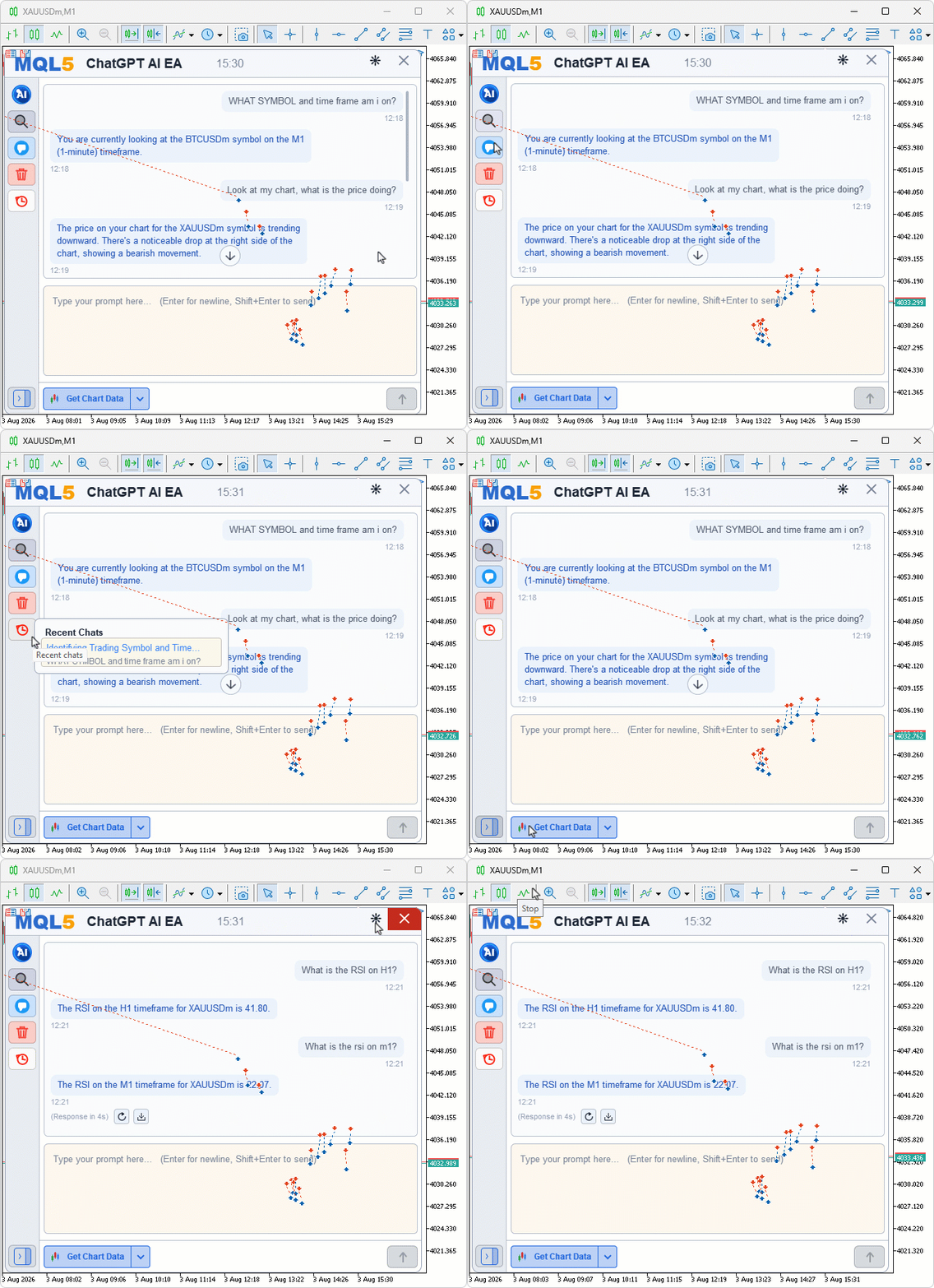
During testing, the MQL5 wordmark, the orb logo, and every sidebar icon drew cleanly from vectors with no image resources loaded, and each mark stayed sharp as the sidebar collapsed and expanded between its two sizes. Toggling the theme swapped the sun and moon and recolored the marks from the active palette, and the hover states painted their backgrounds without softening the icons.
Conclusion
We replaced the embedded bitmap icons in the AI chat interface with a procedural vector icon system built from a handful of anti-aliased primitives. Deliverables include the coverage-based primitives ("AiVecStroke", "AiVecDisc", "AiVecRing", "AiVecRoundRect", "AiVecRoundRectRing", "AiVecPoly"), ready drawers for the MQL5 wordmark and layered AI orb, and drawers for the theme and sidebar icons (close X, sun/moon, search, new chat, clear, history, toggle). Each drawer sizes geometry by fractions of its bounding box and samples coverage per pixel, so icons stay crisp at both collapsed and expanded sizes and recolor dynamically from the active palette, removing the need to ship or load BMP files for different sizes or themes.
Practically, the article provides the functions and wiring to call these drawers from "Ai_RenderHeader()" and the sidebar renderers, so the project compiles and runs with no external image resources while preserving visual fidelity. Next, we will focus on performance: limiting repaints to changed regions and caching text metrics so the UI updates responsively without full-panel redraws.
| S/N | Name | Type | Description |
|---|---|---|---|
| 1 | AI Canvas Theme.mqh | Include file | Defines the layout constants, font sizes, glyph codes, and the dark and light color palettes applied through a single theme switch |
| 2 | AI Canvas Primitives.mqh | Include file | Provides the low-level drawing primitives (rounded rectangle fills and borders, anti-aliased text stamping, the new anti-aliased vector primitives, and the vector logo and icon drawers that replace the bitmap resources) |
| 3 | AI JSON FILE.mqh | Include file | Provides the JSON parser and serializer used by the encrypted chat persistence layer |
| 4 | AI Canvas State.mqh | Include file | Holds the program-wide state: the chats array, current chat tracking, dashboard position and visibility flags, and the dispatch tables that map the seven action IDs to their labels and icons |
| 5 | AI Canvas Scrollbar.mqh | Include file | Defines the scrollbar state struct and the helper functions that compute thumb geometry, handle drag and wheel input, and draw the track |
| 6 | AI Canvas Editor.mqh | Include file | Defines the multi-line text editor class with caret blinking, selection, word-wrap, click-to-position, and per-keystroke editing |
| 7 | AI Canvas Render.mqh | Include file | Renders the entire dashboard (header, sidebar, chat pane with markdown bubbles, prompt pane, footer, popups, and the toast notification), now drawing every logo and icon through the vector drawers |
| 8 | AI Logic.mqh | Include file | Implements the AI dispatch protocol, the seven signal actions, the unified order-placement function, the chat-turn injection helper, and the encrypted chat persistence |
| 9 | AI Canvas Interact.mqh | Include file | Routes mouse and keyboard events from MetaTrader to the right action through hover-code dispatching, the keyboard override pair, and the central action handler |
| 10 | AI Canvas Shell.mqh | Include file | Owns the program lifecycle: canvas creation and destruction, layout recomputation, the new-bar auto-signal tick path, and the show-and-hide pair |
| 11 | AI EA PART 10.mq5 | Expert Advisor | The main program entry point that declares the user inputs, includes the ten module headers, and forwards each event to the matching shell function |
| 12 | MQL5.zip | Compiled archive | A ready-to-extract archive containing all 11 project files in a single folder. Unzip it into your MetaTrader 5 terminal data folder; the files will be placed under MQL5/Experts/ with every file in its correct location, ready to compile |
The project is supported in Algo Forge: https://forge.mql5.io/29210372/Article-23835-Building-AI-Powered-Trading-Systems-Vector-Icon-System
Warning: All rights to these materials are reserved by MetaQuotes Ltd. Copying or reprinting of these materials in whole or in part is prohibited.
This article was written by a user of the site and reflects their personal views. MetaQuotes Ltd is not responsible for the accuracy of the information presented, nor for any consequences resulting from the use of the solutions, strategies or recommendations described.
 Building an Adaptive Fibonacci Volatility Band Indicator in MQL5
 From Basic to Intermediate: Operator Overloading (IV)
 Python-MetaTrader 5 Strategy Tester (Part 06): MQL5-Style Backtesting for Python Expert Advisors
 Market Replay: Unity Is Strength (II)

- Free trading apps
- Over 8,000 signals for copying
- Economic news for exploring financial markets
You agree to website policy and terms of use