

CSV Data Analysis (Part 3): Engineering a Python Analytics Pipeline for MetaTrader 5 CSV Exports
 2 605
2 605
 0
0

Introduction
The MetaTrader 5 Strategy Tester provides substantial data for evaluating strategies. It generates detailed transaction logs, equity progression metrics, and parameter sweep outputs. However, the native visualization layer lacks the granularity needed for advanced quantitative analysis. The built-in reporting tool provides only static equity curves, trade lists, and basic summary statistics. Furthermore, while optimization outputs include 2D and 3D scatter surfaces across parameter pairs, these views are restricted to single metrics.
Consequently, the platform lacks native mechanisms for:
- Comparing strategy behavior across multiple instruments under a shared parameter set.
- Profiling the distribution of drawdown recovery timelines.
- Mapping temporal performance grids across distinct liquidity sessions.
For developers managing multi-asset portfolios, these limitations create structural blind spots. This is true whether you are trading currency pairs, commodities, or indices. The terminal generates the necessary performance data. However, you cannot easily interrogate or analyze it within the platform.
To resolve this limitation, export transaction and optimization data to CSV using MQL5 file operations. Once exported, you can process this data within the Python data science ecosystem. Libraries like pandas, matplotlib, and seaborn provide the necessary framework. They allow you to construct the precise analytical charts that MetaTrader 5 omits.
This article provides a technical guide to constructing five distinct portfolio and strategy visualizations. Each chart addresses a specific analytical gap. Every example includes a production-grade Python implementation. Finally, a deployment section details how to integrate these individual visualization functions. It shows you how to build a unified analytics module that processes normalized CSV exports directly.
Note: This article builds on the file I/O framework established in Part 2.
Section 1: The Practical Value of Custom CSV Data Mining
Standard MetaTrader 5 report metrics cover the fundamentals. These include net profit, maximum drawdown, profit factor, expected payoff, and Sharpe ratio. While adequate for rapid screening, they are insufficient for deep structural investigation. A strategy can easily hide serious weaknesses behind acceptable headline numbers. For example, it might suffer from clustered losses during a specific trading session. It could also experience systematic signal degradation on higher-volatility instruments. Alternatively, it might possess extreme parameter sensitivity. In that case, minor environmental shifts will cause a total performance collapse.
Custom CSV reporting solves this problem by capturing metrics that MetaTrader 5 never computes. During a backtest or live run, an MQL5 script can log any calculated variable to a file at any granularity. It can track individual trade-level whipsaw flags or per-bar indicator lag measurements. It can also capture rolling downside volatility windows and annotated crossover quality scores. Ultimately, these bespoke fields transform an opaque algorithmic loop into a granular, time-indexed performance ledger.
The raw text extraction step is straightforward. First, a FileOpen and FileWrite sequence inside the EA or indicator writes structured rows with your chosen delimiter. The header row defines column names that pandas will consume directly. From that point, the entire analytical surface of the Python ecosystem becomes available. You can quickly generate pivot tables, kernel density estimations, and grouped aggregations. It also opens the door to bivariate regression lines and multi-panel figure layouts.
The key advantage of custom CSV logging over MetaTrader 5's built-in export is granular context: you can record which signal component triggered an entry, the indicator lag at that bar, session timing, and distance from the rolling equity peak.
Section 2: Analytical Environment Configuration
All five visualizations draw from a normalized CSV export structured according to the following field specification:
Symbol, Timeframe, Indicator_Name, Filter_Period, Net_Profit_USD,
Sortino_Ratio, Max_Drawdown_PCT, False_Flips_Whipsaws, Avg_Lag_On_Turn_Bars,
Trade_Count, IS_Score, OOS_Score, Entry_Hour, Entry_DayOfWeek,
Drawdown_Duration_Bars, Equity_Peak, Equity_Trough
A minimal MQL5 export block to produce this schema:
//--- MQL5 CSV Export Block (place inside OnTick or OnTradeTransaction)
int fileHandle = FileOpen("analytics_export.csv",FILE_WRITE|FILE_CSV|FILE_ANSI,',');

if(fileHandle != INVALID_HANDLE)
  {
   //--- Write header row once on first execution
   FileWrite(fileHandle,
             "Symbol","Timeframe","Indicator_Name","Filter_Period",
             "Net_Profit_USD","Sortino_Ratio","Max_Drawdown_PCT",
             "False_Flips_Whipsaws","Avg_Lag_On_Turn_Bars",
             "Trade_Count","IS_Score","OOS_Score",
             "Entry_Hour","Entry_DayOfWeek",
             "Drawdown_Duration_Bars","Equity_Peak","Equity_Trough");

   //--- Write data row from computed variables
   FileWrite(fileHandle,
             _Symbol,EnumToString(Period()),indicatorName,filterPeriod,
             netProfit,sortinoRatio,maxDrawdownPct,
             falseFlips,avgLagBars,
             tradeCount,inSampleScore,outOfSampleScore,
             entryHour,entryDOW,
             drawdownDuration,equityPeak,equityTrough);

   FileClose(fileHandle);
  }
Note: For the full CCSVExporter class implementation of this pipeline, review Part 2 of this series.
The Python environment requires the following imports and path resolver at the top of every analytics module:
import os
import pandas as pd
import numpy as np
import matplotlib.pyplot as plt
import matplotlib.ticker as mticker
import seaborn as sns
from scipy import stats
from scipy.stats import gaussian_kde

# Path Configuration
# MT5 terminal sandbox default path (Windows):
# C:\Users\<user>\AppData\Roaming\MetaQuotes\Terminal\<InstanceID>\MQL5\Files\
# Adjust DATA_PATH to point to your local MT5 Files directory.

BASE_DIR   = os.path.dirname(os.path.abspath(__file__))
DATA_PATH  = os.path.join(BASE_DIR, "exports", "analytics_export.csv")
OUTPUT_DIR = os.path.join(BASE_DIR, "charts")
os.makedirs(OUTPUT_DIR, exist_ok=True)

# Load the normalized analytics export
df = pd.read_csv(DATA_PATH)

# Global Style Configuration
plt.rcParams.update({
    "figure.facecolor"  : "#0d1117",
    "axes.facecolor"    : "#161b22",
    "axes.edgecolor"    : "#30363d",
    "axes.labelcolor"   : "#c9d1d9",
    "xtick.color"       : "#8b949e",
    "ytick.color"       : "#8b949e",
    "text.color"        : "#c9d1d9",
    "grid.color"        : "#21262d",
    "grid.linestyle"    : "--",
    "grid.linewidth"    : 0.6,
    "font.family"       : "monospace",
    "font.size"         : 9,
})
All figures are saved to OUTPUT_DIR and sized at or below 980px (figsize width 9.8 inches at 100 DPI).
Before running any of the Python programs in this article, install the required libraries by running the following command in your terminal:
pip install pandas numpy matplotlib seaborn scipy
Note: os is part of the Python standard library and requires no installation.
Section 3: Chart 1: Multi-Asset Parameter Match Matrix (Diverging Bar Chart)
Structural Necessity
MetaTrader 5 optimizes one symbol per optimization run. To evaluate if a parameter configuration—like a 10-period filter—carries consistent logic across multiple assets, the workflow is tedious. A developer must run separate tests for each symbol and manually cross-reference the resulting reports. This process creates significant cognitive overhead. Ultimately, side-by-side comparison of directional metrics across instruments is effectively impossible through the native interface.
The Multi-Asset Parameter Match Matrix addresses this problem by anchoring to a single parameter value. It then plots all normalized performance metrics for every instrument on a diverging horizontal bar chart. Metrics that exceed a baseline threshold extend to the right, while those that fall short diverge to the left. The result is an immediate visual census of instrument performance. It quickly shows which assets respond favorably to a configuration and which reveal structural incompatibilities. This view is particularly useful for portfolio-level EA deployment decisions where parameter universality is a prerequisite.
Python Implementation (Chart1.py)def plot_multi_asset_parameter_matrix(df: pd.DataFrame, target_period: int = 30, save_path: str = None): """ Multi-Asset Parameter Match Matrix (Diverging Bar Chart) Filters the analytics export to a single Filter_Period and constructs a diverging horizontal bar plot comparing normalized performance metrics across all unique Symbol values present in that subset. Parameters ---------- df : Full analytics DataFrame from CSV export. target_period : The Filter_Period integer to isolate for comparison. save_path : File path for saving the output figure (optional). """ # --- Data Preparation subset = df[df["Filter_Period"] == target_period].copy() if subset.empty: raise ValueError(f"No records found for Filter_Period = {target_period}.") # Metrics to include in the comparison matrix metric_cols = ["Net_Profit_USD", "Sortino_Ratio", "Max_Drawdown_PCT", "False_Flips_Whipsaws", "Trade_Count"] # Invert Max_Drawdown and False_Flips so higher = better across all fields subset["Max_Drawdown_PCT"] = -subset["Max_Drawdown_PCT"] subset["False_Flips_Whipsaws"] = -subset["False_Flips_Whipsaws"] # Z-score normalization per metric column so all axes share a common scale for col in metric_cols: col_mean = subset[col].mean() col_std = subset[col].std() subset[col + "_z"] = (subset[col] - col_mean) / (col_std + 1e-9) z_cols = [c + "_z" for c in metric_cols] symbols = subset["Symbol"].unique() n_metrics = len(metric_cols) # Aggregate to symbol-level mean z-scores where multiple timeframes exist agg = subset.groupby("Symbol")[z_cols].mean().reset_index() # --- Figure Layout fig, axes = plt.subplots(1, n_metrics, figsize=(8.167, max(3.5, len(symbols) * 0.55 + 1.5)), sharey=True) fig.suptitle( f"Multi-Asset Parameter Match Matrix | Filter Period: {target_period}", fontsize=11, fontweight="bold", color="#e6edf3", y=1.01 ) display_labels = { "Net_Profit_USD_z" : "Net Profit (Normalized)", "Sortino_Ratio_z" : "Sortino Ratio", "Max_Drawdown_PCT_z" : "Max DD (Inverted)", "False_Flips_Whipsaws_z" : "Whipsaws (Inverted)", "Trade_Count_z" : "Trade Count", } bar_colors_pos = "#3fb950" # Green for positive z-score bar_colors_neg = "#f85149" # Red for negative z-score for ax_idx, (ax, z_col) in enumerate(zip(axes, z_cols)): values = agg[z_col].values sym_labels = agg["Symbol"].values y_pos = np.arange(len(sym_labels)) colors = [bar_colors_pos if v >= 0 else bar_colors_neg for v in values] bars = ax.barh(y_pos, values, color=colors, height=0.62, alpha=0.88) ax.axvline(0, color="#484f58", linewidth=0.9, linestyle="-") ax.set_title(display_labels.get(z_col, z_col), fontsize=8, color="#8b949e", pad=6) ax.tick_params(axis="x", labelsize=7) ax.grid(axis="x", alpha=0.4) ax.set_xlim(-3.5, 3.5) ax.spines[["top", "right"]].set_visible(False) # Annotate each bar with its raw z-score for bar_rect, val in zip(bars, values): label_x = bar_rect.get_width() + (0.08 if val >= 0 else -0.08) ha = "left" if val >= 0 else "right" ax.text(label_x, bar_rect.get_y() + bar_rect.get_height() / 2, f"{val:+.2f}", va="center", ha=ha, fontsize=6.5, color="#8b949e") if ax_idx == 0: ax.set_yticks(y_pos) ax.set_yticklabels(sym_labels, fontsize=8) fig.text(0.5, -0.03, "Z-score deviation from group mean | Higher = Structurally Stronger", ha="center", fontsize=7.5, color="#8b949e", style="italic") plt.tight_layout() if save_path: plt.savefig(save_path, dpi=120, bbox_inches="tight", facecolor=fig.get_facecolor()) plt.show() # Execute plot_multi_asset_parameter_matrix( df, target_period=30, save_path=os.path.join(OUTPUT_DIR, "Multi_Asset_Parameter_Matrix.png") )
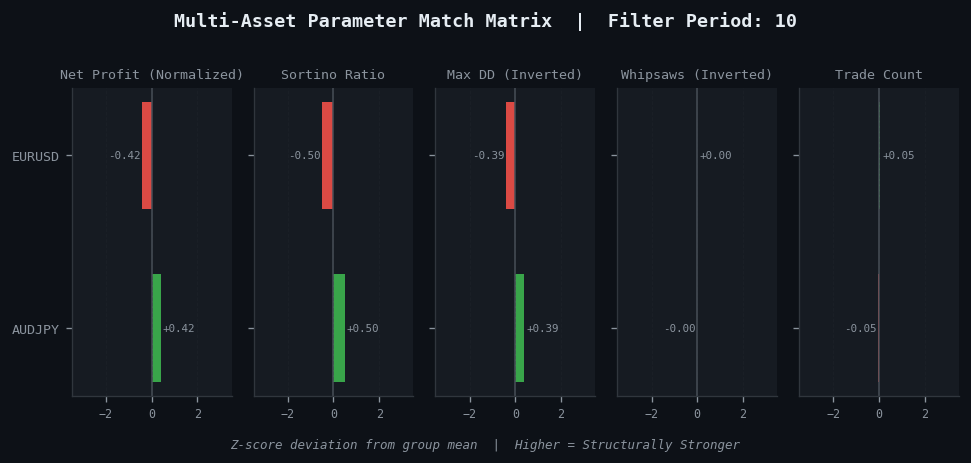
Fig. 1: Multi-Asset Parameter Matrix
Section 4: Chart 2: Signal Lag vs. Whipsaw Frequency (Joint Scatter with Trend Lines)
Structural Necessity
Every smoothing filter applied to price data navigates the same fundamental trade-off. Reducing lag makes the signal more responsive, but it increases false crossovers driven by market noise. Conversely, increasing lag suppresses noise but delays valid entries and exits. This delay directly erodes the time-value of each trading signal. While this relationship is well understood theoretically, it is rarely visualized empirically using real backtest data.
MetaTrader 5 reports a whipsaw count only if the EA explicitly calculates and logs it. Even when logged, no native visualization maps the lag-to-whipsaw relationship across multiple configurations simultaneously. Without this bivariate view, a developer cannot easily evaluate filter efficiency. You cannot identify whether a chosen filter period sits in a high-noise zone or approaches a structural boundary. Ultimately, it is difficult to spot the sweet spot where both lag and false crossover frequency are simultaneously suppressed.
The joint scatter plot with overlaid trend lines resolves these issues. It plots average lag in bars on the X-axis against absolute whipsaw count on the Y-axis for each exported data point. Trend lines fitted per indicator category reveal the unique efficiency slope of each filter class. Exponential averages, adaptive filters, and simple moving averages each describe a distinct trajectory through this space. Finally, points in the lower-left quadrant represent configurations with the highest alpha efficiency because both lag and whipsaws remain low.
Python Implementation (Chart2.py)
def plot_lag_vs_whipsaw(df: pd.DataFrame, save_path: str = None):
    """
    Signal Lag vs. Whipsaw Frequency (Joint Scatter with Trend Lines)

    Plots Avg_Lag_On_Turn_Bars (X) against False_Flips_Whipsaws (Y) for all
    records in the export. Each unique Indicator_Name receives a distinct color
    and a fitted OLS trend line to expose per-category efficiency trajectories.

    Parameters
    ----------
    df        : Full analytics DataFrame from CSV export.
    save_path : File path for saving the output figure (optional).
    """

    # --- Data Preparation
    required = ["Avg_Lag_On_Turn_Bars", "False_Flips_Whipsaws", "Indicator_Name"]
    plot_df  = df[required].dropna()

    indicators = plot_df["Indicator_Name"].unique()
    palette    = sns.color_palette("husl", len(indicators))
    color_map  = dict(zip(indicators, palette))

    # --- Figure Setup
    fig, ax = plt.subplots(figsize=(8.167, 5.4))
    fig.suptitle(
        "Signal Lag vs. Whipsaw Frequency  |  Alpha-Efficiency Boundary Analysis",
        fontsize=11, fontweight="bold", color="#e6edf3"
    )

    for indicator in indicators:
        mask   = plot_df["Indicator_Name"] == indicator
        x_vals = plot_df.loc[mask, "Avg_Lag_On_Turn_Bars"].values
        y_vals = plot_df.loc[mask, "False_Flips_Whipsaws"].values
        color  = color_map[indicator]

        ax.scatter(x_vals, y_vals, color=color, label=indicator,
                   alpha=0.75, s=52, linewidths=0.4,
                   edgecolors="white", zorder=3)

        # OLS trend line per indicator category (requires >= 2 points)
        if len(x_vals) >= 2:
            slope, intercept, r_value, p_value, _ = stats.linregress(x_vals, y_vals)
            x_line = np.linspace(x_vals.min(), x_vals.max(), 120)
            y_line = slope * x_line + intercept
            ax.plot(x_line, y_line, color=color, linewidth=1.5,
                    linestyle="--", alpha=0.7, zorder=2)
            ax.text(x_line[-1] + 0.15, y_line[-1],
                    f"R²={r_value**2:.2f}",
                    fontsize=7, color=color, va="center", alpha=0.9)

    # --- Quadrant Reference Lines
    x_med = plot_df["Avg_Lag_On_Turn_Bars"].median()
    y_med = plot_df["False_Flips_Whipsaws"].median()
    ax.axvline(x_med, color="#484f58", linewidth=0.8, linestyle=":")
    ax.axhline(y_med, color="#484f58", linewidth=0.8, linestyle=":")

    ax.text(plot_df["Avg_Lag_On_Turn_Bars"].min() + 0.1,
            plot_df["False_Flips_Whipsaws"].min() + 0.5,
            "Optimal Region (Low Lag | Low Noise)",
            fontsize=7.5, color="#3fb950", style="italic", alpha=0.8)

    ax.set_xlabel("Average Lag on Turn (Bars)", fontsize=9, labelpad=8)
    ax.set_ylabel("Whipsaw Count (False Flips)", fontsize=9, labelpad=8)
    ax.grid(True, alpha=0.35)
    ax.spines[["top", "right"]].set_visible(False)

    ax.legend(title="Indicator Class", fontsize=8,
              title_fontsize=8, loc="upper left",
              framealpha=0.25, edgecolor="#30363d")

    plt.tight_layout()

    if save_path:
        plt.savefig(save_path, dpi=120, bbox_inches="tight",
                    facecolor=fig.get_facecolor())
    plt.show()


# Execute
plot_lag_vs_whipsaw(
    df,
    save_path=os.path.join(OUTPUT_DIR, "Lag_vs_Whipsaw_Scatter.png")
)
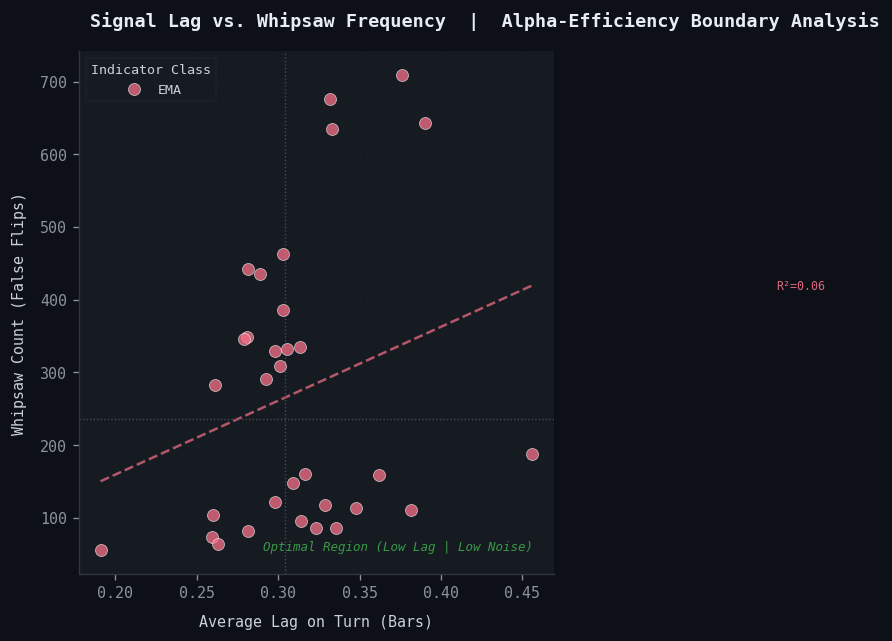
Fig. 2: Lag vs Whipsaw Scatter
Section 5: Chart 3: Walk-Forward Performance Degradation Profile (Paired Slope Chart)
Structural Necessity
Optimization results are vulnerable to overfitting. A parameter set that posts exceptional in-sample returns has often been fitted to a specific historical data slice. Its ability to generalize to unseen market conditions is an entirely separate question. Unfortunately, aggregate optimization reports answer this question poorly. The native MetaTrader 5 optimization output only shows which parameter combinations ranked highest on the in-sample objective function. It completely fails to display how those same combinations performed on a reserved out-of-sample window.
Walk-forward validation is the standard methodology for assessing this generalization capacity. The paired slope chart is the perfect visualization for it. Each strategy configuration is plotted as a line connecting two distinct points. The left spine shows its in-sample score, while the right spine displays its out-of-sample score. The slope of the line encodes the direction and magnitude of performance drift. Strategies with a horizontal or gently declining slope carry transferable structural logic. Conversely, lines that drop precipitously reveal classic curve-fitting signatures. These overfitted parameter sets should be treated with skepticism, regardless of how compelling their headline backtest metrics appear.
This chart does not guarantee that a modest degradation slope translates to live profitability. It exposes strategies with unsustainable historical fits before capital is committed to them.
Python Implementation (Chart3.py)def plot_walkforward_degradation(df: pd.DataFrame, top_n: int = 20, save_path: str = None): """ Walk-Forward Performance Degradation Profile (Paired Slope Chart) Draws a slope chart pairing IS_Score (In-Sample) with OOS_Score (Out-of-Sample) for the top_n configurations ranked by IS_Score. Line color encodes degradation magnitude: green = moderate, orange = significant, red = collapse. Parameters ---------- df : Full analytics DataFrame from CSV export. top_n : Number of top in-sample configurations to display. save_path : File path for saving the output figure (optional). """ required = ["IS_Score", "OOS_Score", "Symbol", "Filter_Period", "Indicator_Name"] plot_df = df[required].dropna().copy() plot_df = plot_df.nlargest(top_n, "IS_Score").reset_index(drop=True) plot_df["Degradation"] = plot_df["OOS_Score"] / (plot_df["IS_Score"].abs() + 1e-9) def assign_color(ratio): if ratio >= 0.70: return "#3fb950" # Retained >= 70% of IS performance elif ratio >= 0.35: return "#d29922" # Moderate degradation (35–70%) else: return "#f85149" # Collapse below 35% of IS performance plot_df["LineColor"] = plot_df["Degradation"].apply(assign_color) fig, ax = plt.subplots(figsize=(8.167, 6.2)) fig.suptitle( "Walk-Forward Performance Degradation Profile | IS vs OOS Structural Decay", fontsize=11, fontweight="bold", color="#e6edf3" ) x_left = 0.0 x_right = 1.0 y_min = min(plot_df["IS_Score"].min(), plot_df["OOS_Score"].min()) - 0.05 y_max = max(plot_df["IS_Score"].max(), plot_df["OOS_Score"].max()) + 0.05 for _, row in plot_df.iterrows(): y_is = row["IS_Score"] y_oos = row["OOS_Score"] color = row["LineColor"] label = f"{row['Symbol']} | {row['Indicator_Name']} | P={int(row['Filter_Period'])}" ax.plot([x_left, x_right], [y_is, y_oos], color=color, linewidth=1.4, alpha=0.80, zorder=2) ax.scatter([x_left], [y_is], color=color, s=32, zorder=3, alpha=0.9) ax.scatter([x_right], [y_oos], color=color, s=32, zorder=3, alpha=0.9, marker="D") ax.text(x_left - 0.03, y_is, label, ha="right", va="center", fontsize=6.2, color="#8b949e") ax.axvline(x_left, color="#484f58", linewidth=0.7, linestyle="--", zorder=1) ax.axvline(x_right, color="#484f58", linewidth=0.7, linestyle="--", zorder=1) ax.text(x_left, y_max + 0.01, "In-Sample Score", ha="center", fontsize=9, fontweight="bold", color="#c9d1d9") ax.text(x_right, y_max + 0.01, "Out-of-Sample Score", ha="center", fontsize=9, fontweight="bold", color="#c9d1d9") from matplotlib.lines import Line2D legend_handles = [ Line2D([0],[0], color="#3fb950", lw=2, label="Moderate Decay (>=70% retained)"), Line2D([0],[0], color="#d29922", lw=2, label="Significant Decay (35–70%)"), Line2D([0],[0], color="#f85149", lw=2, label="Collapse (<35% retained)"), ] ax.legend(handles=legend_handles, fontsize=8, loc="upper center", bbox_to_anchor=(0.5, -0.04), ncol=3, framealpha=0.2, edgecolor="#30363d") ax.set_xlim(-0.65, 1.55) ax.set_ylim(y_min, y_max + 0.12) ax.set_xticks([]) ax.set_ylabel("Performance Score (Normalized)", fontsize=9, labelpad=8) ax.grid(axis="y", alpha=0.25) ax.spines[["top", "right", "bottom"]].set_visible(False) plt.tight_layout() if save_path: plt.savefig(save_path, dpi=120, bbox_inches="tight", facecolor=fig.get_facecolor()) plt.show() # Execute plot_walkforward_degradation( df, top_n=20, save_path=os.path.join(OUTPUT_DIR, "WalkForward_Degradation_Slope.png") )
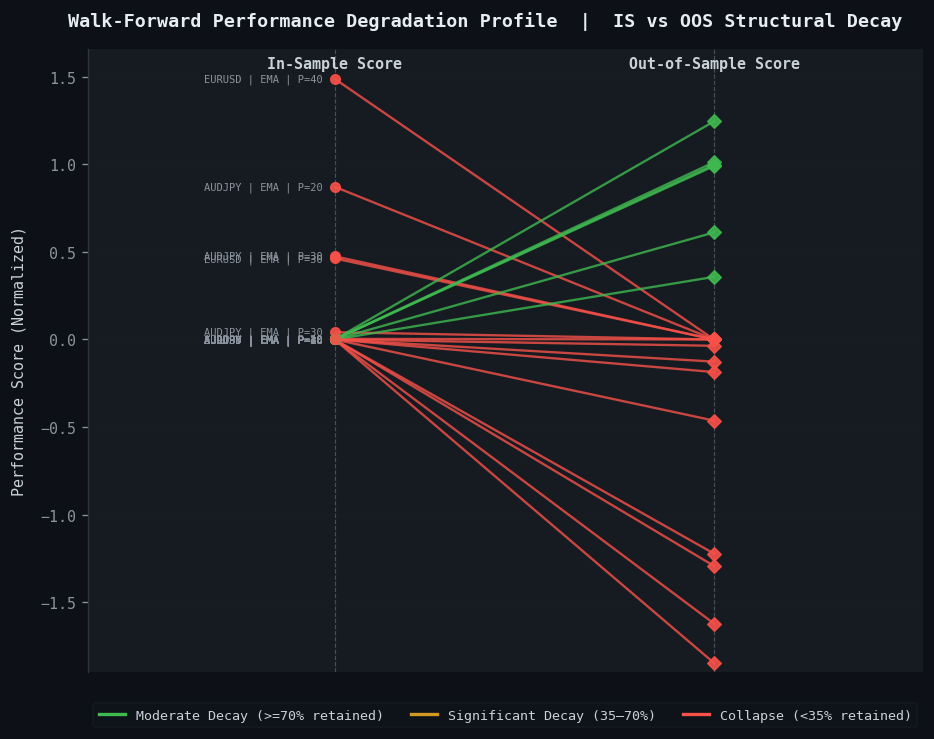
Fig. 3: Walk-Forward Degradation Slope
Section 6: Chart 4: Maximum Drawdown Duration and Depth Distribution (Seaborn KDE)
Structural Necessity
MetaTrader 5 surfaces maximum drawdown as two single-point summaries. It shows the absolute dollar value at the worst trough, along with that trough expressed as a percentage of peak equity. While these numbers describe the most severe individual event, they reveal nothing about the statistical distribution of drawdown behavior. Consequently, you miss out on how drawdowns behave across the full history of the test.
A strategy with a reported 12% maximum drawdown might have reached that number through a single, isolated extreme event. Aside from that single drop, its recovery profile could be completely flat. Alternatively, it might have oscillated through dozens of 8% to 11% drawdown intervals with recovery timelines spanning weeks. This second scenario creates chronic capital impairment that the headline number completely obscures. For position-sizing calculations and risk tolerance assessments, the shape of the drawdown distribution matters far more than any single threshold.
A KDE plot converts logged equity drops into a smooth probability density curve for drawdown depth and duration, avoiding histogram bin artifacts and making recovery behavior easier to compare.
Python Implementation (Chart4.py)def plot_drawdown_distribution(df: pd.DataFrame, save_path: str = None): """ Maximum Drawdown Duration and Depth Distribution (Seaborn KDE) Generates two KDE distribution overlays on a dual-panel figure: Left panel: KDE of Max_Drawdown_PCT across all records. Right panel: KDE of Drawdown_Duration_Bars. Parameters ---------- df : Full analytics DataFrame from CSV export. save_path : File path for saving the output figure (optional). """ dd_depth = df["Max_Drawdown_PCT"].dropna().abs().values dd_duration = df["Drawdown_Duration_Bars"].dropna().values fig, (ax1, ax2) = plt.subplots(1, 2, figsize=(8.167, 5.0)) fig.suptitle( "Drawdown Distribution Profile | Depth and Duration Density Estimation", fontsize=11, fontweight="bold", color="#e6edf3" ) # --- Left Panel: Drawdown Depth KDE sns.kdeplot(dd_depth, ax=ax1, color="#f85149", linewidth=2.2, fill=True, alpha=0.18) ax1.set_xlabel("Drawdown Depth (%)", fontsize=9, labelpad=7) ax1.set_ylabel("Probability Density", fontsize=9, labelpad=7) ax1.set_title("Depth Distribution", fontsize=9, color="#8b949e", pad=6) for pct, pct_val in [(50, np.percentile(dd_depth, 50)), (90, np.percentile(dd_depth, 90)), (95, np.percentile(dd_depth, 95))]: ax1.axvline(pct_val, color="#d29922", linewidth=0.9, linestyle=":", alpha=0.8) ax1.text(pct_val + 0.1, ax1.get_ylim()[1] * 0.92, f"P{pct}: {pct_val:.1f}%", fontsize=6.5, color="#d29922", ha="left") ax1.hist(dd_depth, bins=30, density=True, color="#f85149", alpha=0.10, edgecolor="none", zorder=0) ax1.grid(True, alpha=0.3) ax1.spines[["top", "right"]].set_visible(False) # --- Right Panel: Drawdown Duration KDE sns.kdeplot(dd_duration, ax=ax2, color="#388bfd", linewidth=2.2, fill=True, alpha=0.18) ax2.set_xlabel("Drawdown Duration (Bars)", fontsize=9, labelpad=7) ax2.set_ylabel("Probability Density", fontsize=9, labelpad=7) ax2.set_title("Duration Distribution", fontsize=9, color="#8b949e", pad=6) for pct, pct_val in [(50, np.percentile(dd_duration, 50)), (90, np.percentile(dd_duration, 90)), (95, np.percentile(dd_duration, 95))]: ax2.axvline(pct_val, color="#d29922", linewidth=0.9, linestyle=":", alpha=0.8) ax2.text(pct_val + 0.5, ax2.get_ylim()[1] * 0.92, f"P{pct}: {pct_val:.0f}b", fontsize=6.5, color="#d29922", ha="left") ax2.hist(dd_duration, bins=30, density=True, color="#388bfd", alpha=0.10, edgecolor="none", zorder=0) ax2.grid(True, alpha=0.3) ax2.spines[["top", "right"]].set_visible(False) plt.tight_layout() if save_path: plt.savefig(save_path, dpi=120, bbox_inches="tight", facecolor=fig.get_facecolor()) plt.show() # Execute plot_drawdown_distribution( df, save_path=os.path.join(OUTPUT_DIR, "Drawdown_Distribution_KDE.png") )
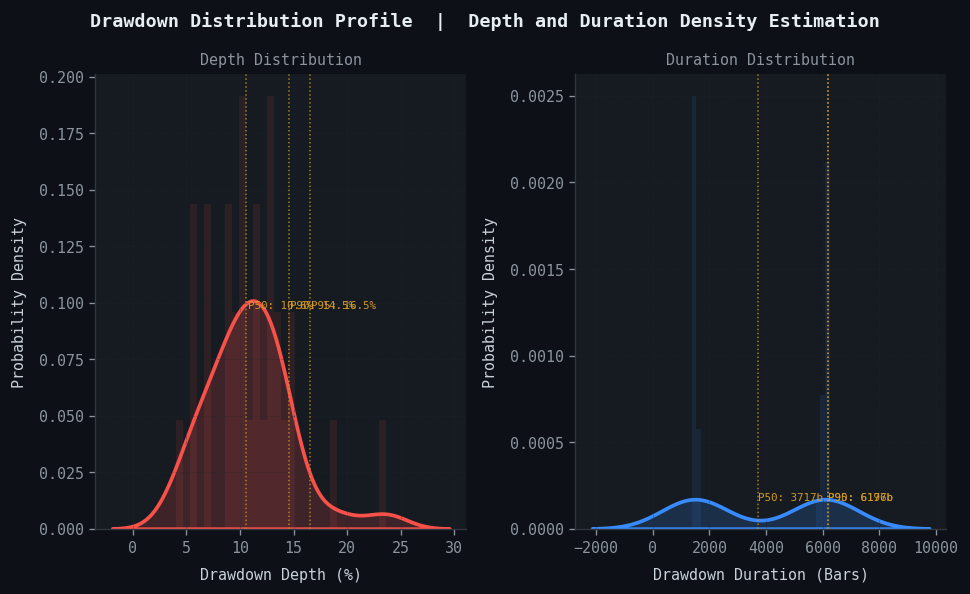
Fig. 4: Drawdown Distribution KDE
Section 7: Chart 5: Intraday and Intraweek Alpha Clusters (Hour-by-Day Heatmap)
Structural Necessity
Algorithmic systems face shifting liquidity regimes in FX and commodity markets. The Asian session carries structurally different volatility and directional bias. These behaviors differ completely from the London open or the New York overlap. A strategy tuned on 24-hour aggregate data can be highly misleading. It may extract its entire edge from a narrow two-hour window. Meanwhile, it loses capital across the remaining sessions. Similarly, net-positive results can hide systematic loss profiles on Mondays and Fridays. In those cases, three profitable trading days are simply subsidizing the bad ones.
MetaTrader 5 does not generate a temporal performance grid. You can sort and filter the trade history table manually. However, aggregating performance by hour and day requires external processing. This heatmap provides exactly that view. It uses a two-dimensional matrix to organize your trade data. Rows represent trading hours from 0 through 23 UTC. Columns represent weekdays from Monday through Friday. Finally, each cell's color intensity encodes the net profit or average return for trades executed at that specific intersection.
This layout exposes session dependencies and anomalous intraweek time slots, and it provides the inputs needed for session filters or exposure reduction during weak periods.
Python Implementation (Chart5.py)def plot_intraday_heatmap(df: pd.DataFrame, metric: str = "Net_Profit_USD", save_path: str = None): """ Intraday and Intraweek Alpha Clusters (Hour-by-Day Performance Heatmap) Aggregates the chosen performance metric by Entry_Hour (0–23) and Entry_DayOfWeek (0=Monday, 4=Friday), then renders a seaborn heatmap with annotated cell values and session zone overlays. Parameters ---------- df : Full analytics DataFrame from CSV export. metric : Column to aggregate into the heatmap cells. save_path : File path for saving the output figure (optional). """ required = ["Entry_Hour", "Entry_DayOfWeek", metric] plot_df = df[required].dropna().copy() plot_df["Entry_Hour"] = plot_df["Entry_Hour"].astype(int) plot_df["Entry_DayOfWeek"] = plot_df["Entry_DayOfWeek"].astype(int) pivot = plot_df.pivot_table(index="Entry_Hour", columns="Entry_DayOfWeek", values=metric, aggfunc="mean") pivot = pivot.reindex(index=range(24), columns=range(5), fill_value=0.0) day_labels = {0: "Mon", 1: "Tue", 2: "Wed", 3: "Thu", 4: "Fri"} pivot.rename(columns=day_labels, inplace=True) fig, ax = plt.subplots(figsize=(8.167, 7.6)) fig.suptitle( f"Intraday Alpha Cluster Heatmap | {metric} by Session Hour and Weekday", fontsize=11, fontweight="bold", color="#e6edf3" ) cmap = sns.diverging_palette(10, 130, as_cmap=True) sns.heatmap(pivot, ax=ax, cmap=cmap, center=0, linewidths=0.4, linecolor="#21262d", annot=True, fmt=".0f", annot_kws={"size": 6.5, "color": "#e6edf3"}, cbar_kws={"label": metric, "shrink": 0.75, "pad": 0.02}) # --- Session Zone Overlays (approximate UTC ranges) session_zones = [ (0, 9, "Asian", "#388bfd", 0.06), (7, 16, "London", "#3fb950", 0.06), (13, 22, "New York", "#d29922", 0.06), ] for row_start, row_end, label, color, alpha in session_zones: ax.add_patch( plt.Rectangle((0, row_start), len(pivot.columns), row_end - row_start, fill=True, color=color, alpha=alpha, zorder=0) ) ax.text(-0.35, (row_start + row_end) / 2, label, va="center", ha="right", fontsize=7, color=color, rotation=90, style="italic") ax.set_xlabel("Weekday", fontsize=9, labelpad=7) ax.set_ylabel("Entry Hour (UTC)", fontsize=9, labelpad=7) ax.tick_params(axis="both", labelsize=8) ax.set_yticklabels([f"{h:02d}:00" for h in range(24)], fontsize=7, rotation=0) cbar = ax.collections[0].colorbar cbar.ax.yaxis.label.set_color("#c9d1d9") cbar.ax.tick_params(labelcolor="#8b949e") plt.tight_layout() if save_path: plt.savefig(save_path, dpi=120, bbox_inches="tight", facecolor=fig.get_facecolor()) plt.show() # Execute plot_intraday_heatmap( df, metric="Net_Profit_USD", save_path=os.path.join(OUTPUT_DIR, "Intraday_Performance_Heatmap.png") )
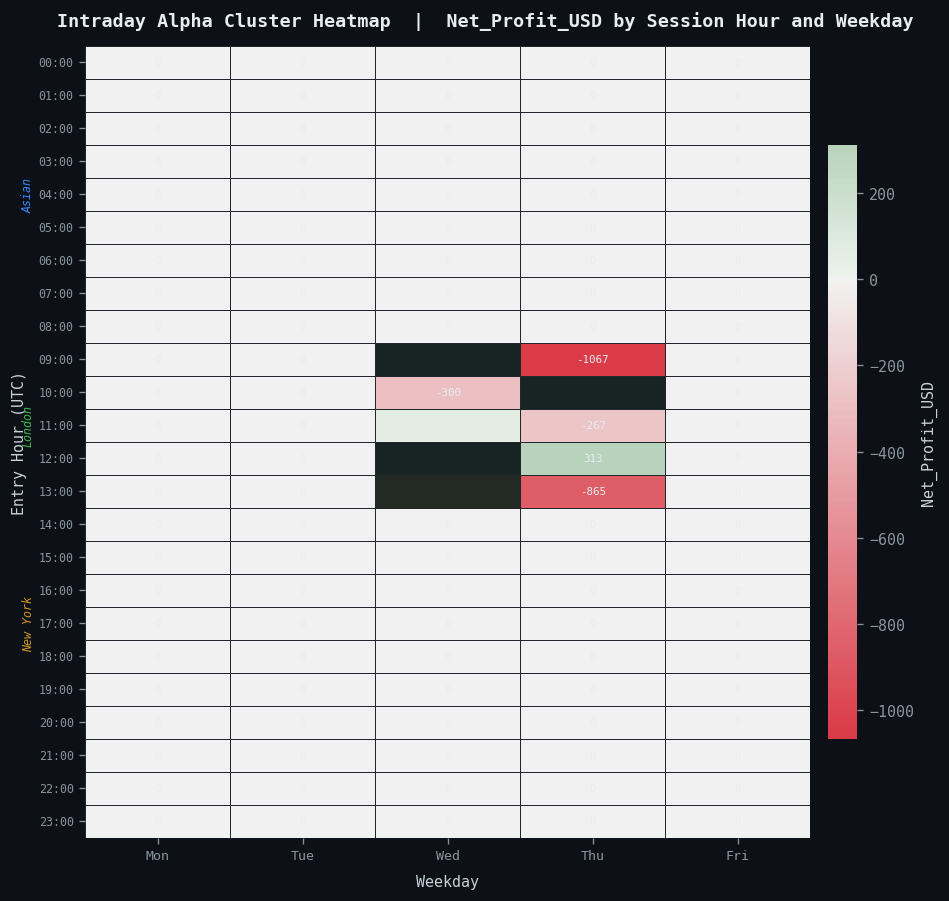
Fig. 5: Intraday Performance Heatmap
Section 8: Automated Deployment Architecture
Each of the five functions above operates independently. However, you can combine them into a single callable analytics module. Doing so removes manual execution overhead. It allows the full visualization suite to run against any new export file. Ultimately, you can generate every chart with a single command.
The following wrapper consolidates all chart functions. It routes them through a sequenced execution pipeline. Configuration is completely centralized at the top of the file. Additionally, all output paths derive from a single root variable. With this structure, relocating the export folder requires only one edit.
# MT5 Analytics Suite  |  Unified Execution Module
# Reads:  exports/analytics_export.csv
# Writes: charts/  (PNG files, 120 DPI, max width 8.167 inches)

import os
import pandas as pd
import numpy as np
import matplotlib.pyplot as plt
import matplotlib.ticker as mticker
import seaborn as sns
from scipy import stats
from scipy.stats import gaussian_kde
from matplotlib.lines import Line2D


BASE_DIR   = os.path.dirname(os.path.abspath(__file__))
DATA_PATH  = os.path.join(BASE_DIR, "exports", "analytics_export.csv")
OUTPUT_DIR = os.path.join(BASE_DIR, "charts")
os.makedirs(OUTPUT_DIR, exist_ok=True)

plt.rcParams.update({
    "figure.facecolor" : "#0d1117",  "axes.facecolor"   : "#161b22",
    "axes.edgecolor"   : "#30363d",  "axes.labelcolor"  : "#c9d1d9",
    "xtick.color"      : "#8b949e",  "ytick.color"      : "#8b949e",
    "text.color"       : "#c9d1d9",  "grid.color"       : "#21262d",
    "grid.linestyle"   : "--",       "grid.linewidth"   : 0.6,
    "font.family"      : "monospace","font.size"        : 9,
})


def load_analytics_export(path: str) -> pd.DataFrame:
    if not os.path.isfile(path):
        raise FileNotFoundError(
            f"Export file not found at:\n  {path}\n\n"
            "Ensure the MQL5 EA has written to this location or adjust DATA_PATH."
        )
    df = pd.read_csv(path)
    print(f"[Loaded] {len(df):,} records from {os.path.basename(path)}")
    return df


# --- Paste all five chart functions here as defined in the sections above ---
# plot_multi_asset_parameter_matrix()
# plot_lag_vs_whipsaw()
# plot_walkforward_degradation()
# plot_drawdown_distribution()
# plot_intraday_heatmap()


def run_full_suite(data_path=DATA_PATH, output_dir=OUTPUT_DIR,
                   wf_top_n=20, target_period=10):
    df = load_analytics_export(data_path)

    chart_map = {
        "Multi_Asset_Parameter_Matrix.png": lambda: plot_multi_asset_parameter_matrix(
            df, target_period=target_period,
            save_path=os.path.join(output_dir, "Multi_Asset_Parameter_Matrix.png")),
        "Lag_vs_Whipsaw_Scatter.png": lambda: plot_lag_vs_whipsaw(
            df, save_path=os.path.join(output_dir, "Lag_vs_Whipsaw_Scatter.png")),
        "WalkForward_Degradation_Slope.png": lambda: plot_walkforward_degradation(
            df, top_n=wf_top_n,
            save_path=os.path.join(output_dir, "WalkForward_Degradation_Slope.png")),
        "Drawdown_Distribution_KDE.png": lambda: plot_drawdown_distribution(
            df, save_path=os.path.join(output_dir, "Drawdown_Distribution_KDE.png")),
        "Intraday_Performance_Heatmap.png": lambda: plot_intraday_heatmap(
            df, metric="Net_Profit_USD",
            save_path=os.path.join(output_dir, "Intraday_Performance_Heatmap.png")),
    }

    for chart_name, chart_fn in chart_map.items():
        print(f"\n[Rendering] {chart_name}")
        try:
            chart_fn()
        except Exception as exc:
            print(f"  [Warning] {chart_name} skipped: {exc}")

    print(f"\n[Complete] All charts written to: {output_dir}")


if __name__ == "__main__":
    run_full_suite()
File Path Resolution for the MetaTrader 5 Terminal Sandbox
MetaTrader 5's `FileOpen` function writes exclusively to a specific directory. It uses the `MQL5\Files\` subdirectory within the terminal's data folder. You can link the Python module directly to this location. This approach completely eliminates the need for manual file copying. To set this up, simply replace the `BASE_DIR` definition with an automatic terminal path resolver:
import os

# Windows: locate the MT5 terminal data folder automatically
MT5_APPDATA = os.path.join(
    os.environ.get("APPDATA", ""),
    "MetaQuotes", "Terminal"
)

# List all terminal instance directories
terminal_instances = [
    d for d in os.listdir(MT5_APPDATA)
    if os.path.isdir(os.path.join(MT5_APPDATA, d))
]

# Use the first instance, or specify the exact InstanceID string
INSTANCE_ID = terminal_instances[0]

MT5_FILES_DIR = os.path.join(MT5_APPDATA, INSTANCE_ID, "MQL5", "Files")
DATA_PATH     = os.path.join(MT5_FILES_DIR, "analytics_export.csv")
The EA writes a new CSV during each backtest or scheduled trigger. The Python module then reads from that location directly on its next execution. This seamless connection eliminates any intermediary steps. You no longer need to copy files manually.
Section 9: Extension Framework and Forward Development Paths
The pipeline described in this article addresses five specific visualization gaps. However, the underlying architecture remains highly extensible. You can easily expand it to cover a broad range of additional analytical requirements. This flexible design allows for seamless future updates.
Rolling Window Parameter Analysis: The current parameter matrix aggregates data across all available history. A natural extension inserts a rolling window dimension to this analysis. Instead of a single aggregate z-score per instrument, the chart evolves across successive 60-day or 90-day windows. This process exposes a parameter configuration's cross-asset consistency over time. Ultimately, it shows whether that consistency remains stable or deteriorates as market regimes shift.
Automated Batch Export Triggers via MQL5: An MQL5 EventScheduler-based trigger can fire the Python module directly using `ShellExecuteW`. This setup means you no longer have to run the EA and invoke the Python script manually. Instead, the process triggers automatically after each optimization pass or at set calendar intervals during live trading. The EA simply writes the updated CSV and calls the Python executable. Ultimately, it produces a fresh set of charts without any human intervention.
//--- Trigger Python analytics suite from within MQL5
string pythonPath = "C:\\Python311\\python.exe";
string scriptPath = "C:\\MT5_Analytics\\run_analytics_suite.py";
string command    = pythonPath + " " + scriptPath;

ShellExecuteW(NULL, "open", "cmd.exe",
              "/c " + command, NULL, SW_HIDE);
Multi-Run Comparative Overlays: The current module processes only a single export file. However, you can extend the loader to accept a list of multiple export paths instead. This upgrade allows the walk-forward degradation chart and the KDE distributions to overlay results from different EA versions. Consequently, you gain a clear, direct visual comparison of structural changes between algorithm iterations.
Statistical Significance Annotation: The lag-versus-whipsaw scatter plot currently displays R² values for each trend line. A valuable enhancement applies permutation testing or bootstrap confidence intervals to each regression slope. This additional step formally calculates the validity of the trend. Specifically, it marks whether the apparent efficiency relationship is statistically distinguishable from random variation at a specified alpha level.
Conclusion
The five visualizations presented in this guide address specific limitations in MetaTrader 5's native reporting system:
- Parameter Match Matrix: Surfaces cross-asset behavioral variance that single-instrument reports omit.
- Signal Lag Scatter: Quantifies the empirical trade-off between responsiveness and noise using real backtest data.
- Walk-Forward Slope Chart: Highlights curve-fitting signatures to identify non-generalizable parameter sets.
- KDE Drawdown Distributions: Exposes the probabilistic distribution of equity loss events that single-point statistics flatten.
- Intraday Heatmap: Isolates whether an algorithm's edge is uniform or concentrated within specific liquidity sessions.
These charts do not replace statistical hypothesis testing or serve as standalone deployment recommendations. Instead, they reduce analytical friction during research. Rather than cross-referencing multiple static reports, developers can inspect a single visual artifact to identify structural features requiring deeper investigation.
The MQL5 execution environment generates the performance data, while Python handles the processing and rendering. Establishing this automated path allows developers to bypass native terminal visualization limits entirely. Ultimately, it integrates backtest outputs directly into a standard quantitative workflow.
Programs used in the article:
| # | Name | Type | Description |
|---|---|---|---|
| 1 | Chart1.py | Python Script | Compares normalized performance metrics across multiple trading symbols for a selected filter period. Metrics are z-score scaled and displayed as a diverging bar chart so cross-asset strengths and weaknesses are easy to spot at a glance. |
| 2 | Chart2.py | Python Script | Plots Avg_Lag_On_Turn_Bars against False_Flips_Whipsaws for every record in the export. Each indicator class receives a distinct color and a fitted OLS trend line. An R² annotation on each line exposes the strength of the lag-to-noise relationship per filter category. The lower-left quadrant marks the target region where both metrics are simultaneously minimized. |
| 3 | Chart3.py | Python Script | Draws a paired slope chart connecting each configuration's in-sample score on the left spine to its out-of-sample score on the right spine. Line color encodes degradation magnitude: green for modest decay, amber for significant decay, and red for collapse. Each entry is labeled with its instrument, indicator class, and filter period. |
| 4 | Chart4.py | Python Script | Generates two side-by-side kernel density estimation panels from the analytics export. The left panel maps drawdown depth distribution across the loss spectrum. The right panel maps drawdown duration in bars. Percentile markers at P50, P90, and P95 are overlaid on both panels, with histogram bins providing frequency context beneath each smooth density curve. |
| 5 | Chart5.py | Python Script | Aggregates the chosen performance metric by Entry_Hour and Entry_DayOfWeek, then renders a seaborn heatmap with annotated cell values. Translucent horizontal bands mark approximate UTC session windows for the Asian, London, and New York sessions. Each cell shows the mean net profit for all trades entering during that specific hour-and-weekday intersection. |
| 6 | Unified_Execution_Module.py | Python Script | The automation entry point for the full visualization suite. It loads the analytics export once, resolves the MetaTrader 5 terminal file path automatically, and calls all five chart functions in sequence. Each chart is saved to the configured output directory at 980px width. A single command-line execution regenerates the complete chart set against any new export file. |
| 7 | analytics_export.csv | Sample csv file | The normalized sample data file written by the MQL5 Expert Advisor in MetaTrader 5. It is the single data source for all five charts, containing per-trade and per-configuration records across all tracked metrics. |
| 8 | CSV_Data_Analysis_Part3.zip | Zip Archive | Zip archive containing all the attached files and their paths relative to the terminal's root folder. |
Warning: All rights to these materials are reserved by MetaQuotes Ltd. Copying or reprinting of these materials in whole or in part is prohibited.
This article was written by a user of the site and reflects their personal views. MetaQuotes Ltd is not responsible for the accuracy of the information presented, nor for any consequences resulting from the use of the solutions, strategies or recommendations described.

 Market Microstructure in MQL5 (Part 5): Microstructure Noise
 MQL5 Wizard Techniques you should know (Part 95): Using Disjoint Set Union and Deep Belief Network in a Custom Signal Class
 A Generic Object Pool in MQL5: Eliminating Heap Fragmentation in High-Frequency Indicators
 Implementing a Fluent Interface Builder Pattern for MQL5 Order Construction

- Free trading apps
- Over 8,000 signals for copying
- Economic news for exploring financial markets
You agree to website policy and terms of use