

Introduction to MQL5 (Part 33): Mastering API and WebRequest Function in MQL5 (VII)
 2 444
2 444
 0
0

Introduction
Welcome back to Part 33 of the Introduction to MQL5 series. In the previous parts of this journey, we focused on how MQL5 can communicate with external platforms using APIs and the WebRequest function. You learned how to send HTTP requests, receive and interpret server responses, organize candle data, save it into files, and visualize that data inside custom indicators. These steps helped build a strong foundation for working with external data in MetaTrader 5.
In this article, we connect MetaTrader 5 to the Google Generative AI API to investigate a more sophisticated and useful use case. Sending text-based queries, receiving intelligent responses, correctly formatting request bodies, parsing server responses, extracting valuable information from JSON data, and managing API limits like queries per minute, requests per day, and tokens per minute will all be covered.
You will have a good understanding of how AI APIs integrate into the MQL5 WebRequest workflow by the end of this tutorial. More significantly, you will see how this method can be used as a substitute for adding sophisticated logic to your programs. This makes it possible to create intelligent tools within MetaTrader 5, including trading assistants, learning assistants, automatic explanations, or other clever features that go beyond conventional trading logic.
Understanding Rate Limits in API Usage
The frequency at which you can submit calls to APIs such as the Google API is limited by built-in limitations. These restrictions are in place to maintain system stability and ensure equitable access for all users. Without them, too many requests could overwhelm the server, resulting in mistakes or slowdowns that impact not just your software but also others. The purpose of rate restrictions is to control API traffic and avoid abuse. They provide precise limits on the frequency of communication between your program and the server, whether it is per minute or per day. All users will have equitable access thanks to this approach, which also prevents any one user from controlling all server resources.
You can improve the efficiency of the program by understanding and adhering to rate constraints. To stay inside the constraints, they can employ strategies like combining requests together, temporarily storing responses, or postponing calls. This method reduces errors, maintains seamless performance, and enhances user and developer experience.
Analogy:
Imagine a library with a single bookcase where numerous patrons wish to check out books at once. The librarian sets a restriction on how many books each customer may take in a given amount of time, such as five volumes per minute, to maintain fairness and avoid crowding. In a scenario like this, the API server is similar to the ticket counter, the tickets are the requested data, and the station's rules are the rate limit system. The regulations halt additional requests until it is safe to proceed when too many passengers attempt to make them at once. This prevents overcrowding at the desk and ensures that every traveler has equal access.
Rate limitations are enforced by APIs such as Google's to regulate how often your software can submit requests. Similar to waiting before receiving additional tickets after hitting a personal limit, your program must either wait or decrease the frequency of requests if it exceeds the limit. This prevents mistakes brought on by system overload, maintains the server's smooth operation, and encourages equitable usage.
Requests per Minute
Understanding how rate restrictions actually operate is the next step after realizing that requests are not limitless. RPM is the first and most significant constraint. The number of separate API calls your program may send to the server in a minute is known as requests per minute (RPM). Each time your MQL5 program communicates with the API via WebRequest, it counts as one request against this cap. Your RPM usage increases regardless of how simple or complex the request is. For example, if your software has a 60 RPM limit, it can send out up to 60 requests in a minute. You can submit more than one request at once, and you don't have to wait exactly one second between requests. Any additional requests may be turned down or postponed until the next minute starts once the amount of 60 has been reached.
The goal is to stop your program from sending too many requests to the server in a brief amount of time. The server may slow down, return errors, or momentarily prevent more requests if too many come in at once. API providers guarantee that all users can dependably access the service by enforcing limitations. In practical terms, it's critical to keep an eye on how frequently your MQL5 software sends queries. The RPM barrier can be readily exceeded by submitting several requests at once or in quick succession.
Additional requests may be rejected until the following minute after the limit is reached, usually with an error message indicating that the maximum number of requests has been reached. You can monitor the time of your last request and apply a little delay before sending the following one to prevent going above limitations. Reusing previous answers or merging several queries into one can also assist in cutting down on pointless requests. These techniques maintain the smooth operation of your program and keep interruptions from exceeding rate limits.
Requests per Day
RPD is another significant rate limit. RPD specifies the maximum amount of requests your software can send in a single day, in contrast to RPM, which regulates requests per minute. Monitoring daily consumption is essential for MQL5 developers who deal with frequent API calls. Program operation may be impacted if the RPD limit is reached since further requests may be rejected until the daily limit resets, which typically occurs at midnight UTC. You should optimize your program by sending only necessary requests and, when feasible, recycling previously acquired data to prevent exceeding RPD restrictions. Reducing pointless calls, caching results, and combining several inquiries into a single request are efficient ways to guarantee that your service is operational all day long while adhering to the daily request cap.
Tokens per Minute
Another crucial component of using APIs is the restriction, especially for AI-based APIs like the Google Generative AI API. TPM counts the quantity of computational or textual content handled per minute, as opposed to RPM or RPD, which count requests. In actuality, every request uses a specific quantity of tokens, which are essentially text segments that include both the prompt you send and the response the API generates. It makes ensuring that complicated or massive requests don't overwhelm the API server. Sending lengthy prompts or asking for large responses will quickly deplete the TPM allotment, even if your program maintains RPM and RPD restrictions. It is crucial to monitor token usage since once the limit is met, additional requests will be postponed or denied until the next minute.
You can reduce the size of request prompts, restrict the creation of extraneous text, and, if feasible, reuse or truncate earlier responses to efficiently manage the limit in MQL5. You may maintain seamless API communication and avoid disruptions brought on by going over the tokens per minute restriction by keeping an eye on and optimizing token consumption. It is calculated by tallying every token that the API processes in a minute. A token in AI APIs can be punctuation, a whole word, or a portion of a word. For instance, the words "Hello, world!" stand for four tokens: "Hello," "world," and "!." This total includes both the request text you submit and the AI-generated response.
Every minute, the API keeps track of how many tokens were handled overall from all of your program's queries. The server will momentarily refuse further requests until the following minute starts if this sum exceeds your permitted TPM. This implies that a substantial amount of your token allotment may be used by a single request with a huge prompt or a request that elicits a lengthy response. The tokens in each request and answer must be added up to calculate TPM for your MQL5 software. To make it simpler to track consumption, several APIs offer tools or fields in their answers that show how many tokens were used. You may optimize prompt sizes, pace your calls, and make sure your program stays within the TPM limit by monitoring the tokens per request.
It's crucial to remember that TPM normally contains the tokens from both your prompt and the server's response, but it usually excludes other headers or metadata. Significant tokens can be consumed by either a long prompt with a short response or a short prompt with a long response. Additionally, different platforms may count tokens differently, so always consult the relevant API documentation to see how TPM is calculated and make sure your program is accurately tracked.
Generating API Key
You must understand the definition and function of an API key before utilizing an API. An API key is a special number that the API provider assigns to your application to identify it. It enables the server to monitor use and authenticate requests. The API typically rejects requests without a valid key because it is unable to verify the source or control rate limits. Additionally, the API key aids the service provider in monitoring usage, enforcing rate restrictions, and preventing unwanted access to the API. The server can impose constraints like RPM, RPD, and TPM particularly on your account because every request you send contains this key. To put it simply, the token enables the server to react appropriately by informing the API that "this request is coming from me."
As previously stated in this piece, our examples will make use of the Google free API. You must first create an API key to interact with Google's Gemini API using MQL5. Depending on the API requirements, either the request body or the WebRequest headers will contain this key. You will discover how to create this key step-by-step and get it ready for usage in your MQL5 programs in the following section.
Analogy:
Imagine a library where patrons must present a current library card to access books. The card verifies the visitor's identity and assists the librarian in keeping track of the quantity and frequency of books checked out. Access to the books is prohibited without it. In this case, the books stand in for the answers the API returns, the library card serves as the API key, and the librarian represents the API server.
You must first create an API key to use the Google Generative AI API. This key will enable Google's servers to identify your application and authenticate your MQL5 requests. To begin, launch your browser and navigate to aistudio.google.com. Look for and click the "Get API Key" option when the page loads. This will direct you to the area where you may generate and control API keys for Google's AI services.
After that, select "Create API Key." A prompt asking you to name the key will appear. This name is primarily for your personal use and aids in determining the purpose of the key, particularly if you intend to generate several keys in the future. Create the key after you've entered a suitable name. Google will show the key on the screen after it has been generated. It is crucial to copy and save the API key right away at this time. Keep it in a secure location, such as a password manager or protected text file. Later on, while making WebRequest requests from MQL5, you will want this key; if it is misplaced or compromised, you might need to produce a new one.
Sending Google AI Requests in MQL5
Enabling request sending from MQL5 to the Google Generative AI API is the next step after obtaining the API key. This necessitates granting MetaTrader 5 access to the API endpoint. Before continuing, use Ctrl + O to open the Options window, select the Expert Advisors tab, and enter the API URL in the "Allow WebRequest for listed URL" area.
https://generativelanguage.googleapis.com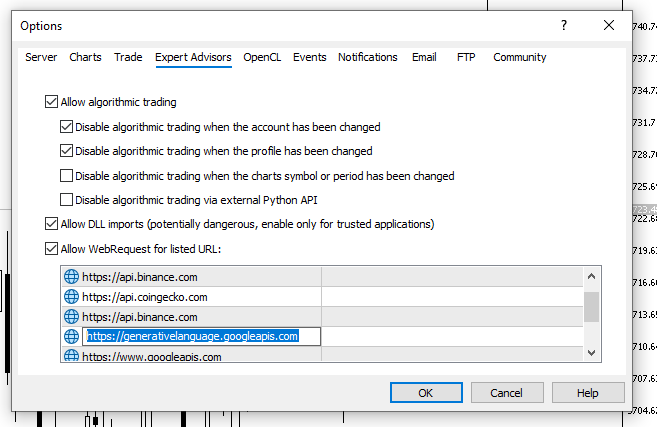
Because MetaTrader 5 automatically restricts external web queries for security reasons, this step is crucial. You are specifically informing MetaTrader 5 that your MQL5 program is allowed to submit requests to Google's API service by including this URL. After that, you may write the MQL5 code that uses the WebRequest function to deliver and receive data. Writing an MQL5 script that sends a WebRequest comes next after the API key has been generated and the necessary URL has been added to MetaTrader 5's list of permitted WebRequest. The creation of the request, the attachment of the API key, the transmission of data to the Google Generative AI API, and the reception of the server's answer will all be handled by this script.
Example:
string API_KEY = "AbcdefCKJXiFPdvvM6f4ivPZ-zA2Qnoq6gabcde";
//+------------------------------------------------------------------+
//| Script program start function                                    |
//+------------------------------------------------------------------+
void OnStart()
  {
//---
   string url =  "https://generativelanguage.googleapis.com/v1beta/models/"
                 "gemini-2.5-flash-lite:generateContent?key=" + API_KEY;

  }
Explanation:
The first step is to define the API key, which is the Google credential that you previously created. To authenticate each request made to the Google Generative AI API, this key is necessary. By identifying your account or project, it enables the server to track usage and impose restrictions such as tokens per minute, requests per day, and requests per minute. It is simple to reuse the API key each time your MQL5 software submits a request if you store it in a variable. Knowing how the API request URL is constructed is another important idea. The domain, path, and query string comprise a full URL. The domain designates the target server and signifies the use of a secure connection. It directs users to Google's Generative AI server, which handles inbound queries in this case.
The path, which comes right after the domain, details the precise resource or action that the server must perform. It indicates the specific AI model and operation to be carried out and includes the API version. This portion of the URL explicitly instructs the server on what to do upon receiving the request. The query string, which provides additional information needed to perform the request, is the final part. The API key is sent here so the server can confirm the request. Multiple parameters and customization of the request are possible with query strings.
When these components are combined, a complete URL is produced that enables MetaTrader 5 to communicate with the Google Generative AI API. The path specifies the action to be taken, the query string offers identification, and the domain establishes where the request is made. This structure guarantees accurate and safe communication between the WebRequest function and the API.
Analogy:
The API key functions similarly to a library card. The API key identifies your application to the Google server and allows access to its AI services, much like a library card verifies your identity and allows you to check out books. Access is restricted, and no answers are given in the absence of the card or key. A particular area within a library can be compared to the path in the URL. You move straight to the section that has the books you need when searching for a specific topic. Similarly, the path sends your request to a particular AI model and instructs it on exactly what to do.
It functions similarly to showing your card and making a request at the library desk when combined with the query string and API key. The librarian checks your information before handing you the book when you show them your card and choose which book you would like. Similarly, the query string comprises any additional information needed for the request and identifies the requester to the server.
Adding all the WebRequest's necessary parameters is the next stage. This entails defining the request's body, headers, and request method. These parameters instruct MetaTrader 5 on what data to submit, how to interpret the response, and how to interact with the Google Generative AI API. Your MQL5 script can perform queries, get responses, and manage the data returned by the API if these parameters are specified correctly.
Example:
string API_KEY = "AbcdyCKJXiFPdvvM6f4ivPZ-zA2Qnoq6gabcde";
//+------------------------------------------------------------------+
//| Script program start function                                    |
//+------------------------------------------------------------------+
void OnStart()
  {
//---
   string url =  "https://generativelanguage.googleapis.com/v1beta/models/"
                 "gemini-2.5-flash-lite:generateContent?key=" + API_KEY;

   string headers = "Content-Type: application/json\r\n";
   string body = "{"
                 "\"contents\": ["
                 "{"
                 "\"parts\": ["
                 "{"
                 "\"text\": \"Tell me about MQL5\""
                 "}"
                 "]"
                 "}"
                 "]"
                 "}";

   char data[];
   int copied = StringToCharArray(body, data, 0, WHOLE_ARRAY, CP_UTF8);

   if(copied > 0)
      ArrayResize(data, copied - 1);

   char result[];
   string result_headers;
   int timeout = 15000;

   int response = WebRequest("POST",url,headers,timeout,data,result,result_headers);

   if(response == -1)
     {
      Print("WebRequest failed. Error: ", GetLastError());
      return;
     }

   string response_text = CharArrayToString(result);
   Print(response_text);

  }
Explanation:
Determining the request headers is the first stage in sending a WebRequest. Here, the header tells the server how to understand the data by indicating that the content is in JSON format. Declaring this guarantees the server can handle the request appropriately because the Google Generative AI API requires JSON queries. In essence, headers offer metadata that directs the server's processing of the incoming data. Your data is prepared in accordance with the API guidelines and sent to the request body. This uses a JSON object with a "contents" array in Gemini AI, each of which has "parts" with a "text" field for the AI question.
'{
"contents":
[
   {
 "parts": [
      {
 "text": "How does AI work?"
      }
    ]
  }
]
  }'
This arrangement guarantees that the server can accurately decipher the message and respond. For the API to process the body, it must precisely adhere to the format. The string is transformed into a UTF-8 encoded array to guarantee that all characters, including special symbols, are conveyed correctly because the WebRequest function in MQL5 needs the body to be a character array. After the conversion, a null character that is added by default is removed by resizing the character array. By doing this step, the server is guaranteed to receive accurate data free of extraneous characters that could render the JSON incorrect.
To hold the information that the server returns, variables are initialized. A timeout is set to regulate waiting time, headers are stored individually, and the response body is stored in a character array. These procedures guarantee that the script can precisely record all the information returned by the server. The WebRequest function uses the configured headers, content, and timeout to make the request to the URL. A status code indicating whether the request was successful is returned. If it fails, the application halts and prints the final error code, which is crucial feedback for debugging and avoiding the usage of incorrect data.
Lastly, the server's response is transformed back into a string after being received as a character array. The application can now read, process, or show the content created by AI thanks to this conversion. The process of submitting and receiving a WebRequest in MQL5 is now complete since the response includes the data produced by the AI based on the prompt supplied in the request.
Analogy:
The headings serve as a means of communicating your preferred delivery method for the book to the librarian. You are basically saying, "Please handle this request in the way I can read and understand" by indicating that the content is in JSON format. The librarian might provide you with the incorrect format or be unable to handle your request if you don't give them this instruction.
The request's body is similar to the letter you provide the librarian outlining the precise book or information you're looking for. The Gemini AI manual states that the note must adhere to a particular format: it must describe the contents you are asking for, together with the specific wording and sections of each element. For instance, the librarian will know exactly what information to obtain if you write in the note, "How does AI work?" This guarantees that the appropriate information is provided and that your request is appropriately interpreted.
It's similar to transforming your note into a format that the library system can understand by converting the body into a character array. MQL5 transforms the string into a UTF-8 encoded array so the server can comprehend it, much like a librarian may scan a QR code or enter text into a computer for processing. Eliminating the extra null character is similar to making sure the note has no mistakes or unnecessary markings that could confuse the librarian.
The variables supplied for the response are similar to having a special tray or notebook where the requested books or information will be placed by the library. Telling the librarian how long you are willing to wait for the information before returning at a later time is similar to using the timeout. It's similar to giving the librarian your note and waiting for them to retrieve the book when the WebRequest is delivered. The librarian will notify you with an error message if something goes wrong, such as the note being invalid.
It's similar to opening a book or reading a message from the librarian when you convert the response from a character array into a string. The information can now be used and interpreted. Sending a properly prepared request, waiting for it to be processed, and receiving the data in a readable manner are all steps in the WebRequest process that are comparable to going to the library.
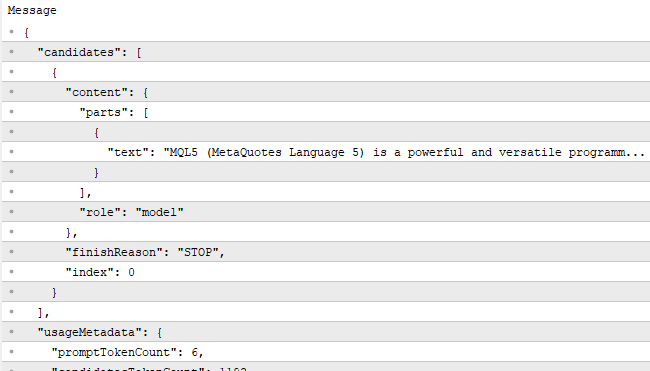
Output:
Extracting the AI Response from the Server Data
You can see that the server response includes more than simply the text produced by AI. It contains additional data, including headers, metadata, and specifics about the model or request that was utilized. We will concentrate on extracting just the AI answer from all the supplementary data in this chapter. This will enable you to deal directly with the AI-generated material, simplifying its display, processing, or utilization in your MQL5 programs without superfluous data.
Example:
string pattern = "\"text\": ";
int pattern_lenght = StringFind(response_text,pattern);
pattern_lenght += StringLen(pattern);

int end = StringFind(response_text,"}",pattern_lenght + 1);
string ai_response = StringSubstr(response_text,pattern_lenght,end - pattern_lenght);

Print(ai_response);
Output:

Explanation:
First, the string "text" is specified as "pattern." This is the portion of the JSON response that appears immediately before the text produced by AI. This pattern aids in determining where the AI's content starts because the AI output is contained in a field named "text" in the server response. The code then employs a function to locate this pattern in the entire server response. The function returns the index at which the pattern begins after searching the response_text. To indicate the pattern's location, this index is kept in a variable. The length of the pattern itself is then added to this place. This shifts the index to the beginning of the AI-generated text, immediately following "text":." The index now points to the AI response's initial character.
Locating the end of the AI text is the next stage. To get the first closing curly bracket } following the beginning index, another function is utilized. This index indicates the JSON structure's "text" field's end. A substring is taken from the original answer text after the start and end places are established. Beginning at the index following the pattern, the substring proceeds to the end index. This guarantees that the AI-generated content is limited to the characters between the beginning and the finish. A print function is used to display the extracted text, which is kept in a variable named ai_response. This ignores all extraneous metadata and JSON formatting and only displays the AI-generated content from the complete server response.
Analogy:
The whole server response is similar to a library box that includes additional materials like notes, bookmarks, and receipts in addition to the book you are looking for. The real book you are interested in is the text produced by AI. Identifying the label on the book's spine is similar to the first stage of classifying the pattern as "text":." The beginning of the book within the box is indicated by this label. To know where to begin reading, searching for this pattern is similar to going through a box until you discover that label.
It's like opening the box at the first page of the book, omitting the label and any wrapping paper, and adding the pattern's length to the beginning position. Locating the closing bracket is similar to finding the book's end inside the box. It indicates where you want the text to end so you don't unintentionally include the accompanying notes or receipts.
It's similar to carefully removing the book from the box and separating it from everything else when you extract the substring between the start and stop points. Lastly, printing and saving the AI response is similar to placing a book on your desk for usage or reading. All the additional stuff inside the box has been removed, leaving you with only the book and the AI-generated content.
You might see that the entire text is not displayed after printing the extracted AI response. This occurs as a result of MetaTrader 5's Expert window's text display limit. We will write the AI response into a text file to get past this restriction. It is simpler to evaluate, analyze, or store the AI-generated text for later use when you save the response to a file, which allows you to access it independently and read the complete content without any limitations.
Example:
string filename = "AI_RESPONSE.txt";
int handle = FileOpen(filename, FILE_WRITE|FILE_TXT|FILE_SHARE_READ|FILE_ANSI);

if(handle != INVALID_HANDLE)
  {

   FileWrite(handle, ai_response);
   FileClose(handle);
   Print("EA successfully wrote the data to " + filename);
  }
else
  {
   Print("Error opening file for writing. Error code: ", + GetLastError());
  }
Explanation:
Selecting the file name for the AI response is the first step. By selecting a filename, you may choose the name of the text file and where MetaTrader 5 will store it. By default, this is inside the Files directory of the terminal, making it simple to find later. After that, the file is opened with parameters that regulate its operation. Other programs can access the file simultaneously, writing to it is enabled, it is set as a plain text document, and the text encoding guarantees correct readability. During operations, a handle is created to represent the file.
The application verifies that the file was successfully opened. If so, a line-by-line record of the AI response is made in the file. Closing the file right away guarantees that resources are released and all content is correctly written. The successful writing of the data is indicated by a notification in the Expert window. An error message and error code are displayed if the file cannot be opened, along with information about potential causes such as incorrect file settings or permission constraints.
Analogy:
This procedure can be compared to making and utilizing a notepad to save material you wish to read later in a bookcase. Initially, selecting the filename is similar to selecting a new notebook's title. When you return to the bookshelf later, the title will assist you in identifying what's in the notebook. Opening the file is similar to opening a notebook on a table after removing it from the shelf. The notebook can be used according to the rules you establish when you open it. If writing is permitted, notes can be written inside. If you designate it as a text notebook, you will write simple words instead of illustrations or unique symbols.
It's similar to letting someone else look at your notepad while you're still writing when you allow shared reading. Selecting the text format guarantees that the typed content will be readable by anybody who opens the notebook. Verifying that the file opened properly is similar to verifying that the notebook opened and that there were no stuck pages or missing covers. You can comfortably begin writing if the notebook opens properly. Instead of attempting to write on a closed book, you pause and investigate what went wrong if it does not open.
Conclusion
In this article, you learned how to connect MetaTrader 5 to the Google Generative AI API using MQL5, starting from understanding API rate limits, generating an API key, and preparing your environment to sending requests with WebRequest, structuring request bodies correctly, extracting only the AI response from the server data, and finally saving that response into a text file to overcome the display limitations of the Expert window. Together, these steps show how AI APIs can be practically integrated into MQL5 programs, laying a strong foundation for building intelligent tools such as assistants, analyzers, and other smart features that go beyond traditional trading logic.
Warning: All rights to these materials are reserved by MetaQuotes Ltd. Copying or reprinting of these materials in whole or in part is prohibited.
This article was written by a user of the site and reflects their personal views. MetaQuotes Ltd is not responsible for the accuracy of the information presented, nor for any consequences resulting from the use of the solutions, strategies or recommendations described.

 Building Volatility models in MQL5 (Part I): The Initial Implementation
 Building AI-Powered Trading Systems in MQL5 (Part 8): UI Polish with Animations, Timing Metrics, and Response Management Tools
 Larry Williams Market Secrets (Part 4): Automating Short-Term Swing Highs and Lows in MQL5
 Larry Williams Market Secrets (Part 3): Proving Non-Random Market Behavior with MQL5

- Free trading apps
- Over 8,000 signals for copying
- Economic news for exploring financial markets
You agree to website policy and terms of use