 MetaTrader 5
 Experts
 Indicateurs
 Bibliothèque
 Utilitaires
 Widgets
 Règles
Regardez les tutoriels vidéo de Market sur YouTube
Comment acheter un robot de trading ou un indicateur
Exécutez votre EA sur
hébergement virtuel
hébergement virtuel
Test un indicateur/robot de trading avant d'acheter
Vous voulez gagner de l'argent sur Market ?
Comment présenter un produit pour qu'il se vende bien
Robots de trading pour MetaTrader 4
 Les Expert Advisors sont capables d'analyser les cotations des instruments financiers en utilisant des stratégies spéciales pour le marché Forex. Testez des Expert Advisors gratuits et payants pour automatiser votre trading et le rendre plus rentable.
AI GOLDEN LIFE is a professional AI-powered trading system developed exclusively for XAUUSD (Gold) on the H1 timeframe. It represents a new generation of automated Gold trading, combining advanced technical analysis, intelligent market filtering, adaptive trade management, and innovative geopolitical risk protection. Unlike traditional scalping systems that focus on rapid market fluctuations, AI GOLDEN LIFE operates on the H1 timeframe , analyzing broader market structures, price action, moment

PROP FIRM PRÊT ! ( télécharger SETFILE ) PROMO DE LANCEMENT : Il ne reste que quelques exemplaires au prix actuel ! Prix final : 990$ Obtenez 1 EA gratuitement (pour 2 comptes commerciaux) -> contactez-moi après l'achat Ultimate Combo Deal -> click here JOIN PUBLIC GROUP: Click here Live Signal LATEST MANUAL
Bienvenue chez le Faucheur d'Or ! S'appuyant sur le très réussi Goldtrade Pro, cet EA a été conçu pour fonctionner sur plusieurs périodes en même temps et a la possibilité

DÉCOUVREZ BTCUSD CONSENSUS
MON NOUVEAU PROJET POUR BITCOIN
Je voulais créer pour BTCUSD quelque chose de plus sérieux qu’un simple EA construit autour de quelques indicateurs.
C’est pourquoi il n’y a ici ni une seule stratégie, ni un seul signal.
À l’intérieur de BTCUSD Consensus fonctionnent 5 modèles entraînés séparément et 1360 arbres de décision .
D LONG • D SHORT • U LONG • U SHORT • SELL META
Chaque modèle possède sa propre tâche, son propre entraînement et sa propre optimisation.
Avant

L'Expert Advisor est un système conçu pour récupérer les positions non rentables. L'algorithme de l'auteur verrouille une position perdante, la divise en plusieurs parties distinctes et ferme chacune d'elles séparément. Une configuration facile, un lancement différé en cas de baisse, un verrouillage, la désactivation d'autres Expert Advisors, une moyenne avec filtrage des tendances et la fermeture partielle d'une position perdante sont intégrés dans un seul outil C'est l'utilisation des pertes d

Lancer la promo ! Plus que quelques exemplaires à 449$! Prochain prix : 599$ Prix final : 999$ Obtenez 1 EA gratuitement (pour 2 comptes commerciaux) -> contactez-moi après l'achat Ultimate Combo Deal -> click here
New live signal: https://www.mql5.com/en/signals/2084890 Live Signal high risk : https://www.mql5.com/en/signals/2242498
Live Signal Set Prop Firm Set JOIN PUBLIC GROUP: Click here Parameter overview
Gold Trade Pro rejoint le club des EA de Gold trading, mais avec une

Le Tokyo EA est un système de trading suiveur de tendance conçu pour identifier les changements d'orientation du marché et négocier automatiquement les signaux haussiers et baissiers confirmés. L'EA prend position à l'ouverture de la bougie suivant l'apparition d'une flèche d'achat ou de vente générée par l'indicateur Tokyo, en appliquant une stratégie de type grille ou martingale. Bien qu'il soit compatible avec toutes les paires de devises et toutes les unités de temps, cet EA offre des perfor

Vortex - votre investissement dans l'avenir
Le conseiller expert Vortex Gold EA a été conçu spécialement pour négocier l'or (XAU/USD) sur la plateforme Metatrader. Construit à l'aide d'indicateurs exclusifs et d'algorithmes secrets de l'auteur, cet EA utilise une stratégie de négociation complète conçue pour capturer les mouvements rentables sur le marché de l'or. Les éléments clés de cette stratégie comprennent des indicateurs classiques tels que l'indicateur CCI et l'indicateur parabolique, q

Scalping Robot Pro is a professional trading system designed specifically for fast and precise scalping on XAUUSD using the M1 timeframe. The system is built to capture short term market movements with accurate execution and controlled risk management. It focuses on real time price behavior, momentum shifts, short term volatility, and selective trade management techniques to identify high probability trading opportunities in the gold market. Scalping Robot Pro is optimized for traders who pr

Comment ça fonctionne Lorsque l'EA est actif, il analysera le graphique en fonction du paramètre Mode d'exécution. S'il n'y a pas de positions existantes sur le graphique, l'EA entrera dans un trade en fonction du paramètre. Si la tendance est haussière, il entrera dans un trade d'achat, et s'il est baissier, il entrera dans un trade de vente. Il définira également un ordre de stop loss à une certaine distance du prix d'ouverture du trade s'il existe une valeur de stop loss supérieure à 0. 0 s

We proudly present our cutting-edge robot, the Big Forex Players EA designed to maximize your trading potential, minimize emotional trading, and make smarter decisions powered by cutting-edge technology. The whole system in this EA took us many months to build, and then we spent a lot of time testing it. This unique EA includes three distinct strategies that can be used independently or in together. The robot receives the positions of the biggest Banks (positions are sent from our database t

8+ years of live track record with +12,000% account growth: Live performance MT 5 version can be found here Waka Waka is the advanced grid system which already works on real accounts for years. Instead of fitting the system to reflect historical data (like most people do) it was designed to exploit existing market inefficiencies. Therefore it is not a simple "hit and miss" system which only survives by using grid. Instead it uses real market mechanics to its advantage to make profit Supported cu

Real Trading Account LIVE SIGNAL 100K: https://www.mql5.com/en/signals/2388151
Real Trading Account LIVE SIGNAL 3K: https://www.mql5.com/en/signals/2363526 Check Out All Our Products : Click Here
Fortune is an automated breakout Expert Advisor for MetaTrader 4 & 5, developed primarily for XAUUSD. The EA identifies potential breakout and breakdown zones based on recent market structure, then manages each trade according to the risk percentage set by the user. Every position is opened wit

PROMO DE LANCEMENT : SEULEMENT 34 9 $ au lieu de 990$ ! Il ne reste que quelques exemplaires à ce prix promo ! N'oubliez pas de consulter notre " Pack combo Ultimate EA " sur notre blog promotionnel !
JOIN PUBLIC GROUP: Click here
Résultats en direct à faible risque Résultats en direct à haut risque
Bienvenue chez STABILITY PRO : l'un des systèmes de réseau les plus avancés, stables et à faible risque du marché ! Cette EA a été soumise à des tests de résistance sur l'historique

Trend Radar — Expert Advisor for MetaTrader 4 Overview Trend Radar is an Expert Advisor (EA) for MetaTrader 4 that opens trades based on a proprietary price-channel analysis model, filtered by slope angle and corridor width. The EA combines clear signal logic with flexible risk management and full control over every stage of trade management — from entry to trailing stop. How It Works Channel analysis. The EA builds a price channel from the last SignalBarCount bars and determines its overall dir

PolyGold Scalper est un système de scalping à court terme pour XAUUSD qui peut prendre des décisions de trading grâce à son intégration avec l'API de Polymarket. Signal en direct : CLIQUEZ ICI Toutes les opérations de trading sont effectuées dans MetaTrader et ne nécessitent ni clés API ni compte Polymarket. Le graphique comprend un panneau qui reproduit le flux de données de Polymarket et se met à jour toutes les quelques secondes.
L'EA n'ouvre que des positions uniques et les gère sans utilise

Expert Advisor Sailing Gold is a fully automated Expert Advisor designed exclusively for trading Gold (XAUUSD) on MetaTrader 4. The EA combines momentum analysis, volatility-based market modeling, and an advanced scalping algorithm to identify high-probability trading opportunities while applying intelligent position management for consistent execution and disciplined risk control. To improve trade quality, Sailing Gold includes an optional Moving Average (MA) trend filter, enabling the EA to tr

BLACK FRIDAY SPECIAL: 70% OFF + FREE GIFT! Massive savings on our top automated systems: Buy Infinity Trader EA: Only $177 (Save 70% — Regular price: $547) BONUS EA: Get Crypto Master EA 100% FREE (Regular price: $497) Total Value: $1044 — Yours today for just $177! How to claim: Once you complete your purchase, simply contact us, and we’ll deliver your free Crypto Master EA license! Full offer details & live performance stats: https://www.mql5.com/en/blogs/post/778315 Infinity Trader EA Live R

Explication du fonctionnement de l'Expert Advisor « Eagle Gold Scalper_V2 ».
1 - Il s'agit d'un Expert Advisor conçu pour le scalping. Il prend ses décisions de trading en se basant sur la vitesse d'évolution du marché, l'analyse du comportement des chandeliers japonais et la puissance du système Heiken Ashi.
2 - C'est un excellent choix pour trader l'or sur les unités de temps M1 et M5.
3 - Il fonctionne également avec les paires de devises. Vous pouvez configurer les paramètres vous-même o

BLACK FRIDAY SPECIAL: 70% OFF + FREE GIFT! Massive savings on our top automated systems: Buy WallStreet Recovery PRO: Only $157 (Save 70% — Regular price: $497) BONUS EA: Get Crypto Master EA 100% FREE (Regular price: $497) Total Value: $994 — Yours today for just $157! How to claim: Once you complete your purchase, simply contact us, and we’ll deliver your free Crypto Master EA license! Full offer details & live performance stats: https://www.mql5.com/en/blogs/post/778315 Live Results: https

Aura Superstar est un EA entièrement automatisé conçu pour trader des devises pendant la période de renouvellement . Il est basé sur l'analyse de cluster d'apprentissage automatique et des algorithmes de scalping génétique. Le premier scalpeur multidevises utilisant un mécanisme d'apprentissage automatique profond, un perceptron multi-niveaux et un filtre neuro adaptatif combiné à des indicateurs classiques. L'expert a montré des résultats stables depuis 2003. Aucune méth

IA révolutionnaire – Moyenne multipaires + Système de couverture (Étendue directionnelle intelligente)
Version : Interface utilisateur interactive améliorée - MT4 (patchée) Développeur : Projet CyberBot P
R
E
P
A
R
A
T
II
O
N
Adoptez la philosophie révolutionnaire du trading : si le trading est un jeu de hasard, pratiquez-le intelligemment. En activant jusqu’à 20 paires simultanément, la complémentarité des configurations de prix crée un point d’équilibre stable, bien plus p

Apex Gold Advisor: Accuracy and Efficiency for MT4
In the fast-paced world of forex trading, where every second and every pip counts, Apex Gold Advisor stands out as a tool designed to provide high accuracy of market entries. Designed specifically for the MetaTrader 4 (MT4) platform, this advisor is a powerful solution for traders looking to maximize their profitability while minimizing risk. the full list for your convenience is available https://www.mql5.com/ru/users/pants-dmi/seller
Apex G

Explication du fonctionnement de l'Expert Advisor « Just like that ».
1 - Il s'agit d'un Expert Advisor (robot de trading) conçu pour le scalping. Il prend ses décisions de trading en se basant sur la vitesse d'évolution du marché, l'analyse du comportement des chandeliers japonais et la puissance du système Heiken Ashi.
2 - C'est un excellent choix pour trader l'or (GOLD) sur une unité de temps de 5 minutes (M5). Nous déconseillons son utilisation lors de la publication d'annonces économique

Trend Catcher EA analyse les mouvements de prix du marché à l'aide d'indicateurs d'analyse de tendance adaptatifs, propriétaires et personnalisés. Il identifie la véritable direction du marché en filtrant les fluctuations à court terme et en se concentrant sur la force du momentum sous-jacent, l'expansion de la volatilité et la structure des prix. En combinant les capacités de lissage et de filtrage des tendances d'indicateurs personnalisés spécifiques, tels que les moyennes mobiles, le RSI et

Xyron Edge is a Professional breakout Expert Advisor (EA) designed to trade market structures by utilizing swing high and swing low levels.
The EA places pending orders above resistance areas and below support areas to capture breakout movements while maintaining controlled risk management. ---------
EA Setting & Preset : EA Input Settings Guide Live Signal : https://www.mql5.com/en/signals/2395361
--------- Key Features Fully automated trading Dynamic support and resistance detection Pen

Adaptive Gold Scalper Important Pre-notice: This strategy requires a long period of practical verification, and favorable trading returns cannot be guaranteed in the short run. Traders must select brokers with ultra-low order latency, minimal slippage and zero/low stop level requirement; poor broker conditions will lead to disastrous trading results. I have over 14 years of professional trading experience. With proper brokerage conditions and sufficient running time, this fully automated scalp

EA Sweet Dreams est un système de trading de suivi de tendance basé sur mon propre indicateur. Il utilise une stratégie de grille de martingale. Cet EA convient à toutes les paires de devises et à toutes les unités de temps, mais il est particulièrement performant sur les paires en forte tendance comme XAU/USD sur l'unité de temps M15. Les résultats en temps réel peuvent être consultés ici. Contactez-moi immédiatement après l'achat pour obtenir un bonus personnel ! Paramètres et manuel ici

LE MARCHÉ CHANGE. EUR MACHINE PRO S’ADAPTE AVEC LUI. Pas une seule stratégie pour toutes les situations. Pas un seul signal. Pas un ensemble de règles figé. EUR MACHINE PRO commence par identifier le type de marché auquel il est confronté, puis décide seulement ensuite quelle logique de trading utiliser. Range ? Tendance ? Marché calme ? Forte volatilité ?
Des conditions de marché différentes activent des modèles différents, des critères d’entrée différents et une gestion des positions différen

Quantum King EA — La puissance intelligente, optimisée pour chaque trader
IMPORTANT! After the purchase please send me a private message to receive the installation manual and the setup instructions.
Prix de lancement spécial Signal en direct : CLIQUEZ ICI Version MT5 : CLIQUEZ ICI Chaîne Quantum King : Cliquez ici
***Achetez Quantum King MT4 et vous pourriez obtenir gratuitement Quantum Queen X, Quantum Athena X, Quantum Commander, Quantum Emperor, Quantum Baron, Quantum Omni

EA Gold Stuff est un Expert Advisor conçu spécifiquement pour le trading d'or. L'opération est basée sur des ordres d'ouverture utilisant l'indicateur Gold Stuff, ainsi l'EA fonctionne selon la stratégie "Trend Follow", ce qui signifie suivre la tendance.
Les résultats en temps réel peuvent être consultés ici.
Contactez-moi immédiatement après l'achat pour obtenir les réglages et un bonus personnel!
Vous pouvez obtenir une copie gratuite de notre indicateur Strong Support et Trend Scanner, v

Gold Challenger EA, a new EA based on BeiDou Trend EA, has been launched. It is suitable for high volatility products such as XAUUSD. Gold Challenger EA still uses the breakout method. Breakout trading is a very old method. Since the 1900s, since Livermore, this method has been widely used. It has been more than 120 years. This method is always effective, especially for XAUUSD and Gold with high volatility. I have been using the breakout method to make profits on XAUUSD in the early stage
DESCRIPTION With the CHAOS ALGO TRADING EA, You dont need anymore to guess prices direction, You can profit when prices move either in mark up or in mark down from the moment You activate the EA in Your trading account. The ALGO TRADING EA was created to fully automate the TRADING STRATEGY OF CHAOS, leaving the single TRADE OPEN and TRADE CLOSE to the EA, and keeping for the TRADER only the decision when to activate it or close it. The EA is best used in loops; so if USER activate it, and then

XGen Scalper MT4 - Système de trading automatique professionnel
XGen Scalper est un Expert Advisor de pointe qui combine une structure algorithmique avancée et une analyse technique éprouvée pour offrir des résultats cohérents sur tous les marchés. Ce puissant système de trading fonctionne sans problème sur les paires de devises, les métaux précieux tels que l'or et l'argent, les crypto-monnaies et les indices de matières premières.
Technologie algorithmique avancée
Son algorithme breveté de

Advisor AW Double Grids MT4 - est un conseiller de grille agressif et entièrement automatisé, avec un panneau de trading d'informations et une configuration simple. La stratégie consiste en un travail bidirectionnel simultané, multipliant le volume d'une direction. Le calcul automatique des lots intégré, diverses variantes d'augmentation du volume des positions et d'autres fonctions sont implémentés. Instructions -> ICI / Résolution de problèmes -> ICI / Version MT5 -> ICI
Comment le c

Short description : Automated Gold expert advisor for MetaTrader 4 with volatility breakout entries, pending stop orders, a trailing stop and a live dashboard. Full description: Adaptive XAUUSD Hedgefund EA for MetaTrader 4 trades Gold (XAUUSD) on the M1 timeframe. It waits for a volatility expansion, places a pending stop order in the direction of the move, and protects the trade with a trailing stop. How it works A volatility filter requires the current bar range to exceed a set number of poin

Here is the corrected and adapted description for your BioBot scalping system in English , fully aligned with the actual input parameters from your code: BioBot Scalping System Description BioBot is a high-performance automated scalping trading system designed for trading various financial instruments (currency pairs, metals, etc.), primarily on M1 – M15 timeframes. Optimizing BioBot just once (for example, over a one-month period) is sufficient to deliver strong results on a forward period sev

Dark Gold is a fully automatic Expert Advisor for Scalping Trading on Gold , Bitcoin , Eurusd and Gbpusd. This Expert Advisor needs attention, in fact presents highly customizable. Dark Gold is based on Dark Support Resistance indicator (owning it is not necessary) , these Trades can be manage with some strategies. If you Buy this Expert Advisor you can write a feedback at market and get Dark Support Resistance indicator for Free , for More info contact me The basic strategy st

L'EA Paris utilise la bougie horaire (H1) la plus récemment clôturée pour déterminer le sens de ses transactions. Il ouvre une position d'achat si la bougie est haussière, ou une position de vente si elle est baissière. Cet EA combine une stratégie de grille avec une gestion de la taille des positions basée sur la martingale ; il est adapté à toute paire de devises et à toute unité de temps. Il offre toutefois des performances exceptionnelles sur des instruments présentant une tendance marquée,

BLACK FRIDAY SPECIAL: 70% OFF + FREE GIFT! Massive savings on our top automated systems: Buy Forex Diamond EA: Only $177 (Save 70% — Regular price: $547) BONUS EA: Get Crypto Master EA 100% FREE (Regular price: $497) Total Value: $1044 — Yours today for just $177! How to claim: Once you complete your purchase, simply contact us, and we’ll deliver your free Crypto Master EA license! Full offer details & live performance stats: https://www.mql5.com/en/blogs/post/778315 Live Results: https://www

Real Trading Account LIVE SIGNAL 100K: https://www.mql5.com/en/signals/2388151 Real Trading Account LIVE SIGNAL 1K: https://www.mql5.com/en/signals/2378166
Check Out All Our Products : Click Here
Fortress is an automated breakout Expert Advisor for MetaTrader 4 & 5, developed primarily for XAUUSD. The EA utilizes multiple confirmation algorithms and internal strategies to identify optimal breakout points at key support and resistance levels. Position sizing and trade frequency automatic

Bazooka EA – Expert Advisor de Tendance et Momentum pour MT4 MT5: https://www.mql5.com/en/market/product/163078 Important : Nous publions régulièrement des fichiers .set mis à jour dans la section Commentaires . Veuillez vous assurer d'utiliser la version la plus récente pour vos backtests et votre trading réel afin de garantir des performances optimales face à la volatilité actuelle du marché. Bazooka EA est un Expert Advisor entièrement automatisé pour MetaTrader 4 , conçu pour trader les

Version 3 is live now. LIVE SIGNAL REACHED 250% on Version 2 and market shifted. Live Signal of Version 3 on Vantage Version 3 Live signal https://www.mql5.com/en/signals/2393691 Join telegram group https://t.me/+UaALtDiYMb4xYTk1 The Gold Space v3 – Built on a New Engine The Gold Space v3 is a complete rebuild of our XAUUSD breakout system. It runs on a new engine designed around one idea: place fewer, cleaner orders and manage every trade with discipline. The New Engine Virtual levels: Every

Vous êtes-vous déjà demandé pourquoi la plupart des conseillers experts ne sont pas efficaces dans le trading en direct, malgré leurs performances parfaites en backtest ?
La réponse la plus probable est le surajustement. De nombreux EAs sont créés pour "apprendre" et s'adapter parfaitement aux données historiques disponibles, mais ils échouent à prédire l'avenir en raison d'un manque de généralisabilité dans le modèle construit. Certains développeurs ne connaissent tout simplement pas l'existe

ForexDevice GoldPulse PRO est un système de trading automatisé de rupture d'ordres pendants (straddle) de qualité professionnelle, conçu et méticuleusement optimisé exclusivement pour l' Or (XAUUSD) [cite: 1]. Construit autour de l'expansion des prix plutôt que de la prévision directionnelle, il capture les mouvements intrajournaliers à fort momentum tout au long de limites de risque strictes[cite: 1]. Paramètres d'entrée par défaut (Optimisé pour XAUUSD) Libellé d'entrée MT4 / MT5 Valeur par dé
FREE

MISE À JOUR — DÉCEMBRE 2025 Fin novembre 2024, l’Expert Advisor Aurum a été officiellement lancé à la vente.
Depuis ce moment, il a fonctionné dans des conditions réelles de marché — sans filtre d’actualités, sans protections supplémentaires et sans restrictions complexes — tout en restant stable et profitable. Live Signal (launch April 14, 2026)
Cette année complète de trading réel a clairement démontré la fiabilité du système de trading.
Et seulement après cette période, en nous appuyant sur

Mirror EA est un système de trading automatisé conçu pour exécuter des transactions basées sur l'indicateur SmaSRS196, qui combine la moyenne mobile simple (SMA) et l'indice de force relative (RSI), et utilise un cadre d'optimisation sur 96 périodes. L'EA analyse en continu les conditions de marché afin d'identifier les opportunités de trading à forte probabilité. Il confirme la direction de la tendance grâce à la SMA et utilise le RSI pour détecter la force du momentum et les situations potent

Promotion de lancement : Nombre limité d'exemplaires disponibles au prix actuel Prix final : 990$ NOUVEAU : obtenez 1 EA gratuitement ! (pour 2 comptes commerciaux) Ultimate Combo Deal -> click here
LIVE RESULTS: https://www.mql5.com/en/signals/1949810 JOIN PUBLIC GROUP: Click here Set Files
Bienvenue sur DayTrade Pro Algo ! Après des années d'étude des marchés et de programmation de différentes stratégies, j'ai trouvé un algorithme qui a tout ce dont un bon système de trading a

Aperçu « Shiranui » est un EA qui effectue du trading à court terme sur la paire de devises majeure EURUSD. L'EURUSD est la paire de devises la plus échangée au monde, mais si elle reste calme pendant la session de Tokyo, elle devient soudainement très volatile pendant la session de Londres ou lors de la publication d'indicateurs économiques européens et américains. Savoir capter cette alternance entre calme et volatilité est étonnamment difficile. La logique d'entrée analyse, sur l'unité de te

Quantum Scalper GOLD v2.00 High-Precision Scalping for XAUUSD (Gold)
Quantum Scalper GOLD is an advanced and fully automated Expert Advisor designed exclusively for trading XAUUSD (Gold) on the M5 timeframe.
Key Features: Intelligent Hybrid Strategy: Combines RSI signals (overbought/overbold detection), Envelopes (volatility filter), and a real-time trained MLP Neural Network using price, EMA, MACD, and ATR features. Dynamic Risk Management: Adaptive Stop Loss based on ATR, intelligent traili

EA Black Dragon fonctionne sur l'indicateur Black Dragon. L'EA ouvre un trade par la couleur de l'indicateur, il est alors possible d'augmenter le réseau d'ordres ou de travailler avec un stop loss.
IMPORTANT! Contactez-moi immédiatement après l'achat pour recevoir des instructions et un bonus !
Le suivi du travail réel, ainsi que mes autres développements sont consultables ici : https://www.mql5.com/en/users/mechanic/seller
Tous les paramètres peuvent être trouvés ici!
Paramètres entrant

KT Support Resistance EA trades bounces only from the support and resistance levels where price has reversed its direction many times in the past. Every level carries a Reversal Chance: out of all the times price reached that level, the share of times it reversed instead of breaking through. The EA trades a bounce only when the Reversal Chance is high. Each trade opens with a stop loss beyond the zone and a take profit at the next opposing level. Five tested settings built in Choose JP225 M30, J

BLACK FRIDAY SPECIAL: 70% OFF + FREE GIFT! Massive savings on our top automated systems: Buy WallStreet GOLD Trader: Only $157 (Save 70% — Regular price: $497) BONUS EA: Get Crypto Master EA 100% FREE (Regular price: $497) Total Value: $994 — Yours today for just $157! How to claim: Once you complete your purchase, simply contact us, and we’ll deliver your free Crypto Master EA license! Full offer details & live performance stats: https://www.mql5.com/en/blogs/post/778315 Live Results: https:

Robot de trading (Expert Advisor) pour MetaTrader , combinant l’ouverture de positions dans le sens de la tendance, le renforcement lors des corrections, le passage automatique au seuil de rentabilité, le trailing stop et la clôture des séries de positions avec un profit minimum contrôlé. VR Proton n’est pas simplement un « conseiller basé sur des signaux ». Il s’agit d’un système complet de gestion de séries de positions qui détermine automatiquement quand ajouter une transaction, quand protége

MULTI SNIPER EA est un système de trading automatique précis avec une précision d'environ 90 % pour la plateforme MT4.
Ce scalping EA rentable est l'un des systèmes les plus stables du marché à l'heure actuelle. No grid! No martingale!
Ce produit original est proposé exclusivement sur le site web MQL5. Téléchargez les fichiers EA Set_files pour les tests et le trading : GBPAUD Set_file GBPCAD Set_file - Méthode d'intérêt composé et techniques de scalping implémentées. - Le système défin

Trend Catcher EA Pro combine trading automatisé et commandes manuelles sur le graphique dans MetaTrader 4. Les opérations et leur gestion suivent les règles configurées. L’exécution dépend du marché, des règles du courtier et de la qualité de la connexion. Pour toute question sur le produit, sa configuration ou le support technique, envoyez-moi un message directement ici sur MQL5. Stratégies Principales : Deux modes intégrés permettent de choisir votre style de trading : I. Smart Trend Mode négo
FREE

Expert Advisor Gold Generator is a fully automated trading system developed specifically for the Gold market (XAUUSD). The EA uses proprietary trading algorithms that analyze price movement patterns, momentum, and short-term market behavior to identify potential trading opportunities. Its entry logic is designed to respond to momentum rather than simply entering immediately when a market movement begins. One of the core components is the Momentum Trap method, which uses pending Stop Orders to c

Dark Titan is a fully automatic Expert Advisor for Scalping Trading. This Expert Advisor needs attention, in fact presents a High Operating Frequency . Dark Titan is based on dark inversion indicator, these Trades can be manage with some strategies. The expert advisor is able to get a high-rate of winning trades. My tests were performed with the real tick date with 99,90% accuracy, actual spread, additional slippage and High commission. All the settings are external , so that everyone ca
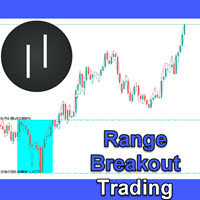
Unlike many other programs in the mql5 market this is a REAL day trading strategy. It does not use any martingale or grid functionalities and follows a logical concept. The Range Breakout Expert Advisor can be used to trade time ranges. The market often finds its direction in the morning hours and then follows this trend for the day. This expert advisor is designed to trade these trends after the morning breakout. Still you can trade all sorts of time breakouts with this program. I use the stra

AW Prime Oscillator EA est un Expert Advisor qui trade sur les signaux de l'indicateur AW Prime Oscillator. La ligne rapide de l'oscillateur donne les points d'entrée aux niveaux de surachat et de survente, la ligne lente définit la tendance et écarte les signaux qui vont à son encontre. Le signal est lu sur la barre close, une fois par barre, et n'est pas redessiné, l'ordre s'ouvre sur la barre suivante. Le TakeProfit est virtuel et se calcule à partir du seuil de rentabilité de tout le panier

ONE OF THE FEW ROBOTS WITH A SIGNAL HISTORY OF MORE THAN 3 YEARS AND AMONG THE TOP 10. LINK TO MY ROBOTS AND SIGNAL PRESETS: In my profile there is a link to download the PRESETS that I use in my SIGNALS, you can download and Backtest for free, there are explanations in the my WebSite. https://www.mql5.com/en/users/tec_daniel LINK TO OTHER ROBOT VERSIONS: MT4: https://www.mql5.com/en/market/product/97963 MT5: https://www.mql5.com/en/market/product/97962 SOME EXAMPLES OF SIGNALS ON “mql5.

An advanced Expert Advisor powered by artificial intelligence and machine learning, specifically designed for analyzing Gold (XAU/USD). It adapts to price movements and market fluctuations to detect potential trading opportunities. Discounted price . The price will increase by $50 with every 5 purchases.
No Risky Strategies – Does not use martingale or grid methods Artificial Intelligence Integration: At the heart of this EA les a sophisticated AI engine capable of recognizing complex pat

MATrader AI - Trading avancé de l'or avec IA pour XAUUSD MATrader AI est notre Expert Advisor principal pour XAUUSD, développé par Marc Albrecht Trading après plus de dix ans d'expérience dans les systèmes automatisés. Avant de publier MATrader AI sur MQL5, nous avons passé plus de 10 ans à tester, développer et affiner la stratégie. Aujourd'hui, MATrader combine nos moteurs MAT Trend et Momentum calibrés par IA, nos algorithmes MAT propriétaires, l'analyse de tendance supérieure, le trading par
FREE

Aura Neuron est un Expert Advisor distinctif qui poursuit la série de systèmes de trading Aura. En s'appuyant sur des réseaux neuronaux avancés et des stratégies de trading classiques de pointe, Aura Neuron offre une approche innovante avec d'excellentes performances potentielles. Entièrement automatisé, cet Expert Advisor est conçu pour négocier des paires de devises telles XAUUSD (GOLD). Il a démontré une stabilité constante sur ces paires de 1999 à 2023. Le système évite les techniques de ges

Real Trading Account LIVE SIGNAL 100K REAL: https://www.mql5.com/en/signals/2388151 Real Trading Account LIVE SIGNAL VT MARKETS: https://www.mql5.com/en/signals/2388143 Check Out All Our Products : Click Here
Frontier is an automated Swing Pivot Breakout Expert Advisor for MetaTrader 4 & 5, developed primarily for XAUUSD. The EA identifies confirmed swing highs and swing lows from recent price structure and uses these levels to prepare pending Buy Stop and Sell Stop orders. When price br

Version MT4 : https://www.mql5.com/en/market/product/90950
Version MT5 : https://www.mql5.com/en/market/product/93706
Rebate Hunter – Expert Advisor (EA) de grille de couverture multi-paires (Dynamique et Adaptative)
Rebate Hunter est un Expert Advisor (EA) de grille de couverture multi-paires conçu pour générer un volume de trading constant tout en visant un profit contrôlé sur le panier. L'EA ouvre simultanément des positions d'achat et de vente (entrée couverte), puis gère les positions à

SCIPIO AI est mon robot de trading automatique, fruit de plus de 20 ans d'expérience sur les marchés financiers. Il automatise 100 % de l'activité de trading : saisie, gestion, stop loss. Jour après jour, le trader n'a aucune intervention à effectuer.
Cet EA ouvre une seule transaction à la fois et fixe immédiatement un stop loss très proche. Il n'utilise ni grille ni martingale, une transaction à la fois, évitant ainsi les pertes importantes.
Il utilise l'intelligence artificielle pour ident

Promotion actuelle : Plus qu'un seul à 549$ Prix final : 999$ NEW: Choose 1 EA for free! (for 2 trade account numbers) N'oubliez pas de jeter un coup d'œil à notre « Ultimate EA Combo Package » sur notre blog promotionnel !
LIVE SIGNAL
Bitcoin Scalp Pro est un système de trading unique sur le marché. Il se concentre entièrement sur l'exploitation de la volatilité du marché Bitcoin en négociant les cassures des niveaux de support et de résistance. L'EA se concentre sur la sécurité

BEWARE of SCAM! SCIPIO GOLD BOT is only distributed by MQL5.com. Please note: this is not a commercial BOT, but a professional one. Distribution is limited to 100 copies in total, and the price may increase without notice. Thisi is MT4 versione, Mt5 version is here: https://www.mql5.com/it/market/product/148820
The differences that make SCIPIO EA unique are: + no variable settings or settings that the TRADER must enter + only opens one trade at a time + always uses close and fixed STOP LOSSES

Written for currency pairs: GBPUSD, USDJPY, XAUUSD There is a built-in function to return the stop to its place after slipping, an example of slipping in the last screenshot., in a similar situation, the function tries to return the stop to the place indicated when placing the order. The number of transactions in the strategy tester, demo account, real account is almost the same, the result depends on: the size of the spread, slippage, Stop Level and the speed of execution of the broker. Availab

PHANTOM is a high-performance automated trading system specifically engineered for Gold (XAUUSD) . Unlike retail grid or martingale bots, PHANTOM operates on the principles of Institutional Order Flow and Liquidity Engineering . It is designed to identify "The Footprint" of large market participants, entering trades only when high-probability liquidity sweeps occur during the most volatile market sessions. Core Trading Logic Liquidity Sweep Detection: PHANTOM identifies "Internal Range Liquidity
Savez-vous pourquoi MetaTrader Market est le meilleur endroit pour vendre des stratégies de trading et des indicateurs techniques ? Pas besoin de publicité ou de protection logicielle, pas de problèmes de paiement. Tout est fourni dans le MetaTrader Market.

Vous manquez des opportunités de trading :
- Applications de trading gratuites
- Plus de 8 000 signaux à copier
- Actualités économiques pour explorer les marchés financiers
Inscription
Se connecter
Vous acceptez la politique du site Web et les conditions d'utilisation
Si vous n'avez pas de compte, veuillez vous inscrire