CragEngine
- Experts
- Version: 1.3
- Activations: 5

CragEngine combines EMA trading controls, position and basket exits, and account risk limits in one MetaTrader 5 Expert Advisor.
Choose which entries to allow, define how positions are managed, and see why new trades are paused. Configure automatic trading or use the position-management mode on a hedging account.
Trading controls
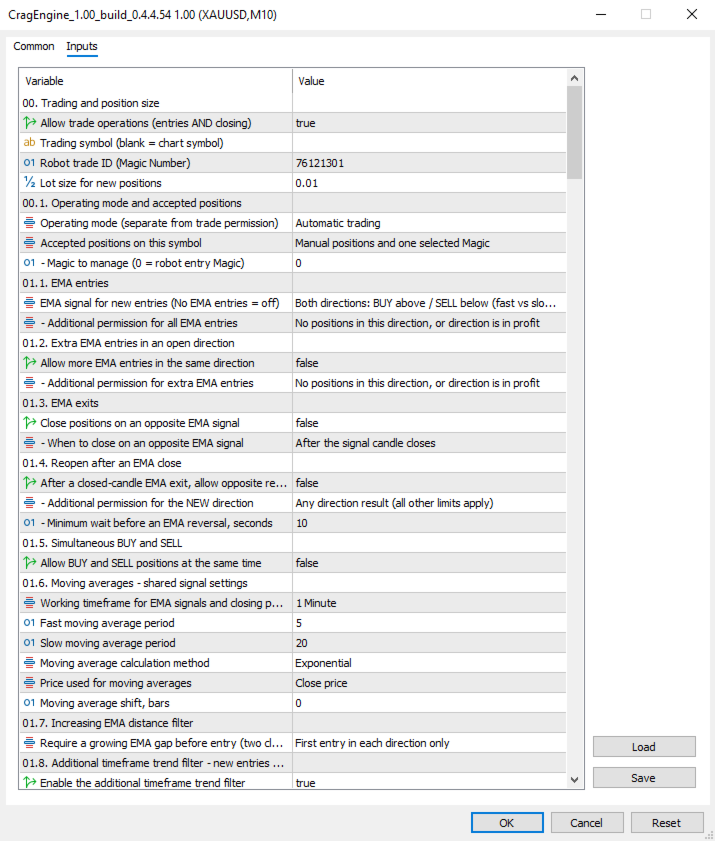
- Configure EMA entries and opposite-signal exits independently, with optional reopening in the opposite direction after an EMA close.
- Apply an optional additional-timeframe trend filter to selected entry types. Its confirmation uses completed candles; the additional timeframe can be lower, equal to or higher than the working timeframe.
- Enable profit add-ons and loss add-ons separately, with their own spacing and maximum counts. These multiple-position features require a hedging account.
- Set a minimum interval between entries, closing cooldowns, a maximum number of open positions, and hourly, daily, weekly and monthly entry limits.
Position and basket protection
Set a broker Stop Loss for new positions. Configure virtual Take Profit, profit trailing and Profit Lock for individual positions and for the basket. Profit Lock activates after a selected profit threshold and requests closing if the result falls to the configured lock level.
Basket Stop Loss, Take Profit, trailing and Profit Lock can each use a combined basket or separate BUY and SELL groups on a hedging account. An optional exit can close accepted positions when the selected working- or additional-timeframe filter line changes from allowing entries to blocking them.
Virtual levels are calculated locally. They are not broker-side pending exits and require the terminal, Expert Advisor and trading permissions to remain active. Execution delays, gaps and slippage can cause the final result to differ from a configured threshold.
Risk limits and trading schedule
Configure daily, weekly, monthly and overall account loss and profit limits in account currency or as percentages of the defined balance bases. Limits can pause new entries and, when selected, request closure of the managed positions. Account-level measurements can include activity outside the managed group; closing remains limited to the selected symbol and position scope.
Control entry hours, Friday entry cutoffs and scheduled closing using broker server time. A spread filter and configurable trade-request limits provide further execution controls.
Dashboard and position management
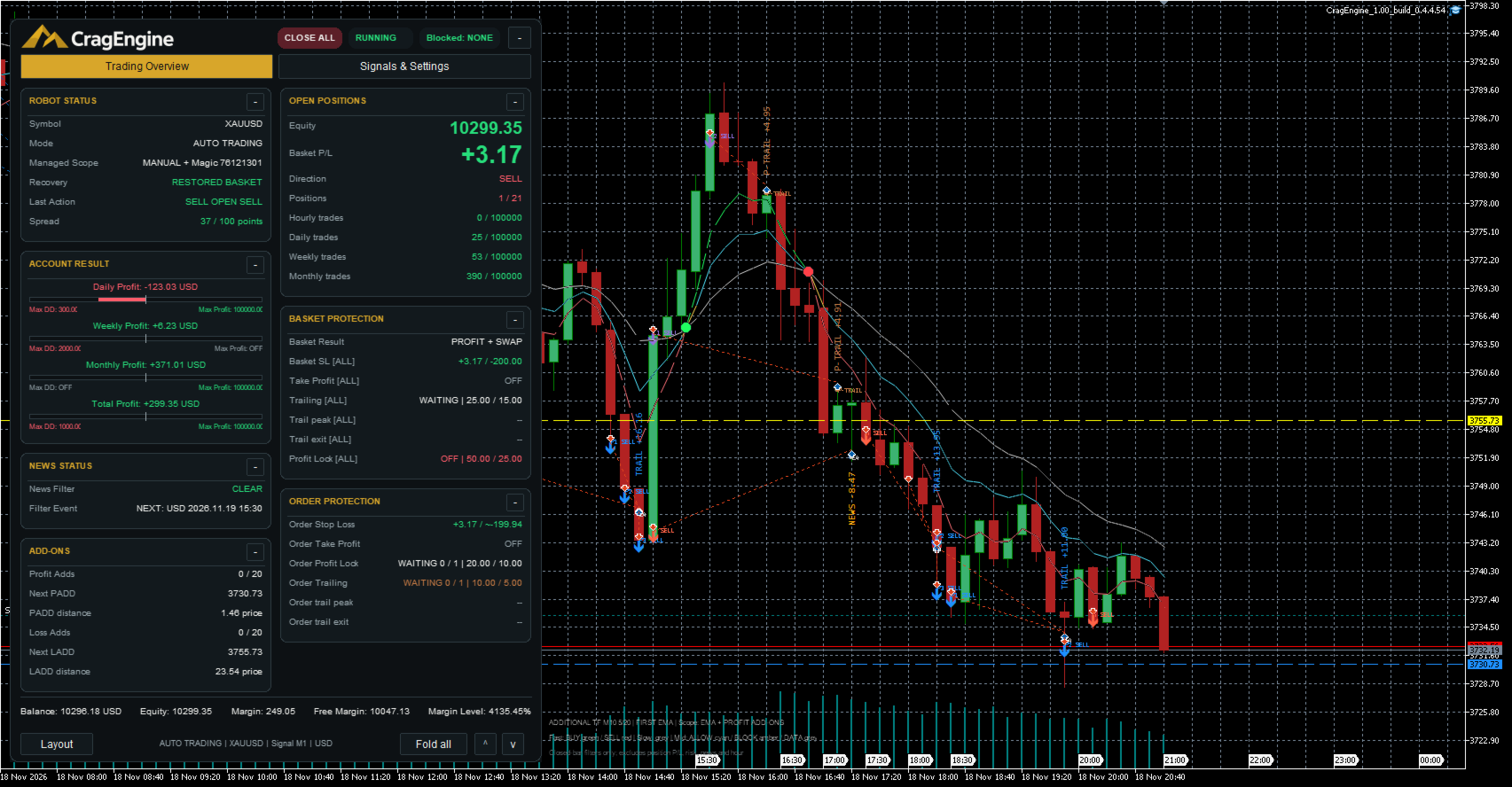
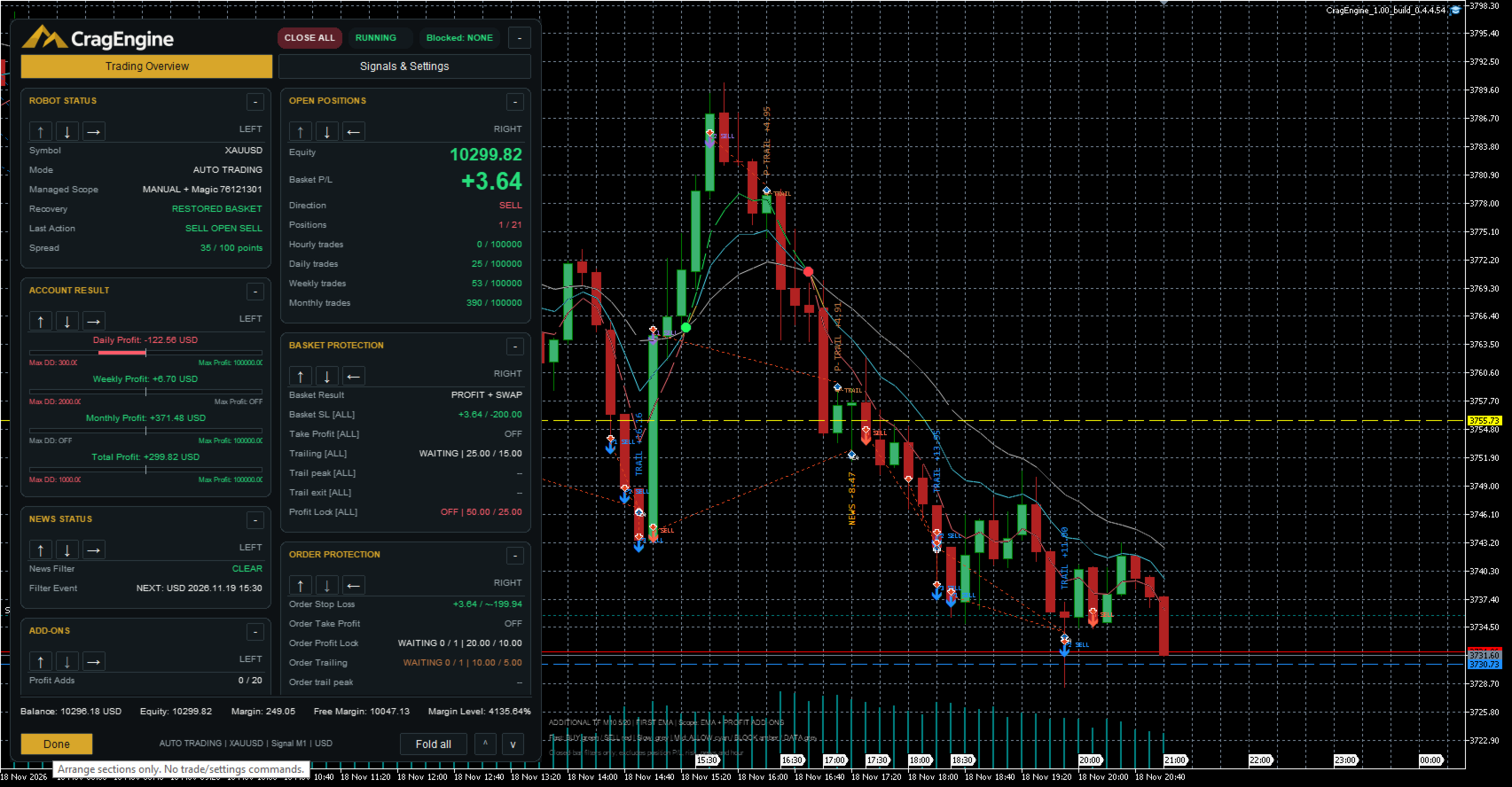
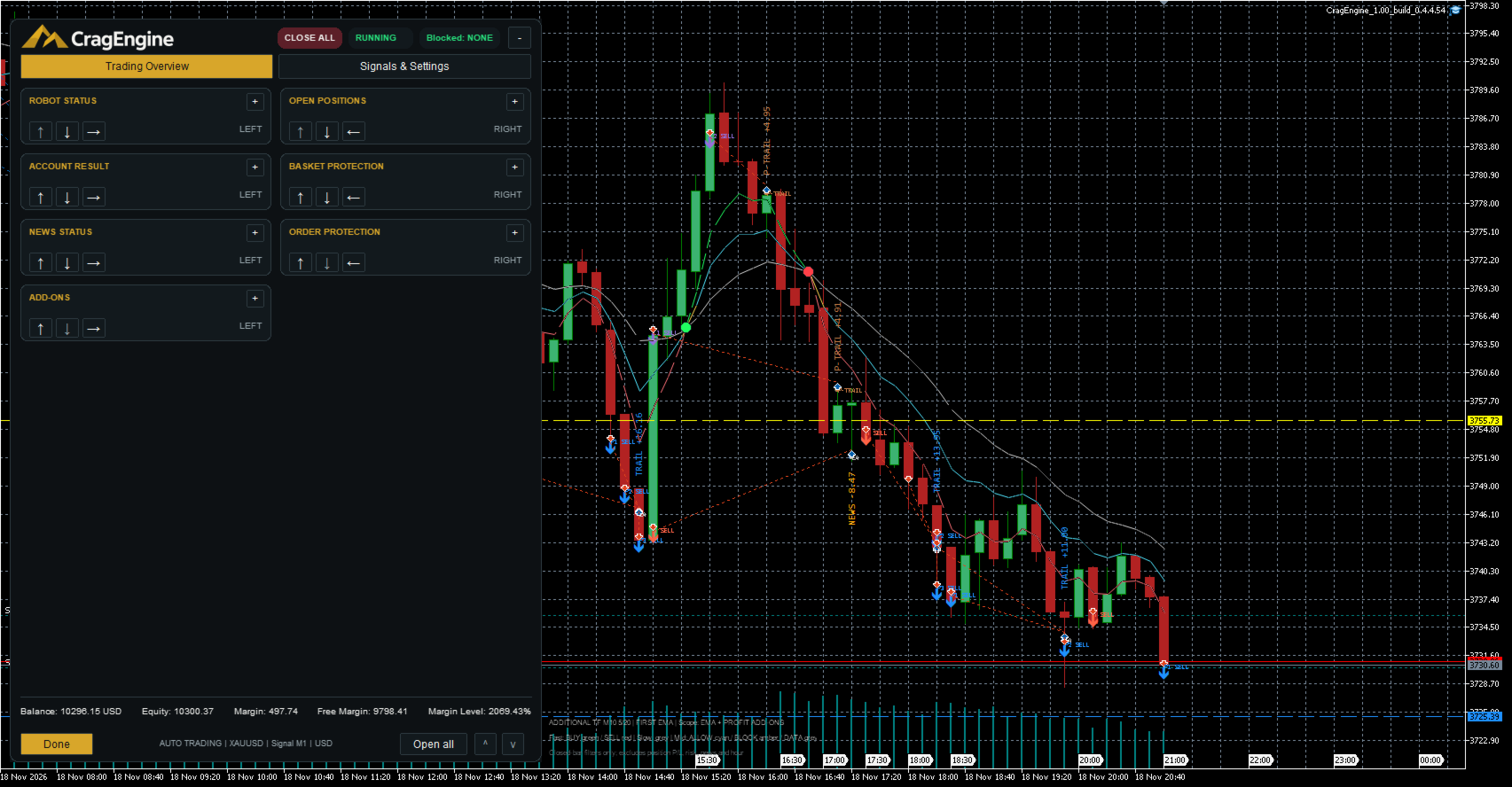
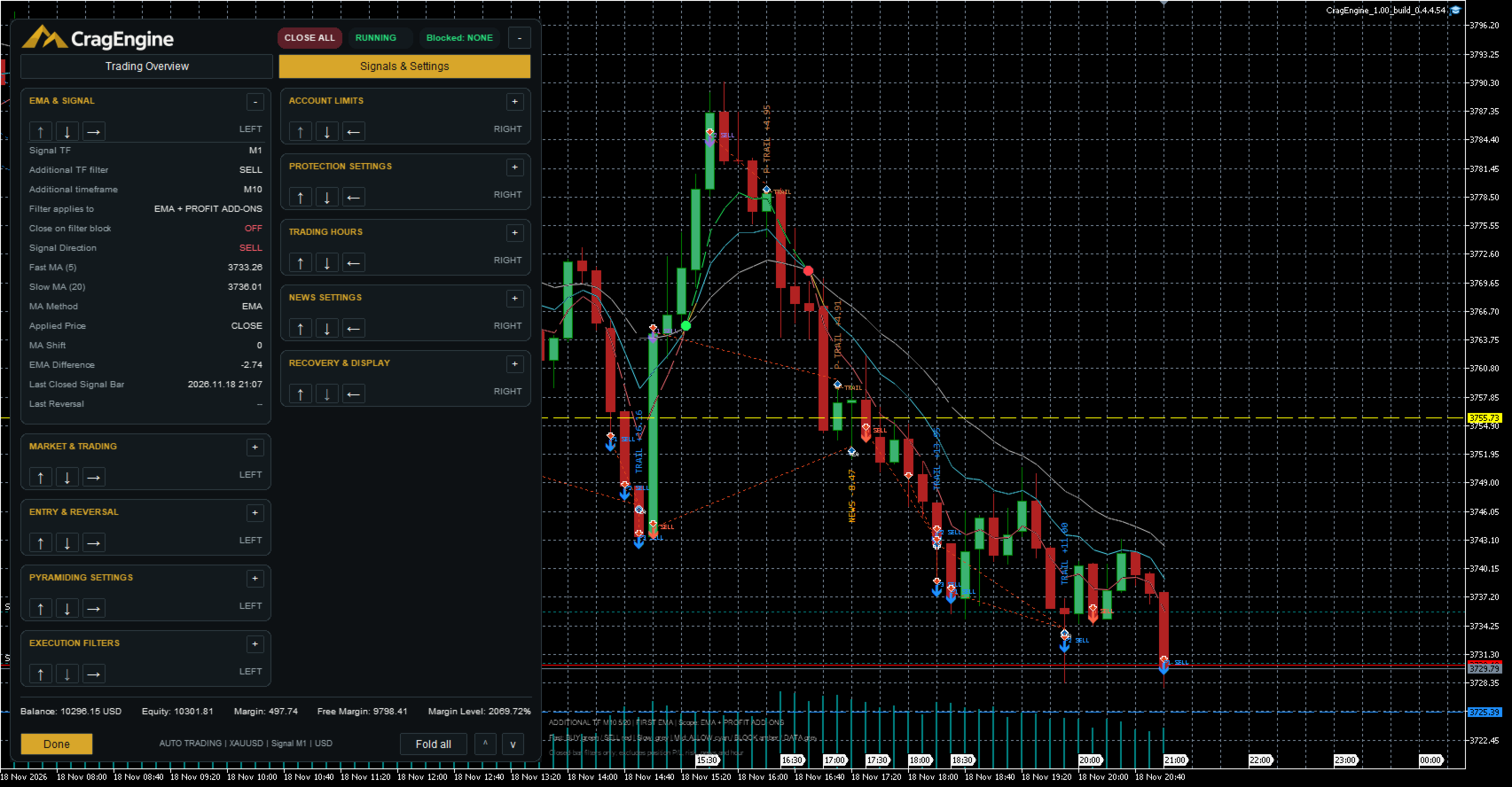
The dashboard shows equity, basket result, accepted positions, entry counts, protection status, spread and the reason for an entry block. Chart lines display moving averages, filter permissions and selected protection or add-on levels.
On hedging accounts, choose manual positions, one selected Magic Number, or both on the selected symbol. Manage positions only mode applies the enabled protections without new entries or EMA exits. Restart recovery and optional MT5 push notifications are available.
Account modes and setup
Hedging: supports separate positions, add-ons, simultaneous BUY and SELL when enabled, and the position-management scope options described above.
Netting: limited to automatic trading of one position per symbol under the EA's own Magic Number. Disable profit add-ons, loss add-ons, extra same-direction EMA entries and simultaneous opposite positions. Management-only mode and manual or third-party position-management scopes require hedging. Do not share the same netting symbol with manual trading or another strategy: a netting position cannot be separated by strategy.
Each EA instance manages one selected symbol. Trade operations are disabled by default. Configure the position scope and risk settings first, then enable trade operations. Automatic entries also require an enabled EMA entry mode. Turning off trade operations disables both entries and protective closing.
The optional news filter uses the MT5 economic calendar in the terminal. In Strategy Tester it requires valid offline news data and coverage information. The supplied legacy embedded dataset does not provide verified complete coverage; missing or unverified required coverage blocks new entries. News data is not required when the filter is off.
Evaluate the intended settings in the MT5 Strategy Tester and on a demo account before live use. Historical test results do not guarantee future performance. Support is available through product comments and MQL5 messages.