The SmartEntry EA
- Experts
- Version: 1.2
- Activations: 5

The SmartEntry EA [Save 50% from $269 Available until the end of September 2026]
The SmartEntry EA is a professional-grade automated trading system developed for MetaTrader 5 (MT5). It is engineered to remove human emotional bias by systematically combining Smart Money Concepts (SMC), Fair Value Gaps (FVG), an EMA trend filter, and higher-timeframe directional confirmation.
Operating across five independent timeframes (M1, M5, M15, M30, and H1) from a single chart, the system evaluates market structure and places pending orders precisely when strict internal confluence requirements are met. It does not force trades on every candle or promise immediate positions upon installation.
Promotional Offer
-
Standard Price: USD 269
-
Special Discount: 50% OFF
-
Validity: Available until the end of September 2026.
Core Features & Mechanics
-
Multi-Timeframe Independence: Monitors M1 through H1 concurrently. You can enable or disable specific timeframes via inputs without modifying host chart settings.
-
Risk-Controlled Execution: Operates strictly on fixed lot sizes ( InpLots ). It does not employ Martingale or hazardous lot-doubling recovery strategies after losing trades.
-
Configurable Exit Management:
-
Take Profit (TP): Choose between system-calculated levels ( INDICATOR_TP1 , INDICATOR_TP2 ), manual broker points ( MANUAL ), or omit initial TP ( NONE ).
-
Stop Loss (SL): Choose between system-calculated levels ( INDICATOR_SL ), manual broker points ( MANUAL ), or omit initial SL ( NONE ).
-
Trailing Stop: Optional trailing features dynamically trail your profit once triggered, with customizable start distances, step sizes, and trailing distances.
-
-
Built-in Economic & NFP News Filters: Connects to weekly Forex Factory feeds via WebRequest to pause new entries and cancel pending orders during high-impact economic events and US Non-Farm Payrolls (NFP). General news utilizes customizable pre/post buffers (default 30 mins), while employment news uses dedicated buffers (default 60 mins before, 30 mins after). Existing open positions are never forcibly closed by the news filter.
-
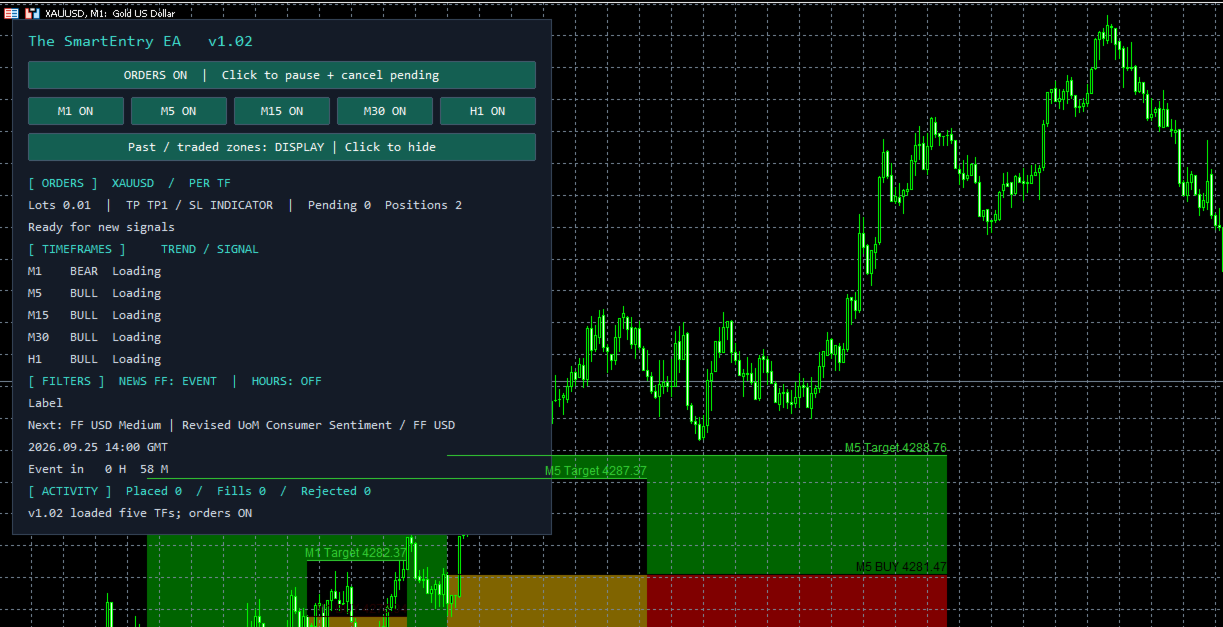
Interactive On-Chart Dashboard: Displays real-time trading status, active signal zones, and economic news alerts. Features quick-control buttons to pause new entries or individual timeframes on the fly.
Detailed Input Parameters
| Category | Input Name | Default Value / Description |
| Trading | InpEnableOrders | true — Allows new order generation upon startup. |
| Trading | InpSeparateOrdersByTF | true — Manages independent orders per timeframe (Hedging accounts). Set to false for shared order mode (Netting accounts). |
| Trading | InpLots | 0.01 — Fixed lot size per order (no dynamic percentage risk scaling). |
| Trading | InpMagic | 9152601 — Unique magic number base (spans up to +5). Ensure no overlap with other EAs on the same symbol. |
| Take Profit | InpTPMode | INDICATOR_TP1 — Selectable modes: NONE (0), INDICATOR_TP1 (1), INDICATOR_TP2 (2), or MANUAL (3). |
| Take Profit | InpManualTPPoints | 1000 — Distance from entry in broker points (active only when TP is set to MANUAL ). |
| Stop Loss | InpSLMode | INDICATOR_SL — Selectable modes: NONE (0), INDICATOR_SL (2), or MANUAL (1). |
| Stop Loss | InpManualSLPoints | 500 — Distance from entry in broker points (active only when SL is set to MANUAL ). |
| Timeframes | InpUseM1 to InpUseH1 | true (all) — Independent switches to enable or disable M1, M5, M15, M30, and H1 signal evaluation. |
| Trailing Stop | InpUseTrailing | false — Enables trailing stop functionality to lock in profits. |
| Trailing stop | InpTrailingStartPoints | 500 — Profit threshold in points required before trailing begins. |
| Trailing stop | InpTrailingDistancePoints | 300 — Distance maintained between the current price and the trailing stop loss. |
| Trailing stop | InpTrailingStepPoints | 100 — Minimum price movement required to update the trailing stop. |
| Display | InpShowDashboard | true — Displays the interactive on-chart status and control panel. |
| Display | InpShowSignalZones | true — Visualizes planned entry zones, targets, and invalidation levels. |
| Display | InpShowPastZones | false — Displays historical strategy zones on the chart. |
| Economic News | useNewsFilter | true — Master switch for general economic calendar news filtering. |
| Economic News | newsCurrency | USD — Target currency filter ( USD , EUR , GBP , JPY , etc.). |
| Economic News | minimumNewsImportance | MEDIUM (2) — Importance threshold ( ALL / LOW / MEDIUM / HIGH ). |
| Economic News | ffTesterCacheFile | Blank — Uses live updates or local CSV cache filenames for backtesting. |
| Economic News | newsMinutesBefore / After | 30 , 30 — Pause duration buffers around general news events. |
| US Employment | enableNfpFilter | true — Dedicated high-impact filter specifically for US Non-Farm Employment Change. |
| US Employment | nfpMinutesBefore / After | 60 , 30 — Pause duration buffers specific to NFP releases. |
| Broker Clock | autoDetectGmt | true — Automatically detects broker GMT offsets on live charts. |
| Broker Clock | brokerGmtOffsetWinter / Summer | 2.0 , 3.0 — Manual GMT offsets utilized during Strategy Tester or when auto-detection is disabled. |
Installation & Setup Instructions
-
Single File Deployment: Place the primary .ex5 file into your MT5 M12/Experts folder. The built-in signal engine requires no separate indicator installations.
-
Chart Attachment: Open a clean chart of your desired trading symbol. Attach one instance of the EA. Note: Host chart timeframe does not restrict internal multi-timeframe analysis.
-
Account Configuration:
-
Hedging Accounts: Keep InpSeparateOrdersByTF = true to allow independent multi-timeframe basket management.
-
Netting Accounts: Change InpSeparateOrdersByTF = false to enforce shared order mode.
-
-
Enable WebRequests: Navigate to Tools > Options > Expert Advisors in MT5, check Allow WebRequest for listed URL, and add [https://nfs.faireconomy.media](https://nfs.faireconomy.media) to ensure seamless economic news feed retrieval.
-
Trading Permissions: Enable Algo Trading on the MT5 toolbar and check Allow DLL imports / Algo Trading in the EA's common settings popup. Verify through the on-chart dashboard and Experts tab that news and initialization complete successfully.
-
Capital Recommendation: Recommended minimum starting capital is USD 500 on a low-spread account, factoring in broker commissions. Real capital requirements vary based on symbol contract sizes, leverage, and active simultaneous positions. Always validate execution behavior on a demo account prior to live deployment.
Critical Operational Notes & Strategy Tester Guidelines
-
Order Management Behavior: Changing TP/SL inputs only affects new trade plans; existing open positions or active pending orders are managed according to the parameters active when they were opened.
-
Dashboard Controls: Toggling "Orders OFF" cancels the EA's active pending orders and blocks new entries, but it does not close open market positions. Toggling individual timeframe switches pauses evaluation for that specific timeframe. Dashboard controls are temporary states and reset to input defaults if the EA is reloaded or terminal parameters change.
-
Backtesting & News Cache: The Strategy Tester cannot fetch live WebRequests. To test news filtering correctly, place a compatible weekly CSV snapshot file into your Terminal/Common/Files directory matching your test period. If news data is missing or out of range, the EA safely bypasses the news filter, displays a BYPASSED warning in logs, and continues trading under standard rules without active news protection.