
How to Monitor and Manage MT4 and MT5 Accounts from Telegram or Discord with Multi Risk Manager Pro

Suppose you run two MetaTrader terminals on a Windows VPS. You are away from your desk and want to know which positions are open on one account. With Multi Risk Manager Pro, you can open a private Telegram or Discord chat, select the account and request its positions. The desktop terminal, the EA and the Windows companion must be running for the request to reach MetaTrader.
This guide starts with Read only access. You will identify a demo account, request its status and compare the reply with the terminal. A second example shows how to test a confirmed partial close on one specific position.
Multi Risk Manager Pro for MT5 · Multi Risk Manager Pro for MT4 · MQLEXP public channel on MQL5
1. Set Up a Private Control Chat
Article 21 used the Source role to read trade signals. Remote commands use the Control role. This is the chat where an authorized user can type a command such as /status and receive account information.
- Start MetaTrader and attach Multi Risk Manager Pro to a chart on your demo account. Open the Windows companion and locate the same account under Accounts.
- Connect Telegram or Discord. For Discord, use a bot that can read messages and reply in the selected channel. A posting webhook handles outgoing messages only.
- Open Chats & roles, select a private chat and assign it the Control role. If you use a personal Telegram connection, Saved Messages is a convenient place for the first test.
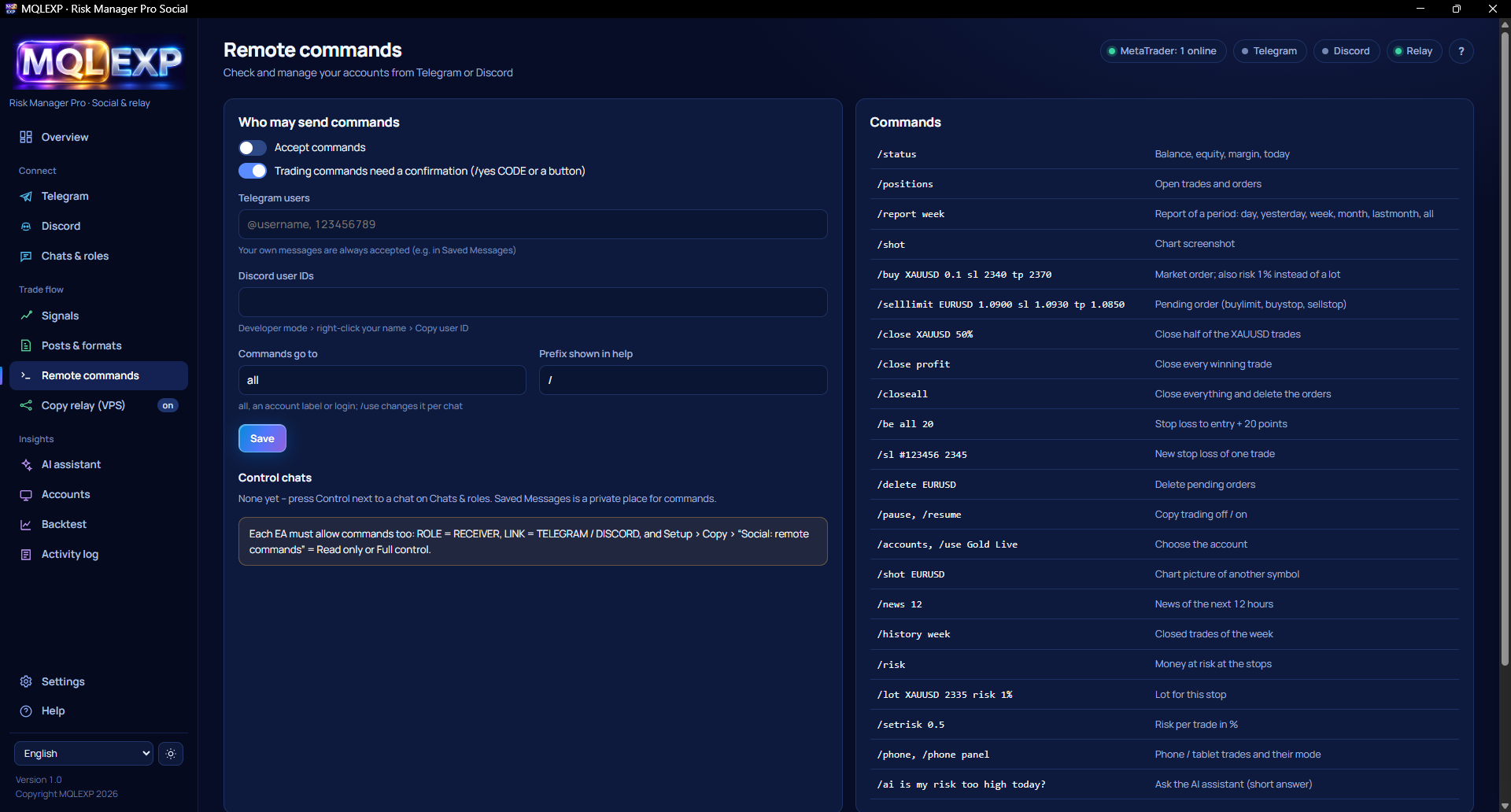
- In Remote commands, review the permitted users, enable Accept commands and check Commands go to. Choose the intended demo account for this exercise.
Use a private chat even for read-only monitoring. A reply to /status can contain balance and equity information, and anyone with access to the chat may be able to read it.
2. Configure the EA for Read-Only Monitoring
In the EA’s COPY tab, set ROLE to RECEIVER. Set LINK to TELEGRAM or DISCORD, matching the service you connected. Under SETUP → COPY, set Social: remote commands to Read only.
This setting is useful if your goal is to check exposure, review positions or request a weekly report. You can complete all three tasks while leaving trading actions disabled.
3. Select the Account Before Requesting Positions
Send the following commands one at a time, waiting for each reply. In this example, DemoMT5 is an account label. Replace it with the exact label or login returned by /accounts .
/accounts /use DemoMT5 /status /positions
/accounts lists the terminals the companion can see. /use DemoMT5 selects the account for subsequent requests. Check the selection reply before continuing. Then use /status to inspect the account figures and /positions to see its open trades and orders.
For your first test, keep the desktop terminal visible. Compare the account identity, symbol and open volume with the chat reply. This is especially useful when two accounts hold positions on the same symbol. The command /use all selects a broader target, so keep one explicitly selected account while learning the workflow.
4. Use the Command That Answers Your Question
| What you want to know | Command | What to check |
|---|---|---|
| Is the EA responding? | /ping | A reply from the connected EA |
| What is the account’s current status? | /status | Balance, equity and margin |
| Which positions and orders are open? | /positions | Symbols, tickets and volumes on the selected account |
| How much money is at risk at the stops? | /risk | The reported exposure alongside the actual protective levels |
| How did the account perform this week? | /report week | Summary statistics for the requested period |
| Which trades closed today? | /history day | The individual closed trades for that day |
| What does a particular chart look like? | /shot EURUSD | A chart image for the requested symbol |
Use /help to see the command list in your installed version. Before requesting a chart image in a shared chat, check whether the chart contains account details or private annotations.
5. Test a Confirmed Partial Close on Demo
If you want to manage positions from chat, select Full control for the demo EA and enable Trading commands need a confirmation in the companion. Keep the target set to one account. A ticket number lets you identify one position even when several trades share the same symbol.
Suppose /positions shows a 0.10-lot demo position with ticket 123456, and the broker permits a 0.05-lot partial close. The example command is:
/close #123456 50%
Replace 123456 with the actual demo ticket. Read the confirmation prompt and check the selected account, ticket and percentage. If they match your intention, use the confirmation button or send /yes followed by the code supplied for that request.
Now inspect the position in MetaTrader. If the broker accepted the partial close as requested, 0.05 lots should remain. Check the closing deal in account history and run /positions again. If the chat response is delayed, inspect the terminal before repeating the command. A second 50% request could reduce the remaining position again.
6. Troubleshoot the Request Where It Stopped
| What you observe | What to check |
|---|---|
| The chat receives trade posts, but /ping gets no reply | Check the Control role, permitted user and Accept commands setting. Receiving posts verifies the Destination role only. |
| /accounts lists several terminals and the figures look unfamiliar | Send /use with the intended label or login, check the selection reply and repeat /status . |
| Status requests work, but a management command is refused | Check the receiver EA’s access level, the target ticket and any applicable command limits. |
| You confirmed the request, but the position looks unchanged | Inspect Activity log and the MetaTrader execution result. Check for a broker rejection, a volume-step restriction or a position that was already closed. |
Conclusion
For account monitoring, a private Control chat, one selected terminal and Read only access are enough. The three commands worth learning first are /accounts , /use and /positions . If you later enable trading actions, test one ticket on demo and compare the chat response with the broker’s execution record before expanding access to other accounts.