
EA Watchdog MT5 (version 1.0) shows how much of each limit you set is used, and sends a message when a limit is reached. This short manual covers installation, the watches, all inputs, the messages and the set-up of Telegram and Discord.
EA Watchdog MT5 on the Market: https://www.mql5.com/en/market/product/205749
All numbers in examples and screenshots are made up or come from a demo account. The name "Demo" in the messages is the Label input.
1. What it does and does not do
EA Watchdog checks equity drawdown, daily loss, open trades, EA silence and losing streak against limits that you set. It also reports a lost connection to the trade server and a switched-off Algo Trading, and it can send a short daily report. It runs as an Expert Advisor on its own chart and reads the deal history and the open positions of your account. It works with Algo Trading switched off.
A Magic Number is a number that an Expert Advisor puts on its orders and positions. Trades placed by hand have the Magic Number 0. The watches EA silent and Losing streak work per Magic Number.
What it does not do
- It does not trade. It does not open, change or close any order or position, does not switch off Expert Advisors, and does not trade in the Strategy Tester either.
- It gives no advice and makes no forecast. The messages describe what happened. They give no instruction to trade or to change anything.
- It shows no table of Expert Advisors and no trade history. It reports whether your own limits are reached.
- It is not the rule check of any trading firm. Set your limits to match your own rules.
- It cannot report that the terminal or the VPS itself has stopped. If the daily report does not arrive, something may be wrong.
Do not rely on EA Watchdog as your only safeguard. Messages can be delayed or can fail, for example when the internet connection, the terminal or the messaging service is not available.
2. Installation and first start
- Open a new, empty chart of any symbol and timeframe. EA Watchdog reads the whole account, so the symbol does not matter.
- In the Navigator, open Expert Advisors and drag EA Watchdog MT5 onto this chart.
- Check the settings in the Inputs tab and confirm with OK.
- Do not use a chart that already runs an Expert Advisor. MetaTrader allows one Expert Advisor per chart, and the terminal would ask whether to replace the existing one.
- Algo Trading does not need to be switched on, because EA Watchdog does not trade.
After the start, EA Watchdog waits for the connection and the login, and then reads the deal history. During this time the rings show a dash and the word Wait, the header shows "Waiting...", and no message is sent. This is on purpose: right after a terminal start the history is often still empty, and an empty history would look like an Expert Advisor that has stopped. Equity drawdown and Daily loss wait about 60 seconds, because right after the login the equity can briefly show a wrong value.
- EA silent and Losing streak wait until the history is read. With a long history this can take a moment.
- Open trades starts as soon as the terminal is connected and logged in.
- Connection lost counts from the start. Algo Trading off is checked once the history is read and the terminal is connected.
- If an Expert Advisor was already quiet when you start EA Watchdog for the first time, its clock does not start at zero. The first value is estimated from the time since its last deal, counting Monday to Friday.
Equity drawdown starts with the equity at the first start. The terminal holds no earlier equity values, so a loss on positions that were already open before the first start is part of the starting value and does not count as drawdown.
3. States and when a message is sent
Every watch has one of these states. The panel shows the state as a word and as a colour. The colour is never the only sign.
| State | Meaning | Colour |
|---|---|---|
| OK | The limit is not reached and the value is not close to it. | Green |
| Near | The value has reached the alert threshold, but not the limit. The threshold is a share of your limit, set by NearPercent (default 80 percent). | Orange |
| Triggered | The limit is reached or exceeded. | Red |
| Off | The watch is switched off in the inputs. | Grey |
| Wait | No statement yet: loading, no connection, or too little data. | Grey |
- A message is sent once, when a watch changes to Triggered. As long as it stays Triggered, there is no second message, unless you switch on reminders with RepeatMinutes.
- When the value is back to normal, one more message follows: "back to normal". This happens when the value is clearly below the alert threshold.
- Near is shown in the panel only. The one exception is the losing streak, which sends a note before its limit.
- For Equity drawdown, Daily loss and Open trades, the limit must be reached in two checks in a row. A short spike sends no message.
- The same state is not sent again after a terminal restart. A state counts as reported only after at least one switched-on channel has accepted the message.
- If several things happen in the same check, one combined message is sent per channel.
- Times in messages are server times, as in the History tab of the terminal. Before the login the server time is not known, and the message says "local time" instead.
To keep a value that moves around the limit from sending many messages, a watch goes back only when the value is clearly below the alert threshold. For Equity drawdown, Daily loss and Open trades, "back to normal" is sent when the value falls below the Near threshold. Open trades needs two checks in a row, at least 30 seconds apart, for this.
4. The watches
Equity drawdown
Measures how far the equity has fallen from the highest equity that EA Watchdog has seen, in percent and as an amount. The peak starts with the equity at the first start and survives terminal restarts. It is reset only when you remove EA Watchdog from the chart. Deposits, withdrawals, credit and bonus change the peak by their amount, so they do not count as drawdown; the panel shows a note. While EA Watchdog does not run, it sees no equity values, so the measured drawdown can be smaller than the real one. Commission, interest, taxes and dividends stay in the drawdown. If your broker books fees as balance bookings, EA Watchdog cannot tell the difference.
Daily loss
Measures how far the equity is below its value at the start of the day. The reference is the higher of balance and equity at the start of the day, which is DailyResetHour in server time. It is on by default with 5 percent. If EA Watchdog was not running at the start of the day, it takes the first valid value of the day as the reference. Deposits and withdrawals during the day change the reference by their amount. A new day brings a new reference and the state OK. If you set DailyLossPercent and DailyLossAmount to 0, the watch is off and appears in the line "Off:" of the panel. It is not the rule check of any trading firm.
Open trades
Counts the open positions of the whole account: all Expert Advisors, manual trades, and trades placed from other terminals or devices on the same account. Pending orders are shown for information and do not count towards the limit. It is on by default with 100 positions, so set MaxOpenTrades to a number that fits your EAs and your broker. If your account reports a limit for orders, the panel shows it as "Broker limit". The state is Near from 80 percent of MaxOpenTrades and Triggered at MaxOpenTrades. If MaxOpenTrades is higher than the broker limit, the panel shows a note and nothing is sent to the channels. Short peaks between two checks are not seen, for example with a grid that opens and closes many positions within one cycle.
EA silent
Measures hours of market time since the last trade of a Magic Number. A Magic Number with an open position is not silent. The clock runs only while the terminal is connected and at least one of its symbols has live quotes, and it stands still at the weekend and on the days in PauseDates. It is accurate to about 30 minutes per market pause, and the message comes later rather than earlier. A holiday with quotes but no trading is not recognised; add such days to PauseDates. "Silent" means no trading activity. A loaded Expert Advisor that does not trade is silent too. The ring shows the Expert Advisor that is closest to the limit, with a state line such as "OK - 5 EAs" or "Near - Trend H1". The clock survives a terminal restart.
Losing streak
Counts the losing results in a row for a Magic Number. A result is a closed position, net of commission, swap and fees; a result below zero is a loss, and a result of zero or more ends the streak. Positions of the same Magic Number and symbol that close within StreakBasketSeconds count as one result. The normal value is the backtest value you enter in StreakBacktest or, if there is none, an estimate from at least 30 results, shown with a tilde such as "~9". It sends a note when the streak equals the normal value and a warning when it is longer. Further losses in the same streak send nothing, and a result of zero or more returns the state to OK without a message. The estimate is not a forecast. The ring shows the streak and the normal value, for example "/ 7".
Connection lost
Watches the connection of the terminal to the trade server. A message is sent when the connection has been lost for ConnectionLostMinutes, and "Connection restored" follows with the period of the outage. A connection that returns before the time is over sends nothing. If the internet is down, messages are kept and sent when it returns.
Algo Trading off
Watches the Algo Trading button in the toolbar of the terminal. It does not read the permission of single Expert Advisors. If the account does not allow trading by Expert Advisors (investor password), the state stays OK and the panel shows "Account: no EA trading". A message is sent when Algo Trading has been off for AlgoOffMinutes, and "Algo Trading on again" follows when you switch it on.
5. Inputs
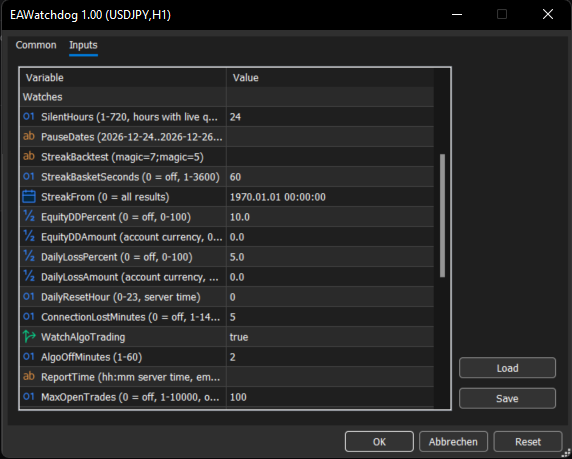
Open the inputs with a right click on the chart, Expert Advisors, Properties, tab Inputs. They are in four groups. If an input has an invalid value, EA Watchdog uses the default and writes one line to the Experts tab. Text values such as the token are never written to this line.
Group General
| Input | Default | Range | What it does |
|---|---|---|---|
| CheckSeconds | 10 | 1 to 300 | How often the watches are checked, the panel is updated and messages are sent, in seconds. |
| HistoryFrom | 0 | 0 or a past date | Start date of the deal history read for EA silent and Losing streak. 0 means the whole history. |
| MagicNames | empty | text | Names for your Magic Numbers, in the form 1001=Trend H1;1002=Grid EURUSD. Without a name, a message shows the Magic Number. |
| MagicNames2 | empty | text | Continuation of MagicNames. |
| MagicNames3 | empty | text | Further continuation. |
| WatchMagics | empty | list, for example 1001;1002 | Magic Numbers watched by EA silent and Losing streak. Empty means all Magic Numbers other than 0 with at least one deal in the last 7 days. |
| NearPercent | 80 | 50 to 99 | Alert threshold for the state Near, as a share of your limit. |
| Label | empty | text, up to 40 characters | Name of this account in every message. Empty means the account number is used. Use it if several terminals send into the same channel. |
Group Watches
| Input | Default | Range | What it does |
|---|---|---|---|
| SilentHours | 24 | 1 to 720 | EA silent: hours of market time without a trade after which an Expert Advisor is reported. |
| PauseDates | empty | days and ranges, for example 2026-12-24..2026-12-26;2027-01-01 | Days on which the EA silent clock does not run, in server time. At most 64 days, one range at most 31 days. |
| StreakBacktest | empty | list, for example 1001=7;1002=5 | Losing streak: longest losing streak of the backtest per Magic Number, values 1 to 1,000,000. Empty means only the estimate is used. |
| StreakBasketSeconds | 60 | 0 to 3600 | Losing streak: positions of the same Magic Number and symbol that close within this many seconds count as one result. 0 switches this off. |
| StreakFrom | 0 | 0 or a past date | Losing streak: results before this date do not count. 0 uses the full history. |
| EquityDDPercent | 10 | 0 to 100 | Equity drawdown limit in percent of the peak. 0 switches it off. |
| EquityDDAmount | 0 | 0 or more, account currency | Equity drawdown limit as an amount. 0 switches it off. If both are set, the one reached first counts. |
| DailyLossPercent | 5 | 0 to 100 | Daily loss limit in percent of the value at the start of the day. 0 means off. |
| DailyLossAmount | 0 (off) | 0 or more, account currency | Daily loss limit as an amount. If both are set, the one reached first counts. |
| DailyResetHour | 0 | 0 to 23 | Hour at which the day starts for Daily loss, in server time. |
| ConnectionLostMinutes | 5 | 0 to 1440 | Minutes without a connection after which Connection lost is reported. 0 switches the watch off. |
| WatchAlgoTrading | true | true or false | Turns the Algo Trading off watch on or off. |
| AlgoOffMinutes | 2 | 1 to 60 | Minutes with Algo Trading switched off after which it is reported. |
| ReportTime | empty (off) | hh:mm in server time | Time of the daily report, for example 08:00. Empty switches it off. |
| MaxOpenTrades | 100 | 0 to 10000 | Open trades limit: number of open positions of the whole account at which a message is sent. 0 means off. Pending orders do not count. |
Group Channels
| Input | Default | Range | What it does |
|---|---|---|---|
| ChannelAlert | true | true or false | Messages as an alert window in the terminal. |
| ChannelPush | false | true or false | Messages as a notification to the MetaTrader app on your phone. |
| ChannelMail | false | true or false | Messages by email from the terminal. |
| TelegramToken | empty | text | Token of your Telegram bot, stored in plain text. Telegram is active once token and chat ID are filled in. |
| TelegramChatId | empty | text | Chat ID that receives the messages. |
| DiscordWebhookUrl | empty | text | Webhook URL of a Discord channel, stored in plain text. Discord is active once the field is filled in. |
| RepeatMinutes | 0 (off) | 0 to 1440 | While a watch stays Triggered, a reminder is sent every this many minutes. 0 means no reminders. |
| MessageIcons | true | true or false | Adds a status emoji to messages. With false, EA Watchdog adds no emoji. |
Group Panel
| Input | Default | Range | What it does |
|---|---|---|---|
| PanelCorner | Upper left | four corners | Chart corner where the panel is anchored. |
| OffsetX | 16 | 0 to 2000 | Horizontal distance to that corner, in pixels. |
| OffsetY | 24 | 0 to 2000 | Vertical distance to that corner, in pixels. |
| FontSize | 10 | 9 to 14 | Base font size. The panel also follows the Windows display scaling. |
| HideTradeHistory | true | true or false | Hides the trade arrows on this chart only. When you remove EA Watchdog, the chart gets its original setting back. |
6. The panel
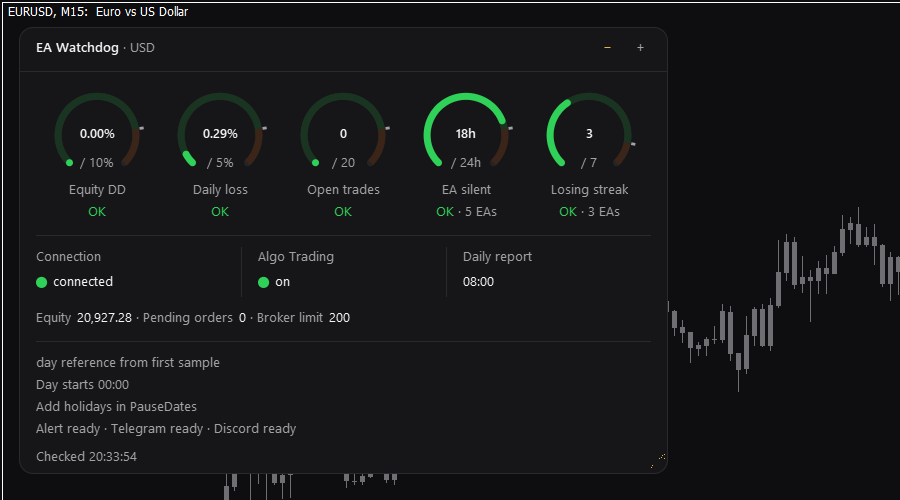
The panel is small and dark. It uses few colours and nothing flashes or moves. It shows a header with the account currency, one ring for each watch that is on and has a limit (in the order Equity DD, Daily loss, Open trades, EA silent, Losing streak), a status row with Connection, Algo Trading and Daily report, the current equity, short grey notes, the state of each channel, and a footer with the time of the last check and the last message.
A ring shows the current value in the middle, your limit below it ("/ 10%"), the name of the watch and the state as a word. The ring fills up as the value approaches the limit, and the colour of the arc is the state: green, orange or red. A small mark shows where Near starts. A full ring means that the limit is reached; if the value is above the limit, the ring stays full and the number shows the real value. Rings in the state Wait show no arc and a dash as the value.
- Header: "EA Watchdog" and the account currency. When the panel is collapsed, it shows a short line instead.
- Off line: lists the watches with a ring that are switched off, for example "Off: Daily loss - Open trades".
- Status row: Connection and Algo Trading show a dot and a word, with a red background once their delay is over. Daily report shows the planned time, "sent 08:00", "queued 08:00" or "off".
- Account line: the current equity and, while Open trades is on, the pending orders and the broker limit. These numbers have no colour.
- Notes: up to three short grey lines, for example "Day starts 00:00" or "Peak adjusted by -2,000.00 (withdrawal)". They explain, they are not messages.
- Channel line: the state of each switched-on channel, for example "Alert ok - Telegram ok - Discord ok".
- Footer: "Checked 14:58:46" on the left, "Last sent 14:57" on the right, and the grip in the bottom right corner.

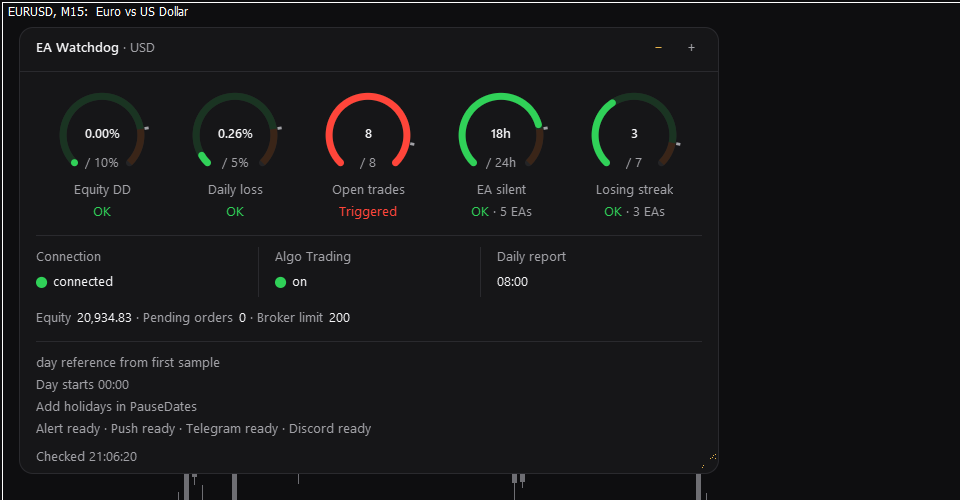
- Size: use the minus and plus buttons in the header. Full shows everything, Compact shows the header, the rings, the status row and the footer, and Collapsed shows only the header with a short line such as "2 triggered", "1 near" or "All clear".
- Width: drag the grip in the bottom right corner. Only the width can be changed, between 336 and 504 pixels at the standard Windows scaling of 100 percent. The height follows the content.
- Press Esc while dragging to cancel: the panel returns to the width it had before. The size level and the width are remembered for the chart.
7. Messages
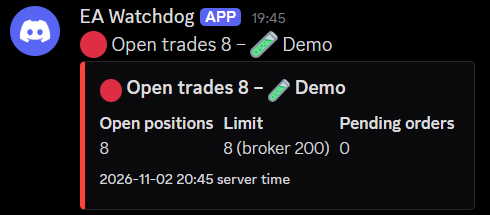
All messages follow one layout: a header line with the event and the account name, then one line per value, then the time. Telegram, Discord and Mail show all lines. Push and Alert show one line. With MessageIcons true, the header starts with a status emoji: red for Triggered, orange for the losing streak note, green for back to normal.
Telegram
The first line is bold, the other lines are normal text, one value per line. Text that you type into Label or MagicNames appears exactly as typed. This example uses the Label "Demo", the Magic Number 1001 and an account in USD.
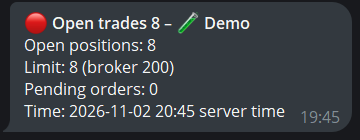
🔴 Open trades 182 - 🧪 Demo
Open positions: 182
Limit: 180 (broker 200)
Pending orders: 12
Time: 2026-11-02 12:48 server time
Other channels
- Discord: one message with one card. The edge of the card is red for Triggered, orange for the losing streak note, green for back to normal and blue for the daily report. Each value is a field. If Discord does not accept the card, the same lines are sent once as plain text.
- Push: one line, at most 255 characters, without a time line, because the app shows when the message arrives. Example: 🔴 Equity drawdown 7.50 (limit 2.00) - 🧪 Demo
- Mail: plain text. The subject is the header line, at most 60 characters. The body has the header line, a blank line, the lines with the values and the time. There is no HTML.
- Alert: one line without an emoji, with the event first and the account name at the end. Example: Equity drawdown 7.50 - 🧪 Demo. The details are written as one line in the Experts tab.
If several changes happen in the same check, one message is sent per channel. The header shows the first event and the number of the others, for example "EA #1001 silent +2 more", and below it every event has its own block. With RepeatMinutes above 0, a reminder with the current values follows at that interval while a watch stays Triggered.
Daily report
Set ReportTime to a time in server time, for example 08:00. Once a day at that time, EA Watchdog sends one short message. If it arrives, the terminal and EA Watchdog were running at that time. If it does not arrive, something may be wrong with the terminal, the VPS or the internet. The report goes out only within 15 minutes after ReportTime and is not made up later.
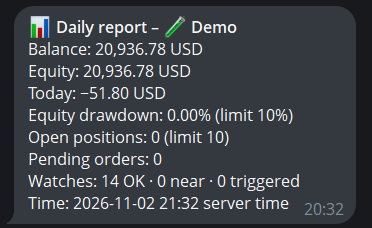
📊 Daily report - 🧪 Demo
Balance: 20,986.65 USD
Equity: 20,979.15 USD
Today: −7.50 USD
Equity drawdown: 0.04% (limit 10%)
Open positions: 42 (limit 180)
Pending orders: 12
Watches: 9 OK · 1 near · 1 triggered
• EA "Trend H1" (#1001) silent (Triggered)
Time: 2026-11-03 08:00 server time
Limits on the number of messages
To avoid floods of messages, EA Watchdog sends at most one message per 10 seconds and 20 per hour on each channel. Further events are counted and mentioned in the next message. Messages that do not go through are tried again up to three times, after 1, 5 and 15 minutes. After an internet outage, EA Watchdog keeps up to 20 messages for 24 hours and sends a summary first. A message that arrives more than 2 minutes after the event ends with "(sent late)".
8. Set up the channels
EA Watchdog can send each message to five channels. Alert is on by default. Turn on Push and Mail in the inputs, group Channels. Telegram and Discord have no on/off switch: a channel is active as soon as its fields are filled. Leave the fields empty to keep it off.
Push (MetaTrader app on your phone)
- Install the MetaTrader 5 app on your phone. Open Settings, Chats and Messages, and copy your MetaQuotes ID.
- In the terminal, go to Tools, Options, Notifications. Tick Enable Push notifications and paste the ID.
- In the EA inputs, set ChannelPush to true.
The terminal hands the message to the app. Delivery is not confirmed.
- In the terminal, go to Tools, Options, Email. Fill in the SMTP server, login, from address and to address.
- In the EA inputs, set ChannelMail to true.
Mail is handed to the terminal. Delivery is not confirmed.
Telegram
You need your own bot. It takes a few minutes.
- In Telegram, open a chat with the official account BotFather. Send /newbot and follow the steps. You get a bot token.
- Open a chat with your new bot and send it /start. Without this, the bot is not allowed to write to you. For a group: add the bot to the group and write a message in the group.
- Find your chat ID. Open this address in your browser, with your token in place of the word token in brackets: api.telegram.org/bot<token>/getUpdates. Look for "chat":{"id":...}. Group IDs start with a minus sign.
- In the terminal, go to Tools, Options, Experts. Tick Allow WebRequest for listed URL and add this line to the list: https://api.telegram.org
- In the EA inputs, fill in TelegramToken (the bot token only, not a web address) and TelegramChatId.
Discord
- In your Discord server, open the channel settings, Integrations, Webhooks, New Webhook. You need the right to manage webhooks.
- Check which channel the webhook is set to. A webhook posts into the channel it was created for.
- Click Copy Webhook URL.
- In the terminal, go to Tools, Options, Experts. Tick Allow WebRequest for listed URL and add this line to the list: https://discord.com
- In the EA inputs, paste the URL into DiscordWebhookUrl. It must start with https://discord.com/api/webhooks/
Check that it works
After you set up Push, Mail, Telegram or Discord, EA Watchdog sends one test message to it once, with the header "Channel test". Alert gets none. If it arrives, the channel works. The channel line in the panel shows the state of each switched-on channel: ok (Telegram or Discord accepted the last message), sent or queued (Mail or Push was handed to the terminal), retry, paused (a short rest after repeated failures) or error. For error, the panel shows the reason. A channel in error is not tried again until you change the inputs or restart the terminal; a missing entry in the list of allowed URLs is tried again every 5 minutes.
| Panel text | What to do |
|---|---|
| allow https://... in Tools > Options > Expert Advisors | The address is missing in the list of allowed URLs. Add the address shown. |
| token not accepted | Telegram does not know this token. Copy it again from BotFather. |
| chat id or request not accepted | Check TelegramChatId, and that you sent /start to your bot. |
| not allowed to post (blocked or removed) | The bot is blocked or was removed from the group. Unblock it or add it again. |
| token field must hold the bot token only | You pasted a web address into TelegramToken. Enter the token only. |
| webhook not accepted | The webhook is deleted or the URL is wrong. Create a new webhook. |
| https required | The webhook URL starts with http://. Use https://. |
| webhook URL not valid | DiscordWebhookUrl is not a Discord webhook URL. Copy it again. |
Keep your settings safe
If you drag the EA from the Navigator onto the chart again, the inputs return to the default values. To keep your settings, click Save in the Inputs tab (suggested folder MQL5\Presets) and later click Load. The .set file contains your token and URL.
9. Keep your keys private, and what is sent
MetaTrader keeps input values in plain text. The token and the webhook URL are readable in the input dialog, in chart templates and in .set files.
- Do not share screenshots of the inputs or .set files.
- The Strategy Tester writes all inputs into its journal and log files. For test runs, leave the channel fields empty. In the Strategy Tester no messages are sent.
- Anyone with your Discord webhook URL can post to that channel. If it leaks, delete the webhook and create a new one. If a Telegram token leaks, revoke it in BotFather and use the new token.
EA Watchdog sends messages only to the services you set up. Nothing is sent to the developer. The messages contain the event, a few values, the Label (or the account number if Label is empty) and the time. They contain no deals, no positions and no history. EA Watchdog writes no files and uses no DLL.
10. Frequently asked questions
The rings show a dash and "Wait"
EA Watchdog is waiting for the connection, the login or the history. This is normal for a short time after the start. If it stays, check the connection in the lower right corner of the terminal.
No message arrives
Look at the channel line of the panel. With the default inputs, only Alert is on. For Telegram or Discord, check the list of allowed URLs (Tools, Options, Experts) and, for Telegram, that you sent /start to your bot. "Second instance: not sending" in the footer means that another EA Watchdog on the same account sends; only one instance per account sends. Near is shown in the panel only (exception: the losing streak note).
Equity drawdown shows less than I expected
The drawdown is measured from the highest equity that EA Watchdog has seen since it started. Losses of positions that were open before the first start are already part of the starting value, and a gap while EA Watchdog did not run can hide a peak or a low point.
I made a deposit or a withdrawal. Did that cause a message?
Normally not. A deposit, a withdrawal, a credit or a bonus changes the peak by the same amount, so it does not count as drawdown. If your broker books it in an unusual way, EA Watchdog cannot tell the difference.
An Expert Advisor is reported as silent, but it is running
Silent describes trading activity only. An Expert Advisor that is loaded but has not traded for SilentHours hours of market time shows as silent. If a holiday with quotes caused it, add the days to PauseDates.
Can I use several charts or several terminals?
One EA Watchdog per chart. If you attach it to two charts of the same account, only one of them sends; the other shows "Second instance: not sending". If you run several terminals, each needs its own EA Watchdog. All of them can send into the same Telegram chat or Discord channel. Give each a different Label, so that you can tell which terminal a message comes from.
A message arrived late
The line "Time" shows when the event happened, not when the message was sent. If it arrived more than 2 minutes later, it ends with "(sent late)". Reasons are a lost connection or a channel that was blocked.
An Expert Advisor is missing in EA silent or Losing streak
With WatchMagics empty, only Magic Numbers with at least one deal in the last 7 days are watched. Add the Magic Number to WatchMagics. Magic Number 0 (manual trades) is never watched by these two watches.
The Losing streak ring shows "Not enough trades yet"
There is no backtest value for this Expert Advisor in StreakBacktest, and fewer than 30 results for the estimate. Enter the backtest value or wait for more results.
Values refer to the past. EA Watchdog makes no forecast and gives no advice about trading. Do not rely on EA Watchdog as your only safeguard.
Questions and problem reports are welcome in the product comments or by private message on MQL5.