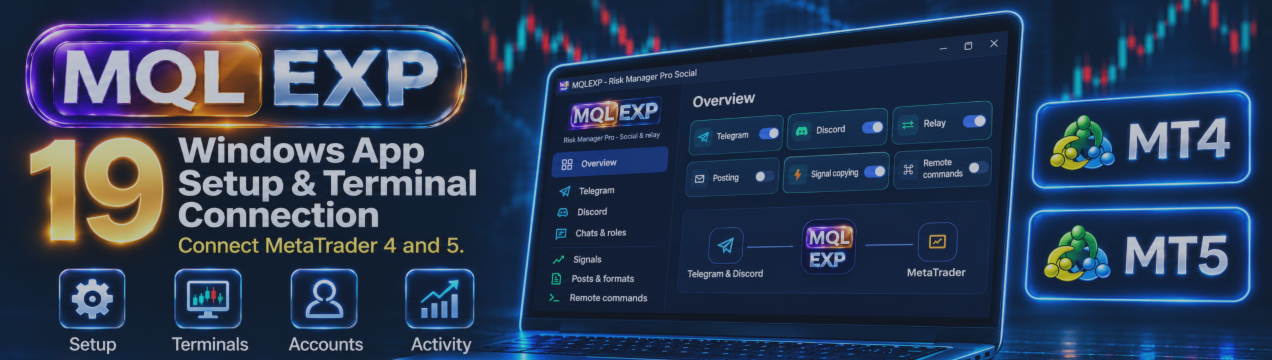
Multi Risk Manager Pro Windows App for MT4 and MT5: Download, Setup and Privacy

If you already use Multi Risk Manager Pro on a MetaTrader chart, the Windows companion lets you connect that terminal to Telegram, Discord and an AI provider of your choice. For example, you can send a trade update to a private chat and choose whether the message shows your lot size or monetary result.
This guide covers the first session: downloading the Windows app from GitHub, connecting one demo account, understanding the privacy settings and verifying the connection with a test message.
Multi Risk Manager Pro for MT5 · Multi Risk Manager Pro for MT4 · MQLEXP public channel on MQL5
1. Download the Windows App from GitHub
Open the official MQLEXP GitHub project linked below. Follow the project’s download instructions and select the Windows executable (.exe ) for the companion app. If the executable comes in a ZIP archive, extract the archive before running it. The packaged Windows edition includes its Python runtime, so you can run it without installing Python separately.
Download the app to the same Windows computer or Windows VPS that runs your MetaTrader terminal. If MetaTrader runs on a VPS and you access it through Remote Desktop, download and run the companion inside that VPS session.
Download the Windows companion from the official MQLEXP GitHub project: soon
2. Start MetaTrader and Run the Companion
- Open MetaTrader 4 or MetaTrader 5 and sign in to a demo account.
- Attach the matching edition of Multi Risk Manager Pro to a chart. Confirm that the EA panel is visible and the terminal is connected.
- Leave MetaTrader running and double-click the Windows companion .exe you downloaded from GitHub.
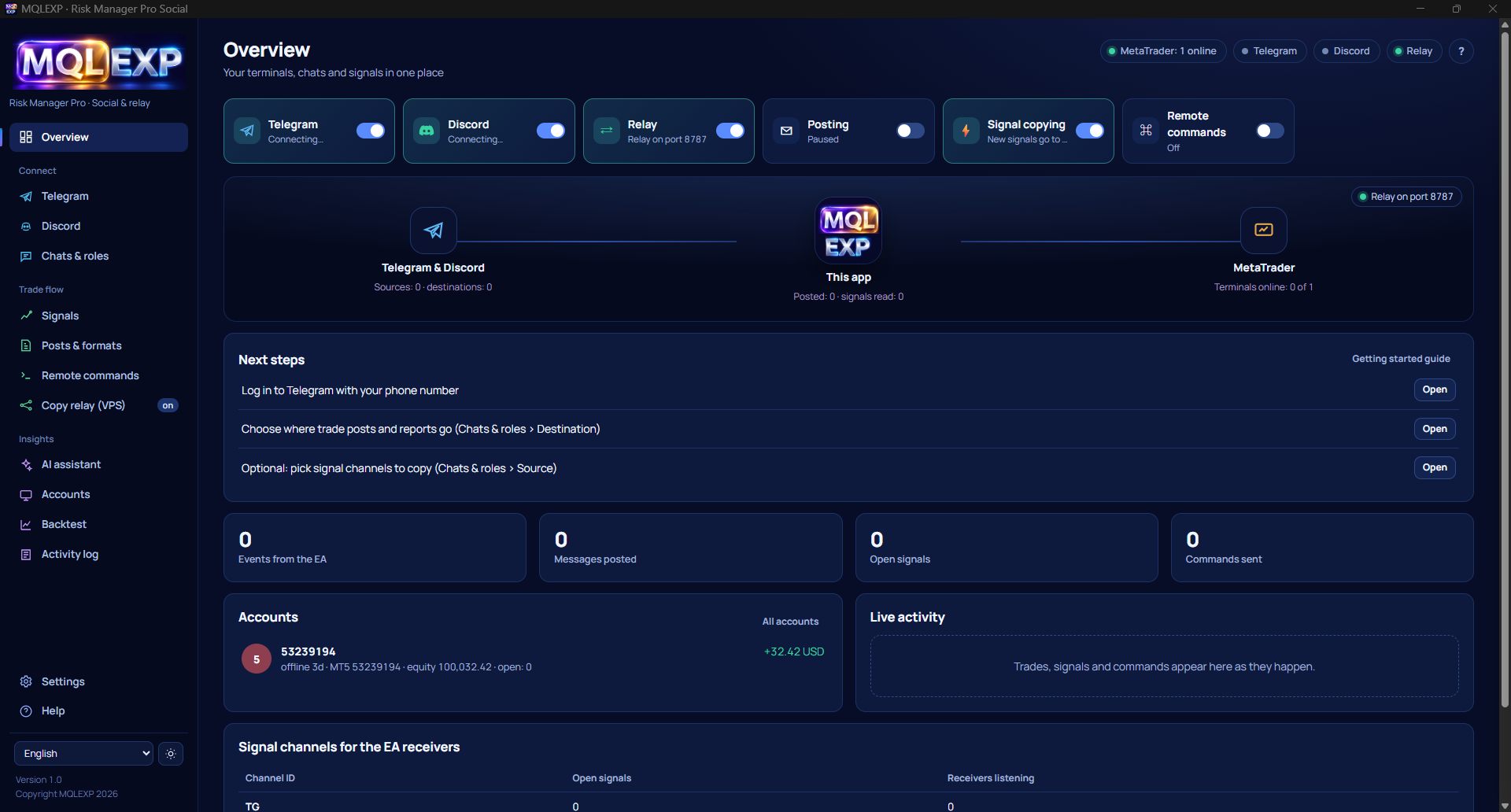
- When the Overview page opens, select Settings in the lower-left corner.
The companion opens its dashboard locally on your computer. Its local dashboard address contains a private access key. If you send a screenshot to support, crop the address bar or hide that key.
3. Connect the Correct Trading Account
In Settings → MetaTrader connection, use Connect to to select MT4, MT5 or both. Under Terminals with the EA running now, find the account you want to use. Compare the account number and broker server with the details shown in MetaTrader, enable that terminal and click Save.
Next, check MetaTrader common folder. This is where the EA and the companion exchange files. For a standard installation, leave the folder field empty to use automatic detection. Use Check if the terminal does not appear.
Open Accounts in the companion and locate the demo account you selected. If you run several terminals, this is the most useful first check. Two terminals can display the same symbol and chart while belonging to different accounts.
4. How We Protect Your Privacy
We designed the companion so you can choose which terminals participate, which chats receive updates and which trade details appear in a post. The EA and the companion exchange files locally through MetaTrader’s common folder. The companion verifies signatures on those files before accepting their contents.
Here is how those privacy controls apply in everyday use:
- Local settings and credentials. The companion stores its configuration and service credentials on the Windows computer where you run it. Keep the app’s data folder, Telegram session files, bot tokens and API keys private. When requesting support, share the relevant error message rather than your configuration folder.
- Trade posts. You select the destination chat or channel. Before enabling regular posts, review the destination’s privacy settings. You can hide lot sizes, or hide both lot sizes and monetary amounts. Send a sample to a private chat and read it as a recipient would.
- AI requests. When you request an AI review, the companion sends the prompt and the trading context needed for that review to your configured provider. A chart-image review can include the chart itself. Check visible account labels, trade comments and annotations before submitting the image.
- Remote access. Posting and remote commands have separate controls. A chat used for reports can be assigned the Destination role. If you later want to request account information through chat, configure a Control chat, restrict the permitted users and begin with Read only access. Trading commands have additional permissions and a configurable confirmation step.
For example, if your goal is to receive trade reports privately, you can enable one demo terminal, choose one private destination, hide lots and monetary amounts, and leave remote commands off. This gives you a concrete way to check your privacy choices before adding another account or a public channel.
5. Verify the Connection with One Private Test
To test an outgoing Telegram or Discord message, start with a chat you control.
- In the Windows companion, connect the messaging service you intend to use.
- Open Chats & roles and mark your test chat as Destination.
- In Posts & formats, review the message template and the information it displays.
- In the EA’s COPY tab, select SENDER and set LINK to TELEGRAM or DISCORD, matching the service you configured. Check the destination and press TEST.
- Open the destination chat and inspect the message. Confirm that it reached the intended chat and that private fields are hidden as expected.
Once the test message arrives, you can verify a trade event separately. Enable posting for an opening or closing event, perform that action on the demo account and compare the received update with the trade in MetaTrader. Check the symbol, direction and account label, along with any volume or result fields you chose to display.
6. If the App Opens but No Update Arrives
The terminal is missing from Accounts. Check that the EA is running on the same Windows computer as the companion. Confirm the platform selection in Settings, then check the common folder.
The terminal appears, but the test message is missing. Check the messaging connection, destination role and posting permissions. Open Activity log to inspect the latest delivery attempt.
The test message arrives, but a trade update is missing. Check which terminal generated the trade, whether the EA is set to SENDER, and whether that event type is enabled for posting.
The message shows more information than expected. Pause posting, review the destination’s privacy settings and inspect the template. If a chart image is attached, check the chart separately. Send another private test before resuming regular posts.
Conclusion
A successful first setup has two visible results: the intended demo account appears in Accounts, and a test message reaches your chosen private chat with exactly the details you selected. Once both checks pass, you have a verified starting point for connecting another terminal, configuring reports or exploring the companion’s AI features.