TwoKey AI for MetaTrader 5: how it works, how to set it up, and how to test it safely

TwoKey AI is an Expert Advisor for MetaTrader 5 that asks a large language model for a trade decision and then checks that decision against hard risk rules before anything is sent to your broker. This post explains the design, the setup, every preset, the dashboard and the testing protocol. The preset files are attached at the bottom.
Risk notice. Trading foreign exchange and CFDs carries a high level of risk and can lose you more than you deposit with some brokers. TwoKey AI is software, not financial advice. Output from a language model is not deterministic and cannot be backtested. Nothing in this post is a promise of profit. Start on a demo account, in shadow mode.
1. The idea: two keys
A bank vault that needs two keys cannot be opened by one person alone. TwoKey AI applies the same idea to trading:
- Key one, the AI: a language model (Anthropic Claude, OpenAI, Google Gemini or a compatible endpoint) reads a compact description of the market and proposes an action as structured JSON: open, close, partial close, tighten a stop, or hold.
- Key two, the EA: the Expert Advisor checks the proposal against rules that the AI cannot see around or change. It sizes the position, bounds the stop, enforces the daily loss and drawdown limits and sends the order.
If the AI's answer is malformed, too old, outside the rules or missing, the result is HOLD, and the reason is written to a log you can read.
2. Architecture
Timer (every few seconds) -> housekeeping: day rollover, limits, Friday and news rules, break-even, trailing, partial closes -> scheduler: is a symbol due? budget left? backoff or circuit breaker? -> context builder: price bars on two timeframes, ATR/EMA/RSI, swing levels, open positions, risk state in percent (no account identifiers) -> provider: one HTTPS request to the model you chose, with your key -> validator: strict schema check, then business rules -> entry gate: kill switch, limits, session, news, spread, caps -> sizing: equity x risk % to the stop, rounded down, capped by remaining budgets -> execution: order, stop verified after the fill -> logs: one JSON line per decision, a CSV line per closed trade, an events log
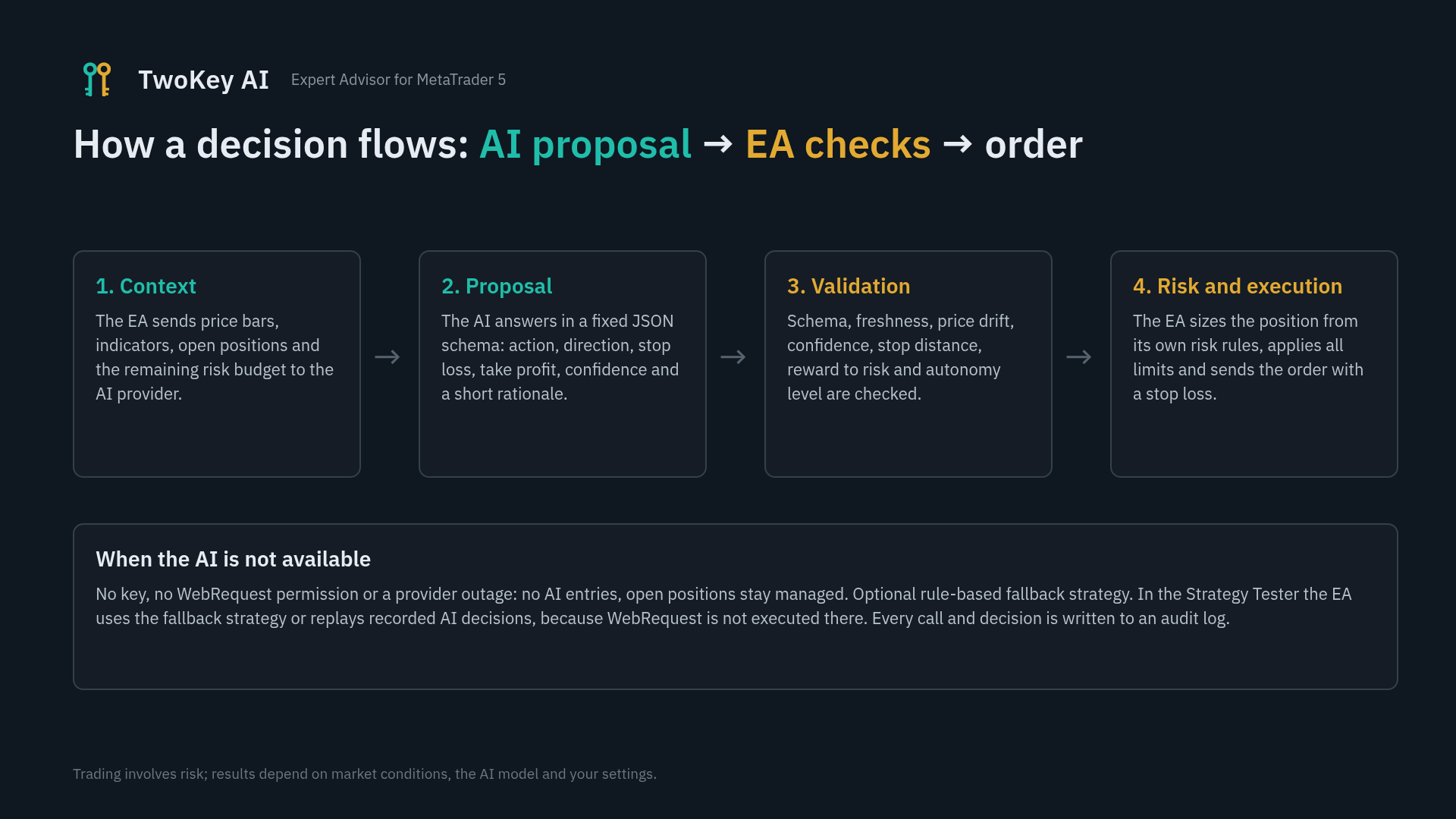 What each part owns:
| Part | Responsibility |
|---|---|
| Scheduler | One AI call at most per timer event, round-robin over symbols. Skips calls when nothing changed (no new bar, small move, same positions) or nothing is possible (budget spent, entries blocked and no position). Exponential backoff on errors, circuit breaker after repeated failures. |
| Context builder | Instrument data, closed bars on the signal and context timeframes, indicator features, open positions of this EA with their R multiple, risk state as percentages, the constraints of the current autonomy mode and the directions an entry would be refused on. It never sends the account number, name, broker, server or balance. |
| Providers | Adapters for Anthropic, OpenAI, Google Gemini and OpenAI-compatible servers. When supported, the request asks the provider to enforce the decision schema natively. |
| Validator | Every field present, no extra fields, correct types; request id and symbol match; the decision is fresh; price has not drifted too far; the action is allowed in the current mode; confidence clears the threshold; stop on the correct side and clamped into the ATR bounds; reward-to-risk at or above the minimum; spread small enough. |
| Risk engine | Risk per trade from the stop distance, daily loss limit with lock, maximum drawdown (static or trailing) with lock, open-risk cap, position caps, currency-leg exposure, trades per day, cooldown after a losing streak, no reversal while a position is open, no adding to a losing position. |
| Execution | Stop and freeze levels, volume normalisation, retries on requotes, stop verified after every fill and re-applied if the server dropped it; the position is closed if a stop cannot be set. Stops are never widened. |
| Position manager | Break-even, trailing (ATR, swing or points), up to two partial closes, optional time stop. These run in every mode, whatever the AI says. |
| Prop guard | News blackout from the MQL5 economic calendar, trading session window, Friday cutoff and flatten, profit-target behaviour, optional stop randomisation (tighten only) and random call delay. |
Autonomy modes
You choose how much the AI may do:
| Mode | The AI may | Stop and target | Minimum confidence to open |
|---|---|---|---|
| Conservative | Open at market, close, hold | The EA sets the stop (default 1.5 ATR) and the target at the minimum reward-to-risk | 90 |
| Moderate | Also partial close and limit or stop entries | The AI proposes stop and target at entry; the EA validates and clamps them | 75 or your input, whichever is higher |
| Full | Also tighten the stop of open positions | The AI may tighten, never widen | your input |
Confidence is one of four values (30, 50, 75, 90), which keeps the model from producing false precision.
3. AI providers and API keys
TwoKey AI does not include an AI subscription. You bring your own API key from one provider:
| Provider | Setting | Notes |
|---|---|---|
| Anthropic Claude | InpProvider = Anthropic | Native structured output; optional prompt caching (see costs) |
| OpenAI | InpProvider = OpenAI | Strict JSON schema response format |
| Google Gemini | InpProvider = Gemini | JSON schema in the generation config |
| OpenAI-compatible | InpProvider = OpenAI-compatible plus InpCustomBaseUrl | Any server that speaks the chat-completions format with JSON output |
How to get a key:
- Create an account in the provider's developer console. A chat subscription (Claude.ai, ChatGPT Plus, Gemini app) is not an API account and will not work.
- Add prepaid credit. A small amount is enough for a month of demo testing.
- Create a key, and set a monthly spend limit on it in the console. That limit is your second safety net behind the EA's own daily ceiling.
- Paste the key into InpApiKey . Leave InpModel empty to use the built-in default for that provider, or enter a model ID from the provider's current model list. Model names change often, so checking the list is worth a minute.
- Enter the model's prices in InpPriceInPerM and InpPriceOutPerM (US dollars per million tokens) from the provider's price page. The cost meter and the daily ceiling depend on them.
Your key stays with you. It is sent only in the request headers to the provider you selected. It is never written to a log or file and never included in the market context. Do not share a .set file after you have saved your key into it; the attached presets contain no key.
4. WebRequest setup
MetaTrader blocks every network call from an Expert Advisor unless the address is on an allow-list. Open Tools > Options > Expert Advisors, tick Allow WebRequest for listed URL, and add the address of the one provider you use:
| Provider | Address to add |
|---|---|
| Anthropic Claude | https://api.anthropic.com |
| OpenAI | https://api.openai.com |
| Google Gemini | https://generativelanguage.googleapis.com |
| OpenAI-compatible | the scheme and host of your InpCustomBaseUrl |
When it starts, the EA sends a request without your key to check the permission. If the address is missing, the dashboard shows AI SAFE MODE with the reason, and the Experts log prints the exact address to add. In safe mode the EA opens no AI trades but keeps managing any open positions. If InpFallbackOnOutage is on, the built-in rule-based strategy runs instead.
TwoKey AI makes no other network calls: no licensing server, no update check, no telemetry.
5. The dashboard
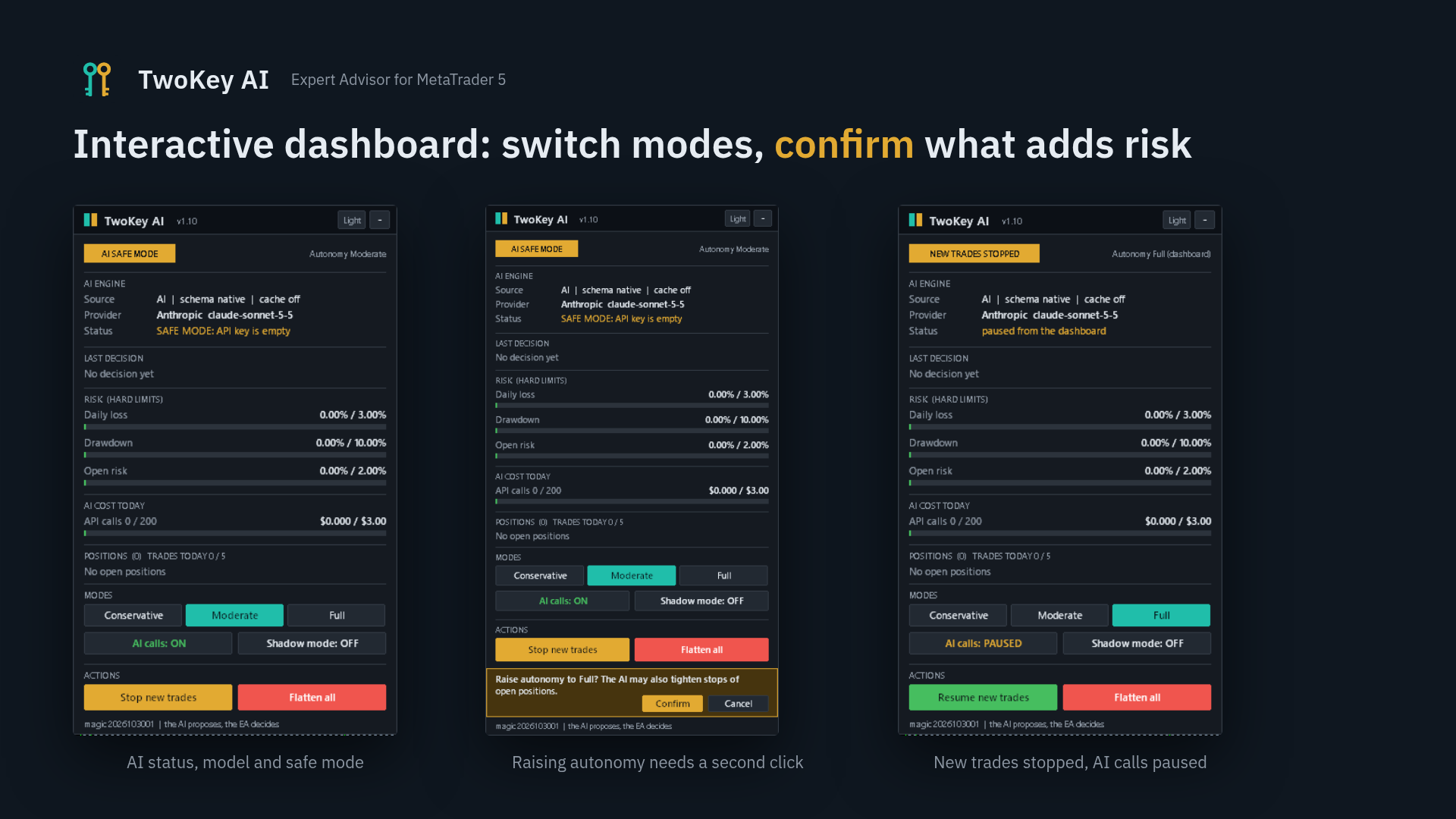
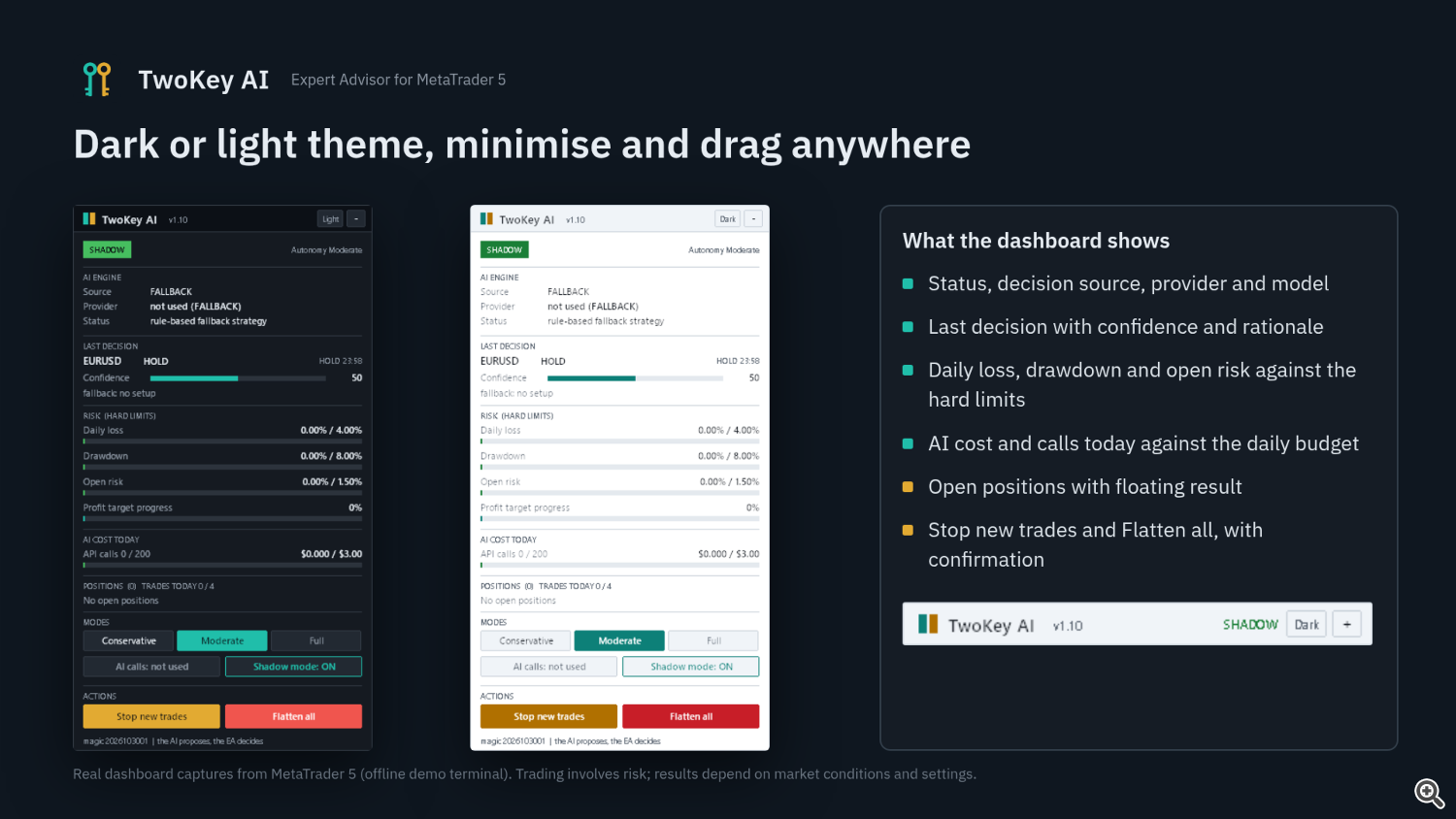 The dashboard is drawn on the chart with standard chart objects. It shows:
- Status: ACTIVE, SHADOW, AI PAUSED, AI SAFE MODE, NEW TRADES STOPPED, TARGET REACHED, or a lock (daily limit, maximum drawdown). The most severe state is shown first.
- AI engine: decision source, schema mode, cache mode, provider and model, and the scheduler status (next call, latency of the last call, backoff, budget).
- Last decision: symbol, action, verdict and time, a confidence bar, and the model's rationale or the reason the EA rejected it.
- Risk meters: daily loss, drawdown and open risk against your hard limits, plus profit-target progress in prop mode. A meter turns amber at 50% and red at 80% of its limit.
- AI cost today against your daily ceiling, and calls against the daily call limit.
- Positions opened by this EA, and trades today against the daily maximum.
Controls
| Control | What it does | Second click needed |
|---|---|---|
| Conservative / Moderate / Full | Overrides the autonomy input | Only when raising autonomy |
| AI calls ON / PAUSED | Pauses AI calls; open positions stay managed | Only when resuming |
| Shadow mode ON / OFF | Overrides the shadow input | Only when leaving shadow mode |
| Stop new trades / Resume | The kill switch for new entries | Only when resuming |
| Flatten all | Closes all positions and deletes pending orders of this EA | Always |
Anything that reduces risk happens at once; anything that adds risk, or closes everything, asks for confirmation in a bar under the buttons, which expires after 10 seconds. You can also minimise the panel, drag it by its header and switch between a dark and a light theme; the layout is remembered.
What the dashboard can never do: change a hard limit (risk per trade, daily loss, drawdown, open risk, position caps, trades per day, cost ceiling, stop bounds, filters), raise autonomy above the preset's ceiling in prop mode, override Conservative near the profit target, or clear a drawdown or daily-loss lock. Every click that changes something is written to the events log. If you set InpDashboardControls = false , the mode buttons are locked; Stop new trades and Flatten all remain available.
6. Presets
Load a preset in the EA's Inputs tab with Load. Presets set the risk and prop-firm values; your provider, key and model stay as you enter them.
| Preset file | Risk per trade | Daily loss | Maximum drawdown | Autonomy | Use it for |
|---|---|---|---|---|---|
| TwoKeyAI_ShadowMode.set | 0.5% | 2% | 6% trailing | Moderate | First weeks: the AI is called and every decision is logged and shown, but no order is sent |
| TwoKeyAI_DemoEvaluation.set | 0.5% | 2% | 6% trailing | Moderate | The 30-day demo forward test; at most 5 trades per day, open risk 1.5% |
| TwoKeyAI_PropChallenge.set | 0.5% | 4% | 8% static | Moderate (ceiling) | Prop challenge phase: prop mode, 10% target, stop at target, news and Friday rules, two matching AI calls required before an entry, stops randomised by up to 5 points (tighter only), random call delay up to 20 s |
| TwoKeyAI_PropFunded.set | 0.25% | 3% | 7% static | Conservative (ceiling) | Funded phase: prop mode, no target stop, 3 trades per day, two matching AI calls required |
| TwoKeyAI_PortfolioMajors.set | 0.3% | 2% | 8% | Moderate | EURUSD, GBPUSD, USDJPY and AUDUSD from one chart; at most 4 positions and 2 per currency; 30-minute decision interval |
| TwoKeyAI_TesterFallback.set | 0.5% | 3% | 10% | n/a | Strategy Tester: the rule-based fallback strategy through the full risk layer |
| TwoKeyAI_TesterReplay.set | as inputs | as inputs | as inputs | n/a | Strategy Tester: replays AI decisions you recorded on demo |
The internal limits are deliberately set below common prop-firm limits (often 5% daily and 10% overall). Firms differ. Before a challenge, check with your firm: the daily reset hour ( InpDayResetHour , in server time), whether daily loss is measured on balance or equity ( InpDailyLossBasis ), static or trailing drawdown, and their rules on news trading and weekend holding.
7. Risk management and prop-firm features
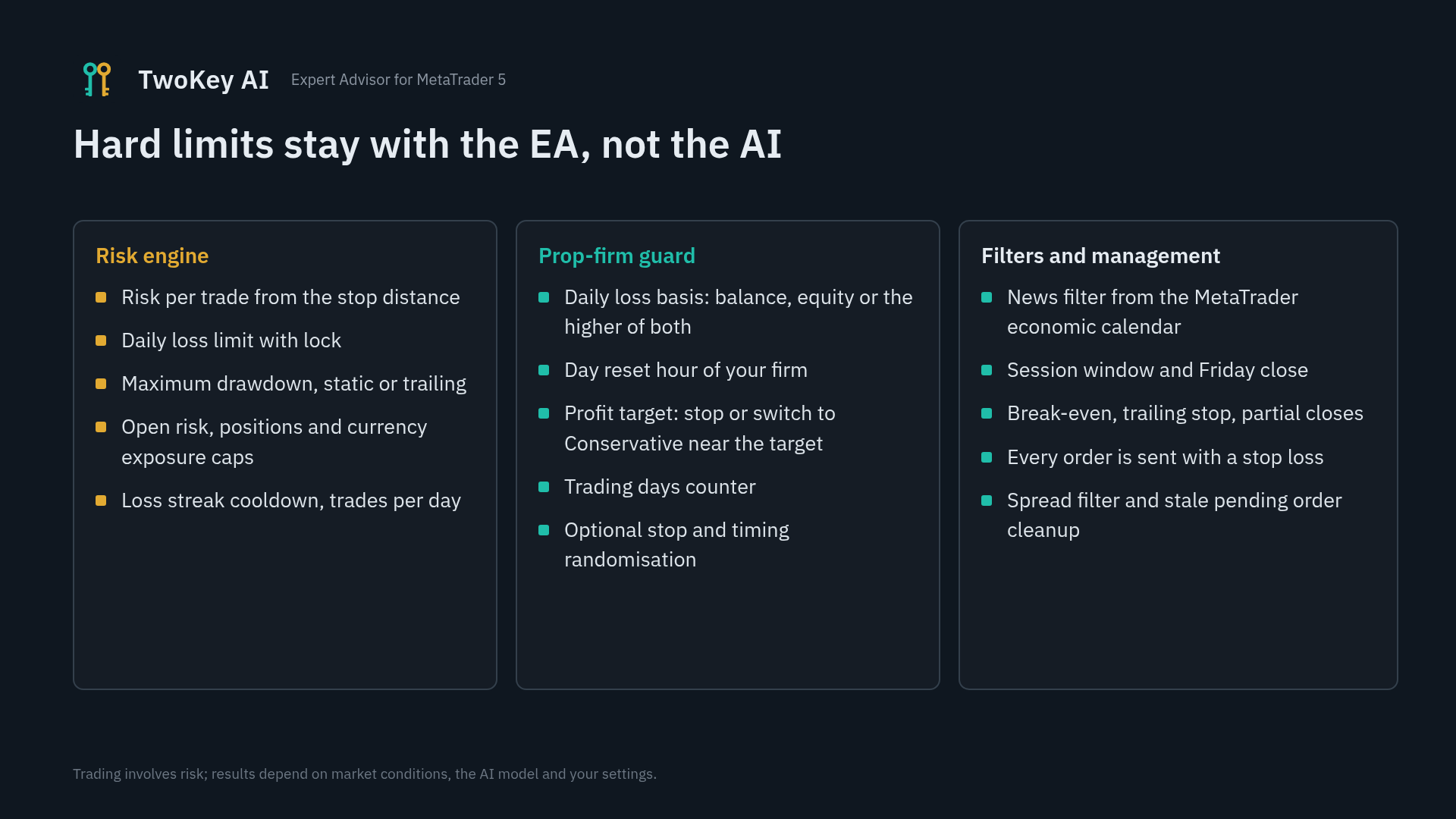
These rules apply in every mode and cannot be changed by the AI or the dashboard:
- Risk per trade is a percentage of equity measured to the stop. Lot sizes are always rounded down. On a live or demo account, a trade too small for the broker's minimum lot is skipped, never rounded up.
- Daily loss limit with a lock until the next trading day, measured from the balance at the reset hour (rebuilt from the deal history, so a restart does not reset it).
- Maximum drawdown, static or trailing, with a permanent lock that only you can clear.
- Open risk cap: the sum of the risk of all open stops.
- Position caps in total, per symbol and per currency.
- Trades per day and a cooldown after a losing streak.
- No reversal while a position is open, and no adding to a losing position.
- Stop verification: after every fill the EA checks that the stop is on the server. If not, it re-applies it, closes the position if it cannot, and raises an alert if even the close is refused (for example while the market is closed). Stops on the server are not guaranteed fills: gaps and slippage still apply.
- Spread filter (automatic at twice the median spread, or a fixed cap), session window, Friday cutoff with optional flatten, news blackout from the MQL5 economic calendar. If the calendar cannot be read, new entries are blocked.
 Prop-firm mode adds:
- profit-target tracking, with the option to stop new trades at the target;
- near the target (80% by default), autonomy drops to Conservative and risk is halved;
- the preset's autonomy becomes a ceiling that the dashboard cannot raise;
- optional stop randomisation (tighten only) and a random delay before AI calls.
State (daily anchors, locks, cost, loss streak) is kept in a file per account and magic number, so it survives restarts and two accounts never share a lock.
8. Testing: what can and cannot be tested
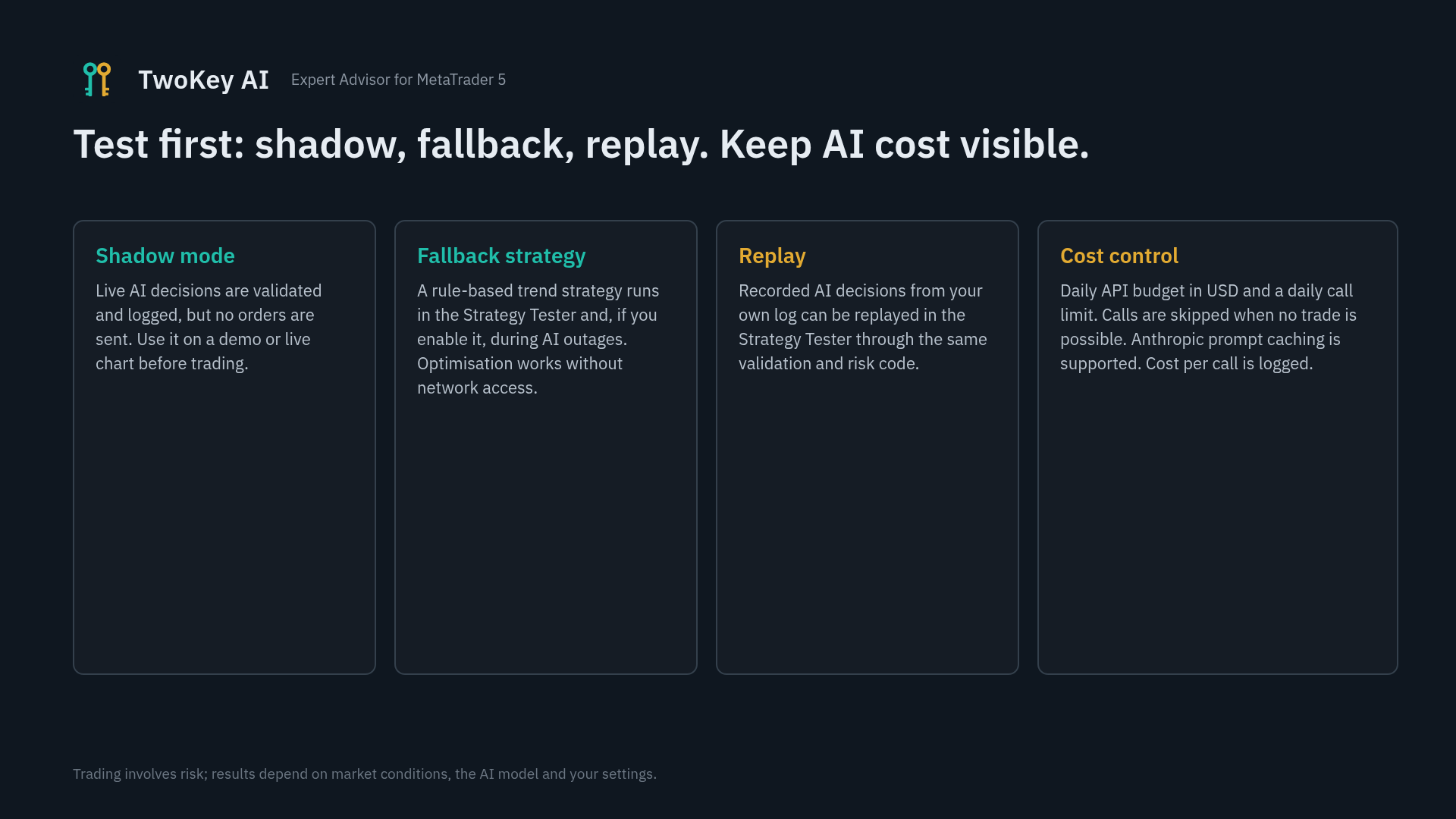
The AI does not run in the Strategy Tester. MetaTrader does not execute WebRequest there, and the economic calendar is not available. That is a platform rule. TwoKey AI offers three ways to test around it:
Fallback strategy (tester). A deterministic rule-based strategy (EMA 20/50 trend on the context timeframe, pullback entry, ATR stops, exit when the trend flips) produces decisions in the same JSON format. They go through the same validator, risk engine and execution as AI output. Run TwoKeyAI_TesterFallback.set with Every tick based on real ticks, on EURUSD M15 over one to two years. Its profit or loss says nothing about the AI; its journal tells you whether the risk layer is sound on your broker's symbols: every order carries a stop, no stop is widened, the daily limit holds.
The free demo on the Market runs in the Strategy Tester, so it shows the fallback strategy and the risk layer, not the AI.
Replay (tester). After running on demo, combine the daily decision logs ( MQL5/Files/TwoKeyAI/<magic>_decisions_<date>.jsonl ) into MQL5/Files/TwoKeyAI_replay.jsonl and run TwoKeyAI_TesterReplay.set over the same dates. The tester replays the recorded AI decisions bar by bar through the validator, risk engine and execution. This lets you compare, for example, a different risk per trade or trailing mode on the same AI output. It measures the execution and risk layer, not the AI's predictive edge.
 Forward test (demo). This is the only real test of the AI:
- Shadow mode on demo for one to two weeks ( TwoKeyAI_ShadowMode.set ). Read the decision log daily: verdicts, rejection reasons, latency, cost.
- Demo with execution ( TwoKeyAI_DemoEvaluation.set ) for at least 30 days with an unchanged configuration. Review the trades file weekly: R multiples, exit reasons, drawdown.
- Only then consider a small live account, and only after that a prop challenge.
A week of good results means little; a month of behaviour you understand means more.
9. API costs
Every AI decision is a paid request to your provider. Your bill is calls per day × (input tokens × input price + output tokens × output price).
| Setup | Approximate API spend |
|---|---|
| One symbol, M15, small model (Haiku, Flash or mini class) | $0.30–1 per day |
| One symbol, M15, flagship model, default reasoning | $1–5 per day |
| Four-symbol portfolio, flagship model | $4–15 per day |
These are estimates from typical token counts (about 3,000–5,000 input tokens and a few hundred output tokens per call, 30–60 calls on a typical single-symbol day), not quotes. Your provider's invoice is the only authoritative figure.
How the EA keeps it under control:
- InpMaxDailyApiCost is a hard daily ceiling: before each call the EA estimates the cost and skips the call if it would exceed the ceiling. It never switches to another model by itself.
- InpMaxCallsPerDay limits the number of calls.
- Calls are skipped when nothing changed or nothing is possible.
- InpContextBars (the number of bars sent) is the main lever on input size.
- For Anthropic, InpAnthropicCache controls prompt caching. On Auto, caching is used only when calls come less than five minutes apart, because a cache write costs more than a normal input token and only pays off when it is read before it expires.
10. Frequently asked questions
Does it work without an API key? Live, the EA needs a key to call the AI. Without one it stays in safe mode and only manages positions, or runs the fallback strategy if you enable InpFallbackOnOutage .
Can I use my ChatGPT Plus or Claude Pro subscription? No. Those are chat subscriptions. You need an API key from the provider's developer console.
Which model should I use? Start with a small, fast model in shadow mode to learn the cost and behaviour, then compare a larger model on demo with the same configuration. Read the rationales in the decision log; they show how the model reads the market.
Why does it hold most of the time? Holding is a valid decision and often the right one. The model may see no setup, or the EA may block entries (session, news, budget, limits). The decision log gives the reason for every hold or rejection.
Can I write my own strategy for the AI? Yes. InpStrategyPrompt takes plain-English instructions. Keep them consistent with the risk inputs: asking for very tight scalps while the minimum reward-to-risk is 1.5 will produce many rejections.
Does it work on prop-firm accounts? It has prop-firm features (section 7). Whether it fits a given firm's rules is for you to check with that firm, including their rules on EAs, news and AI-assisted trading.
Netting or hedging? Both. On netting accounts keep one position per symbol ( InpMaxPositionsSymbol = 1 ).
Do I need a VPS? Strongly recommended. The EA must be online to make decisions and manage positions; a laptop that sleeps will miss both.
Is my data sent anywhere? Only the market context and the decision request go to the provider you chose. No account number, name, broker, server or balance is included. Nothing goes anywhere else.
What happens if the provider is down? The EA backs off, then opens a circuit breaker after repeated failures. Open positions keep their server-side stops and are still managed. With InpFallbackOnOutage on, the fallback strategy runs during the outage.
11. Disclaimers
- Trading carries a high level of risk and is not suitable for everyone. You can lose money, including, with some account types, more than your deposit.
- TwoKey AI is a tool. It does not give financial advice, and no setting, model or preset guarantees any result.
- Language-model output varies from one call to the next. Past behaviour, in the tester or on demo, does not predict future behaviour.
- Strategy Tester results of the fallback strategy or of replays do not show how the AI would trade.
- API costs are paid by you to your provider and depend on your settings and usage.
- Check your broker's and prop firm's rules before using any Expert Advisor.
Attached files
The seven presets below are attached to this post. Copy them into your terminal's MQL5/Presets folder (File > Open Data Folder), then use Load in the EA's Inputs tab. They contain no API key.
| File | Purpose |
|---|---|
| TwoKeyAI_ShadowMode.set | Start here: decisions shown and logged, no orders |
| TwoKeyAI_DemoEvaluation.set | 30-day demo forward test |
| TwoKeyAI_PropChallenge.set | Prop challenge phase |
| TwoKeyAI_PropFunded.set | Prop funded phase |
| TwoKeyAI_PortfolioMajors.set | Four majors from one chart |
| TwoKeyAI_TesterFallback.set | Strategy Tester, fallback strategy |
| TwoKeyAI_TesterReplay.set | Strategy Tester, replay of recorded decisions |
If the attachments are not available to you, every preset can be recreated by hand from the values below: enter them in the Inputs tab and click Save.
| Preset | Inputs to set |
|---|---|
| ShadowMode | InpPreset = Demo Evaluation , InpShadowMode = true |
| DemoEvaluation | InpPreset = Demo Evaluation , InpAutonomy = Moderate |
| PropChallenge | InpPreset = Prop Challenge , InpPropMode = true , InpDailyLossBasis = higher of day-start balance and equity , InpProfitTargetPct = 10 , InpNearTargetFraction = 0.8 , InpStopAtTarget = true , InpNewsFilter = true , InpFridayClose = true , InpFridayCutoffHour = 20 , InpFridayFlatten = true , InpRandomizePoints = 5 , InpRandomDelaySec = 20 , InpConfirmCalls = 2 |
| PropFunded | InpPreset = Prop Funded , InpPropMode = true , InpDailyLossBasis = higher of day-start balance and equity , InpStopAtTarget = false , InpNewsFilter = true , InpFridayClose = true , InpFridayFlatten = true , InpRandomizePoints = 5 , InpRandomDelaySec = 20 , InpConfirmCalls = 2 |
| PortfolioMajors | InpPreset = Portfolio Majors , InpSymbols = EURUSD,GBPUSD,USDJPY,AUDUSD , InpMaxCurrencyLegs = 2 , InpDecisionIntervalMin = 30 |
| TesterFallback | InpPreset = Custom , InpDecisionSource = Fallback , InpRiskPerTradePct = 0.5 , InpMaxDailyLossPct = 3 , InpMaxDrawdownPct = 10 , InpNewsFilter = false |
| TesterReplay | InpPreset = Custom , InpDecisionSource = Replay , InpMaxDecisionAgeSec = 600 , InpNewsFilter = false |
All presets use the 15-minute signal timeframe and the 1-hour context timeframe, magic number 2026103001 and a $3 daily API ceiling, unless stated otherwise above.