Default values are shown for reference, not as recommendations for every account.
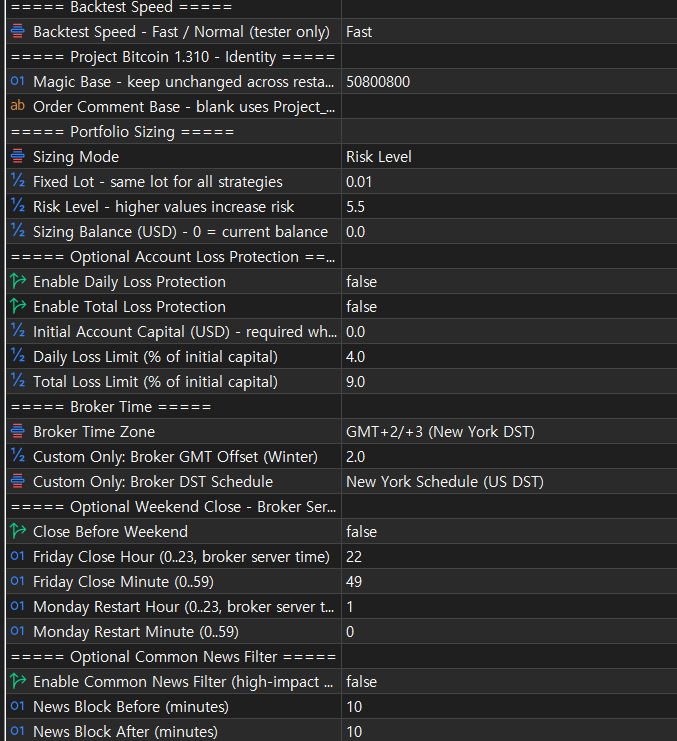
1. Backtest Speed
default: Normal
Use Fast for screening and real ticks with Normal for final verification. This setting affects the Strategy Tester only.
2. Magic Base
default: 50800800Identifies EA trades. Keep it unchanged while the EA manages existing positions or pending orders.
3. Order Comment Base
default: blankBase text for order comments. Leave blank to use the default product text and strategy number.
Position sizing
4. Sizing Mode
default: Risk LevelChoose portfolio sizing by Risk Level or the same Fixed Lot for every strategy.
5. Fixed Lot
default: 0.01Lot size for each strategy in Fixed Lot mode. It must fit the broker volume limits and step.
6. Risk Level
default: 5.5Scales position sizes using a historical drawdown reference. Higher values increase exposure. It is not a future loss ceiling or a per-trade risk percentage.
7. Sizing Balance (USD)
default: 0Zero uses the current account balance and updates sizing as balance changes. A positive value fixes the sizing reference amount.
Optional account loss protection
8. Enable Daily Loss Protection
default: OFFEnables daily loss checks, blocks new EA entries and manages protective exits of owned trades when triggered.
9. Enable Total Loss Protection
default: OFFEnables a static total-loss floor based on initial capital. A triggered total-loss stop persists across restarts.
10. Initial Account Capital (USD)
default: 0Initial account capital for loss calculations. Enter the actual initial capital when enabling either loss protection.
11. Daily Loss Limit (% of initial capital)
default: 4Daily protection amount as a percentage of initial capital. Allow a buffer below the applicable firm limit.
12. Total Loss Limit (% of initial capital)
default: 9Static total-loss threshold as a percentage of initial capital. It does not track a rising high-water balance.
Broker time
13. Broker Time Zone
default: GMT+2/+3Select GMT+2/+3, GMT+0 or Custom to match the broker server clock.
14. Custom Only: Broker GMT Offset (Winter)
default: 2Broker winter UTC offset, used in Custom mode only.
15. Custom Only: Broker DST Schedule
default: US DST (Custom only)Broker daylight-saving schedule, used in Custom mode only.
Optional weekend schedule
16. Close Before Weekend
default: OFFPauses new entries and requests closure/cancellation of owned trades from the configured Friday cutoff.
17. Friday Close Hour
default: 22Friday cutoff hour in broker server time, from 0 to 23.
18. Friday Close Minute
default: 49Friday cutoff minute in broker server time, from 0 to 59.
19. Monday Restart Hour
default: 1Monday hour when the weekend pause ends. Other entry and protection conditions still apply.
20. Monday Restart Minute
default: 0Monday restart minute in broker server time, from 0 to 59.
Optional common news filter
21. Enable Common News Filter (high-impact USD)
default: OFFEnables entry restrictions around high-impact USD events from the MT5 calendar. The common filter is not simulated in ordinary tester runs.
22. News Block Before (minutes)
default: 10Sets the entry restriction window before the news release, in minutes.
23. News Block After (minutes)
default: 10Sets the entry restriction window after the news release, in minutes.
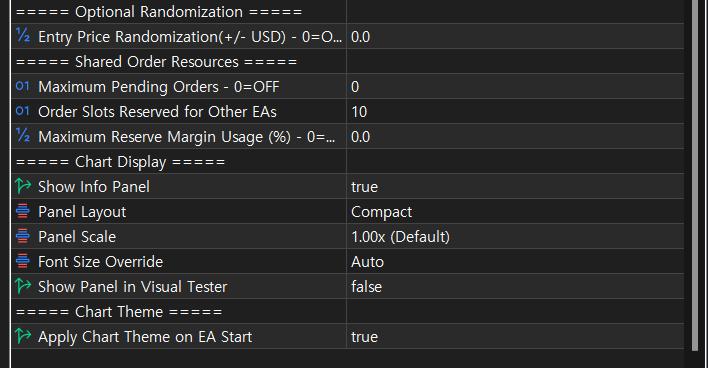
Additional entry-price variation
24. Entry Price Randomization (+/- USD)
default: 0Optional variation of S/R pending-entry prices in USD. Zero is OFF. It does not apply to market entries from the volatility strategies.
Shared account resources
25. Maximum Pending Orders
default: 0Additional cap on this EA's server pending orders. Zero disables this additional cap.
26. Order Slots Reserved for Other EAs
default: 10Leaves order slots available for other EAs within the broker account order limit.
27. Maximum Reserve Margin Usage (%)
default: 0Limits new entries using current margin, estimated reserves for all pending orders and the new order. Zero is OFF.
Display
28. Show Info Panel
default: ONShows the information panel on the chart.
29. Panel Layout
default: CompactSelects the Compact or Overview panel layout.
30. Panel Scale
default: 1.00xAdjusts the overall panel scale.
31. Font Size Override
default: AutoUses automatic font sizing or a selected font size.
32. Show Panel in Visual Tester
default: OFFControls whether the panel appears in a visual backtest.
33. Apply Chart Theme on EA Start
default: ONApplies the product chart theme when the EA starts.