Quellen: market/desk-description.md (v3), desk/SPEC.md (4.1 bis 4.5, 5, 6.4 bis 6.8, 13), desk/spike/README.md, desk/DeskView.mqh (Wortlaut "Waiting for connection"). Vor dem Veroeffentlichen: reviewer-legal-compliance. OFFEN-Stellen geklaert 2026-10-30 (Waiting for connection und Tester-Leerzustand von P bestaetigt, Version 1.00, Spaltenschwellen allgemein formuliert).
---------- BEGIN MANUAL ----------
This manual describes EA Desk MT5, version 1.0. It explains every part of the panel, how the numbers are calculated and what to do if something looks unexpected.
EA Desk MT5 on the Market: https://www.mql5.com/en/market/product/205108
All numbers in examples and screenshots are made up or come from a demo account.
Contents
- What EA Desk is
- Installation and first start
- Panel tour
- The seven rings
- The table
- How the numbers are calculated
- Sizes, resizing and memory
- Inputs
- Troubleshooting
- Limits and what EA Desk does not do
- Questions
1. What EA Desk is
EA Desk is a read-only panel for the MetaTrader 5 terminal. It shows the results of your account and a table with one row per Magic Number.
Many traders run several Expert Advisors on one account. An Expert Advisor is a program that trades automatically. The terminal shows all deals in one shared list. To see what each Expert Advisor has done, you have to filter and calculate by hand. EA Desk does this for you and shows the result on one chart. Results are shown as P/L, which means profit or loss.
A Magic Number is a number that an Expert Advisor puts on its orders and positions. It tells the terminal which program made the trade. Trades placed by hand have the Magic Number 0.
EA Desk reads the deal history and the open positions of your account. It does not open, change or close any order or position. It does not trade in the Strategy Tester either.
One chart is enough. EA Desk reads the whole account, not only the symbol of its chart.
The Status column shows Active or Idle. Idle means that an Expert Advisor has had no trading activity for a number of days and has no open position. It does not mean that the Expert Advisor is not loaded on a chart. A loaded Expert Advisor that does not trade also appears as Idle.
2. Installation and first start
Attach EA Desk to a chart
- Open a new, empty chart of any symbol and timeframe.
- In the Navigator, open Expert Advisors and drag EA Desk MT5 onto this chart.
- Check the settings in the Inputs tab if you want to change them (see section 8). Confirm with OK.
Do not attach EA Desk to a chart that already runs an Expert Advisor. MetaTrader allows one Expert Advisor per chart. The terminal asks whether it should replace the existing one. If you confirm, the other Expert Advisor is removed from that chart.
Use one EA Desk per chart. If you drag EA Desk onto a chart that already has EA Desk, the running copy ends and a new one starts. The settings remembered for that chart are then deleted (see section 7).
Algo Trading
EA Desk works with Algo Trading switched off, because it does not trade. You do not need to switch it on.
What you see while loading
When EA Desk starts, it reads the deal history of your account. With a long history this can take a moment. During this time the panel shows:
- "Loading history... 42 %" in place of the table. The number shows the progress.
- Balance, Equity and Floating P/L are already live.
- The Result values show a dash.
- The rings show a dash, except Float-Exposure, which shows its live value.
- Rows cannot be selected yet.
If the terminal has no connection or no login and the history is still empty, the panel shows "Waiting for connection..." in place of the table.
When the history is read, the panel shows the full view. If the account has no trades yet, the table area shows "No trades in history yet." (see section 9).
3. Panel tour
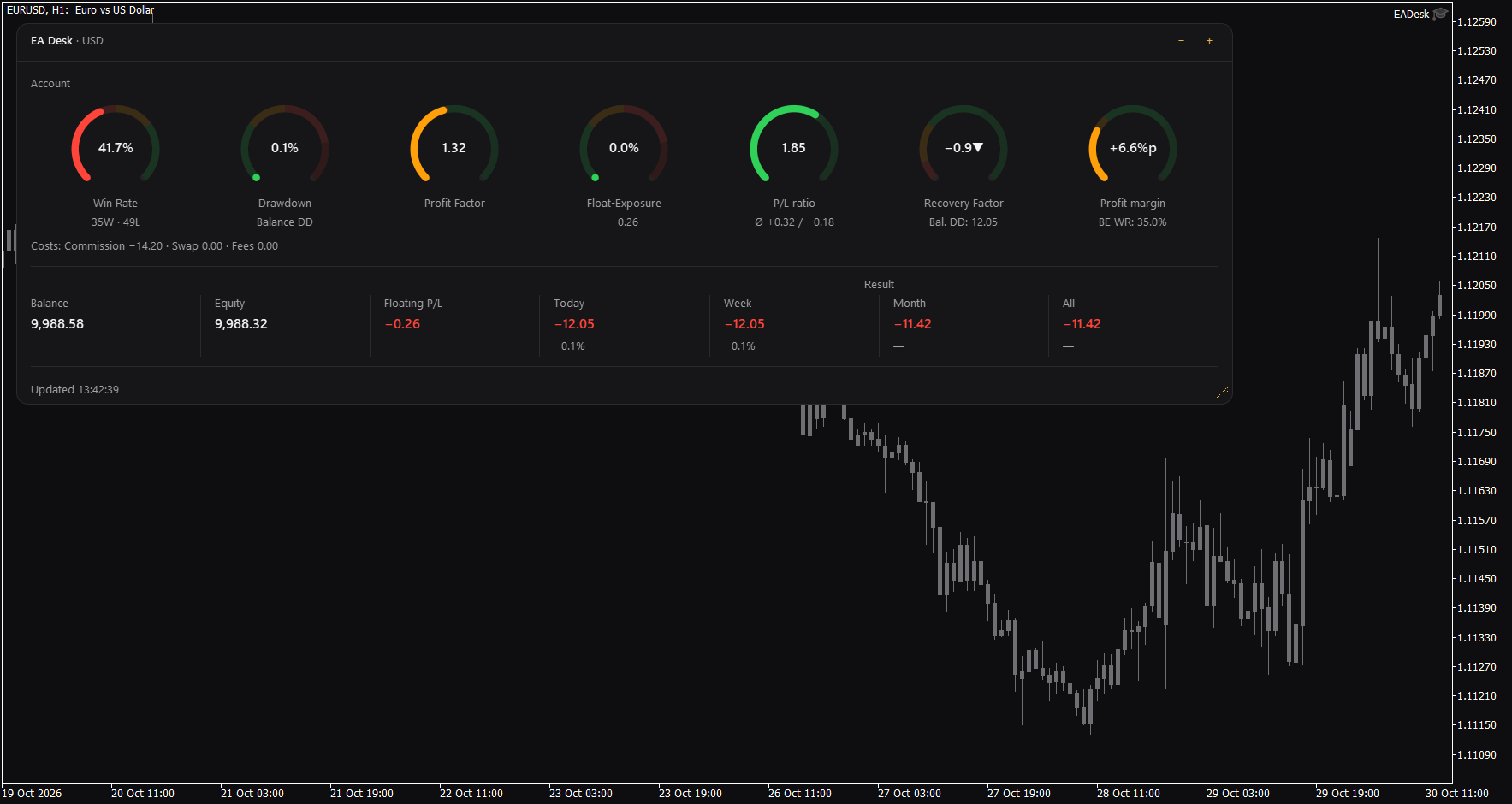
The panel is a small dark panel on your chart. It uses few colours and nothing flashes or moves. From top to bottom it has these parts.
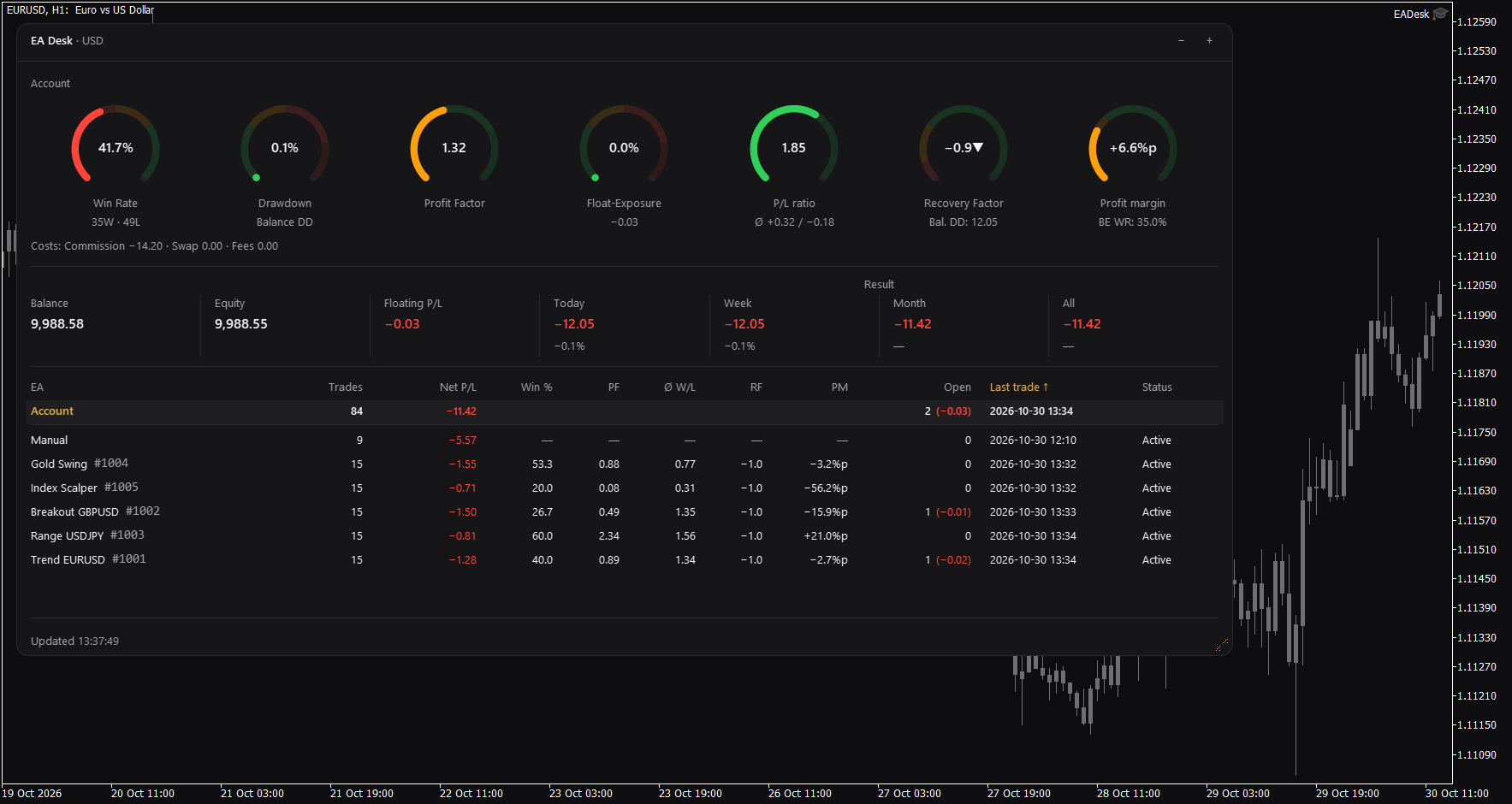
- Header. It shows "EA Desk" and the account currency, for example "EA Desk - USD". All amounts in the panel are in this currency. On the right are the buttons minus and plus. They change the size level (section 7). In the collapsed level the header also shows a short line such as "5 EAs, 1 idle".
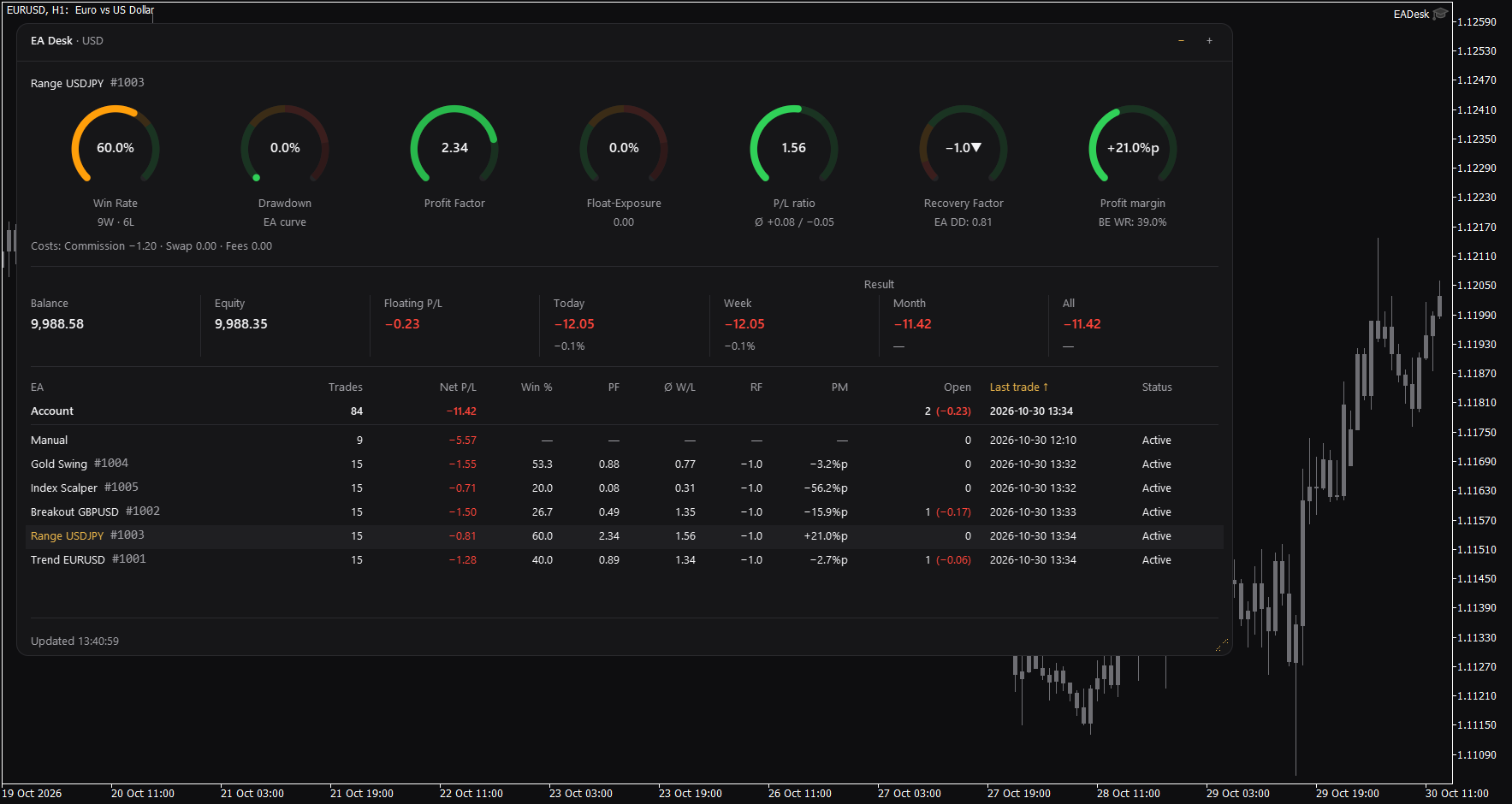
- Rings. A line above the rings shows what they refer to: "Account" or the name and Magic Number of the selected Expert Advisor, for example "Trend H1 #2002". Below it are seven rings. Each ring shows one value, a short second line and a coloured range (section 4).
- Cost line. Directly under the rings: "Costs: Commission, Swap, Fees". It shows what trading has cost, in your account currency. It follows the selection like the rings (section 5).
- Account line. Balance, Equity and Floating P/L. Floating P/L is the open profit or loss of all open positions.
- Result. Next to the account line, or below it on a narrow panel: the trading result for Today, Week, Month and All. Today, Week and Month also show a percentage of the balance at the start of that period. For All the percentage shows a dash.
- Table. One row per Magic Number, with the fixed row Account on top (section 5). The table is shown in the full level only.
- Footer. On the left: "Updated" with the server time of the last update, for example "Updated 10:42:05". If the terminal loses the connection to the server, "No connection" appears in the footer and the last values stay on screen. The time next to "Updated" then shows how old they are.
- Grip. In the corner of the panel. Drag it to change the size (section 7).
Colours have fixed jobs. Green and red mark the direction of money amounts such as Net P/L and Result. A plus or minus sign is always shown as well. The colours of the rings mark ranges only, and only on the rings. Gold marks things you can use: the buttons, the grip, the title of the sort column and the name of the selected row.
4. The seven rings
The rings are in this order: Win Rate, Drawdown, Profit Factor, Float-Exposure, P/L ratio, Recovery Factor and Profit margin.
Each ring has a scale. The value moves the coloured arc along the scale. The colours mark ranges on the scale. They show where a value lies. They are not advice and they say nothing about future results.
A ring in a red range does not flash and does not trigger any message or sound.
The range limits below are written as "from ... up to below ...". For example "50 to 70" means: 50 and above, but below 70.
Win Rate
- Meaning: the share of winning trades. Wins divided by wins plus losses, times 100. A trade with a result of exactly zero counts as a win.
- Scale: 0 to 100.
- Ranges: below 50 red, 50 to 70 orange, 70 and above green.
- Second line: number of wins and losses, for example 16W and 22L, which means 16 wins and 22 losses.
Drawdown
- Meaning: the largest fall of the balance from an earlier high point, in percent of the balance at that high point. Drawdown is also written DD. In this ring it is the balance drawdown (section 6).
- Scale: 0 to 100.
- Ranges: below 30 green, 30 to 50 orange, 50 to 80 red, 80 and above dark red.
- Second line: "Balance DD" for the account, "EA curve" for an Expert Advisor.
- For an Expert Advisor the percentage refers to the account balance at the close of the day of that Expert Advisor's high point.
Profit Factor
- Meaning: gross profit divided by gross loss. Gross means without swap and commission.
- Scale: 0 to 3.
- Ranges: below 1.0 red, 1.0 to 1.4 orange, 1.4 to 2.2 green, 2.2 and above dark green.
- Second line: empty.
Float-Exposure
- Meaning: the absolute floating profit or loss divided by the account balance, times 100. It shows how large the open result is compared with the balance. It is a snapshot of the present moment.
- Scale: 0 to 100.
- Ranges: the same as Drawdown. Below 30 green, 30 to 50 orange, 50 to 80 red, 80 and above dark red.
- Second line: the floating profit or loss with its sign, without colour, for example -70.00. For an Expert Advisor without an open position it shows 0.00.
P/L ratio
- Meaning: the average winning trade divided by the average losing trade.
- Scale: 0 to 3.
- Ranges: below 0.5 red, 0.5 to 1 orange, 1 to 2 green, 2 and above dark green.
- Second line: the average win and the average loss, for example +6.59 / -9.54. A small average sign stands in front.
Recovery Factor
- Meaning: total profit divided by the largest drawdown, as an amount. For the account, total profit includes fees and other bookings such as corrections or interest (section 6).
- Scale: 0 to 10.
- Ranges: below 1 red, 1 to 3 orange, 3 to 6 green, 6 and above dark green.
- Second line: the drawdown amount: "Bal. DD: 612.00" for the account, "EA DD: 260.00" for an Expert Advisor.
Profit margin
- Meaning: the win rate minus the break-even win rate, shown in percentage points (written %p). A change from 50 percent to 52.5 percent is +2.5%p.
- The break-even win rate (BE WR) is the win rate at which the average win and the average loss would give a result of zero. It is calculated as the average loss divided by the sum of the average win and the average loss, times 100. If both averages are zero, 50 is used.
- Scale: -20 to 80.
- Ranges: below 0 red, 0 to 15 orange, 15 to 50 green, 50 and above dark green.
- Second line: "BE WR" with its value, for example BE WR: 59.1%.
Special cases
- Dash. A dash means that the value cannot be calculated or is not available. The ring shows no arc and the second line is empty.
- Infinity. Profit Factor and P/L ratio show the infinity sign when there is no losing trade. Recovery Factor shows it when the result is positive and there was no fall. The arc is full and lies in the top range. No arrow is shown.
- Overflow arrows. If a value lies above the end of the scale, the arc is full and an arrow pointing up follows the number, for example +100.0%p with an up arrow. If a value lies below the start of the scale, no arc is drawn and an arrow pointing down follows the number, for example a Recovery Factor of -0.3 with a down arrow. The number always shows the real value. Profit Factor and P/L ratio do not show the arrow, only the number with a full arc.
- Colour range. The colour is chosen from the exact value, not from the rounded number on the ring. A win rate of 69.96 percent is shown as 70.0%, but it still lies in the orange range.
- No trades or still loading. The rings show a dash and no arc. Float-Exposure shows its live value.
- Balance of zero or below. Float-Exposure and Drawdown show a dash.
- If the balance at the high point cannot be determined reliably, for example when the broker history is incomplete, the percentage shows a dash. The amount in the second line stays.
5. The table
The table has one row per Magic Number. It is shown in the full level.
Columns
| Column | Content |
|---|---|
| EA | Name of the row, or the Magic Number with the comment of the last opening deal (see Names) |
| Trades | Number of closed positions |
| Net P/L | Net result of all deals of the positions of this Magic Number: profit, swap, commission and fee |
| Win % | Share of winning trades, one decimal place |
| PF | Profit Factor |
| W/L | P/L ratio: average win divided by average loss |
| RF | Recovery Factor |
| PM | Profit margin, in %p |
| Open | Number of open positions, and in brackets their floating profit or loss. Without open positions only 0 |
| Last trade | Server time of the last deal: opening or closing |
| Status | Active or Idle |
The ratio columns (Win %, PF, W/L, RF, PM) are gross. They use closed positions only and do not include swap and commission.
Account row
The row Account is always at the top, below the header of the table. It does not depend on the sorting, it does not count towards MaxRows and it is never left out. It shows the values of the whole account:
- Trades: the number of closing deals, the same count as in the rings.
- Net P/L: the Result for All.
- Open: all open positions and the total floating profit or loss.
- Last trade: the latest deal of the account.
- The ratio columns and Status are empty, because the rings already show these values for the account.
Account is selected when you first start EA Desk.
Manual and Other
- Manual is the row for Magic Number 0. It holds trades placed by hand and Expert Advisors that set no Magic Number. You can hide it with the input ShowManual.
- EA Desk lists up to 1000 Magic Numbers one by one. All further Magic Numbers are added together in one row called Other. It shows the same columns as the other rows.
- An Expert Advisor that uses several Magic Numbers appears as several rows.
Names
Without a name, a row shows the Magic Number, for example #2002, and the comment of the last opening deal of that Magic Number. Some brokers change comments. EA Desk does not use comments to group trades. Grouping is done by the Magic Number only.
To use your own names, fill in the input MagicNames, for example 1001=Trend H1;2002=Grid EURUSD. See section 8.
Idle and Active
- Active: the Magic Number has an open position, or its last deal is less than IdleDays days ago.
- Idle: no open position, and the last deal is IdleDays days or more ago. The row shows the number of full days since the last deal, for example "Idle 12d". The whole row is then shown in a quieter text colour.
The default for IdleDays is 4.
Minimum of 10 closed positions
The ratios are shown for an Expert Advisor only from 10 closed positions on. Below this number the columns Win %, PF, W/L, RF and PM show a dash. The same applies to the five matching rings of that Expert Advisor. Trades, Net P/L, Open, Last trade and Status are always shown.
Sorting
The sort order is set with the input SortBy. It cannot be changed by clicking the table header. The choices are:
- Last trade (oldest first). This is the default. Expert Advisors that have been quiet for the longest time are listed first.
- Last trade (newest first)
- Net P/L
- Trades
- Magic
The title of the sort column is shown in gold with an arrow. If the sort column is hidden on a narrow panel, the sorting stays and the arrow is not shown.
MaxRows and "+N more"
MaxRows sets the maximum number of rows of Expert Advisors, without the row Account. The table is first sorted, then cut. If there are more rows, the last line reads "+N more (MaxRows)", where N is the number of rows not shown.
If the panel is not high enough for all rows, the table shows as many rows as fit, and the last line reads "+N more". Make the panel higher to see more rows (section 7).
Selecting an Expert Advisor
Exactly one row is always selected. At the start it is Account.
- Click a row of an Expert Advisor. The selected row gets a quiet highlight and its name turns gold. The seven rings and the cost line now show the values of this Expert Advisor. The line above the rings shows its name and Magic Number.
- Click the row again, or click Account, to go back to the account.
- Manual and Other can be selected too.
- The table header, the line "+N more" and the loading and empty states do not react to clicks.
- The selection follows the Magic Number, not the position of the row. If the sorting changes, the highlight moves with the row.
- A click on the panel does not move the chart and does not select a chart object. If you move the mouse by more than about 3 pixels between pressing and releasing, the movement is not counted as a click.
If the selected row is no longer visible, the rings go back to Account. There are two cases:
- You hid the row with MaxRows or ShowManual. The remembered selection is reset to Account.
- The row is cut off because the panel is not high enough. Only the display goes back to Account. The remembered selection stays and returns when the row is visible again.
If you change to another account in the terminal, the selection is reset to Account and the new account is evaluated completely.
In the compact level the table is hidden, but the selection stays. You can see it in the line above the rings. To go back to the account, switch to the full level and click Account.
Narrow panels
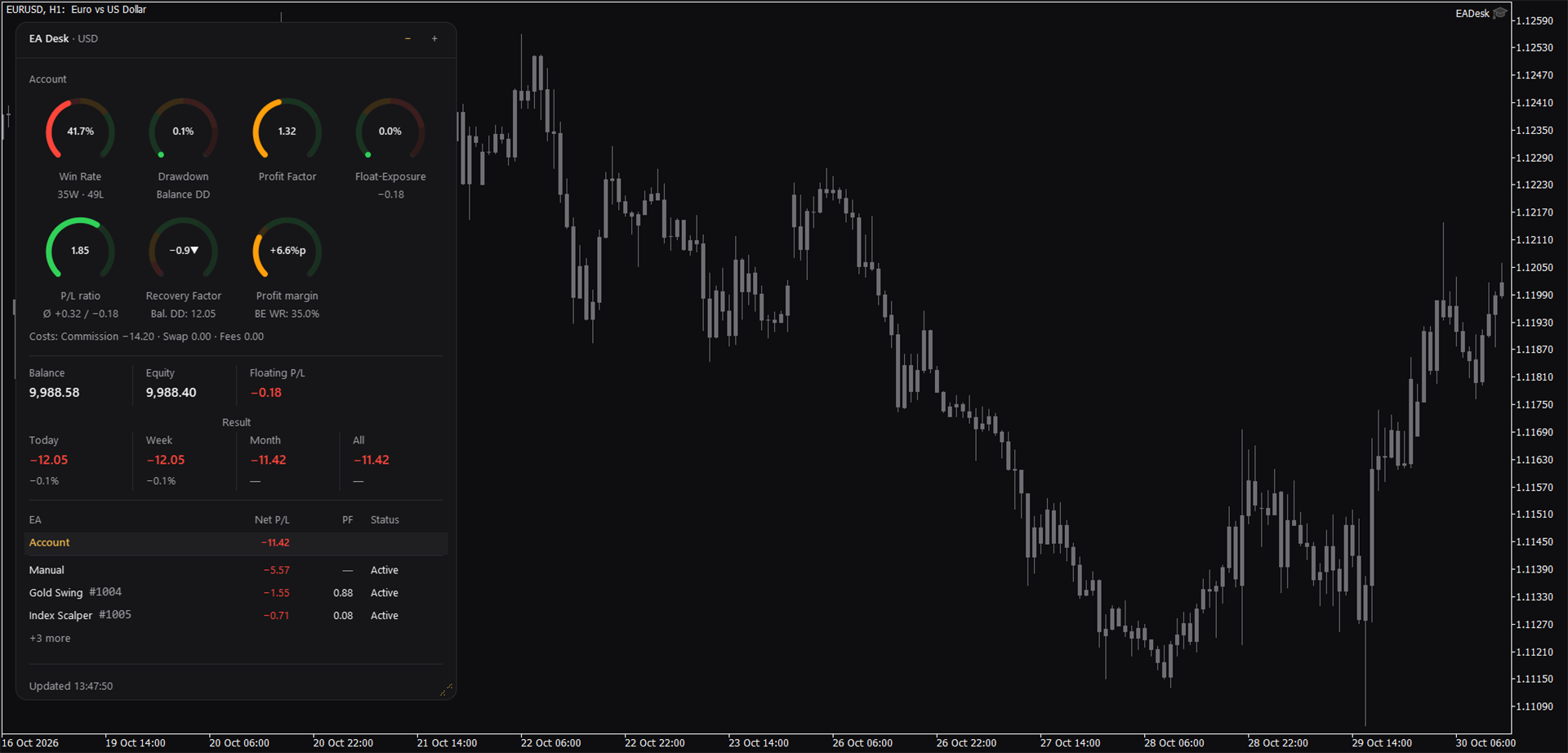
When the panel gets narrower, less important columns are hidden step by step. EA, Net P/L, PF and Status always stay. When the panel gets wider again, the columns return. All eleven columns are shown at the default width.
6. How numbers are calculated
Some numbers use different bases on purpose. This section explains which one is used where.
Account and Expert Advisor rows
The account rings and the Account row count closing deals. Each deal that closes a position, or part of a position, is one trade. This includes closing a position with Close By and the reversal of a position on a netting account.
The rows of the Expert Advisors count positions. A position that is closed in several steps counts as one trade, and its results are added up.
If you close part of a position, the account therefore counts each closing deal as a trade, and the row of the Expert Advisor counts the position as one trade. The two numbers can differ for this reason.
Which Expert Advisor owns a position
A position belongs to the Magic Number of its opening deal. All other deals of this position, such as partial closes, closing by stop loss or take profit, or closing by hand, belong to the same Magic Number, even if the closing deal carries a different one. This is needed because brokers differ in how they set the Magic Number on closing deals.
If the opening deal is missing from the history, the position is not assigned to any row. It still counts in the account values.
Netting accounts
On a netting account there is one position per symbol. If a deal reverses the position, for example a sell that is larger than the open buy, the old position is closed and a new one starts in the opposite direction. EA Desk counts the closing of the old position as one trade. The remainder opens a new position, which stays open until it is closed. EA Desk works with hedging and netting accounts.
Result, Net P/L and the ratios
- Result is the trading result: profit, swap, commission and fee of all buy and sell deals in the period. The commission booked when a position is opened is included. Deposits, withdrawals, credit and bonus are not included. Fees, interest, taxes and dividends that the broker books as separate entries are not included either.
- Net P/L in the table is net. It covers all deals of the positions of that Magic Number, including the commission of the opening deal and partial profits of positions that are still open.
- The ratios are gross and use closed positions only. For each closed position the result is the profit of its closing deals, without swap, commission and fee. A result of zero or more counts as a win, a result below zero counts as a loss.
- Profit Factor and P/L ratio are shown with the infinity sign when there is no losing trade. A dash means that the value cannot be calculated, for example when all trades ended with exactly zero.
Periods and server time
All times are server times, the same as in the History tab of the terminal. Today starts at 00:00 server time. Week starts on Monday at 00:00. Month starts on the 1st at 00:00. All covers the whole history, or the history from HistoryFrom. The percentages for Today, Week and Month refer to the balance at the start of that period. If this balance is below 0.01, the percentage shows a dash.
The start of a day, the Idle days and the time next to "Updated" also follow the server time. They keep running at weekends, when no price ticks arrive.
HistoryFrom
HistoryFrom is the start date of the evaluation. 0 means the whole history.
- The account values (Result, rings, Account row) count deals from that date.
- The rows of the Expert Advisors count only positions that were opened from that date.
For this reason the sum of Net P/L over all rows can differ from Result for All when HistoryFrom is set. Without HistoryFrom the sum equals the Result for All, if you include rows hidden by MaxRows or ShowManual and the row Other.
Deposits, withdrawals and Balance DD
Balance DD is the largest fall of the daily closing balance from an earlier high point to a later day. For each server day, EA Desk takes the balance at the end of that day. The percentage refers to the balance at the high point before the fall. The high point starts with the balance at the start of the period, so a fall on the first day already counts.
The balance curve is not adjusted for deposits and withdrawals. A withdrawal counts as a fall and raises the Balance DD. A deposit lifts the curve. Result, in contrast, does not include deposits and withdrawals.
Recovery Factor
The Recovery Factor of the account uses the total profit including fees and other bookings such as corrections or interest. Result does not include these bookings, so the two can differ.
The Recovery Factor of an Expert Advisor uses its Net P/L and the largest fall of its own result curve. This curve is the running total of the net result of all deals of that Magic Number, with one value per server day. A loss on the first day already counts as a fall.
The Recovery Factor of the account is not the sum of the Recovery Factors of the Expert Advisors. The largest fall of one Expert Advisor is not the Balance DD of the account.
Cost line
For the account, the cost line adds up all commission, all swap, and all fees of the trading deals, plus fees and commission bookings that the broker makes as separate entries. If you select an Expert Advisor, the line contains only the costs booked on the trades of that Magic Number. Account fees without a Magic Number are missing there. The cost line is shown even when an Expert Advisor has fewer than 10 closed positions.
7. Sizes, resizing and memory
Three sizes
Use the minus and plus buttons in the header.
Full shows everything: header, rings, cost line, account line, result, table and footer. Compact hides the table. Collapsed shows only the header with a short line such as "5 EAs, 1 idle". With one Expert Advisor the line reads "1 EA, 0 idle".
Minus makes the panel one size smaller, plus one size larger. At the largest size the plus is greyed out, at the smallest size the minus is greyed out. The width is the same in all sizes.
Changing width and height
You can change width and height of the panel. Drag the grip in the corner. With the default setting of the upper left corner the grip is at the bottom right. For other corners it is in the free corner opposite the anchor.
The width can be changed in the full and the compact size. The height can be changed in the full size only. The compact and collapsed sizes are as high as their content. Width and height are independent, and the anchored corner stays where it is.
At the standard Windows scaling of 100 percent the width is between 392 and 1024 pixels, and never more than the chart width minus twice OffsetX. The width snaps in steps of 8 pixels, the height in steps of 4 pixels.
The height you drag is the real height of the panel. The footer stays at the bottom and the space above is filled with more table rows, up to MaxRows. The minimum height is the full panel with the row Account and three rows of Expert Advisors. The maximum is the chart height minus OffsetY minus 16 pixels.
While you drag, the panel is redrawn live. Columns are hidden or shown, and the rings change their arrangement: one large row, one small row, or two rows with four and three rings. The chart does not scroll while you drag.
Press Esc to cancel. The panel returns to the size it had before you started to drag, and nothing new is remembered. The same happens if you resize the chart window while dragging. If you release the mouse button outside the window and the terminal reports it, the size from the drag is used, within the limits above.
Default size and double click
A double click on the header, but not on the buttons, sets width and height back to the default. Two clicks must follow within 500 milliseconds. The size level and the selection stay as they are. This is useful if the panel has become larger than the chart, for example after you made the terminal window smaller and the grip can no longer be reached.
The default is the full size, a width of 944 pixels and a height that fits the content, up to MaxRows rows.
Windows display scaling
The panel follows the Windows display scaling. At 125 percent the panel and its text become 1.25 times larger. FontSize adjusts the text size on top of that.
Small chart windows
If the chart is smaller than the panel, the panel adapts by itself. A chart that is narrower than the remembered width plus twice OffsetX gives a narrower panel. If the width would be below 392 pixels, the panel is shown collapsed. If the chart is lower than the panel, table rows are shortened down to three, then the compact size is used, then the collapsed size.
This changes only what you see. The remembered size level and size are not changed. When the chart becomes larger again, the panel returns to the remembered form.
Memory per chart
EA Desk remembers the size level, the width, the height and the selected row for each chart.
The memory stays after you change the symbol or the timeframe of the chart, after you restart the terminal and after you change the inputs. If you remove EA Desk from the chart, the memory is deleted. If you attach it again, it starts with the default size.
Nothing is written to files. The settings are stored inside the terminal.
8. Inputs
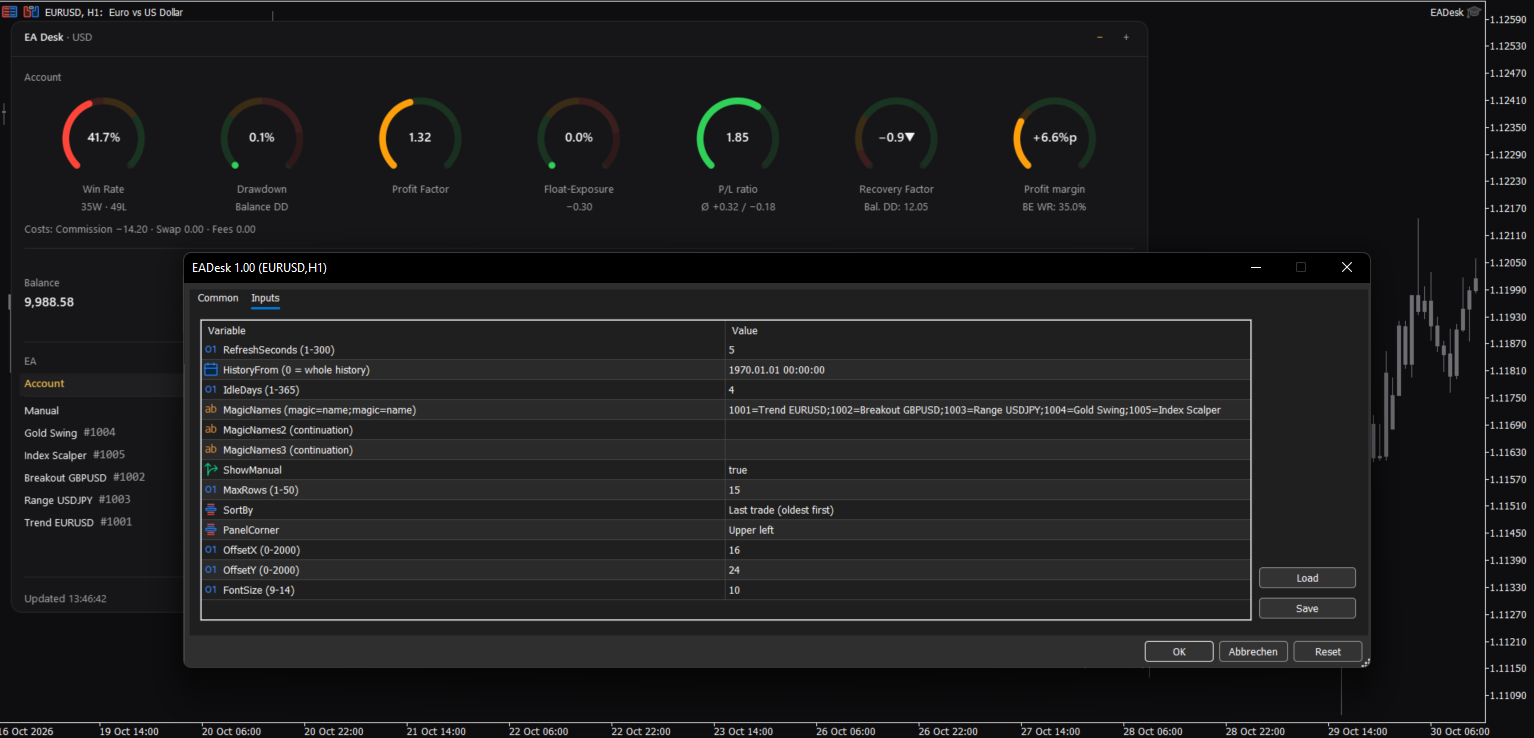
Open the inputs with a right click on the chart, Expert Advisors, Properties, tab Inputs. If an input has an invalid value, EA Desk uses the default and writes one line to the Experts tab. There is no pop-up.
Display
| Input | Meaning | Default | Range |
|---|---|---|---|
| RefreshSeconds | How often the panel is updated, in seconds | 5 | 1 to 300 |
| FontSize | Base font size. The panel also follows the Windows display scaling | 10 | 9 to 14 |
| PanelCorner | The chart corner where the panel is anchored | Upper left | four corners |
| OffsetX | Distance to that corner, horizontal, in pixels | 16 | 0 to 2000 |
| OffsetY | Distance to that corner, vertical, in pixels | 24 | 0 to 2000 |
Data
| Input | Meaning | Default | Range |
|---|---|---|---|
| HistoryFrom | Start date of the evaluation. 0 means the whole history | 0 | 0 or a date in the past |
| IdleDays | Days without a deal and without an open position after which a row shows Idle | 4 | 1 to 365 |
If you change HistoryFrom, EA Desk evaluates the history again.
Table
| Input | Meaning | Default | Range |
|---|---|---|---|
| MagicNames | Names for your Magic Numbers, in the form 1001=Trend H1;2002=Grid EURUSD | empty | text |
| MagicNames2 | Continuation of MagicNames, if the first field is too short | empty | text |
| MagicNames3 | Further continuation | empty | text |
| ShowManual | Show the row Manual (Magic Number 0) | true | true or false |
| MaxRows | Maximum number of rows of Expert Advisors, without Account | 15 | 1 to 50 |
| SortBy | Sort order of the rows | Last trade (oldest first) | Last trade (oldest first), Last trade (newest first), Net P/L, Trades, Magic |
The three name fields are read in this order and handled as one list. If the same Magic Number appears more than once, the first entry counts. An entry in the wrong format is ignored.
There is no input for the size level, the size or the selected row. EA Desk remembers these by itself (section 7). There is no input for the minimum number of 10 closed positions.
9. Troubleshooting
The table shows "No trades in history yet."
There are no buy or sell deals in the history that your terminal holds. The account line and the Result still show the current values. The rings show a dash, except Float-Exposure. If you have traded, see "Numbers differ from the History tab" below.
The panel shows "Waiting for connection..."
The terminal has no connection to the trade server or no login, and the history is empty so far. Check the connection in the lower right corner of the terminal. EA Desk continues by itself when the history arrives.
The panel shows "No connection" in the footer
The terminal lost the connection to the server. The panel keeps the last values. The time next to "Updated" shows how old they are. The values refresh when the connection is back.
The numbers differ from the History tab
- Set the History tab of the terminal to All History. EA Desk can only use the deals that the terminal holds. If your broker provides a shorter history, EA Desk can only use that part.
- Check HistoryFrom. With a date, the rows of the Expert Advisors count only positions opened from that date.
- Result does not include deposits, withdrawals, credit, bonus and separate bookings of fees, interest, taxes and dividends.
- The account counts closing deals, the rows count positions (section 6).
- Net P/L is net, the ratios are gross.
- A position whose opening deal is missing from the history is not assigned to a row. It still counts in the account values.
The panel is collapsed or cut off on a small chart
The panel adapts to the chart (section 7). Make the chart window larger, or use the plus button. The remembered form returns when there is room. If the grip cannot be reached, double click the header to set the size back to the default.
A row is missing in the table
Check MaxRows and ShowManual. Rows beyond MaxRows are summarised in "+N more (MaxRows)". If the panel is too low, the last line reads "+N more". Make the panel higher. A Magic Number beyond the first 1000 is part of the row Other.
An Expert Advisor shows Idle, but it is running
Idle describes trading activity only. An Expert Advisor that is loaded but has not traded for IdleDays days and has no open position shows Idle. Whether this is expected depends on its strategy. EA Desk gives no judgement about it.
The ratios of an Expert Advisor show a dash
Ratios are shown from 10 closed positions on. A dash can also mean that a value cannot be calculated, for example when all closed positions ended with a result of exactly zero.
Another Expert Advisor was replaced
MetaTrader allows one Expert Advisor per chart. If you drag EA Desk onto a chart with an Expert Advisor and confirm the question, the other Expert Advisor is removed from this chart. Attach it again to its chart. Use an empty chart for EA Desk.
The Strategy Tester shows an empty panel
EA Desk does not trade, so a test run has no deals. In visual mode the panel shows "No trades in history yet." This is expected.
The panel looks different from the screenshots
Fonts and spacing depend on the Windows display scaling and on the fonts of your system. The layout is measured on your system, so it can look slightly different. This is not an error.
10. Limits and what EA Desk does not do
EA Desk does not trade. It does not open, change or close orders or positions, also not in the Strategy Tester.
It runs only inside your terminal. It sends no data, uses no web requests, needs no entry in the list of allowed URLs, writes no files and uses no external libraries (no DLL). Settings are stored inside the terminal.
It shows no alerts, no pop-ups and no sounds, and it sends no push messages or mails. It gives no warnings about your trading. The footer only shows the state of the connection.
It is not limited to a certain broker, symbol or account type. It evaluates one account at a time, the account that is logged in to the terminal. All numbers come from the deal history that your terminal holds. A shorter history from the broker gives fewer numbers.
Values refer to the past. EA Desk makes no forecast and gives no advice about trading. The colours of the rings mark ranges only.
EA Desk does not show an equity drawdown over time. The Drawdown ring shows the balance drawdown. It shows no other periods than Today, Week, Month and All. The rows can be sorted only by the choices of SortBy (section 5), not by the ratios. The panel has one colour scheme, dark. Each row stands for one Magic Number, so several Magic Numbers of one Expert Advisor are not combined.
The panel does not show your account number, name or server.
11. Questions
Questions and problem reports are welcome in the product comments or by private message on MQL5.
https://www.mql5.com/en/market/product/205108/comments