👋 Welcome to Risk Panel
Risk Panel is a trade panel for MetaTrader 5 and MetaTrader 4. It sizes every trade from the risk you choose, then looks after the trade from entry to exit. 🎯
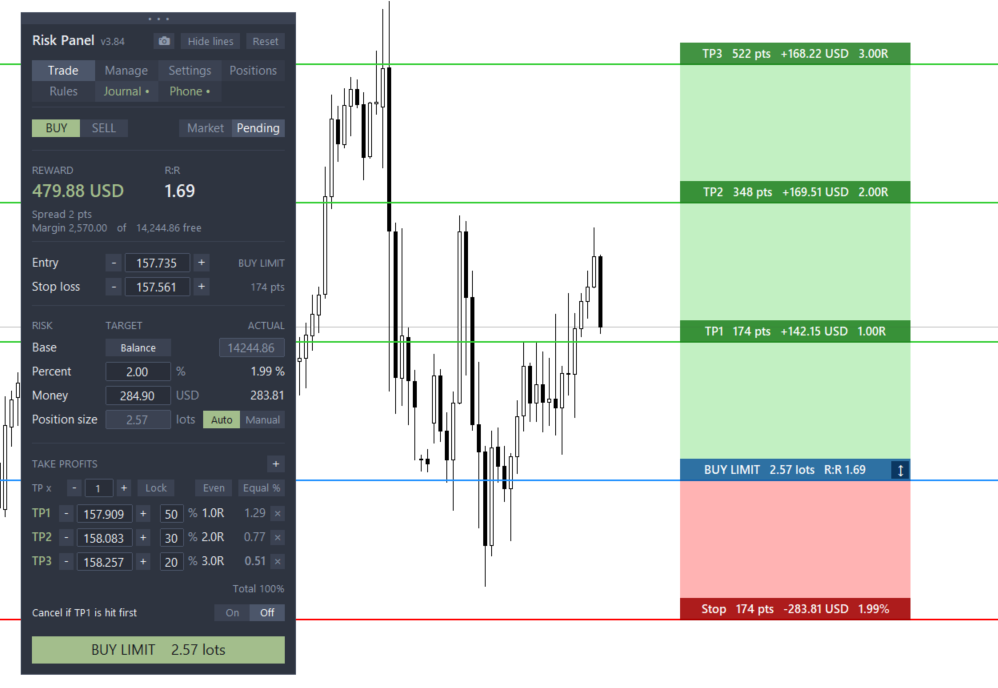
You plan the trade right on the chart. The panel shows what you risk, what you can win and your R:R, before you click anything.
✨ What it does for you
- 📏 Calculates the lot size from your stop loss and your risk (percent or money)
- 🖱️ Lets you drag the Entry, Stop loss and Take profit lines, or the boxes, to plan the trade
- 💰 Splits the trade into up to 5 take profits, closing part of it at each one
- 🛡️ Moves the stop to breakeven and trails it for you
- 📐 Follows your rules: daily stop, basket target, one cancels other, time rules
- 📸 Saves a picture of the chart when a trade opens and closes, and gives you a report
- 📱 Takes over trades you open on your phone and adds a missing SL and TP
👤 Who it is for
Manual traders on forex, gold and indices. It also suits prop-firm accounts, where every trade must respect a fixed risk.
It works with any broker, on netting and hedging accounts (MT5), and on MT4 accounts.
📖 How to use this guide
Each part below explains one area of the panel, from installing it to the last tab. New to Risk Panel? Read it from top to bottom. Looking for one feature? Jump to its part. 🚀
⚙️ Install and first start
After buying, Risk Panel is installed straight into your terminal from the Market. You don't need to copy any files by hand. ✅
1️⃣ Find it in the Navigator
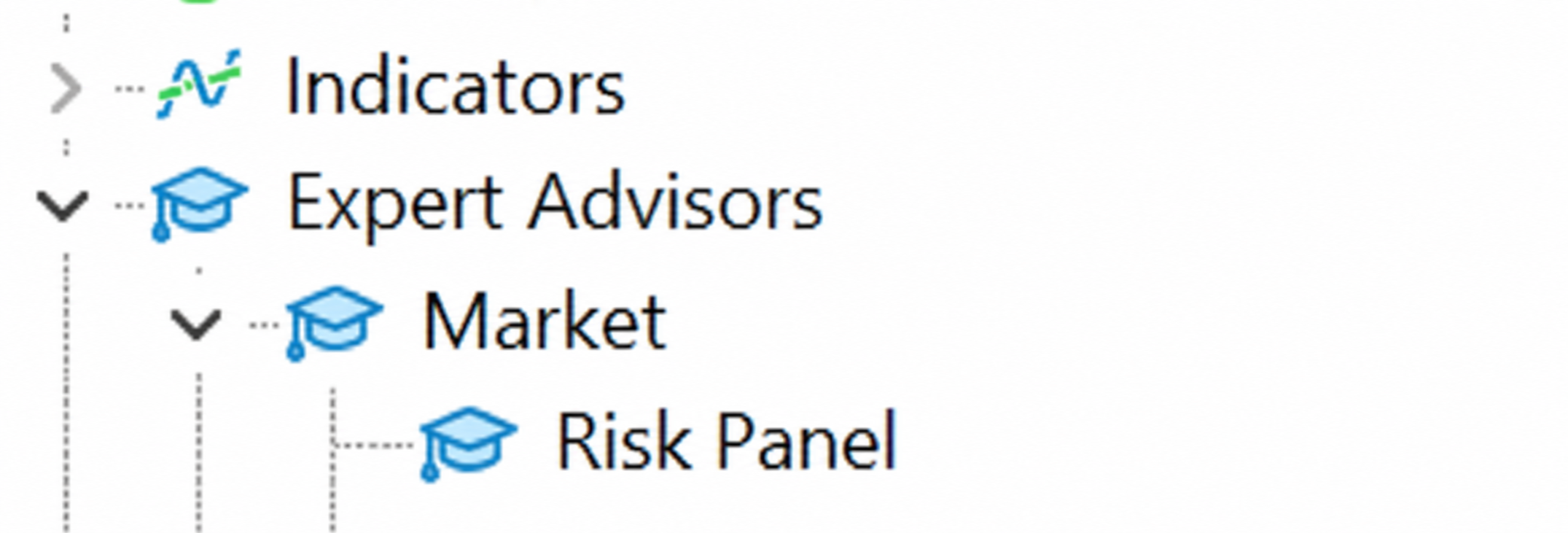
Open MetaTrader and press Ctrl+N to show the Navigator. You will find Risk Panel under Expert Advisors → Market.
2️⃣ Attach it to a chart
Open a chart of the symbol you trade, for example XAUUSD or EURUSD. Drag Risk Panel from the Navigator onto the chart, or double-click it.
3️⃣ Allow trading
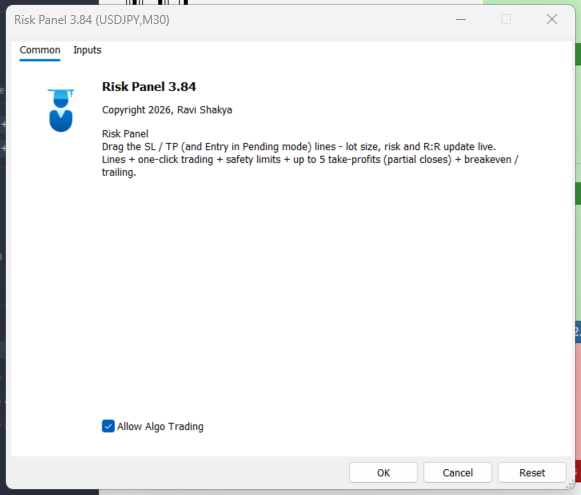
In the window that opens, go to the Common tab and tick Allow Algo Trading (MT4: Allow live trading). Click OK.
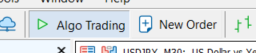
Also make sure the Algo Trading button in the toolbar is green (MT4: AutoTrading). If it is off, the panel can plan trades but cannot place or close them. ⚠️
4️⃣ The panel appears
The panel opens on the left of the chart, and the Entry, Stop loss and Take profit lines appear on the price. You are ready to plan your first trade. 🎉
💡 Good to know
- 📌 Use one chart per symbol. Each chart runs its own panel and its own rules.
- 💾 The panel remembers your settings per symbol and per account, even after you restart MetaTrader.
- 🖥️ Partial take profits, breakeven, trailing and rules only run while MetaTrader is open. For 24/5 management, use a VPS.
- 🔒 Your stop loss and final take profit are always sent to the broker, so they stay safe even if MetaTrader is closed.
- 📂 Pictures are saved in MQL5\Files\Risk Panel (MT4: MQL4\Files\Risk Panel). Open it with File → Open Data Folder.
🧭 The panel at a glance
Before we go tab by tab, let's get to know the frame around everything. It is the same on MT5 and MT4. 👀
🔝 The header
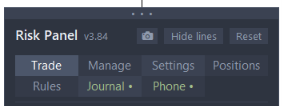
The top bar of the panel holds three quick buttons:
- 📷 Camera – takes a clean screenshot of your chart with the trade lines and boxes. Good for your journal or for sharing a setup.
- 👁️ Hide lines – hides the Entry, Stop Loss and Take Profit lines when you want a clean chart. Press it again to bring them back.
- 🔄 Reset – puts the lines and boxes back to their default places. Use it if a setup got messy.
💡 Hiding the lines does not cancel anything. Your trades and pending orders stay exactly as they are.
🗂️ The 7 tabs
Under the header you will find the tab row. Each tab has one job:
- 📈 Trade – set risk, Entry, SL and TP, then place the order.
- 🛠️ Manage – breakeven, trailing stop and partial closes on open trades.
- ⚙️ Settings – colours, sizes, defaults and behaviour.
- 📋 Positions – all open trades and pending orders in one list.
- 🛡️ Rules – daily limits and safety rules that protect your account.
- 📒 Journal – your closed trades, with a report.
- 📱 Phone – push notifications to your phone.
Click a tab to switch. The panel keeps the tab you were on, so it opens where you left off.
🟢 The green dot on a tab
Sometimes a small green • appears on a tab name. It means that feature is switched on. For example, if a rule is active in the Rules tab, you can see it from any other tab without opening it.
No dot means that feature is off. 👍
✋ Move the panel
You can drag the panel anywhere on the chart. Take it by the header, hold the mouse button, and drop it where it does not cover the price. The panel remembers its position.
💡 Good to know
- The panel works the same way on every chart you attach it to, and each chart keeps its own lines.
- If you can't find the panel, it may be off screen. Press Reset or re-attach the EA.
- On MT4, the panel looks and behaves like MT5. Only the platform differs.
➡️ Next up: the Trade tab
📈 The Trade tab
This is where every trade starts. You choose your risk, place the lines on the chart, and the panel does the maths. 🧮
📏 1. Set your risk
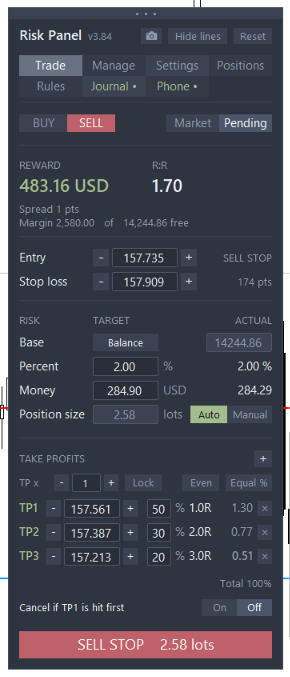
At the top you tell the panel how much you are willing to lose on this trade, as a percent of your account or as money.
The panel then shows the Position size, which is the lot size that matches your risk and your stop loss. You never have to calculate it yourself. ✅
💡 Move the stop loss and the lot size changes at once. The risk stays the same.
🎯 2. Plan the trade on the chart
Three lines show your plan on the chart:
- 🔵 Entry – where you want to get in
- 🔴 Stop loss – where the trade is wrong
- 🟢 Take profit – where you want to get out
Drag a line and the numbers in the panel update live. You can also drag the boxes next to the lines. The next section covers the lines and boxes in detail.
👀 3. Read the result before you click
The panel shows what the trade means before you place it:
- ⚠️ Risk – the money you lose if the stop loss is hit
- 💰 Reward – the money you win at the take profit
- ⚖️ R:R – reward compared with risk
- 📦 Position size – the lots the panel will send
🧩 4. Take profits table
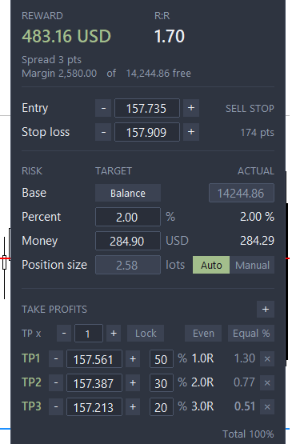
Under the results you find the take profit table. You can use one take profit or split the trade into several (up to 5). Each row has:
- TP x – the take profit level
- Lock – keep this level fixed
- Even – spread the take profits evenly
- Equal % – give each take profit the same share of the trade
Section 6 explains these in detail. 💰
⏳ 5. Market or pending
If the Entry line sits on the current price, the trade is a Market order and opens at once. If you drag Entry away from the price, it becomes a Pending order (a limit or stop order) that waits for the price to arrive.
In Pending mode you get one extra switch:
- 🚫 Cancel if TP1 is hit first [On | Off] – if the price reaches your first take profit before it fills your entry, the pending order is cancelled. The setup is no longer valid, so you don't get in late.
🚀 6. Place the trade
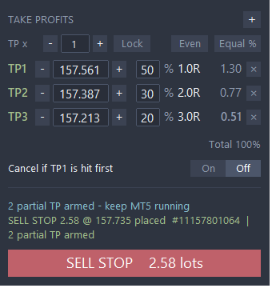
When you are happy, press the Trade button at the bottom. The status line above it tells you what happened: the order was placed, or why it was refused.
If the lot size is larger than your broker allows in one order, the panel splits it. The button then shows (N orders) so you know how many orders will go out. 🔀
💡 Good to know
- ✅ The status line clears itself when you change the setup, so you never read an old message.
- 🛑 A stop loss or take profit on the wrong side of the entry is refused, not sent.
- 🧠 Your settings are saved per symbol, so XAUUSD and EURUSD can each keep their own.
➡️ Next up: Lines and position boxes, in detail.