
Signalator Trading Suite MT5: Illustrated Guide and Practical Workflows

Signalator Trading Suite is a professional trading and account management utility for MetaTrader 5 that combines trade preparation, position management, risk control, account protection, advanced charts, analytical tools, data exports and notifications in one interface.
It is part of the Signalator Trading and Analysis Ecosystem — a growing collection of practical MetaTrader tools for chart analysis, trade planning, risk control, account monitoring and trader workflow improvement.
Signalator Trading Suite is designed for traders who want to manage the complete trading workflow without moving between several unrelated tools. It allows you to prepare and execute trades, calculate position size and risk, manage open positions, protect account equity, work with eight chart types, use analytical overlays, collect and export trading data, and receive important trading and account notifications — directly inside MetaTrader 5.
| Signalator Trading Suite MT5 - https://www.mql5.com/en/market/product/196824 |
|---|
| Full features list - https://www.mql5.com/en/blogs/post/778387 |
| Youtube video - https://youtu.be/EZE0wKhVx4E |
Trading, management, protection, charts, analysis, exports and notifications
This article explains how to use the Signalator Trading Suite workspace. The companion Features and Options by Module article provides a detailed reference for the controls and settings available in each module.
Screenshot prices, balances and position sizes are incidental examples; the explanations focus on what each control does. Some screenshots show an earlier interface revision;
In this article
- What the Trading Suite gives you
- Install and make the first checks
- Set up a comfortable workspace
- Read Summary before acting
- Prepare a market order
- Work with protection prices, RR and profiles
- Prepare a pending order
- Select exactly what Manage should affect
- Close trades and change protection
- Run trailing and staged partial TP
- Protect new requests and account exposure
- Inspect a symbol before trading it
- Choose the chart representation
- Understand Renko construction
- Style, navigate and add compatible visuals
- Analyse patterns and market structure
- Collect or export market data
- Review results and export trade records
- Configure account-wide notifications
- Telegram setup, message fields and chart photos
- Save a setup and find help
- Quick troubleshooting
1. What the Trading Suite gives you
| Task | Module | Result |
|---|---|---|
| Inspect exposure and the next trade plan | Summary | Account overview, position and pending exposure, protection counts and planned levels. |
| Prepare a market or pending order | Trade | Risk/lot calculation, protection, RR and a request preview. |
| Manage existing trades | Manage | Ticket/group targeting, closing, SL/TP changes, breakeven, trailing and partial TP. |
| Apply trading limits | Protect | Entry guards, trading hours, period limits and account drawdown protection. |
| Inspect and analyse the market | Symbol, Charts, Analysis | Contract details, chart construction, styling, patterns and structure. |
| Save evidence and stay informed | Data, Report, Notify | Market-data files, trading-record exports, statistics and configured alerts. |
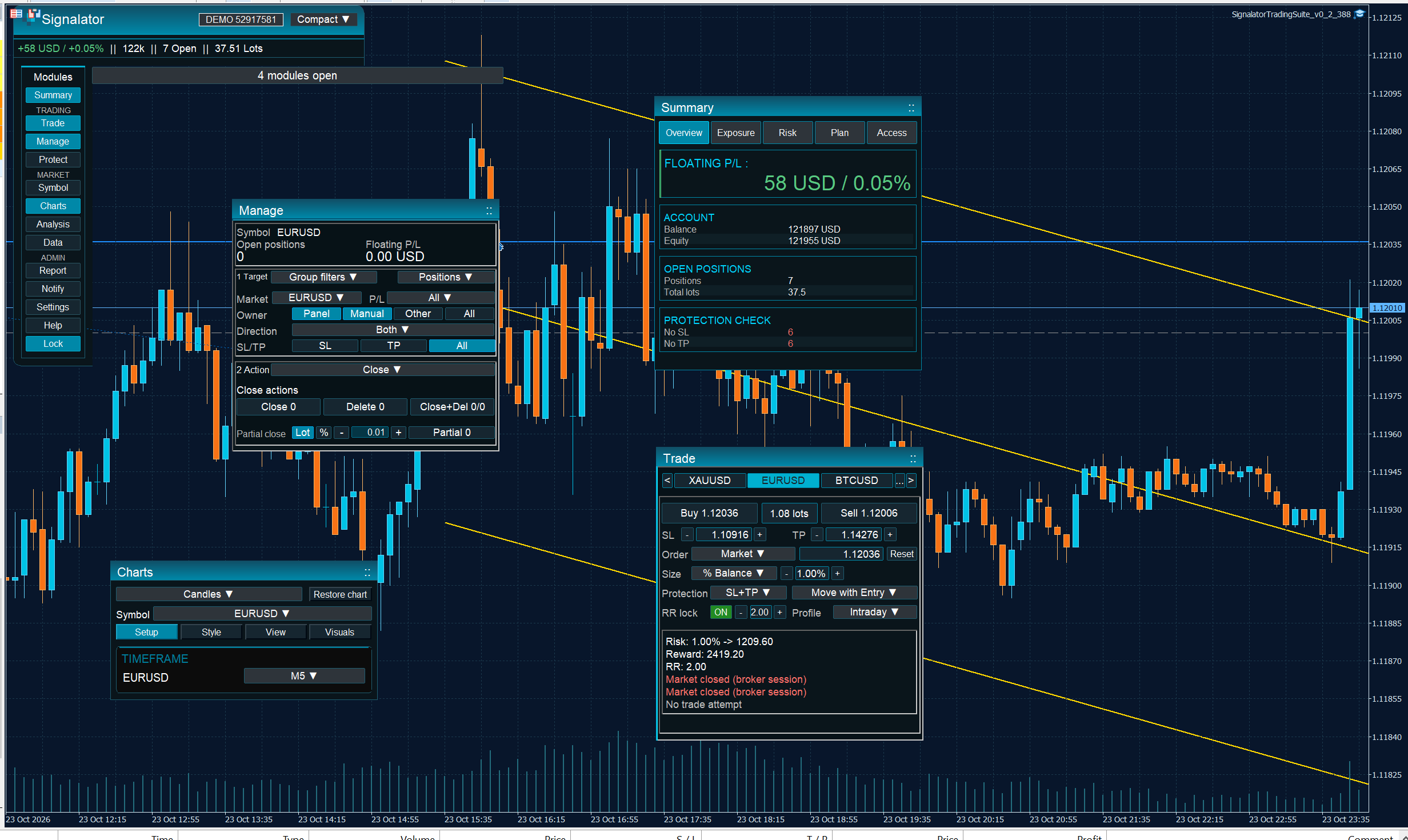
Figure 1. Dashboard layout lets several modules remain visible together.
A valid plan, an enabled management engine and a confirmed broker action are different things. Read the selected symbol, target counts and final status whenever you move from planning to execution.
2. Install and make the first checks
- Install the product through the MT5 Market installation flow, or place a supplied EX5 in File → Open Data Folder → MQL5 → Experts and refresh Navigator.
- Attach Trading Suite to the intended chart. Check the account and broker symbol, including any suffix.
- Review EA Inputs for execution permissions, magic number, runtime persistence and optional communication credentials.
- Open Summary → Access to check connection and trading permissions. This tab is a status check; it does not require a separate screenshot.
- Choose a layout and prepare a small demo request before using an unfamiliar management or protection workflow.
Algo Trading, the EA’s ExecutionFeatureEnabled setting, broker permissions and any configured arming requirement are separate checks. Unlock only unlocks panel placement. It is not a trade-arming control.
The execution magic number identifies panel-created trades. Manage can also filter manual and other trades. An account is shared by all its charts, so review target and protection scope when other EAs are running.
3. Set up a comfortable workspace
Use Full when you want more controls directly visible. Compact concentrates the same principal workflows into a smaller panel with dropdowns. Tiny provides a reduced working interface; use Full or Compact for advanced management.
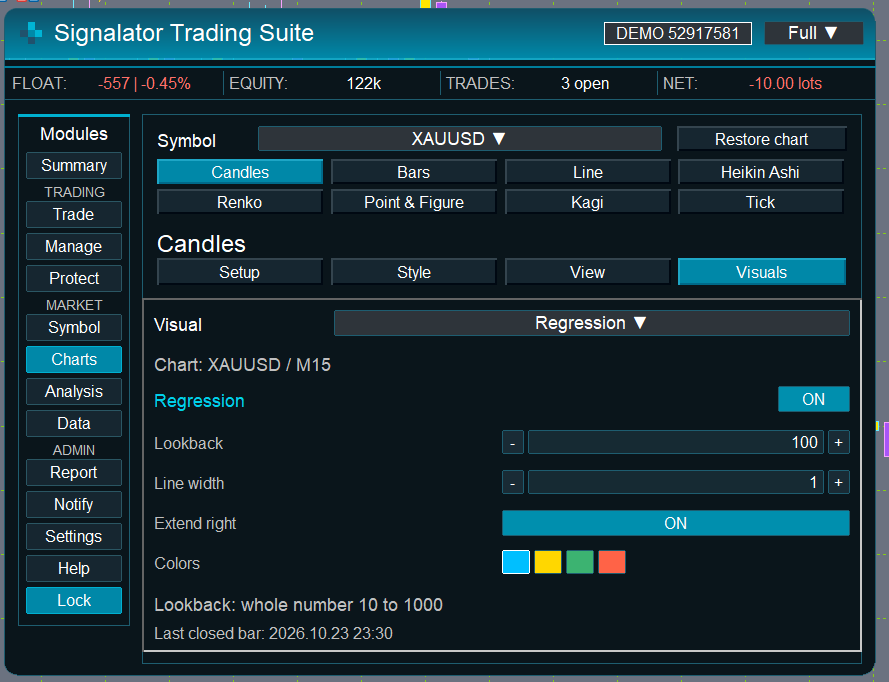
Figure 2. Full mode exposes chart-type buttons and detailed controls.
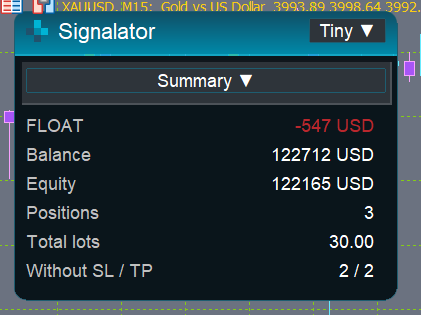
Figure 3. Compact mode uses dropdowns to preserve chart space.
In Settings → Panel, choose the interface language, panel theme and UI scale. Switch view shows one main module at a time. Dashboard keeps several module panels open. Unlock the layout, drag panel headers, then lock it again. Reset positions restores panel placement; it does not reset trade protection or stop an active engine.
| Symbol context | What it controls |
|---|---|
| Attached chart | The hosting chart and the source of Telegram chart photographs. |
| Trade symbol | The next planned order. |
| Manage target | The selected tickets or filtered trade group. |
| Charts symbol | The chart display selected in Charts. |
| Notifications | New selected events across account symbols; settings are shared across charts for the account/server in this terminal. |
Selecting BTCUSD in Trade while the EA is attached to Gold does not make every other module switch to BTCUSD. Check the symbol displayed beside the action you intend to use.
4. Read Summary before acting
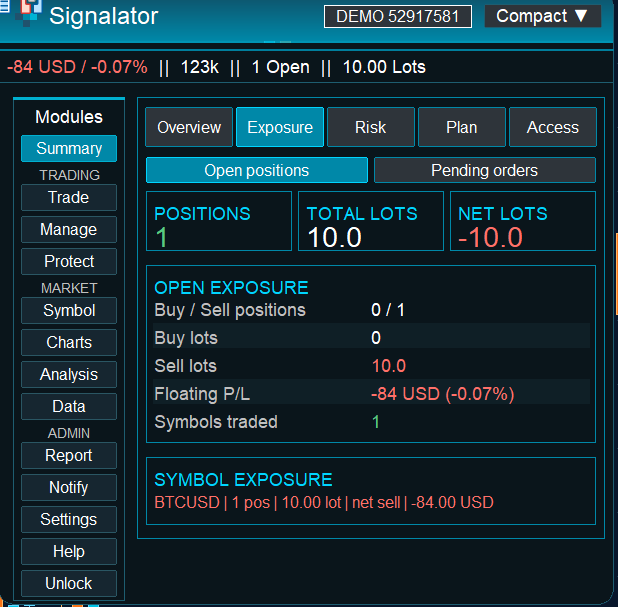
Figure 4. Exposure separates open-position information from pending-order information.
Overview gives the essential account snapshot: floating P/L, balance/equity, open positions, volume and missing protection. Exposure separates positions and pending orders and shows buy/sell and symbol breakdowns. Risk shows defined SL/TP outcomes and protection counts. A missing SL or TP means that corresponding outcome is not defined; it is not a zero-risk position.
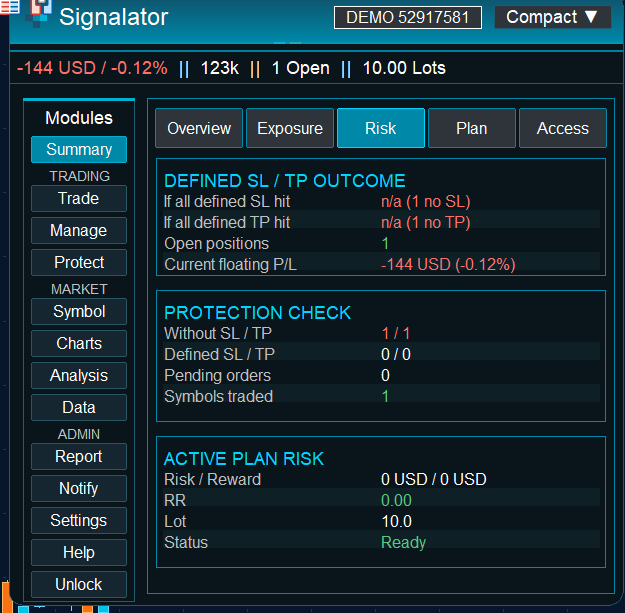
Figure 5. Risk combines protection checks with the proposed plan’s risk information.
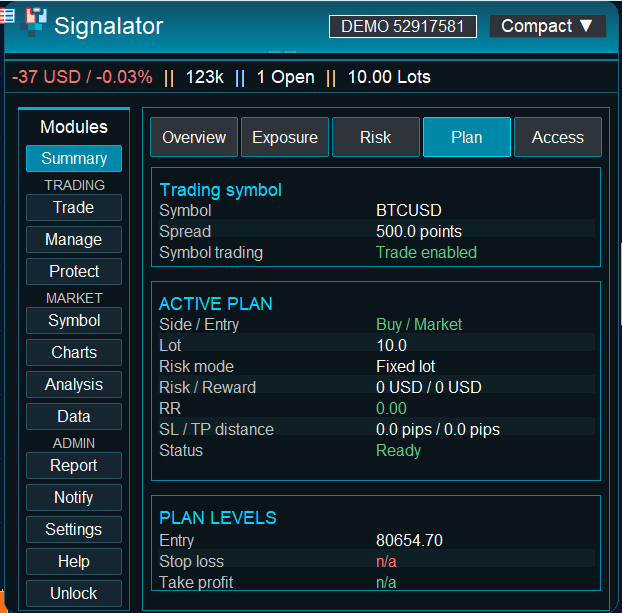
Figure 6. Plan describes the next proposed order rather than an already executed trade.
Use Plan to verify the selected symbol, side, entry family, lot, risk mode, RR and prices. Ready means the plan calculation is valid. Sending and broker acceptance are later steps. Access lists the terminal/account permissions as text information.
5. Prepare a market order
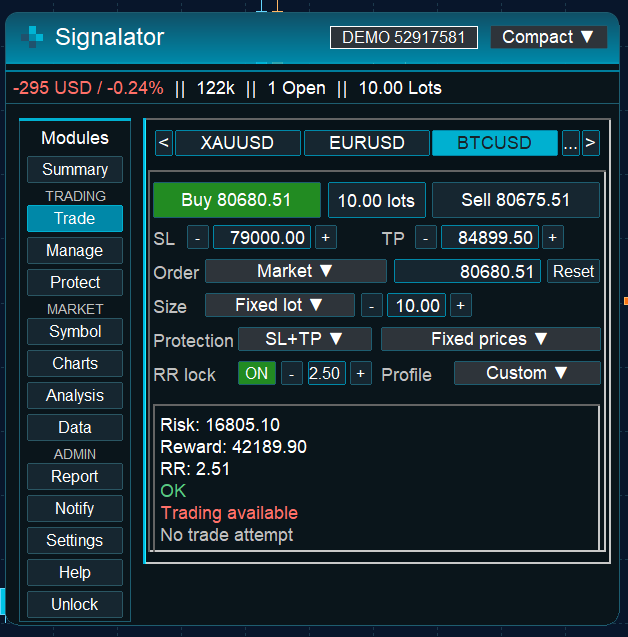
Figure 7. Trade combines the symbol, directional controls, size, protection and request preview.
- Select the exact symbol in Trade.
- Choose Market as the order family.
- Choose SL+TP, SL, TP or None. Enter valid protection prices or use the selected distance behavior.
- Choose the sizing mode and set its value. Risk-based sizing requires a valid stop loss.
- If required, enable RR lock and enter the target ratio directly or adjust it with the step buttons.
- Review the final lot, entry, SL/TP, risk/reward and request status. Resolve any blocking message.
- Use the intended Buy or Sell control. Read the result and verify the new position in MT5.
| Size mode | What you enter |
|---|---|
| Fixed lot | Requested trading volume. |
| Fixed money | The money-risk budget used with the SL distance. |
| % Balance | A risk percentage based on balance. |
| % Equity | A risk percentage based on equity. |
| Lot per balance | Volume scaled to the configured balance basis. |
The preview is recalculated using the broker’s symbol terms. Minimum volume, maximum volume, volume step and price increments affect the valid request. Risk and reward are planning values; the final fill and realized costs can differ.
6. Work with protection prices, RR and profiles
Move with entry preserves the configured protection distances when the planned entry changes. Fixed prices keeps SL/TP at their entered prices. Choose this behavior before moving a pending entry, then inspect the resulting levels again.
RR lock links the planned risk and reward relationship. The input is editable, so you can type a ratio rather than repeatedly clicking +/−. The calculated RR may be close to the requested ratio rather than exactly equal to two decimal places because valid prices and final calculations are discrete. Review the resulting TP and preview.
Scalp, Intraday, Swing and Custom are planning profiles. Their preset parameters are configurable. A profile is a starting point for the next plan, not a trading recommendation and not a command to change existing positions.
Draft entry/SL/TP lines are planning aids. Their visual context must match the instrument being planned. For a different Trade symbol, use the numeric controls and inspect the request preview. Hiding a line changes visibility rather than deleting broker protection.
7. Prepare a pending order
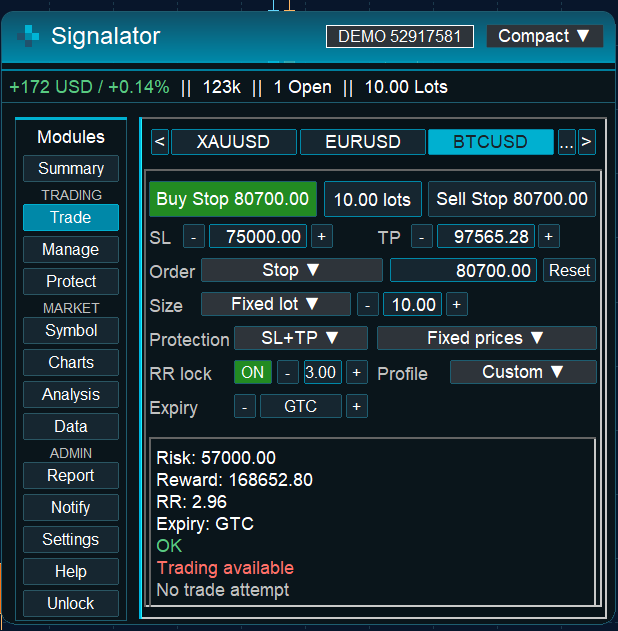
Figure 8. A pending-order plan includes its entry price, protection, RR and expiry.
- Choose Limit or Stop in Trade.
- Set the intended entry price, size, SL/TP and protection-price behavior.
- Check the intended side: Buy Limit/Sell Limit or Buy Stop/Sell Stop follows from the selected family and direction.
- Choose GTC, Day or a lifetime in Minutes, as supported by the broker; GTC means good till cancelled.
- Inspect the request preview and broker/session validation before submitting.
- After acceptance, verify the pending order in MT5. It becomes an open position only after a qualifying fill.
Relative to current quotes, a Buy Limit normally sits below the buy market, a Sell Limit above the sell market, a Buy Stop above and a Sell Stop below. The broker’s minimum distances and supported expiry policies still apply. The displayed market/session message can block a request even when its planned prices are otherwise valid.
8. Select exactly what Manage should affect
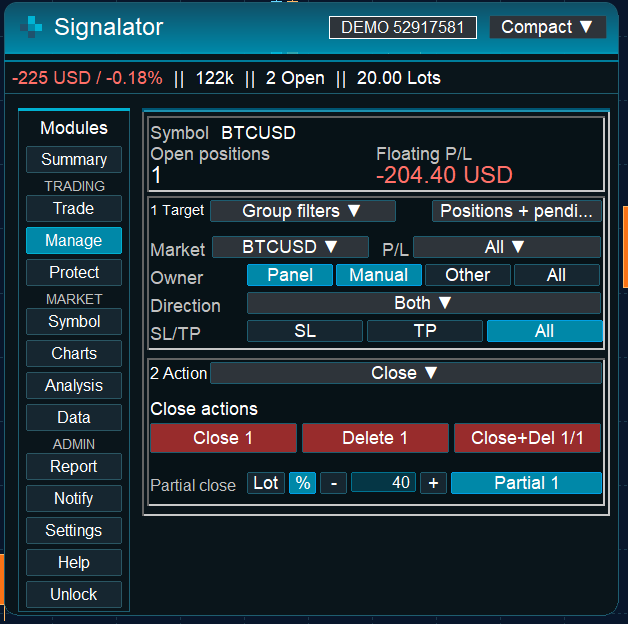
Figure 9. Manage separates target selection from the action to be applied.
Start with Target. Ticket selects explicit trades; Group filters selects a scope using symbol/market, owner, direction, P/L and SL/TP filters. Owner filters distinguish panel, manual and other sources. Changing a filter changes the eligible targets, not the trades themselves.
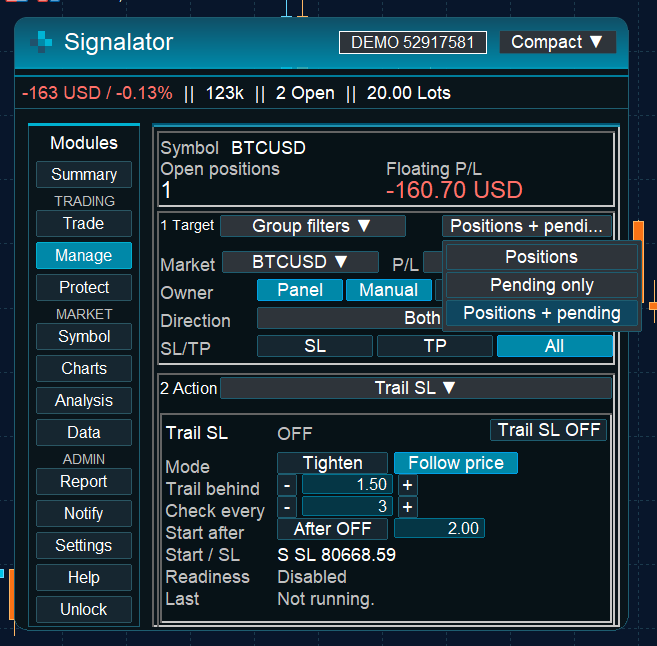
Figure 10. The trade universe offers Positions, Pending only and Positions + pending.
| Universe | Eligible targets | Read these counts |
|---|---|---|
| Positions | Open positions. | Close and partial-close counts. |
| Pending only | Pending orders; positions are excluded. | Delete count; Close should be zero. |
| Positions + pending / Both | Both categories. | Separate Close and Delete counts. |
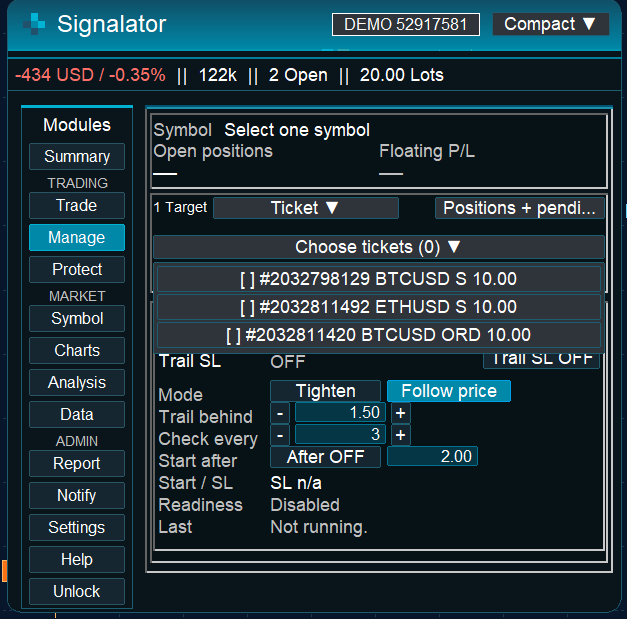
Figure 11. The ticket dropdown supports selecting individual targets.
The top snapshot can show a symbol’s total open positions while the action controls show a smaller filtered scope. For example, Pending only may show open positions in the overview but Close 0 in the action area. The action count is the relevant scope check. Recheck selected tickets after changing the trade universe.
9. Close trades and change protection
Under Close, use Close for scoped positions, Delete for scoped pending orders and Close+Del for both. Manual partial close accepts a lot amount or percentage. Inspect the affected count before confirming an action and the remaining broker volume afterwards.
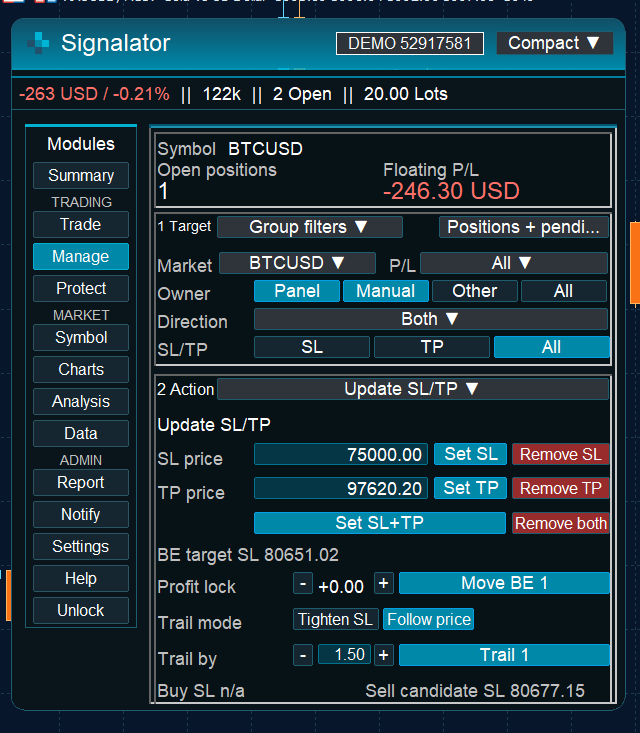
Figure 12. Update SL/TP includes set/remove actions, a breakeven preview and manual trailing controls.
Under Update SL/TP, enter a level and use Set SL, Set TP or Set SL+TP. Remove controls delete the corresponding broker protection for the selected targets. They are not visibility toggles.
For breakeven, review the displayed BE target SL and Profit lock offset before using Move BE. For manual trailing, choose the displayed mode/distance and apply the action to the selected scope. Stop/freeze distances, minimum volume and market permissions can prevent a requested change.
10. Run trailing and staged partial TP
Automatic Trail SL and Partial TP continue to use their active target while you view other modules. Inspect their ON/OFF state, readiness and last result rather than assuming that closing the page stops them. Full may show both engines together; Compact presents them through the action selector.
| Trailing control | Meaning |
|---|---|
| Tighten | Moves an existing SL by the configured step in the protective direction; an existing SL is required. |
| Follow price | Calculates the stop from current Bid/Ask and the configured distance; modifications that would loosen an already tighter stop are skipped. |
| Trail behind / Trail by | Distance used to calculate the candidate stop in the selected units. |
| Check every | How often the enabled engine rechecks its target. |
| Start after / After | Optional movement threshold before trailing begins. |
| Start / SL, Readiness, Last | Reference values, whether the engine can act, and its latest result. |
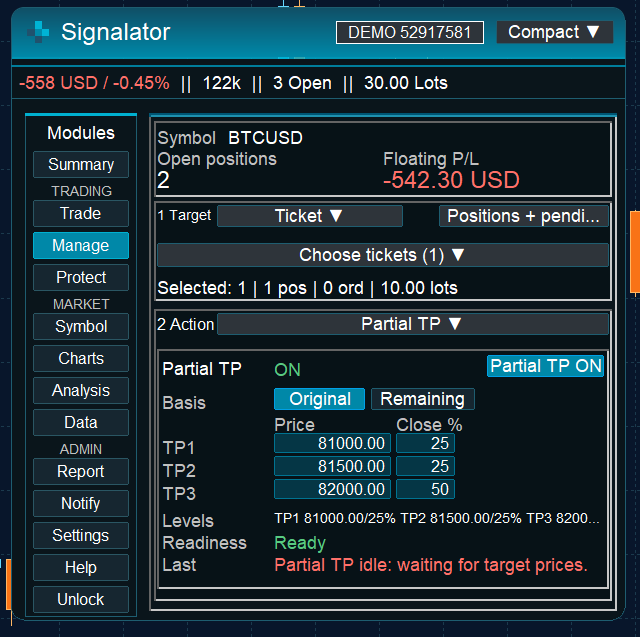
Figure 13. Partial TP defines three price thresholds, closing percentages and the percentage basis.
- Select the intended ticket or group in Manage.
- Open Partial TP and choose Original or Remaining.
- Enter TP1, TP2 and TP3 prices and their closing percentages.
- Read the target summary and readiness, then enable Partial TP.
- Verify each broker-confirmed reduction in position volume. A waiting status is different from an executed reduction.
For an illustrative 2.00-lot position, Original percentages of 25 / 25 / 50 correspond to closes of 0.50 / 0.50 / 1.00, leaving 1.50 / 1.00 / 0.00 lots. These numbers explain the calculation and are independent of the screenshot’s account figures.
| Stage | Original basis | Remaining basis, theoretical |
|---|---|---|
| TP1: 25% | Close 0.50; remain 1.50. | Close 0.50; remain 1.50. |
| TP2: 25% | Close 0.50; remain 1.00. | Close 0.375; remain 1.125. |
| TP3: 50% | Close 1.00; fully closed. | Close 0.5625; remain 0.5625. |
Remaining-basis calculations are theoretical until rounded to an executable broker quantity. The same percentages therefore do not form the same exit plan under both bases. A buy trigger checks Bid against its target; a sell trigger checks Ask. A Bid-only chart touching a sell target does not prove that Ask has reached it.
After an action, use the resulting position volume and history to confirm completion. A last-status field describes the latest engine state and may change after an earlier successful step.
11. Protect new requests and account exposure
Protect contains four practical areas: Guards, Protections, Trading Gate and Advanced. Decide which rule should apply, which trades it covers, and what action it should take. An entry guard, a period warning and an account-wide closing rule serve different purposes.
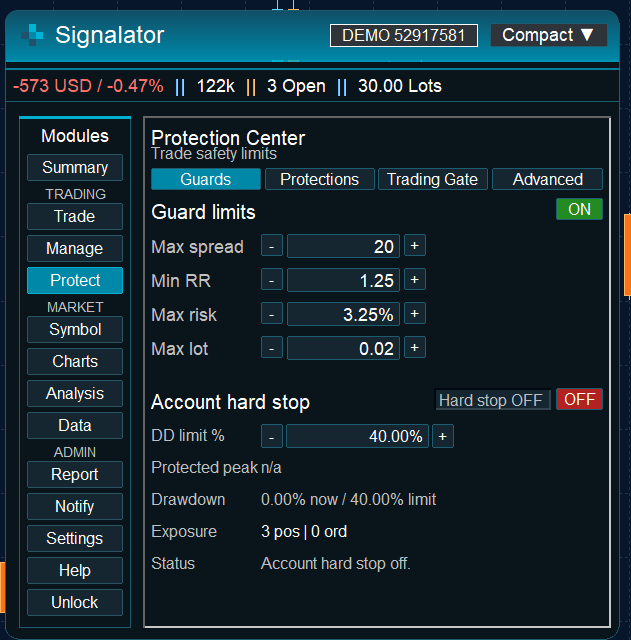
Figure 14. Guards checks spread, RR, risk and lot limits for new panel requests.
| Area | Use it for | Scope to understand |
|---|---|---|
| Guards | Maximum spread, minimum RR, maximum risk and maximum lot. | Validation of new panel requests. |
| Trading Gate | Direction, position/pending limits, margin and permitted days/hours. | The configured entry restrictions and clock. |
| Period protections | Daily, weekly, monthly and symbol loss/target/trade limits. | Selected period and affected scope. |
| Account hard stop | Equity drawdown relative to a protected account peak. | Account-wide response, including other symbols. |
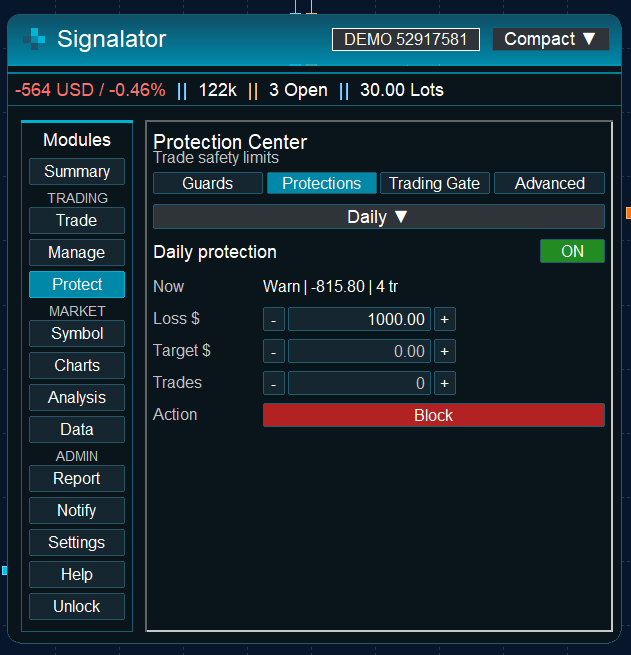
Figure 15. Period protections show current state, limits, enabled state and response action.
For a period rule, choose its period, enable it, enter the applicable loss/target/trade limits and select the action. Monitor, Warn, Block Panel, Close Scope, Close Scope + Delete Orders and Account Hard Stop are different responses. Choose from the actions available for that rule and verify the displayed selection.
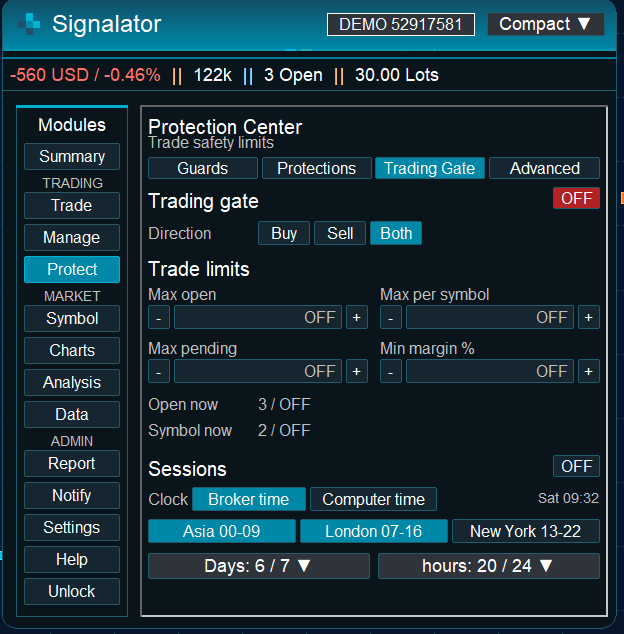
Figure 16. Trading Gate brings entry direction and capacity/margin restrictions together.
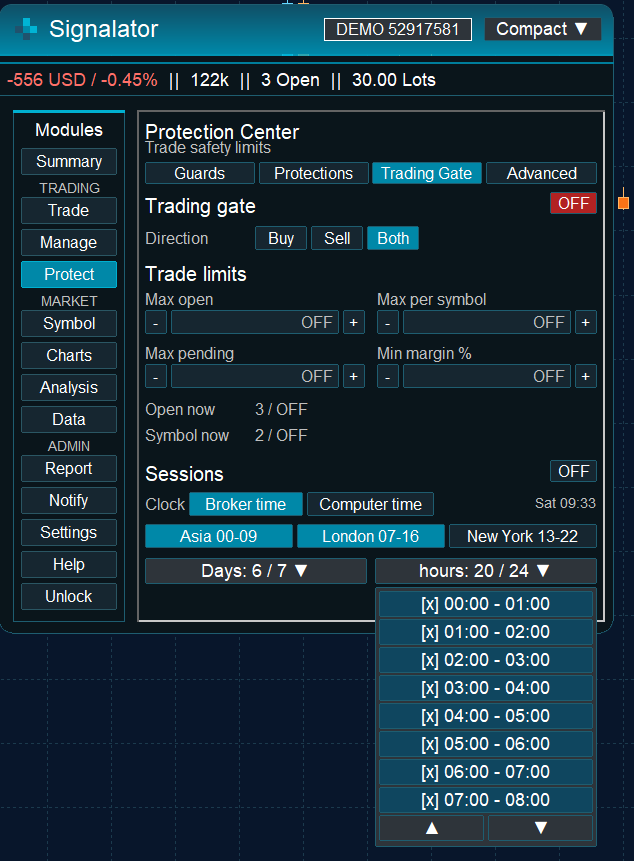
Figure 17. Days and hours are evaluated using the selected clock.
A session can use Broker time or Computer time in Trading Gate. Check the live clock before choosing weekdays or hours. Session presets are hour selections, not an automatic exchange daylight-saving calendar. Period reset hours and Advanced session protection use their documented broker-time rules.
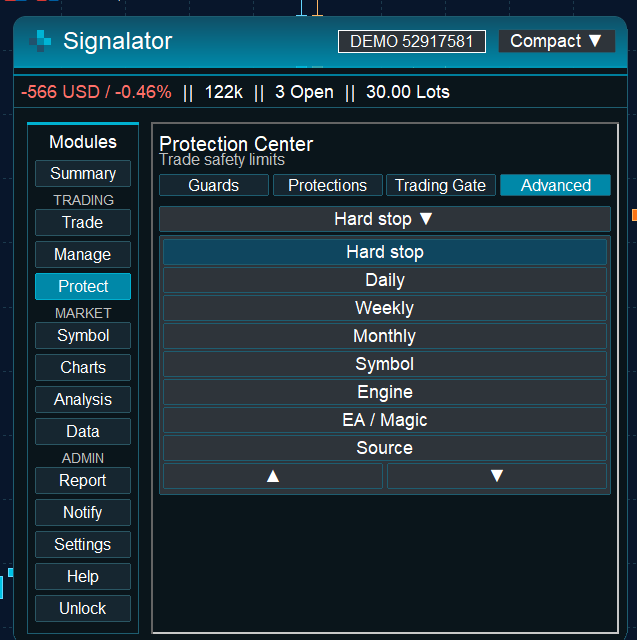
Figure 18. Advanced protection can narrow the scope by source or magic number.
Advanced settings include starting balance for the hard-stop baseline, external re-entry handling, period reset hours, floating-P/L inclusion, percentage limits, warning threshold and lock behavior. EA/Magic and Source scopes can narrow monitoring to the intended trading origin. Session protection adds start/end hours, scope, direction and its outside-session response.
Before enabling the account hard stop, review its protected peak, drawdown threshold, exposure and re-entry policy. On a trigger it attempts the configured account-wide close/delete response. It is broader than the current chart symbol. The EA must remain running with the required connection and execution permissions for local management and protection actions to operate.
12. Inspect a symbol before trading it
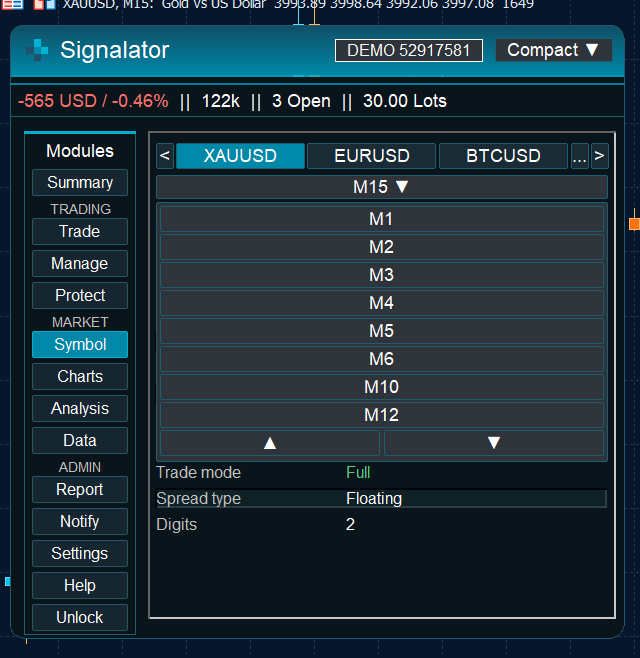
Figure 19. The symbol browser helps select the exact broker instrument.
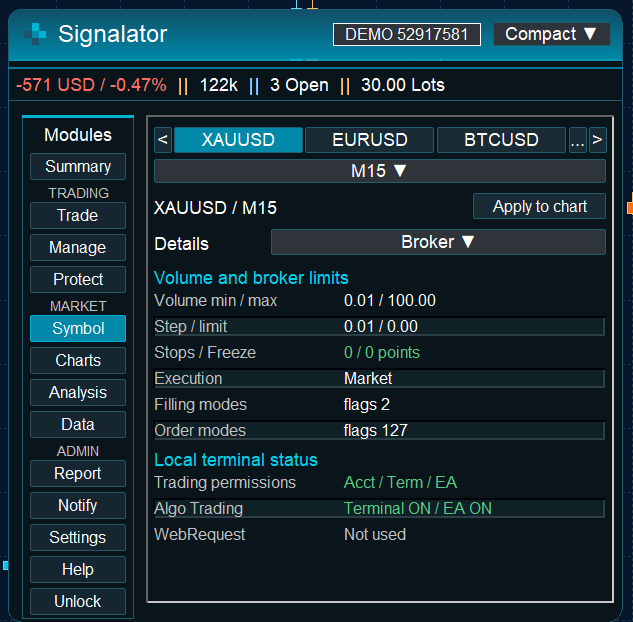
Figure 20. Symbol details explain the quote and contract constraints used by trade calculations.
Use Symbol to inspect Bid/Ask, spread, price digits, tick size/value, volume limits/step and stop/freeze restrictions. Two brokers can use different names or contract terms for what appears to be the same market. The exact broker symbol is the instrument the EA must calculate and submit.
A symbol browser selection is not an order. Return to Trade or Manage and inspect that module’s own symbol and scope before acting.
13. Choose the chart representation
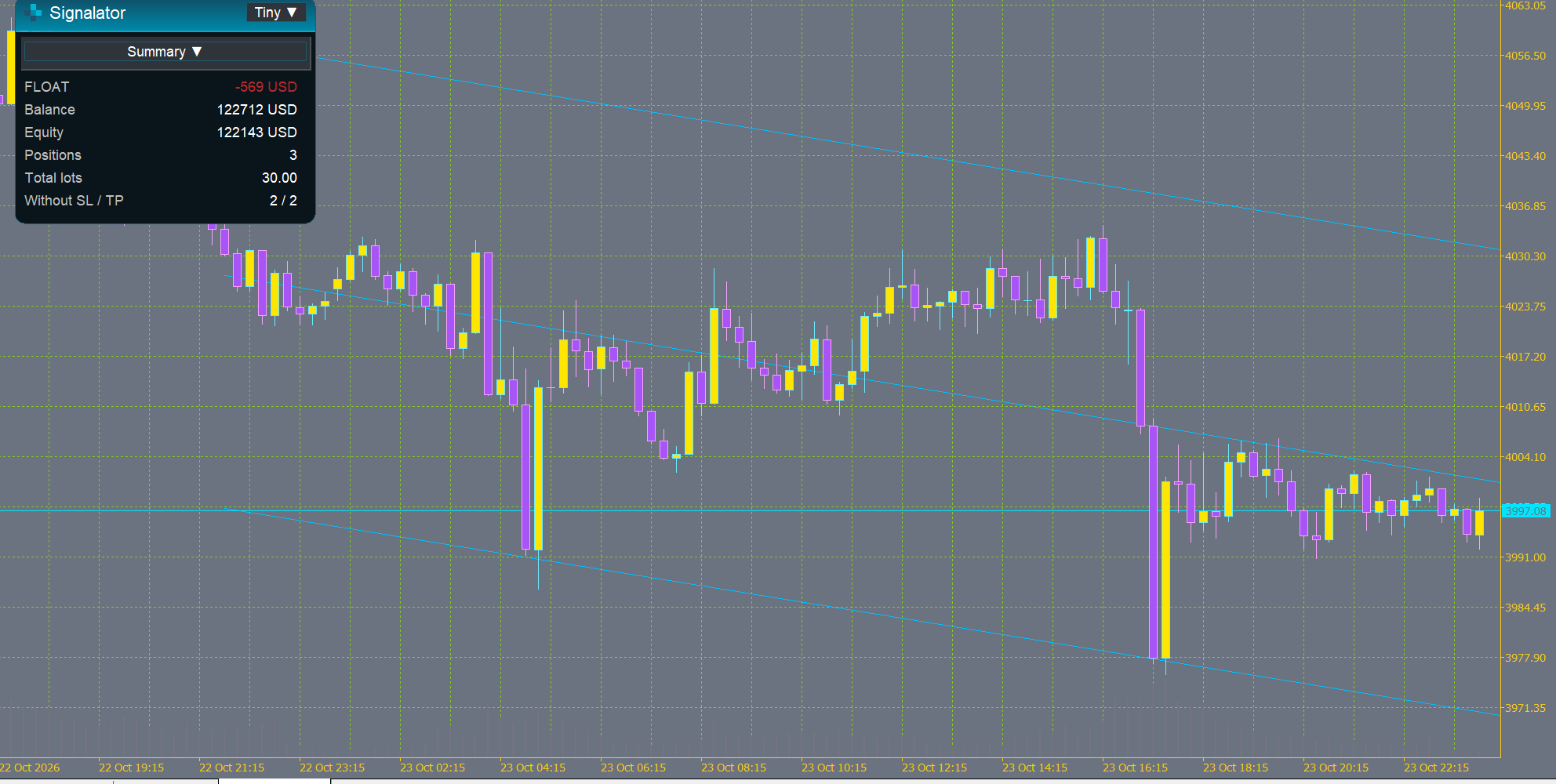
Figure 21. Charts groups chart type, selected instrument and the main configuration pages.
Trading Suite offers Candles, Bars, Line, Heikin Ashi, Renko, Point & Figure, Kagi and Tick. Use Setup for construction/source, Style for appearance, View for display/history and Visuals for compatible overlays. The available controls depend on the selected chart type.
| Chart | What it represents |
|---|---|
| Candles / Bars / Line | Native MT5 price history and timeframe-based display. |
| Heikin Ashi | Recalculated candle values that smooth the presentation of OHLC movement. |
| Renko | Price movement expressed as bricks under the selected continuation and reversal rules. |
| Point & Figure | Rising X and falling O columns based on box and reversal settings. |
| Kagi | Directional price segments that change on the selected reversal condition, with Yang/Yin presentation. |
| Tick | Bid/Ask movement from the available tick stream. |
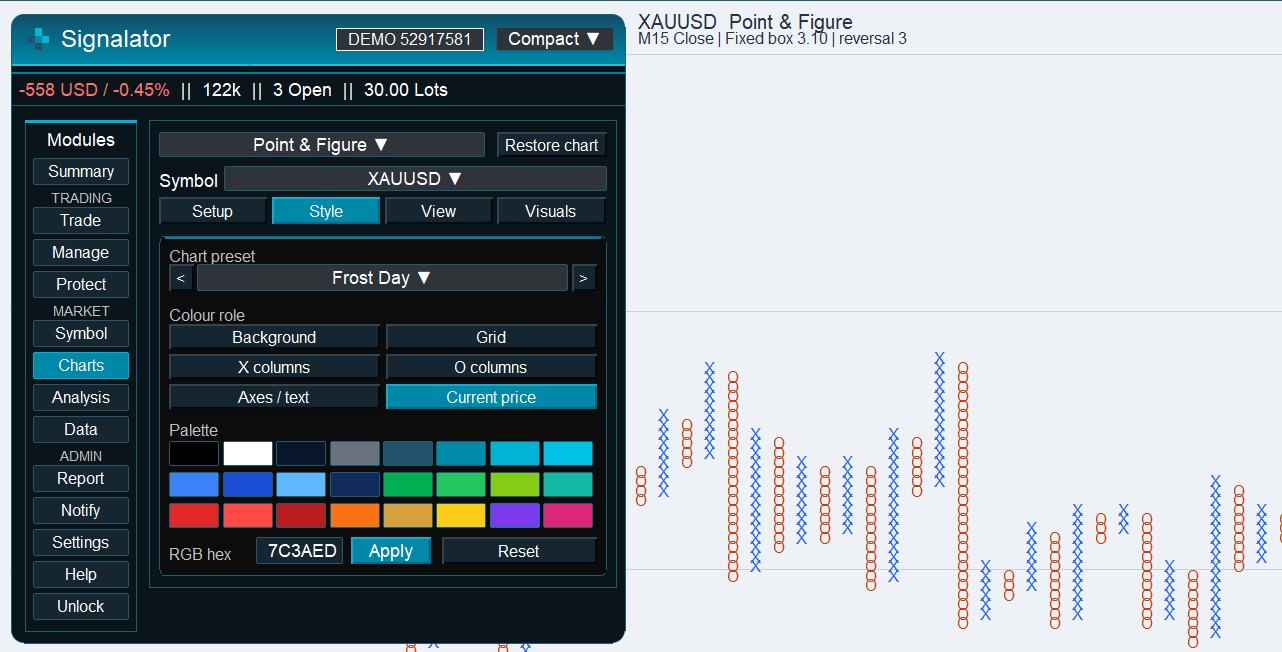
Figure 22. Point & Figure presents price movement as X/O columns.
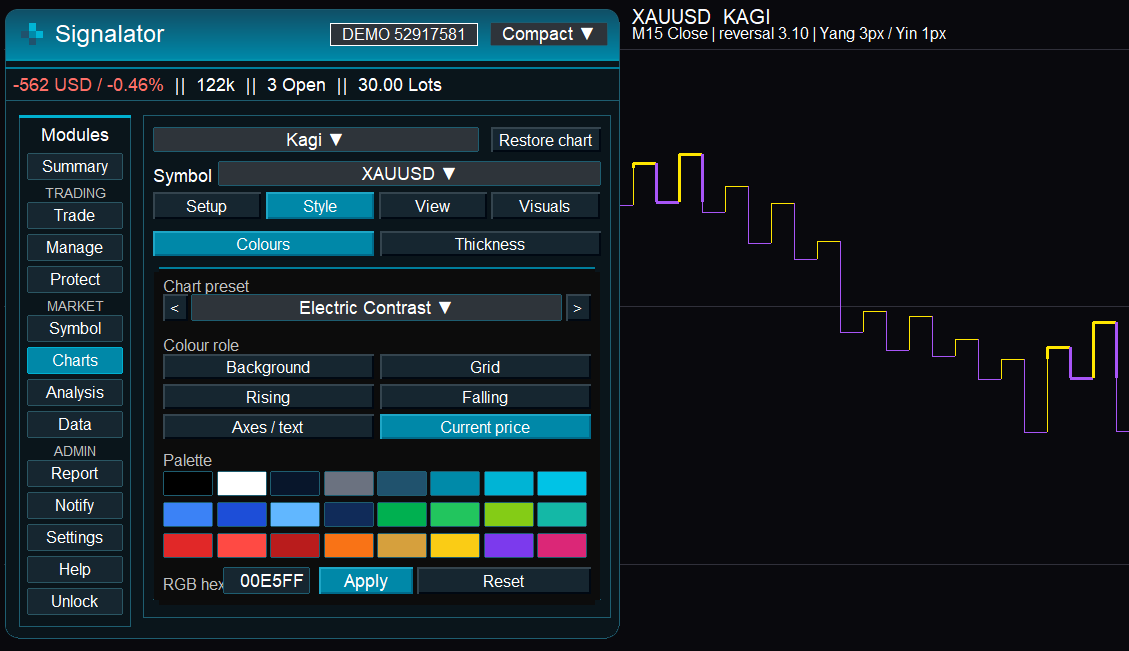
Figure 23. Kagi offers reversal-based construction and its own style controls.
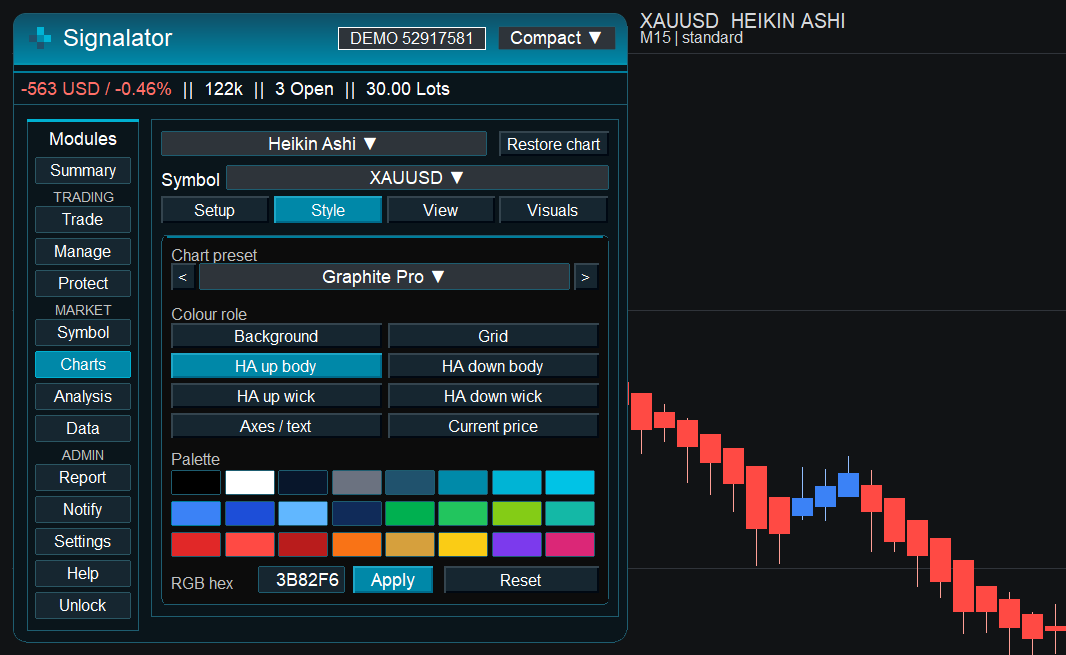
Figure 24. Heikin Ashi provides a smoothed candle presentation.
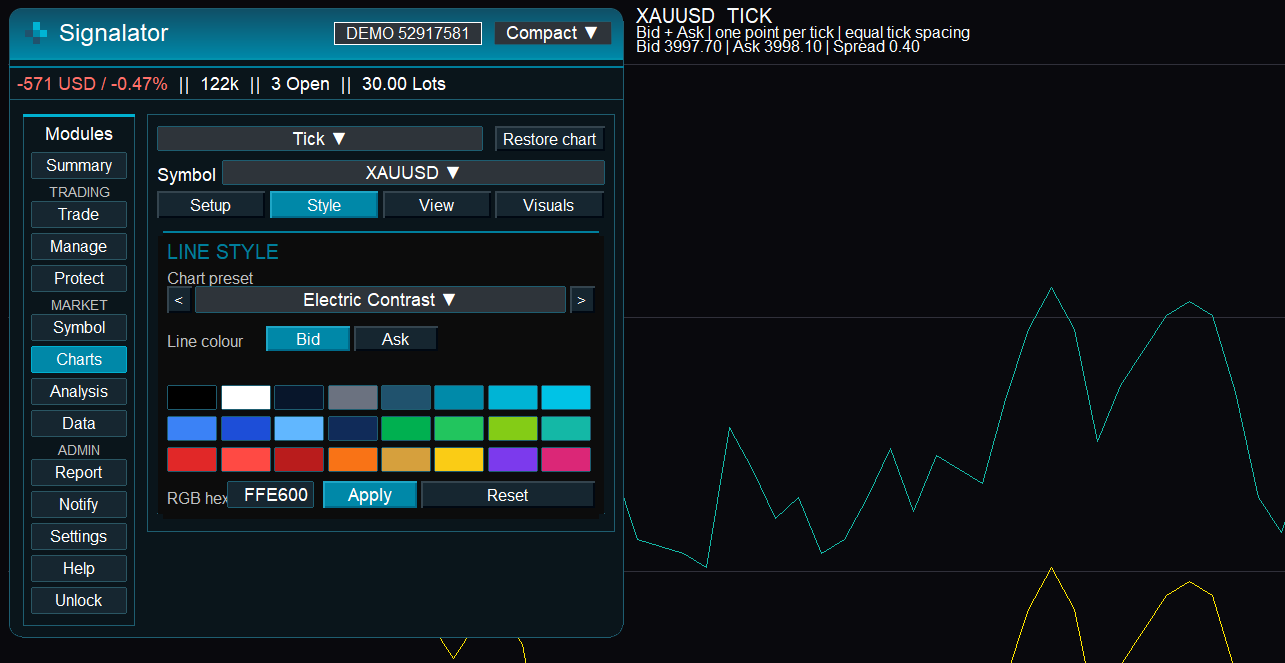
Figure 25. Tick charts distinguish Bid and Ask.
Synthetic chart values are a representation of source data, not an alternative broker execution feed. Heikin Ashi values and price-based chart geometry should not be mistaken for guaranteed executable prices. Restore chart restores the native chart display; it does not cancel trades.
14. Understand Renko construction
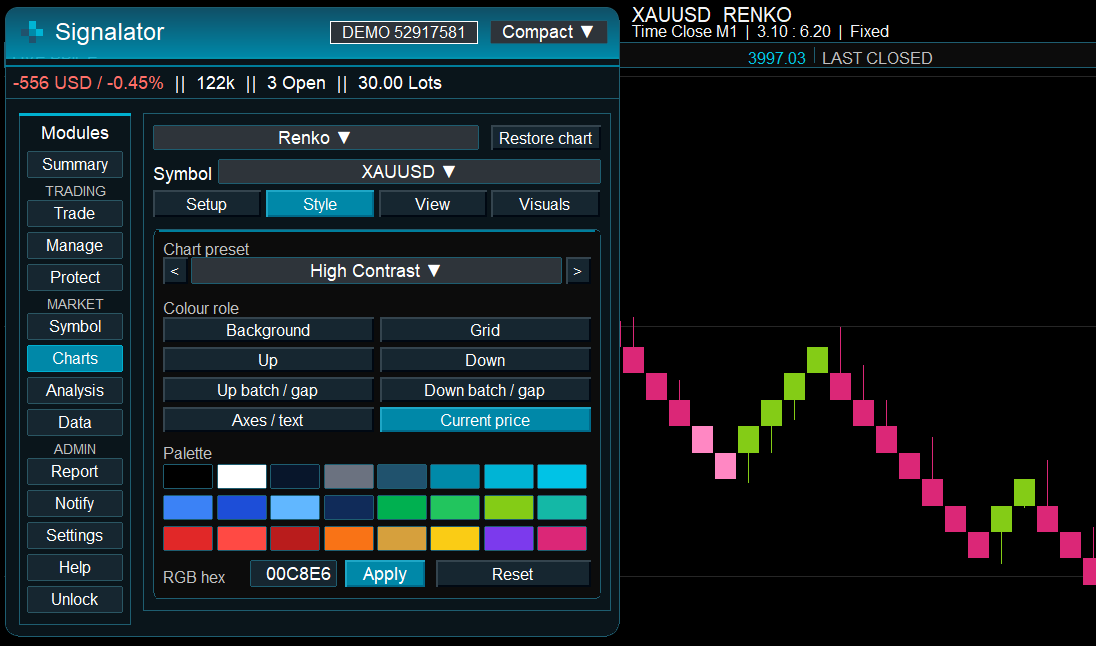
Figure 26. Renko styling distinguishes direction and batch/gap roles without changing the underlying order plan.
A Renko brick is created when the selected source movement satisfies its construction rules. Begin with Build, then review Structure and Anchor separately. Small changes to source, anchor or reset behavior can produce visibly different histories.
| Setting | How it changes construction |
|---|---|
| Ticks / Closed Bars | Ticks process available tick prices; Closed Bars process completed source bars. |
| Source timeframe | The completed-bar sampling period, not a Renko brick timeframe. |
| Close / High-Low, where offered | The source-price processing rule. This changes which movements the engine sees. |
| Fixed / Percentage / Function | Fixed price distance, percentage distance or ATR-based sizing. |
| Reversal ratio / Custom | The opposite movement needed to reverse direction. |
| Fixed / Market reset | Keep the established grid, or continue from the actual processed market price after a trigger. |
| Fill Bricks / Gap | Represent crossed fixed-grid levels separately or compress a multi-level jump. |
| Continuous / Daily / Weekly | Continue the segment or start a new construction segment on the chosen broker-time schedule. |
| Automatic / Grid Aligned / Manual anchor | Choose the initial reference used by the construction. |
| Source weekdays | Include the selected broker/server weekdays. |
For example, a fixed grid with a 5.00 price distance starting at 4300 has nominal steps at 4305, 4310 and 4315. A grid starting at 4302 has different levels. This example illustrates raw price distances, not the normalised-pip units used elsewhere in the Trade panel.
With Fixed + Fill, an input that crosses several levels can create several individual bricks. Gap compresses the multi-level movement. With Market reset, the observed processed price establishes the next base after the trigger. A daily/weekly schedule is a separate choice: it starts a new construction segment at its boundary.
15. Style, navigate and add compatible visuals
Choose a Chart preset, then a colour role. Pick a palette colour or enter RGB hex and press Apply. Reset restores the selected preset’s role values. Manual colour edits can produce a Custom appearance. Candles, line charts, Kagi and tick charts expose different relevant roles; line-width controls are only offered where the chart supports them.
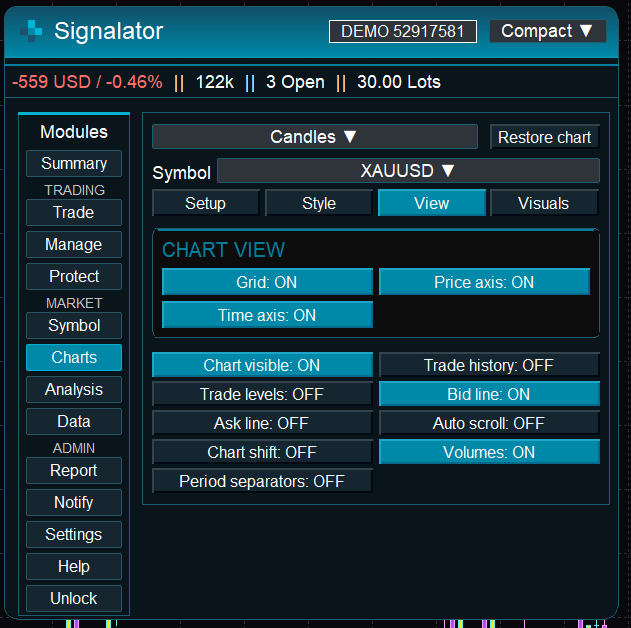
Figure 27. History and visible-count controls serve different navigation purposes.
History depth controls the loaded source/history request. Visible count controls how much of the constructed display is shown at once. Use Older, Latest and Newer, horizontal chart dragging where supported, and Rebuild as needed. Recent Trades is a visual overlay with its own count, connector-line and profit-label settings.
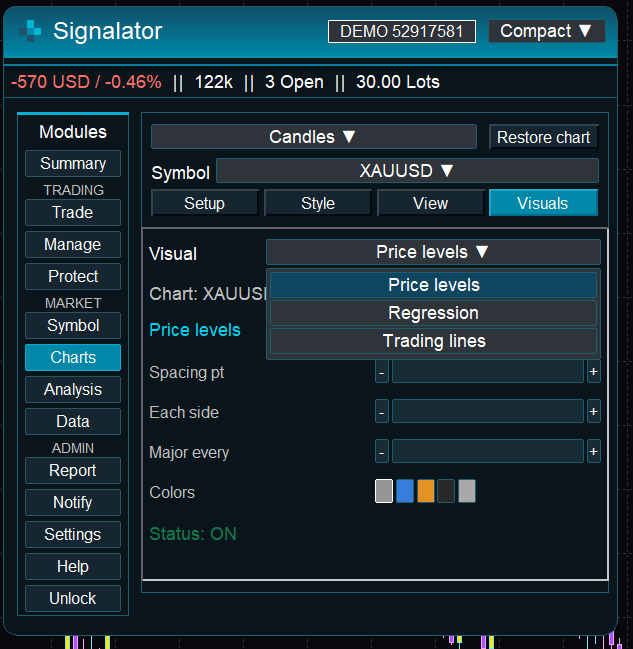
Figure 28. Visuals provides controls suited to the selected chart context.
| Visual | Native Candles / Bars / Line | Custom charts |
|---|---|---|
| Draft entry / SL / TP | Visibility control. | Supported live overlay in the latest view. |
| Position / pending levels | Supported trading-level display. | Supported live overlay in the latest view. |
| Price levels | Native price-level configuration. | Not offered as a native-coordinate overlay. |
| Regression | Native completed-bar regression controls. | Unavailable. |
| Management preview lines | Native breakeven/trailing guides. | Unavailable. |
Price levels use spacing in broker points, count per side and a major-level interval. Regression uses a completed-bar lookback, line width, extension and colour. Visual ON/OFF changes the drawing; it does not remove broker SL/TP, close a position or stop a separately enabled management engine.
16. Analyse patterns and market structure
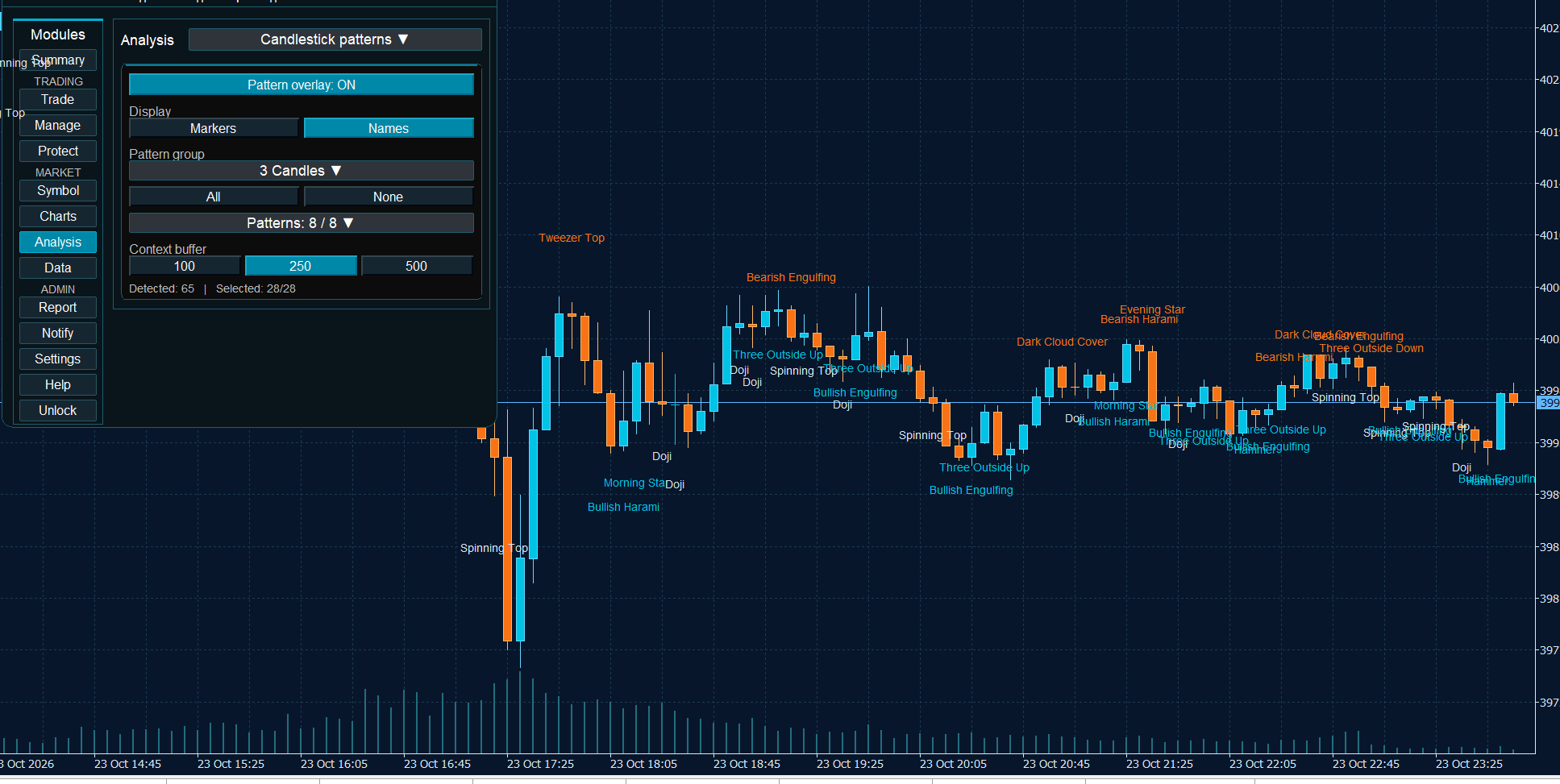
Figure 29. Candlestick Analysis lets you choose pattern groups, individual patterns and display density.
Candlestick patterns operates on completed candles. Choose markers or names, a pattern group and individual formations. All/None and the context-buffer choices help manage display density. Pattern names identify the implemented formation rules; they do not submit trades.
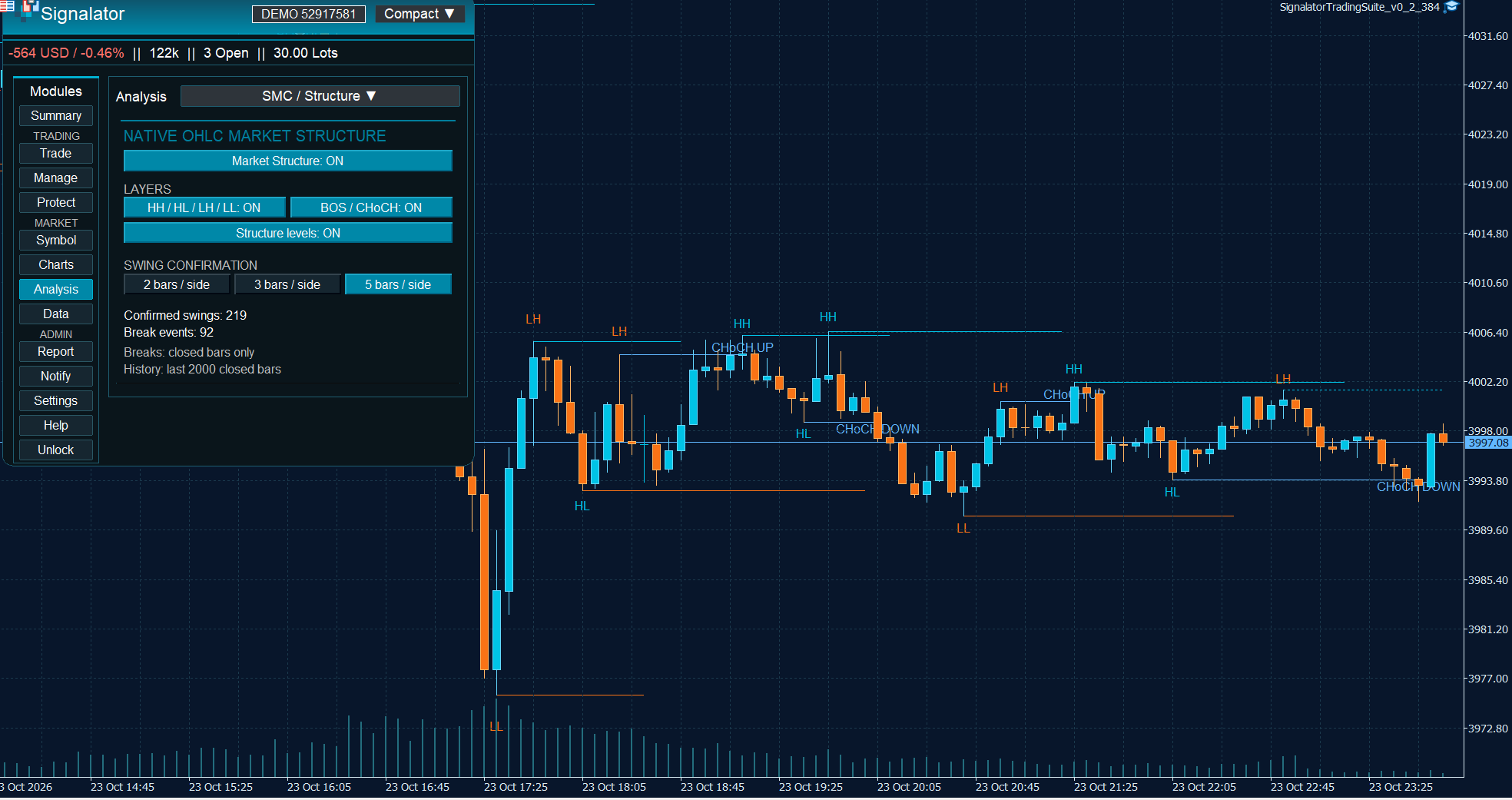
Figure 30. SMC / Structure shows swings, structure levels and confirmed breaks.
SMC / Structure offers HH/HL/LH/LL, BOS/CHoCH and structure-level layers. The confirmation choice controls the required bars on each side of a swing. Native OHLC structure and Renko structure use their own source context; compare that context before comparing results.
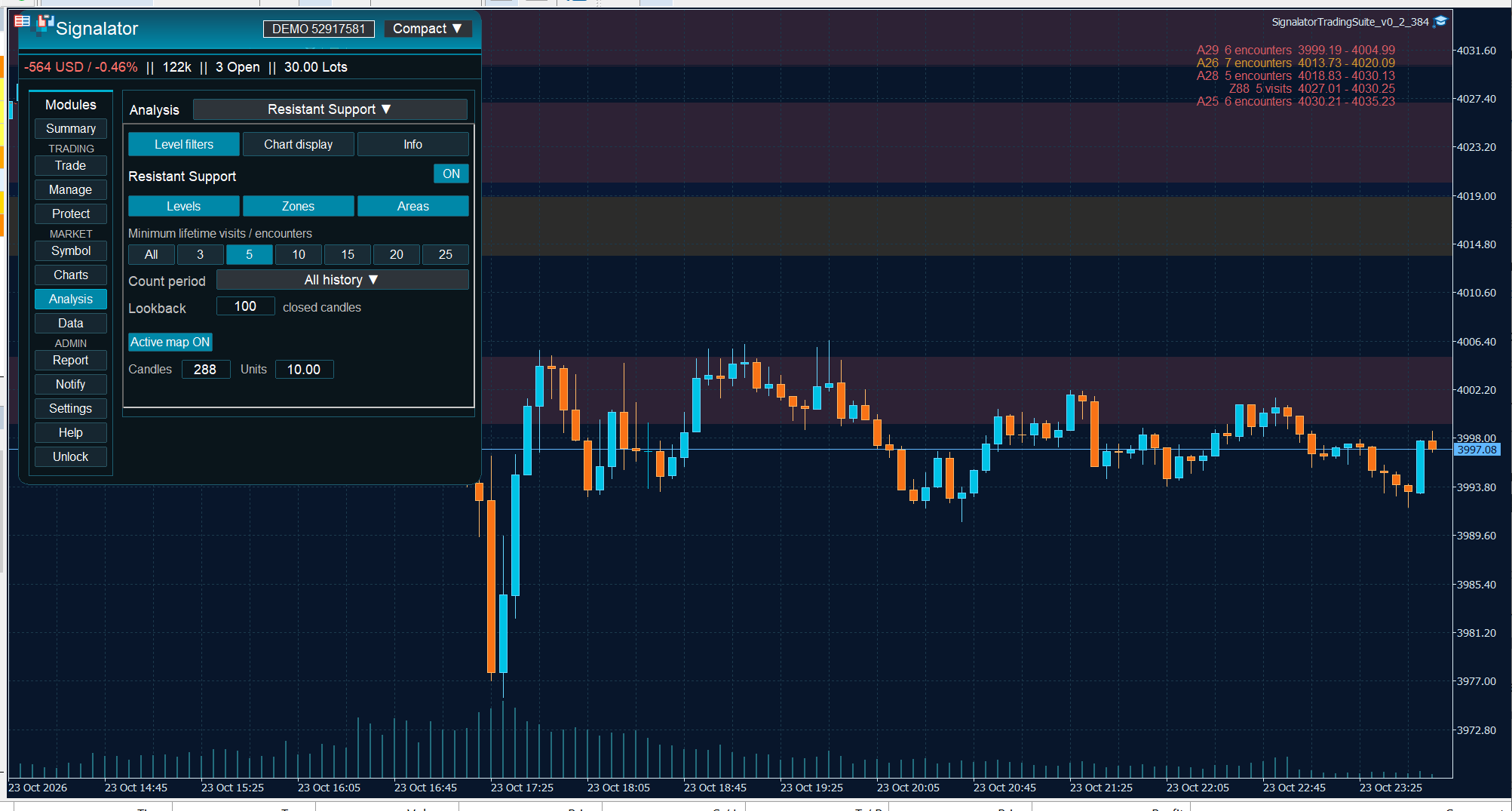
Figure 31. Resistant Support separates structural levels, zones and persistent areas.
Resistant Support exposes Levels, Zones and Areas, a minimum visit/encounter filter, count period, lookback and an Active map. Chart display adds sorting, visible-object limits, object selection and Combine with a tolerance mode. Display combination does not rewrite the historical encounter calculations.
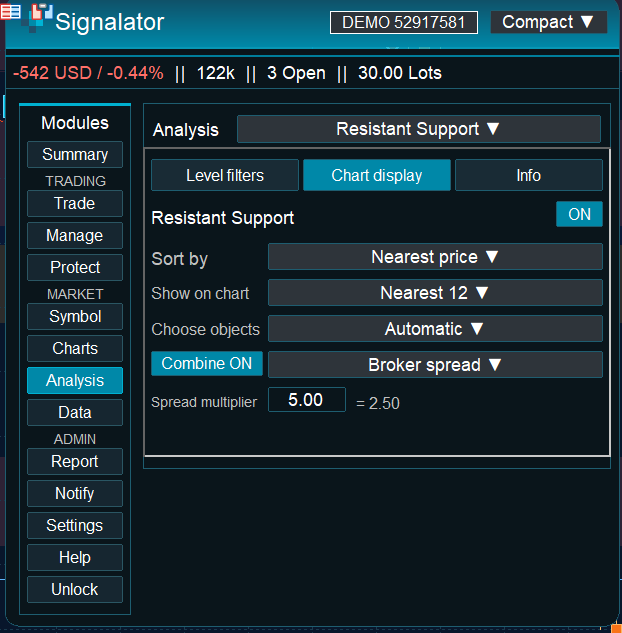
Figure 32. Level filtering and display choices let you focus the support/resistance map.
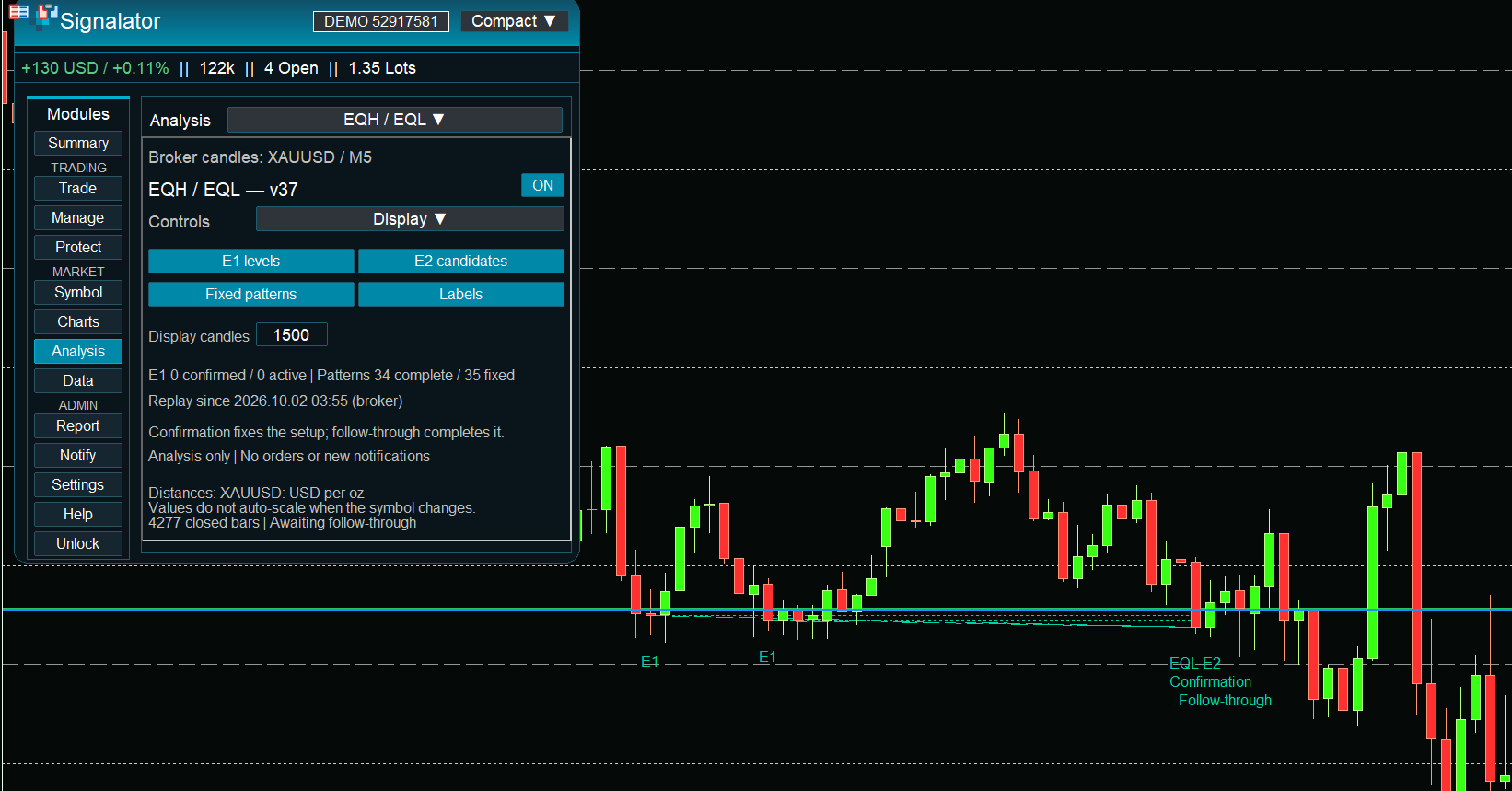
Figure 33. EQH/EQL separates display choices from origin, matching and confirmation rules.
EQH / EQL provides E1 levels, E2 candidates, fixed patterns and labels. Its rule pages expose origin/matching, confirmation and limit settings. Price-distance inputs use the selected symbol’s raw quote-price units; they are not account P/L, broker points or automatically scaled universal values.
| Analysis | Supported chart context |
|---|---|
| Candlestick patterns | Candles. |
| SMC / Structure | Candles, Bars and Renko. |
| Resistant Support | Candles, Bars and Line. |
| EQH / EQL | Candles, Bars and Line. |
Use the selected analysis page’s scope/status and rule guide for the calculation context. Changing a display window or object filter should not be interpreted as a new trading signal or a broker action.
17. Collect or export market data
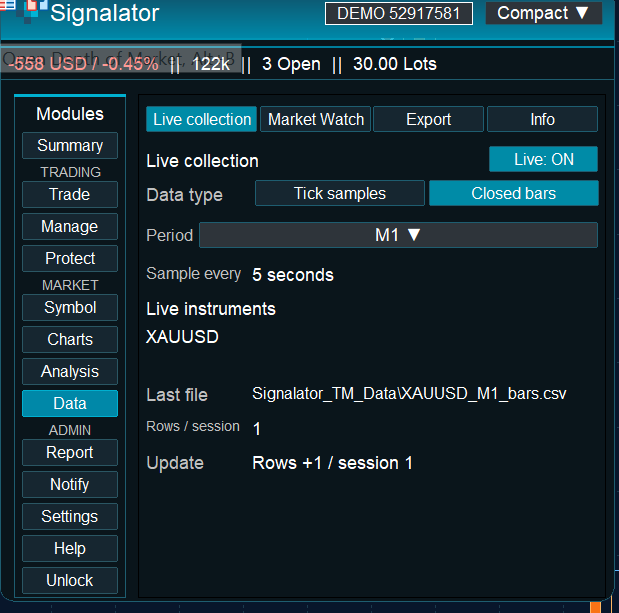
Figure 34. Live collection records selected observations while the collector is active.
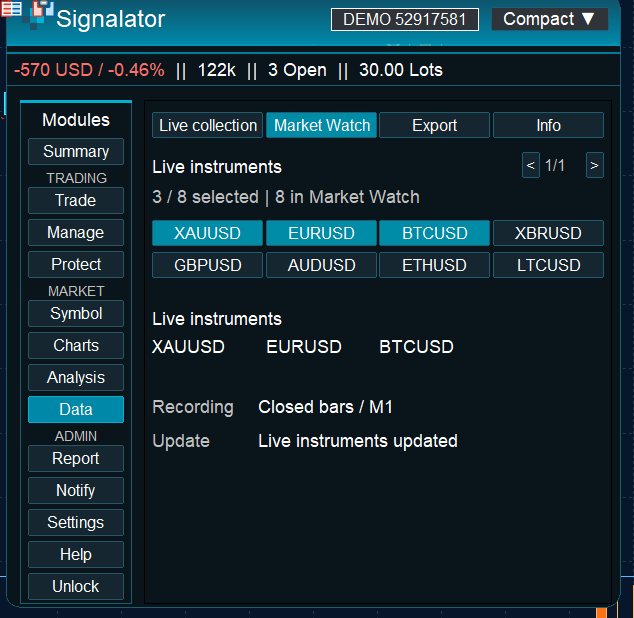
Figure 35. Choose collection instruments from Market Watch and review the selection limit.
Under Live collection, choose Tick samples or Closed bars, select instruments and enable Live. For closed bars choose the period. Tick samples are observations at the collection cadence, not a promise to capture every exchange or broker tick. Review Last file, Rows/session and Update.
Collection can be configured to run only while Data is open or while the panel is running. It does not reconstruct periods when the collector was stopped. The Info page shows configuration and output location; the relevant Inputs set maximum symbols, flush timing, folder, header and local/Common storage.
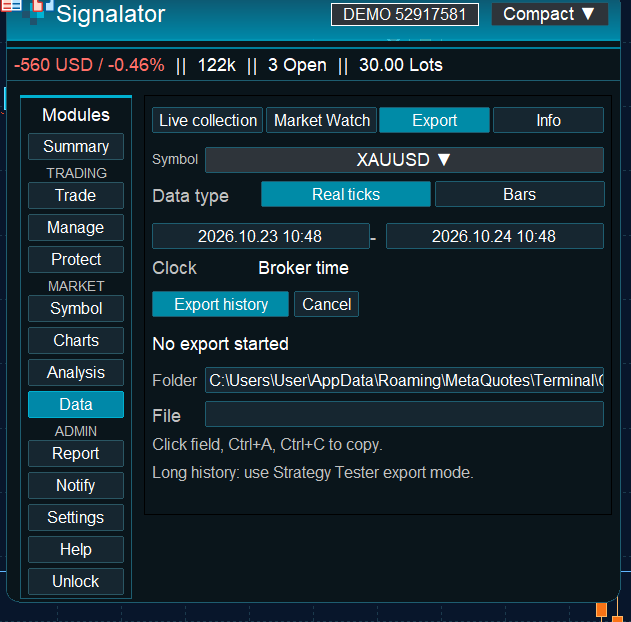
Figure 36. Historical Data export selects the instrument, record type, period and broker-time range.
- Open Data → Export.
- Choose the instrument and Real ticks or Bars. For bars, choose the timeframe.
- Enter From/To dates in the accepted format and check the displayed Broker time clock.
- Start Export history. Monitor progress or cancel the request if required.
- Use the displayed Folder and File fields to find the completed CSV. Inspect timestamps and columns before using it.
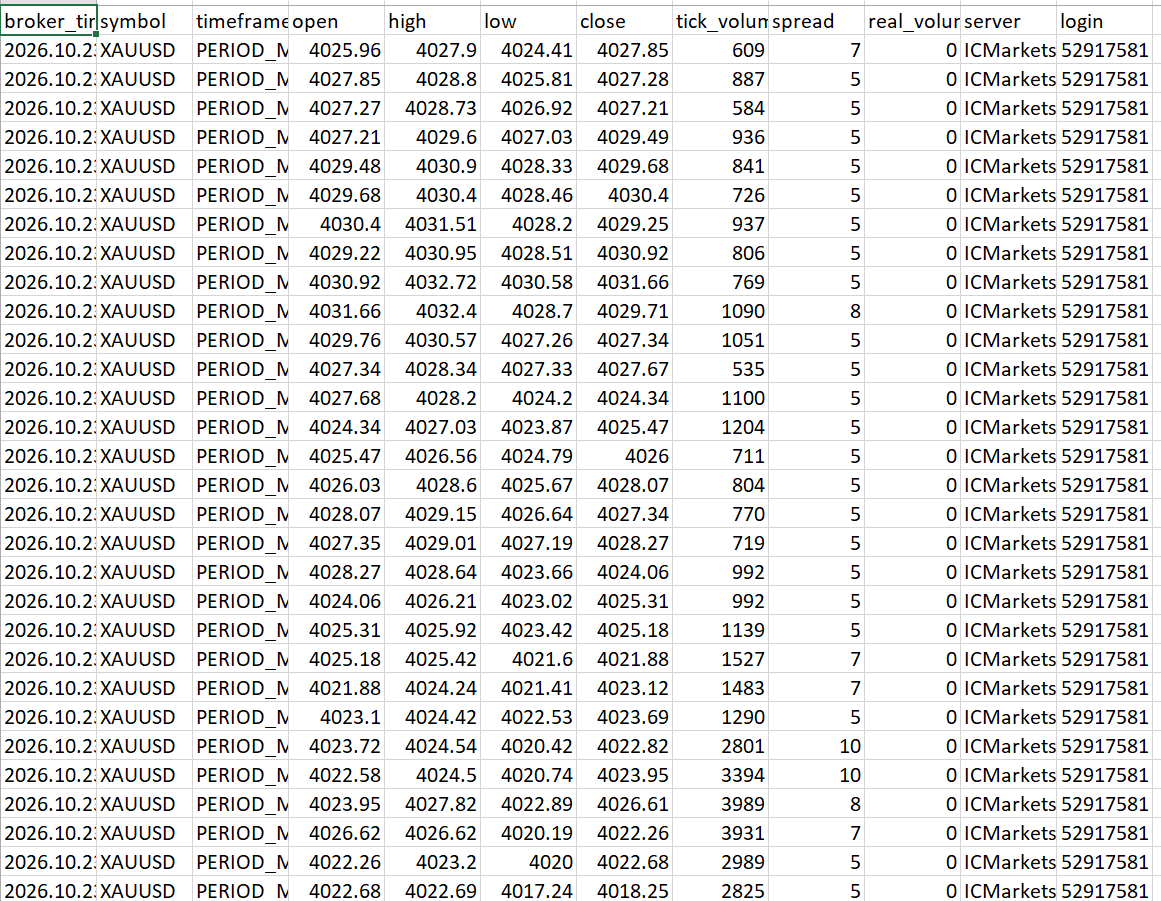
Figure 37. A market-data CSV contains broker timestamps, OHLC, volume and spread fields.
The screenshot shows the file structure. Some spreadsheet columns are narrow, so expand them when inspecting complete timestamps or the timeframe value. Tick history and bar history depend on broker availability. A .partial file represents an unfinished output, not a completed export.
For long history, the product also offers Strategy Tester export-only mode. It exports the selected tester stream or completed bars without running the trading workspace. Tester tick output follows the chosen modeling mode and is labelled tester_replay; it must not automatically be described as a separate live real-tick recording.
18. Review results and export trade records
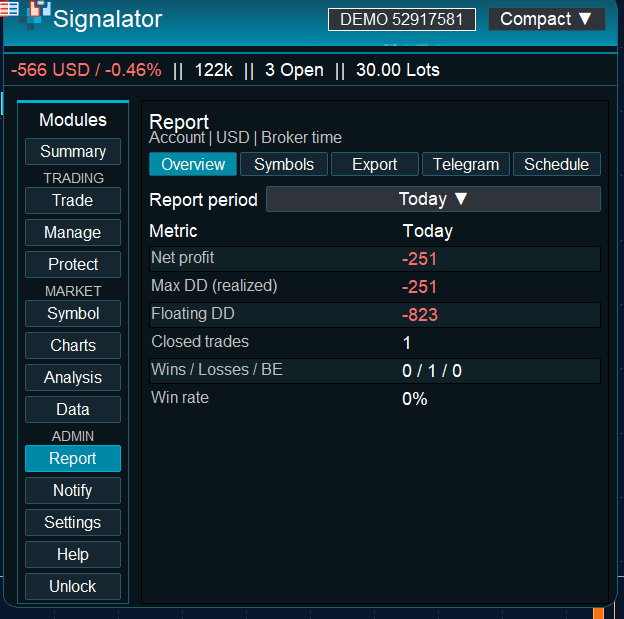
Figure 38. Report Overview separates realized results from observed floating drawdown.
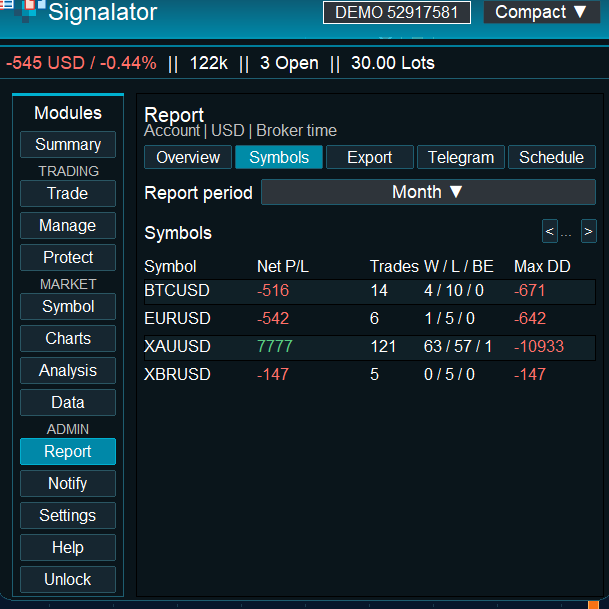
Figure 39. Report Symbols breaks the selected statistics down by instrument.
Report Overview and Symbols offer Today, Week, Month and All time. Read calculation/loading status before interpreting a number. Realized drawdown is derived from closed results; floating drawdown is observed while monitoring runs and does not reconstruct every earlier intratrade fluctuation.
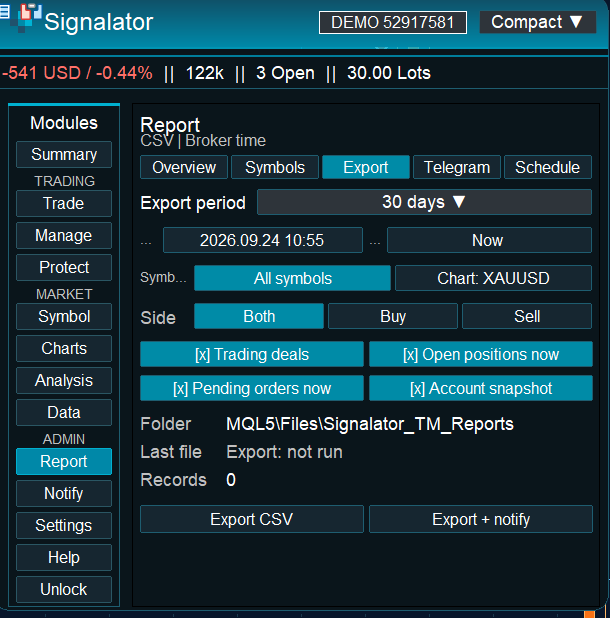
Figure 40. Trade-record export has its own period, symbol, side and record-type filters.
- Open Report → Export.
- Choose Today, Week, Month, a number of days, All time or a Custom range.
- Choose all/chart-symbol scope and Both/Buy/Sell.
- Select Trading deals, Open positions now, Pending orders now and/or Account snapshot.
- Choose Export CSV, or Export + notify when you also want the configured report notification.
- Verify the completion status, path and record-type column in the resulting file.
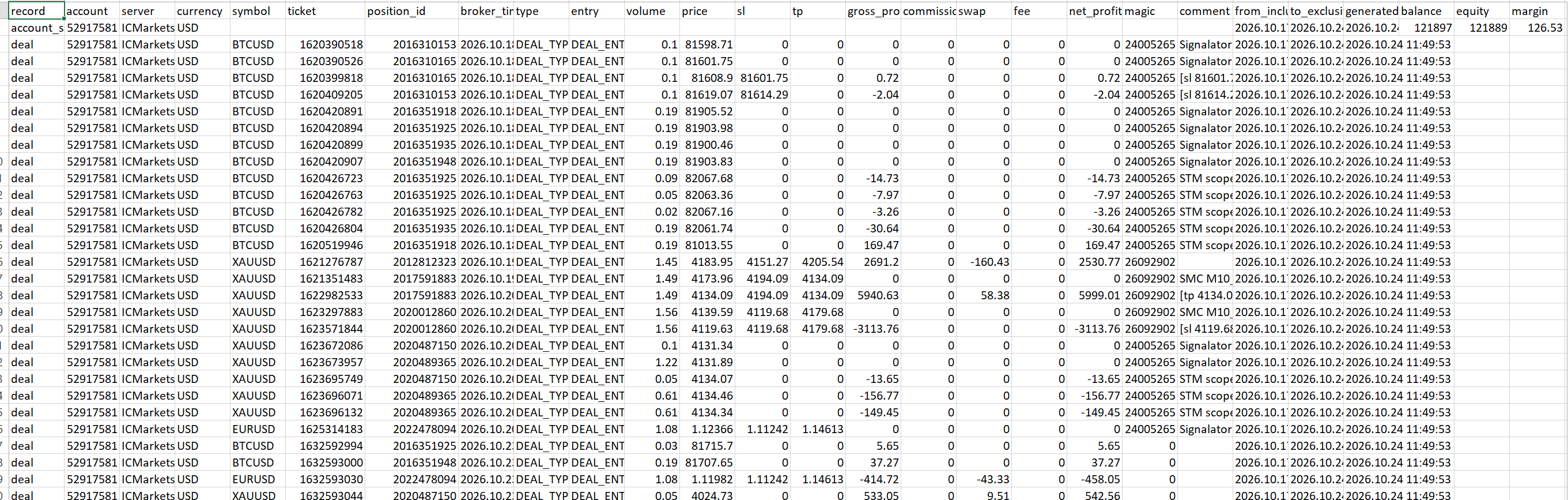
Figure 41. The trade report contains distinct record categories and explicit trade/cost fields.
A trading-deal row is an execution record, not automatically one complete round-trip trade. Open positions, pending orders and the account snapshot are current-state records. Do not sum all rows as closed trades. Net-result fields must be interpreted with the record category and its commission/swap/fee fields.
Report scheduling has its own enabled state, Every-hours interval and Export only/Export + notify mode. Run now tests the configured report workflow. Scheduled reporting is separate from Notify’s automatic new-event master switch.
19. Configure account-wide notifications
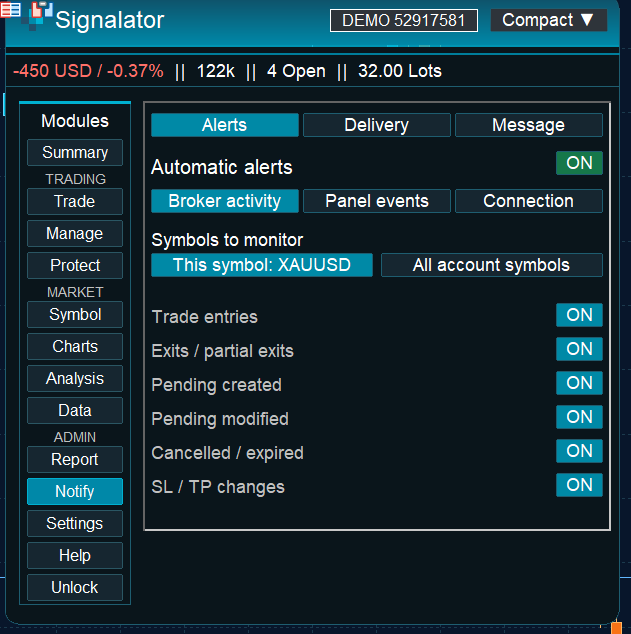
Figure 42. Notify event selections in an earlier capture. v0.2.388 monitors all account symbols with shared settings.
In v0.2.388, Notify panel choices are shared across charts for the same account and broker server within this MT5 terminal, with runtime persistence enabled. Switching Gold to BTC or changing timeframe does not restore a separate chart-specific ON/OFF choice. Selected broker events are monitored across account symbols.
- Open Notify → Alerts and select broker entries, exits/partial exits, pending changes, SL/TP changes and any panel/connection events required.
- Open Delivery and enable the destination channels you want. Configure the underlying terminal/Telegram prerequisites.
- Use each channel’s Test control and inspect its actual result.
- Open Message to choose Compact/Detailed, the template, included fields and Chart photo.
- Enable Automatic alerts for future selected events. A successful explicit test does not itself turn on monitoring.
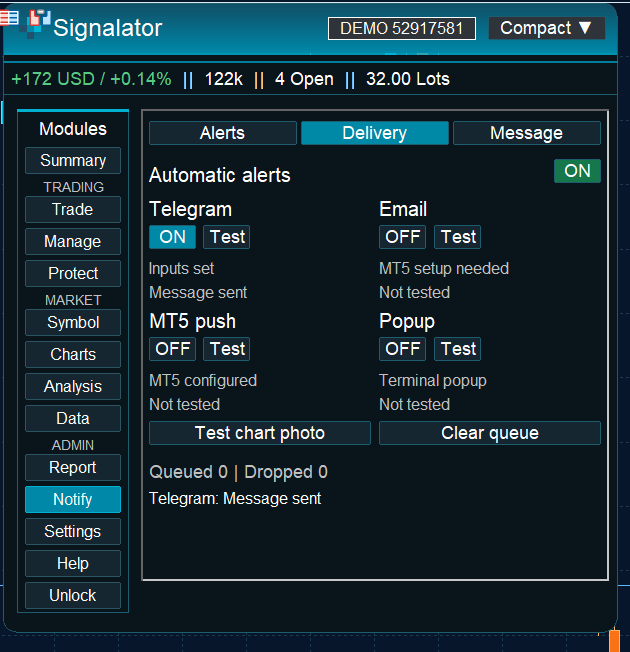
Figure 43. Delivery shows separate channel switches, tests, queue information and a chart-photo test.
Telegram, MT5 push, Email and Popup are separate destinations. Push and Email depend on the terminal’s own configuration. Clear queue cancels pending deliveries; it cannot retract messages already delivered. Enabling monitoring does not replay all older account activity.
20. Telegram setup, message fields and chart photos
For creating a bot, finding its chat ID and setting MT5 WebRequest permissions, follow our separate guide: How to configure Telegram delivery for MetaTrader. Reuse that setup here rather than creating another bot solely for Trading Suite.
Enter the bot token and chat ID in the EA’s Telegram Inputs. The allowed WebRequest address is https://api.telegram.org. Then return to Notify → Delivery and send a text test. Keep the token out of images and support messages.
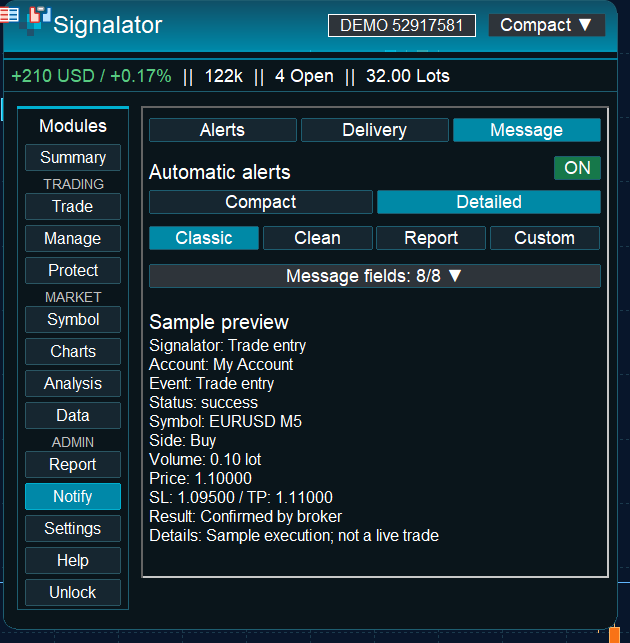
Figure 44. Message controls select format, template and fields. Current builds also show the attached-chart photo explanation.
Choose Compact or Detailed, then Classic, Clean, Report or Custom. Included fields cover account label, symbol, volume, price, SL/TP, result and Details; Chart photo is a separate message option. Current trade-event Details uses a readable protection summary rather than exposing the internal request signature.
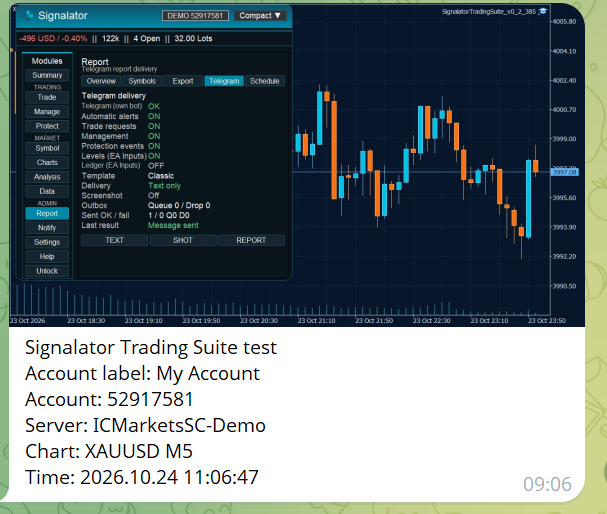
Figure 45. An eligible Telegram notification can include a chart photograph.
| Requested photo and chart context | Delivery behavior |
|---|---|
| Alert symbol matches the attached chart | Telegram can attach the captured chart; a capture failure falls back to text. |
| Alert symbol differs from the attached chart | The alert is sent as text and explains which alert/chart symbols differ. |
| Chart photo is OFF | Text notification without a requested photo. |
| Another delivery channel | The chart-photo option is for Telegram. |
A photograph is captured when its deferred delivery is processed, not necessarily at the exact execution instant. The EA does not silently open a different instrument’s chart. A BTC alert on a Gold chart therefore remains a valid alert; only the photo is omitted with an explanation.
21. Save a setup and find help
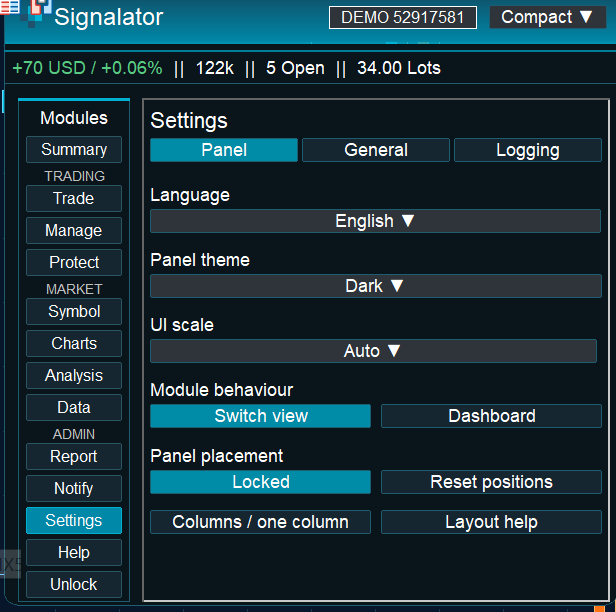
Figure 46. Settings separates panel appearance, general presets and logging.
Use General for symbol-slot presets, Save/Load and Import/Export. Save a useful plan before changing it, then inspect the restored Trade plan before the next submission. Restoring planning values does not by itself modify existing broker positions.
Panel settings cover English, Spanish, Russian and Chinese, Dark/Light/Dune themes, UI scale, Switch view/Dashboard and placement. Logging lets you choose audit and ledger records. The audit log retains diagnostics useful for investigating a request without adding them to ordinary notifications.
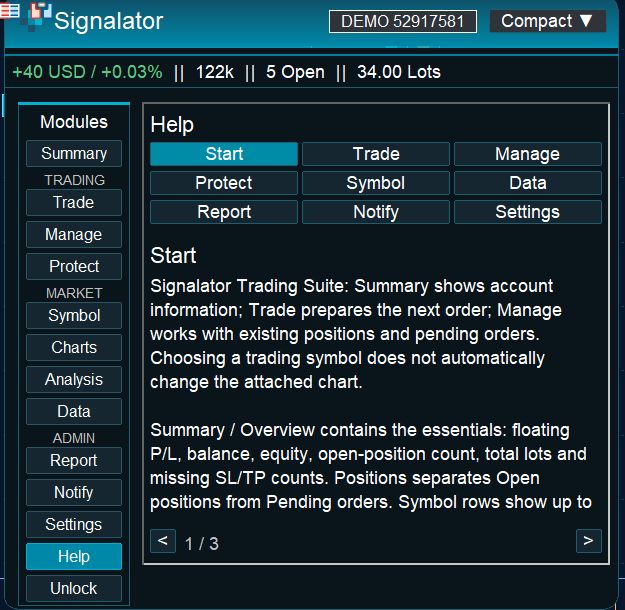
Figure 47. Help provides offline explanations and page navigation inside the EA.
When reporting a problem, provide the attached version, layout, symbol, selected scope, relevant settings, time, expected result and actual result. A brief recording is useful for click/transition problems. Account figures in screenshots need not be part of the explanation.
22. Quick troubleshooting
| Symptom | What to check |
|---|---|
| Ready but no position | Ready is a plan state. Read execution, permissions, guard/gate and broker-result messages. |
| Risk size unavailable | Valid SL distance, contract values and the selected size mode. |
| Close/Delete counts differ from the overview | The selected universe, tickets and group filters. |
| Sell partial target looks touched | Ask must reach a sell target; the chart may display Bid. |
| SL/TP modification rejected | Stop/freeze distance, valid side/price, connection and broker permissions. |
| No automatic alert after a successful test | Automatic alerts, the selected event flags and enabled delivery channel. |
| No photo for another symbol | The text alert names the symbol mismatch; this does not mean monitoring is OFF. |
| Report loading | Wait for broker history. Loading is not a zero result. |
| File seems to be missing | Check local MQL5/Files versus shared Common/Files and the module’s displayed path. |
| Regression missing on P&F/Kagi | Use a native chart for native-coordinate Regression. |
| Tester results contain no trades | This product’s tester mode is export-only; it is not a trading backtest. |
For the full list of controls and exact EA Input names, continue to the companion Features and Options by Module reference.




